How to Take a Playwright Screenshot After Each Step
Capture a screenshot after every Playwright test step, attach it to reports, debug failures, and automate reliable visual evidence.
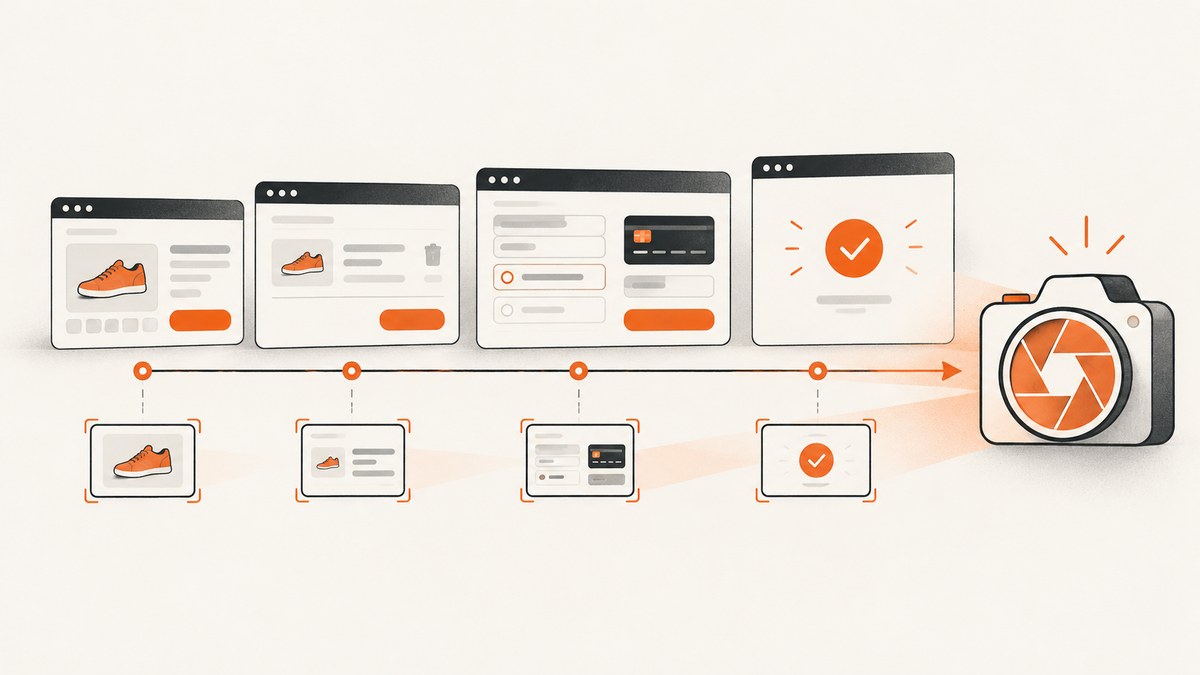
To take a Playwright screenshot after each step, wrap each logical action in test.step(), perform the action inside the callback, call page.screenshot(), and attach the returned PNG with step.attach(). The attachment is associated with that specific report-visible step.
This pattern creates a chronological diagnostic record: you can see the page after opening a cart, after entering an address, after submitting an order, or after any other transition that matters. It is different from a visual regression assertion, which compares a screenshot with a stored baseline.
Direct implementation: attach a screenshot to every Playwright step
The following TypeScript test is runnable in a Playwright Test project. Each callback receives a TestStepInfo object named step. The test performs the action first, waits for the screenshot, and then attaches the image before the callback returns.
import { test } from '@playwright/test';

test('checkout flow', async ({ page }) => {
  await test.step('open cart', async step => {
    await page.goto('https://example.com/cart');

    const screenshot = await page.screenshot();
    await step.attach('after-open-cart', {
      body: screenshot,
      contentType: 'image/png',
    });
  });

  await test.step('submit order', async step => {
    await page.getByRole('button', { name: 'Submit order' }).click();

    const screenshot = await page.screenshot();
    await step.attach('after-submit-order', {
      body: screenshot,
      contentType: 'image/png',
    });
  });
});
page.screenshot() returns a Buffer when you do not provide a path. Passing that buffer as body keeps the image in the test artifact flow. The TestStepInfo API documents step attachments, and the Playwright screenshots guide covers screenshot options.
Why the order matters
- Run the navigation or interaction.
- Wait for
page.screenshot()to finish. - Wait for
step.attach()to finish. - Let the
test.step()callback return.
If you attach before the action, you capture the previous state. If you do not await the attachment, the callback can finish before the reporter has recorded the artifact.
How test.step() and step.attach() work
test.step(title, body) creates a named, report-visible step. The callback receives a TestStepInfo object. Calling step.attach(name, options) associates an attachment with that step. Reporters that display step attachments can then show the PNG beside the step that produced it.

Only explicit test.step() blocks are covered by this pattern. Playwright does not automatically turn every page.click(), locator assertion, or helper call into a user-defined step attachment. If you want a screenshot after an action, put that action inside a named step or call a helper that does so.
Use descriptive attachment names
Attachment names are part of the debugging experience. Prefer names that describe the state, such as after-login, cart-with-item, or validation-error. If a test has repeated actions, include a stable identifier in the step title:
await test.step('add blue shirt to cart', async step => {
  await page.getByRole('button', { name: 'Add to cart' }).click();
  const image = await page.screenshot({ type: 'png' });
  await step.attach('cart-after-add', {
    body: image,
    contentType: 'image/png',
  });
});
Reusable screenshot-after-step helper
For more than two or three steps, centralize the capture logic. The helper below keeps the important ordering in one place while allowing each caller to perform a different action.
import { test, type Page } from '@playwright/test';

type StepBody = (step: Parameters<Parameters<typeof test.step>[1]>[0]) => Promise<void>;

async function screenshotStep(
  page: Page,
  title: string,
  body: StepBody,
) {
  await test.step(title, async step => {
    await body(step);

    const image = await page.screenshot({
      type: 'png',
      animations: 'disabled',
    });

    await step.attach('screenshot', {
      body: image,
      contentType: 'image/png',
    });
  });
}

test('profile update', async ({ page }) => {
  await screenshotStep(page, 'open profile', async () => {
    await page.goto('https://example.com/profile');
  });

  await screenshotStep(page, 'save profile', async () => {
    await page.getByRole('button', { name: 'Save' }).click();
    await page.getByText('Profile saved').waitFor();
  });
});
In practical TypeScript projects, you can replace the advanced inferred callback type with a small local type if your compiler configuration makes it difficult to read. The behavior is unchanged: execute the body, capture the current page, and attach the image before the step ends.
Screenshot options that matter after each step
Use the default PNG for diagnostic attachments unless you have a reason to change it. These options are the ones most useful for step-by-step evidence:
| Option | Use it for | Example |
|---|---|---|
fullPage |
Capturing the entire scrollable page instead of the viewport | { fullPage: true } |
path |
Writing a local file rather than returning a buffer | { path: 'artifacts/cart.png' } |
type |
Selecting PNG or JPEG output | { type: 'jpeg' } |
quality |
JPEG quality; it does not apply to PNG | { type: 'jpeg', quality: 80 } |
clip |
Capturing a rectangle of the page | { clip: { x: 0, y: 0, width: 800, height: 600 } } |
omitBackground |
Producing a transparent background where supported | { omitBackground: true } |
animations |
Reducing motion that makes diagnostic images inconsistent | { animations: 'disabled' } |
caret |
Hiding a blinking text caret | { caret: 'hide' } |
scale |
Choosing CSS-pixel or device-pixel sizing | { scale: 'css' } |
mask |
Masking locators whose values should not appear in an artifact | { mask: [page.locator('[data-sensitive]')] } |
A stable diagnostic helper often uses animations: 'disabled' and caret: 'hide'. Use fullPage: true only when the lower portion of the page is relevant; full-page images consume more memory and make reports harder to scan.
Capture an element instead of the whole page
When the useful evidence is a cart, modal, or error panel, capture the locator. This avoids irrelevant browser chrome and reduces artifact size.
await test.step('show payment error', async step => {
  await page.getByRole('button', { name: 'Pay now' }).click();
  const errorPanel = page.getByRole('alert');
  await errorPanel.waitFor();

  const image = await errorPanel.screenshot({ type: 'png' });
  await step.attach('payment-error', {
    body: image,
    contentType: 'image/png',
  });
});
Save the screenshot to a file as well
Attachments are convenient for reports, while files are useful when another tool consumes the image. You can write a file and attach the same bytes:
import { mkdir } from 'node:fs/promises';

await test.step('open dashboard', async step => {
  await page.goto('https://example.com/dashboard');
  await mkdir('test-artifacts', { recursive: true });

  const image = await page.screenshot({
    path: 'test-artifacts/dashboard.png',
    type: 'png',
  });

  await step.attach('dashboard', {
    body: image,
    contentType: 'image/png',
  });
});
Use a unique path when tests run in parallel. A path based on the test title or worker index prevents two workers from overwriting one another.
One screenshot after every test with afterEach
If you need one final image per test rather than one image per logical step, use test.afterEach(). The testInfo object owns the attachment in this case.
import { test } from '@playwright/test';

test.afterEach(async ({ page }, testInfo) => {
  const image = await page.screenshot({ type: 'png' });
  await testInfo.attach('final-page', {
    body: image,
    contentType: 'image/png',
  });
});
This hook runs once after each test, not after every test.step(). On a failed test, the page may be in a partially completed state, so the final image can tell you where the test ended but not which transition caused the problem. Per-step attachments provide finer diagnostic granularity.
Diagnostic screenshots versus visual regression
Choose the API based on the purpose of the image:
| Goal | Recommended API | What it provides |
|---|---|---|
| Chronological debugging | page.screenshot() + step.attach() |
An image after each named transition |
| One final failure artifact | test.afterEach() + testInfo.attach() |
The page state at test completion |
| Baseline comparison | expect(page).toHaveScreenshot() |
An assertion against a stored visual baseline |
expect(page).toHaveScreenshot() is a visual regression feature. It can fail a test when pixels differ. A normal screenshot attachment records what happened but does not compare the image with an expected baseline.
Waiting for the state you intend to capture
A screenshot captures the page at the instant it runs. Waiting for a click to resolve does not always mean that an animation, API response, or lazy-rendered component has finished. Add an explicit state wait when it matters:
await test.step('load results', async step => {
  await page.getByRole('button', { name: 'Search' }).click();
  await page.getByRole('heading', { name: 'Results' }).waitFor();
  await page.locator('[data-testid="results-spinner"]').waitFor({ state: 'hidden' });

  const image = await page.screenshot({ animations: 'disabled' });
  await step.attach('results-loaded', {
    body: image,
    contentType: 'image/png',
  });
});
Prefer a locator or application-level readiness signal over an arbitrary sleep. Use a short delay only when the application has a known transition that cannot be observed through the DOM.
Performance, storage, and reliability
- Capture only useful states. A PNG after every tiny interaction can make reports large and slow to inspect. Wrap meaningful user-visible transitions in steps.
- Prefer buffers for report attachments. They avoid a second read from disk. Use
pathwhen another process needs a file. - Limit full-page captures. They can be tall, expensive to encode, and difficult to compare. Capture a locator when the issue is localized.
- Stabilize motion. Disable animations, hide carets, and wait for content that arrives asynchronously.
- Keep artifacts isolated by worker. Parallel tests should not share predictable filenames.
- Protect sensitive data. Use locator masking or a test account with synthetic data before uploading reports to a shared system.
- Expect reporter differences. Playwright says some reporters display attachments. Verify that your selected reporter exposes step-level attachments in the place your team reads test results.
Common errors and fixes
| Symptom | Likely cause | Fix |
|---|---|---|
| No image appears beside the step | The reporter does not display step attachments, or the attachment was not awaited | Await step.attach() and use a reporter that shows attachments. |
| The image shows the previous state | The screenshot runs before the action or before rendering completes | Perform the action first, then wait for a locator or readiness signal before capturing. |
| Only one image exists for the test | The code uses afterEach, which runs once |
Put each logical action in an explicit test.step(). |
| Images differ between runs | Animations, blinking carets, timestamps, ads, or asynchronous data | Disable animations, hide the caret, mask dynamic regions, and control test data. |
| The screenshot is unexpectedly tall | fullPage: true captures the scrollable document |
Remove fullPage or capture the relevant locator instead. |
| A file is overwritten in parallel runs | Multiple workers use the same path |
Include a test or worker identifier in each filename. |
| The test times out during capture | The page is still busy or the screenshot is unusually large | Wait for the intended state, reduce the capture area, and review the test timeout configuration. |
Or skip the browser setup
If you need a clean screenshot of a URL rather than a chronological artifact from an interactive test, ScreenshotNeo provides a single-request screenshot API. Its capture options include full-page images, element selectors, device presets, custom viewports, retina scale, dark mode, custom CSS and JavaScript, click-before-capture, waits, request blocking, headers, cookies, user agents, timezone, geolocation, transparent backgrounds, resizing, caching, signed links, asynchronous jobs, bulk capture, and PDFs. See the ScreenshotNeo API documentation for the complete parameter list.

cURL
curl -G "https://api.screenshotneo.com/v1/shot" -d access_key=YOUR_API_KEY --data-urlencode url=https://stripe.com -o shot.webpPython
import requests

r = requests.get(
    "https://api.screenshotneo.com/v1/shot",
    params={"access_key": "YOUR_API_KEY", "url": "https://stripe.com"},
    timeout=90,
)
open("shot.webp", "wb").write(r.content)
Node.js
const q = new URLSearchParams({
  access_key: 'YOUR_API_KEY',
  url: 'https://stripe.com',
});
const res = await fetch(`https://api.screenshotneo.com/v1/shot?${q}`);
ScreenshotNeo accepts cookie and consent banners like a visitor and removes more than 60 known consent platforms, newsletter popups, and chat widgets before capture; each of those steps can be turned off. Bot checks and CAPTCHAs, blank pages, timeouts, failed loads, and cache hits are not billed, and the response identifies the result with X-Page-Verdict and X-Billed headers. Its MCP server exposes take_screenshot, get_page_info, and capture_pdf for Claude, Cursor, and other MCP clients.
The Free plan includes 1,000 screenshots each month with no card. Paid plans start at $5 for 3,000 shots; yearly billing gives two months free, and every feature is available on every plan. Create a free ScreenshotNeo account and start with the 1,000 monthly screenshots.
FAQ
Does Playwright screenshot every action automatically?
No. You must explicitly wrap the action in test.step() and attach the image, or implement another hook or helper.
Can I attach JPEG instead of PNG?
Yes. Pass { type: 'jpeg', quality: 80 } to page.screenshot() and set contentType: 'image/jpeg' in the attachment.
Should I use a screenshot attachment for visual regression?
Use expect(page).toHaveScreenshot() for baseline comparison. Use an attachment when you need a record of the page state for debugging.
What happens if a step fails before the screenshot line?
The callback exits at the failure and that step may have no post-action image. Add a final screenshot hook for fallback evidence, or capture intermediate states inside smaller steps.
Can I capture only one component after a step?
Yes. Use locator.screenshot() after the component is visible, then attach its returned buffer with step.attach().
Where are step attachments visible?
That depends on the reporter. Playwright exposes the attachment to reporters, but not every reporter renders step-level files in the same way.


