How to Set Background Colors in Playwright Screenshots
Set solid, transparent, full-page, element, PDF, and test screenshot backgrounds in Playwright with practical code and troubleshooting.

Set a Playwright screenshot background by applying CSS before capture. For a one-off image, use the screenshot style option; for a persistent page change, inject a stylesheet with page.addStyleTag(). Use omitBackground: true only when you need transparency, not when you want a solid color.
The smallest one-off example is:
await page.screenshot({
  path: 'shot.png',
  style: 'html, body { background: #1e293b !important; }'
});
The style option applies a stylesheet while the screenshot is taken. It can reach Shadow DOM content and inner frames, which makes it useful for capture-only overrides.
Choose the background behavior you need
| Goal | Recommended approach | Important detail |
|---|---|---|
| Change color for one screenshot | style on page.screenshot() |
The rule is temporary and applies during capture. |
| Keep the color for several actions | page.addStyleTag() |
The injected rule remains until the page is reloaded or removed. |
| Capture a transparent PNG | omitBackground: true |
Do not paint an opaque CSS background. |
| Color an entire document | fullPage: true plus CSS on html, body |
The rule must cover the full scrollable page. |
| Color one component | Locator screenshot plus a selector-scoped rule | The element’s own background and descendants determine the result. |
| Preserve colors in a PDF | emulateMedia() and printBackground: true |
PDFs use print media by default. |
One-off background color with the style option
Use this when the application should remain unchanged and only the captured image needs a different background. Add !important when the site has more specific selectors or inline styles.

import { chromium } from 'playwright';

const browser = await chromium.launch();
const page = await browser.newPage({ viewport: { width: 1440, height: 900 } });
await page.goto('https://example.com', { waitUntil: 'networkidle' });

await page.screenshot({
  path: 'dark-background.png',
  style: `
    html, body {
      background: #1e293b !important;
    }
  `
});

await browser.close();
Target the actual surface that paints the page. Many applications put the visible color on a root wrapper instead of body:
await page.screenshot({
  path: 'app-background.png',
  style: `
    html, body, #root, .app-shell {
      background: #0f172a !important;
    }
  `
});
If a background image or gradient is hiding the color, override those properties too:
await page.screenshot({
  path: 'flat-background.png',
  style: `
    html, body {
      background: #f8fafc !important;
      background-image: none !important;
    }
  `
});
Persistent CSS injection with addStyleTag
Inject CSS when several screenshots, interactions, or assertions should use the same background. The stylesheet becomes part of the current document.
await page.addStyleTag({
  content: `
    html, body {
      background: #1e293b !important;
    }
  `
});

await page.screenshot({ path: 'persistent-color.png' });
You can retain the returned stylesheet handle and remove it before another capture:
const override = await page.addStyleTag({
  content: 'html, body { background: #1e293b !important; }'
});

await page.screenshot({ path: 'dark.png' });
await override.evaluate((style) => style.remove());
await page.screenshot({ path: 'original.png' });
Use style for isolated capture behavior and addStyleTag when the same override must affect navigation, interaction, or multiple screenshots.
Solid colors versus transparent screenshots
A solid background is ordinary page CSS. Transparency is a separate screenshot mode:
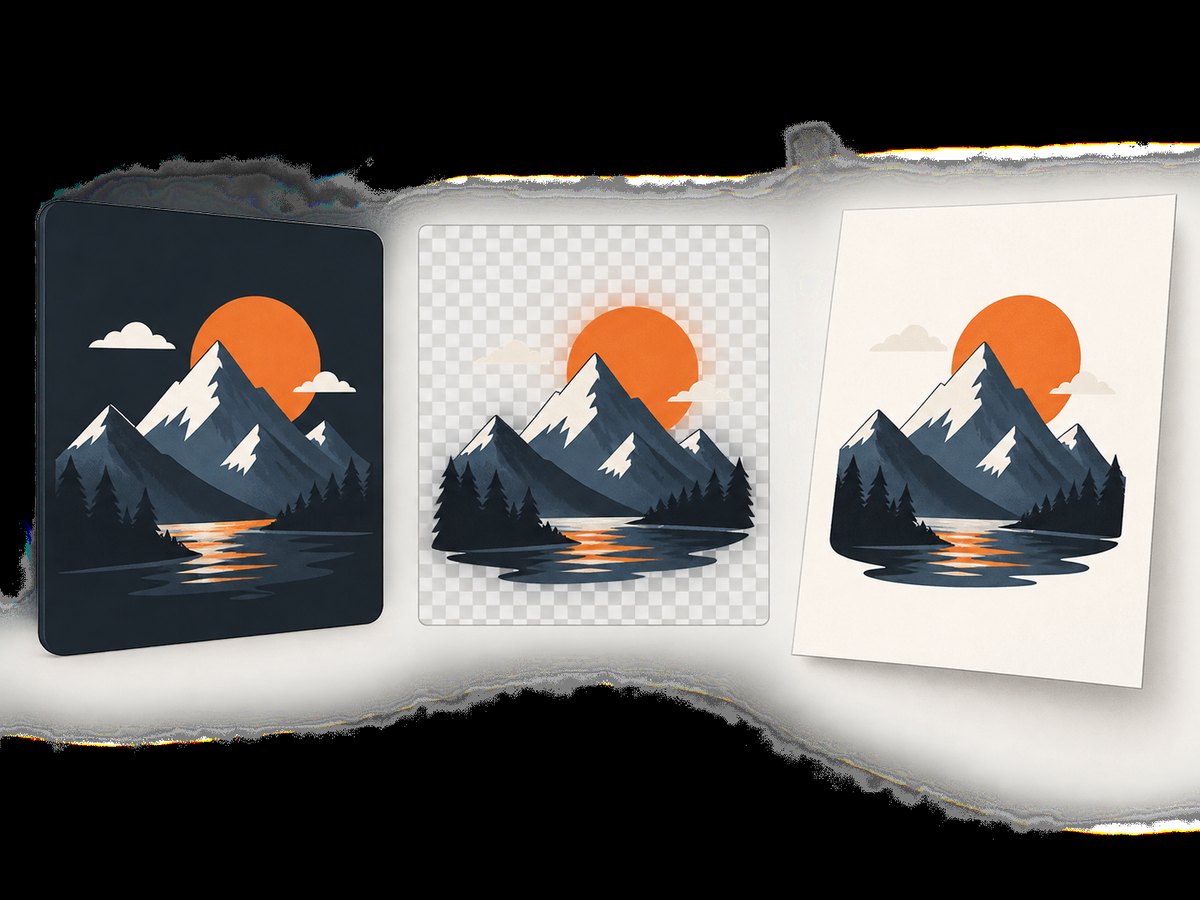
await page.screenshot({
  path: 'transparent.png',
  omitBackground: true
});
Playwright’s omitBackground option hides its default white background and allows transparency. It defaults to false and does not apply to JPEG output. Use PNG when an alpha channel is required:
await page.screenshot({
  path: 'transparent.png',
  type: 'png',
  omitBackground: true
});
Do not combine an opaque CSS rule with omitBackground: true when you want transparency. The page’s CSS is still painted, so the result remains opaque. For a colored image, omit omitBackground and set the color explicitly:
await page.screenshot({
  path: 'blue.png',
  style: 'html, body { background: #2563eb !important; }'
});
Full-page and element screenshots
The screenshot scope determines how much of the background is visible. A viewport screenshot captures only the current viewport. A full-page screenshot captures the document’s scrollable height:
await page.screenshot({
  path: 'full-page.png',
  fullPage: true,
  style: 'html, body { background: #f1f5f9 !important; }'
});
For a component, capture a locator and scope your override to that component:
const card = page.locator('.pricing-card').first();
await card.screenshot({
  path: 'card.png',
  style: `
    .pricing-card {
      background: #111827 !important;
    }
  `
});
If the element appears transparent, inspect its ancestors and pseudo-elements. A parent may provide the visible color, while a ::before overlay may provide a gradient.
Timing, lazy content, and fonts
Apply the background before waiting for the final layout. Then wait for the page state that matters to your capture. networkidle is useful for mostly static pages, but a selector or explicit application-ready flag is often more reliable for apps with long-lived connections.
await page.goto('https://example.com/dashboard', { waitUntil: 'domcontentloaded' });
await page.addStyleTag({
  content: 'html, body { background: #0f172a !important; }'
});
await page.locator('[data-page-ready="true"]').waitFor();
await page.screenshot({ path: 'dashboard.png', fullPage: true });
For lazy-loaded images, scroll through the page before a full-page capture or use the application’s loaded state. For stable visual tests, wait for web fonts:
await page.evaluate(async () => {
  if (document.fonts) await document.fonts.ready;
});
Animations can change pixels between runs. Disable them in the temporary stylesheet when creating deterministic images:
const stableStyle = `
  *, *::before, *::after {
    animation: none !important;
    transition: none !important;
    caret-color: transparent !important;
  }
  html, body { background: #f8fafc !important; }
`;
await page.screenshot({ path: 'stable.png', style: stableStyle });
PDF background colors and print media
page.pdf() uses print CSS media by default. A background that appears in a raster screenshot may disappear from a PDF because the print stylesheet changes it or because background graphics are disabled.
await page.emulateMedia({ media: 'screen' });
await page.pdf({
  path: 'colored-page.pdf',
  printBackground: true
});
If print-specific rules are required, inspect every @media print declaration. For exact color output, CSS can use -webkit-print-color-adjust: exact on the relevant element:
await page.addStyleTag({
  content: `
    @media print {
      html, body { background: #e2e8f0 !important; }
      * { -webkit-print-color-adjust: exact !important; }
    }
  `
});
await page.emulateMedia({ media: 'print' });
await page.pdf({ path: 'print-colors.pdf', printBackground: true });
Visual regression assertions
Playwright Test supports screenshot assertions with a stylesheet path. Keep the override file in version control so the baseline and comparison receive the same rule.
import { test, expect } from '@playwright/test';

test('dark background is stable', async ({ page }) => {
  await page.goto('https://example.com');
  await expect(page).toHaveScreenshot('dark-bg.png', {
    stylePath: './screenshot-overrides.css'
  });
});
/* screenshot-overrides.css */
html, body {
background: #1e293b !important;
}
*, *::before, *::after {
animation: none !important;
transition: none !important;
}Assertions also accept omitBackground when the expected image must have transparency. Keep viewport, device scale factor, fonts, and browser version consistent between baseline generation and CI comparison.
Complete runnable example
import { chromium } from 'playwright';

const browser = await chromium.launch();
const page = await browser.newPage({
  viewport: { width: 1365, height: 900 },
  deviceScaleFactor: 1
});

await page.goto('https://example.com', { waitUntil: 'domcontentloaded' });
await page.locator('body').waitFor();
await page.evaluate(async () => {
  if (document.fonts) await document.fonts.ready;
});

await page.screenshot({
  path: 'example-dark-full.png',
  fullPage: true,
  type: 'png',
  style: `
    html, body {
      background: #0f172a !important;
      background-image: none !important;
    }
    *, *::before, *::after {
      animation: none !important;
      transition: none !important;
    }
  `
});

await page.screenshot({
  path: 'example-transparent.png',
  type: 'png',
  omitBackground: true
});

await browser.close();
Troubleshooting common background problems
| Symptom | Likely cause | Fix |
|---|---|---|
| The screenshot is still white | The visible color is on a wrapper, or a more specific rule wins. | Inspect the element carrying the computed background and include it in the override with !important. |
| Only the viewport is colored | The capture did not use full-page mode, or lower sections have their own backgrounds. | Use fullPage: true and override section or root wrapper backgrounds. |
| Transparency does not work | An opaque CSS background is still being painted. | Remove the injected color and use PNG with omitBackground: true. |
| JPEG has no transparency | JPEG does not support an alpha channel in this option. | Use PNG for transparent output. |
| An iframe keeps its original color | The iframe is cross-origin or not covered by the selected rule. | Use the screenshot style option, which can reach inner frames where supported; otherwise style the framed page itself. |
| Shadow DOM content is unchanged | A regular document stylesheet may not cross the shadow boundary. | Prefer the screenshot style option, or inject styles inside the component’s shadow root. |
| PDF background disappears | Print media or disabled background graphics changed the output. | Set printBackground: true, choose the intended media with emulateMedia, and inspect print CSS. |
| Colors differ in CI | Fonts, viewport, device scale, animations, or browser versions differ. | Pin the environment, wait for fonts, disable motion, and regenerate baselines deliberately. |
| Background flashes before capture | The screenshot occurs before the app finishes hydration. | Wait for a stable selector or application-ready signal after navigation. |
Performance, reliability, and cost considerations
Applying a small stylesheet is inexpensive compared with navigation, JavaScript execution, image decoding, and full-page layout. Full-page captures can be slower and consume more memory because Playwright renders and stitches a taller document. Capture only the required locator when a component image is sufficient.
For reliable output, make capture inputs explicit: viewport, device scale factor, color scheme, locale, timezone, fonts, and reduced-motion behavior. Use a selector-based readiness check for applications with WebSockets or analytics requests that never become idle. Avoid arbitrary sleeps unless the page has no observable readiness signal.
Screenshot files can be large at high device scale factors. Use PNG for lossless or transparent output, JPEG when a smaller opaque file is acceptable, and WebP when your downstream tools support it. Keep screenshot overrides short and version-controlled so a background change is visible in code review.
Playwright itself is open-source browser automation. Your operational cost comes from running browsers, storage, CI minutes, and any hosted browser provider you choose. A local script has no per-image API charge, but you maintain browser binaries, concurrency, retries, fonts, and anti-bot behavior yourself.
Or skip the browser setup
ScreenshotNeo provides a website screenshot API when you want a clean image without managing Playwright browsers. One GET request returns PNG, JPEG, WebP, or PDF. Its capture flow accepts cookie and consent banners, then removes more than 60 known consent platforms, newsletter popups, and chat widgets; each step can be turned off.
See the ScreenshotNeo API documentation for all options. A basic request is:
curl -G "https://api.screenshotneo.com/v1/shot" -d access_key=YOUR_API_KEY --data-urlencode url=https://stripe.com -o shot.webpimport requests
r = requests.get("https://api.screenshotneo.com/v1/shot", params={"access_key": "YOUR_API_KEY", "url": "https://stripe.com"}, timeout=90)
open("shot.webp", "wb").write(r.content)const q = new URLSearchParams({ access_key: 'YOUR_API_KEY', url: 'https://stripe.com' });
const res = await fetch(`https://api.screenshotneo.com/v1/shot?${q}`);ScreenshotNeo supports full-page capture with lazy images loaded, element selectors, dark mode, device presets and custom viewports, retina scale, custom CSS and JavaScript, clicks, selector or network-idle waits, request blocking, headers, cookies, user agents, authorization, timezone, geolocation, transparent backgrounds, resizing, caching, signed links, asynchronous jobs, webhooks, bulk capture of up to 100 URLs per call, usage reporting, and an OpenAPI specification.
Failed loads, bot checks or CAPTCHAs, blank pages, timeouts, and cache hits are not billed. Responses identify the result with X-Page-Verdict and X-Billed headers. ScreenshotNeo also has an MCP server with take_screenshot, get_page_info, and capture_pdf tools for Claude, Cursor, and other MCP clients.
The Free plan includes 1,000 screenshots per month with no card. Paid plans start at $5 for 3,000 shots; yearly billing gives two months free, and every feature is available on every plan. Create a free ScreenshotNeo account and start with the 1,000 included screenshots.
FAQ
Can I set a background without changing the page application?
Yes. Pass a CSS string through the screenshot style option. The rule applies during capture and does not modify your application source.
Why does omitBackground not make my page transparent?
It removes Playwright’s default background, but any opaque CSS background you add remains painted. Remove that rule and save as PNG.
Should I use body or html?
Use both first. Then inspect the computed styles of the visible root wrapper if the page still shows another color.
Does fullPage change the CSS background?
No. It changes the capture extent. Your CSS must still style the document and any sections that paint their own backgrounds.
Why is a PDF different from a PNG screenshot?
PDF generation uses print media by default and may omit background graphics. Set printBackground: true and choose screen or print media intentionally.
How do I keep visual tests stable?
Use a version-controlled stylePath, disable animations and transitions, wait for fonts and application readiness, and keep the browser and viewport configuration consistent.


