Why Is Playwright Screenshot Timing Out With “Waiting for Fonts to Load…”?
The font-wait message shows where Playwright timed out, but it does not prove a font request caused the hang. Trace the call context, inspect font loading, and choose a safe workaround.
If Playwright reports page.screenshot: Timeout ... waiting for fonts to load, it timed out during screenshot preparation while waiting for the document’s fonts to settle. That message identifies the active step; by itself, it does not prove a particular font file or font request caused the timeout. Check where the screenshot call runs, then inspect font and page errors. Only bypass the font wait when an earlier capture is more useful than reliable web-font rendering.
In the current Playwright main source inspected for this guide, screenshot preparation waits for document.fonts.ready unless PW_TEST_SCREENSHOT_NO_FONTS_READY is set. This implementation detail can vary by installed version. The browser promise resolves after font loading and related layout work settle, rather than after one specific network request. [Playwright screenshotter source] [MDN: FontFaceSet.ready]
1. What “waiting for fonts to load” means
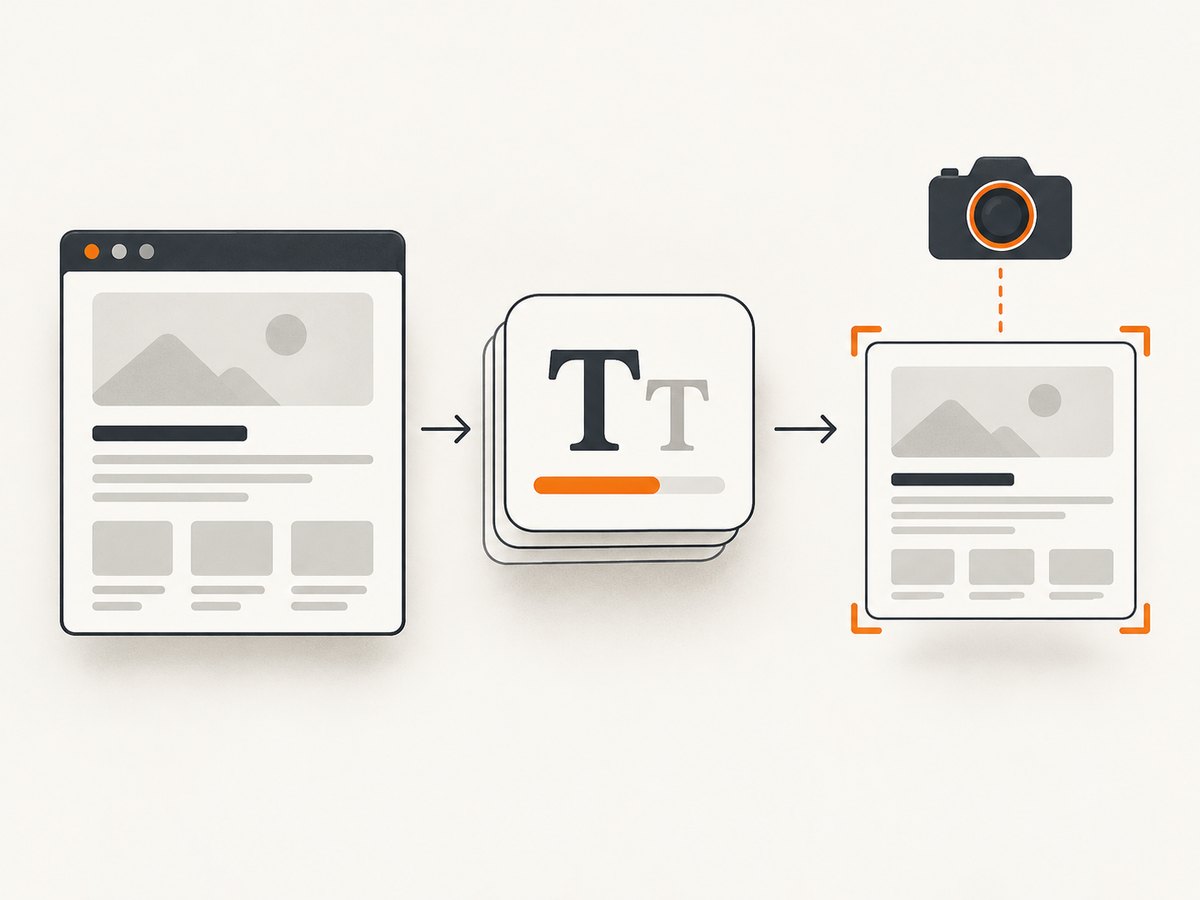
Before capturing pixels, Playwright prepares the page. One preparation step waits for the browser’s document.fonts.ready promise. That promise settles when the document has completed loading fonts, layout operations have completed, and no further font loads are needed. If a font is slow or blocked, that may be relevant. So may page scripts, event handlers, and the order in which your code requests the screenshot.
The call log is a progress marker, not a root-cause diagnosis. A Playwright issue first described a Content Security Policy (CSP) font problem; in the follow-up discussion, the maintainer pointed to a synchronous console-message handler deadlocking the screenshot call. Moving the capture outside that handler resolved the reported behavior. This is a specific report, not proof that all font-wait timeouts share that cause. [Playwright issue #35972]
2. Start with the screenshot call context
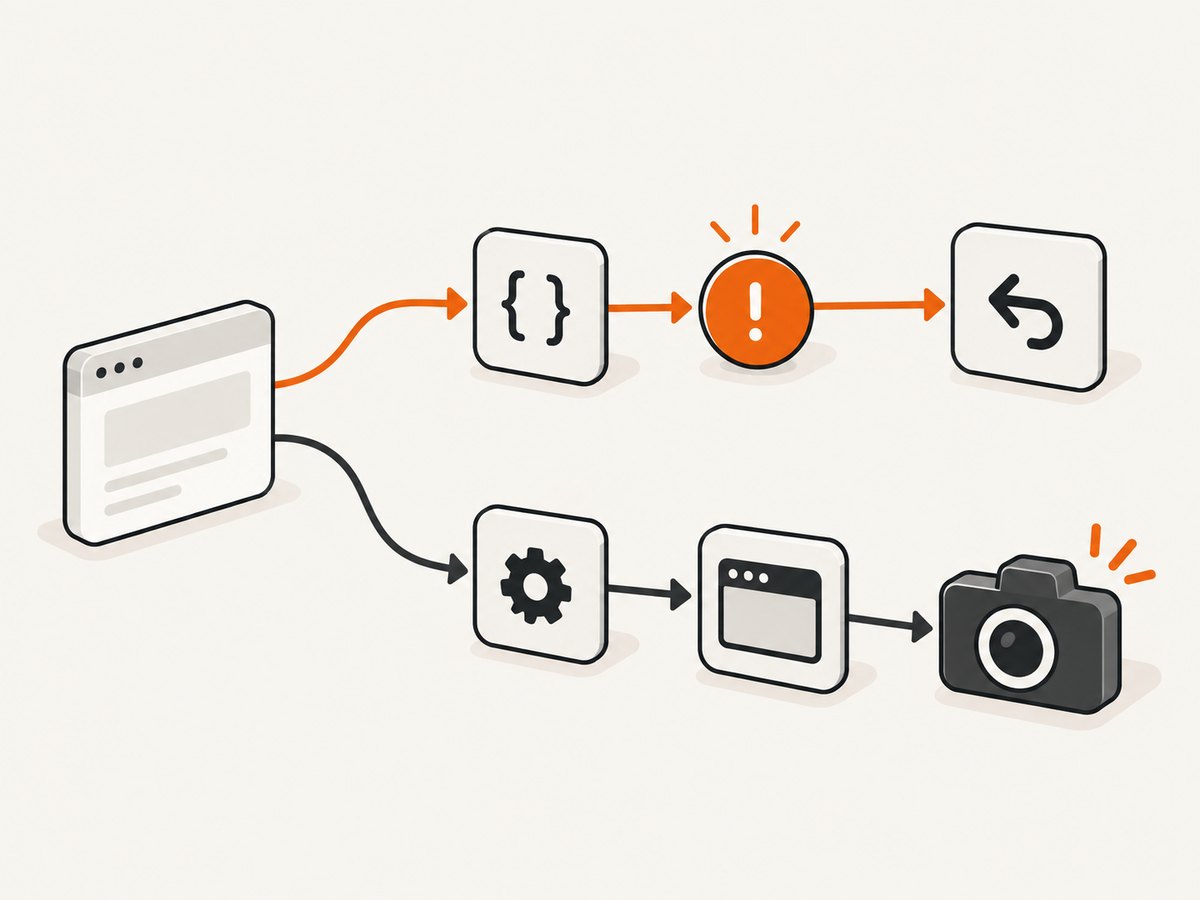
First check whether capture runs inside a synchronous page event callback. If the callback is part of the activity the page needs to finish, awaiting a screenshot there can prevent progress that the screenshot itself is waiting for. Move capture to the main test or orchestration flow and keep event handlers short.
Problem pattern: capture inside a console handler
import { test, expect } from '@playwright/test';

test('capture after page activity', async ({ page }) => {
  page.on('console', async (message) => {
    // Avoid awaiting screenshot capture from this synchronous event path.
    if (message.type() === 'error') {
      await page.screenshot({ path: 'error.png' });
    }
  });

  await page.goto('https://example.com');
  await expect(page.locator('h1')).toBeVisible();
});
The handler above illustrates the risky pattern: asynchronous work is started from a page event callback, and the callback waits for a screenshot. The repair is to record the error in the handler and take the screenshot later from the test flow.
Safer pattern: record the event, then capture
import { test, expect } from '@playwright/test';

test('capture after page activity', async ({ page }) => {
  let consoleError: string | undefined;
  page.on('console', (message) => {
    if (message.type() === 'error') consoleError = message.text();
  });

  await page.goto('https://example.com', { waitUntil: 'domcontentloaded' });
  await expect(page.locator('h1')).toBeVisible();

  // Capture from the test flow, outside the event callback.
  await page.screenshot({ path: 'page.png', fullPage: true, timeout: 30_000 });
  if (consoleError) console.error('Page console error:', consoleError);
});
This is runnable with @playwright/test in a project where Playwright browsers have been installed. Replace the example URL and readiness assertion with the page and state your test needs. If the page itself remains busy, the timeout can still occur; moving the call only addresses the callback sequencing pattern.
3. Diagnose font and page failures
- Reproduce without event-driven capture. Make a minimal test that navigates to the same page and calls
page.screenshot()directly from the test body. Keep the same browser engine and installed Playwright version. - Read browser console errors. Look for CSP violations, failed script execution, and font load messages. These are clues to investigate; a font error alone does not establish that the font is the sole cause.
- Inspect network activity. Check whether font requests are blocked, stalled, redirected unexpectedly, or returning errors. Also inspect other pending page resources and scripts, since a page that cannot progress can make screenshot preparation wait.
- Check page state and callback flow. Look for synchronous event callbacks that await screenshot capture, navigation, or other work that cannot complete until the callback returns. Save event details and act on them later in the test flow.
- Compare versions and engines. Record the Playwright package version and browser engine. The source behavior cited here is from the rolling
mainbranch; a report from Playwright 1.49.0 and current source do not establish identical behavior across every release.
Use a minimal reproduction to separate page-specific problems from test-runner behavior. Keep page URL, browser engine, Playwright version, timeout, and whether the capture runs inside a callback constant while changing one factor at a time.
4. Choose a remedy that matches the evidence
| Approach | Use it when | Tradeoff |
|---|---|---|
| Fix the call sequence and preserve the wait | Capture is requested inside a page event callback, or final font rendering matters. | Best chance of keeping intended font fidelity; a genuinely stalled resource may still need attention. |
| Repair font or page resource loading | Network and console evidence shows blocked or failing resources. | Addresses the page condition, but does not fix unrelated deadlocks. |
| Skip the explicit font-ready wait | You need a diagnostic or failure screenshot quickly and can accept incomplete font rendering. | Capture may happen before web fonts are ready. It may not resolve a hang elsewhere in the page or capture flow. |
| Increase the screenshot timeout | Evidence suggests a slow but eventually progressing page. | Allows more time; it does not resolve a deadlock or a permanently stalled resource. |
Skip the font wait as a diagnostic
The inspected screenshotter source checks the PW_TEST_SCREENSHOT_NO_FONTS_READY environment variable. When set, the explicit document.fonts.ready wait is skipped. Confirm your installed Playwright release recognizes it before relying on it; this is a source-level, version-sensitive behavior. It is not a documented guarantee for every version or language binding. [Source implementation]
# Linux or macOS: run the test with the variable set
PW_TEST_SCREENSHOT_NO_FONTS_READY=1 npx playwright test
# Windows PowerShell
$env:PW_TEST_SCREENSHOT_NO_FONTS_READY = "1"
npx playwright testUse this to test a hypothesis or to capture a rough diagnostic image. Compare the result with a normal run. If the screenshot now proceeds, that suggests the wait is relevant, but it does not prove the font server is the root cause. If it still times out, investigate other screenshot preparation steps, page scripts, and event sequencing. One reporter in issue #35972 said bypassing the wait still timed out in their attempt, which is a useful reminder that the visible stage may not explain every hang. [Issue #35972]
Adjust the screenshot timeout only for slow progress
Playwright’s Page screenshot API accepts a timeout option. Set a higher limit when resources are slow but making progress, and keep the value bounded so a broken test does not wait indefinitely. The available options and language syntax depend on the binding and installed version. [Playwright Page.screenshot API]
await page.screenshot({
  path: 'page.png',
  fullPage: true,
  timeout: 60_000
});
A larger timeout is not a deadlock fix. If the same callback or blocked page state persists, the call will simply wait longer before failing.
5. Common errors and fixes
| Symptom | Likely explanation | What to do |
|---|---|---|
| Timeout log says “waiting for fonts to load” | The screenshotter had reached its font-ready wait. The root cause is not identified by that line alone. | Check callback context, console output, font requests, and page progress. |
| CSP reports a blocked font | The page’s policy may prevent the font resource from loading, but the visible error may coexist with another issue. | Verify the policy and request failure in browser diagnostics; fix the site’s font source or policy when you control it. |
| Timeout remains after setting the environment variable | The installed version may not support the switch, or the hang may be elsewhere in capture or page execution. | Confirm the version/source behavior and reproduce outside callbacks. Inspect pending scripts, navigation, and other resources. |
| Screenshot succeeds but typography is wrong | The capture may have occurred before the intended font was ready, particularly when bypassing the wait. | Restore the wait, fix font loading, or explicitly wait for the page’s required visual state before capture. |
| Increasing timeout changes nothing | The work may be deadlocked or permanently stalled rather than merely slow. | Fix sequencing or the blocked resource; use a longer limit only when there is evidence of eventual progress. |
| Only one browser engine fails | Font, CSP, or page behavior may differ by engine or environment. | Compare network logs and the minimal reproduction in each engine; avoid assuming a cross-browser root cause. |
6. Reliability, performance, and cost considerations
For repeatable screenshots, keep the font-ready wait when the image is used for visual comparison, documentation, or a customer-facing result. A page captured before custom fonts load can have different wrapping, alignment, and component dimensions. If the capture is a failure artifact whose purpose is to show the page as it currently appears, skipping the wait may be acceptable, but mark that output as potentially incomplete.
Do not use long timeouts as a substitute for bounded page readiness. Wait for the specific element or state your screenshot requires, and collect a failure screenshot from the test’s outer flow. Keep resource and console diagnostics when investigating intermittent failures so a later run can be compared against the same evidence.
Playwright’s cost depends on where and how you run the browser; this dossier provides no pricing or performance benchmarks, so none are claimed here. Account for browser compute, CI time, retries, and the added duration from waits. A timeout increase can raise CI duration without improving success if the underlying condition is a deadlock.
7. Or skip the browser setup
If your goal is a website screenshot rather than debugging Playwright itself, ScreenshotNeo provides a website screenshot API and MCP server. One GET request returns an image or PDF; use it when managing a local browser and its capture lifecycle is unnecessary. See the ScreenshotNeo API documentation for request options.
curl -G "https://api.screenshotneo.com/v1/shot" -d access_key=YOUR_API_KEY --data-urlencode url=https://stripe.com -o shot.webpimport requests
r = requests.get(
"https://api.screenshotneo.com/v1/shot",
params={"access_key": "YOUR_API_KEY", "url": "https://stripe.com"},
timeout=90,
)
open("shot.webp", "wb").write(r.content)const q = new URLSearchParams({ access_key: 'YOUR_API_KEY', url: 'https://stripe.com' });
const res = await fetch(`https://api.screenshotneo.com/v1/shot?${q}`);
if (!res.ok) throw new Error(`Screenshot request failed: ${res.status}`);
await import('node:fs/promises').then(({ writeFile }) => writeFile('shot.webp', Buffer.from(await res.arrayBuffer())));With ScreenshotNeo, cookie banners are accepted and removed before capture, along with known newsletter popups and chat widgets; each cleanup step can be turned off. Bot checks, blank pages, timeouts, and failed loads are never billed, and response headers say the page verdict and billing status. Its MCP server lets AI agents use screenshot, page-info, and PDF-capture tools. The free plan includes 1,000 screenshots per month with no card; paid plans start at $5 for 3,000 screenshots. All features are available on every plan.
Sign up free for 1,000 screenshots a month, no card required.
8. FAQ
Does this message mean my font file is broken?
No. It tells you which screenshot preparation step was active at timeout. Check the font request and page diagnostics, but also inspect the screenshot call’s event and callback context.
Can I make Playwright take screenshots without waiting for fonts?
The current inspected source has a PW_TEST_SCREENSHOT_NO_FONTS_READY switch. Verify support in your installed version, and expect the image may use fallback fonts or incomplete layout.
Will a longer timeout fix it?
Only if the page is slow and continues making progress. A timeout increase will not release a deadlock or repair a resource that never loads.
Why did skipping the font wait not help?
Other page or screenshot work can still be blocked. Check the whole call sequence and page state rather than treating the first logged wait as the sole cause.
Which Playwright version is this guidance for?
The environment-variable detail comes from the rolling main screenshotter source, and the cited issue concerned version 1.49.0. Check the source and API documentation corresponding to your installed release before applying version-sensitive behavior.


