Playwright Screenshot in Headless Mode: Complete Guide
Learn how to capture viewport, full-page, and element screenshots with Playwright headless mode, tune output, fix failures, and automate reliable images.
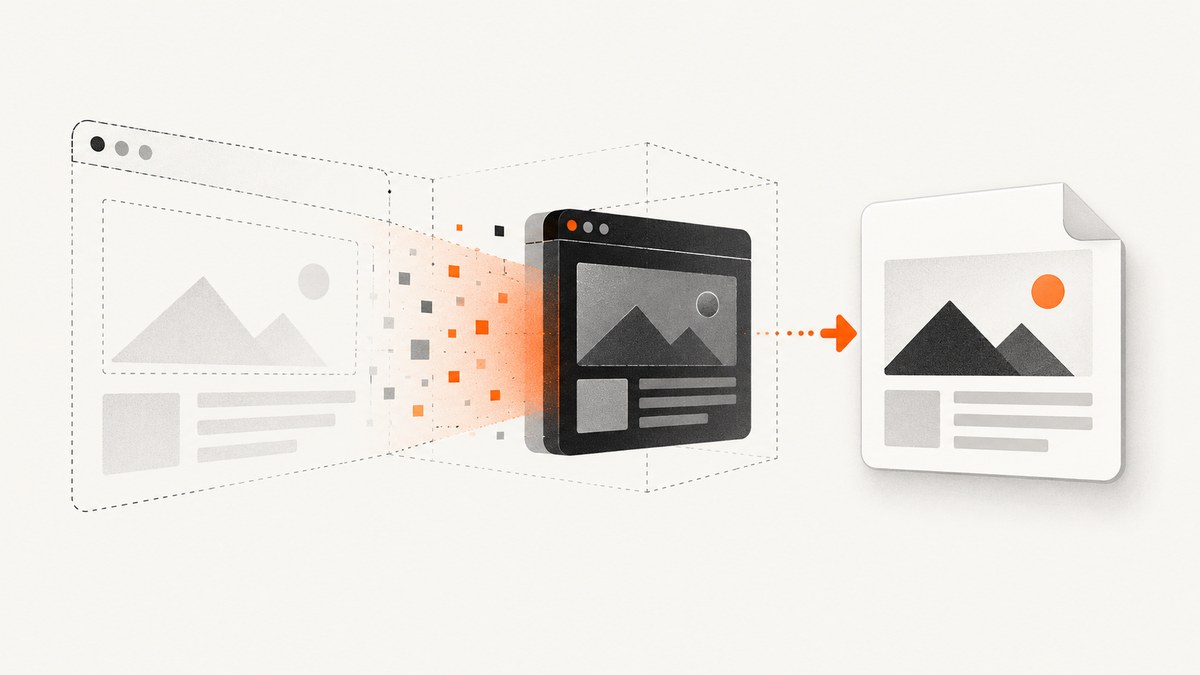
Playwright can capture a page without opening a visible browser window. Navigate with a headless Chromium, Firefox, or WebKit browser, then call page.screenshot(). Add fullPage: true for the entire scrollable document, use a locator for one element, or omit path when you need an in-memory buffer. Headless mode is the documented default for Playwright browser launches, but setting headless: true explicitly makes scripts easier to read.
This guide shows a complete workflow for Playwright Screenshot in Headless Mode: installation, runnable Node.js code, full-page and element captures, formats, clipping, device scale, animation control, masking, dynamic pages, visual regression, test artifacts, troubleshooting, performance, reliability, and cost. It also explains when a hosted API such as ScreenshotNeo is a better fit.
1. Install Playwright and launch a headless browser
Install the library and browser binaries in your project:
npm install playwright
npx playwright install
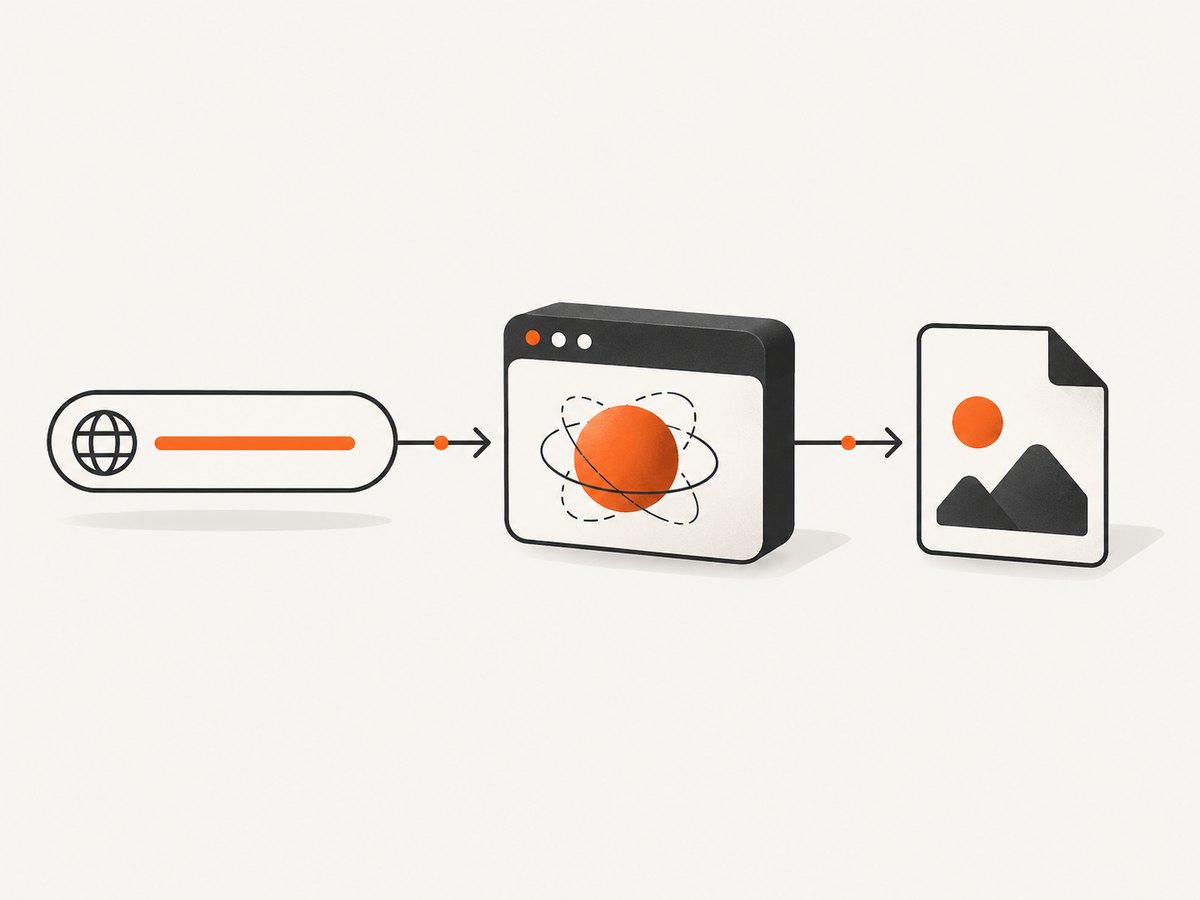
The following script opens Chromium in headless mode, waits for the page to load, saves a PNG, and closes the browser even when the capture fails:
const { chromium } = require('playwright');

(async () => {
  const browser = await chromium.launch({ headless: true });
  try {
    const page = await browser.newPage();
    await page.goto('https://example.com', { waitUntil: 'load' });
    await page.screenshot({ path: 'screenshot.png' });
  } finally {
    await browser.close();
  }
})();
page.screenshot() infers the image type from the filename extension. A .png path creates PNG output; .jpg or .jpeg creates JPEG; and .webp creates WebP. If you do not provide a path, the method returns a buffer that you can upload, hash, or process in memory. See the Playwright screenshot guide and Page screenshot API.
2. Capture a viewport screenshot
The default capture is the currently visible viewport. Set the viewport before navigation when you need a repeatable layout:
const { chromium } = require('playwright');

(async () => {
  const browser = await chromium.launch({ headless: true });
  const page = await browser.newPage({
    viewport: { width: 1440, height: 900 },
    deviceScaleFactor: 1
  });
  try {
    await page.goto('https://example.com', { waitUntil: 'networkidle' });
    await page.screenshot({ path: 'viewport.png', animations: 'disabled' });
  } finally {
    await browser.close();
  }
})();
A viewport capture is useful for a hero section, a browser-sized preview, or a visual test that should represent exactly what a user sees without scrolling. The resulting dimensions depend on the viewport, device scale, browser, and page zoom.
3. Capture the full scrollable page
Pass fullPage: true to capture the page’s full scrollable height:
await page.goto('https://example.com', { waitUntil: 'networkidle' });
await page.screenshot({
  path: 'full-page.png',
  fullPage: true,
  animations: 'disabled'
});
Full-page mode is appropriate for documentation, landing pages, and archival snapshots. Very tall pages produce large images, consume more memory, and can be harder to inspect. If the site lazy-loads content only after scrolling, trigger the scroll before capture:
await page.evaluate(async () => {
  await new Promise(resolve => {
    let last = 0;
    const step = () => {
      window.scrollTo(0, document.body.scrollHeight);
      const current = document.body.scrollHeight;
      if (current === last) return resolve();
      last = current;
      setTimeout(step, 250);
    };
    step();
  });
  window.scrollTo(0, 0);
});
await page.screenshot({ path: 'lazy-loaded-full.png', fullPage: true });
This scroll helper is site-specific. Some applications load content from an API, virtualize rows, or keep a fixed-height scroll container; in those cases, wait for the relevant selector or call the application’s own loading routine instead of assuming the document height contains every item.
4. Capture one element
Use a locator screenshot when you need a card, chart, header, or component rather than the entire page:
const card = page.locator('[data-testid="pricing-card"]').first();
await card.waitFor({ state: 'visible' });
await card.screenshot({ path: 'pricing-card.png' });
Locator screenshots scroll the element into view. They do not reveal content covered by another element, such as a cookie banner or modal. A scrollable element captures only the content currently visible inside that element; it does not automatically stitch its internal scroll area.
5. Clip a precise rectangle
For a fixed region, obtain a bounding box and pass it to clip:
const box = await page.locator('main').boundingBox();
if (!box) throw new Error('main is not visible');
await page.screenshot({ path: 'main.png', clip: box });
A clip rectangle must be inside the page viewport. If the target moves between measuring and capturing, the result may be shifted; freeze animations and capture immediately after measuring.
6. Choose format, quality, and pixel scale
| Option | What it changes | When to use it |
|---|---|---|
type |
png, jpeg, or webp output |
PNG for lossless UI; JPEG/WebP for smaller photographic images |
quality |
Lossy quality for JPEG/WebP | Set a value from 0–100 when file size matters; it has no effect on PNG |
scale: 'css' |
One image pixel per CSS pixel | Compact, predictable visual regression artifacts |
scale: 'device' |
Device pixels, potentially larger on high-DPI displays | Sharper exports when physical pixel detail matters |
omitBackground: true |
Transparent background for formats that support it | Overlays and compositing; do not use with JPEG |
await page.screenshot({
  path: 'hero.webp',
  type: 'webp',
  quality: 82,
  scale: 'css',
  omitBackground: true
});
7. Make captures deterministic
Headless rendering can differ with the operating system, browser version, settings, hardware, power source, and headless mode. Use the same Playwright version, browser engine, viewport, fonts, locale, timezone, and container image for visual comparisons.
Disable animation and caret blinking
await page.screenshot({
  path: 'stable.png',
  animations: 'disabled',
  caret: 'hide'
});
With animations disabled, Playwright stops CSS animations, transitions, and Web Animations for the capture. This prevents a progress bar or carousel from changing between runs.
Mask dynamic regions
await page.screenshot({
  path: 'masked.png',
  mask: [page.locator('.timestamp'), page.locator('[data-live-price]')],
  maskColor: '#FF00FF'
});
Masking is useful for genuinely nondeterministic values. It should not hide a real layout regression. You can also inject a stylesheet to hide a cursor, pause a video, or replace a dynamic region with a fixed style:
await page.addStyleTag({
  content: `
    *, *::before, *::after { animation: none !important; transition: none !important; }
    video { visibility: hidden !important; }
  `
});
Wait for the state you actually need
waitUntil: 'networkidle' is useful for pages that finish loading requests, but it is not a guarantee that application data is rendered. Prefer an explicit readiness condition:
await page.goto('https://example.com/dashboard', { waitUntil: 'domcontentloaded' });
await page.locator('[data-testid="dashboard-ready"]').waitFor({ state: 'visible' });
await page.screenshot({ path: 'dashboard.png' });
8. Control browser context, device, locale, and authentication
Use a context to reproduce a device or logged-in state:
const context = await browser.newContext({
  viewport: { width: 390, height: 844 },
  deviceScaleFactor: 2,
  colorScheme: 'dark',
  locale: 'en-US',
  timezoneId: 'America/New_York',
  storageState: 'auth.json'
});
const page = await context.newPage();
For a custom user agent, headers, or cookies:
const context = await browser.newContext({
  userAgent: 'ScreenshotBot/1.0',
  extraHTTPHeaders: { 'X-Capture-Run': 'visual-check' },
  colorScheme: 'light'
});
await context.addCookies([
  { name: 'consent', value: 'accepted', domain: 'example.com', path: '/' }
]);
Store authentication state securely and avoid writing secrets into screenshots, logs, or source control. If a page blocks automation, follow its access policy; do not try to bypass a CAPTCHA.
9. Use screenshots in Playwright Test
Playwright Test can collect screenshots automatically. In playwright.config.js:
import { defineConfig } from '@playwright/test';

export default defineConfig({
  use: {
    screenshot: 'only-on-failure',
    viewport: { width: 1280, height: 720 }
  }
});
Supported modes include off, on, only-on-failure, and on-first-failure. For an assertion, Playwright waits for two consecutive screenshots to match before comparing with the baseline:
import { test, expect } from '@playwright/test';

test('home page is stable', async ({ page }) => {
  await page.goto('https://example.com');
  await expect(page).toHaveScreenshot('home.png', { fullPage: true });
});
10. Common errors and fixes
| Symptom | Likely cause | Fix |
|---|---|---|
Executable doesn't exist |
Browser binaries were not installed | Run npx playwright install (and install required system dependencies in CI). |
| Blank or partially rendered image | Capture happened before app data or fonts loaded | Wait for a readiness selector, fonts, or a specific API response. |
| Full page is shorter than expected | Lazy content or virtualized scrolling | Scroll to load content, then wait for the final item; handle inner scroll containers separately. |
| Element screenshot throws or is empty | Locator matches nothing, is hidden, or is covered | Use locator.count(), wait for visibility, and inspect overlays. |
| Flaky pixel differences | Animation, clock, random data, fonts, or environment drift | Disable animations, mask dynamic nodes, freeze data, and pin browser/OS settings. |
| Timeout on navigation | Slow server, blocked request, or an overly strict timeout | Set a considered timeout, inspect failed requests, and wait for an application selector instead of indefinitely waiting for network idle. |
| JPEG transparency appears black or white | JPEG has no alpha channel | Use PNG or WebP when transparency is required. |
| CI crashes with out-of-memory | Many huge full-page captures run concurrently | Reduce concurrency, use scale: 'css', capture only required areas, and close contexts promptly. |
11. Performance and reliability checklist
- Reuse one browser process for a batch, while creating isolated contexts for separate sessions.
- Close pages and contexts in
finallyblocks. - Use a readiness selector rather than a large arbitrary sleep.
- Prefer viewport or element captures when a full document is unnecessary.
- Choose WebP or JPEG quality deliberately when storage and transfer size matter.
- Pin Playwright and browser versions for visual baselines.
- Record the URL, viewport, browser version, commit, and capture options alongside artifacts.
- Retry transient navigation failures with a limit, but keep the original error and response status.
- Do not treat a successful HTTP response as proof that the page is visually complete.
12. Or skip the browser setup
If you need screenshots from a service instead of maintaining browser binaries, ScreenshotNeo provides one GET request for PNG, JPEG, WebP, or PDF output. Its clean-shot flow accepts consent banners like a visitor and removes more than 60 known consent platforms, newsletter popups, and chat widgets before capture; each step can be turned off. Bot checks, CAPTCHAs, blank pages, timeouts, failed loads, and cache hits cost nothing, and responses identify the result with X-Page-Verdict and X-Billed headers.
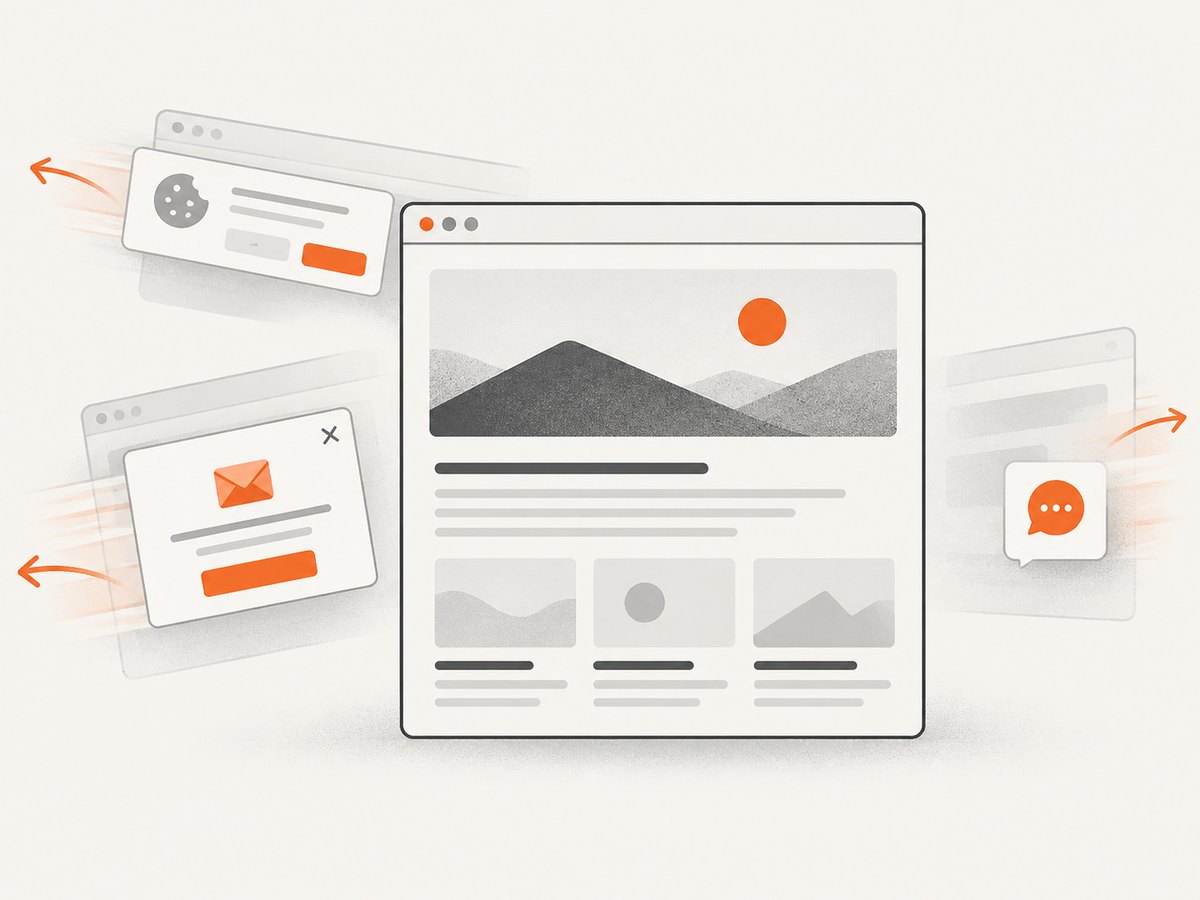
Read the complete option list in the ScreenshotNeo API documentation. The same endpoint supports full-page and element captures, dark mode, device presets or custom viewports, retina scale, custom CSS and JavaScript, clicks, waits, request blocking, headers, cookies, user agents, authorization, timezone, geolocation, resizing, configurable caching, signed links, asynchronous jobs, webhooks, bulk capture, usage reporting, and PDF settings.
cURL
curl -G "https://api.screenshotneo.com/v1/shot" -d access_key=YOUR_API_KEY --data-urlencode url=https://stripe.com -o shot.webpPython
import requests
r = requests.get("https://api.screenshotneo.com/v1/shot", params={"access_key": "YOUR_API_KEY", "url": "https://stripe.com"}, timeout=90)
open("shot.webp", "wb").write(r.content)
Node.js
const q = new URLSearchParams({ access_key: 'YOUR_API_KEY', url: 'https://stripe.com' });
const res = await fetch(`https://api.screenshotneo.com/v1/shot?${q}`);
An MCP server also exposes take_screenshot, get_page_info, and capture_pdf for Claude, Cursor, and other MCP clients. The free plan includes 1,000 shots each month with no card; paid plans start at $5 for 3,000 shots. Create a free ScreenshotNeo account.
13. FAQ
Is headless mode the default?
Yes. Playwright’s BrowserType API documents headless mode as the default. Setting headless: true remains useful because it communicates intent.
How do I return a screenshot instead of saving it?
Omit path. The screenshot method returns a buffer that you can send to object storage, an HTTP response, or an image-processing pipeline.
Can Playwright capture PDFs?
PDF generation is available through the Chromium page PDF API. For a hosted capture workflow that includes PDF paper size, margins, landscape mode, and page ranges, use ScreenshotNeo’s PDF endpoint documented at its API docs.
Why does my screenshot differ between laptop and CI?
Rendering can vary with OS, browser version, fonts, hardware, power source, settings, and headless mode. Pin the environment and remove dynamic content before comparing images.
Should I use full-page screenshots for every test?
No. Use a viewport or component screenshot when that is the behavior under test. Full-page images are taller, slower to review, and more sensitive to unrelated layout changes.


