Playwright Screenshot Method: Full Page, Elements, PDFs, and Stable Visual Tests
Learn Playwright screenshots from viewport and full-page captures to masked, deterministic visual tests, with runnable JavaScript, Python, Node.js, and cURL.
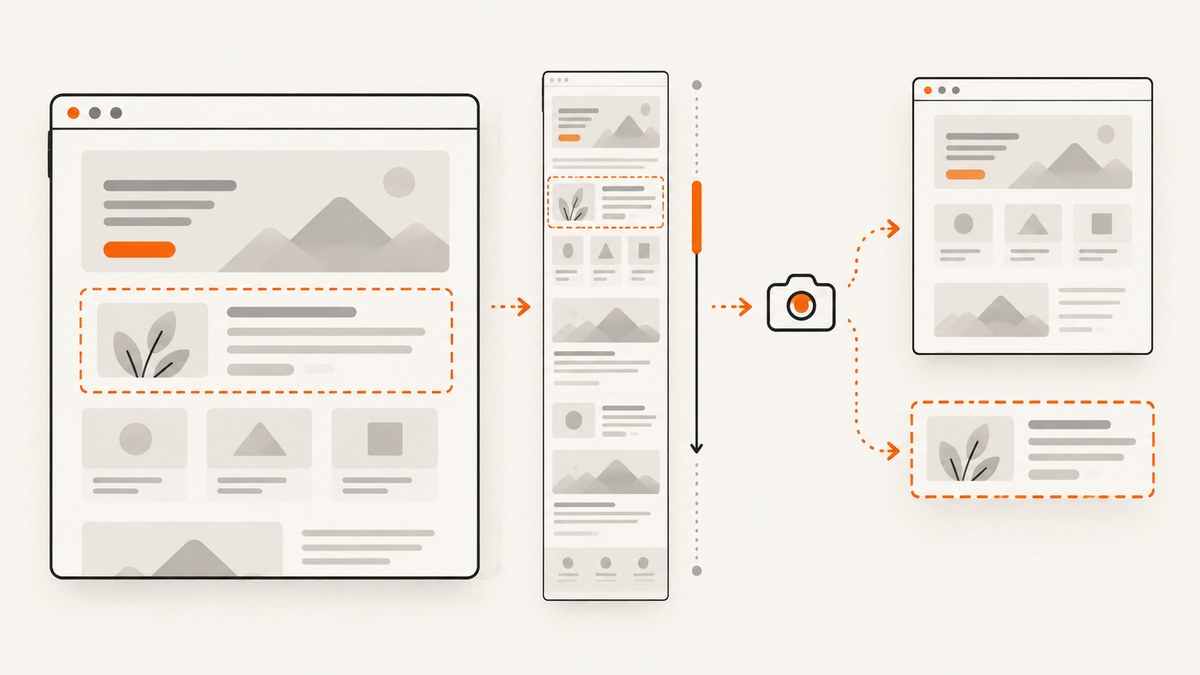
Direct answer: open a page, put it into the exact state you want to document, then call await page.screenshot({ path: 'screenshot.png' }). Add fullPage: true for the entire scrollable page, use a locator screenshot for one component, or pass clip for a rectangle. Playwright can return PNG, JPEG, or WebP files or an in-memory buffer.
This guide covers the complete Playwright screenshot method: installation, browser setup, viewport and device settings, full-page and element captures, cropping, output formats, transparency, masking, animation control, visual regression, reliability, performance, troubleshooting, and an API alternative when you do not want to maintain a browser.
1. Install Playwright and capture your first screenshot
Install the library and browser binaries in a new project:
npm init -y
npm install -D playwright
npx playwright install chromium
Create screenshot.mjs:
import { chromium } from 'playwright';

const browser = await chromium.launch();
const page = await browser.newPage({ viewport: { width: 1440, height: 900 } });
await page.goto('https://example.com', { waitUntil: 'networkidle' });
await page.screenshot({ path: 'screenshot.png' });
await browser.close();
Run it with node screenshot.mjs. The default page screenshot captures the current viewport. The official screenshots guide documents the same method and its full-page option.
2. Capture a complete scrollable page
Set fullPage: true:
await page.screenshot({
  path: 'landing-page.png',
  fullPage: true
});
Playwright renders a screenshot of the full scrollable document as if it were displayed on a very tall screen. This is useful for documentation and archive images, but it can create very tall files and expose content that only appears after scrolling.
Lazy-loaded images may not exist until their containers enter the viewport. Scroll through the page before capture when that matters:
await page.goto('https://example.com', { waitUntil: 'domcontentloaded' });
await page.evaluate(async () => {
  await new Promise(resolve => {
    const step = 600;
    const timer = setInterval(() => {
      window.scrollBy(0, step);
      if (window.innerHeight + window.scrollY >= document.body.scrollHeight) {
        clearInterval(timer);
        resolve();
      }
    }, 100);
  });
});
await page.waitForTimeout(300);
await page.screenshot({ path: 'lazy-loaded-full-page.png', fullPage: true });
Prefer waiting for a meaningful selector, such as the final content container, over a fixed delay when the page exposes one.
3. Screenshot an element or a rectangular region
Use a locator when you want a component with its exact bounding box:
const header = page.locator('.header');
await header.waitFor({ state: 'visible' });
await header.screenshot({ path: 'header.png' });
For a coordinate crop, pass clip. Coordinates are measured from the page’s top-left corner:
await page.screenshot({
  path: 'hero-crop.webp',
  type: 'webp',
  quality: 85,
  clip: { x: 80, y: 120, width: 900, height: 500 }
});
A locator is generally more robust than hard-coded coordinates because layout changes move the element and its screenshot together. Use clip for a deliberately fixed region, such as a chart canvas.
4. Screenshot options you should choose deliberately
| Option | What it controls | Practical guidance |
|---|---|---|
fullPage |
Entire scrollable document | Use for page archives; omit for viewport tests. |
path |
Output file | The extension can select PNG, JPEG, or WebP. |
type |
Image format | PNG is lossless; JPEG and WebP support quality settings. |
quality |
JPEG/WebP quality from 0 to 100 | It has no effect on PNG. |
scale |
Pixel density | css gives one pixel per CSS pixel; device creates high-DPI output. |
omitBackground |
Transparent background | Use with PNG or WebP; JPEG cannot be transparent. |
mask, maskColor |
Cover locator bounding boxes | Mask volatile data; the default color is pink, #FF00FF. |
animations |
Animation handling | disabled stops transitions and animations for deterministic output. |
caret |
Text caret visibility | hide removes the caret; initial preserves normal behavior. |
Example combining the common controls:
await page.screenshot({
  path: 'stable.webp',
  type: 'webp',
  quality: 90,
  scale: 'css',
  animations: 'disabled',
  caret: 'hide',
  mask: [page.locator('[data-testid="live-clock"]')],
  maskColor: '#222222'
});
Masking covers the locator’s bounding box, including invisible elements unless you constrain the locator with a visible state. The Page API reference lists the complete option set.
5. Make screenshots deterministic for visual regression
Visual tests fail when pixels change for reasons unrelated to your code: clocks, rotating banners, random avatars, network-loaded ads, fonts, and animations. Freeze those sources before capture.
await page.addStyleTag({ content: `
  *, *::before, *::after {
    animation: none !important;
    transition: none !important;
    caret-color: transparent !important;
  }
` });
await page.locator('[data-testid="clock"]').evaluate(el => {
  el.textContent = '12:00';
});
await page.screenshot({
  path: 'regression.png',
  animations: 'disabled',
  mask: [page.locator('[data-testid="user-avatar"]')]
});
Use a fixed viewport, browser version, locale, timezone, color scheme, and seeded test data. Wait for a specific ready signal instead of assuming that networkidle means every visual detail is complete; analytics connections can keep a page busy indefinitely, while a late font can still shift layout.
With Playwright Test, use:
import { test, expect } from '@playwright/test';

test('homepage has the expected appearance', async ({ page }) => {
  await page.goto('https://example.com');
  await expect(page).toHaveScreenshot('homepage.png', {
    animations: 'disabled',
    maxDiffPixels: 100
  });
});
toHaveScreenshot waits for two consecutive screenshots to be identical before comparing the result. Screenshot assertions work with the Playwright test runner. Set maxDiffPixels or maxDiffPixelRatio only when your project has an explicit tolerance policy. See the visual comparisons documentation.
6. Device, viewport, color, and authentication setup
Capture the same page at a known viewport:
const context = await browser.newContext({
  viewport: { width: 390, height: 844 },
  deviceScaleFactor: 2,
  isMobile: true,
  colorScheme: 'dark',
  locale: 'en-US',
  timezoneId: 'America/New_York'
});
const page = await context.newPage();
For authenticated pages, log in once and reuse storage state, or set cookies and headers in the context. Keep secrets outside source control. If the site uses a consent dialog, dismiss it before the capture or the dialog becomes part of the expected image.
7. Return screenshot bytes instead of writing a file
Omit path to receive a buffer. This is useful for uploads, image comparison libraries, HTTP responses, or object storage:
const pngBytes = await page.screenshot({ type: 'png' });
await fetch('https://storage.example/upload', {
  method: 'PUT',
  headers: { 'content-type': 'image/png' },
  body: pngBytes
});
8. Python, Node.js, and cURL equivalents
Playwright’s Python API follows the same model:
from playwright.sync_api import sync_playwright

with sync_playwright() as p:
    browser = p.chromium.launch()
    page = browser.new_page(viewport={"width": 1440, "height": 900})
    page.goto("https://example.com", wait_until="networkidle")
    page.screenshot(path="screenshot.png", full_page=True)
    browser.close()
For Node.js, the first example in this guide is runnable as-is. cURL cannot call Playwright directly because Playwright is a browser automation library; cURL can call a screenshot service that performs the browser capture for you.
9. Or skip the browser setup
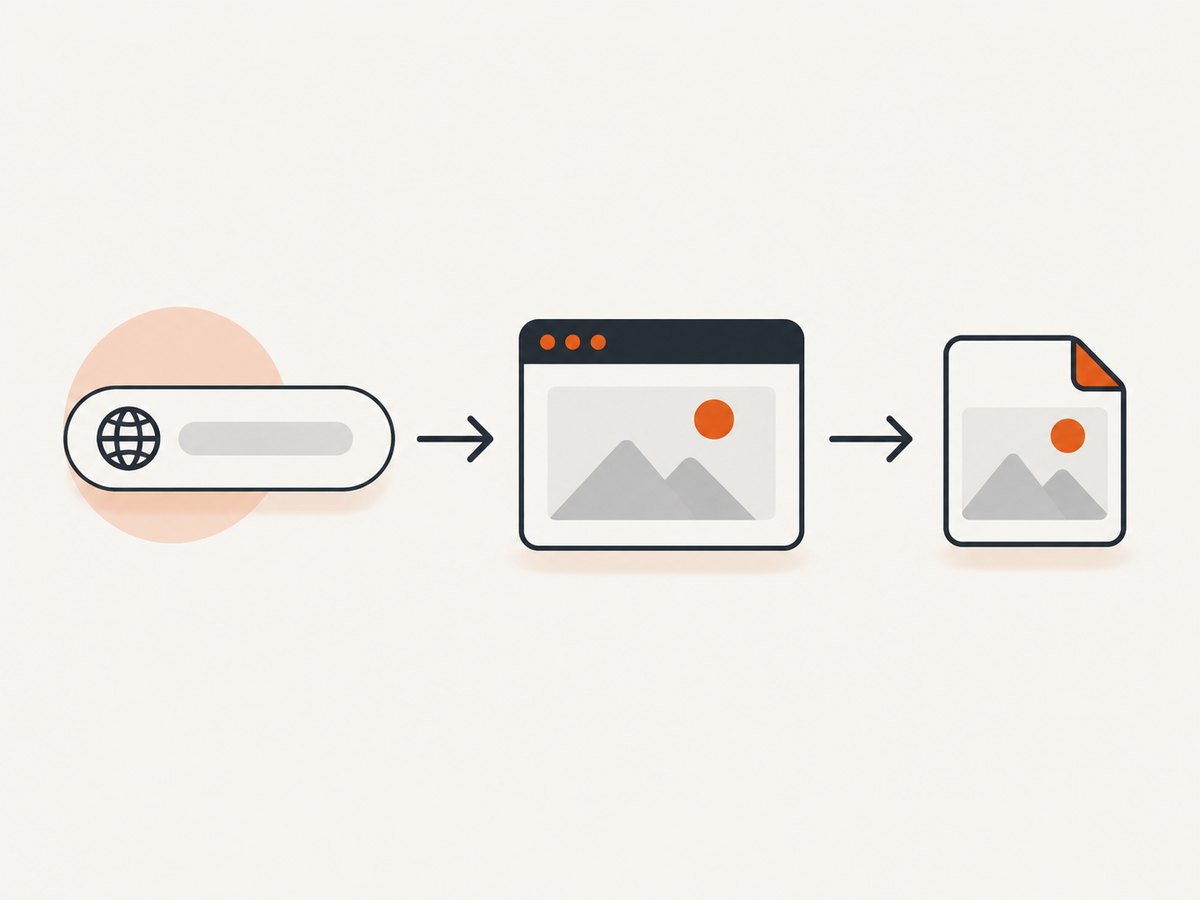
ScreenshotNeo provides a single GET request for PNG, JPEG, WebP, or PDF output. See the API documentation for all parameters.
curl -G "https://api.screenshotneo.com/v1/shot" -d access_key=YOUR_API_KEY --data-urlencode url=https://stripe.com -o shot.webpimport requests
r = requests.get("https://api.screenshotneo.com/v1/shot", params={"access_key": "YOUR_API_KEY", "url": "https://stripe.com"}, timeout=90)
open("shot.webp", "wb").write(r.content)const q = new URLSearchParams({ access_key: 'YOUR_API_KEY', url: 'https://stripe.com' });
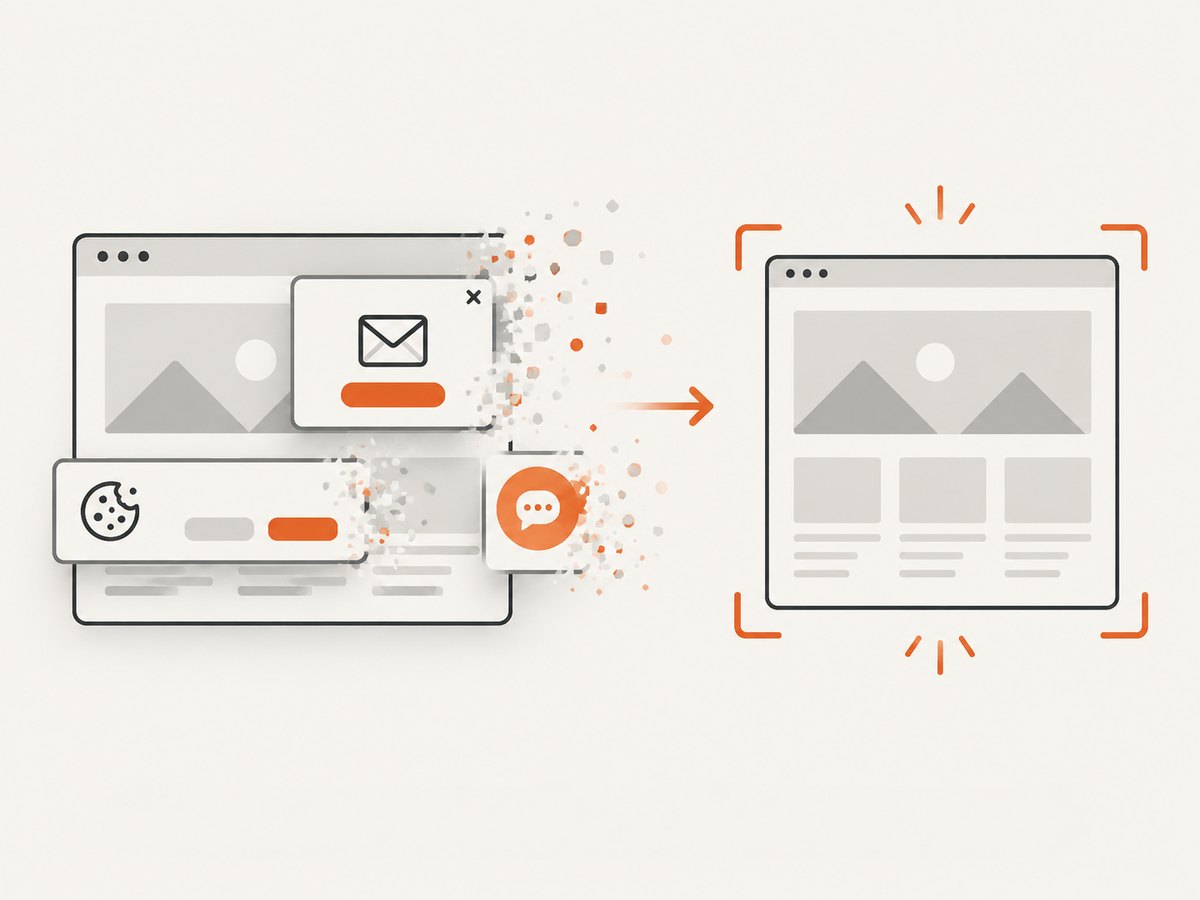
const res = await fetch(`https://api.screenshotneo.com/v1/shot?${q}`);ScreenshotNeo removes cookie banners, newsletter popups, and chat widgets before capture; bot checks, blank pages, failed loads, timeouts, and cache hits are not billed. Each response reports its result with X-Page-Verdict and X-Billed headers. Its MCP server includes take_screenshot, get_page_info, and capture_pdf tools for Claude, Cursor, and other MCP clients. You get 1,000 screenshots per month free with no card; paid plans start at $5 for 3,000 shots. Create a free ScreenshotNeo account.
10. Troubleshooting common failures
| Symptom | Cause | Fix |
|---|---|---|
| Browser executable missing | Playwright package is installed but binaries are not. | Run npx playwright install chromium (or the browser you use). |
| Screenshot is blank | Capture happened before navigation or rendering finished. | Await goto, then wait for a meaningful selector and inspect console errors. |
| Element is outside the viewport | The locator is detached, hidden, or not yet laid out. | Use locator.waitFor({ state: 'visible' }) and verify the selector. |
| Full page misses images | Images are lazy-loaded. | Scroll through the document or trigger the site’s lazy-load mechanism before capture. |
| Flaky pixel diffs | Animations, fonts, dates, ads, or responsive layout vary. | Freeze animations, mask dynamic locators, fix viewport and locale, and wait for fonts. |
| JPEG has no transparency | JPEG does not support alpha. | Use PNG or WebP with omitBackground: true. |
| Capture hangs | Open connections prevent a broad network-idle condition. | Wait for an application-ready selector or use a bounded timeout and diagnostic logging. |
| CI differs from local | Different browser, OS fonts, GPU, or device scale. | Pin Playwright/browser versions and run visual tests in a consistent container. |
11. Performance, reliability, and cost considerations
- Performance: reuse a browser process for multiple pages, but create isolated contexts for separate users. Choose CSS scale and WebP when smaller artifacts matter. Full-page captures cost more memory than viewport captures.
- Reliability: set navigation and assertion timeouts, record the URL and viewport with each artifact, and retry only transient navigation failures. Do not hide real regressions by setting a large diff threshold.
- Network control: block analytics, ads, or third-party resources when they are irrelevant to the image. Blocking can also remove CSS, fonts, or images, so review the resulting page.
- Cost: self-hosted Playwright costs the compute and browser maintenance of your runners. A managed API trades that setup for usage pricing; ScreenshotNeo has a free 1,000-shot monthly tier and paid plans from $5 for 3,000 shots.
12. Practical checklist
- Pin the Playwright and browser versions.
- Set viewport, device scale, locale, timezone, and color scheme.
- Wait for a real ready selector and loaded fonts.
- Disable animations and mask changing regions.
- Choose viewport, full-page, element, or clip scope intentionally.
- Select PNG, JPEG, or WebP based on transparency and file size.
- Store buffers or files with a URL, commit, and environment identifier.
- Use explicit pixel-diff thresholds in visual tests.
FAQ
What is the simplest Playwright screenshot command?
await page.screenshot({ path: 'screenshot.png' }) captures the current viewport.
How do I capture one component?
Call await page.locator('selector').screenshot({ path: 'component.png' }).
Can Playwright create a transparent screenshot?
Yes. Use omitBackground: true with PNG or WebP; JPEG cannot contain transparency.
Why does my visual test change between runs?
Control animations, dynamic data, fonts, viewport, locale, timezone, and third-party content before comparing pixels.
When should I use an API instead of Playwright?
Use an API when you need repeatable URL-to-image jobs without installing browsers, maintaining runners, or handling consent and popup cleanup yourself.


