How to Take a Playwright Screenshot on Failure
Capture Playwright screenshots only when tests fail, attach them to reports, and control where artifacts go. Includes retries, hooks, and troubleshooting.
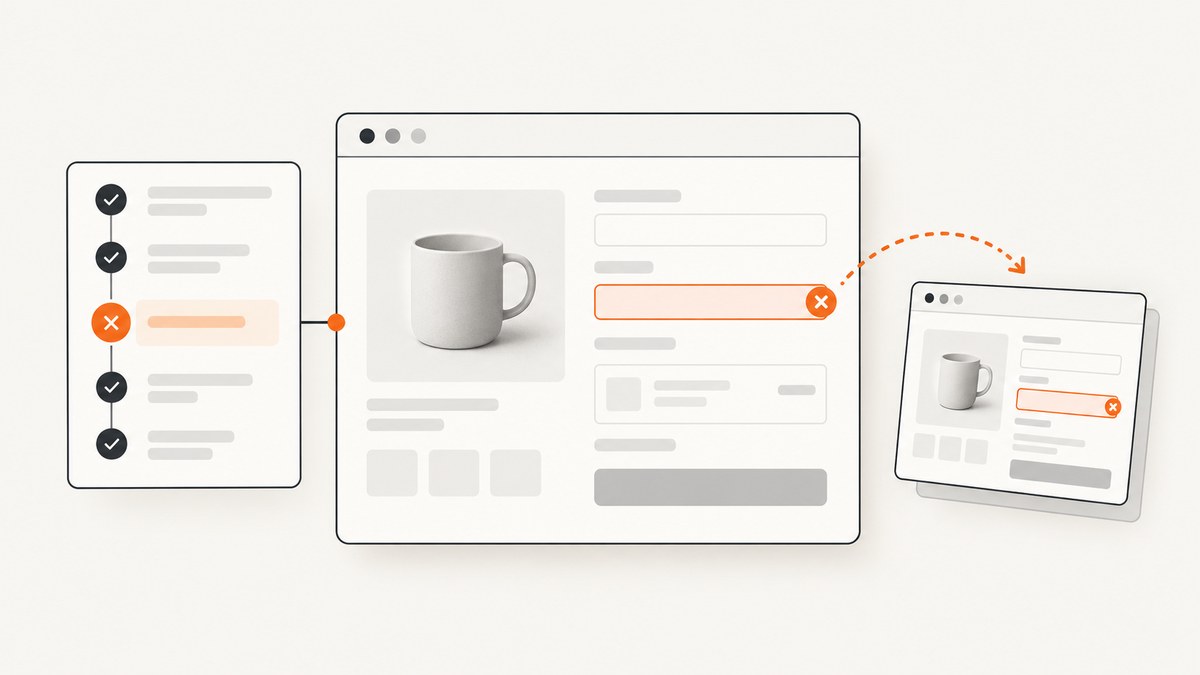
To capture a screenshot automatically when a Playwright test fails, set use.screenshot to 'only-on-failure' in playwright.config.ts:
import { defineConfig } from '@playwright/test';

export default defineConfig({
  use: {
    screenshot: 'only-on-failure',
  },
});
Playwright saves the screenshot with the test’s output artifacts, typically under test-results, and reporters can display it. For a custom capture point, name, or full-page image, call page.screenshot() and attach the returned bytes with testInfo.attach(). The choice depends on whether you need simple automatic capture or control over exactly what gets captured.
1. Configure automatic failure screenshots
For most suites, the built-in setting is the simplest and most reliable option. It lets Playwright take the screenshot as part of test artifact handling, without adding hooks to every test.

// playwright.config.ts
import { defineConfig } from '@playwright/test';

export default defineConfig({
  testDir: './tests',
  use: {
    screenshot: 'only-on-failure',
  },
});
Run tests as usual:
npx playwright testWhen a test fails, inspect its result in the reporter output. Playwright documents this mode as capturing a screenshot after each test failure. The default is 'off', so if there is no screenshot setting in the configuration, automatic failure screenshots are not enabled.
Other documented values are:
'off': do not automatically capture screenshots.'on': capture a screenshot after each test, whether it passed or failed.'only-on-failure': capture after failures.'on-first-failure': capture only the first failure for each test, useful when retries could otherwise generate repeated images.
Set one mode in the shared project configuration to apply it consistently. If projects have different needs, configure the setting in each project’s use block.
2. Choose automatic capture or a custom attachment
Use automatic capture when the goal is simply to keep an image for each failed test. Use a custom screenshot and attachment when you need a specific moment, a descriptive attachment name, full-page capture, or step-level attribution.
| Need | Recommended approach |
|---|---|
| Capture failed tests with minimal code | use.screenshot: 'only-on-failure' |
| Limit duplicate images across retries | 'on-first-failure' |
| Capture at a particular point in the test | page.screenshot() and testInfo.attach() |
| Capture beyond the visible viewport | Use fullPage: true |
| Associate an image with one test step | Use step.attach() inside test.step() |
3. Capture and attach a custom screenshot
page.screenshot() returns image bytes. Pass them to testInfo.attach() with a name and content type. This example takes a full-page image after the page is ready and attaches it to the test report:
import { test, expect } from '@playwright/test';

test('checkout page shows the order summary', async ({ page }, testInfo) => {
  await page.goto('https://example.test/checkout');
  await expect(page.getByRole('heading', { name: 'Order summary' })).toBeVisible();

  const screenshot = await page.screenshot({ fullPage: true });
  await testInfo.attach('checkout-page', {
    body: screenshot,
    contentType: 'image/png',
  });
});
Use body for the screenshot bytes or path when attaching a file already on disk. Playwright copies the attachment to a reporter-accessible location. The test function’s testInfo argument is the current test’s metadata and attachment interface.
Capture only when the test fails
If you want custom naming or full-page behavior, capture in afterEach and compare the final status with the expected status. Checking both values handles tests whose expected outcome is a failure: such a test is not a failure when it matches its expected status.
import { test } from '@playwright/test';

test.afterEach(async ({ page }, testInfo) => {
  if (testInfo.status !== testInfo.expectedStatus) {
    await testInfo.attach('failure-screenshot', {
      body: await page.screenshot({ fullPage: true }),
      contentType: 'image/png',
    });
  }
});
The status fields are available after the test finishes in afterEach. The page fixture is still supplied to the hook, so the hook can capture the page before the fixture is torn down. Avoid enabling both automatic failure screenshots and a custom failure hook unless you intentionally want both artifacts; otherwise you may create duplicate images.
Attach an image to a specific step
A test-level attachment belongs to the test as a whole. If the screenshot should be attributed to the precise action that failed, attach it inside a step callback:
import { test, expect } from '@playwright/test';

test('submit an order', async ({ page }) => {
  await page.goto('https://example.test/checkout');

  await test.step('submit checkout form', async step => {
    await page.getByRole('button', { name: 'Place order' }).click();
    const image = await page.screenshot();
    await step.attach('after-submit', {
      body: image,
      contentType: 'image/png',
    });
    await expect(page.getByText('Order confirmed')).toBeVisible();
  });
});
Step attachments are useful when a test contains several operations and the report should show which step the image documents. For a general failure artifact, prefer testInfo.attach().
4. Control image size and transparency
By default, a page screenshot covers the current viewport. Set fullPage: true to capture the complete scrollable page. This is useful for long layouts, but it can produce large images and may not represent the exact viewport where the failure occurred.
const image = await page.screenshot({
  fullPage: true,
  omitBackground: true,
});
omitBackground: true makes the page background transparent where the browser supports transparency. It is most useful for compositing or inspecting pages that intentionally have a transparent background. If transparency is irrelevant, leave it out.
For diagnosing a visual failure, viewport screenshots are often easier to compare because they preserve the dimensions the test interacted with. Use full-page screenshots when content below the fold is part of the problem. A useful compromise is to keep automatic viewport captures for all failures and add a named full-page attachment only in tests where the full layout matters.
5. Where Playwright stores failure screenshots
Playwright places screenshots, traces, videos, and other test artifacts in the configured test output directory, commonly test-results. The reporter determines how attachments are shown. The HTML reporter can expose attachments in the test result; other reporters may present them differently.
To inspect results locally, run the test command and open the HTML report if it is configured:
npx playwright test
npx playwright show-report
If the file is not obvious, inspect the test’s output directory and reporter details rather than assuming the screenshot was written beside the test source file. Attachments are managed as test artifacts; they are not necessarily saved to an arbitrary project path unless you explicitly write a file yourself.
6. Retries and repeated failures
Retries affect artifact volume. With 'only-on-failure', failures can produce an image on each failed attempt. For a flaky test that fails repeatedly before passing, these images can help explain the original failure, but they can also add storage and make reports harder to scan. Use 'on-first-failure' when you want to retain only the first failure screenshot for each test.
Choose based on the debugging question:
- Use
'only-on-failure'when each failed attempt may reveal a different state. - Use
'on-first-failure'when the first broken state is the useful evidence and duplicate retry artifacts are noise. - Use a custom hook when capture conditions depend on final test status or when you need consistent naming and full-page capture.
When combining retries with an afterEach hook, remember the hook runs as part of each attempt. A status mismatch can therefore attach images for each failed attempt. If that is not wanted, use the built-in first-failure mode or add retry-aware logic based on the test metadata and your desired reporting behavior.
7. Run tests in CI and manage artifacts
In continuous integration, treat failure screenshots as test artifacts. Keep the report and output directory available after a failed job so that developers can inspect the image alongside logs and any configured traces or videos. Make sure the CI artifact collection step includes the test output directory; otherwise Playwright may create the screenshot locally in the job workspace and the job cleanup may remove it.
Use a stable output directory and reporter configuration across local and CI runs so that artifact links remain predictable. For parallel runs, rely on Playwright’s per-test output organization instead of making every test write to the same fixed filename. A fixed filename can be overwritten by concurrent tests.
Failure-only capture generally avoids the extra image generation and artifact transfer associated with screenshotting every passing test. Full-page captures and many retry attempts can increase artifact size. Keep screenshots focused on the debugging need, and retain them for an appropriate period in your CI artifact system.
8. Troubleshooting common problems
| Symptom | Likely cause | Fix |
|---|---|---|
| No screenshot appears | Automatic capture is still at its default value, 'off', or the reporter/output artifact was not retained. |
Set use.screenshot to 'only-on-failure'; inspect the configured output directory and CI artifact upload. |
| Screenshot exists but is missing from the report | The reporter view or artifact collection does not expose the attachment. | Open the test output directory and confirm the reporter is configured to display attachments; preserve output files in CI. |
| Screenshot shows the wrong state | The image was captured before the relevant action or before the page reached its expected state. | Wait for a meaningful locator or assertion, then capture explicitly at that point; use a custom attachment when timing matters. |
| Custom failure screenshot is not attached | The hook condition does not match the final outcome, or capture is attempted after the page fixture is unavailable. | Compare testInfo.status to testInfo.expectedStatus in afterEach and capture while the page fixture is supplied. |
| Too many screenshots | Every failed retry creates another artifact, or automatic and custom capture are both enabled. | Try 'on-first-failure' or remove the duplicate capture path. |
| Image is unexpectedly tall or large | fullPage: true captures the full scrollable page. |
Remove that option for a viewport image; reserve full-page mode for layout issues below the fold. |
| Parallel tests overwrite a file | Multiple tests write to the same hard-coded path. | Use testInfo.attach() for reporter-managed artifacts, or generate unique paths per test. |
9. Or skip the browser setup
If the task is to capture a URL outside a Playwright test, ScreenshotNeo provides a website screenshot API. One GET request returns an image or PDF; see the API documentation.

curl -G "https://api.screenshotneo.com/v1/shot" \
  -d access_key=YOUR_API_KEY \
  --data-urlencode url=https://stripe.com \
  -o shot.webp
ScreenshotNeo accepts cookie or consent banners as a visitor and removes more than 60 known consent platforms, newsletter popups, and chat widgets before capture; each step can be turned off. Bot checks and CAPTCHAs, blank pages, timeouts, failed loads, and cache hits cost nothing, and the response indicates the page verdict and billing status in headers. Its MCP server includes take_screenshot, get_page_info, and capture_pdf for Claude, Cursor, and other MCP clients.
The free plan includes 1,000 screenshots a month with no card. Paid plans start at $5 for 3,000 screenshots; every feature is available on every plan. Read more at ScreenshotNeo, or sign up free.
10. FAQ
Can I capture a screenshot only for one test?
Yes. Use the test’s page.screenshot() and attach it where needed, or add test-specific configuration. A project-wide automatic mode is simpler when the policy applies to the whole suite.
Can an expected failure still get a screenshot?
With a custom hook, compare status and expectedStatus. Matching statuses mean the test outcome was expected; a mismatch identifies an unexpected result.
Should I use a trace instead of a screenshot?
A screenshot records a visual state. A trace can provide broader execution context when configured. For a visual symptom, keep the image; for interaction or timing questions, inspect the other available artifacts too.
Does a screenshot attachment require a file path?
No. Attach the bytes returned by page.screenshot() using body, or provide a disk path when you already have a file.


