How to Set Screenshot Quality in Playwright
Set Playwright screenshot quality with the right image format, then tune dimensions and capture options for your use case.
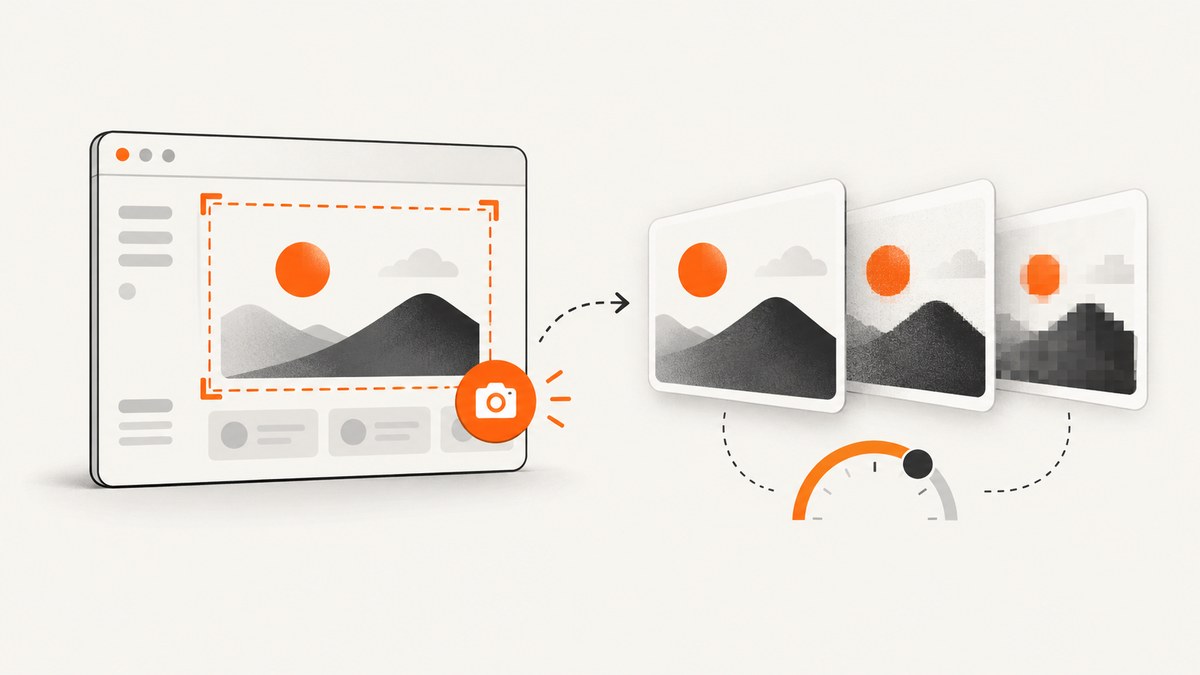
To set screenshot quality in Playwright, choose JPEG or WebP and pass quality from 0 to 100. The option has no effect on PNG. JPEG defaults to quality 80; WebP defaults to 100, which Playwright documents as lossless. Lower WebP quality values use lossy compression.
await page.screenshot({
  path: 'screenshot.jpg',
  type: 'jpeg',
  quality: 60,
});
That is a valid example, not a universal recommendation: the right value depends on the page and how the image will be used. If file size matters, compare representative captures at several settings. Also consider scale: it changes the number of output pixels, while quality controls lossy image encoding. See the official Page screenshot API and Locator screenshot API.
1. Choose the output format first
Playwright’s screenshot API supports PNG, JPEG, and WebP. You can set the format with type, or let Playwright infer it from the output path’s extension. If you omit both the path extension and type, the Page API defaults to PNG.
| Format | Quality behavior | Use it when |
|---|---|---|
| PNG | quality does not apply |
You need PNG output, such as for pixel comparison or an image with transparency. |
| JPEG | Quality is 0–100; documented default is 80 | You want a lossy format and JPEG compatibility. |
| WebP | Quality is 0–100; default 100 is lossless, lower values are lossy | You want WebP output and need to choose lossless or lossy encoding. |
Use a matching extension and explicit type when clarity matters. For example, path: 'shot.webp' can infer WebP, but type: 'webp' makes the intent explicit. Avoid treating a PNG screenshot with a quality value as compressed: PNG ignores that option.
2. Write a runnable Playwright example
The following Node.js script launches Chromium, opens a page, and saves a JPEG. It uses Playwright’s library API, not Playwright Test’s automatic screenshot setting.
const { chromium } = require('playwright');

(async () => {
  const browser = await chromium.launch();
  try {
    const page = await browser.newPage({ viewport: { width: 1440, height: 900 } });
    await page.goto('https://example.com', { waitUntil: 'networkidle' });
    await page.screenshot({
      path: 'screenshot.jpg',
      type: 'jpeg',
      quality: 60,
      fullPage: true,
    });
  } finally {
    await browser.close();
  }
})();
Install Playwright and its browser before running the script, using the setup instructions for your project and Playwright version in the official installation guide. The URL here is an example target; replace it with the page you are authorized to capture. If you only need the visible viewport, remove fullPage or set it to false.
Set quality for WebP or PNG
// Lossless WebP at the documented default quality
await page.screenshot({ path: 'shot.webp', type: 'webp', quality: 100 });

// Lossy WebP: choose a value and compare output for your content
await page.screenshot({ path: 'shot-small.webp', type: 'webp', quality: 70 });

// PNG: quality has no effect
await page.screenshot({ path: 'shot.png', type: 'png' });
Values are numeric and range from 0 through 100. A smaller number does not promise a particular file size or visual result across different pages. The Playwright reference does not prescribe an optimal setting or quantify size and fidelity tradeoffs for particular content.
3. Tune pixel dimensions separately
quality and scale solve different problems. Quality affects JPEG or WebP encoding. Scale determines how many image pixels correspond to CSS pixels:
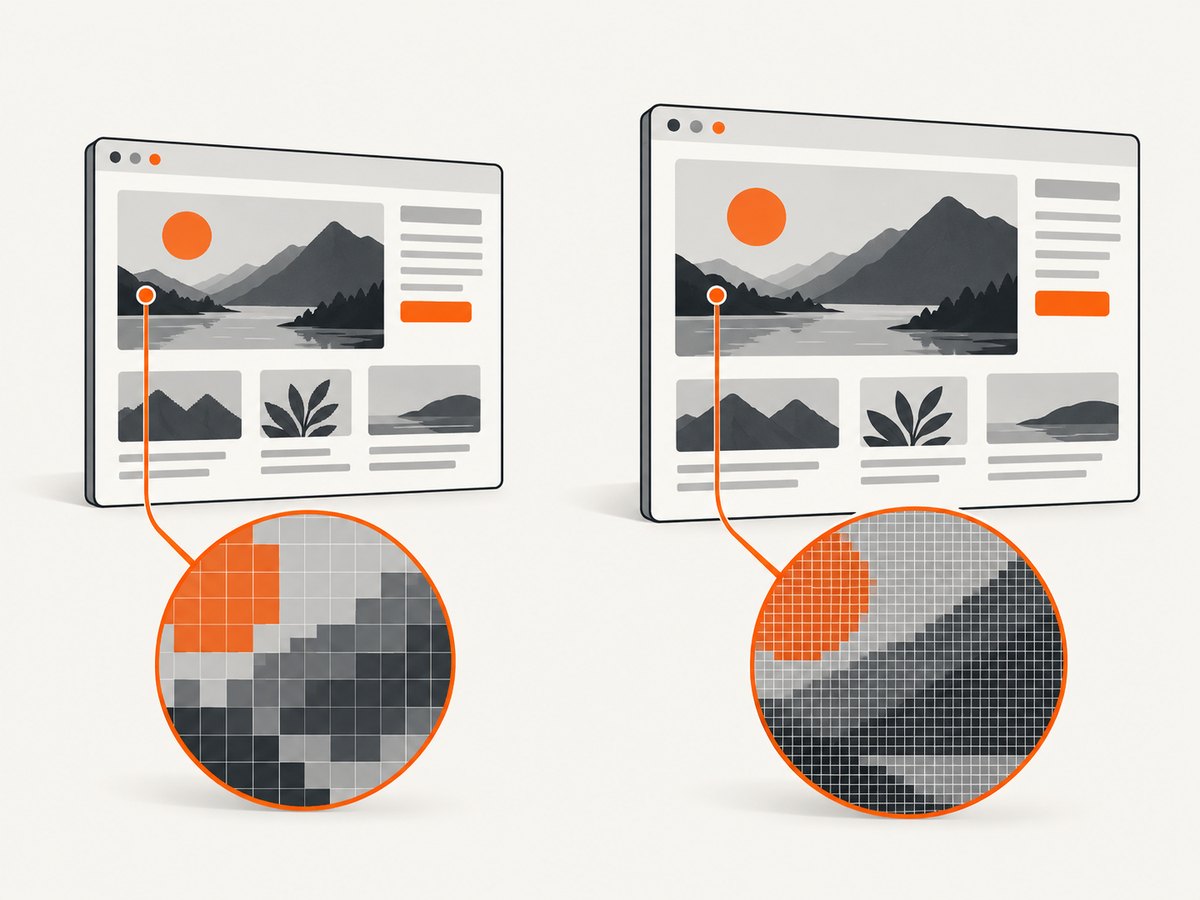
scale: 'css'produces one output pixel per CSS pixel. Playwright says this keeps high-DPI screenshots small.scale: 'device'produces one output pixel per device pixel. On high-DPI displays, the result can be twice as large or larger.
await page.screenshot({
  path: 'compact.jpg',
  type: 'jpeg',
  quality: 70,
  scale: 'css',
});
If a screenshot is too large, first decide whether you need its pixel dimensions. Reducing scale can reduce dimensions; lowering JPEG or lossy WebP quality changes encoding. Those choices have different visual consequences. Keep the original dimensions when they are needed for legibility, and compare captures at the final display size.
4. Choose the right screenshot API
page.screenshot() captures the page, usually the viewport unless you request a full-page capture or clip. locator.screenshot() captures a specific matched element. The Locator method scrolls that element into view and performs actionability checks; a detached element causes an error.
// Capture a single chart rather than the entire page
const chart = page.locator('[data-testid="chart"]');
await chart.screenshot({
  path: 'chart.webp',
  type: 'webp',
  quality: 85,
});
Use an element screenshot when the output should contain one component. Make sure the locator matches the intended element and that the element remains attached while Playwright captures it. For a full page, use page.screenshot({ fullPage: true }); for a particular region, use clip as documented in the Page API.
5. Control what appears in the capture
Encoding settings cannot fix a capture taken at the wrong time or with unwanted page content. Playwright exposes options that help make screenshots repeatable:
fullPagecaptures the scrollable page rather than only the viewport.animations: 'disabled'fast-forwards finite animations and cancels infinite ones during capture; infinite animations are restored afterward.maskandmaskColorcover selected locators. The API listsmaskColoras introduced in v1.35.styleapplies a stylesheet for the screenshot; the API lists it as introduced in v1.41.omitBackgroundomits the page background where supported, but does not apply to JPEG.clipcaptures a defined rectangular portion of the page.
await page.screenshot({
  path: 'stable.webp',
  type: 'webp',
  quality: 100,
  fullPage: true,
  animations: 'disabled',
  mask: [page.locator('.personal-data')],
  maskColor: '#888888',
});
Do not assume screenshot options are interchangeable with visual assertion defaults. Playwright screenshot assertions use PNG or WebP snapshots, both lossless, and include comparison tolerances. Their defaults disable animations. The direct page.screenshot() method has its own options and defaults. See the Page Assertions reference.
6. Save smaller images without guessing
- Pick the format based on the consumer. Confirm that the application receiving the image supports JPEG or WebP before switching away from PNG.
- Set dimensions deliberately. Choose viewport size, full-page behavior, clipping, and
scalebefore adjusting quality. - Capture representative pages. Include text, gradients, photos, and fine details if those appear in real pages.
- Compare a few quality settings. Open the results at the intended display size and inspect edges, small text, and gradients.
- Record the chosen settings. Keep format, scale, viewport, and quality consistent when output size or visual comparisons matter.
There is no documented universal best value. A setting that looks acceptable on a photograph may make small text or thin lines look worse. Measure file sizes and inspect fidelity on your own representative captures rather than assuming a particular quality number is best.
7. Common errors and fixes
| Symptom | Likely cause | Fix |
|---|---|---|
Changing quality does not change the PNG. |
The option does not apply to PNG. | Use JPEG or WebP if lossy quality control is needed, or keep PNG and manage dimensions instead. |
| The file is larger than expected. | The output uses device-pixel scale, captures the full page, or uses a lossless format. | Check scale, fullPage, and format. Compare CSS scale or lossy encoding if acceptable. |
| The capture looks blurry or has artifacts. | Lossy quality may be too low for the content or display size. | Raise the quality value or use lossless WebP/PNG, then compare at the intended display size. |
| The file contents and extension do not match expectations. | Format inference may not match the assumed type. | Set type explicitly and use a matching path extension. |
| A locator screenshot fails because the element disappeared. | The element detached before capture completed. | Wait for the intended element and ensure the page does not replace it during capture. |
| Repeated captures differ due to motion. | Animations or changing page state are affecting the capture. | Consider animations: 'disabled', stable page data, and appropriate waiting conditions. |
| Transparent background is missing from JPEG. | omitBackground is not applicable to JPEG. |
Choose a format and workflow that supports the transparency you need. |
8. Performance, reliability, and cost considerations
Output size depends on more than quality. Pixel dimensions, full-page height, image content, format, and encoding settings all matter. Larger captures require more image data to be produced and stored or transferred. Reducing pixel dimensions can help when the downstream use does not need the original detail; lossy quality changes can help when the consumer accepts the resulting visual tradeoff.
For reliable captures, wait for the page state that matters to your use case. networkidle is one possible navigation wait condition, but pages with ongoing requests may not reach it; pages can also change after navigation. A locator wait can be more appropriate when a particular component signals readiness. Disable animations when they create unwanted variation, and use masks or styles when dynamic content should be normalized. These controls improve consistency but do not make changing page data identical.
Playwright’s screenshot options do not specify a per-capture price. Your costs depend on where the browser runs and how you store or transfer the output. Keep captures to the required dimensions and retain only the formats and variants your workflow needs. For visual tests, use lossless snapshot formats and assertion tolerances rather than optimizing for the smallest file.
9. Playwright Test screenshot settings are different
If you use Playwright Test, its configuration can decide when automatic test screenshots are taken. The documented modes include off, on, only-on-failure, and on-first-failure; its screenshot configuration also includes options such as fullPage and omitBackground. This is separate from choosing encoding quality in page.screenshot(). Consult the Test screenshot configuration reference for the test-runner behavior, and the Page API for image encoding options.
10. Or skip the browser setup
If you need a screenshot from a URL without running and maintaining a browser, ScreenshotNeo is a website screenshot API and MCP server from Yorker Media. One GET request returns a PNG, JPEG, WebP, or PDF. Its options include output format and image resizing; see the ScreenshotNeo documentation for request details.
curl -G "https://api.screenshotneo.com/v1/shot" -d access_key=YOUR_API_KEY --data-urlencode url=https://stripe.com -o shot.webpimport requests
r = requests.get(
"https://api.screenshotneo.com/v1/shot",
params={"access_key": "YOUR_API_KEY", "url": "https://stripe.com"},
timeout=90,
)
open("shot.webp", "wb").write(r.content)const q = new URLSearchParams({ access_key: 'YOUR_API_KEY', url: 'https://stripe.com' });
const res = await fetch(`https://api.screenshotneo.com/v1/shot?${q}`);
if (!res.ok) throw new Error(`Screenshot request failed: ${res.status}`);
const fs = await import('node:fs/promises');
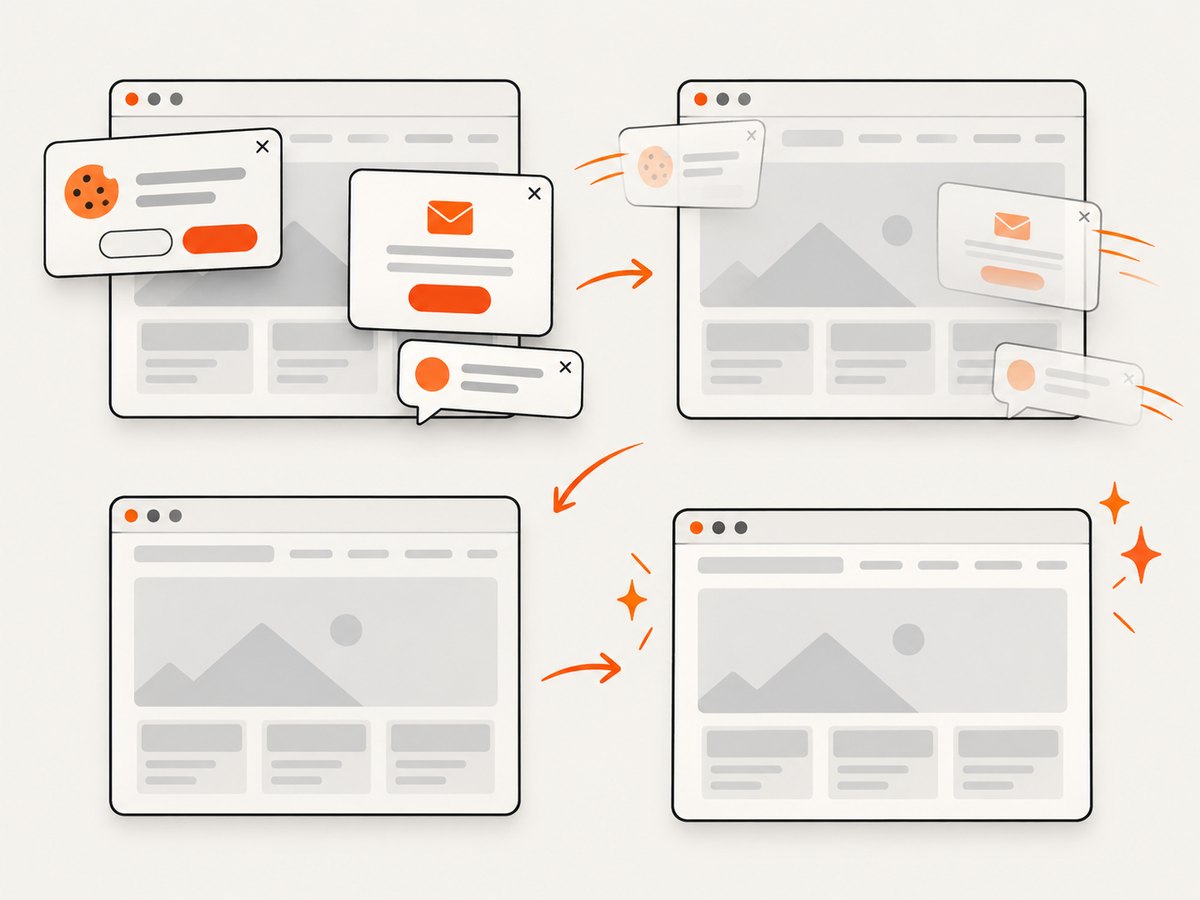
await fs.writeFile('shot.webp', Buffer.from(await res.arrayBuffer()));ScreenshotNeo removes cookie and consent banners, newsletter popups, and chat widgets before capture; each cleanup step can be turned off. Bot checks, CAPTCHAs, blank pages, timeouts, failed loads, and cache hits are not billed, and response headers identify the page verdict and billing status. Its MCP server offers take_screenshot, get_page_info, and capture_pdf for Claude, Cursor, and other MCP clients. The free plan includes 1,000 screenshots a month with no card; paid plans start at $5 for 3,000 screenshots. Sign up for 1,000 free screenshots a month, with no card.
FAQ
What is Playwright’s default screenshot quality?
JPEG’s documented default is 80. WebP’s documented default is 100, which is lossless. PNG does not use the quality option.
Can I use quality 100 for JPEG?
The API accepts values from 0 to 100 for JPEG and WebP. A higher number is a setting, not a guarantee that the resulting file will be a particular size or visibly better for every page.
Does quality change how many pixels Playwright captures?
No. Use screenshot dimensions and scale to control pixel count. Quality applies to JPEG and WebP encoding.
Should I use JPEG or WebP for screenshots?
Choose a format supported by the destination and compare the result on representative pages. Playwright documents WebP quality 100 as lossless and lower values as lossy; JPEG is lossy and defaults to 80.
Can I set screenshot quality in Playwright Test configuration?
The test runner’s screenshot setting controls automatic screenshot behavior and options such as when captures occur. Set encoding options through the screenshot API method when you need to control output quality.


