How to Set the Screenshot Save Location in Playwright
Save Playwright screenshots exactly where you need them with path, testInfo.outputPath(), snapshotPathTemplate, and reliable folder patterns.
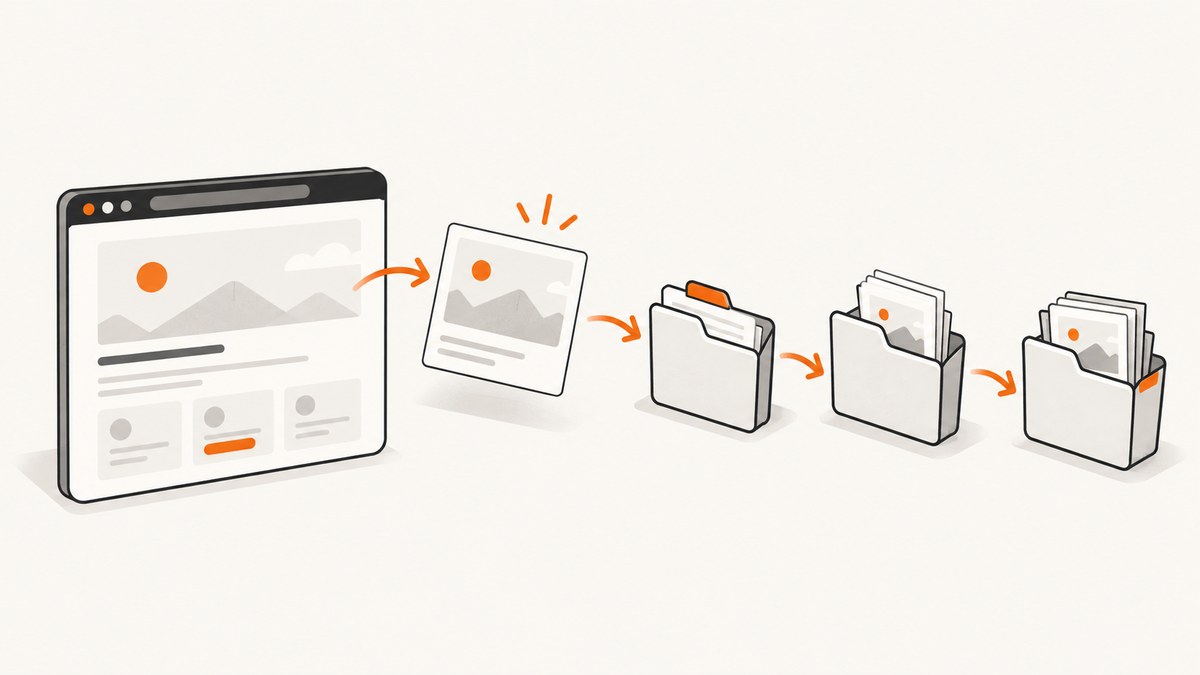
Use the path option on page.screenshot():
import { chromium } from 'playwright';

const browser = await chromium.launch();
const page = await browser.newPage();
await page.goto('https://example.com');
await page.screenshot({ path: 'screenshots/home.png' });
await browser.close();
A relative path is resolved from the process current working directory. Use an absolute path when the destination must not depend on where the command was launched. If you omit path, Playwright returns image bytes instead of writing a file. The official Playwright API reference documents this behavior.
Choose the save mechanism for your workflow
| Goal | Recommended API | Path is anchored to |
|---|---|---|
| One screenshot from a script | page.screenshot({ path }) |
Current working directory for relative paths |
| Test artifact kept with a test run | testInfo.outputPath('name.png') |
Playwright Test’s output directory |
| Visual regression baseline | snapshotPathTemplate or toHaveScreenshot() |
Config or test snapshot structure |
| Report attachment | testInfo.attach() |
Reporter-managed attachment storage |
| Automatic failure screenshots | use: { screenshot: 'only-on-failure' } |
Test runner output directory |
Save an ordinary screenshot to a specific folder
Project-relative path
import { chromium } from 'playwright';

const browser = await chromium.launch();
const page = await browser.newPage({ viewport: { width: 1440, height: 900 } });
await page.goto('https://example.com', { waitUntil: 'networkidle' });
await page.screenshot({
  path: 'artifacts/screenshots/example-home.webp',
  fullPage: true,
  type: 'webp',
  quality: 85
});
await browser.close();
The directory must be available to your script. Create it explicitly when your application depends on a clean checkout or a new output directory:
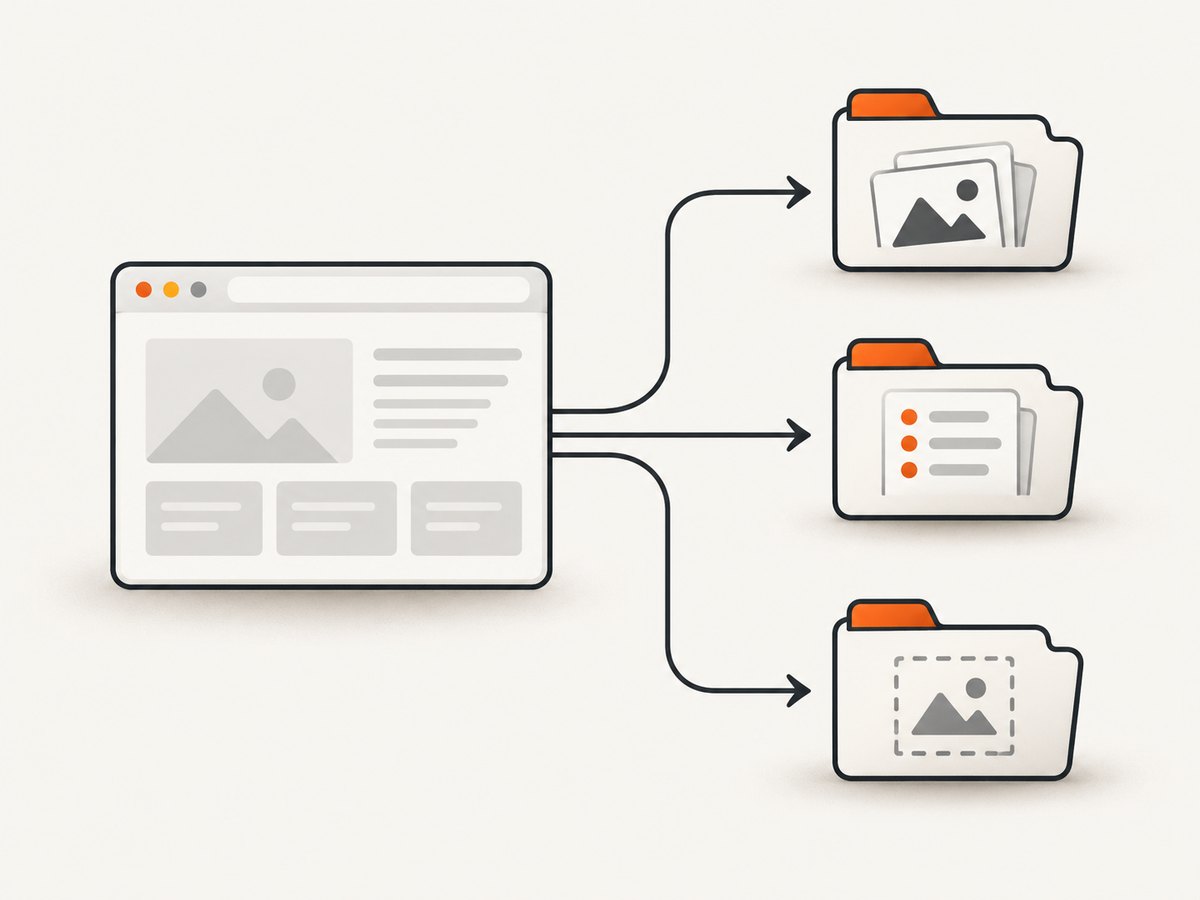
import { mkdir } from 'node:fs/promises';
import path from 'node:path';

const outputDir = path.resolve(process.cwd(), 'artifacts/screenshots');
await mkdir(outputDir, { recursive: true });
await page.screenshot({ path: path.join(outputDir, 'home.png') });
Using process.cwd() makes the anchor visible and predictable. Do not assume the path is relative to the test file; it is relative to the process working directory.
Absolute path
import path from 'node:path';

const destination = path.resolve('/var/tmp', 'playwright', 'home.png');
await page.screenshot({ path: destination });
On Windows, construct paths with Node’s path helpers instead of manually mixing separators:
const destination = path.join('C:', 'work', 'screenshots', 'home.png');
await page.screenshot({ path: destination });
Capture bytes instead of saving immediately
const buffer = await page.screenshot({ type: 'png' });
await writeFile('/tmp/home.png', buffer);
This is useful when an object store, report API, or test attachment is the real destination. It also lets you generate a filename after inspecting the page.
Use Playwright Test’s output directory
For a test artifact, use testInfo.outputPath(). Playwright Test supplies a run-specific output location and keeps artifacts associated with the test.
import { test } from '@playwright/test';

test('capture checkout', async ({ page }, testInfo) => {
  await page.goto('https://example.com/checkout');
  const file = testInfo.outputPath('checkout.png');
  await page.screenshot({ path: file, fullPage: true });
});
You can place related files below a subdirectory:
const file = testInfo.outputPath('screens', 'checkout.png');
await page.screenshot({ path: file });
The TestInfo documentation shows outputPath() for this purpose. Prefer it over a hard-coded test-results path when tests run in parallel, on CI, or with retries.
Configure visual regression snapshot locations
Snapshot assertions use Playwright Test’s snapshot directory rules. Set snapshotPathTemplate in playwright.config.ts:
import { defineConfig } from '@playwright/test';

export default defineConfig({
  snapshotPathTemplate: '{testDir}/__screenshots__/{testFilePath}/{arg}{ext}'
});
Template values include {testDir}, {testFilePath}, {arg}, and {ext}. Relative templates resolve from the configuration directory. The configuration reference identifies snapshotPathTemplate as available since Playwright 1.28; match the documentation to your installed version.
import { test, expect } from '@playwright/test';

test('homepage visual baseline', async ({ page }) => {
  await page.goto('https://example.com');
  await expect(page).toHaveScreenshot('homepage.png');
});
You can pass a path for one assertion:
await expect(page).toHaveScreenshot(['header', 'desktop.png']);The path must stay inside that test file’s snapshots directory or Playwright throws. This mechanism controls baselines and comparison artifacts; it does not replace path for an unrelated manual screenshot. See the visual comparisons guide.
Attach a screenshot to a test report
When the destination is a reporter rather than a project folder, capture a buffer and attach it:
import { test } from '@playwright/test';

test('attach screenshot', async ({ page }, testInfo) => {
  await page.goto('https://example.com');
  const image = await page.screenshot();
  await testInfo.attach('homepage', {
    body: image,
    contentType: 'image/png'
  });
});
The runner copies attachments to a location accessible by reporters. You can also attach an existing file with a path property. This keeps report storage separate from application-generated screenshots.
Automatic screenshots on failure
import { defineConfig } from '@playwright/test';

export default defineConfig({
  use: {
    screenshot: 'only-on-failure'
  },
  outputDir: 'test-results'
});
The screenshot setting accepts 'off', 'on', or 'only-on-failure'. It governs runner-managed screenshots. A direct page.screenshot({ path }) still writes to the path you provide. Playwright’s test-use options documentation describes this policy and output behavior.
Screenshot options that affect the saved file
fullPage: truecaptures the full scrollable page. Long pages can be large and may expose lazy-loading or sticky-header behavior.clip: { x, y, width, height }saves a viewport region.locator.screenshot()captures one element; use a stable locator when possible.type: 'png' | 'jpeg' | 'webp'selects the format. JPEG and WebP supportquality; PNG does not.omitBackground: truepreserves transparency where the page supports it.animations: 'disabled'can reduce visual-test noise in versions that support the option.maskandmaskColorcan cover dynamic regions for assertions.
Set the viewport, device scale factor, color scheme, locale, and timezone in the browser context when reproducibility matters. A different context can produce a different image even when the path is identical.
Reliable naming and parallel runs
- Include a stable page or test name, browser project, and timestamp or retry identifier when files are archival.
- Do not let parallel workers write the same filename unless overwriting is intentional.
- Keep generated artifacts out of source control, or add the output directory to
.gitignore. - For CI, upload the runner’s output directory after the test command completes.
- Use deterministic names for visual baselines; use unique names for debugging captures.
const safeName = testInfo.title.replace(/[^a-z0-9-_]+/gi, '-').toLowerCase();
const file = testInfo.outputPath(`${safeName}-${testInfo.workerIndex}.png`);
await page.screenshot({ path: file });
Performance, reliability, and cost notes
Full-page screenshots require more layout and image work than a viewport capture. Wait for the state you actually need instead of using an unnecessarily long fixed delay. If the page loads images lazily, scroll or wait for a known selector before capturing. Reuse a browser process and create contexts per test to avoid launch overhead.
Screenshot files consume disk and CI artifact bandwidth. PNG is lossless and often larger; JPEG or WebP can reduce storage when exact pixels are not required. In visual regression, keep browser versions, fonts, viewport, device scale, and animations consistent to avoid false diffs.
Playwright itself does not charge per screenshot. Your costs come from compute, CI minutes, storage, and any external browser or proxy service. If you need hosted captures without maintaining browser setup, ScreenshotNeo provides a website screenshot API at screenshotneo.com.
Troubleshooting common save-location errors
“The file is not where I expected”
Cause: the relative path is based on process.cwd(), which may differ between an IDE, local shell, and CI runner.
Fix: log process.cwd(), use an absolute path, or use testInfo.outputPath() for test artifacts.
“ENOENT: no such file or directory”
Cause: the parent directory does not exist or a path segment is misspelled.
Fix: create it with mkdir(dir, { recursive: true }) and verify the resolved path before calling screenshot().
Permission denied
Cause: the process cannot write to the selected directory, common with protected system folders or read-only CI workspaces.
Fix: write beneath the workspace or Playwright output directory and check the runner’s filesystem permissions.
Snapshot path rejected
Cause: a toHaveScreenshot() path escapes the test file’s snapshots directory.
Fix: keep the assertion path inside that directory, or use page.screenshot({ path }) for a free-form destination.
Screenshots overwrite each other
Cause: parallel workers, retries, or multiple browsers share one filename.
Fix: use testInfo.outputPath() or include project, worker, and retry data in the filename.
Image is blank or incomplete
Cause: capture occurs before navigation, fonts, or lazy content is ready.
Fix: wait for a meaningful selector, use an appropriate waitUntil mode, and verify the page state before capture. Avoid treating networkidle as a universal readiness signal for applications with persistent connections.
Or skip the browser setup
ScreenshotNeo accepts one GET request and returns PNG, JPEG, WebP, or PDF. See the ScreenshotNeo API documentation for all options.
curl -G "https://api.screenshotneo.com/v1/shot" -d access_key=YOUR_API_KEY --data-urlencode url=https://stripe.com -o shot.webpimport requests
r = requests.get("https://api.screenshotneo.com/v1/shot", params={"access_key": "YOUR_API_KEY", "url": "https://stripe.com"}, timeout=90)
open("shot.webp", "wb").write(r.content)const q = new URLSearchParams({ access_key: 'YOUR_API_KEY', url: 'https://stripe.com' });
const res = await fetch(`https://api.screenshotneo.com/v1/shot?${q}`);Cookie and consent banners, newsletter popups, and chat widgets are removed before the shot. Bot checks, blank pages, timeouts, failed loads, and cache hits are not billed, and response headers identify the page verdict and billing status. Options include full-page and element capture, dark mode, device presets or custom viewports, retina scale, custom CSS and JavaScript, waits, request blocking, headers, cookies, user agents, authorization, timezone, geolocation, transparency, resizing, caching, signed image links, asynchronous webhooks, bulk capture, and PDFs. Its MCP server provides take_screenshot, get_page_info, and capture_pdf for Claude, Cursor, and other MCP clients.
The Free plan includes 1,000 screenshots per month with no card. Paid plans start at $5 for 3,000 shots, and every feature is available on every plan. Create a free ScreenshotNeo account.
FAQ
Does Playwright create the screenshot directory automatically?
Do not rely on undocumented behavior. Create required parent directories yourself with Node’s filesystem APIs.
Should I use path or outputPath()?
Use path for an ordinary script or a deliberately chosen destination. Use outputPath() for test-run artifacts that must work with retries and parallel workers.
Can I change where visual snapshots are stored?
Yes. Configure snapshotPathTemplate, or provide a path to toHaveScreenshot() that remains inside the permitted snapshots directory.
How do I save a screenshot without writing a file?
Omit path; Playwright returns a buffer. You can then upload it, attach it to a report, or write it with your own naming and storage code.


