Playwright Screenshot Syntax: Full-Page, Element, PDF, and Stable Captures
Learn Playwright screenshot syntax for viewport, full-page, clipped, and element captures, with stable visual tests, troubleshooting, and a hosted API option.

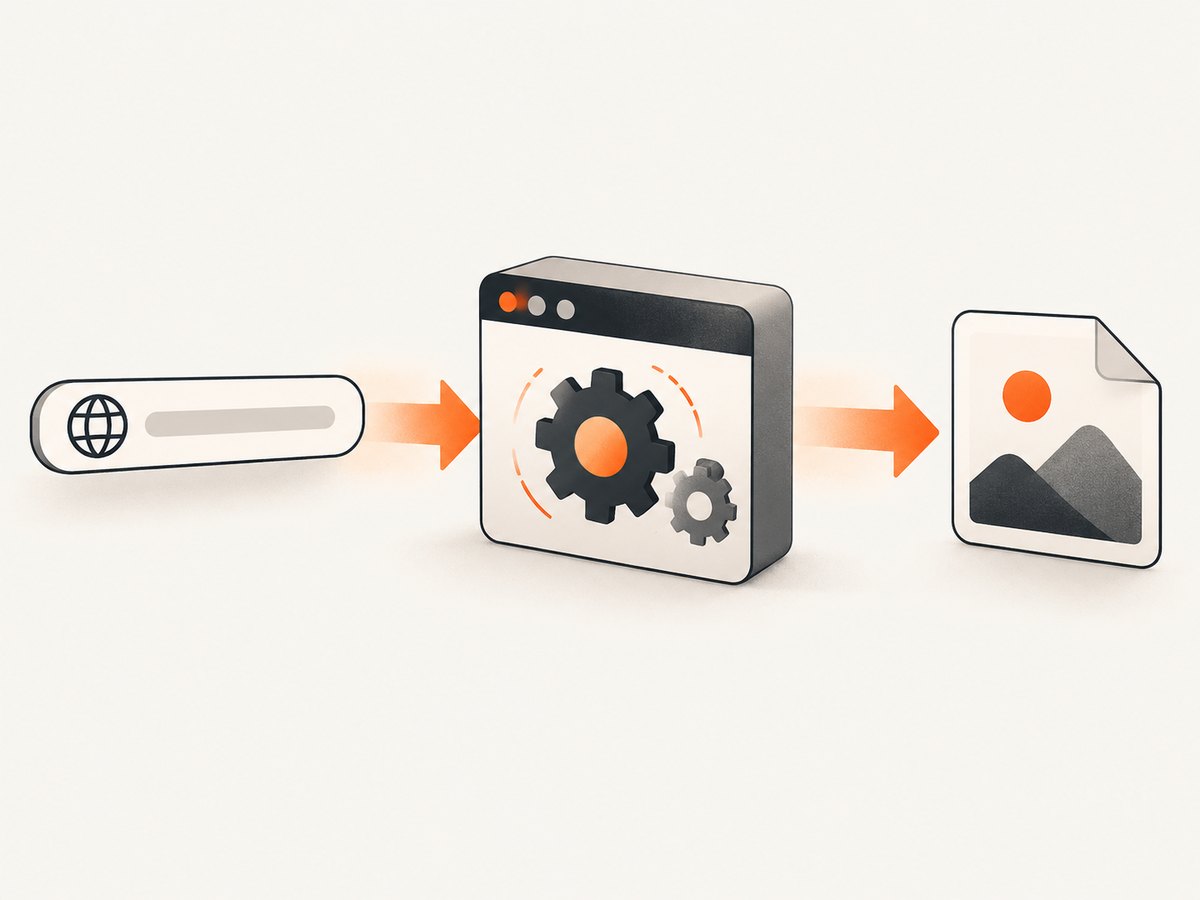
Playwright screenshots use page.screenshot(). Open a page, call the method, and pass path to save the image. Without fullPage, Playwright captures the current viewport; with fullPage: true, it captures the full scrollable page. For a single component, call locator.screenshot().
const { chromium } = require('playwright');

(async () => {
  const browser = await chromium.launch();
  const page = await browser.newPage();
  await page.goto('https://example.com');
  await page.screenshot({ path: 'screenshot.png' });
  await browser.close();
})();
The output type is inferred from the file extension when you provide path; PNG is the documented default. The method also returns the image as a buffer, which is useful when you want to upload it or process it without writing a file.
1. Install Playwright and create a capture
Install Playwright in a Node.js project, then install the browser binaries.
npm install -D playwright
npx playwright install
A complete reusable script can accept the URL and output path from the command line:
const { chromium } = require('playwright');

async function main() {
  const url = process.argv[2] || 'https://example.com';
  const output = process.argv[3] || 'screenshot.png';
  const browser = await chromium.launch();
  try {
    const page = await browser.newPage({ viewport: { width: 1440, height: 900 } });
    await page.goto(url, { waitUntil: 'load' });
    await page.screenshot({ path: output });
  } finally {
    await browser.close();
  }
}

main().catch(error => {
  console.error(error);
  process.exit(1);
});
Playwright can launch Chromium, WebKit, or Firefox. Choose the browser that matches the rendering engine you need to verify.
2. Choose viewport, full-page, clipped, or element capture
Viewport screenshot
Omit fullPage to capture only what is visible in the current viewport.
await page.screenshot({ path: 'viewport.png' });Full-page screenshot
Set fullPage: true to capture the entire scrollable page.
await page.screenshot({
  path: 'full-page.png',
  fullPage: true
});
Long pages can contain lazy-loaded images. Scroll-dependent content may need to be made visible before capture, and pages with fixed headers can require a screenshot style that changes their positioning.
Capture a rectangular region
Use clip with x, y, width, and height to capture a region of the page.
await page.screenshot({
  path: 'region.png',
  clip: { x: 40, y: 120, width: 800, height: 500 }
});
Capture one element
Locator screenshots wait for actionability checks and scroll the target into view. Prefer a locator over the discouraged ElementHandle.screenshot().
const card = page.getByRole('article').first();
await card.screenshot({ path: 'card.png' });
You can target an element by role, label, text, test id, or CSS selector:
await page.locator('[data-testid="pricing-card"]').screenshot({
  path: 'pricing-card.png'
});
An element that is covered by another element will not appear as if it were uncovered. A scrollable container shows only the content in its current scroll position. Close overlays or scroll the container before capturing when those details matter.
3. Output format, scale, and image quality
Use type to select PNG or JPEG explicitly. JPEG quality is controlled with quality; quality is not applicable to PNG.
await page.screenshot({
  path: 'hero.jpg',
  type: 'jpeg',
  quality: 82
});
The scale option controls pixel density. css keeps one output pixel per CSS pixel; device uses the device pixel ratio and produces a denser image.
await page.screenshot({
  path: 'retina.png',
  scale: 'device'
});
For transparent PNG output, use omitBackground: true. This is useful for isolated components, provided the page itself does not paint an opaque background.
await page.screenshot({
  path: 'transparent.png',
  omitBackground: true
});
4. Make captures deterministic
Visual differences often come from animation, blinking carets, timestamps, random data, fonts, or network timing rather than from a code change.
Disable animations and hide the caret
await page.screenshot({
  path: 'stable.png',
  animations: 'disabled',
  caret: 'hide'
});
Mask dynamic elements
Pass locators in mask to cover values that change between runs. The mask color can be customized.
await page.screenshot({
  path: 'dashboard.png',
  mask: [
    page.locator('[data-testid="clock"]'),
    page.locator('.live-counter')
  ],
  maskColor: '#777777'
});
Inject screenshot-only CSS
The style option injects CSS while the screenshot is taken. Hide a cursor, freeze a transition, or neutralize a sticky element without changing the application.
await page.screenshot({
  path: 'print-like.png',
  style: `
    *, *::before, *::after {
      animation: none !important;
      transition: none !important;
    }
    .cookie-banner, .chat-widget { display: none !important; }
  `
});
Set the viewport, color scheme, locale, and other context settings before navigation so the page renders the same way on every run. Wait for the specific content you need rather than relying only on a fixed delay.
await page.goto('https://example.com');
await page.getByRole('heading', { name: 'Pricing' }).waitFor();
await page.screenshot({ path: 'pricing.png' });
5. Wait for content, interactions, and lazy loading
Use a selector wait when one element proves that the page is ready. A delay is useful for a known transition; network-idle waiting can help on pages that finish rendering after navigation.
await page.goto('https://example.com');
await page.waitForSelector('[data-ready="true"]');
await page.waitForTimeout(300);
await page.screenshot({ path: 'ready.png' });
Perform clicks before the screenshot when a menu, tab, modal, or consent state must be visible.
await page.goto('https://example.com');
await page.getByRole('button', { name: 'Details' }).click();
await page.getByRole('region', { name: 'Details' }).waitFor();
await page.screenshot({ path: 'details.png' });
For lazy images on a full page, scroll through the document before capturing, or wait for the image elements you require. Keep the page open until fonts and critical assets have loaded.
6. Use screenshots in Playwright Test
Playwright Test provides visual assertions with expect(page).toHaveScreenshot(). The first run creates a reference image; later runs compare the new capture with that baseline.
import { test, expect } from '@playwright/test';

test('home page visual check', async ({ page }) => {
  await page.goto('https://example.com');
  await expect(page).toHaveScreenshot('home.png', {
    fullPage: true,
    animations: 'disabled'
  });
});
Use project configuration for consistent viewport, browser, and screenshot behavior. Playwright Test can also capture screenshots automatically after tests, which helps investigate failures. Keep reference images under version control and generate them in the same browser and environment used by CI.
7. Complete capture patterns
Save the returned buffer
const image = await page.screenshot({ type: 'png' });
require('node:fs').writeFileSync('buffer-output.png', image);
Capture a responsive layout
const context = await browser.newContext({
  viewport: { width: 390, height: 844 },
  deviceScaleFactor: 2,
  colorScheme: 'dark'
});
const page = await context.newPage();
await page.goto('https://example.com');
await page.screenshot({ path: 'mobile-dark.png', fullPage: true });
Capture a clipped element after scrolling
const panel = page.locator('.scroll-panel');
await panel.evaluate(element => element.scrollTop = 400);
await panel.screenshot({ path: 'panel-state.png' });
8. Troubleshooting common errors
| Symptom | Cause | Fix |
|---|---|---|
Executable doesn't exist |
Browser binaries are not installed. | Run npx playwright install or install only the browser your project uses. |
| Screenshot is blank or incomplete | Navigation or lazy content had not finished. | Wait for a meaningful selector, required images, or the page’s ready state before capture. |
| Full-page output misses content | Content is inside a scrollable container rather than the document, or it loads only after scrolling. | Scroll the container, trigger lazy loading, and capture the relevant locator when appropriate. |
| Element screenshot shows an overlay | The target is covered by a cookie banner, modal, or fixed widget. | Close or hide the overlay before calling locator.screenshot(). |
| Visual test fails intermittently | Animations, caret blinking, dynamic values, fonts, or timing differ. | Disable animations, hide the caret, mask dynamic locators, wait for a stable selector, and use a consistent environment. |
| JPEG option error | quality was supplied for PNG. |
Set type: 'jpeg' when using a quality value. |
| Capture is too large | Full-page and device-scale output multiply pixel dimensions. | Use CSS scale, reduce viewport dimensions, clip the required region, or choose JPEG where lossier compression is acceptable. |
9. Performance, reliability, and cost considerations
- Reuse a browser process when capturing many URLs; launching a new browser for every image adds startup overhead.
- Reuse contexts only when their cookies, local storage, and viewport settings are intentionally shared. Use isolated contexts when captures must not affect one another.
- Full-page and
scale: 'device'captures consume more memory than viewport PNGs. Clip to the required area for thumbnails and previews. - Wait for a selector that represents usable content. Long fixed delays slow every capture and still do not guarantee that the right content is present.
- For visual tests, keep browser version, fonts, viewport, and color scheme consistent between local development and CI.
- Playwright itself runs in your infrastructure, so account for browser binaries, CPU, memory, navigation time, and image storage.
10. Or skip the browser setup
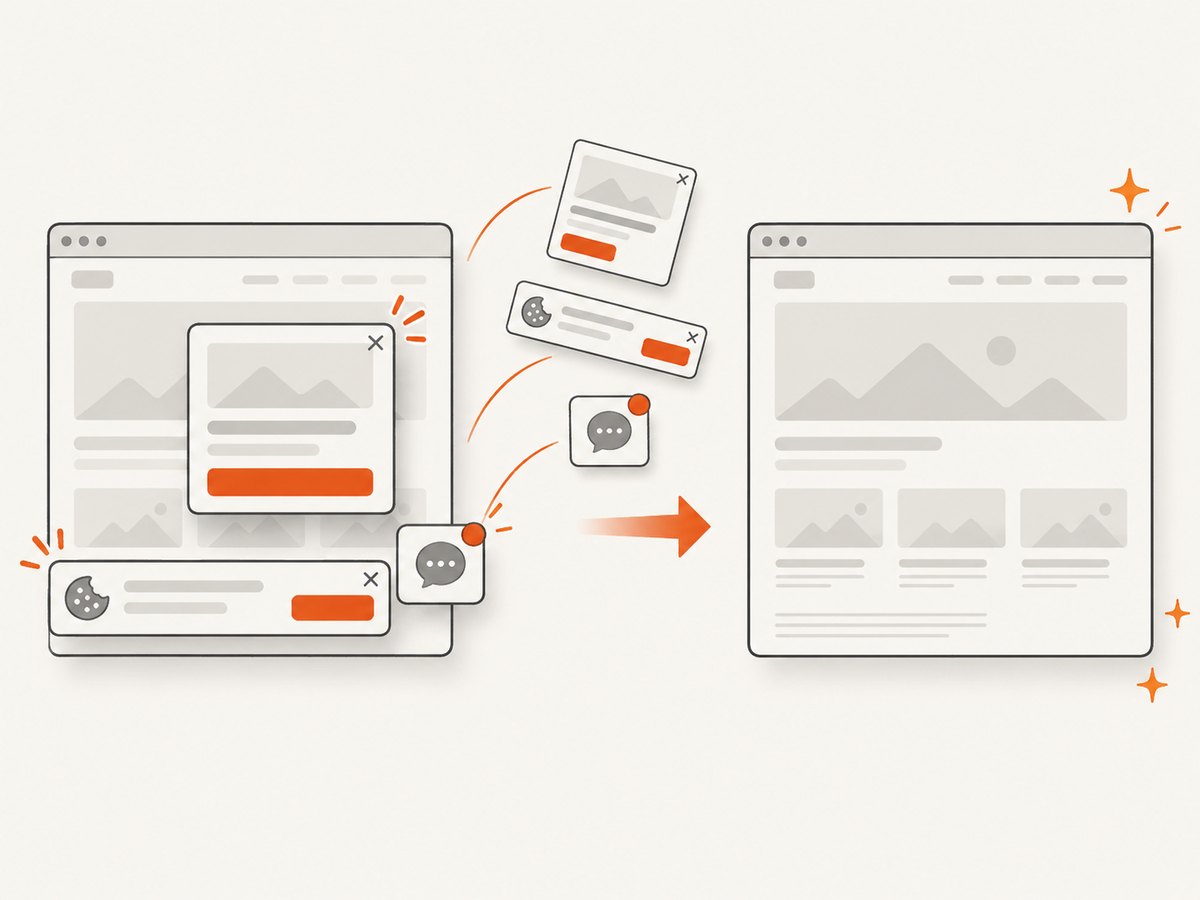
If you need production screenshots without maintaining browser binaries and page-cleanup code, ScreenshotNeo provides a single HTTP endpoint. The API accepts a URL and returns PNG, JPEG, WebP, or PDF. Its capture flow accepts cookie and consent banners, removes more than 60 known consent platforms plus newsletter popups and chat widgets, and lets you turn each cleanup step off.
cURL
curl -G "https://api.screenshotneo.com/v1/shot" -d access_key=YOUR_API_KEY --data-urlencode url=https://stripe.com -o shot.webpPython
import requests

r = requests.get(
    "https://api.screenshotneo.com/v1/shot",
    params={"access_key": "YOUR_API_KEY", "url": "https://stripe.com"},
    timeout=90,
)
r.raise_for_status()
open("shot.webp", "wb").write(r.content)
Node.js
const q = new URLSearchParams({ access_key: 'YOUR_API_KEY', url: 'https://stripe.com' });
const res = await fetch(`https://api.screenshotneo.com/v1/shot?${q}`);
if (!res.ok) throw new Error(`HTTP ${res.status}`);
require('node:fs').writeFileSync('shot.webp', Buffer.from(await res.arrayBuffer()));
See the ScreenshotNeo documentation for request parameters. Relevant options include full-page capture with lazy images loaded, CSS-selector element capture, dark mode, device presets or custom viewports, retina scale, PDF paper size and margins, custom CSS and JavaScript, clicks, selector or network-idle waits, request blocking, headers, cookies, user agents, authorization, timezone, geolocation, transparent backgrounds, resizing, caching with a chosen TTL, signed image links, asynchronous jobs with signed webhooks, bulk capture for up to 100 URLs per call, a usage API, and an OpenAPI specification.
Only clean shots are billed. Bot checks or CAPTCHAs, blank pages, timeouts, failed loads, and cache hits cost nothing, and each response reports the result with X-Page-Verdict and X-Billed headers. ScreenshotNeo also provides an MCP server with take_screenshot, get_page_info, and capture_pdf tools for Claude, Cursor, and other MCP clients.
There is a free allowance of 1,000 screenshots per month with no card. Paid plans start at $5 for 3,000 shots; yearly billing gives two months free, and every feature is available on every plan. Create a free ScreenshotNeo account.
11. Playwright screenshot FAQ
What is the simplest Playwright screenshot syntax?
Navigate to a page and call await page.screenshot({ path: 'screenshot.png' }).
How do I capture the whole page?
Pass fullPage: true. For content inside an independently scrolling container, capture or scroll that container separately.
How do I capture one component?
Create a locator and call locator.screenshot(). The locator is brought into view and checked for actionability.
Can Playwright create JPEG files?
Yes. Set type: 'jpeg' and optionally provide a JPEG quality value.
How should I compare screenshots in tests?
Use expect(page).toHaveScreenshot() in Playwright Test, with stable waits, disabled animations, and masks for dynamic content.
Why does an element screenshot still show only part of a panel?
A scrollable element is captured at its current scroll position. Scroll it to the state you want before taking the screenshot.


