Playwright Screenshot to Base64
Capture a Playwright screenshot in memory and encode it as Base64 in JavaScript, Python, Java, or .NET, with options for full-page and element captures.

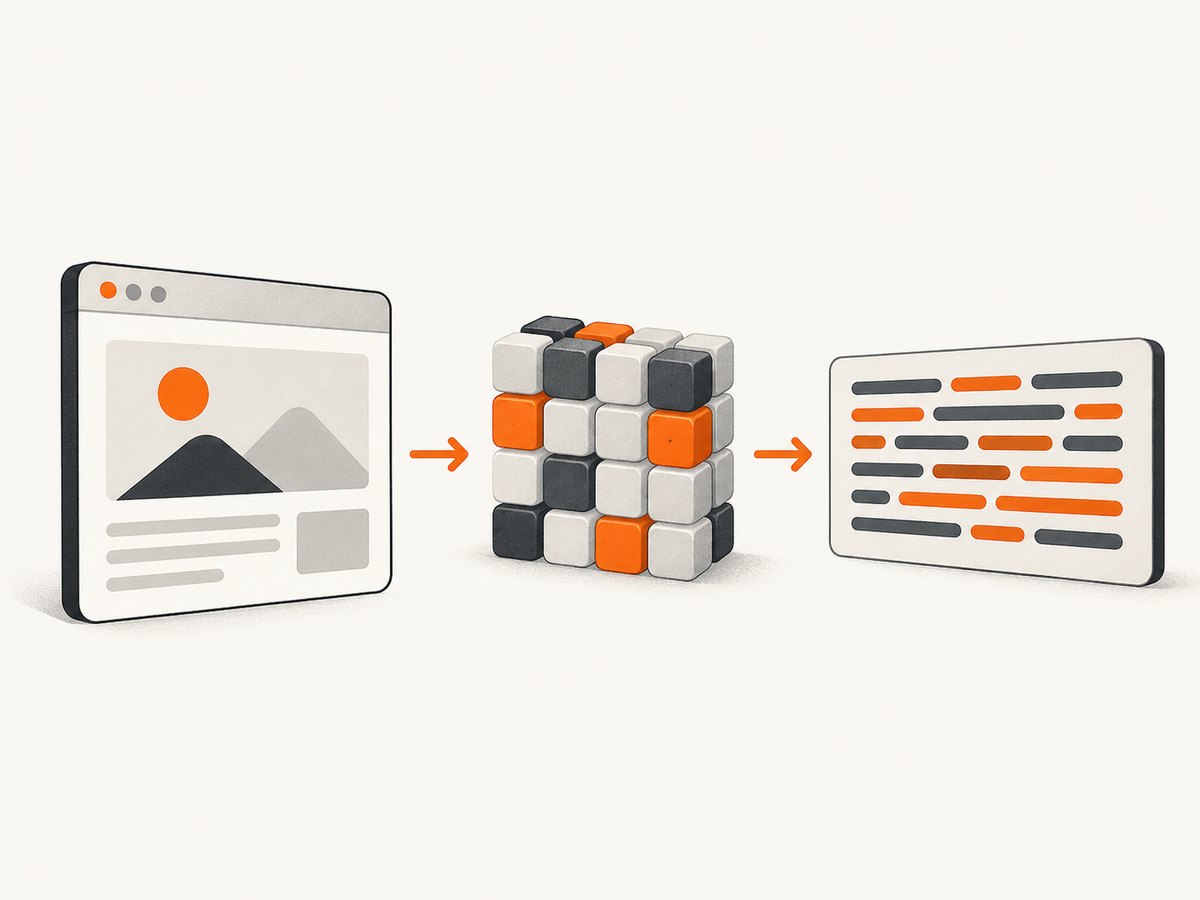
To convert a Playwright screenshot to Base64, capture it without a file path so Playwright returns the image bytes, then pass those bytes to your language’s Base64 encoder. In Node.js, the shortest form is (await page.screenshot()).toString('base64'). Python, Java, and .NET use their standard Base64 encoders on the returned bytes. This keeps the image in memory; no temporary screenshot file is needed.
Base64 is a text representation of binary data. It is useful when an interface accepts text rather than image bytes, such as a JSON field or a data URL. It does not make the image smaller: encoded data is typically about one third larger than the original bytes. Choose the screenshot’s scope and format first, encode the resulting bytes, and add a data-URL prefix only if the receiving system requires one.
1. Capture and encode in Node.js
Install Playwright and its browser once, then run this complete example. It opens a page, captures the viewport as PNG bytes, and prints the Base64 string. The official JavaScript guide demonstrates this in-memory pattern and also documents path-based, full-page, and locator screenshots. See the Playwright JavaScript screenshots guide.
const { chromium } = require('playwright');

(async () => {
  const browser = await chromium.launch();
  try {
    const page = await browser.newPage({ viewport: { width: 1280, height: 800 } });
    await page.goto('https://example.com', { waitUntil: 'networkidle' });
    const screenshotBuffer = await page.screenshot({ type: 'png' });
    const base64 = screenshotBuffer.toString('base64');
    console.log(base64);
  } finally {
    await browser.close();
  }
})();
Save this as screenshot-base64.js and run node screenshot-base64.js in a project where Playwright is installed. If you need to save the image instead of printing it, provide { path: 'screenshot.png' }. Without a path, page.screenshot() returns a Buffer, which is directly encodable.
2. Capture and encode in Python
The Python API returns bytes when no path is supplied. The following asynchronous script uses Playwright’s async API and Python’s standard base64 module. The official Python screenshots guide includes sync and async capture examples; the Page API reference documents screenshot options for the installed version.
import asyncio
import base64
from playwright.async_api import async_playwright

async def main():
    async with async_playwright() as p:
        browser = await p.chromium.launch()
        try:
            page = await browser.new_page(viewport={"width": 1280, "height": 800})
            await page.goto("https://example.com", wait_until="networkidle")
            screenshot_bytes = await page.screenshot(type="png")
            base64_string = base64.b64encode(screenshot_bytes).decode("ascii")
            print(base64_string)
        finally:
            await browser.close()

asyncio.run(main())
Install the Python package and browser according to the Playwright Python installation instructions for your environment. To persist the screenshot, pass path="screenshot.png"; for an in-memory conversion, omit it. Use .decode("ascii") to get a normal Python string from the encoded bytes.
3. Java and .NET patterns
The core operation is the same in both languages: capture bytes, then encode. These snippets show the conversion itself; create and navigate the Playwright page using the setup for the language and project version you already use.
Java
import java.util.Base64;

byte[] screenshotBytes = page.screenshot();
String base64String = Base64.getEncoder().encodeToString(screenshotBytes);
The Java screenshots guide shows screenshot capture, including full-page and locator captures. A screenshot path can also be supplied through screenshot options when you want a file.
.NET
byte[] screenshotBytes = await page.ScreenshotAsync();
string base64String = Convert.ToBase64String(screenshotBytes);
ScreenshotAsync returns a byte array when no path is supplied. The .NET screenshots guide and Page API reference describe capture options. Add using System; if it is not already in scope.
4. Choose what to capture before encoding
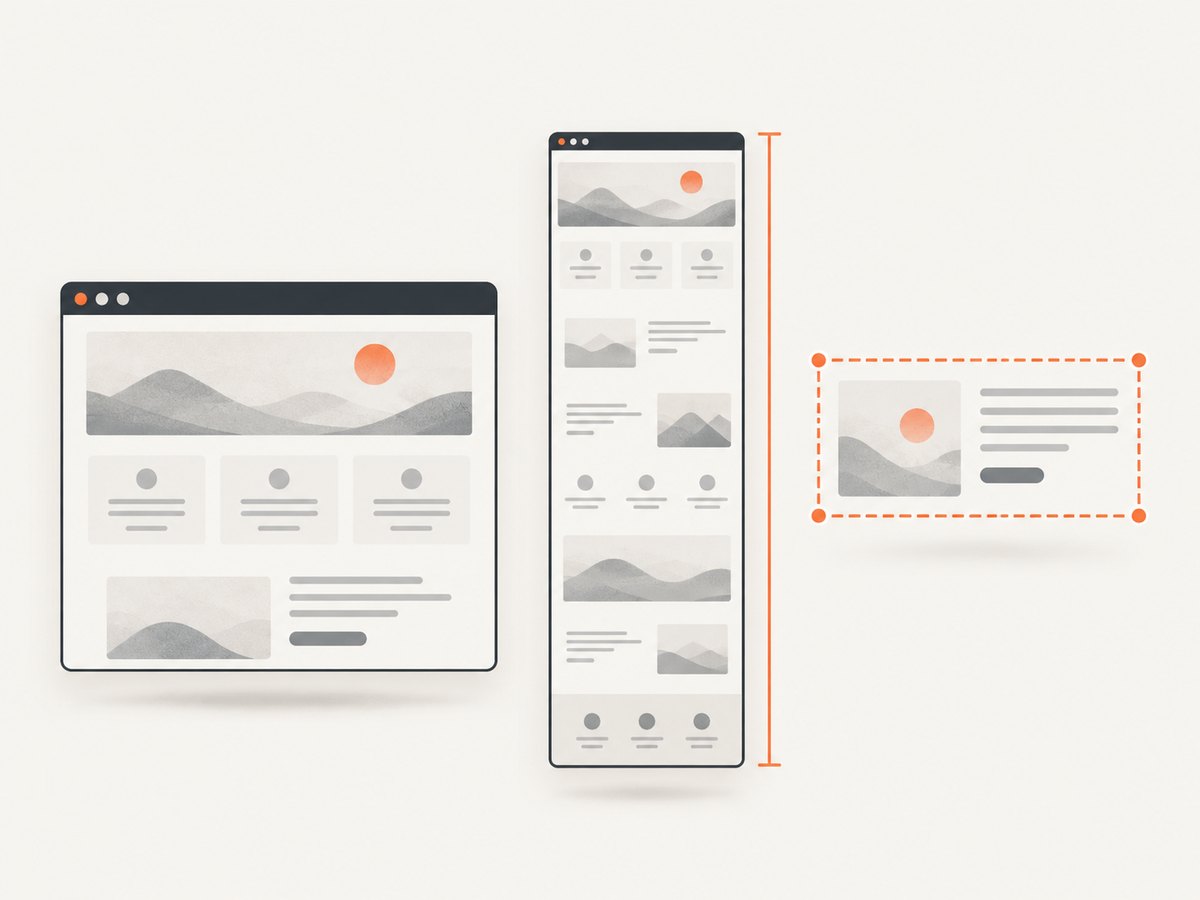
Base64 encodes exactly the bytes Playwright produced. It does not change the viewport, expand a page, select an element, or convert the format. Decide these capture settings before encoding.
| Need | Capture choice | What to consider |
|---|---|---|
| Visible portion of a page | page.screenshot() |
Uses the page’s current viewport. Set viewport dimensions before navigation or capture for predictable output. |
| Scrollable page content | Full-page screenshot: JavaScript { fullPage: true }; Python full_page=True |
Very tall pages create large images and large Base64 strings. Lazy-loaded content may need explicit scrolling or waiting before capture. |
| One component | Screenshot a locator, such as page.locator('.card').screenshot() |
Wait for the target to exist and be visible. A selector that matches nothing or multiple unexpected elements can make capture fail or target the wrong content. |
| Smaller transfer | JPEG or WebP where supported | Lossy formats may reduce size, with a visual-quality tradeoff. Quality applies only to applicable formats; verify option support in your language’s API reference. |
| Transparency | PNG with a transparent background option where supported | Background omission is not applicable to JPEG. Check the language-specific option name and version. |
| Consistent rendering scale | Choose CSS or device scale where supported | Device scale can produce more pixels and larger payloads. The exact option spelling and availability varies by API and version. |
| Hide sensitive or irrelevant regions | Use masking or page styling where supported | Confirm the masked output visually if the receiving workflow depends on exact pixels. |
For JavaScript, the documented full-page option is fullPage: true; for Python it is full_page=True. Locator screenshots are available in the language guides. Java and .NET use their own option objects and naming conventions, so consult the matching current reference rather than copying JavaScript spellings. These APIs can evolve, and installed versions may not expose every option listed in newer documentation.
5. Raw Base64 versus a data URL
The Base64 encoder produces only the encoded payload. A data URL wraps that payload in a media type and marker, for example:
const dataUrl = `data:image/png;base64,${base64}`;Use raw Base64 when an API asks for a Base64 field or when your code separately carries the content type. Use the prefixed form only when the consumer expects a data URL, such as an HTML image source. Match the media type to the screenshot format: a PNG payload needs image/png, a JPEG payload needs image/jpeg, and a WebP payload needs image/webp. A wrong prefix does not convert the bytes; it mislabels them.
Do not print large Base64 strings into production logs. The output can be huge, hard to inspect, and may contain sensitive page content. Prefer passing the value directly to its consumer, storing the original bytes in object storage, or writing to a file when the workflow is file-based.
6. Complete a reliable capture
- Set the browser context. Select the browser engine, viewport, device scale, locale, timezone, and authentication state your capture requires. The output depends on the page state and environment.
- Navigate to the exact URL. Use the expected wait condition.
networkidlecan be useful for pages that settle quickly, but analytics, polling, and streaming connections may prevent it from occurring. - Wait for the content you need. Prefer waiting for a relevant selector or application state over an arbitrary long delay. For lazy images, scroll the target into view or through the page and wait for images to load.
- Capture the intended region. Use a viewport, full-page, or locator screenshot as needed. Check that the page is at the expected scroll position.
- Encode once. Convert the returned bytes with the native encoder. Avoid converting to text and back unless a downstream interface requires it.
- Handle cleanup and failures. Close the browser in a
finallyblock. Set practical navigation and job timeouts in your application, and report capture failures separately from Base64 conversion failures.
Deterministic captures need deterministic page state. Fonts, animations, late network responses, cookie dialogs, and time-dependent content can change pixels between runs. If consistency matters, wait for the specific content, disable or finish animations using an appropriate test setup, and make sure the same viewport and page state are used for each capture.
7. Performance, reliability, and cost
The screenshot operation and Base64 conversion both use memory. The encoded representation is larger than the binary image, so a full-page, high-scale screenshot can consume substantial memory and increase request or storage size. Keep the data as bytes for as long as possible; encode only at the boundary where text is required. For large output, avoid holding multiple copies of the bytes and string at once if the runtime and consumer allow a streaming or file-based workflow.
Browser startup and page loading usually dominate the capture pipeline. Reuse a browser process for a batch of captures where appropriate, while creating isolated pages or contexts when state must not leak between jobs. Always close pages, contexts, and browser processes on errors. Bound concurrency according to available memory and target-site behavior; more parallel pages can increase load and trigger rate limits.
Retries can help with transient navigation or network failures, but retry only the failed stage and use a limit with backoff. A timeout may mean the page never reached a chosen load condition, not that Base64 encoding is broken. Capturing dynamic or authenticated content also raises data-handling concerns: protect the resulting image and encoded value like the page content itself.
Playwright is an open-source browser automation library; the capture cost in your own deployment comes from the compute, browser runtime, storage, and network resources you provide. Base64 adds transfer and memory overhead. If you need hosted captures instead of maintaining browser infrastructure, see the option below.
8. Troubleshooting
| Symptom | Likely cause | Fix |
|---|---|---|
toString is not a function or unexpected value in Node.js |
The value is not the Buffer returned by page.screenshot(), or the call was not awaited. |
Use const bytes = await page.screenshot() and encode bytes.toString('base64'). |
Python prints b'...' |
The encoded result is still bytes. | Decode it with .decode('ascii') after base64.b64encode. |
| Page API has no screenshot method or browser launch fails | Playwright package, browser binaries, or language bindings are missing or mismatched. | Install the package and its browser using the official setup for that language and environment; keep package and browser versions aligned. |
| Blank or incomplete screenshot | Capture occurred before the app rendered, navigation failed, or the page requires authentication. | Check navigation errors and final URL, establish the required session, and wait for a meaningful selector or application-ready condition. |
| Screenshot hangs waiting for navigation | The chosen load condition never settles, often because of polling, analytics, or a long-lived request. | Choose a suitable wait condition and then wait for the content needed; set a bounded timeout. |
| Full-page output omits images | Images load lazily only near the viewport, or image requests have not completed. | Scroll through the page or bring relevant elements into view, wait for image readiness, then capture. |
| Data URL does not render | The MIME prefix is missing or does not match the screenshot bytes. | Use the correct prefix for the capture format; remember that adding a prefix does not convert PNG into JPEG or WebP. |
| Unexpectedly large payload or memory use | Full-page capture, high device scale, PNG, or simultaneous copies of encoded data. | Capture only the required region, choose a suitable format and scale, avoid logging, and release references when finished. |
| Different Base64 strings on repeated runs | The page content or rendering changed. A different Base64 string can also reflect different image bytes despite visually subtle changes. | Stabilize page state, viewport, fonts, animations, and wait conditions. Compare decoded images or pixel output if visual equivalence matters. |
9. Or skip the browser setup
If your goal is to get a website screenshot as an image response, [ScreenshotNeo](https://screenshotneo.com) provides a one-request screenshot API and an MCP server. Its API accepts a URL and returns PNG, JPEG, WebP, or PDF. See the ScreenshotNeo documentation for API details.
curl -G "https://api.screenshotneo.com/v1/shot" -d access_key=YOUR_API_KEY --data-urlencode url=https://stripe.com -o shot.webpimport requests
r = requests.get("https://api.screenshotneo.com/v1/shot", params={"access_key": "YOUR_API_KEY", "url": "https://stripe.com"}, timeout=90)
open("shot.webp", "wb").write(r.content)const q = new URLSearchParams({ access_key: 'YOUR_API_KEY', url: 'https://stripe.com' });
const res = await fetch(`https://api.screenshotneo.com/v1/shot?${q}`);These examples retrieve an image response; if your application specifically needs Base64, read the response bytes and run the same language-native encoder shown above. ScreenshotNeo removes cookie and consent banners, newsletter popups, and chat widgets before capture, with each cleanup step switchable. Bot checks, blank pages, failed loads, timeouts, and cache hits are not billed, and response headers identify the page verdict and billing outcome. Its MCP server gives AI agents tools for screenshots, page information, and PDF capture.
The free plan includes 1,000 screenshots each month with no card; paid plans start at $5 for 3,000 screenshots, and every feature is on every plan. Sign up free for 1,000 screenshots a month with no card.
10. Frequently asked questions
Can I convert a screenshot file to Base64?
Yes. Read the file as bytes and pass those bytes to your language’s Base64 encoder. Capturing directly to bytes avoids creating the intermediate file.
Does Base64 protect or encrypt a screenshot?
No. It is an encoding format, not encryption. Apply access controls or encryption separately if the image is sensitive.
Should I store Base64 or the original image?
Store the original bytes for image workflows when possible. Base64 is convenient for text-only interfaces but takes more space and can add memory overhead.
Can I Base64-encode a PDF from Playwright?
The same general byte-to-Base64 idea applies to any binary output, but PDF generation uses Playwright’s PDF API and its own options. Follow the documentation for your language and runtime.
Does screenshot Base64 have a fixed prefix?
No. Raw Base64 has no prefix. A data URL prefix is an additional wrapper chosen to match the format and the receiving interface.


