How to Take Screenshots by Coordinates and Dimensions in Playwright
Capture any Playwright page rectangle with precise coordinates, dimensions, scaling, full-page options, troubleshooting, and a browser-free API alternative.
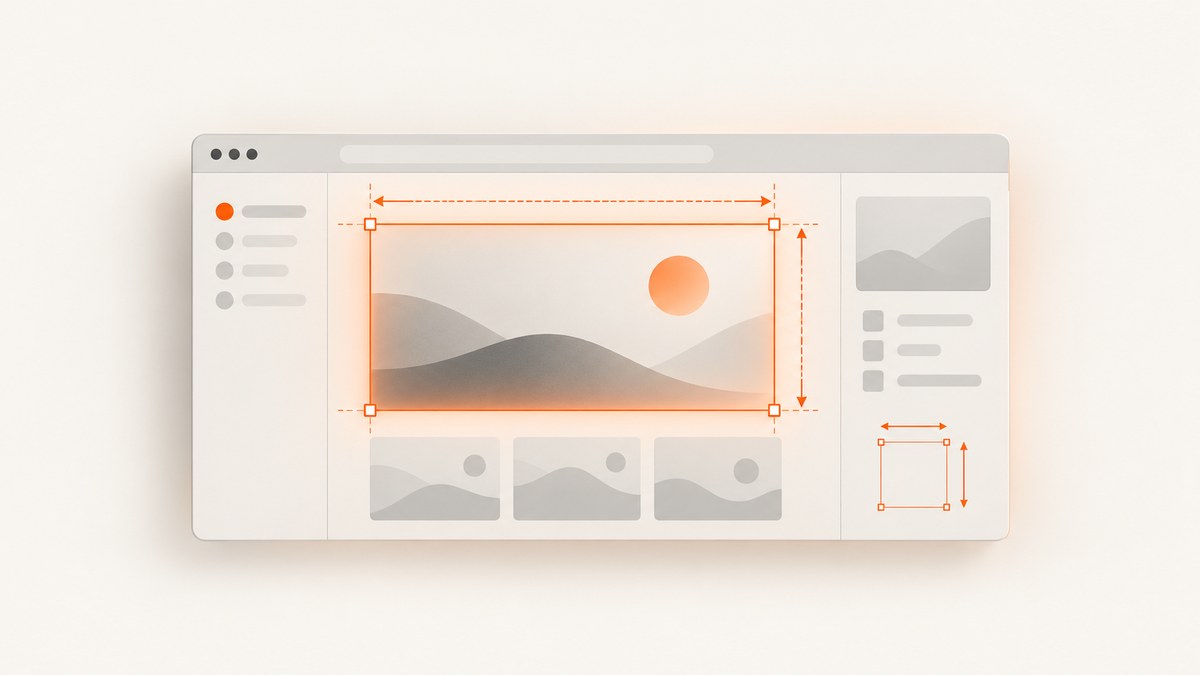
To capture an arbitrary rectangle in Playwright, pass a clip object to page.screenshot():
const image = await page.screenshot({
  path: 'region.png',
  clip: { x: 120, y: 80, width: 640, height: 360 },
});
x and y are the top-left corner of the capture area. width and height define its size. These values are CSS pixels in the page viewport. The resulting file can contain more raster pixels when the browser uses a device scale factor; use scale: 'css' when you need one output pixel per CSS pixel. See the Playwright screenshot documentation for the current API.
Choose the right Playwright screenshot method
| Goal | Method | What it does |
|---|---|---|
| Capture a rectangle at known coordinates | page.screenshot({ clip }) |
Captures exactly the specified viewport region. |
| Capture the whole scrollable document | page.screenshot({ fullPage: true }) |
Stitches the full page rather than only the visible viewport. |
| Capture one identified element | locator.screenshot() |
Waits for actionability, scrolls the element into view, and captures its bounds. |
| Process bytes in memory | await page.screenshot() |
Returns a buffer when no path is supplied. |
Use a locator for a real UI component whenever possible. Manual clipping is useful for a fixed canvas region, a crop that intentionally includes surrounding whitespace, or a rectangle whose coordinates come from another system.
Complete runnable example
The following Node.js script creates a browser context with a deliberate viewport, navigates to a page, captures a coordinate rectangle, and writes a PNG. Install Playwright first with npm install playwright; install the browser binary with npx playwright install chromium.
const { chromium } = require('playwright');

(async () => {
  const browser = await chromium.launch();
  const context = await browser.newContext({
    viewport: { width: 1280, height: 720 },
    deviceScaleFactor: 1,
  });
  const page = await context.newPage();

  await page.goto('https://example.com', { waitUntil: 'networkidle' });
  await page.screenshot({
    path: 'region.png',
    type: 'png',
    clip: { x: 120, y: 80, width: 640, height: 360 },
    scale: 'css',
  });

  await browser.close();
})();
Set the viewport before navigation. Playwright documents a default 1280 by 720 viewport, but explicit dimensions make output repeatable across machines and runs. Disabling consistent viewport emulation can make captures non-deterministic; see the browser context documentation.
Understanding coordinates and dimensions
The coordinate frame
A page clip is measured from the top-left of the current viewport. A clip of { x: 0, y: 0 } starts at the visible page origin. If the page has been scrolled, the viewport origin remains the visible top-left, while document content has moved underneath it. Coordinates therefore describe what is on screen at capture time, not an immutable document coordinate.
For an element, locator.boundingBox() returns a box relative to the viewport in CSS pixels. If you use that box as a page clip, obtain it after the final scroll and layout changes:
const box = await page.getByRole('main').boundingBox();
if (!box) throw new Error('Main element is not visible');
await page.screenshot({
  path: 'main.png',
  clip: { x: box.x, y: box.y, width: box.width, height: box.height },
  scale: 'css',
});
A locator screenshot is usually safer because it handles actionability and scrolling for you:
await page.getByRole('navigation').screenshot({
  path: 'navigation.png',
  type: 'png',
  scale: 'css',
});
CSS pixels versus image pixels
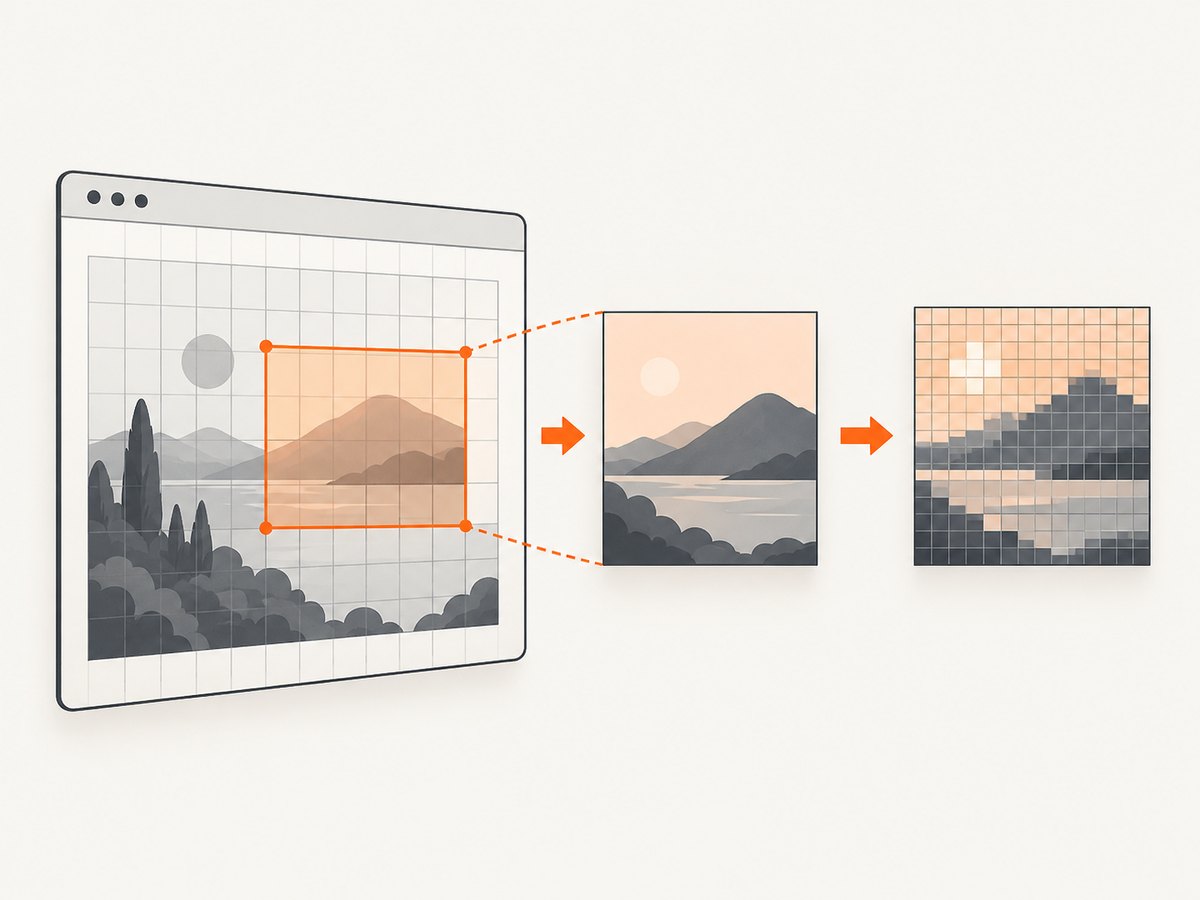
Playwright supports scale: 'css' and scale: 'device'. CSS scale produces one output pixel per CSS pixel. Device scale preserves the emulated device pixel ratio, so a 640 CSS-pixel-wide clip can produce a wider raster image on a high-DPI context. Choose CSS scale for predictable dimensions and image comparisons; choose device scale when you need a retina-quality asset.
Scrolling and fixed elements
Scrolling changes where document content appears in the viewport. Sticky headers can overlap the same screen coordinates at multiple scroll positions. Fixed headers, cookie notices, and chat buttons can also appear inside an otherwise correct clip. Hide or remove those selectors before capture, or capture after explicitly scrolling to the intended position.
Screenshot options that affect a coordinate clip
| Option | Use |
|---|---|
path |
Writes the image to a file. Omit it to receive a buffer. |
type |
Choose png or jpeg. The file extension is inferred when possible. |
quality |
JPEG quality from 0 to 100; it has no effect on PNG. |
fullPage |
Captures the full scrollable page. Do not combine it with a clip when your intent is one viewport rectangle. |
clip |
Object with numeric x, y, width, and height. |
scale |
css for CSS-pixel output or device for device-pixel output. |
omitBackground |
Leaves the default background transparent where supported. |
animations |
Allow animations, disable them, or set them to finish before capture. |
caret |
Hide or keep the text caret. |
mask and maskColor |
Mask locator targets with a chosen color to hide dynamic data. |
style |
Inject CSS that applies only during the screenshot. |
timeout |
Limit the time Playwright waits for the screenshot operation. |
For JPEG output, specify a quality and use a path ending in .jpg:
await page.screenshot({
  path: 'crop.jpg',
  type: 'jpeg',
  quality: 85,
  clip: { x: 16, y: 16, width: 960, height: 540 },
});
To freeze layout during capture, inject temporary CSS:
await page.screenshot({
  path: 'stable.png',
  style: `*, *::before, *::after {
    animation: none !important;
    transition: none !important;
    caret-color: transparent !important;
  }`,
  clip: { x: 0, y: 0, width: 1280, height: 720 },
});
Full-page, element, and coordinate captures
A full-page screenshot is independent of the visible viewport height:
await page.screenshot({ path: 'full-page.png', fullPage: true });It captures the page’s scrollable extent, including content below the fold. Lazy-loaded images may require scrolling or application-specific waits before the final capture. For an element that is already identified by semantics, prefer a locator:
await page.getByRole('article').screenshot({ path: 'article.png' });Locator screenshots scroll the target into view and wait for actionability. Covered content may still not be visually exposed, and a scrollable element shows its currently scrolled content. Use a page clip when the desired rectangle is deliberately larger or smaller than the element’s box.
Derive a clip from an element safely
When you need extra padding around a component, calculate the rectangle from its bounding box and clamp it to the viewport:
const target = page.getByTestId('chart');
await target.scrollIntoViewIfNeeded();
const box = await target.boundingBox();
if (!box) throw new Error('Chart has no visible bounding box');

const padding = 24;
const viewport = page.viewportSize();
const x = Math.max(0, box.x - padding);
const y = Math.max(0, box.y - padding);
const right = Math.min(viewport.width, box.x + box.width + padding);
const bottom = Math.min(viewport.height, box.y + box.height + padding);

await page.screenshot({
  path: 'chart-with-padding.png',
  clip: { x, y, width: right - x, height: bottom - y },
  scale: 'css',
});
Check for zero or negative dimensions after clamping. A detached, hidden, or display-none element can return no bounding box.
Waiting for reliable pixels
Navigation completion does not guarantee that fonts, images, charts, or client-rendered data have settled. Combine a suitable navigation wait with an application signal:
await page.goto('https://example.com/dashboard', { waitUntil: 'domcontentloaded' });
await page.getByTestId('dashboard-ready').waitFor({ state: 'visible' });
await page.waitForLoadState('networkidle');
await page.screenshot({
  path: 'dashboard.png',
  clip: { x: 0, y: 0, width: 1280, height: 720 },
});
Prefer a selector that means the data is ready over an arbitrary sleep. If a third-party request never finishes, use a bounded delay only after the page’s own readiness condition. Block irrelevant ads and analytics in a controlled test context when they cause layout instability.
Common errors and fixes
| Symptom | Cause | Fix |
|---|---|---|
clip is outside of the page |
The rectangle has invalid or out-of-range coordinates. | Ensure x, y, width, and height are finite, non-negative numbers and fit the viewport. |
| Wrong area after scrolling | The clip is viewport-relative, while the intended box was measured before scrolling. | Scroll first, then call boundingBox() or compute the clip. |
| Element screenshot times out | The locator is hidden, covered, detached, or never becomes actionable. | Use a more specific locator, wait for visibility, dismiss overlays, or capture a page clip intentionally. |
| Output dimensions are larger than expected | Device scale factor produced retina pixels. | Set scale: 'css' and an explicit deviceScaleFactor. |
| Blank or partially rendered image | Capture happened before client rendering or lazy loading completed. | Wait for a ready selector, fonts, images, and data; avoid relying only on a fixed timeout. |
| Transparent areas turn black or white | Image format or browser background handling changed the result. | Use PNG and omitBackground: true where transparency is required. |
| Animations differ between runs | CSS transitions or JavaScript animations are mid-frame. | Disable animations with style or the animation option and capture after the ready signal. |
Performance, reliability, and cost
Coordinate clipping generally reduces encoding work because fewer pixels are written, but navigation and page rendering usually dominate total time. Reuse a browser process and create contexts per job instead of launching a new browser for every image. Keep viewport and device scale fixed when producing visual diffs.
For parallel jobs, limit concurrency to the CPU and memory available. Large full-page screenshots, high device scale factors, video backgrounds, and many web fonts increase memory use. Close pages and contexts promptly. Store buffers directly when uploading to object storage to avoid unnecessary temporary files.
Reliability improves when you make every source of nondeterminism explicit: viewport, locale, timezone, color scheme, user agent, authentication state, wait conditions, animation policy, and resource blocking. Mask timestamps, rotating ads, and user-specific fields before comparing images. A screenshot is a rendering result, so a successful HTTP response alone does not prove that the pixels are useful.
Playwright itself is open-source software, but browser execution still consumes your compute, storage, bandwidth, and maintenance time. Budget for browser binaries, sandbox configuration, retries, and cleanup in CI. Capture only the region you need when full-page output is unnecessary.
Or skip the browser setup
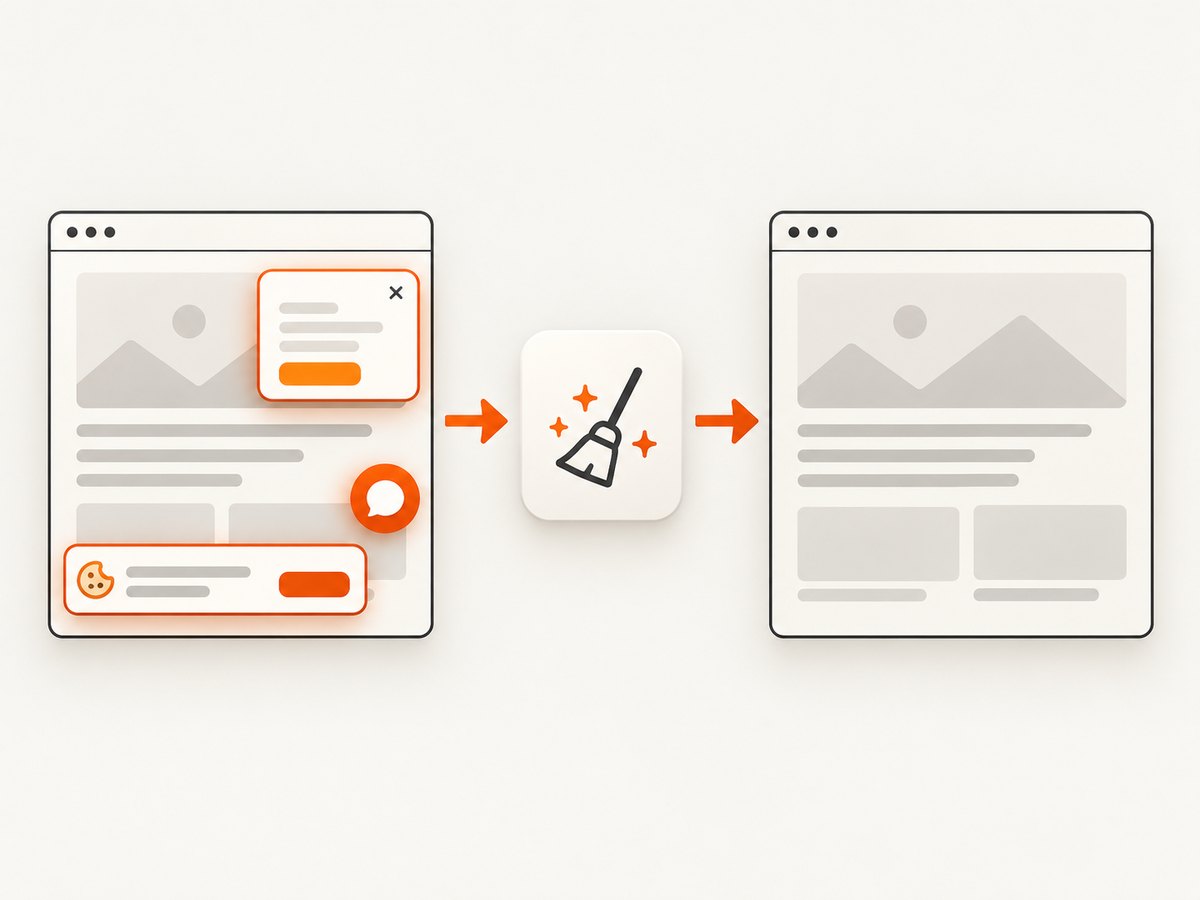
ScreenshotNeo provides a single-request website screenshot API when you do not want to maintain Playwright browsers. It accepts a URL and returns PNG, JPEG, WebP, or PDF. Clean shots remove cookie and consent banners, newsletter popups, and chat widgets before capture. Bot checks, blank pages, timeouts, failed loads, and cache hits are not billed; the response identifies the result with X-Page-Verdict and X-Billed headers. An MCP server lets Claude, Cursor, and other MCP clients use take_screenshot, get_page_info, and capture_pdf.
See the ScreenshotNeo API documentation for all options. A basic call is:
curl -G "https://api.screenshotneo.com/v1/shot" -d access_key=YOUR_API_KEY --data-urlencode url=https://stripe.com -o shot.webpimport requests
r = requests.get("https://api.screenshotneo.com/v1/shot", params={"access_key": "YOUR_API_KEY", "url": "https://stripe.com"}, timeout=90)
open("shot.webp", "wb").write(r.content)const q = new URLSearchParams({ access_key: 'YOUR_API_KEY', url: 'https://stripe.com' });
const res = await fetch(`https://api.screenshotneo.com/v1/shot?${q}`);ScreenshotNeo supports full-page capture with lazy images loaded, CSS-selector element capture, dark mode, device presets or custom viewports, retina scale, custom CSS and JavaScript, clicks, selector or network-idle waits, blocked resources, headers, cookies, user agents, authorization, timezone, geolocation, transparent backgrounds, resizing, configurable caching, signed links, asynchronous jobs with signed webhooks, bulk capture of up to 100 URLs per call, usage reporting, and an OpenAPI specification. Parameter names used by other screenshot APIs also work, which helps when migrating.
The Free plan includes 1,000 shots per month with no card. Paid plans start at $5 for 3,000 shots; yearly billing gives two months free, and every feature is available on every plan. Create a free ScreenshotNeo account.
FAQ
Can I use negative clip coordinates?
Keep clip coordinates and dimensions non-negative and inside the intended viewport. If you need padding beyond an element, clamp the calculated rectangle to the viewport.
Does fullPage work with clip?
They represent different capture scopes. Use fullPage for the scrollable document and clip for one viewport rectangle; do not rely on combining them to produce a document-relative crop.
Why does a locator screenshot differ from my page clip?
The locator method waits for actionability and scrolls the target into view. A page clip uses the coordinates at the instant of capture, so scrolling, overlays, and layout shifts can change the result.
Which scale should visual regression tests use?
Use an explicit viewport and scale: 'css' for stable one-pixel-per-CSS-pixel output. Use device scale only when your baseline intentionally represents a high-DPI display.


