How to Attach Playwright Screenshots to Cucumber HTML Reports
Attach Playwright screenshots to failed Cucumber scenarios and render them in cucumber-js HTML reports, with working hooks, configuration, and fixes for missing images.
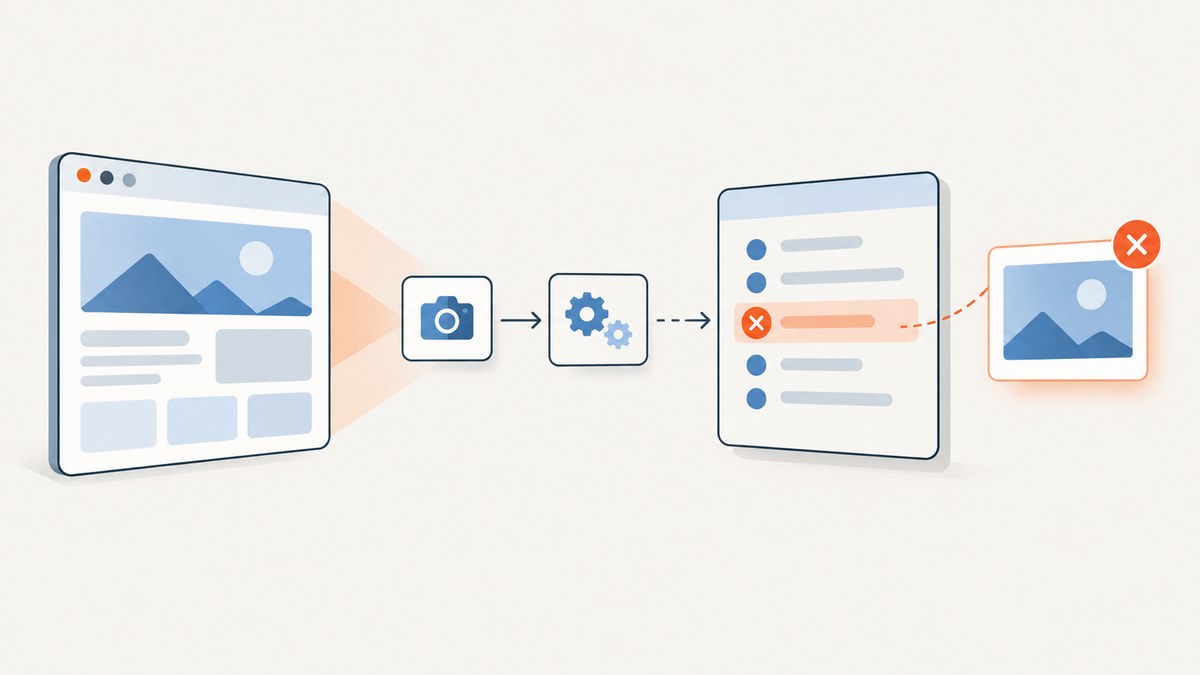
To attach a Playwright screenshot to a Cucumber HTML report, keep the Playwright page on the Cucumber World, then capture PNG bytes in an After hook when the scenario status is FAILED. Await this.attach() and give the attachment the MIME type image/png. Run cucumber-js with its built-in HTML formatter to render the attachment in the report.
const { After, Status } = require('@cucumber/cucumber');

After(async function (scenario) {
  if (scenario.result?.status === Status.FAILED) {
    const screenshot = await this.page.screenshot({ type: 'png' });
    await this.attach(screenshot, {
      mediaType: 'image/png',
      fileName: 'screenshot.png'
    });
  }
});
The key distinction is that Playwright creates the image, while Cucumber receives, stores, and displays it. A PNG written to disk or logged by the test runner is not automatically part of the HTML report; the hook must attach the bytes to the scenario.
1. How the attachment flow works
A failed-scenario screenshot has four pieces: an active Playwright page, a Cucumber After hook, a check for failure, and an awaited attachment with an image media type. The HTML formatter consumes Cucumber’s attachment event and renders it with the scenario.
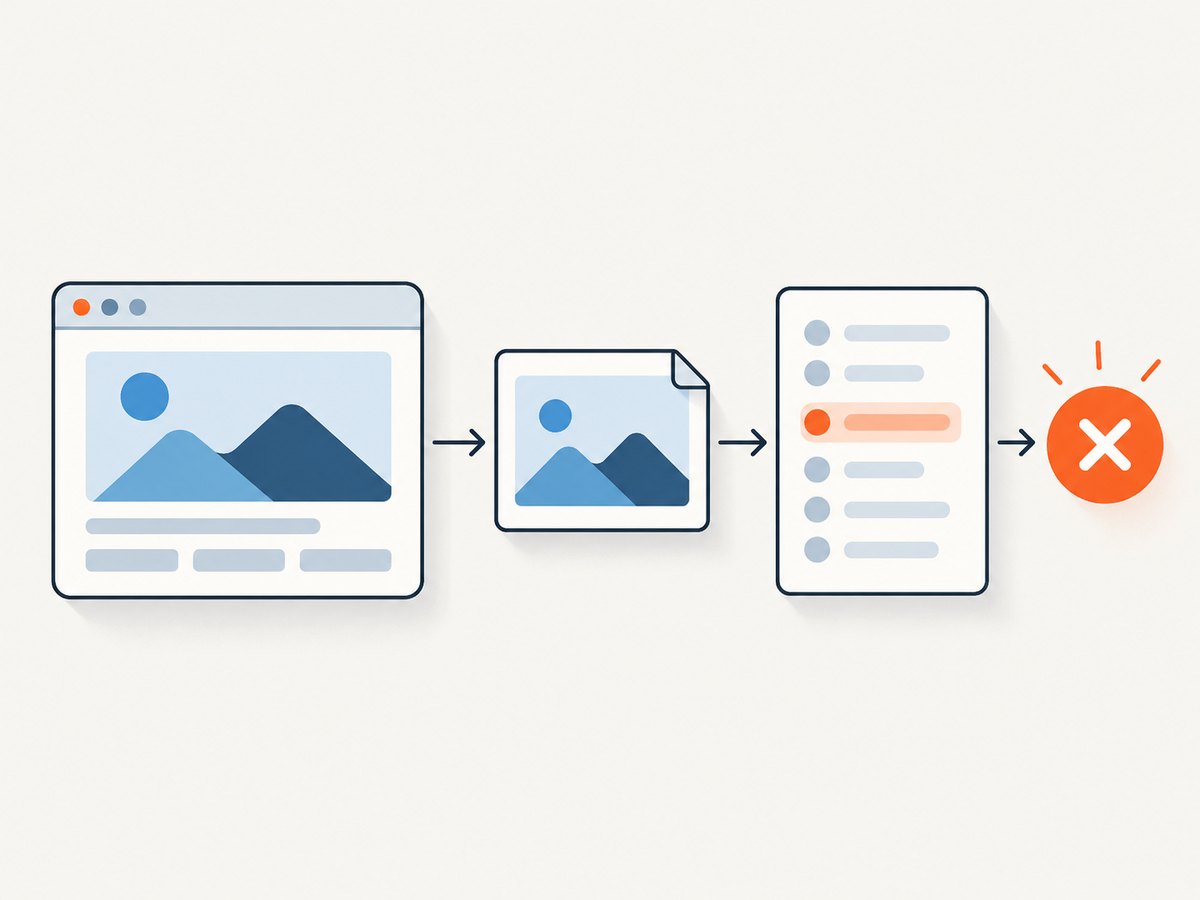
- Make the page available on the World. Your step definitions and hooks need to access the same page for the scenario.
- Check the outcome. The hook receives the scenario result. Capture only when it is failed if screenshots are intended as diagnostic evidence.
- Capture bytes.
page.screenshot({ type: 'png' })returns a Buffer that can be passed directly to Cucumber. - Await attachment.
this.attach()is asynchronous. Await it before the hook returns so the formatter receives the payload. - Generate the HTML report. Use cucumber-js’s HTML formatter and open the resulting report file.
2. Keep the Playwright page on the Cucumber World
In a project that creates a custom World, store the browser, context, and page on the World instance. Here is a minimal setup illustrating the relationship. Adapt the browser launch and lifecycle to the project; the important part for the screenshot hook is this.page.
const { setWorldConstructor, Before, After } = require('@cucumber/cucumber');
const { chromium } = require('playwright');

class TestWorld {
  async attach(data, options) {
    return this.attachFn(data, options);
  }
}

// A project's World integration must provide Cucumber's attachment function.
// The default Cucumber World already provides this.attach. When using a custom
// World, use the supported World setup for your installed Cucumber version so
// its attach function is exposed; do not replace it with a disk write.
setWorldConstructor(TestWorld);

Before(async function () {
  this.browser = await chromium.launch({ headless: true });
  this.context = await this.browser.newContext();
  this.page = await this.context.newPage();
});

After(async function () {
  await this.browser?.close();
});
The abbreviated custom World above is not a complete attachment adapter: Cucumber’s custom World must expose the framework’s attach function. In projects that do not need custom World state, the default World is simpler. If you do define your own World, follow the API for your installed cucumber-js version and ensure this.attach is available inside hooks.
In an existing Playwright+Cucumber project, you may already create a page through a fixture or shared World constructor. Keep that existing lifecycle and add the failure hook rather than launching a second browser just for screenshots. The hook and the steps should use the same scenario-scoped page so the captured state reflects the failure.
3. Add an After hook that attaches failure screenshots
Register this hook in a support file that cucumber-js loads. It uses Cucumber’s Status.FAILED constant, checks that the page is present, and attaches the screenshot Buffer as PNG.
const { After, Status } = require('@cucumber/cucumber');

After(async function (scenario) {
  if (scenario.result?.status !== Status.FAILED) return;
  if (!this.page) return;

  const screenshot = await this.page.screenshot({ type: 'png' });
  await this.attach(screenshot, {
    mediaType: 'image/png',
    fileName: 'screenshot.png'
  });
});
Await both asynchronous operations. If the page has already closed, screenshot capture rejects. If the hook returns before attachment finishes, the formatter may not have the data when it builds the report. Hook order matters: register screenshot capture so it runs while the page is still open, before teardown closes the browser or context. Confirm the hook order used by the installed Cucumber version and your support files.
Preserve the original failure if capture also fails
A screenshot is diagnostic evidence, so an inability to capture it should not hide the scenario’s real failure. If your teardown or browser state can cause screenshot errors, catch and report the capture error without throwing a replacement error from the hook.
const { After, Status } = require('@cucumber/cucumber');

After(async function (scenario) {
  if (scenario.result?.status !== Status.FAILED || !this.page) return;

  try {
    const screenshot = await this.page.screenshot({ type: 'png' });
    await this.attach(screenshot, {
      mediaType: 'image/png',
      fileName: 'screenshot.png'
    });
  } catch (error) {
    // Keep diagnostic failure visible without masking the scenario outcome.
    console.error('Could not attach failure screenshot:', error);
  }
});
Logging the secondary error helps explain why an image is absent while retaining the original scenario result. Avoid a screenshot hook that throws after a scenario already failed unless the project explicitly wants evidence-capture failure to affect the run.
4. Configure the cucumber-js HTML formatter
Run cucumber-js with the built-in HTML formatter and a destination path:
npx cucumber-js --format html:cucumber-report.htmlThe formatter creates a rich standalone HTML report and displays scenario attachments. By default, attachments are embedded in that report. This is convenient for sharing one file, though images increase its size.
You can also put formatter settings in cucumber.js. This example writes progress to the terminal and HTML to a file, while storing image attachments as external files:
module.exports = {
  format: ['progress', ['html', 'reports/cucumber-report.html']],
  formatOptions: {
    html: {
      externalAttachments: ['image/*']
    }
  }
};
The externalAttachments option can be true or a pattern such as image/*. External files keep the HTML smaller and may be useful when reports contain large captures. They also change how the report must be published: the generated image files need to travel with the HTML, preserving the relative paths expected by the report.
Embedded or external attachments?
| Choice | What it means | Use it when |
|---|---|---|
| Embedded (default) | The image data is stored inside the HTML report. | You want to share or archive a single standalone file. |
External (image/* or true) |
Images are written beside the report; the HTML refers to those files. | The HTML would be too large or image artifacts should be handled separately. |
With external attachments, copying just cucumber-report.html is insufficient. Publish the generated attachment directory too, and preserve its relative layout. Check your CI artifact upload rules so they include both the report and external files.
5. Attachment payloads, names, and MIME types
Cucumber’s this.attach accepts a Buffer or readable stream. For a Playwright screenshot, a Buffer is convenient. Set mediaType: 'image/png' so the report formatter recognizes and renders the image. A filename such as screenshot.png is optional, but gives the attachment a useful name for display or download.
const screenshot = await this.page.screenshot({ type: 'png' });
await this.attach(screenshot, {
  mediaType: 'image/png',
  fileName: 'screenshot.png'
});
Cucumber also supports base64 payloads when marked with a media type such as base64:image/png, but there is no need to encode Playwright’s Buffer for the common case. Avoid labeling PNG bytes with a different MIME type; a mismatch can prevent the formatter from treating the payload as an image.
6. Attach screenshots at step level when the failure state is transient
An After hook captures the page at scenario end. That usually provides the final failed state. Sometimes a later cleanup action navigates away, or the relevant UI appears only briefly. In that case, attach the screenshot from the step immediately after the important action:
const { When } = require('@cucumber/cucumber');

When('I submit the invalid form', async function () {
  await this.page.getByRole('button', { name: 'Submit' }).click();
  const screenshot = await this.page.screenshot({ type: 'png' });
  await this.attach(screenshot, {
    mediaType: 'image/png',
    fileName: 'after-invalid-submit.png'
  });
});
Step-level attachments appear in the report near the step that produced them. They are useful when a scenario has multiple meaningful states, but increase report size and may capture sensitive test data. Use scenario-end screenshots for broad failure diagnostics and step attachments selectively when timing or context calls for them.
7. Parallel runs, naming, and artifact retention
Cucumber-managed Buffer attachments avoid the common mistake of having every scenario write to the same fixed screenshot path. With a shared filename, parallel scenarios can overwrite each other’s files. If you also save separate files outside Cucumber, use unique names derived from a scenario identifier or another run-and-worker-specific value, and create directories safely.
Think through retention alongside report generation:
- Embedded reports: retain the single HTML file, but account for its potentially large size.
- External reports: retain the HTML and all generated attachment files together.
- Parallel workers: keep worker output paths isolated if multiple processes write artifacts.
- CI publication: upload the report after the run even when scenarios fail; configure artifact collection to include the chosen report and attachment paths.
- Sensitive pages: treat screenshots as test artifacts that may contain account details, tokens, or personal data. Use safe test data and the project’s normal access and retention controls.
8. Troubleshooting missing or broken screenshots
| Symptom | Likely cause | Fix |
|---|---|---|
| No image appears in the HTML. | The hook was not loaded, the scenario passed, or the attachment did not reach Cucumber. | Confirm the support-file path is included by cucumber-js; force a known failing scenario; check that the hook sees this.page and this.attach. |
The hook errors because this.attach is missing. |
A custom World was installed without exposing Cucumber’s attachment function. | Use the default World or wire the supported attach function into the custom World for the installed Cucumber version. |
| Screenshot capture rejects or yields no usable bytes. | The page or context closed before the hook ran, or screenshot capture was not awaited. | Run the capture hook before teardown, keep the scenario page available, and await page.screenshot(). |
| The report opens, but the image is broken. | External attachments were enabled and the image files were not copied, or their relative paths changed. | Publish the generated attachment files beside the HTML in the expected layout, or use embedded attachments. |
| The image looks corrupt or the formatter ignores it. | The attachment media type is missing or does not match the PNG payload. | Set mediaType: 'image/png' and pass the screenshot Buffer directly. |
| The screenshot appears in terminal output but not the report. | Terminal output is not a Cucumber attachment, or a different report file is being opened. | Call and await this.attach(); verify the HTML formatter command and report destination. |
| Parallel scenarios show the wrong disk image. | Workers share a fixed screenshot filename. | Prefer Cucumber-managed Buffer attachments or assign unique per-scenario and per-worker paths. |
| Scenario fails after screenshot capture also failed. | The capture error was allowed to replace or compound the original failure. | Catch capture errors, log them as secondary diagnostics, and avoid rethrowing from the evidence hook. |
9. Third-party reporter versus the built-in formatter
The built-in cucumber-js HTML formatter already renders Cucumber attachments. A separate reporter package is relevant when a project deliberately uses that package’s workflow, not as a prerequisite for Playwright screenshots.
The third-party cucumber-html-reporter documents options including storeScreenshots, screenshotsDirectory, and noInlineScreenshots for its JSON-to-HTML reporting flow. Before adopting it, check that workflow against the project’s cucumber-js version and how it maps attachments into report output.
| Decision point | Questions to answer |
|---|---|
| Attachment storage | Are images embedded, or written to external files? |
| Sharing | Does the report work as one standalone file, or must artifacts travel together? |
| Version fit | Does the reporter support the Cucumber version and output format in use? |
| Parallel naming | Can concurrent workers keep screenshots from overwriting each other? |
| CI retention | Will the report and its image artifacts be uploaded and retained together? |
10. Performance, reliability, and cost considerations
Capturing a screenshot adds browser work to the scenario teardown path. Restricting capture to failures avoids producing image payloads for every passing scenario. If a suite has frequent failures or pages with very large full-page content, images can still make embedded reports substantial; external attachment storage can reduce the HTML file’s size, at the cost of shipping multiple artifacts.
Reliability depends on lifecycle and completion: capture before closing the page, await capture and attachment, and make artifact collection run for failed CI jobs. A screenshot hook can itself encounter browser teardown errors, so it should report its own error without obscuring the test failure. For parallel execution, use Cucumber attachment buffers and avoid a shared external filename.
There is no separate screenshot service cost in this local Playwright+Cucumber pattern described here; resource use comes from the browser and from storing or transferring report artifacts. If a hosted capture service is used instead of managing browsers, compare its billing rules, output behavior, and failure handling against the team’s actual workflow.
11. Or skip the browser setup
If the goal is to capture a website for a report or debugging workflow without maintaining a browser locally, ScreenshotNeo provides a screenshot API and MCP server. One GET request returns an image or PDF; see the ScreenshotNeo API documentation for request options.
curl -G "https://api.screenshotneo.com/v1/shot" -d access_key=YOUR_API_KEY --data-urlencode url=https://stripe.com -o shot.webpimport requests
r = requests.get(
"https://api.screenshotneo.com/v1/shot",
params={"access_key": "YOUR_API_KEY", "url": "https://stripe.com"},
timeout=90,
)
open("shot.webp", "wb").write(r.content)const q = new URLSearchParams({ access_key: 'YOUR_API_KEY', url: 'https://stripe.com' });
const res = await fetch(`https://api.screenshotneo.com/v1/shot?${q}`);
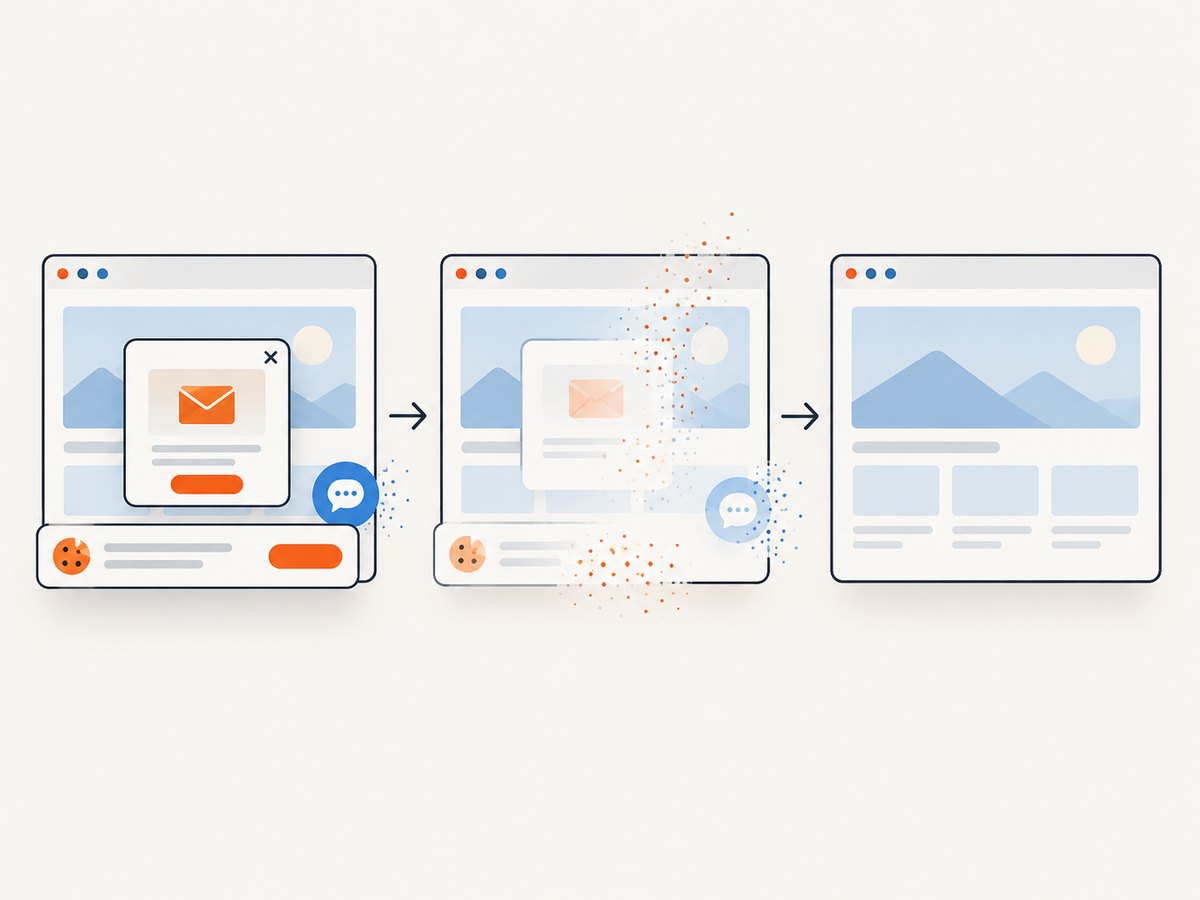
For a Cucumber integration, adapt the response handling to the chosen format and attach the returned image bytes through this.attach with the matching media type. ScreenshotNeo removes cookie banners, newsletter popups, and chat widgets before capture. Bot checks, blank pages, and failed loads are never billed. Its MCP server lets AI agents take screenshots. The free plan includes 1,000 screenshots a month with no card; paid plans start at $5 for 3,000 screenshots.
Sign up for ScreenshotNeo’s free plan and get 1,000 screenshots a month with no card.
12. Frequently asked questions
Can I attach screenshots for every scenario?
Yes. Remove the failure-status condition, or attach at a specific step. Consider report size and whether every capture adds useful diagnostic evidence.
Does a screenshot have to be saved to disk first?
No. Playwright returns a Buffer from page.screenshot(), and Cucumber accepts that Buffer directly through this.attach().
Can I attach more than one screenshot to a scenario?
Yes. Call and await this.attach() for each capture, with a useful filename for each. Step-level attachments can make the report easier to understand when the images show distinct states.
Why does the image show the last page rather than the moment the step failed?
The After hook captures at scenario end. Attach from the relevant step immediately after the action if later steps, cleanup, or navigation can change the page.
Can I send only the HTML report to a colleague?
When attachments are embedded, usually yes. When external attachments are configured, send the generated files with the report and keep their relative paths intact.
13. Implementation checklist
- The scenario’s Playwright page is reachable as
this.pagein the hook. - The hook is loaded by cucumber-js and runs before page teardown.
- Failure-only capture checks
scenario.result?.status === Status.FAILED. - Both
page.screenshot()andthis.attach()are awaited. - The payload is a PNG Buffer with
mediaType: 'image/png'. - The built-in HTML formatter writes to the report path that CI publishes.
- If external attachments are enabled, the image files are included with the report.
- Parallel jobs do not write to a shared fixed screenshot path.
With that wiring, Cucumber owns the report attachment lifecycle, Playwright supplies the captured browser state, and a failed scenario carries its screenshot alongside the steps needed to diagnose it.


