How to Capture Screenshots at Every Step in Playwright
Capture deliberate Playwright step evidence with attachments, or record every browser action automatically with tracing and Trace Viewer.
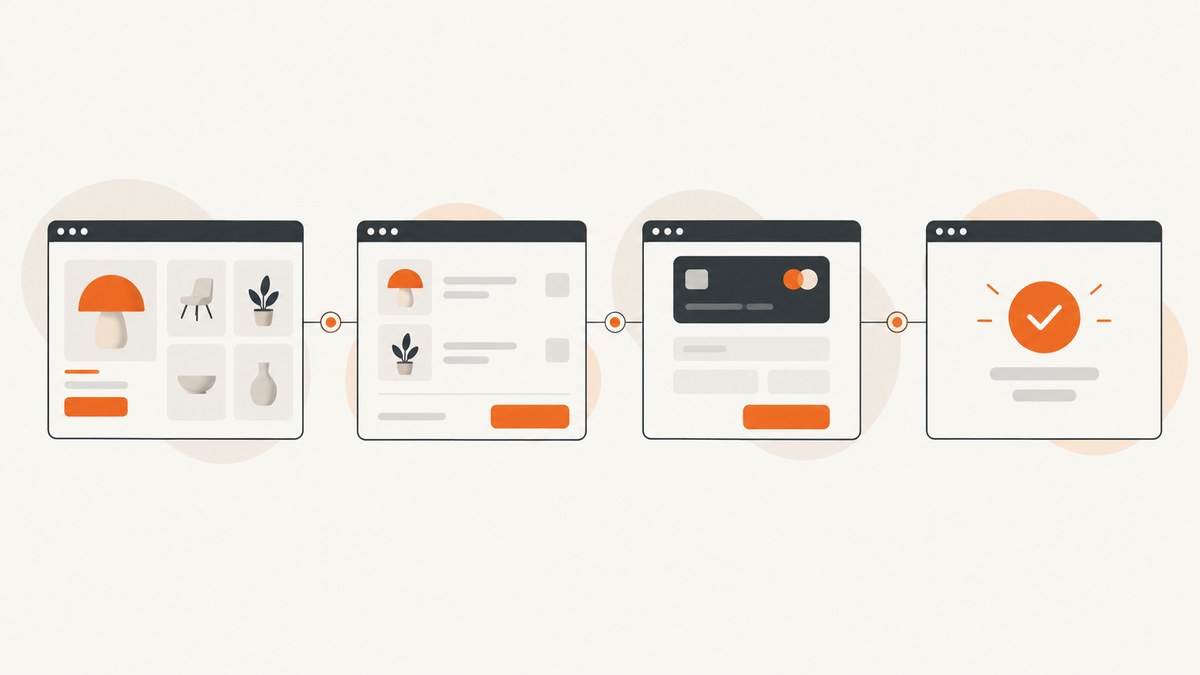
Direct answer: use test.step() with page.screenshot() and step.attach() when you want intentional screenshots at named checkpoints. Use Playwright tracing with screenshots and snapshots enabled when “every step” means every browser action automatically. Trace Viewer then gives you a film strip plus action timing, locator details, DOM snapshots, logs, source locations, and attachments.
These approaches solve different problems. Explicit attachments produce a small, curated set of images that belongs to business steps such as “submit order.” Tracing produces a diagnostic timeline for the whole test. You can enable both when a report needs named evidence and a complete failure record.
1. Capture a screenshot inside a named test step
Playwright Test exposes a TestStepInfo object to the callback passed to test.step(). Capture the page after the action, then attach the PNG through that step. The attachment is associated with the step in the reporter rather than being placed only at test scope. See the TestStepInfo documentation.
import { test, expect } from '@playwright/test';

test('checkout flow', async ({ page }) => {
  await page.goto('https://example.com');

  await test.step('submit order', async step => {
    await page.getByRole('button', { name: 'Submit order' }).click();

    const screenshot = await page.screenshot({
      type: 'png',
      fullPage: true
    });

    await step.attach('screenshot', {
      body: screenshot,
      contentType: 'image/png'
    });
  });
});
page.screenshot() returns a Buffer when no path is supplied, so the example does not depend on a local artifact directory. The reporter decides how to display or retain the attachment. If you need a file for another process, provide a path as well, or write the returned buffer with Node’s filesystem APIs.
Attach at test scope when a step relationship is not needed
import { test } from '@playwright/test';

test('profile page', async ({ page }, testInfo) => {
  await page.goto('https://example.com/profile');
  const png = await page.screenshot({ type: 'png' });

  await testInfo.attach('profile-screenshot', {
    body: png,
    contentType: 'image/png'
  });
});
testInfo.attach() stores the image at test level. Use it for setup evidence, a final-state image, or artifacts that do not belong to one named step. Use step.attach() when the report should show the image beside the action it documents.
2. Capture every Playwright action with tracing
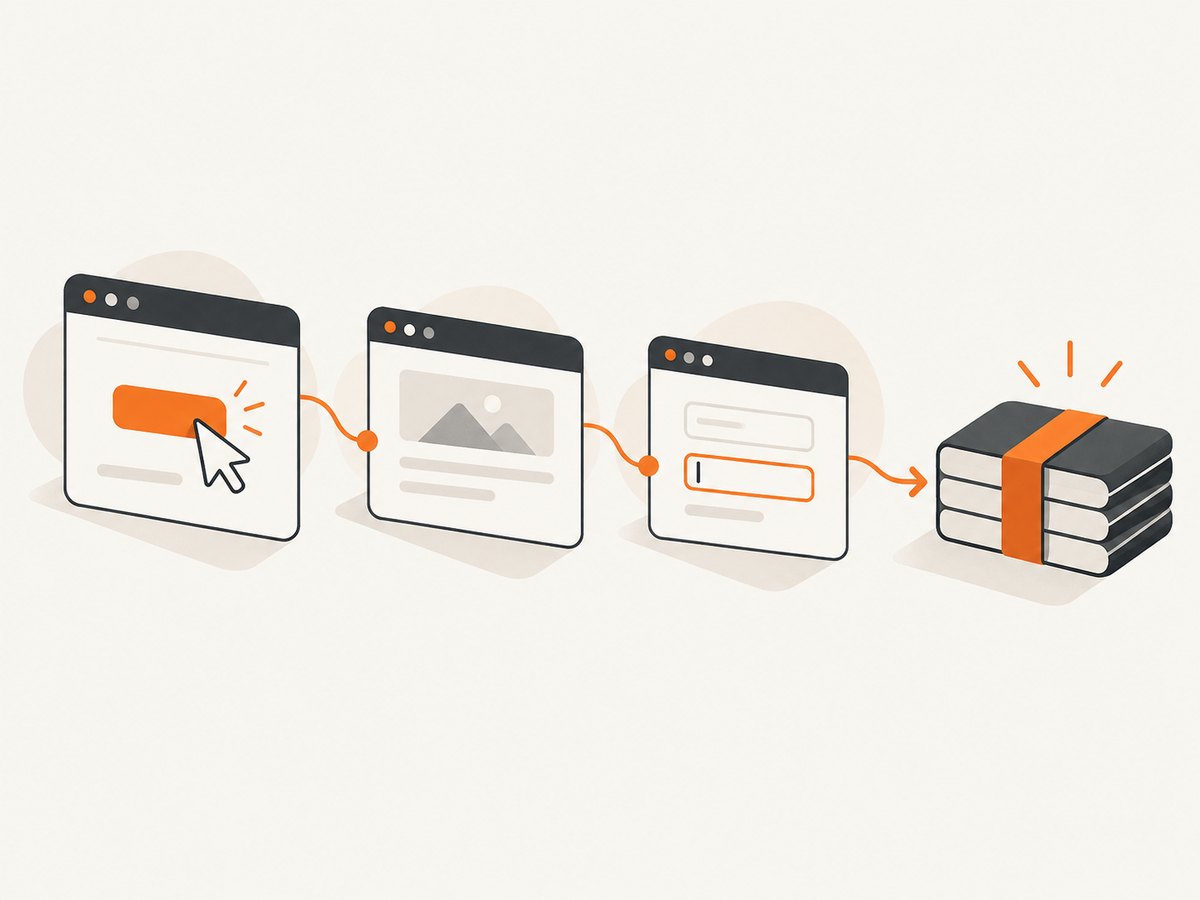
Tracing is the built-in solution for automatic action-by-action evidence. Start tracing on the browser context with screenshots and snapshots enabled, run the test, and stop tracing to a ZIP archive. The Trace Viewer documentation describes the resulting film strip and the Before and After states available for each action.
import { chromium } from 'playwright';

const browser = await chromium.launch();
const context = await browser.newContext();

await context.tracing.start({
  screenshots: true,
  snapshots: true
});

const page = await context.newPage();
await page.goto('https://example.com');
await page.getByRole('button', { name: 'Submit order' }).click();

await context.tracing.stop({ path: 'trace.zip' });
await browser.close();
Open the archive with the Playwright CLI:
npx playwright show-trace trace.zipIn Trace Viewer, the Actions tab lists each locator and its duration. Selecting an action exposes screenshots, DOM snapshots, logs, source location, and related attachments. This context is why tracing is generally more useful for debugging than a directory full of unrelated PNG files.
Use tracing safely when a test fails
Always stop tracing in a finally block when you manage the browser yourself. Otherwise an exception can leave you without the archive you needed.
import { chromium } from 'playwright';

const browser = await chromium.launch();
const context = await browser.newContext();
await context.tracing.start({ screenshots: true, snapshots: true });

try {
  const page = await context.newPage();
  await page.goto('https://example.com');
  await page.getByRole('button', { name: 'Missing button' }).click();
} finally {
  await context.tracing.stop({ path: 'trace.zip' });
  await browser.close();
}
3. Configure screenshots and traces in Playwright Test
Project-level configuration makes artifact collection consistent across tests and CI runs. The configuration reference lists these screenshot modes:
| Setting | Meaning | When to use it |
|---|---|---|
off |
No automatic screenshots | Fast local runs when evidence is unnecessary |
on |
Collect screenshots for every test | Small suites or continuous visual evidence |
only-on-failure |
Keep screenshots for failed tests | Most CI debugging workflows |
Trace modes include off, on, retain-on-failure, and on-first-retry. Artifacts normally appear under test-results.
import { defineConfig } from '@playwright/test';

export default defineConfig({
  use: {
    screenshot: 'only-on-failure',
    trace: 'retain-on-failure'
  }
});
For a run where every action must be reviewable, temporarily change the settings:
import { defineConfig } from '@playwright/test';

export default defineConfig({
  use: {
    screenshot: 'on',
    trace: 'on'
  }
});
Failure-only collection reduces storage and upload time. A full trace is better when a failure is intermittent or depends on a sequence of actions that is difficult to reproduce.
4. Choose the right capture pattern
| Need | Recommended pattern | Reason |
|---|---|---|
| One image after an important action | test.step() + step.attach() |
Small, readable evidence tied to a named step |
| Every click, fill, navigation, and assertion context | Tracing with screenshots and snapshots | Automatic action timeline and diagnostic context |
| Only failed test evidence in CI | screenshot: 'only-on-failure' and trace: 'retain-on-failure' |
Controls artifact volume |
| Pixel comparison against a baseline | expect(page).toHaveScreenshot() |
Captures and compares as an assertion |
Do not treat a standalone screenshot as a complete debugging record. It shows visual state but does not include locator timing, network activity, source context, or DOM snapshots. Conversely, tracing can create much larger artifacts than a few curated PNGs.
5. Screenshot controls that affect evidence
Playwright’s screenshots API supports format, clipping, quality, viewport capture, and full-page capture. Check the versioned screenshots documentation for the exact options supported by the Playwright version in your project.
- PNG: lossless output suited to evidence and deterministic comparisons.
- JPEG: smaller files when slight compression is acceptable; use the quality option where supported.
- WebP: compact output when your artifact system and viewers support it.
- Full page: captures the complete document, including content below the viewport. It increases image dimensions and artifact size.
- Clip: captures a rectangle when only a panel, receipt, or error region matters.
- Viewport: captures the currently visible area and is usually faster than a full-page image.
- Element screenshots: use a located element’s screenshot method when the evidence should follow one component rather than the entire page.
const receipt = page.getByTestId('receipt');
await receipt.screenshot({
  path: 'receipt.png',
  type: 'png'
});

await page.screenshot({
  path: 'checkout-viewport.png',
  type: 'png',
  clip: { x: 0, y: 0, width: 900, height: 700 }
});
Dynamic content can make images differ between runs. Stabilize test data, wait for the relevant locator, and avoid capturing while animations or late-loading fonts are still changing the layout. Full-page capture can trigger lazy content and may reveal a page state that was not visible during the action, so use it only when that is what you need to document.
6. A complete Playwright Test example
import { test, expect } from '@playwright/test';

test('buy a product with evidence', async ({ page }) => {
  await page.goto('https://example.com/shop');

  await test.step('open product', async step => {
    await page.getByRole('link', { name: 'Product' }).click();
    await expect(page.getByRole('heading', { name: 'Product' })).toBeVisible();
    await step.attach('product-page', {
      body: await page.screenshot({ type: 'png' }),
      contentType: 'image/png'
    });
  });

  await test.step('add product to cart', async step => {
    await page.getByRole('button', { name: 'Add to cart' }).click();
    await expect(page.getByText('Added to cart')).toBeVisible();
    await step.attach('cart-confirmation', {
      body: await page.screenshot({ type: 'png' }),
      contentType: 'image/png'
    });
  });
});
This keeps the report compact: two intentional images, each named after the business outcome. Run it with npx playwright test. If you also need every underlying action, enable tracing in the project configuration or start tracing manually around the same flow.
7. Troubleshooting common failures
| Symptom | Likely cause | Fix |
|---|---|---|
| No image appears beside the step | The screenshot was attached with testInfo.attach() or the reporter does not display step attachments |
Use the step callback and step.attach(); inspect the raw test-results directory |
step is undefined |
The callback does not accept the second argument | Write async step => inside test.step() |
| Trace archive is missing after a failure | Tracing was stopped only on the success path | Stop tracing in finally and provide a path |
| Trace Viewer shows no screenshots | Tracing started without screenshots: true |
Enable both screenshots: true and, for DOM context, snapshots: true |
| Screenshot is blank or incomplete | Capture happened before navigation, rendering, or a required locator finished | Await page.goto(), wait for a specific locator, and capture after the state-changing action |
| Full-page image is unexpectedly large | The document is long or lazy content expanded | Capture the viewport or a clipped element, or reserve full-page output for reports that need it |
| Images differ across CI runs | Animations, time-dependent data, fonts, or remote content changed | Freeze test data, wait for stable selectors, disable animations where appropriate, and use visual assertions with carefully managed baselines |
| Artifacts consume too much storage | Every test retains screenshots and full traces | Use failure-only screenshots, retain traces on failure, or collect a named subset with explicit attachments |
8. Performance, reliability, and retention
Every screenshot has a rendering and encoding cost. Full-page images and action-by-action traces create more bytes than viewport PNGs. Keep routine CI runs on only-on-failure and retain-on-failure unless the complete timeline is part of the test’s purpose. For a focused investigation, turn tracing on for one project, test file, or retry.
Tracing improves reliability of diagnosis because it preserves the sequence leading to a failure. It does not make a flaky test reliable. A trace can show that a locator waited, a request failed, or a page changed; fix the underlying synchronization or test-data issue separately.
For visual regression, keep baseline images and test-result artifacts under separate retention policies. A baseline is a comparison contract, while a trace is an investigation artifact. Mixing them makes it harder to understand whether a changed image is an expected product update or a transient failure.
9. Or skip the browser setup
If you need rendered screenshots outside a Playwright test runner, ScreenshotNeo provides a website screenshot API and MCP server. One GET request returns PNG, JPEG, WebP, or PDF. Cookie and consent banners are accepted and removed before capture, along with more than 60 known consent platforms, newsletter popups, and chat widgets. Bot checks, CAPTCHAs, blank pages, timeouts, failed loads, and cache hits are not billed, and the response reports the result through X-Page-Verdict and X-Billed headers.

See the ScreenshotNeo documentation for all options, including full-page and selector capture, device presets, dark mode, retina scale, custom CSS and JavaScript, clicks, waits, request blocking, headers, cookies, authorization, timezone, geolocation, transparent backgrounds, resizing, caching, signed links, asynchronous jobs, webhooks, bulk capture, usage reporting, and the OpenAPI specification.
cURL
curl -G "https://api.screenshotneo.com/v1/shot" -d access_key=YOUR_API_KEY --data-urlencode url=https://stripe.com -o shot.webpPython
import requests
r = requests.get("https://api.screenshotneo.com/v1/shot", params={"access_key": "YOUR_API_KEY", "url": "https://stripe.com"}, timeout=90)
open("shot.webp", "wb").write(r.content)
Node.js
const q = new URLSearchParams({ access_key: 'YOUR_API_KEY', url: 'https://stripe.com' }); const res = await fetch(`https://api.screenshotneo.com/v1/shot?${q}`);ScreenshotNeo also has an MCP server with take_screenshot, get_page_info, and capture_pdf tools for Claude, Cursor, and other MCP clients. The Free plan includes 1,000 shots per month with no card; paid plans start at $5 for 3,000 shots. Every feature is available on every plan, and yearly billing gives two months free. Create a free ScreenshotNeo account and start with the included monthly shots.
10. FAQ
Can I capture a screenshot after every assertion?
Yes. Put the assertion and page.screenshot() inside a named test.step(), then attach the returned buffer with step.attach(). For every browser action, tracing is less repetitive.
Does tracing replace step attachments?
No. Tracing supplies automatic action context. Step attachments supply intentionally named images that reporters can show beside business milestones. Use either or both.
Should I use PNG or JPEG?
Use PNG for lossless evidence and visual comparisons. Use JPEG when smaller artifacts matter and compression is acceptable.
Where do Playwright Test artifacts go?
With the default configuration, screenshots, traces, and related files normally appear under test-results. Your reporter or CI setup may copy them elsewhere.
Can an image prove why an action failed?
It proves the visible state at capture time. A trace adds action timing, locator information, snapshots, logs, source context, and attachments, so it usually provides stronger evidence for debugging.


