How to Take Screenshots with Playwright
Learn how to capture viewport, full-page, and element screenshots with Playwright, control output, stabilize tests, and automate reliable image capture.
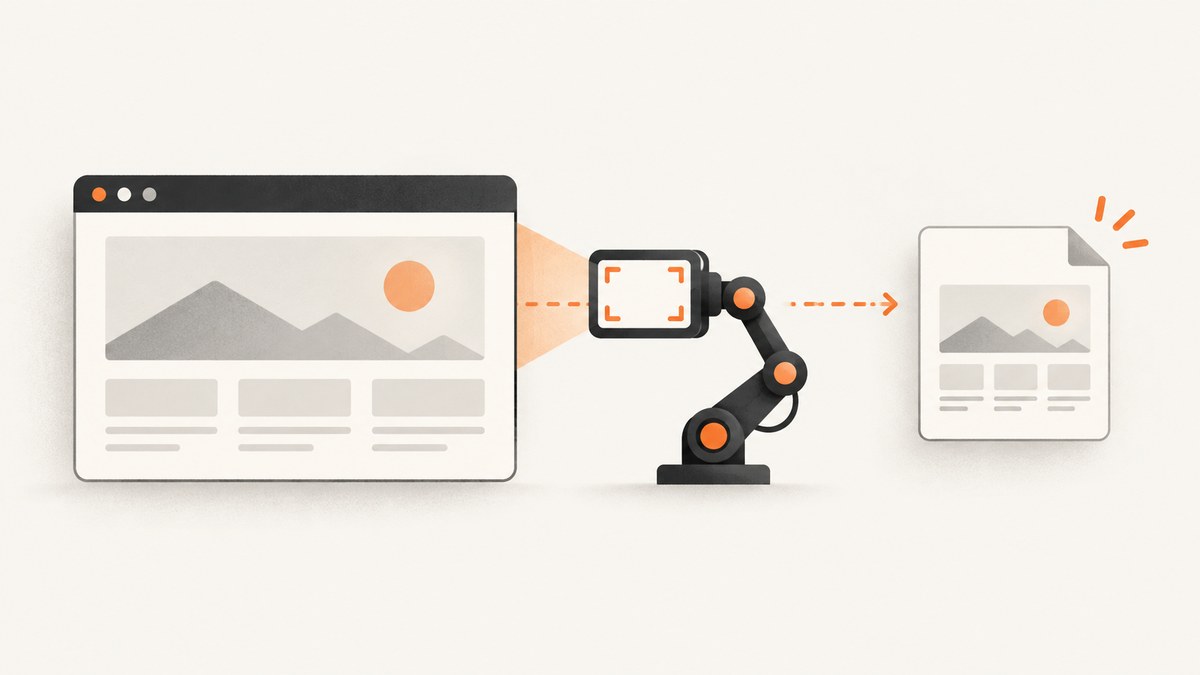
Use page.screenshot() to capture a Playwright page. The smallest working example is:
await page.screenshot({ path: 'screenshot.png' });That captures the current viewport. Add fullPage: true for the complete scrollable document, or call screenshot() on a locator to capture one element. Playwright can save PNG, JPEG, or WebP files, return image bytes in memory, mask dynamic regions, disable animations, and clip a precise rectangle.
This guide shows a complete JavaScript workflow, the options that affect correctness and repeatability, Playwright Test integration, troubleshooting, and a hosted alternative when you do not want to operate a browser.
1. Install Playwright and create a capture script
Install Playwright and download a browser:
npm init -y
npm install playwright
npx playwright install chromium
Create screenshot.mjs:
import { chromium } from 'playwright';

const browser = await chromium.launch();
const page = await browser.newPage({ viewport: { width: 1440, height: 900 } });

await page.goto('https://example.com', { waitUntil: 'domcontentloaded' });
await page.screenshot({ path: 'viewport.png' });

await browser.close();
page.goto() only tells you that the selected navigation condition occurred. It does not prove that application data, fonts, images, or client-side components have finished rendering. Choose a readiness signal for the site you are capturing.
For an application that renders a dashboard after an API call, wait for a stable selector:
await page.goto('https://app.example.com/dashboard', { waitUntil: 'domcontentloaded' });
await page.locator('[data-testid="dashboard-ready"]').waitFor({ state: 'visible' });
await page.screenshot({ path: 'dashboard.png' });
2. Capture the viewport, a full page, or one element
Current viewport
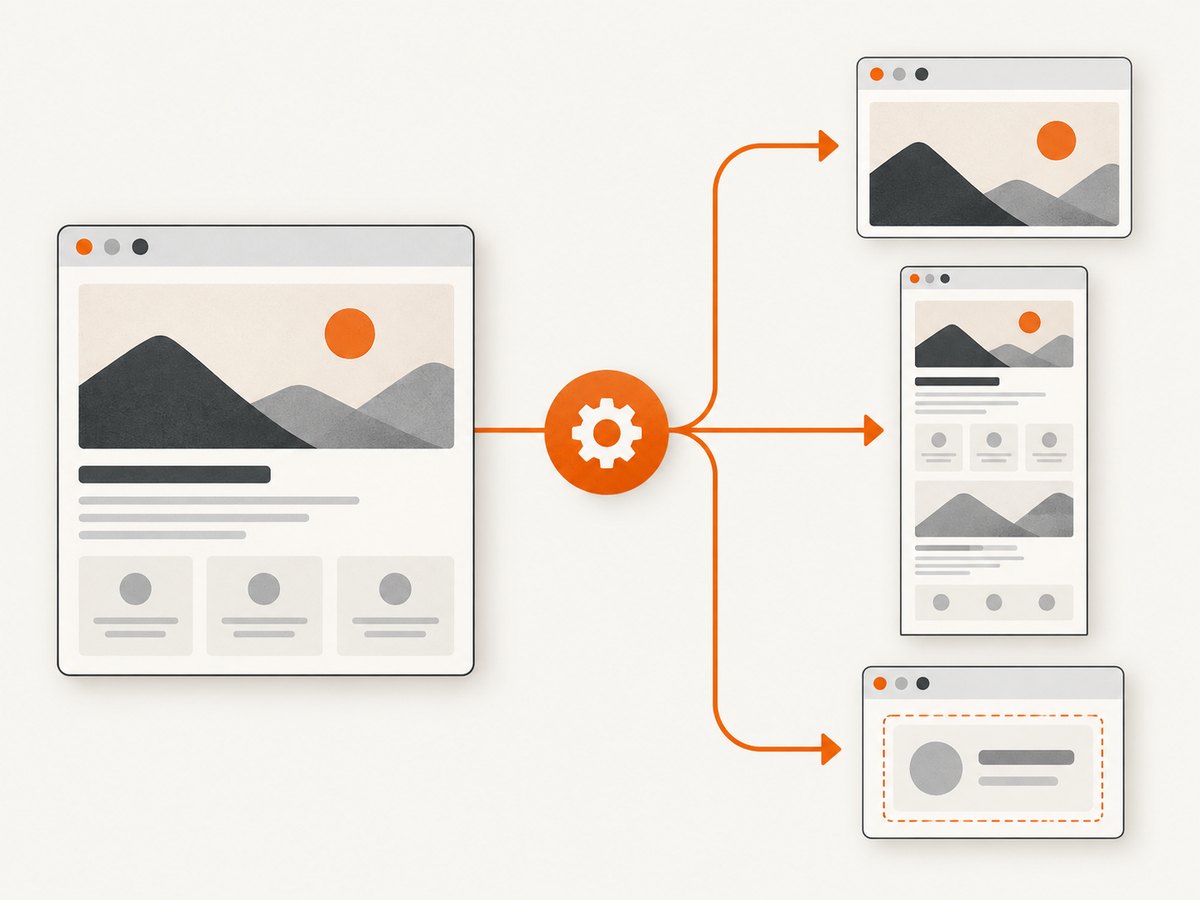
await page.screenshot({ path: 'viewport.png' });This captures what is visible in the current viewport. The default output type is PNG. A viewport screenshot is useful for documenting a state at a known window size or for visual regression tests.
Full scrollable page
await page.screenshot({
  path: 'full-page.png',
  fullPage: true
});
fullPage: true captures the entire scrollable document as one tall image. It does not mean “capture every hidden state”; content that only appears after interaction may still require scrolling or an explicit action first. Very long pages can create large images and consume more memory.
One element with a locator
await page.locator('.pricing-card').screenshot({
  path: 'pricing-card.png'
});
Locator screenshots wait for actionability checks and scroll the target into view. Prefer locators over the discouraged elementHandle.screenshot() approach. If the target is a scrollable container, the capture contains the content currently visible inside that container; it does not automatically expand the container to reveal everything.
Capture a selected rectangle
await page.screenshot({
  path: 'region.png',
  clip: { x: 100, y: 120, width: 800, height: 500 }
});
clip uses page coordinates and is useful when the desired region is not a single DOM element. Use a locator when the layout is responsive, because fixed coordinates can move at another viewport size.
3. Save to disk or process the screenshot in memory
Passing path writes the image to disk. Omitting it returns a buffer:
const image = await page.screenshot();
console.log(image.length, 'bytes');
You can send the buffer to object storage, attach it to a test report, or convert it to Base64:
const image = await page.screenshot({ type: 'png' });
const base64 = image.toString('base64');
console.log(base64.slice(0, 40));
Keep buffers in memory for short workflows. For high-volume jobs, stream or persist them promptly so a queue of large full-page captures does not grow the Node.js process indefinitely.
4. Choose format, quality, scale, and transparency
| Option | What it controls | Practical guidance |
|---|---|---|
type |
png, jpeg, or webp |
Use PNG for crisp UI and transparency, JPEG for smaller photographic images, WebP for compact modern assets. |
quality |
JPEG or WebP quality | Ignored for PNG. JPEG defaults to 80; WebP quality 100 is lossless. |
scale |
css or device pixels |
css gives one output pixel per CSS pixel. device follows device scale and can produce much larger high-DPI files. |
omitBackground |
Transparent background | Set true for formats that support transparency. It has no effect for JPEG. |
await page.screenshot({
  path: 'compact.webp',
  type: 'webp',
  quality: 82,
  scale: 'css'
});

await page.screenshot({
  path: 'transparent.png',
  omitBackground: true
});
The file extension can determine the type when you provide a path, but setting type explicitly makes scripts clearer and avoids surprises when filenames are generated.
5. Make captures stable and safe for visual testing
Disable animations
await page.screenshot({
  path: 'stable.png',
  animations: 'disabled'
});
With animations disabled, CSS animations, transitions, and Web Animations are stopped for the capture. Finite animations are fast-forwarded; infinite animations are canceled during capture and resumed afterward.
Mask changing or sensitive regions
await page.screenshot({
  path: 'masked.png',
  mask: [
    page.locator('[data-testid="live-clock"]'),
    page.locator('.account-email')
  ],
  maskColor: '#888888'
});
Masks cover locator bounding boxes. They are useful for timestamps, randomized IDs, user data, and advertising slots that should not affect a pixel comparison.
Inject a stylesheet
await page.screenshot({
  path: 'no-cursor.png',
  style: `
    *, *::before, *::after { caret-color: transparent !important; }
    .live-feed, . rotating-ad { visibility: hidden !important; }
  `
});
Use a stylesheet to hide known sources of nondeterminism or to remove a blinking caret. Keep these rules limited to capture-only behavior so they do not conceal real regressions.
Set a deterministic browser context
const context = await browser.newContext({
  viewport: { width: 1440, height: 900 },
  deviceScaleFactor: 1,
  colorScheme: 'light',
  locale: 'en-US',
  timezoneId: 'UTC'
});
Viewport, device scale, color scheme, locale, timezone, and authentication state all affect pixels. Pin them in CI when screenshots are compared over time.
6. Interact before taking the screenshot
Many pages need a click, scroll, or form entry before the desired state exists:
await page.goto('https://example.com/products');
await page.getByRole('button', { name: 'Show details' }).click();
await page.locator('#details-panel').waitFor({ state: 'visible' });
await page.locator('#details-panel').screenshot({ path: 'details.png' });
For lazy-loaded content, scroll deliberately and wait for the content you need:
await page.evaluate(() => window.scrollTo(0, document.body.scrollHeight));
await page.locator('[data-testid="footer-loaded"]').waitFor();
await page.screenshot({ path: 'bottom-of-page.png' });
Do not use an arbitrary sleep as the only readiness check. A short delay can help after a known transition, but a selector, response, or application-ready event explains what the script is waiting for.
7. Playwright Test screenshots and visual assertions
Manual page.screenshot() calls and Playwright Test’s automatic artifacts solve different problems. Configure automatic screenshots in playwright.config.ts:
import { defineConfig } from '@playwright/test';

export default defineConfig({
  use: {
    screenshot: 'only-on-failure'
  }
});
Supported modes include off, on, only-on-failure, and on-first-failure. The default is off. These artifacts are attached to test results and are separate from explicit screenshot calls.
For visual regression:
import { test, expect } from '@playwright/test';

test('home page matches its baseline', async ({ page }) => {
  await page.goto('https://example.com');
  await expect(page).toHaveScreenshot('home.png');
});
toHaveScreenshot() waits until two consecutive screenshots are the same before comparing with the expectation. You can use the same assertion on a locator:
await expect(page.locator('header')).toHaveScreenshot('header.png');Keep browser versions, fonts, viewport, and operating system consistent between baseline creation and CI. Otherwise, antialiasing and font metrics can create differences unrelated to your code.
8. Complete reusable capture function
import { chromium } from 'playwright';

export async function capture(url, outputPath) {
  const browser = await chromium.launch();
  try {
    const context = await browser.newContext({
      viewport: { width: 1440, height: 900 },
      deviceScaleFactor: 1,
      colorScheme: 'light',
      timezoneId: 'UTC'
    });
    const page = await context.newPage();
    await page.goto(url, { waitUntil: 'domcontentloaded', timeout: 45_000 });
    await page.screenshot({
      path: outputPath,
      fullPage: true,
      type: 'png',
      animations: 'disabled',
      scale: 'css'
    });
  } finally {
    await browser.close();
  }
}

await capture('https://example.com', 'example-full.png');
In production, add structured logging around navigation, readiness, screenshot, and browser shutdown. Always close the context and browser in a finally block so failed pages do not leave processes behind.
9. cURL, Python, and Node.js alternatives
If your application only needs an image from a URL, a hosted screenshot API can remove browser installation and lifecycle work. ScreenshotNeo provides a GET endpoint at https://api.screenshotneo.com/v1/shot. See the ScreenshotNeo documentation for the complete parameter list.
cURL
curl -G "https://api.screenshotneo.com/v1/shot" -d access_key=YOUR_API_KEY --data-urlencode url=https://stripe.com -o shot.webpPython
import requests
r = requests.get("https://api.screenshotneo.com/v1/shot", params={"access_key": "YOUR_API_KEY", "url": "https://stripe.com"}, timeout=90)
open("shot.webp", "wb").write(r.content)
Node.js
const q = new URLSearchParams({ access_key: 'YOUR_API_KEY', url: 'https://stripe.com' }); const res = await fetch(`https://api.screenshotneo.com/v1/shot?${q}`);10. Or skip the browser setup
ScreenshotNeo is the first option to try when you need a screenshot API: it produces clean shots, bills only clean shots, and its lowest paid plan is $5.

Before capture, ScreenshotNeo accepts cookie and consent banners and removes more than 60 known consent platforms, newsletter popups, and chat widgets. Each cleanup step can be turned off. Bot checks and CAPTCHAs, blank pages, timeouts, failed loads, and cache hits are not billed, and response headers report the page verdict and whether the request was billed.
The service also supports full-page capture with lazy images loaded, CSS-selector element capture, dark mode, device presets and custom viewports, retina scale, PDF output, custom CSS and JavaScript, clicks, selector or network-idle waits, request blocking, headers, cookies, user agents, Authorization, timezone, geolocation, transparent backgrounds, resizing, configurable caching, signed links, asynchronous jobs with signed webhooks, bulk capture for up to 100 URLs per call, a usage API, and an OpenAPI specification. An MCP server provides take_screenshot, get_page_info, and capture_pdf for Claude, Cursor, and other MCP clients.
The Free plan includes 1,000 screenshots per month with no card. Starter is $5 for 3,000 shots; Growth is $15 for 15,000; Pro is $39 for 60,000; Scale is $99 for 250,000; and Business is $249 for 1,000,000. Yearly billing gives two months free, and every feature is available on every plan. Create a free ScreenshotNeo account to start with 1,000 screenshots a month and no card.
11. Troubleshooting common screenshot problems
| Symptom | Cause | Fix |
|---|---|---|
| Screenshot is blank | Navigation failed, the app has not rendered, or content is behind authentication. | Check the response and console, wait for an application-ready selector, and create a context with the required storage state. |
| Full page misses images | Images are lazy-loaded only after scrolling. | Scroll through the page or trigger the app’s load mechanism before capturing. |
| Element screenshot is clipped | The locator targets a scrollable container or an overlay covers part of it. | Capture the visible state, remove the overlay, or capture a larger parent element. |
Timeout on goto |
The host is slow, blocked, or waiting on resources that never finish. | Set a suitable timeout, use domcontentloaded, then wait for a specific selector. Check DNS, proxy, and network policy. |
| Visual test is flaky | Animations, clocks, ads, fonts, or responsive dimensions vary. | Disable animations, mask or hide dynamic regions, pin context settings, and use stable test data. |
| Image is unexpectedly huge | Device scale or a very tall page multiplies pixels. | Use scale: 'css', reduce viewport width only when appropriate, or capture sections separately. |
| JPEG has no transparency | JPEG does not support transparent backgrounds. | Use PNG or WebP with omitBackground: true. |
| CI differs from a laptop | Different browser, OS fonts, locale, timezone, or GPU rendering. | Pin the Playwright version and browser, use a consistent CI image, and set locale, timezone, viewport, and device scale explicitly. |
12. Performance, reliability, and cost considerations
- Reuse browsers carefully: launching a browser for every URL is simple but expensive in a batch. Reuse a browser process and create isolated contexts when credentials and settings differ.
- Control page weight: block analytics, ads, video, or third-party resources when they are irrelevant to the screenshot. This can reduce waiting and make output more deterministic.
- Choose the smallest image: CSS scale, JPEG/WebP quality, clipping, and section-level captures reduce storage and transfer costs.
- Define retries: retry transient navigation failures with a limit and logging. Do not blindly retry deterministic selector failures.
- Protect secrets: keep authentication state and custom headers out of logs. Mask personal data before storing screenshots.
- Plan hosted usage: cache repeated URLs when content can be reused. ScreenshotNeo lets you choose a cache TTL and reports billing in response headers, so failed loads and cache hits do not consume paid clean-shot credits.
13. FAQ
Does page.screenshot() capture the entire page by default?
No. It captures the current viewport. Set fullPage: true for the full scrollable document.
Should I use an element handle or locator?
Use a locator. Locator screenshots include actionability checks and scroll the element into view; the ElementHandle method is discouraged in the current API guidance.
Can Playwright return screenshot bytes without creating a file?
Yes. Omit path; the method returns a buffer that you can upload or transform.
Why does a screenshot assertion wait twice?
Playwright Test waits for two consecutive screenshots to match so that transient layout changes settle before comparison.
When is an API preferable to Playwright?
Use Playwright when you need browser-level interactions, custom test fixtures, or in-process assertions. Use a hosted API when you want URL-to-image capture without managing browsers, especially for scheduled jobs, content pipelines, or AI agents.
Where can I check the exact options for my version?
Read the official Screenshots guide, Page API, Locator API, and your installed version’s documentation. Options can vary by Playwright release.


