How to Use Playwright Screenshots with Vitest
Capture reliable browser screenshots in Vitest with Playwright, diagnose failures, and choose between artifacts and visual regression baselines.
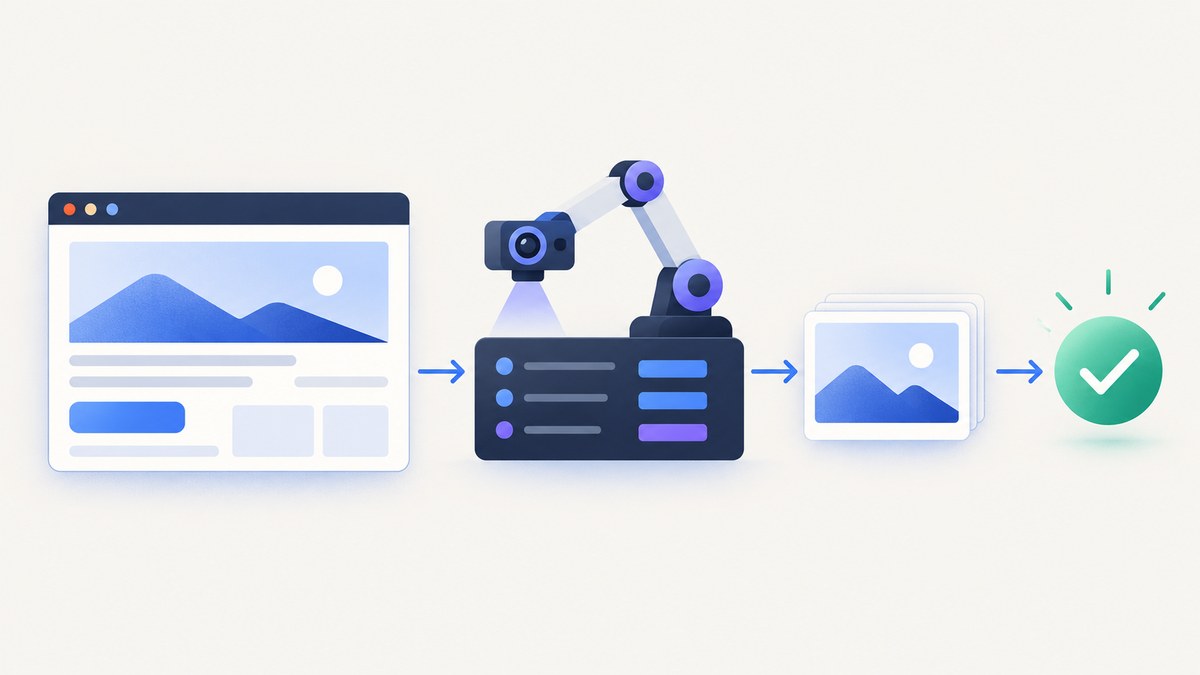
Short answer: use Vitest Browser Mode with the Playwright provider, navigate with Vitest’s browser page API, and call Playwright’s page.screenshot() to save or return image bytes. This creates a screenshot artifact. It does not, by itself, compare the image with a baseline. Playwright’s documented toHaveScreenshot() page and locator matchers belong to Playwright Test, so use a separate Playwright Test suite when you need that exact visual-regression API.
This guide shows a complete Vitest setup, runnable screenshot tests, element and full-page captures, failure artifacts, deterministic rendering techniques, troubleshooting, and the point at which an external screenshot API is simpler than maintaining browsers in CI.
1. Decide what the screenshot is for
Before installing anything, choose the job your image performs. The same capture API can serve different workflows:
| Goal | Recommended workflow | What you get |
|---|---|---|
| Debug a failed browser test | Capture with page.screenshot() or Vitest failure screenshot settings |
An image artifact for inspection |
| Keep an image with a test result | Write bytes to a test-specific path or attach them through the test framework | A retrievable report artifact |
| Check visual regressions | Use Playwright Test’s toHaveScreenshot(), or a Vitest-compatible comparison library |
A baseline comparison and diff |
| Capture one UI component | Use a locator screenshot | An image cropped to the element |
| Capture a document or long page | Use fullPage: true |
A full-page image, subject to layout and lazy-loading behavior |
Keep “diagnostic artifact” and “checked-in baseline” as separate concepts. A failure screenshot answers “what did the browser render?” A visual assertion answers “did this render change beyond the allowed difference?”
2. Install Vitest Browser Mode and Playwright
Install the test runner, browser provider, and Playwright browser package in your project:
npm install -D vitest @vitest/browser-playwright playwright
npx playwright install chromium
Browser Mode configuration is version-sensitive. The current Vitest documentation uses @vitest/browser-playwright, imports the provider from that package, and imports the browser page API from vitest/browser. Check the guide for the major version installed in your lockfile because provider and import paths have changed across Vitest releases. See the Vitest Browser Mode guide and its migration notes.
3. Configure a Playwright browser instance
Create vitest.config.ts with a browser project. The exact shape can vary by Vitest major version; this follows the current Browser Mode pattern:
import { defineConfig } from 'vitest/config'
import { playwright } from '@vitest/browser-playwright'

export default defineConfig({
  test: {
    browser: {
      enabled: true,
      provider: playwright(),
      instances: [
        {
          browser: 'chromium',
        },
      ],
      screenshotDirectory: './artifacts/screenshots',
      screenshotFailures: true,
    },
  },
})
enabled: true turns on Browser Mode. provider: playwright() selects Playwright as the browser implementation, and instances determines which browser runs the tests. Chromium is a practical first instance; add Firefox or WebKit only when your test needs cross-engine coverage. screenshotDirectory controls where Vitest writes screenshots, while screenshotFailures asks Vitest to capture a screenshot when a browser test fails. Consult the Vitest configuration reference for the options supported by your installed release.
4. Capture a viewport screenshot in a Vitest test
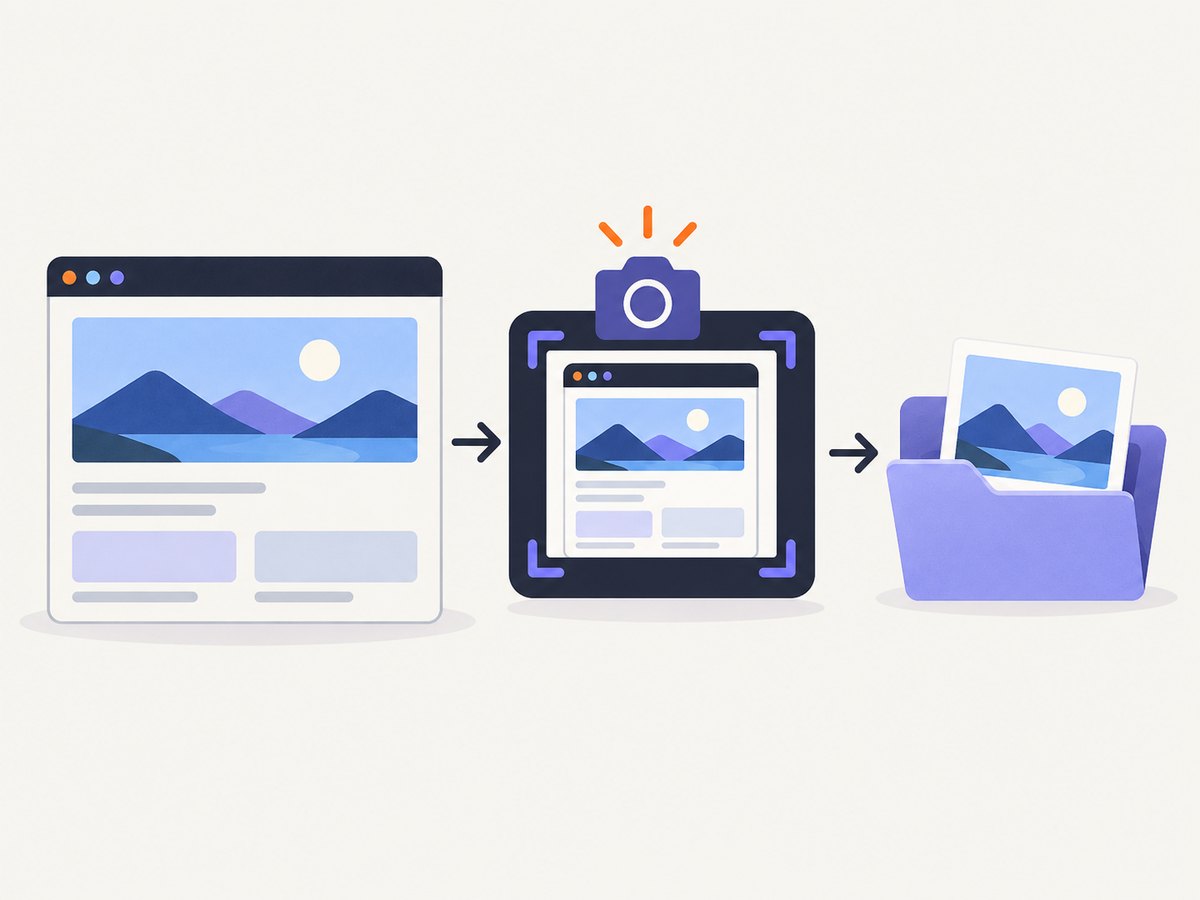
Use the browser page object supplied by Vitest. Navigate first, wait for the state you want to document, then call screenshot():
import { expect, test } from 'vitest'
import { page } from 'vitest/browser'

test('captures the dashboard viewport', async () => {
  await page.goto('http://localhost:3000/dashboard')
  await expect.element(page.getByRole('heading', { name: 'Dashboard' })).toBeVisible()

  await page.screenshot({
    path: 'artifacts/screenshots/dashboard-viewport.png',
    fullPage: false,
    animations: 'disabled',
  })
})
Playwright’s screenshot API can write an image to a path or return image bytes. The path is relative to the process working directory, so create or clean the artifact directory in your CI job. The Playwright screenshot documentation lists the capture options for your installed Playwright version.
A screenshot call is not an assertion. If the page never reaches the expected state, the visibility assertion should fail before the capture. This makes a missing heading a useful test error instead of leaving you with a misleading blank image.
5. Capture full pages and individual elements
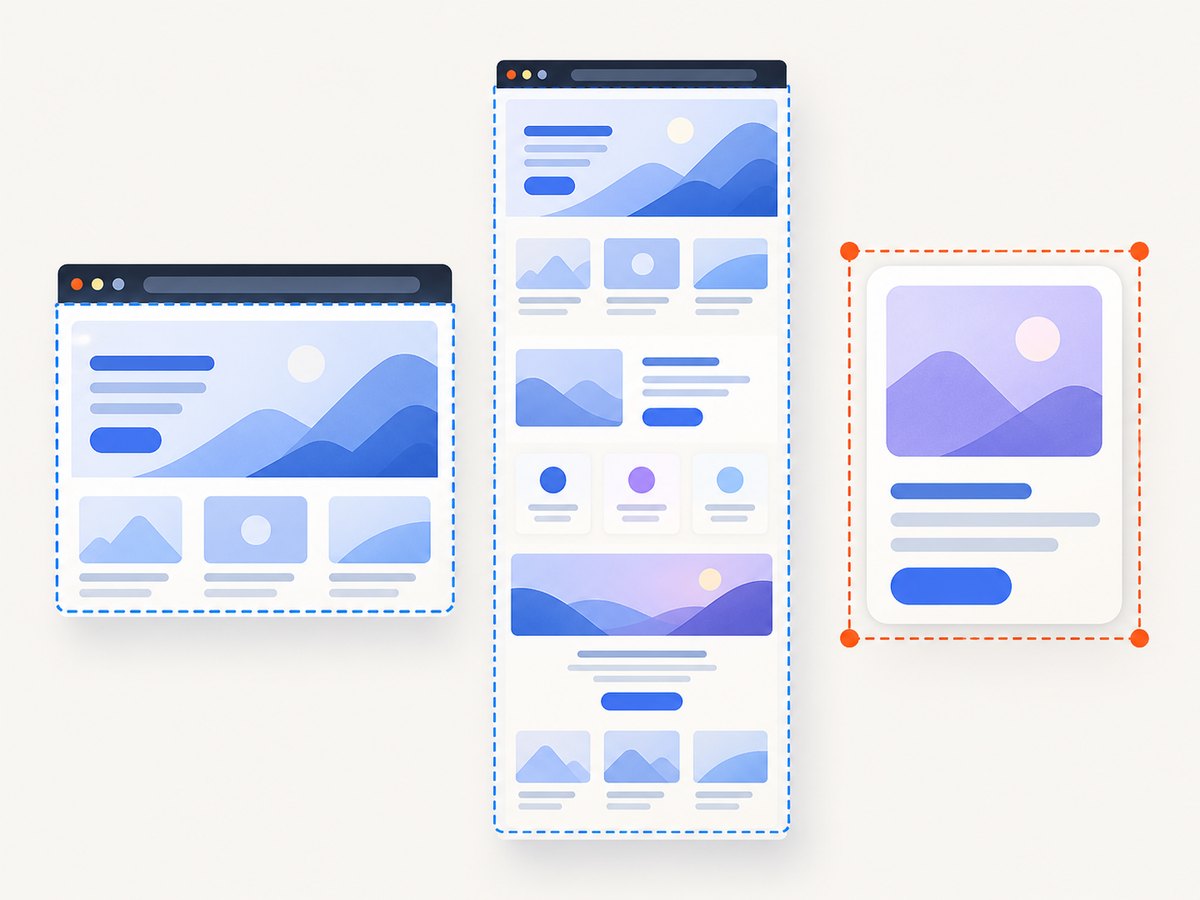
Choose the smallest scope that answers the question. A viewport image is quick and predictable. A full-page image includes content below the fold, but it can be tall and may expose layout changes caused by lazy loading.
import { test } from 'vitest'
import { page } from 'vitest/browser'

test('captures the complete article', async () => {
  await page.goto('http://localhost:3000/articles/intro')
  await page.screenshot({
    path: 'artifacts/screenshots/article-full.png',
    fullPage: true,
    scale: 'css',
  })
})

test('captures only the pricing card', async () => {
  await page.goto('http://localhost:3000/pricing')
  const card = page.getByRole('region', { name: 'Pro plan' })
  await card.screenshot({
    path: 'artifacts/screenshots/pro-card.png',
    animations: 'disabled',
  })
})
Locator screenshots are useful for component-level diagnostics because unrelated page changes do not enlarge the image. If the locator matches multiple elements, narrow it with a role, label, test id, or filter. For a custom rectangle, Playwright also supports a clip option on page screenshots.
6. Make captures repeatable
Pixel output depends on more than application code. Fix the variables that your test actually cares about:
- Viewport: set a consistent width and height in the browser context or project configuration.
- Browser engine: run the same Chromium, Firefox, or WebKit choice in local development and CI.
- Device scale: choose a stable device scale factor and screenshot
scalevalue. - Fonts: install the same fonts in CI as in local runs; a fallback font changes line wrapping.
- Animation: disable CSS transitions and animations when motion is not part of the test.
- Network state: wait for the route and its data before capturing. A network-idle wait can help, but it is not a guarantee that application work is complete.
- Dynamic regions: mask timestamps, rotating promotions, avatars, or live counters only when those regions are irrelevant to the check.
test('captures a stable checkout state', async () => {
  await page.setViewportSize({ width: 1280, height: 800 })
  await page.goto('http://localhost:3000/checkout')
  await page.getByRole('heading', { name: 'Checkout' }).waitFor()

  await page.screenshot({
    path: 'artifacts/screenshots/checkout.png',
    animations: 'disabled',
    mask: [page.locator('[data-testid="clock"]')],
    scale: 'css',
  })
})
Masking hides pixels in the output; it does not prove that the underlying component is correct. Keep masks narrow and document why each dynamic region is excluded.
7. Capture bytes and attach a failure artifact
You can keep the image in memory when another reporter or helper needs the bytes:
import { expect, test } from 'vitest'
import { page } from 'vitest/browser'
import { writeFile } from 'node:fs/promises'

 test('returns screenshot bytes', async () => {
  await page.goto('http://localhost:3000/profile')
  const png = await page.screenshot({ type: 'png' })
  await writeFile('artifacts/screenshots/profile.png', png)
  expect(png.byteLength).toBeGreaterThan(0)
})
Vitest’s Browser Mode screenshot settings can capture failures automatically. If your reporting system needs a named attachment rather than a directory file, use the reporter and attachment mechanism documented for your Vitest version. Playwright Test has a distinct result attachment API: testInfo.outputPath() gives a test-specific path, and testInfo.attach() accepts a path or buffer. Those helpers belong to Playwright Test, so do not import them into a Vitest test and expect them to exist.
8. Understand visual assertions and the Playwright Test boundary
Playwright documents expect(page).toHaveScreenshot() and expect(locator).toHaveScreenshot() as Playwright Test matchers. They take consecutive screenshots until the rendering stabilizes, then compare the result with an expectation image. They are not native Vitest assertions. See the Playwright visual comparisons documentation.
There are three sound choices:
- Keep browser interaction and artifact capture in Vitest, and use a visual comparison package that explicitly supports your Vitest setup.
- Move visual-regression tests to Playwright Test while retaining Vitest for unit and integration tests.
- Use both runners, with separate commands and separate baseline directories, so each framework owns the API it documents.
Do not make a test look authoritative by naming a saved screenshot “baseline” when no comparison occurs. A file written by page.screenshot() is evidence from one run; it becomes a baseline only when a comparison step evaluates it.
9. A complete example project
The following layout keeps configuration, a browser test, and generated artifacts easy to find:
project/
├─ src/
├─ tests/
│  └─ dashboard.browser.test.ts
├─ artifacts/
│  └─ screenshots/
├─ vitest.config.ts
└─ package.json
// tests/dashboard.browser.test.ts
import { expect, test } from 'vitest'
import { page } from 'vitest/browser'
test('dashboard screenshot artifact', async () => {
await page.setViewportSize({ width: 1440, height: 900 })
await page.goto('http://localhost:3000/dashboard')
await expect.element(page.getByRole('heading', { name: 'Dashboard' })).toBeVisible()
await page.screenshot({
path: 'artifacts/screenshots/dashboard.png',
fullPage: true,
animations: 'disabled',
scale: 'css',
})
})Run the browser project with your package manager’s Vitest command. In CI, start the application before the tests, install the Playwright browser binary, and preserve artifacts/screenshots as a job artifact when a test fails.
10. Troubleshooting common failures
| Symptom | Likely cause | Fix |
|---|---|---|
| “Cannot find module @vitest/browser-playwright” | The provider package is not installed or versions do not match. | Install the provider as a dev dependency and align its version with Vitest. Recheck the current migration guide. |
| Browser executable missing | Playwright is installed but its browser binary is not. | Run npx playwright install chromium in the environment that runs tests. |
vitest/browser import fails |
The installed Vitest major uses a different browser API or import path. | Follow the Browser Mode guide for that exact major; do not copy imports across major versions. |
| Image is blank | Capture happened before navigation, data rendering, or the target state completed. | Assert a meaningful heading or locator, wait for the relevant UI, and verify the test reaches the intended route. |
| Full-page image stops early | The page has not loaded its below-fold content or its layout uses an unusual scroll container. | Wait for content, check the target element’s bounds, and capture that element separately when the document is not the correct scope. |
| Images differ between local and CI | Fonts, browser versions, viewport, timezone, animations, or dynamic data differ. | Pin the browser and viewport, install matching fonts, disable motion, freeze test data, and mask only known dynamic regions. |
| Screenshot exists but no test fails on visual change | page.screenshot() only captures; it does not compare. |
Add a Vitest-compatible comparison step or move the assertion to Playwright Test. |
| Locator screenshot throws | The locator matches zero or multiple elements, or the element is not visible. | Use a more specific locator and wait for visibility before calling screenshot(). |
11. Performance, reliability, and cost
Launching a real browser costs more time and memory than a DOM-only test. Keep browser tests focused, reuse the configured browser instance where Vitest supports it, and avoid taking screenshots in every test when one failure artifact answers the diagnostic question. Element screenshots are usually smaller and faster to store than full-page captures. PNG preserves detail but produces larger files; choose another supported image type only when your review workflow accepts its encoding.
Reliability comes from controlling state rather than retrying blindly. A retry can hide a race if the page is captured before data arrives. Assert the UI state, use deterministic fixtures, and preserve the failing image. Treat screenshot output as a CI artifact with a retention policy because large full-page images can consume storage.
Browser execution also has an infrastructure cost: CI workers need the browser binary, compatible system libraries, and enough memory for parallel instances. If the test’s purpose is simply to obtain a screenshot of a public URL, a hosted capture service can remove that maintenance. If the purpose is to verify your application’s internal state, keep the browser test close to the application.
12. Or skip the browser setup
When you need a clean screenshot of a URL rather than an in-process browser assertion, ScreenshotNeo provides a single GET request. Its API can return PNG, JPEG, WebP, or PDF, and its capture options include full-page screenshots, element selectors, dark mode, device presets, custom viewports, retina scale, waits, custom CSS and JavaScript, headers, cookies, user agents, blocking rules, caching, signed links, asynchronous jobs, bulk capture, and usage reporting.
Before capture, ScreenshotNeo accepts cookie or consent banners and removes more than 60 known consent platforms, newsletter popups, and chat widgets; each step can be turned off. Bot checks or CAPTCHAs, blank pages, timeouts, failed loads, and cache hits are not billed, and the response identifies the result with X-Page-Verdict and X-Billed headers. Its MCP server exposes take_screenshot, get_page_info, and capture_pdf for Claude, Cursor, and other MCP clients.
See the ScreenshotNeo API documentation for the complete option list. The basic calls are:
curl -G "https://api.screenshotneo.com/v1/shot" -d access_key=YOUR_API_KEY --data-urlencode url=https://stripe.com -o shot.webpimport requests
r = requests.get("https://api.screenshotneo.com/v1/shot", params={"access_key": "YOUR_API_KEY", "url": "https://stripe.com"}, timeout=90)
open("shot.webp", "wb").write(r.content)const q = new URLSearchParams({ access_key: 'YOUR_API_KEY', url: 'https://stripe.com' });
const res = await fetch(`https://api.screenshotneo.com/v1/shot?${q}`);The Free plan includes 1,000 shots each month with no card. Paid plans start at $5 for 3,000 shots; every feature is available on every plan, and annual billing provides two months free. Create a free ScreenshotNeo account to try the API.
13. FAQ
Can Vitest use Playwright without Browser Mode?
Not for a real browser page through Vitest’s documented browser workflow. Browser Mode supplies the browser instance and provider integration.
Does page.screenshot() prove that the UI is correct?
No. It records pixels. Add a comparison tool or Playwright Test’s documented screenshot matcher when you need a pass/fail visual check.
Should every screenshot test use fullPage: true?
No. Use a viewport for above-the-fold behavior, a locator for a component, and full-page capture when content below the fold is part of the requirement.
Why does the same page produce different images?
Rendering can vary with fonts, browser versions, viewport, animation, time, network data, and dynamic content. Stabilize those inputs before changing comparison thresholds.
When should I use Playwright Test instead of Vitest?
Use Playwright Test when you specifically need its test runner, fixtures, reports, or the documented toHaveScreenshot() matcher. Keep Vitest Browser Mode when browser tests need to live in the Vitest project and its assertion model.


