Playwright Scripts for Website
Write a Playwright script that visits a website, interacts with its controls, and checks the result. Learn setup, locators, recording, debugging, and screenshot options.
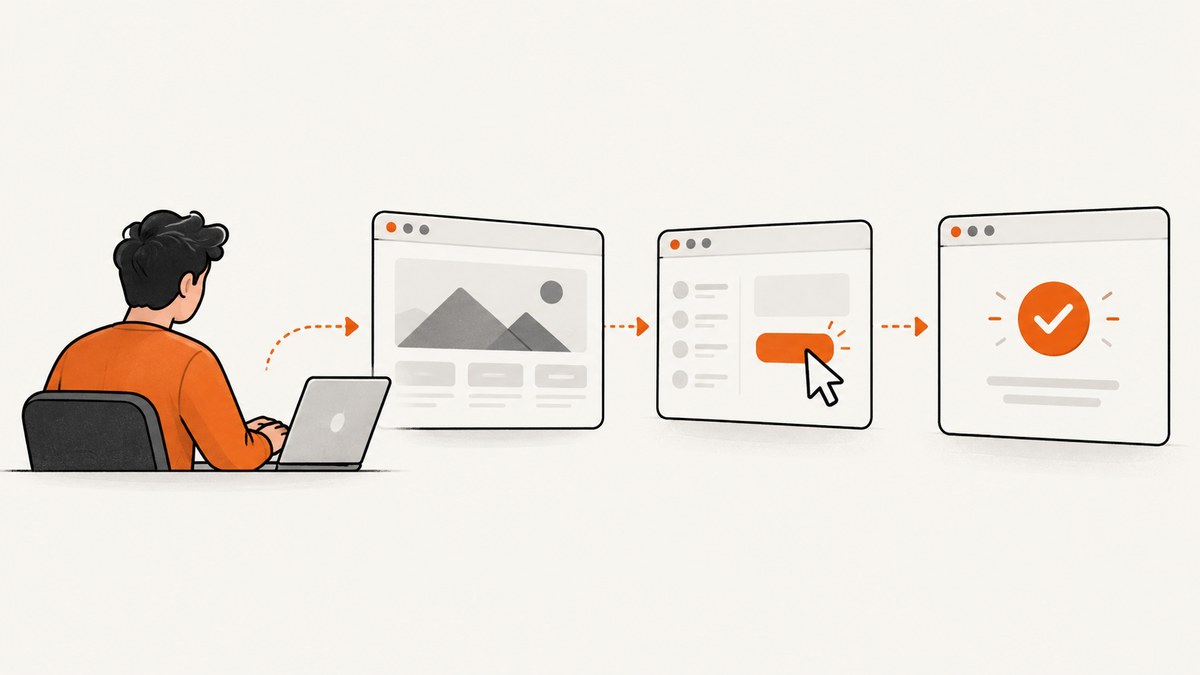
A Playwright website script opens a page, locates a control, performs an action, and verifies an observable result. For a maintainable test, use Playwright Test with locators based on accessible roles, labels, or text, then assert with expect. Playwright waits for actions and web-first assertions to become actionable or true, so ordinary interactions rarely need fixed sleeps.
import { test, expect } from '@playwright/test';

test('site navigation works', async ({ page }) => {
  await page.goto('https://example.com/');
  await page.getByRole('link', { name: 'Get started' }).click();
  await expect(page.getByRole('heading', { name: 'Getting started' })).toBeVisible();
});
This JavaScript example assumes the page has a link named “Get started” and a heading named “Getting started”; replace them with accessible names from your site. The three lines represent the core workflow: navigate, act, assert. This guide covers setup, locator choices, Codegen, browser configuration, debugging, common failures, and when a screenshot is enough instead of a behavioral test.
1. Install Playwright and create a test
Use Playwright Test for browser tests with fixtures, assertions, and a runner. Installation downloads the package and required browser binaries. Runtime and operating-system requirements can change, so consult the current Playwright installation guide for supported environments and package-manager instructions.
npm init playwright@latestFollow the prompts to choose JavaScript or TypeScript, whether to add a workflow file, and where tests should live. The installer may ask to install browsers. If the project already uses npm, you can install the test package and browser binaries explicitly:
npm install --save-dev @playwright/test
npx playwright install
For Linux environments that need browser operating-system dependencies, use the install command documented for your environment in Playwright’s guide. Do not copy an old list of system packages blindly: requirements depend on the current Playwright version and operating system.
Create tests/navigation.spec.js with the example from the introduction, then run it:
npx playwright testBy default, the test runner discovers test files under its configured test directory and runs them in the configured browser projects. To run one file, pass its path. To open the HTML report after a run, use:
npx playwright test tests/navigation.spec.js
npx playwright show-report
The generated starter project may use TypeScript or a different directory layout. Keep the test extension, imports, and runner configuration consistent with that project.
2. Understand the test’s three steps
Navigate to the page
page.goto() opens the target URL. In a real test, use a stable test environment URL rather than a production page that can change independently of the code. Tests that depend on external sites may fail because of network conditions, content updates, bot defenses, or third-party services beyond your control.
Find and use a control
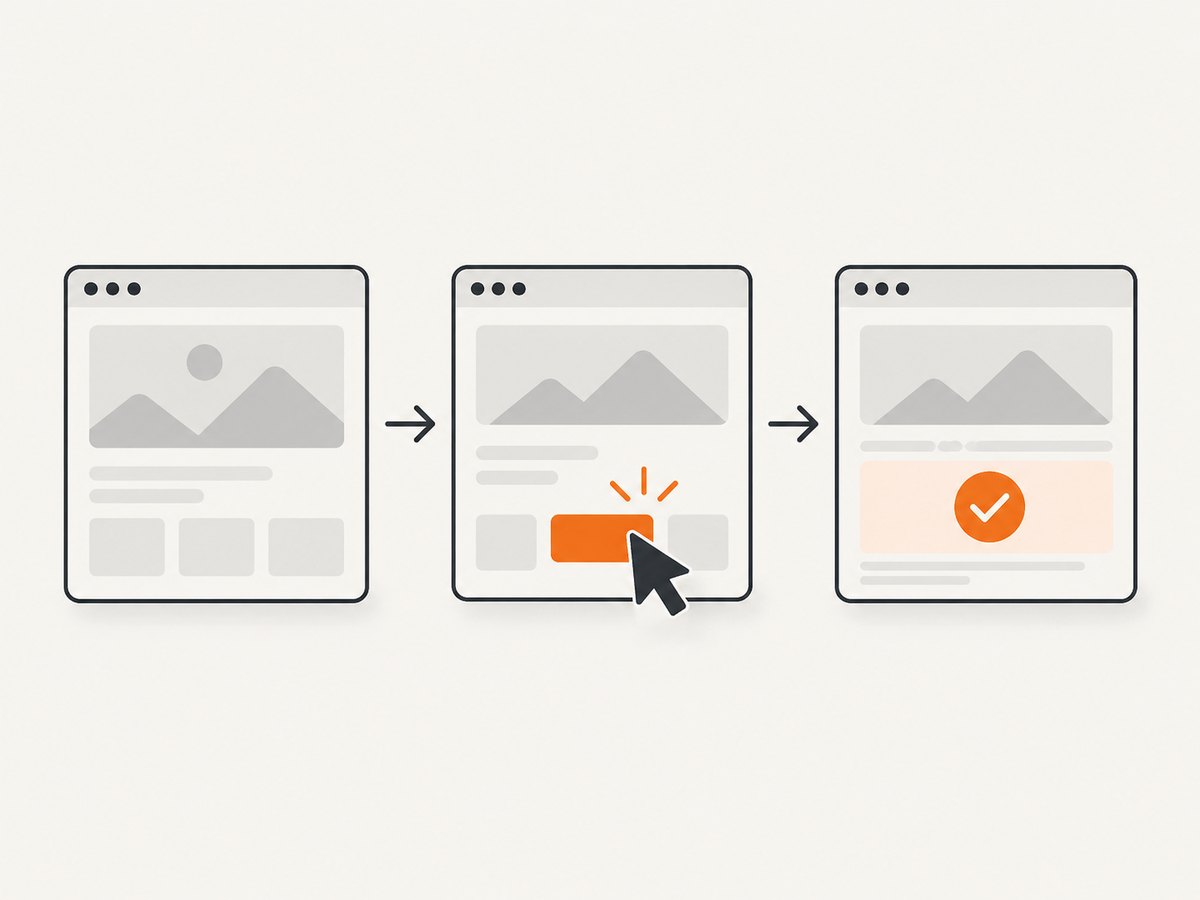
getByRole('link', { name: 'Get started' }) describes a link the way a user or assistive technology encounters it. Playwright locators are re-evaluated as needed and work with auto-waiting, so the action waits for the element to be actionable instead of immediately clicking a stale DOM node.
Assert what changed
toBeVisible() is a web-first assertion: Playwright retries the check until it passes or times out. Choose an assertion that proves the behavior you care about. A URL change, confirmation message, updated value, or newly visible heading may be a better signal than merely checking that a click did not throw.
A weak test can pass while the feature is broken if it checks an unrelated element. State the user-visible outcome in the test title and assert that exact outcome.
3. Choose locators that survive page changes
Playwright’s documentation describes locators as “the central piece of Playwright’s auto-waiting and retry-ability.” Prefer locators that express the user-facing contract: roles, labels, and visible text. If your team has deliberately added stable test IDs, getByTestId() is also a useful explicit contract. See the official locators guide.
| Locator | Good fit | Watch for |
|---|---|---|
getByRole() |
Buttons, links, headings, and controls with accessible names | Ambiguous repeated names; narrow to a region or add a clearer name |
getByLabel() |
Form inputs with associated labels | Unlabeled or incorrectly labeled form controls |
getByText() |
Visible copy that is itself the intended target | Copy changes or repeated text can make the test brittle |
getByTestId() |
A stable test hook owned by the team | Test IDs need maintenance when the intended contract changes |
| CSS or XPath | Cases where a user-facing locator is impractical | Deep DOM paths often break when markup is refactored |
Use a locator that uniquely identifies the intended element. If there are several “Save” buttons, scope the locator to the dialog or form containing the correct one, or use a more specific accessible name. Avoid reaching for nth() as a first fix: it can hide ambiguity and couple the test to page order.
const dialog = page.getByRole('dialog', { name: 'Edit profile' });
await dialog.getByRole('button', { name: 'Save changes' }).click();
await expect(dialog.getByText('Profile updated')).toBeVisible();
4. Record a first draft with Codegen
Playwright Codegen opens a browser and an Inspector. Interact with the site in the browser, and Codegen records actions and produces code with locators. It can also generate assertions for properties such as visibility, text, or value. The official Codegen guide recommends inspecting and improving generated code rather than treating it as a finished test.
npx playwright codegen https://example.comFor a project-specific language or browser, consult the CLI options. The documented generation targets include JavaScript, Playwright Test, and Python; browser choices include Chromium, Firefox, and WebKit. Choose the language that fits the project and the browser engines needed for its coverage. No one language or browser matrix is right for every website.
Before committing a generated test, review these points:
- Does the test assert the outcome that matters, or only replay actions?
- Are locators based on meaningful roles, labels, text, or a team-owned test ID?
- Are repeated actions necessary, or can setup be shortened?
- Does the test rely on external data or a third-party page that can vary?
- Can a failure report distinguish a product bug from a setup or environment issue?
5. Add reliable waits and useful assertions
Do not add a fixed delay just because a page takes time to respond on one machine. Playwright waits for actionability when performing actions, and web-first assertions retry. A fixed sleep can make a passing test slower while still failing on a slower environment.
// Prefer a condition tied to the expected behavior
await page.getByRole('button', { name: 'Submit order' }).click();
await expect(page.getByRole('status')).toHaveText('Order received');

// For a UI element that appears later, wait for that element
await expect(page.getByRole('dialog', { name: 'Confirm deletion' })).toBeVisible();
Use an explicit wait only when the event is meaningful and not already represented by a locator or assertion, such as waiting for a known response in a test of network behavior. Avoid broad network-idle waits as a universal substitute for understanding the page: analytics, polling, and long-lived requests can keep a page active. Prefer waiting on the concrete user-visible state the test needs.
Keep assertions close to the action they validate. A useful test might check that submitting an invalid form shows a validation message, then that correcting the value allows submission. Each assertion should tell a maintainer what behavior failed.
6. Configure browser and test coverage
Playwright supports Chromium, Firefox, and WebKit browser engines. The right coverage depends on your users and project requirements. A Chromium-only fast check can be useful during development, while a broader browser matrix can catch engine-specific problems. Browser projects are configured in the Playwright Test configuration; follow the current test projects documentation for the version in your project.
Keep configuration decisions deliberate:
- Base URL: set one for the test environment if many tests target the same site, then use relative paths.
- Retries: a retry can help surface intermittent failures in CI, but it does not fix flakiness; track tests that only pass on retry.
- Workers: parallel workers speed up independent tests, but tests sharing accounts or mutable data may conflict.
- Timeouts: increase a timeout only after identifying which operation is slow and why; a global increase can mask hangs.
- Trace and reports: configure artifacts appropriate to your team’s debugging and storage needs.
For each test, isolate mutable state. Create or reset test data where possible, avoid tests that rely on another test’s execution order, and use separate accounts or records when tests run concurrently.
7. Take a screenshot from Playwright
Playwright can save a screenshot for visual review or as a failure artifact. A page screenshot captures the rendered page viewport by default; a full-page capture asks Playwright to include the full scrollable page. An element locator can capture a particular component.
import { test, expect } from '@playwright/test';

test('save page and component screenshots', async ({ page }) => {
  await page.goto('https://example.com/');
  await expect(page.getByRole('heading', { name: 'Example Domain' })).toBeVisible();

  await page.screenshot({ path: 'artifacts/page.png', fullPage: true });
  await page.getByRole('heading', { name: 'Example Domain' }).screenshot({
    path: 'artifacts/heading.png'
  });
});
Ensure the output directory exists if your project or runner does not create it. Screenshots can differ with viewport, device scale factor, browser engine, font availability, animation, time, and page data. For repeatable comparisons, control the environment and content, wait for a meaningful ready state, and account for dynamic regions rather than assuming every pixel is stable.
When using screenshots as test artifacts, capture only what helps diagnose a failure. Full-page images can be large, and retaining every artifact from every successful run increases storage and CI transfer costs.
8. Troubleshooting common failures
| Symptom | Likely cause | Fix |
|---|---|---|
| Browser executable not found | Playwright package is installed but browser binaries are missing or out of sync | Run the documented browser install command for your environment and package version |
| Timeout while locating an element | Wrong accessible name, element never appears, wrong page state, or selector is ambiguous | Inspect the page and locator; assert the expected preceding state and prefer role or label locators |
| Click fails because element is not actionable | Overlay, animation, disabled control, or another element covers the target | Wait for the intended state, handle the overlay if it is part of the workflow, and verify the control is enabled |
| Test passes locally but fails in CI | Timing, environment, font, data, concurrency, or browser differences | Use condition-based waits, isolate data, inspect trace or screenshot artifacts, and match the CI browser setup |
| Test is flaky around a fixed sleep | The sleep is too short sometimes and wasteful when the page is fast | Replace it with a locator assertion or a wait for the specific response or state |
| Generated test breaks after a redesign | Recorded selectors depended on copy or DOM details that changed | Review the intended user contract and use stable accessible names or test IDs owned by the team |
| Screenshot comparison has noise | Dynamic content, animation, rendering, viewport, or device scale varies | Control test data and viewport, wait for a stable state, and mask or exclude expected dynamic areas where supported |
When a failure is unclear, reduce the test to the smallest failing sequence, inspect the actual page state, then add the smallest condition that expresses the expected behavior. Avoid turning every failure into a longer global timeout.
9. Performance, reliability, and cost
Playwright scripts run a browser, so the browser process and page work dominate resource use. Running more workers can reduce wall-clock time but raises CPU and memory demand. Start with parallelism that your local or CI machine can sustain, and serialize tests that share state. Reuse setup sensibly, but do not share a mutable browser context across tests that need isolation.
Reliability comes from explicit test data, stable locators, meaningful assertions, and waits tied to real page states. External websites are poor dependencies for routine tests because their markup, content, availability, and bot checks are outside your control. For a product you own, use a controlled staging environment and deterministic fixtures where possible.
Cost includes CI minutes, browser installation and caching, artifact storage, and the maintenance time spent diagnosing flaky tests. Use traces and screenshots to debug failures, with retention suited to the project. A large browser matrix and many parallel workers may improve coverage or speed but consume more compute; choose them based on risk and available resources.
10. Or skip the browser setup
If the goal is a website screenshot rather than a behavioral test, ScreenshotNeo provides a screenshot API and MCP server. Its one-call API can return an image or PDF without installing and maintaining a browser in your script. See the ScreenshotNeo API documentation for parameters and response details.
curl -G "https://api.screenshotneo.com/v1/shot" -d access_key=YOUR_API_KEY --data-urlencode url=https://stripe.com -o shot.webpimport requests
r = requests.get(
"https://api.screenshotneo.com/v1/shot",
params={"access_key": "YOUR_API_KEY", "url": "https://stripe.com"},
timeout=90,
)
open("shot.webp", "wb").write(r.content)const q = new URLSearchParams({ access_key: 'YOUR_API_KEY', url: 'https://stripe.com' });
const res = await fetch(`https://api.screenshotneo.com/v1/shot?${q}`);
if (!res.ok) throw new Error(`Screenshot request failed: ${res.status}`);
await Bun.write('shot.webp', res);The Node.js snippet uses Bun’s file-writing helper to save the response. In Node.js, replace the final line with await import('node:fs/promises').then(fs => fs.writeFile('shot.webp', Buffer.from(await res.arrayBuffer()))) if you want a direct Node file write.
ScreenshotNeo accepts cookie and consent banners like a visitor, then removes more than 60 known consent platforms, newsletter popups, and chat widgets before the capture; each step can be turned off. Bot checks and CAPTCHAs, blank pages, timeouts, failed loads, and cache hits cost nothing, and response headers report the page verdict and billing status. Its MCP server gives AI agents the take_screenshot, get_page_info, and capture_pdf tools. One thousand screenshots each month are free with no card; paid plans start at $5 for 3,000. Sign up for 1,000 free screenshots a month, with no card.
11. FAQ
Can I use Playwright without writing a test?
Yes. The browser automation APIs can be used from scripts, and Codegen can record interactions. Playwright Test adds a runner and assertions that are useful when the script should repeatedly verify behavior.
Should I use JavaScript or Python?
Use the language supported by your project and team. The official Codegen CLI documents JavaScript, Playwright Test, and Python targets; the dossier does not establish one language as universally better.
Can Codegen produce a complete, maintainable test?
It can produce a useful starting point and assertions, but inspect the generated code and refine its locators and checks to match the behavior you mean to protect.
Is a screenshot proof that a feature works?
A screenshot shows rendered appearance at one point in time. It does not by itself prove that a workflow, interaction, or backend operation behaves correctly; use an assertion against the outcome for that.


