How to Select Text and Store It in a Variable with Playwright
Learn when to use selectText(), textContent(), innerText(), allTextContents(), and inputValue() in Playwright with runnable JavaScript examples.

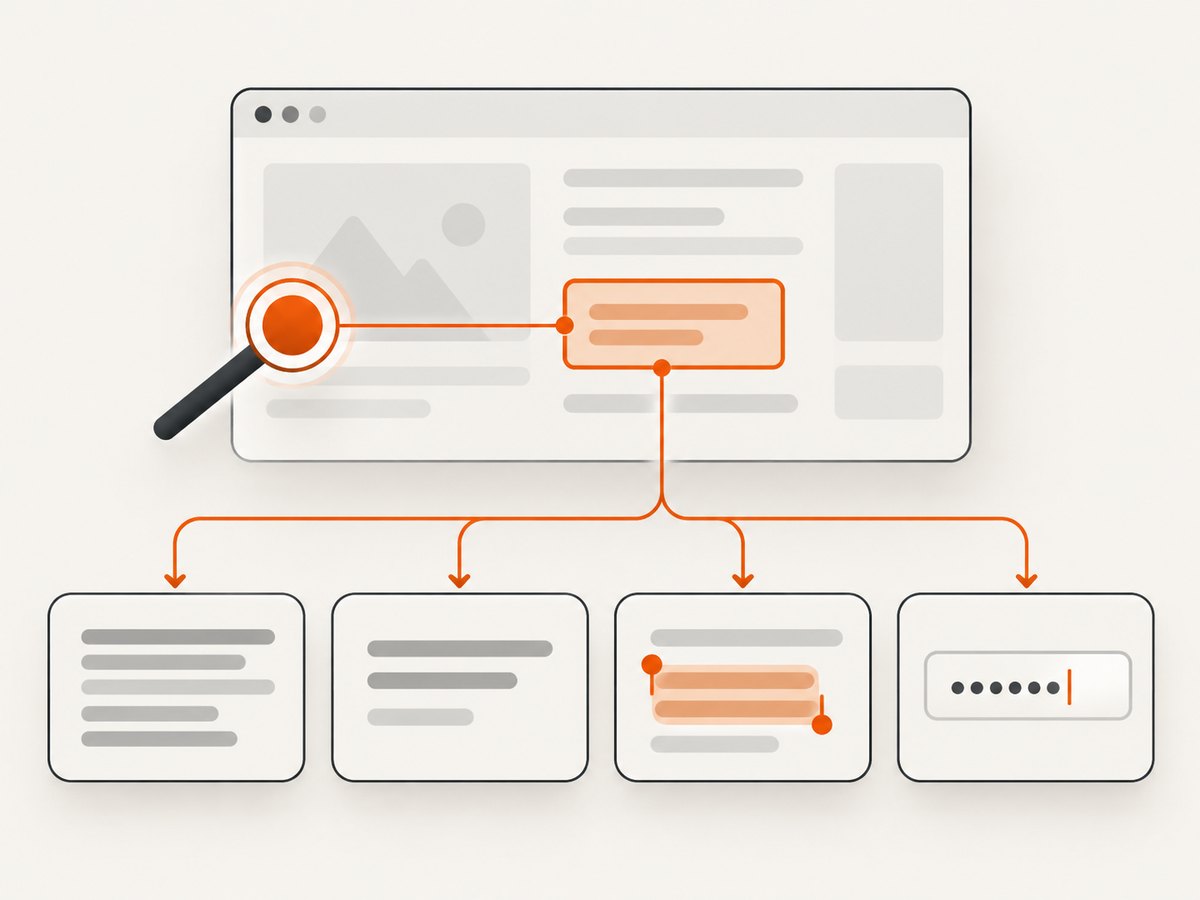
Direct answer: use a Playwright locator to identify the element, then await the method that matches your intent. Use textContent() for the node’s DOM text, innerText() for rendered text, selectText() to select text in the browser, allTextContents() or allInnerTexts() for arrays, and inputValue() for the current value of an input, textarea, or select.
const text = await page.getByText('Welcome, John').textContent();
console.log(text);
Playwright’s locator guide describes locators as the central piece of its auto-waiting and retry-ability. A locator is therefore preferable to a brittle CSS or XPath chain when you are reading content that a user can identify. Text matching accepts a substring, an exact string, or a regular expression, and normalizes whitespace. See the official locator documentation.
Choose the operation that describes your goal
“Select text” can mean two different things. In browser automation, selectText() focuses an element and highlights its text. In most tests and data workflows, you actually want a JavaScript string stored in a variable. That requires a text-reading method.
| Goal | Method | Result |
|---|---|---|
| Read the DOM text of one node | textContent() |
string | null |
| Read text as a user sees it | innerText() |
string |
| Select all text in an editable or selectable element | selectText() |
Browser action; no string return |
| Read matching nodes as an array | allTextContents() |
string[] |
| Read rendered text from matching nodes | allInnerTexts() |
string[] |
| Read an input, textarea, or select value | inputValue() |
string |
textContent() can include text from hidden descendants and preserves the DOM’s text structure. innerText() follows rendered layout rules and is usually the better choice when visibility and line breaks matter. Neither method is a replacement for inputValue() when the target is a form control.
Set up a complete runnable example
Install Playwright, create a page, read several kinds of text, and close the browser in a finally block so failures do not leave a process running.
npm init -y
npm install -D playwright
npx playwright install chromium
// read-text.mjs
import { chromium } from 'playwright';
const browser = await chromium.launch();
const page = await browser.newPage();
try {
await page.setContent(`
<main>
<h1>Welcome, John</h1>
<p class="status"> Signed in <span>successfully</span> </p>
<ul>
<li>First item</li>
<li>Second item</li>
</ul>
<input aria-label="Email" value="john@example.com" />
</main>
`);
const heading = await page.getByRole('heading', { name: 'Welcome, John' }).innerText();
const domText = await page.locator('.status').textContent();
const items = await page.getByRole('listitem').allTextContents();
const email = await page.getByRole('textbox', { name: 'Email' }).inputValue();
console.log({ heading, domText, items, email });
} finally {
await browser.close();
}The output is stored in ordinary JavaScript variables. You can pass those values to assertions, JSON serialization, a database client, or another function.
Locate the right element
Use visible text for non-interactive content
const welcome = await page.getByText('Welcome, John', { exact: true }).textContent();getByText() is intended for non-interactive text. By default, a text locator can match a substring. Add exact: true when a partial match could select the wrong node. You can also use a regular expression:
const warning = await page.getByText(/payment failed/i).innerText();Whitespace is normalized: repeated spaces become one, line breaks become spaces, and leading or trailing whitespace is ignored. This makes locators less sensitive to formatting changes, but it does not mean the returned string is always normalized. Normalize the result yourself when your downstream format requires it.
Prefer roles for headings, buttons, and other controls
const title = await page.getByRole('heading', { name: 'Account settings' }).innerText();
const buttonLabel = await page.getByRole('button', { name: 'Save changes' }).innerText();
Role-based locators reflect the accessible interface and are generally more durable than selectors tied to DOM nesting. For a test that reads a control’s value, locate the control by its label or role:
const city = await page.getByLabel('City').inputValue();
const query = await page.getByRole('textbox', { name: 'Search' }).inputValue();
Use CSS or test IDs when the content itself is unstable
const price = await page.locator('[data-testid="total-price"]').innerText();
const status = await page.locator('.order-status').textContent();
A stable data-testid is useful when text is localized, generated, or expected to change. Keep the selector specific enough to identify one logical element.
Read one element and store its text
The most common pattern is a locator followed by await. Playwright waits for the locator to resolve before reading it.
const accountName = await page.getByRole('heading', { name: /account/i }).innerText();
console.log(`Account: ${accountName}`);
Use textContent() when the DOM value is what matters:
const rawMessage = await page.locator('[role="status"]').textContent();
const message = rawMessage?.trim() ?? '';
A locator may match no node, in which case textContent() can return null. Handle that possibility when the element is optional. Methods such as innerText() normally fail when the target cannot be found or is not usable, which is helpful when the text is required for a test.
Select text in the browser with selectText()
Use selectText() when the browser action itself matters, such as selecting an input’s contents before copying, replacing text, or checking selection behavior.
const note = page.getByLabel('Notes');
await note.selectText();
await page.keyboard.press('Control+C');
On macOS, use Meta+C instead of Control+C. selectText() does not return the selected string. If your goal is a variable, read it separately:
const note = page.getByLabel('Notes');
const noteValue = await note.inputValue();
await note.selectText();
For ordinary page text, selection may depend on browser behavior and element type. Reading with textContent() or innerText() is deterministic and usually simpler.
Read multiple matches safely
Use collection methods when a locator intentionally matches a list:
const labels = await page.getByRole('listitem').allTextContents();
const visibleLabels = await page.getByRole('listitem').allInnerTexts();

for (const label of visibleLabels) {
  console.log(label.trim());
}
allTextContents() reads each node’s DOM text. allInnerTexts() reads rendered text. If you need one particular item, prefer a narrower locator rather than reading the whole collection and indexing it.
const secondItem = await page.getByRole('listitem').nth(1).innerText();Be careful with locator.all(). It immediately returns whatever matches at that moment; it does not wait for a changing list to populate. For dynamic pages, wait for a meaningful condition first, then call the collection method:
const rows = page.locator('table tbody tr');
await rows.first().waitFor();
const rowTexts = await rows.allInnerTexts();
Handle dynamic content and timing
Locators retry while the page changes, but they cannot infer that an application has finished loading data unless you give them a condition. Wait for text, a state, or a network operation that represents readiness.

const result = page.getByRole('status');
await result.waitFor({ state: 'visible' });
const resultText = await result.innerText();
For a specific value, wait until the locator contains the expected text:
await page.getByText('Processing').waitFor({ state: 'detached' });
const finalState = await page.getByRole('status').innerText();
When a page fetches data after navigation, wait for the response or for a stable UI marker. Avoid arbitrary sleeps unless the application has no observable readiness signal.
Normalize text before using it
Rendered text often contains line breaks, non-breaking spaces, or decorative whitespace. Normalize at the boundary where you read it:
function normalizeWhitespace(value) {
  return value.replace(/\s+/g, ' ').trim();
}

const raw = await page.locator('.article-body').innerText();
const articleText = normalizeWhitespace(raw);
Do not normalize when whitespace is meaningful, such as preformatted code, fixed-width output, or a visual regression check. In those cases, keep the original value and compare it with an assertion appropriate to the format.
Common errors and fixes
| Error or symptom | Cause | Fix |
|---|---|---|
locator.textContent is not a function |
You called the method on a string or another object. | Create a locator first: page.getByText('...').textContent(). |
| Strict mode violation | The locator matches multiple elements where one was expected. | Use a role, label, exact text, filter(), or a deliberate nth(). |
| Timeout waiting for text | The selector is wrong, content is delayed, or the element is inside a frame. | Inspect the locator, wait for a real readiness marker, and use frameLocator() for iframes. |
| Returned text is empty | The node has no text, text is rendered by a child control, or you selected the wrong element. | Try innerText(), inspect descendants, or use inputValue() for a form control. |
| Input text is missing | Inputs store their value in the value property, not as child text. | Use inputValue(). |
| List is incomplete | You read before the list finished rendering or used all() immediately. |
Wait for the first item or a page-specific loaded state, then call allTextContents(). |
| Text differs between browsers | Rendered layout, fonts, or visibility rules differ. | Use textContent() for DOM semantics, or make the browser and font environment consistent. |
Frames, shadow DOM, and hidden content
Content inside an iframe belongs to a different document. Create a frame locator before selecting text:
const frame = page.frameLocator('iframe[title="Preview"]');
const previewText = await frame.getByRole('heading').innerText();
Playwright locators can pierce open shadow DOM, but closed shadow roots are not exposed to page scripts. If a component intentionally hides its content, use the component’s public interface or test hook rather than relying on internal markup.
Assertions and debugging
When the purpose is a test, assertions communicate the expected text more clearly than logging it:
import { test, expect } from '@playwright/test';

test('shows the signed-in user', async ({ page }) => {
  await page.goto('https://example.com/account');
  await expect(page.getByRole('heading', { name: /welcome/i })).toHaveText(/welcome/i);
});
When a locator fails, enable tracing or inspect the page with Playwright’s inspector. Check the accessible role and name, verify whether the content is in a frame, and confirm that the application has reached the state you intend to read.
Performance and reliability guidance
- Reuse a locator instead of rebuilding long selector strings in a loop.
- Read a collection once with
allTextContents()instead of making one query per index. - Prefer a readiness condition over fixed delays; it shortens fast runs and stabilizes slow ones.
- Use
textContent()when layout is irrelevant;innerText()may require rendered layout calculation. - Keep browser contexts isolated when tests must not share cookies or local storage.
- Set explicit timeouts for slow external pages and capture trace data for intermittent failures.
For data extraction, define the shape you need before you automate. For example, return an object with title, price, and availability rather than passing raw locator objects through your application. This keeps browser-specific code at the boundary.
Or skip the browser setup
If you only need a clean screenshot or PDF after extracting or reviewing a page, ScreenshotNeo provides a single HTTP request. The API accepts a URL and returns PNG, JPEG, WebP, or PDF. It removes cookie and consent banners, newsletter popups, and chat widgets before capture. Bot checks, blank pages, timeouts, failed loads, and cache hits are not billed, and response headers identify the page verdict and billing result. Its MCP server exposes take_screenshot, get_page_info, and capture_pdf for Claude, Cursor, and other MCP clients.
Read the complete option list in the ScreenshotNeo documentation. The following examples are runnable as written after replacing the access key and target URL.
cURL
curl -G "https://api.screenshotneo.com/v1/shot" -d access_key=YOUR_API_KEY --data-urlencode url=https://stripe.com -o shot.webpPython
import requests

r = requests.get(
    "https://api.screenshotneo.com/v1/shot",
    params={"access_key": "YOUR_API_KEY", "url": "https://stripe.com"},
    timeout=90,
)
r.raise_for_status()
open("shot.webp", "wb").write(r.content)
Node.js
const q = new URLSearchParams({ access_key: 'YOUR_API_KEY', url: 'https://stripe.com' });
const res = await fetch(`https://api.screenshotneo.com/v1/shot?${q}`);
if (!res.ok) throw new Error(`Screenshot failed: ${res.status}`);
const buffer = Buffer.from(await res.arrayBuffer());
await import('node:fs/promises').then(fs => fs.writeFile('shot.webp', buffer));
ScreenshotNeo supports full-page capture with lazy images loaded, element capture by CSS selector, dark mode, device presets and custom viewports, retina scale, PDF paper settings, custom CSS and JavaScript, click and wait actions, request blocking, headers, cookies, user agents, authorization, timezone, geolocation, transparent backgrounds, resizing, chosen cache TTLs, signed links, asynchronous jobs, webhooks, bulk capture of up to 100 URLs per call, a usage API, and an OpenAPI specification. Its parameter names are compatible with those used by other screenshot APIs, which helps when migrating.
The Free plan includes 1,000 shots per month with no card. Paid plans start at $5 for 3,000 shots; yearly billing gives two months free, and every feature is available on every plan. Create a free ScreenshotNeo account and get started with 1,000 screenshots a month without adding a card.
FAQ
Does selectText() return the selected text?
No. It performs a browser selection action. Read the value separately with textContent(), innerText(), or inputValue(), depending on the element.
Which method should I use for a hidden element?
Use textContent() when hidden DOM text is intentional. Use innerText() when you need text that reflects rendered visibility.
How do I read a textarea?
Use inputValue(); a textarea’s current value is not reliably represented by its child text node.
Can I store text from several elements in one variable?
Yes. Use allTextContents() or allInnerTexts() to obtain a string[], then map or filter that array.
Why does my locator match the wrong text?
Text locators can match substrings and normalize whitespace. Add exact: true, use a role or label, or narrow the locator with filter().


