Control Scrolling into View When Taking Screenshots by Selector
Playwright scrolls a selected element into view before capturing it. Learn how to control that step, choose the right capture scope, and troubleshoot missing content.
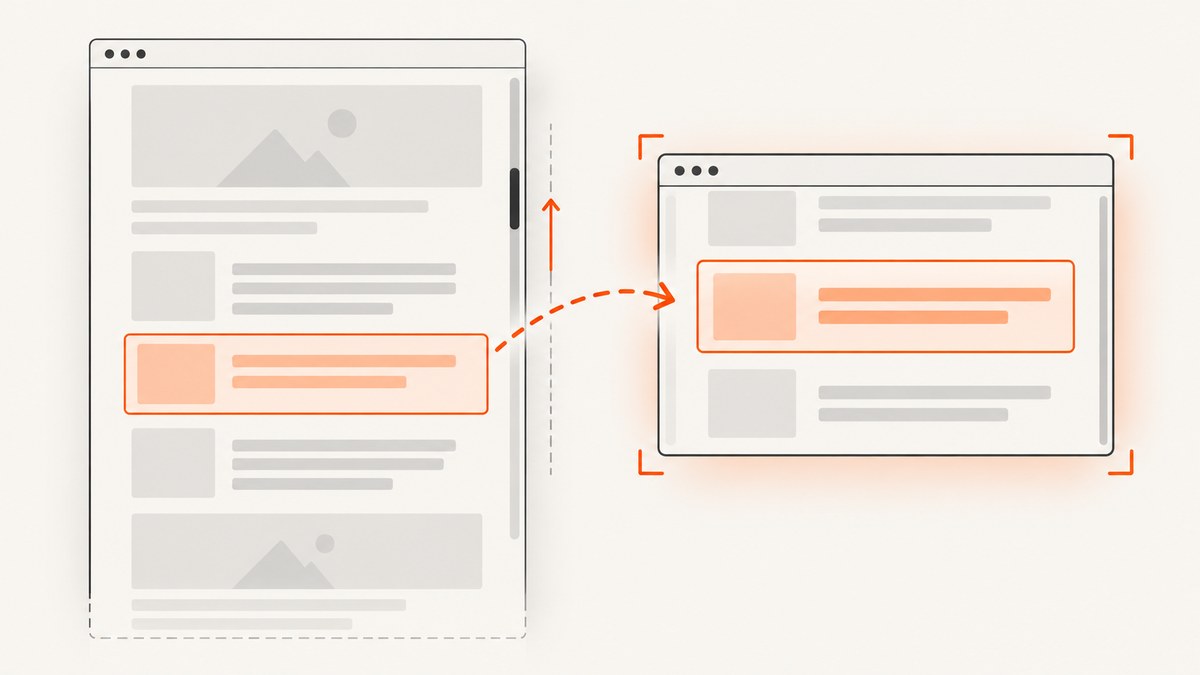
In Playwright, locator.screenshot() automatically scrolls the matched element into view before capturing it. To make the scroll step explicit, call locator.scrollIntoViewIfNeeded() first. To capture the whole page instead of one element, use page.screenshot({ fullPage: true }). The reviewed Playwright API documentation does not document a switch that disables the locator screenshot’s automatic scroll.
This distinction matters when you are capturing an element below the fold, a nested scrolling panel, or a page whose position affects what you want to see. The examples below use Playwright’s JavaScript API; the locator and screenshot concepts are also available in its language bindings. See the official Locator screenshot API, Page screenshot API, and locator guide.
1. Capture a selected element with Playwright
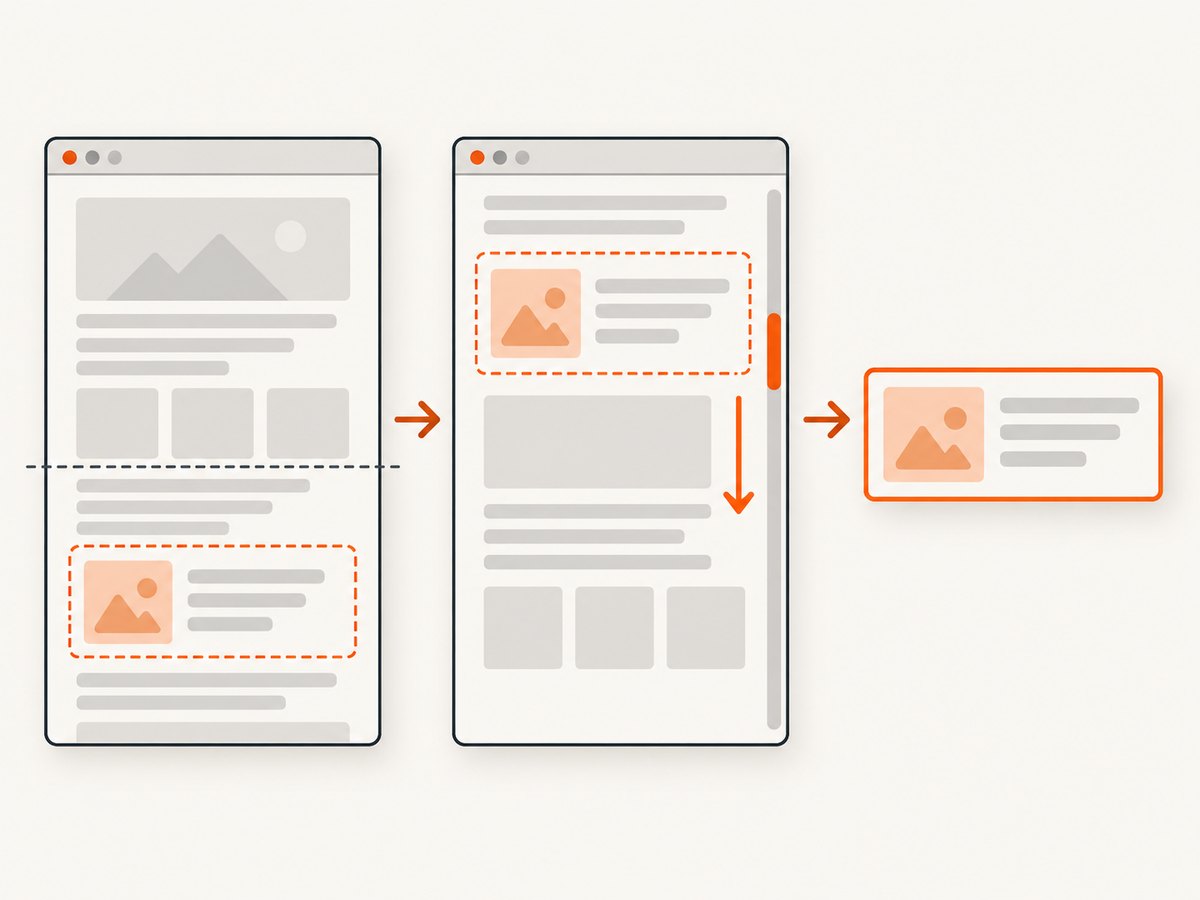
Install Playwright, save this as capture-element.js, and run it with Node.js. The locator waits for the target to be actionable, scrolls it into view as needed, and captures the element’s bounds to a file.
const { chromium } = require('playwright');

(async () => {
  const browser = await chromium.launch();
  const page = await browser.newPage({ viewport: { width: 1280, height: 800 } });

  try {
    await page.goto('https://example.com', { waitUntil: 'domcontentloaded' });
    const target = page.locator('main h1');
    await target.screenshot({ path: 'element.png' });
  } finally {
    await browser.close();
  }
})();
Install and run:
npm install playwright
npx playwright install chromium
node capture-element.js
Replace main h1 with a selector that identifies the element you intend to capture. Playwright supports CSS and XPath locator strings; for more resilient automation, prefer a locator based on the page’s accessible roles or test IDs when those are available. The screenshot is clipped to the selected element’s size and position. It is not a full-page capture.
Make scrolling an explicit step
If you want to see or control the scroll operation as a distinct action, use scrollIntoViewIfNeeded() before the screenshot:
const target = page.locator('[data-testid="invoice-summary"]');

await target.scrollIntoViewIfNeeded();
await target.screenshot({ path: 'invoice-summary.png' });
This helper scrolls the element unless it is already completely visible according to Playwright’s IntersectionObserver ratio check. The screenshot call also performs actionability checks and scrolls into view as needed, so the explicit call is usually for clarity or to make the scroll step easier to reason about. It does not promise a specific final alignment, such as placing the target at the top or center of the viewport.
Choose the correct capture scope
| What you need | Use | What is captured |
|---|---|---|
| One matched element | locator.screenshot() |
The selected element, clipped to its bounds; the locator is scrolled into view as needed. |
| The whole scrollable page | page.screenshot({ fullPage: true }) |
A tall screenshot of the page as if it had enough height to show the full scrollable content. |
| A specific portion of a scrollable panel | Scroll the panel, then capture the panel or its child | The content at the panel’s current internal scroll position, subject to the selected screenshot target. |
For example, a full-page capture is a page-level operation:
await page.screenshot({ path: 'full-page.png', fullPage: true });It is not a way to capture the full contents of one selected element. Conversely, locator.screenshot() does not expand the page into a full-height image.
2. Handle nested scroll containers and page position
A page can have more than one scroll position. The browser window may scroll, and an element such as a sidebar, table, or chat panel may have its own internal scroll position. Bringing a container into the viewport does not mean Playwright has scrolled that container to its beginning or end.
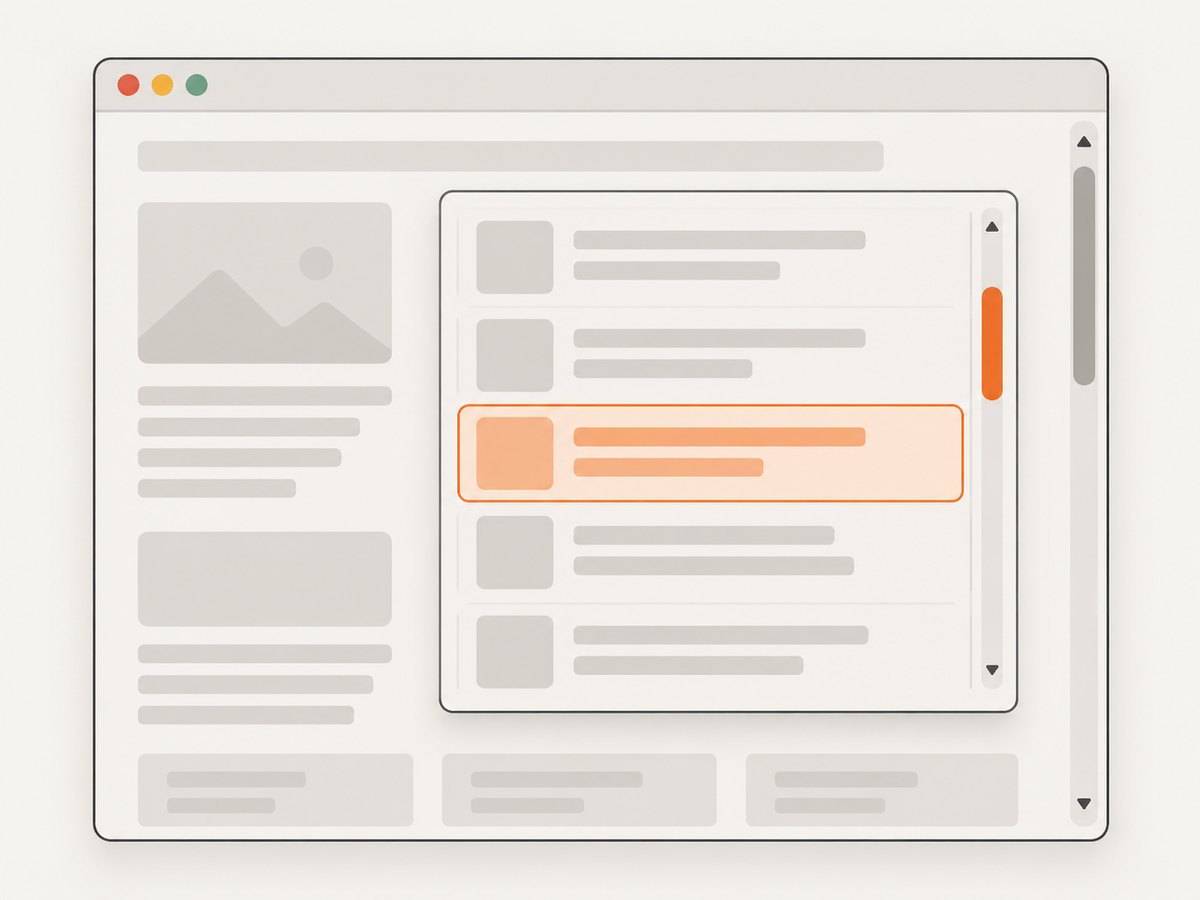
If your target is inside a scrollable container and you need content at a particular internal position, set that position before capturing. For example, to move a panel to its beginning:
const panel = page.locator('.results-panel');

await panel.evaluate(element => {
  element.scrollTop = 0;
});
await panel.screenshot({ path: 'results-panel-top.png' });
To capture content farther down, set an appropriate scrollTop or use a deliberate scroll action, then verify that the intended content is visible inside the panel. The amount to scroll depends on the page and its layout; do not assume an element screenshot includes the entire overflow area. A target that is itself a scrollable container shows the content at its current internal position.
Keep the desired viewport state
If the page’s overall scroll position matters—for example, a sticky header changes appearance depending on how far the page has scrolled—set the page position explicitly before capturing. One option is:
await page.evaluate(() => window.scrollTo(0, 700));
const target = page.locator('#pricing-details');
await target.screenshot({ path: 'pricing-details.png' });
The subsequent locator screenshot may still scroll the target if needed to bring it into view. If exact viewport composition is essential, use a page screenshot after arranging the viewport and capture the desired region through a supported page screenshot option, rather than assuming the locator screenshot will preserve a particular alignment. Check the page screenshot options for the installed Playwright version.
3. Build a reliable selector screenshot
A screenshot script needs more than a valid selector. The page must load the target, the selector should identify the intended match, and the page should be in a stable state before capture.
- Navigate to the page. Choose a navigation wait condition that matches the site.
domcontentloadedwaits for initial document parsing; it does not mean every image or client-rendered component has finished. - Locate the target. Use a selector that identifies the intended element. If a selector matches multiple nodes, make the selection specific or deliberately choose an indexed match.
- Wait for meaningful readiness. Wait for a page-specific selector, state, or event if client-side rendering adds the content after navigation.
- Set page and container state. Scroll the appropriate container if the desired content is inside an overflow region; consider sticky elements, lazy-loaded images, and animation.
- Capture and close. Save to a path or handle the returned image buffer. Close the browser in a
finallyblock so errors do not leave it running.
Here is a more complete example with a visible-element check and a page-specific wait:
const { chromium } = require('playwright');

(async () => {
  const browser = await chromium.launch();
  const page = await browser.newPage({ viewport: { width: 1440, height: 900 } });

  try {
    await page.goto('https://example.com', { waitUntil: 'domcontentloaded' });

    const target = page.locator('[data-testid="report-card"]');
    await target.waitFor({ state: 'visible', timeout: 15000 });
    await target.scrollIntoViewIfNeeded();
    await target.screenshot({ path: 'report-card.png', animations: 'disabled' });
  } finally {
    await browser.close();
  }
})();
The animations option is a screenshot setting documented by Playwright. Disabling animations can help when a transition would otherwise make captures inconsistent; it does not guarantee that asynchronous content has loaded. Use a wait tied to the content your page needs instead of an arbitrary delay where possible.
Other useful screenshot settings
Playwright’s locator screenshot options include settings such as output path, image type, quality for JPEG or WebP, animation handling, caret behavior, background handling, and masking selected locators. Consult the API reference for the complete option list and behavior supported by your installed version. For example, you can mask a dynamic timestamp while capturing a card:
await page.locator('.report-card').screenshot({
  path: 'report-card.jpg',
  type: 'jpeg',
  quality: 85,
  mask: [page.locator('.last-updated')],
  animations: 'disabled'
});
Use only the options that serve the output you need. A quality setting is relevant to lossy formats, not a way to improve layout or load missing content. Masking covers selected areas; it does not remove or stabilize the underlying page behavior.
4. Troubleshoot common problems
| Symptom | Likely cause | What to do |
|---|---|---|
| Screenshot call times out | The locator never becomes actionable, the element is absent, or page work is still pending. | Check the selector and navigation. Wait for the specific content to appear, inspect the page state, and adjust the timeout only when the page legitimately needs longer. |
| Screenshot contains the wrong element | The selector matches a different node or several nodes. | Inspect the matches, narrow the selector, or select the intended match explicitly. Add a visibility wait for the expected element. |
| Content is missing from a panel | The target is a scrollable container, and only its currently scrolled content is visible. | Set the panel’s internal scroll position to the region you need before capture. Do not expect an element screenshot to stitch the entire overflow area. |
| Element appears lower or higher than expected | The locator screenshot scrolls the target into view, but the API does not promise a particular viewport alignment. | Arrange the page state deliberately and choose a page-level capture if the surrounding viewport composition matters. |
| Element is detached or replaced | The page rerendered and removed the node during the operation. | Use a locator rather than retaining a stale element handle, wait for the final state, and locate the target again after navigation or rerendering. |
| Image is blank or partially rendered | Navigation completed before client-rendered content, images, or fonts were ready. | Wait for a page-specific readiness signal or target state. Check network failures and the page’s own loading behavior. |
| Screenshot differs between runs | Animations, timestamps, rotating content, fonts, or external data vary. | Disable animations where appropriate, mask known dynamic areas, control test data, and wait for stable page content. |
For a detached target, prefer a locator operation that resolves against the current page state over storing an ElementHandle. The ElementHandle screenshot reference is discouraged in favor of the locator API. See the ElementHandle screenshot reference and the locator screenshot documentation.
5. Performance, reliability, and cost
A screenshot’s runtime includes browser startup (if you create a new browser each time), navigation, page rendering, waiting, scrolling, and encoding the output. Reusing a browser process for a batch can avoid repeated startup work, while creating a fresh browser context for separate sessions helps isolate cookies and other session state. Choose the wait condition based on the page: waiting for every network connection to stop can be unreliable on pages that keep analytics or streaming connections open; a meaningful selector or application readiness signal is often more targeted.
Reliability improves when the script makes its assumptions explicit: use a stable selector, wait for the content that matters, control the viewport and relevant scroll positions, and clean up browser resources in finally. If a page is slow or intermittently unavailable, record which stage failed—navigation, target wait, scroll, or capture—so a timeout is actionable rather than a generic screenshot failure.
Self-hosted Playwright has no per-screenshot API fee in the code shown, but it still consumes compute, memory, storage, and maintenance time. Browser binaries and dependencies must be installed and kept compatible with the package version. If you capture at volume, account for concurrency limits and resource usage rather than launching unlimited browser instances.
6. Or skip the browser setup
If you want an image from a URL without installing or operating a browser, ScreenshotNeo is a website screenshot API and MCP server. Its API accepts one GET request with a URL and returns an image or PDF. For docs and the available parameters, see the ScreenshotNeo API documentation.
curl -G "https://api.screenshotneo.com/v1/shot" -d access_key=YOUR_API_KEY --data-urlencode url=https://stripe.com -o shot.webpimport requests
r = requests.get(
"https://api.screenshotneo.com/v1/shot",
params={"access_key": "YOUR_API_KEY", "url": "https://stripe.com"},
timeout=90,
)
open("shot.webp", "wb").write(r.content)const q = new URLSearchParams({ access_key: 'YOUR_API_KEY', url: 'https://stripe.com' });
const res = await fetch(`https://api.screenshotneo.com/v1/shot?${q}`);ScreenshotNeo removes cookie banners, newsletter popups, and chat widgets before the shot; bot checks, blank pages, and failed loads are never billed. Its MCP server lets AI agents use screenshot tools. The free plan includes 1,000 screenshots a month with no card, and paid plans start at $5 for 3,000. Create a free account and get 1,000 screenshots a month with no card.
7. Frequently asked questions
Can I stop locator.screenshot() from scrolling?
The reviewed API documentation does not describe an option to disable its scroll-into-view behavior. If you need control over the scroll step, call scrollIntoViewIfNeeded() explicitly and arrange the page state before capture, while remembering the screenshot call can still scroll the locator into view as needed.
Does a selector screenshot capture everything inside a long element?
It captures the selected element’s visible rendered bounds. For an element with its own overflow scrolling, the current internal content position matters; the call does not automatically capture every scroll position inside that container.
Should I use XPath or CSS?
Both are supported by page.locator(). Pick a selector that identifies the intended element consistently. A shorter selector is not automatically more reliable if the page structure changes or it matches several nodes.
When should I use fullPage?
Use page.screenshot({ fullPage: true }) when the output should include the whole scrollable page. Use locator.screenshot() when the output should be one element.


