How to Use Playwright Storage State and Global Setup with a POM
Save Playwright authentication once, load it safely through project dependencies, and combine it with Page Object Model fixtures.
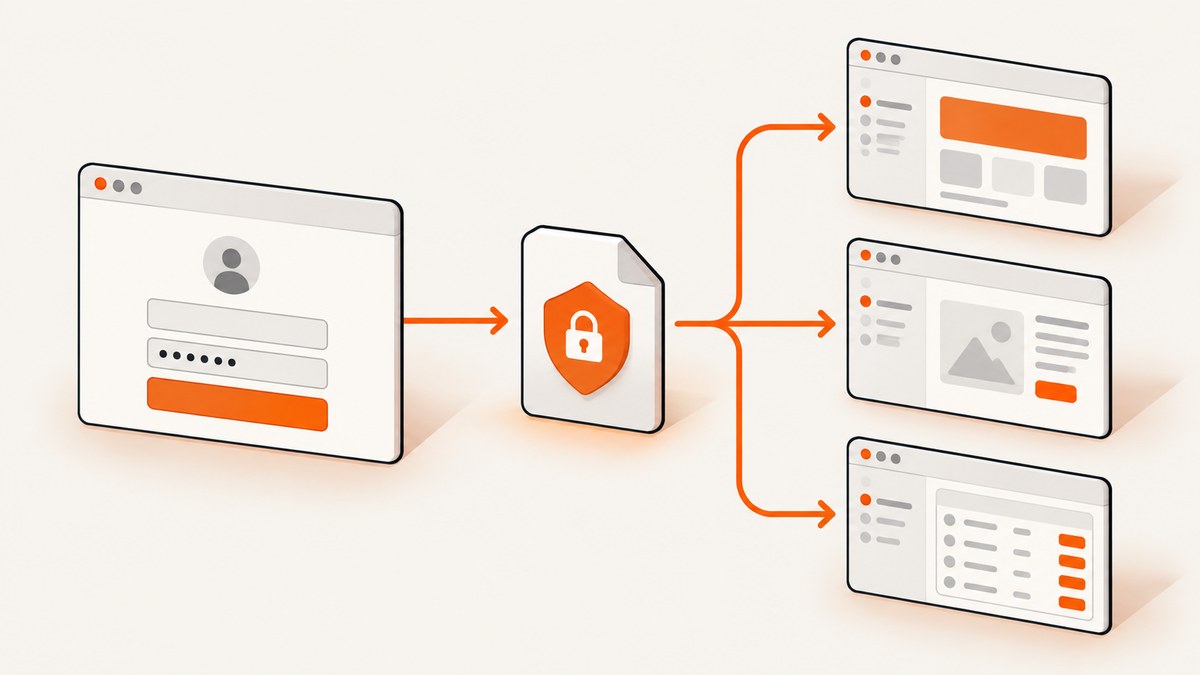
Direct answer: create a Playwright setup project that logs in once and writes storageState after authentication has completed. Make your test projects depend on that setup project and point their use.storageState setting at the generated file. Then expose Page Object Model classes through fixtures. This gives every test an authenticated browser context while keeping selectors and page actions in one place.
For most suites, Playwright project dependencies are preferable to a classic globalSetup function because setup appears in the HTML report, can record traces, and can use normal browser fixtures. Playwright documents both approaches in its authentication guide and global setup documentation.
1. The recommended architecture
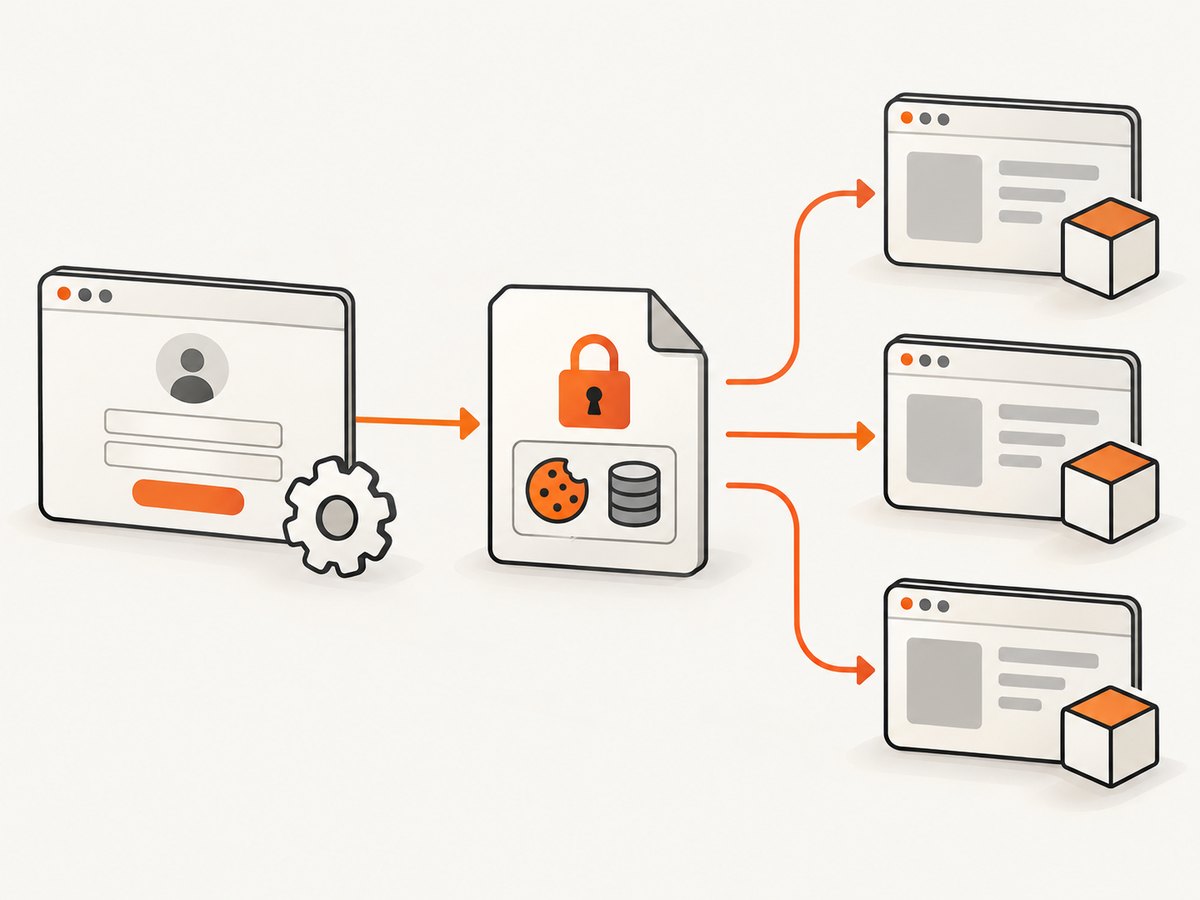
Use four pieces:
- Authentication setup test: opens the login page, signs in, waits for a reliable post-login signal, and saves state.
- Setup project: runs that test once and becomes a dependency of projects that need authentication.
- Project storage state: initializes each test context with the saved cookies, local storage, IndexedDB data, and other supported browser state.
- POM fixtures: construct page objects from Playwright’s supplied
pagefixture.
A saved state file is a credential. It can contain cookies and headers that impersonate an account. Keep it in a gitignored directory, regenerate it when it expires, and never commit it to a repository. Playwright recommends a playwright/.auth directory covered by .gitignore.
2. Install and create the project files
npm init playwright@latest
npm install -D @playwright/test
npx playwright install
A practical layout is:
playwright.config.ts
tests/
  auth.setup.ts
  fixtures.ts
  pages/
    account.page.ts
  account.spec.ts
playwright/.auth/
  user.json
  admin.json
Add the generated state directory to .gitignore:
playwright/.auth/3. Write the authentication setup test
The important detail is the wait condition. Do not save state immediately after clicking Login. Wait for a URL, heading, cookie, API response, or another signal that proves the session is ready.
import { test as setup, expect } from '@playwright/test';

const authFile = 'playwright/.auth/user.json';

setup('authenticate user', async ({ page }) => {
  await page.goto('https://example.test/login');
  await page.getByLabel('Email').fill(process.env.TEST_EMAIL ?? 'qa@example.test');
  await page.getByLabel('Password').fill(process.env.TEST_PASSWORD ?? 'change-me');
  await page.getByRole('button', { name: 'Sign in' }).click();

  await expect(page).toHaveURL(/\/account/);
  await expect(page.getByRole('heading', { name: 'Account' })).toBeVisible();

  await page.context().storageState({ path: authFile });
});
Use environment variables or a secret manager for credentials. If your application redirects through an identity provider, wait for the final application URL and a page-owned element rather than an intermediate provider URL.
4. Configure a setup project dependency
import { defineConfig, devices } from '@playwright/test';

export default defineConfig({
  testDir: './tests',
  projects: [
    {
      name: 'setup',
      testMatch: /.*\\.setup\\.ts/,
    },
    {
      name: 'chromium-authenticated',
      use: {
        ...devices['Desktop Chrome'],
        baseURL: 'https://example.test',
        storageState: 'playwright/.auth/user.json',
      },
      dependencies: ['setup'],
    },
  ],
});
Run the dependent project with:
npx playwright test --project=chromium-authenticatedPlaywright runs the setup project first when the state file is missing or when the setup test is selected for the run. In UI mode, the authentication setup project is not run by default; run the setup project explicitly when state has expired or been deleted.
5. Add a Page Object Model and fixture
A page object should wrap one screen and expose meaningful operations, rather than leaking CSS selectors into every test.
import { expect, type Locator, type Page } from '@playwright/test';

export class AccountPage {
  readonly heading: Locator;
  readonly profileName: Locator;

  constructor(readonly page: Page) {
    this.heading = page.getByRole('heading', { name: 'Account' });
    this.profileName = page.getByTestId('profile-name');
  }

  async open() {
    await this.page.goto('/account');
    await expect(this.heading).toBeVisible();
  }

  async profileText() {
    return this.profileName.textContent();
  }
}
Expose it through a custom fixture:
import { test as base, expect } from '@playwright/test';
import { AccountPage } from './pages/account.page';

export const test = base.extend<{ accountPage: AccountPage }>({
  accountPage: async ({ page }, use) => {
    await use(new AccountPage(page));
  },
});

export { expect };
Tests now read like business actions:
import { test, expect } from './fixtures';

test('authenticated account is visible', async ({ accountPage }) => {
  await accountPage.open();
  await expect(accountPage.heading).toBeVisible();
  await expect(accountPage.profileName).not.toHaveText('');
});
6. Choose the right authentication scope
| Situation | Recommended state | Reason |
|---|---|---|
| Read-only tests using one stable account | One shared state file | Simple and fast when tests cannot interfere. |
| Tests create, edit, or delete shared records | One account per parallel worker | Prevents concurrent tests from changing each other’s server data. |
| Admin and normal-user coverage | Separate state files and projects or fixtures | Each browser context has one identity. |
| Two identities in one test | Two browser contexts | A single page cannot represent two authenticated sessions safely. |
For worker-scoped accounts, select a state file using test.info().parallelIndex. The exact account-provisioning code is application-specific, but the pattern is to create or select the worker account in a worker fixture, authenticate it once, then reuse that state for tests assigned to the worker.
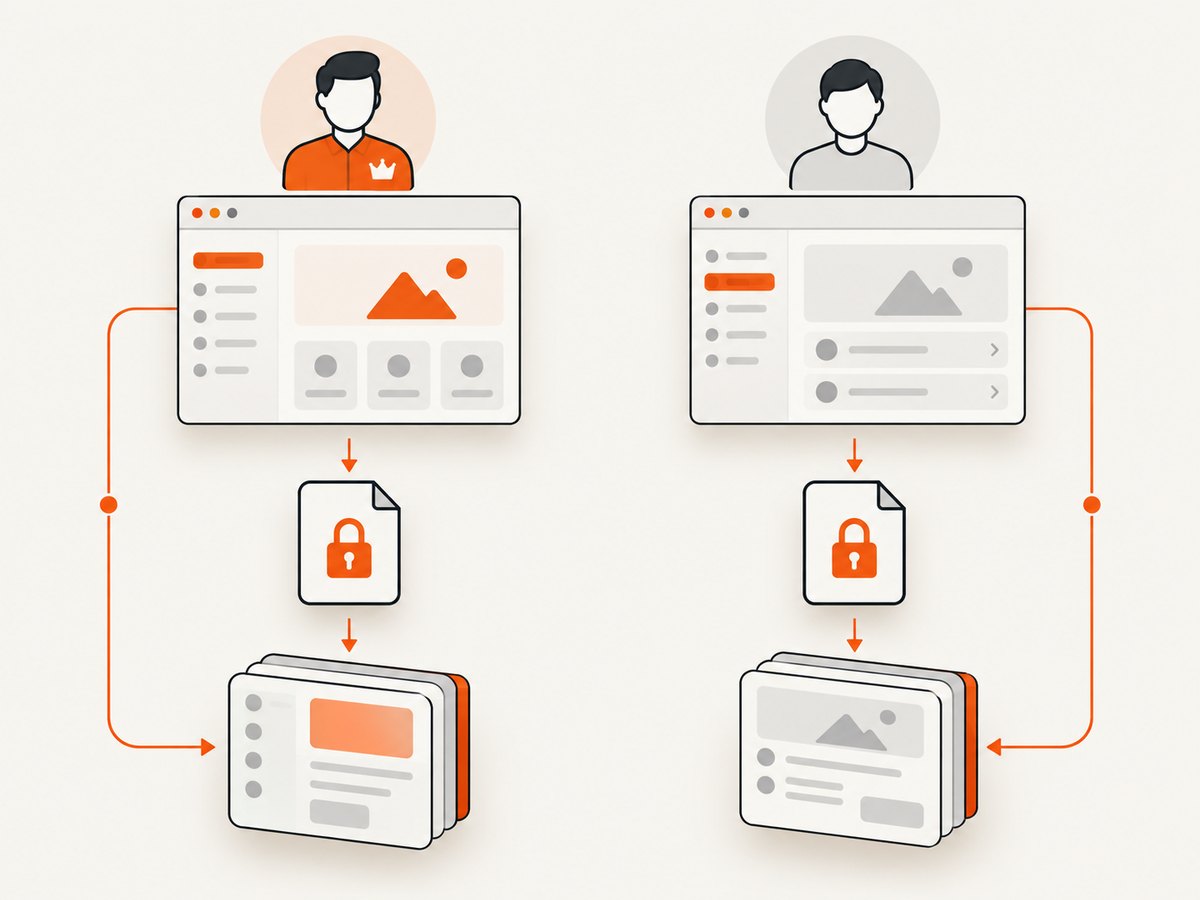
Multiple roles with separate contexts
import { test as base } from '@playwright/test';
import { AccountPage } from './pages/account.page';

export const test = base.extend<{
  adminPage: AccountPage;
  userPage: AccountPage;
}>({
  adminPage: async ({ browser }, use) => {
    const context = await browser.newContext({
      storageState: 'playwright/.auth/admin.json',
    });
    await use(new AccountPage(await context.newPage()));
    await context.close();
  },
  userPage: async ({ browser }, use) => {
    const context = await browser.newContext({
      storageState: 'playwright/.auth/user.json',
    });
    await use(new AccountPage(await context.newPage()));
    await context.close();
  },
});
7. What storageState includes, and what it does not
Playwright can persist cookies, local storage, IndexedDB data, and supported authentication artifacts such as passkey-related state. The BrowserContext API also documents newer capabilities, including origin private file system state and virtual WebAuthn credentials; check the version installed in your project because API availability changes by Playwright release.
Session storage is the exception. The storage-state API does not persist it. If your application stores the login token in session storage, capture it yourself and restore it before application code runs:
import fs from 'node:fs';
import { test as setup } from '@playwright/test';

setup('save session storage', async ({ page }) => {
  await page.goto('https://example.test/login');
  // Complete the application-specific login flow here.
  const session = await page.evaluate(() => JSON.stringify(sessionStorage));
  fs.writeFileSync('playwright/.auth/session.json', session, 'utf8');
});
Restore the values with context.addInitScript before the first page navigation. Only use this workaround when the application actually depends on session storage; copying it unnecessarily can hide authentication bugs.
8. API login instead of UI login
If the application exposes a stable authentication endpoint, Playwright’s APIRequestContext can sign in and save request storage state. This is often faster and less brittle than driving a login form, but the endpoint, payload, CSRF requirements, and response format belong to your application.
import { test as setup, request } from '@playwright/test';

setup('authenticate through API', async () => {
  const api = await request.newContext({ baseURL: 'https://example.test' });
  await api.post('/api/login', {
    data: {
      email: process.env.TEST_EMAIL,
      password: process.env.TEST_PASSWORD,
    },
  });
  await api.storageState({ path: 'playwright/.auth/user.json' });
  await api.dispose();
});
Do not copy an illustrative endpoint into a real project without confirming the server contract. If the API login does not establish the same cookies or local storage values as the browser login, use the UI flow or adapt the request sequence.
9. Classic globalSetup: when and how to use it
globalSetup runs one function before the test run. It can launch a browser, sign in, write the state file, and close the browser. It is useful when you need a single custom orchestration step, but it has tradeoffs: setup is not a separate HTML report entry, traces are not recorded in the normal project flow, fixtures are unavailable, and browser lifecycle management is manual.
import type { FullConfig } from '@playwright/test';
import { chromium } from '@playwright/test';

async function globalSetup(_config: FullConfig) {
  const browser = await chromium.launch();
  const page = await browser.newPage();
  await page.goto('https://example.test/login');
  await page.getByLabel('Email').fill(process.env.TEST_EMAIL ?? 'qa@example.test');
  await page.getByLabel('Password').fill(process.env.TEST_PASSWORD ?? 'change-me');
  await page.getByRole('button', { name: 'Sign in' }).click();
  await page.waitForURL(/\/account/);
  await page.context().storageState({ path: 'playwright/.auth/user.json' });
  await browser.close();
}

export default globalSetup;
Reference it in the config with globalSetup: require.resolve('./global-setup'). Prefer a setup project dependency when report visibility, tracing, fixtures, and normal browser fixtures matter.
10. Reliability and performance checklist
- Wait for a post-login assertion, not an arbitrary short timeout.
- Use role, label, and test-id locators so login changes do not break unrelated tests.
- Regenerate state when cookies expire, passwords rotate, or the identity provider invalidates sessions.
- Keep setup data deterministic and clean up records created by authenticated tests.
- Use worker-specific accounts when tests mutate shared server state.
- Run setup once per suite or worker instead of logging in through the UI in every test.
- Store temporary state under the project’s output directory when it should be deleted between runs.
- Capture traces for setup failures by using a setup project and the normal Playwright tracing settings.
State reuse reduces repeated browser navigation and authentication work, but it does not make tests independent. A test that changes server data can still affect a later test even when both start from identical browser state.
11. Troubleshooting common failures
| Symptom | Likely cause | Fix |
|---|---|---|
| Tests open the login page | The state path is wrong, missing, or not loaded by the selected project. | Check the path relative to the config file and run the setup project before the dependent project. |
| State file is empty or unauthenticated | State was saved before redirect or session initialization completed. | Wait for the final URL and an authenticated page assertion before calling storageState. |
| Works locally, fails in CI | Missing secrets, different base URL, clock skew, or an identity provider requiring a new device. | Set CI secrets, use the CI URL, inspect setup traces, and make the login flow environment-aware. |
| One role sees another role’s data | A context or state file is being reused across roles. | Use separate state files and separate browser contexts. |
| Parallel tests intermittently fail | Workers share an account while mutating the same records. | Provision one account or isolated dataset per worker. |
| Login appears valid but the app logs out | The application stores its token in session storage or requires an unpersisted browser capability. | Inspect storage usage and add an init-script restoration strategy, or upgrade Playwright when the needed capability is supported. |
| UI mode skips authentication | Setup projects are not selected by default in UI mode. | Run the setup project explicitly, then run the dependent project. |
| Unexpected 401 after a few hours | Server-side session expiration or revocation. | Regenerate state and avoid treating a saved file as permanent credentials. |
12. Or skip the browser setup
If your goal is a clean image or PDF of a page rather than an interactive authenticated test, ScreenshotNeo removes the browser-capture plumbing. It accepts a URL in one GET request and returns PNG, JPEG, WebP, or PDF. Before capture it accepts cookie or consent banners like a visitor and removes more than 60 known consent platforms, newsletter popups, and chat widgets. Bot checks, CAPTCHAs, blank pages, timeouts, failed loads, and cache hits are not billed; the response identifies the result with X-Page-Verdict and X-Billed headers. Its MCP server provides take_screenshot, get_page_info, and capture_pdf for Claude, Cursor, and other MCP clients.
See the complete option list and authentication details in the ScreenshotNeo API documentation.
curl -G 'https://api.screenshotneo.com/v1/shot' -d access_key=YOUR_API_KEY --data-urlencode url=https://stripe.com -o shot.webpimport requests
r = requests.get('https://api.screenshotneo.com/v1/shot', params={'access_key': 'YOUR_API_KEY', 'url': 'https://stripe.com'}, timeout=90)
open('shot.webp', 'wb').write(r.content)const q = new URLSearchParams({ access_key: 'YOUR_API_KEY', url: 'https://stripe.com' });
const res = await fetch(`https://api.screenshotneo.com/v1/shot?${q}`);You can also select one element, capture full pages with lazy images loaded, choose dark mode or a device preset, set a viewport and retina scale, supply custom CSS or JavaScript, click before capture, wait for a selector, delay, or network idle, block ads and resource types, send headers, cookies, user-agent, authorization, timezone, or geolocation, resize images, cache with a chosen TTL, create signed public image links, submit asynchronous jobs with signed webhooks, capture up to 100 URLs per bulk call, and use the usage API or OpenAPI specification. Every feature is available on every plan. The Free plan includes 1,000 shots per month with no card; paid plans start at $5 for 3,000 shots.
Create a free ScreenshotNeo account and get 1,000 screenshots each month with no card.
13. FAQ
Should I save state in globalSetup or a setup project?
Use a setup project dependency for most suites. It integrates with reports, traces, fixtures, and the browser fixture. Choose globalSetup when a single custom function better matches your orchestration needs.
Can I use one storage file for every browser?
Often, yes, when the authentication cookies are browser-independent. If the identity provider binds sessions to a browser, device, or capability, create state separately for each project.
Does storageState persist sessionStorage?
No. Capture and restore session storage with an init script only when your application uses it for authentication or required state.
How do I know whether a state file is still valid?
Open a protected URL and assert a stable authenticated element. If it redirects to login, rerun setup and replace the file.
Can a POM handle multiple users?
Yes, but give each user a separate browser context and state file. Construct a POM around a page from each context rather than switching identities inside one page.
Where should state files live in CI?
Generate them during the setup project in the job workspace, keep credentials in CI secrets, and upload traces only through your approved CI artifact controls.


