Playwright Test Tools: A Practical Tutorial
Run, debug, organize, and inspect Playwright tests with practical commands, projects, UI Mode, traces, reports, and reliable troubleshooting.

Playwright Test gives you one workflow for authoring browser tests, running them across browser projects, debugging failures interactively, and inspecting evidence after a run. The shortest useful path is:
- Write a test with the built-in
pagefixture and web-first assertions. - Run it with
npx playwright test. - Use
--uior--debugwhen you need to inspect behavior. - Use projects for browsers, devices, environments, and setup dependencies.
- Open the HTML report and Trace Viewer when a test fails.
This tutorial covers each interface, the options that matter in daily work, and the failure modes that make Playwright suites noisy or misleading.
1. Write and run your first Playwright test
A Playwright Test file imports test and expect, receives the isolated page fixture, navigates to a URL, and checks a user-visible result. The runner creates and cleans up fixtures for each test, so tests do not share a page accidentally. Web-first assertions retry until the expected state appears or the assertion timeout is reached.
import { test, expect } from '@playwright/test';

test('home page has the expected title', async ({ page }) => {
  await page.goto('https://playwright.dev/');
  await expect(page).toHaveTitle(/Playwright/);
});
Save it as tests/home.spec.ts, then run:
npx playwright testThe CLI runs headless by default and runs tests in parallel according to the configured workers. To watch the browser:
npx playwright test --headedRun a narrower selection when iterating:
# One file
npx playwright test tests/home.spec.ts

# A directory
npx playwright test tests/auth/

# A title or title fragment
npx playwright test -g "home page"

# A specific project
npx playwright test --project=chromium

# One worker for easier debugging or reproducibility
npx playwright test --workers=1
Use a file, directory, title filter, or project filter to shorten feedback loops. A passing command means the selected tests passed under that run’s configuration; it does not prove that unselected projects, browsers, or edge cases are correct.
See the Playwright test CLI documentation for the current command-line surface.
2. Generate a starting point, then review it
Codegen records browser interactions and proposes actions and locators:
npx playwright codegen https://playwright.dev/You can generate into a file and choose a target language:
npx playwright codegen --target=playwright-test --output=tests/generated.spec.ts https://playwright.dev/
npx playwright codegen --target=python --output=generated_test.py https://playwright.dev/
Codegen is a productivity aid. Review every generated locator and assertion against the behavior you actually want to protect. Prefer user-facing and accessibility-based locators such as getByRole, getByLabel, and getByText where they describe the contract. Replace brittle selectors tied to layout, generated class names, or incidental DOM structure. Add assertions for outcomes, not only clicks.
3. Choose the right authoring and debugging interface
UI Mode
Run:
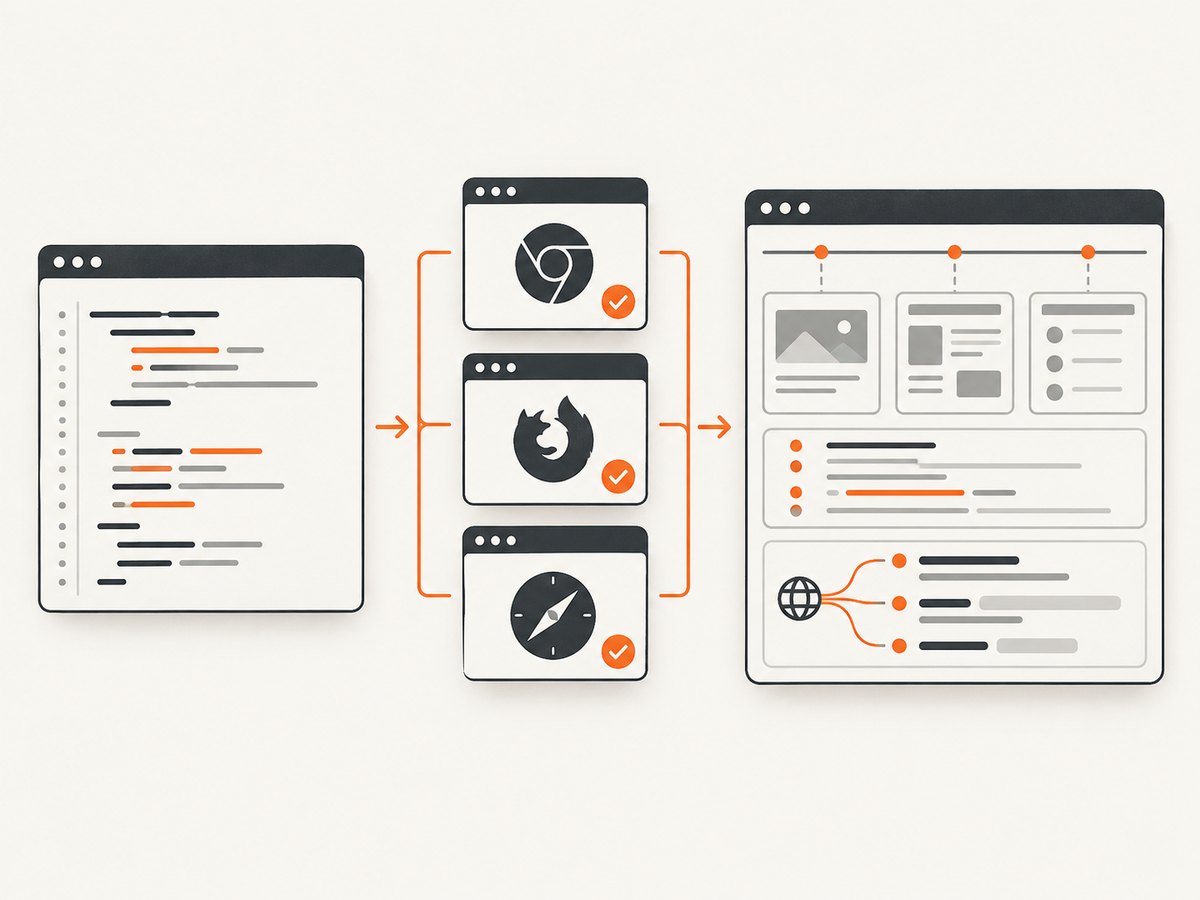
npx playwright test --uiUI Mode shows the test tree and lets you run a file, block, or individual test; filter by text, tag, project, or status; watch for changes; and pick locators. Its timeline and action views expose snapshots, logs, and network information around each action. This is usually the fastest interface for understanding why a test behaves differently from your expectation.
Inspector debugging
npx playwright test --debug
npx playwright test tests/home.spec.ts:3 --debug
--debug opens the Playwright Inspector alongside the browser so you can step through actions, inspect locators, and pause execution. Add a file and line when the suite is large. Use --headed for visual observation without the full Inspector workflow.
VS Code
The official Playwright VS Code extension can run tests from the testing sidebar. It is useful for jumping from a test result to the source while keeping normal CLI commands available for repeatable scripts and CI.
4. Configure projects for browsers, devices, and environments
Projects are named groups of tests that share configuration. They can represent browser engines, branded browsers, emulated devices, environments, retries, timeouts, matching patterns, or setup dependencies. Define them in playwright.config.ts:
import { defineConfig, devices } from '@playwright/test';

export default defineConfig({
  testDir: './tests',
  timeout: 30_000,
  expect: { timeout: 5_000 },
  fullyParallel: true,
  retries: process.env.CI ? 2 : 0,
  reporter: [['html', { open: 'never' }], ['list']],
  use: {
    baseURL: 'http://localhost:3000',
    trace: 'on-first-retry',
    screenshot: 'only-on-failure',
    video: 'retain-on-failure'
  },
  projects: [
    {
      name: 'chromium',
      use: { ...devices['Desktop Chrome'] }
    },
    {
      name: 'firefox',
      use: { ...devices['Desktop Firefox'] }
    },
    {
      name: 'webkit',
      use: { ...devices['Desktop Safari'] }
    },
    {
      name: 'mobile-chrome',
      use: { ...devices['Pixel 5'] }
    }
  ]
});
Run every project or select one:
npx playwright test
npx playwright test --project=webkit
npx playwright test --project=mobile-chrome
Choose projects to match your support matrix. Chromium, Firefox, WebKit, Chrome, Edge, and emulated mobile or tablet devices are different execution targets, not interchangeable labels. A project can also depend on a setup project that creates authenticated state or test data. When dependencies are configured, ensure setup runs before dependent tests; UI Mode’s project filtering does not automatically account for setup tests in every workflow.
Useful configuration decisions
| Setting | Use it for | Trade-off |
|---|---|---|
workers |
Parallel throughput | More workers increase resource use and can expose shared-state bugs. |
retries |
Collecting evidence for intermittent CI failures | Retries can hide a real reliability problem if you only look at the final pass. |
timeout |
Maximum test duration | Too short creates false failures; too long slows diagnosis. |
expect.timeout |
Waiting for eventual UI state | Large values can mask slow regressions. |
trace |
Action-level evidence | Capturing every trace uses more storage and slows runs. |
baseURL |
Short, environment-independent navigation | Make the selected environment explicit in CI. |
5. Make locators and assertions resilient
Use locators that describe how a user finds an element. Then assert the visible or accessible result:
import { test, expect } from '@playwright/test';

test('user can submit a search', async ({ page }) => {
  await page.goto('/');
  await page.getByRole('textbox', { name: 'Search' }).fill('traces');
  await page.getByRole('button', { name: 'Search' }).click();
  await expect(page.getByRole('heading', { name: /traces/i })).toBeVisible();
});
Locator suggestions from codegen and UI Mode still require review. A locator that works today can be fragile if it depends on a generated class or an exact visual position. Assertions should check the state that matters: a heading, URL, accessible name, enabled state, count, or persisted result.
6. Inspect reports and traces after execution
HTML report
npx playwright show-reportThe HTML report lets you search and filter results, inspect errors and steps, see the browser and project, and open linked artifacts. Generate it in CI and retain the report with the test artifacts your team needs.
Trace Viewer
npx playwright show-trace path/to/trace.zipTrace Viewer lets you move through actions and inspect snapshots, source, console output, network activity, and action details. The browser-hosted viewer loads the trace in the browser; you still need to control where trace files are stored and who can access them because traces can contain page data and credentials.
Capture traces on retries
import { defineConfig } from '@playwright/test';

export default defineConfig({
  retries: process.env.CI ? 2 : 0,
  use: {
    trace: 'on-first-retry'
  }
});
This pattern keeps ordinary local runs light while recording evidence when CI needs a second look. Other trace policies are appropriate when every run must be diagnosable. UI Mode records traces during interactive work.
7. A repeatable workflow from authoring to CI
- Author: write a small test around one user outcome.
- Explore: use
codegenor UI Mode’s locator picker to discover candidate actions. - Review: replace incidental selectors, add meaningful assertions, and remove unnecessary generated steps.
- Run locally: use the normal CLI for a repeatable headless check; use
--headed,--ui, or--debugto investigate. - Expand coverage: run the relevant projects for browser and device support.
- Diagnose: open the HTML report and trace for failures, especially first retries in CI.
- Stabilize: fix the underlying locator, synchronization, data, or environment problem instead of increasing retries indefinitely.
8. Or skip the browser setup
When your goal is a clean image or PDF of a URL rather than an end-to-end interaction test, ScreenshotNeo provides a single screenshot API request. Full Playwright setup gives you complete browser control; ScreenshotNeo handles capture infrastructure and the common page-cleanup work before returning the asset.
See the ScreenshotNeo API documentation for all options.
curl -G "https://api.screenshotneo.com/v1/shot" -d access_key=YOUR_API_KEY --data-urlencode url=https://stripe.com -o shot.webpimport requests
r = requests.get("https://api.screenshotneo.com/v1/shot", params={"access_key": "YOUR_API_KEY", "url": "https://stripe.com"}, timeout=90)
open("shot.webp", "wb").write(r.content)const q = new URLSearchParams({ access_key: 'YOUR_API_KEY', url: 'https://stripe.com' });
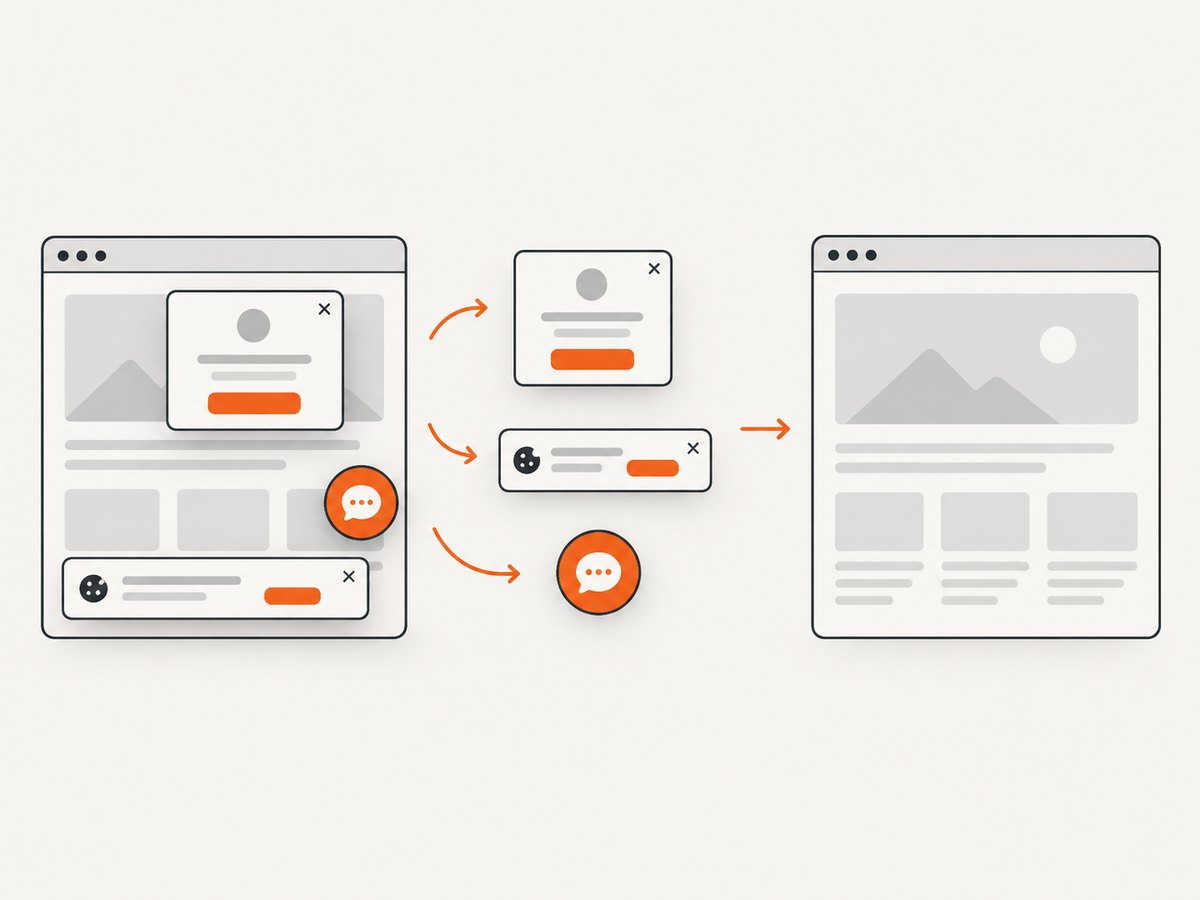
const res = await fetch(`https://api.screenshotneo.com/v1/shot?${q}`);- Cookie and consent banners, newsletter popups, and chat widgets are removed before the shot; each cleanup step can be turned off.
- Bot checks or CAPTCHAs, blank pages, timeouts, failed loads, and cache hits are not billed. Response headers identify the page verdict and whether the request was billed.
- An MCP server provides
take_screenshot,get_page_info, andcapture_pdftools for Claude, Cursor, and other MCP clients. - Every plan includes the features. The Free plan includes 1,000 screenshots per month with no card; paid plans start at $5 for 3,000 shots.
Create a free ScreenshotNeo account to start with 1,000 screenshots per month and no card.
9. Troubleshooting Playwright tests
| Symptom | Likely cause | Fix |
|---|---|---|
| “No tests found” | Wrong directory, filename pattern, or grep filter. | Run the file directly, check testDir and matching patterns, and remove -g temporarily. |
| Browser is not visible | Normal CLI runs headless. | Use --headed, --ui, or --debug. |
| Locator timeout | The element is absent, hidden, renamed, or not ready. | Inspect the trace or UI Mode snapshot; use a role or label locator and assert the expected state. |
| Intermittent timeout | Race condition, slow dependency, unstable test data, or environment load. | Use web-first assertions, wait on a meaningful state, isolate data, and inspect the first retry trace. |
| Works in Chromium but fails elsewhere | Browser-engine or device differences, unsupported APIs, fonts, or responsive layout. | Run the failing project alone, inspect its trace, and fix the product or browser-specific assumption. |
| Tests interfere with each other | Shared accounts, files, ports, or server-side records. | Use isolated fixtures and unique test data; reduce workers only as a diagnostic step. |
| Retry passes but failure remains unexplained | The final result hides the first failure’s evidence. | Open the report and first-retry trace; treat the retry as diagnostic evidence, not proof of stability. |
| Trace or report is missing | Capture policy, artifact retention, or output path does not include the failed run. | Check trace, reporter settings, CI artifact upload, and the generated output directory. |
| Setup project did not run in UI Mode | Project filtering does not automatically include setup dependencies in every UI workflow. | Select the dependency or run the setup workflow explicitly before dependent tests. |
10. Performance, reliability, and cost considerations
Performance
- Use parallel workers for independent tests and reduce workers when the application, database, or CI host is the bottleneck.
- Keep tests focused so a failure produces a small trace and a clear report.
- Run one project while iterating, then expand to the full browser and device matrix before merging.
- Use retries and traces selectively. Capturing every artifact increases storage and processing overhead.
Reliability
- Prefer web-first assertions over fixed sleeps.
- Keep fixtures isolated and make test data unique.
- Separate product defects from environment failures by comparing projects and inspecting network and console details in traces.
- Review generated locators and retry-passing tests instead of accepting them as permanent proof.
Cost
Playwright’s practical cost is the compute, browser, CI, storage, and maintenance required by the projects and artifacts you run. More browsers, devices, workers, retries, videos, screenshots, and traces increase resource use. Keep local runs narrow and reserve the broad matrix and heavier artifacts for the workflows that need them.
For URL screenshots where maintaining browser infrastructure is unnecessary, ScreenshotNeo charges only for clean shots. Cache hits and failed or unusable page results are not billed, and the response includes billing and verdict headers.
11. FAQ
Should I use UI Mode or the Inspector?
Use UI Mode to browse a test suite, filter tests, watch changes, pick locators, and inspect action timelines. Use --debug when you want step-through control for a specific test or line.
Are generated tests production-ready?
They are starting points. Review locators, remove incidental actions, and add assertions that express the user outcome.
Do retries make a flaky test reliable?
No. Retries can preserve evidence and keep a CI run moving, but a test that only passes after retry still needs diagnosis.
When should I add another project?
Add one when the browser, device, environment, setup dependency, or execution policy represents a meaningful supported variant. Avoid projects that duplicate the same coverage without a distinct purpose.
Can ScreenshotNeo replace Playwright Test?
No. Playwright Test is for browser automation and assertions. ScreenshotNeo is a managed URL capture API and MCP server for screenshots, page information, and PDFs.


