How to Run Playwright Tests in Google Chrome with the Chrome Channel
Configure a Playwright Test project to run in branded Google Chrome, install and select the browser, and handle headless and CI differences.
To run Playwright Test in branded Google Chrome, create a project in playwright.config.ts with use.channel: 'chrome', make sure Chrome is installed on the machine, then run that project by name. The channel matters: 'chrome' selects branded Google Chrome, while Playwright’s default browser is its managed Chromium build.
This guide covers project configuration, installation, local and CI commands, browser selection, headless behavior, common failures, and when to choose Chrome over bundled Chromium. If your goal is to capture a page as an image or PDF rather than test browser behavior, see the ScreenshotNeo option near the end.
1. Add a Google Chrome project
In your project root, open playwright.config.ts and define a project whose use settings select the Chrome channel. The following is a complete minimal configuration:
import { defineConfig, devices } from '@playwright/test';

export default defineConfig({
  testDir: './tests',
  projects: [
    {
      name: 'Google Chrome',
      use: {
        ...devices['Desktop Chrome'],
        channel: 'chrome',
      },
    },
  ],
});
The essential setting is channel: 'chrome'. The devices['Desktop Chrome'] spread supplies a desktop browser context preset, including viewport and related defaults. You can use another device preset or set context options yourself if the test needs a different viewport, locale, color scheme, or device scale factor. A device preset does not install Chrome; the browser executable must also be available.
The configuration uses the @playwright/test package and assumes the test files live in tests. If your project already has a config file, add the project to its existing projects array and preserve any shared settings such as reporters, retries, or test directory.
2. Install and confirm Chrome availability
Playwright can use branded Google Chrome installed on the machine, but it does not install branded Chrome by default. That differs from Playwright-managed Chromium, which is installed through Playwright’s browser installation workflow.
From the project directory, install the project dependencies if needed and request Chrome with the Playwright CLI:
npm install
npx playwright install chrome
On Linux CI images, browser system dependencies may also be needed. Use the installed Playwright version’s documented CLI options, for example:
npx playwright install --help
npx playwright install --with-deps chrome
The second command is relevant to Linux environments where Playwright can install required system packages. It may require elevated permissions or a compatible package manager. In managed corporate environments, an administrator may control browser installation or policy settings; coordinate with that environment rather than assuming the CLI can change it.
You can also use a Chrome installation already present on the machine, provided Playwright can locate and launch it. The exact installation location varies by operating system and environment. If Playwright reports that the executable is missing, check that Chrome is installed in the environment running the tests; installing it on a developer laptop does not make it available inside a separate container or CI worker.
3. Run the Chrome project
Use the exact project name from the configuration to run only Chrome tests:
npx playwright test --project="Google Chrome"The name is case-sensitive in practice: if the project is called chrome in the config, pass --project=chrome. To run every configured project, leave off the project option:
npx playwright testUseful combinations include a single test file, a test title filter, and headed mode for visually inspecting a failure:
npx playwright test tests/login.spec.ts --project="Google Chrome"
npx playwright test --project="Google Chrome" --grep="sign in"
npx playwright test --project="Google Chrome" --headed
These are standard Playwright Test CLI forms. For additional flags supported by your installed version, check the Playwright Test CLI reference.
4. Configure more than one browser target
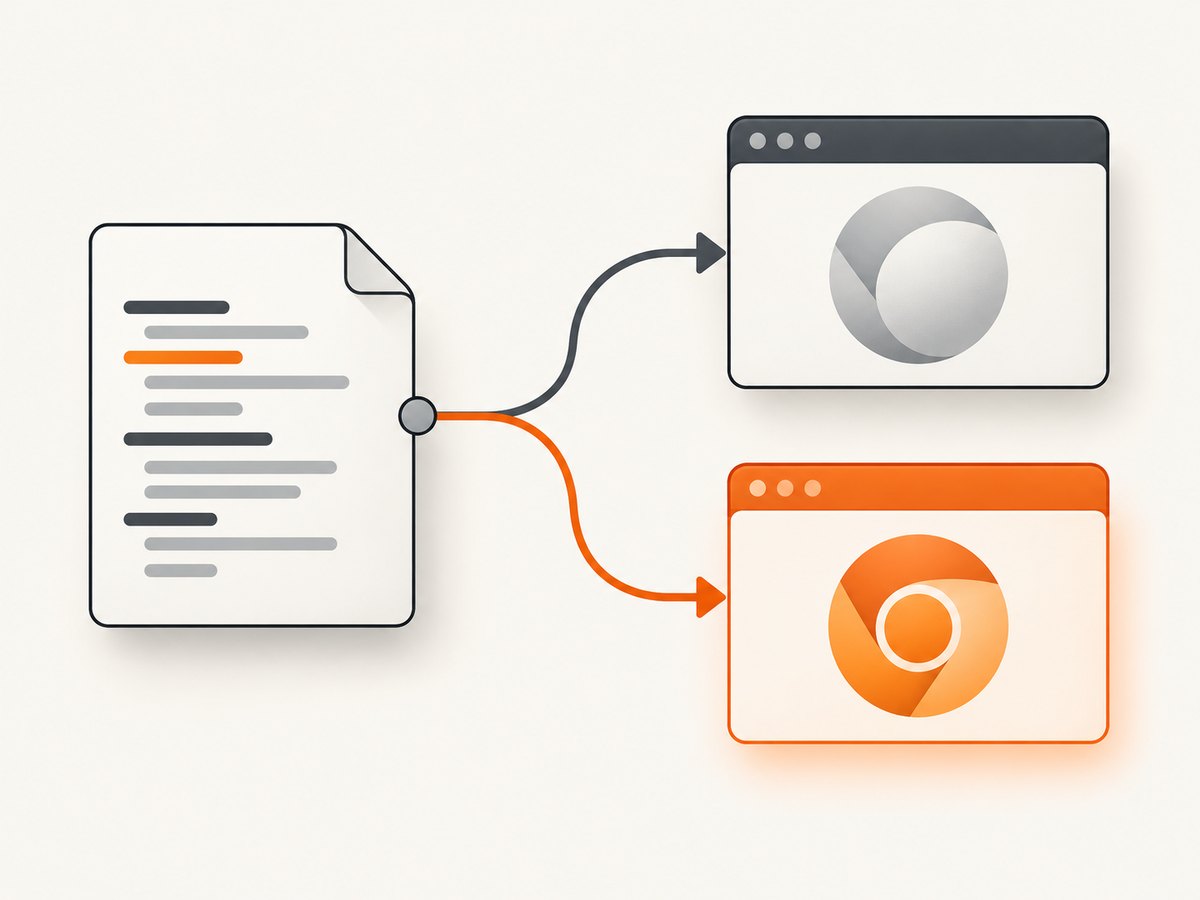
A project is a named configuration for running the same tests under different browsers or settings. Keep bundled Chromium and branded Chrome as separate projects when you need both kinds of coverage:
import { defineConfig, devices } from '@playwright/test';

export default defineConfig({
  projects: [
    {
      name: 'Playwright Chromium',
      use: { ...devices['Desktop Chrome'] },
    },
    {
      name: 'Google Chrome',
      use: { ...devices['Desktop Chrome'], channel: 'chrome' },
    },
  ],
});
With no channel set, the first project uses Playwright’s managed Chromium. The second requests branded Chrome. Run one target at a time with --project, or run both with npx playwright test.
For a branded Chrome project, set channel: 'chrome' explicitly. The chromium channel is a different option documented for opting into Chromium’s newer headless mode; it does not mean branded Google Chrome. Avoid naming a project just “Chrome” if it actually uses Playwright’s bundled Chromium, since that makes reports and CI logs ambiguous.
5. Decide whether branded Chrome fits the test
| Test objective | Browser choice | Reason |
|---|---|---|
| General cross-browser automation using Playwright’s supported browser build | Bundled Chromium | Playwright’s documentation presents its managed Chromium as a good default for many workflows. |
| Regression against the currently released Google Chrome | channel: 'chrome' |
The test exercises installed branded Chrome rather than Playwright’s managed build. |
| Site behavior that depends on media codecs included with official Chrome | channel: 'chrome' |
The branded browser may provide codecs that are not included in the same way in Playwright’s Chromium build. |
| Validation under enterprise browser policy | channel: 'chrome', where the environment permits it |
The installed browser can reflect the policies relevant to the target environment. |
| Testing Playwright’s newer Chromium headless behavior | channel: 'chromium' |
This is the documented channel option for that headless implementation, not branded Chrome. |
Playwright notes that its Chromium build can be ahead of stable Chrome, which can expose compatibility issues before they reach stable releases. Choose the browser that matches the question your test is meant to answer. If exact browser identity matters, record the browser version and execution environment with the test results: installed Chrome changes independently of the Playwright configuration.
6. Account for headless behavior and CI
Chrome and Edge use a newer headless implementation that is closer to regular headed mode. Playwright warns that it can behave differently from the Chromium headless shell used by default when no channel is specified. If a test relies on layout, rendering, video, or other headless-specific behavior, validate it in the same channel and mode used in CI.
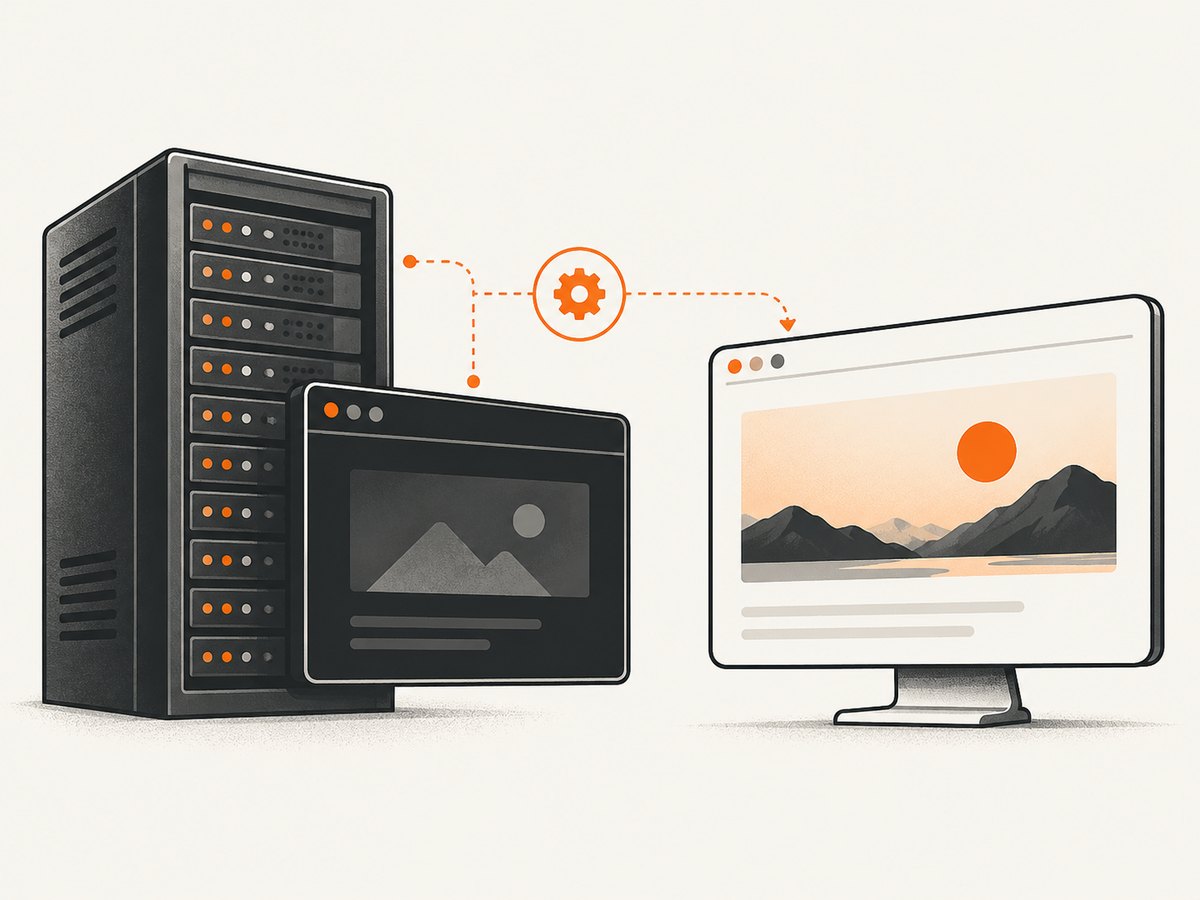
For a headed local run, pass --headed. This is useful for debugging but requires a display environment. CI commonly runs without a visible desktop, so test the actual headless configuration there rather than treating a successful headed run as proof that CI will behave identically.
For repeatable CI, install the required browser in the job or container that runs tests, pin the Playwright package version through your lockfile, and use the matching Playwright installation workflow. If you depend on a particular branded Chrome release, also control or record the Chrome version provided by the image. The channel setting selects the brand; it does not freeze Chrome at a particular version.
Enterprise policies can constrain Playwright’s ability to launch and control branded Chrome. Playwright documents policy-constrained environments as outside its project scope. Its guidance suggests bundled Chromium may be easier for local testing under such policies, while branded stable channels can remain an option on less-constrained bots.
7. Troubleshooting
| Symptom | Likely cause | Fix |
|---|---|---|
| Executable doesn’t exist or Chrome cannot be found | Branded Chrome is not installed where the test process runs. | Install Chrome in that machine, container, or CI job. Run the browser installation workflow for the Playwright version in use and confirm the job image includes the browser. |
| The project name is unknown | The value passed to --project differs from the configured project name. |
Copy the exact name from the config, including spaces and capitalization. Or omit --project to run all projects. |
| The tests launch Chromium instead of Chrome | The selected project has no channel: 'chrome', or a different project was selected. |
Check the project configuration and command. Give branded Chrome a distinct project name, then run that name explicitly. |
| Chrome launches locally but not in CI | The CI worker lacks Chrome, Linux system dependencies, permissions, or a display for headed mode. | Install the browser and dependencies in the worker image. Prefer headless execution on display-less workers; use headed mode only where a display is available. |
| Browser launch is blocked or control fails | An enterprise policy or environment restriction limits automation. | Check the organization’s Chrome policy and machine restrictions. If the test does not require those policies, use Playwright-managed Chromium for that run. |
| Headless screenshots or behavior differ from expectations | The Chrome channel’s headless implementation differs from Playwright’s default Chromium headless shell. | Run with the same channel and headless mode as CI, compare against the intended target, and avoid substituting channel: 'chromium' when branded Chrome is required. |
| Media playback differs between local and CI | The environments may have different browser builds, codecs, or system support. | Use the branded Chrome target if official Chrome codecs are part of the requirement, and align or record the browser and environment versions. |
8. Performance, reliability, and cost
Using channel: 'chrome' does not itself make a test faster. Runtime depends on the test workload, page behavior, machine resources, and browser startup and execution. Reusing Playwright Test’s project configuration keeps target selection explicit; run just the Chrome project when that is the coverage you need, or run all configured projects when comparing targets is part of the job.
Bundled Chromium is generally easier to make repeatable because it is installed through Playwright’s browser workflow and tied to the Playwright setup. Branded Chrome is useful when matching the public browser matters, but its version can change separately. For reliable results, keep the Playwright dependency stable, make the browser available in each execution environment, and record the Chrome version when the precise build affects interpretation.
Playwright itself is an open-source browser automation framework; the practical costs for this setup are the machines, CI time, and browser installation or maintenance in your environment. This workflow does not require a screenshot API. If you need API-based page captures as a separate task, consider the service option below.
9. Or skip the browser setup
If your goal is a page screenshot or PDF rather than exercising application interactions and assertions, ScreenshotNeo provides a website screenshot API and MCP server. One GET request returns an image or PDF. The API accepts common screenshot parameter names, which can make switching from another screenshot API easier. See the ScreenshotNeo API documentation for request options.
curl -G "https://api.screenshotneo.com/v1/shot" -d access_key=YOUR_API_KEY --data-urlencode url=https://stripe.com -o shot.webpimport requests
r = requests.get(
"https://api.screenshotneo.com/v1/shot",
params={"access_key": "YOUR_API_KEY", "url": "https://stripe.com"},
timeout=90,
)
open("shot.webp", "wb").write(r.content)const q = new URLSearchParams({ access_key: 'YOUR_API_KEY', url: 'https://stripe.com' });
const res = await fetch(`https://api.screenshotneo.com/v1/shot?${q}`);ScreenshotNeo removes cookie banners, newsletter popups, and chat widgets before capture; each cleanup step can be turned off. Bot checks and CAPTCHAs, blank pages, timeouts, failed loads, and cache hits are not billed, and response headers identify the page verdict and billing status. Its MCP server gives AI agents tools for screenshots, page information, and PDF capture. The free plan includes 1,000 screenshots a month with no card; paid plans start at $5 for 3,000. Sign up for 1,000 free screenshots a month, with no card required.
10. Frequently asked questions
Does channel: 'chrome' install Google Chrome?
No. It selects branded Chrome when available. Install or otherwise provide Chrome in the environment that runs the tests.
Can I run the same test in Chromium and Chrome?
Yes. Define separate projects and run both with the normal test command, or select one project with --project.
Is Chrome the same as the chromium channel?
No. chrome selects branded Google Chrome. The chromium channel is a distinct option associated with the newer headless mode.
Should I always test in branded Chrome?
No. Use it when the target is current Chrome, official Chrome media codecs, or the relevant installed policies. Use bundled Chromium when that managed browser build is the target of your automation.


