How to Use Playwright waitForFunction for Mouse Events
Use Playwright mouse actions with waitForFunction to verify the page state they cause. Learn when to use locators, coordinates, and event waits.

To wait for a page update caused by a mouse action in Playwright, start page.waitForFunction() with a predicate for the expected page state, perform the action, then await the predicate. waitForFunction does not click or wait for a raw mouse event: it repeatedly evaluates a page-side function until the result is truthy. For ordinary element interactions, prefer a locator such as getByRole(...).click(); use page.mouse when coordinates or a deliberate input sequence matter.
This distinction is the key to reliable tests. A click can be dispatched successfully while an asynchronous application update is still pending. Wait for a stable outcome produced by the application—such as a status attribute, rendered message, or updated value—instead of guessing how long the update will take.
1. Choose the right kind of wait
First decide what the test needs to prove:
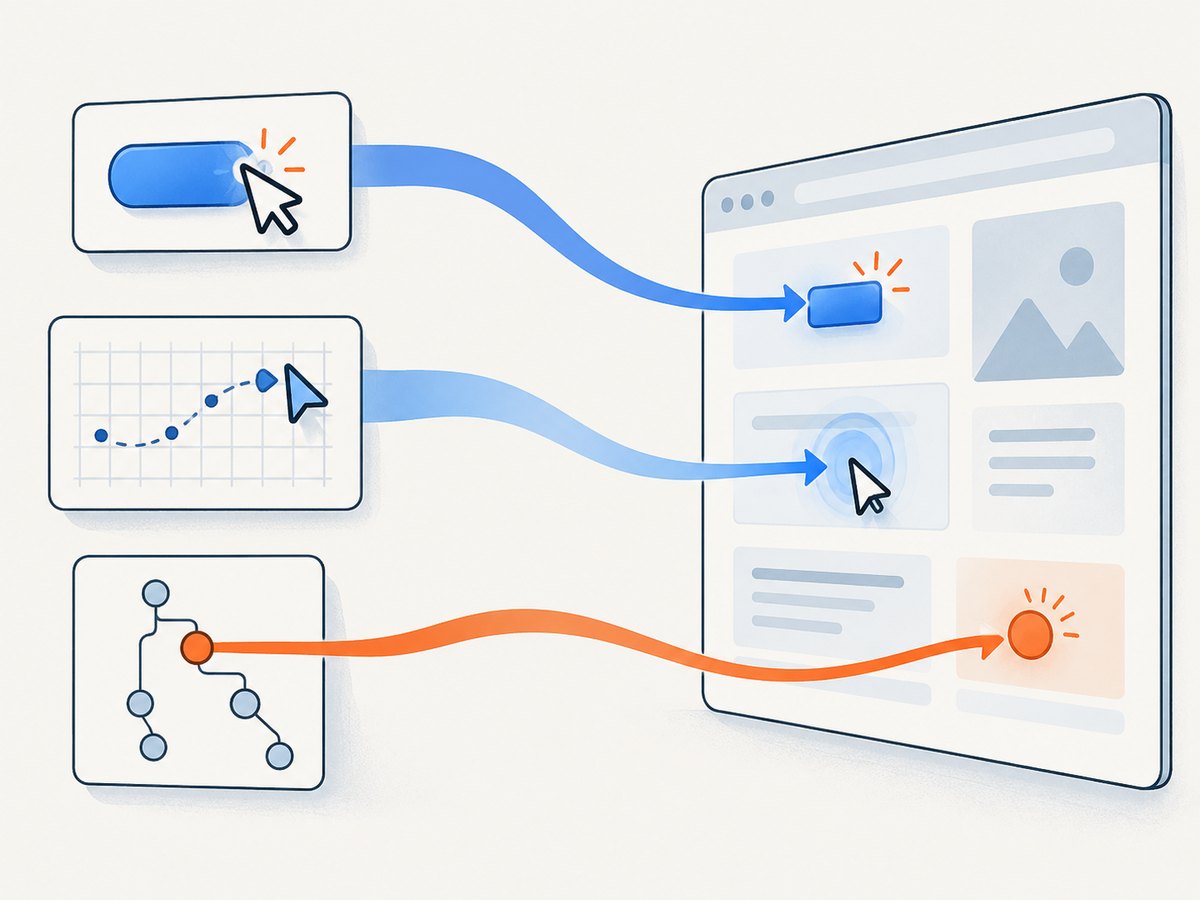
- An element can be used like a user would use it: use a locator action. Playwright’s locator click performs actionability checks.
- A pointer must reach a specific viewport coordinate, or input order matters: use
page.mouse, then wait for the application state. - A DOM event handler must run when an event is dispatched directly: use
dispatchEvent(). This does not demonstrate that a visible, actionable target could receive a user-like pointer interaction. - The event itself is the thing being tested: wait for an event with the relevant event-waiting API. If the requirement is the resulting application state, use a state predicate instead.
| Approach | Use it when | What it establishes |
|---|---|---|
| Locator action | The target is an element and normal user-like interaction is the goal. | Playwright’s actionability checks and the requested locator interaction. |
page.mouse |
The test needs coordinates, a move, a drag, or explicit press/release sequencing. | Low-level mouse input at viewport coordinates. |
dispatchEvent('click') |
The test intentionally exercises a DOM event handler directly. | A dispatched event, which may run without visibility or pointer-actionability checks. |
These approaches answer different questions. A direct event dispatch should not be described as equivalent to a mouse action: it can exercise application code while bypassing whether a person could reach the element with a pointer.
2. Wait for a state change after a mouse click
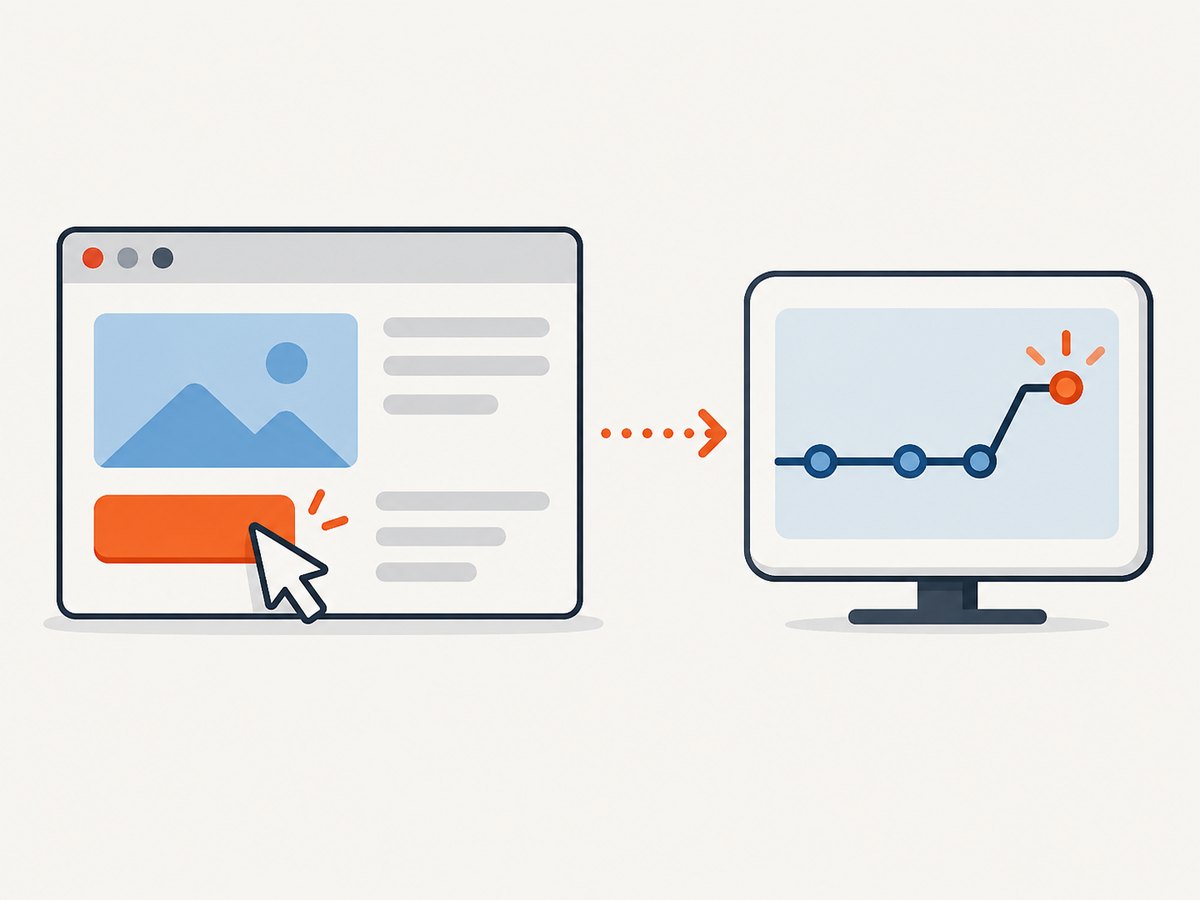
Here is a complete Node.js example using Playwright’s test runner. It opens a page that exposes a button and a data-status attribute, clicks at the button’s viewport position, and waits until the page reports ready. Replace the URL and state predicate with those from the application under test.
const { test, expect } = require('@playwright/test');

test('mouse click waits for the application state', async ({ page }) => {
  await page.goto('https://example.com/app');

  const button = page.getByRole('button', { name: 'Save' });
  const box = await button.boundingBox();
  if (!box) throw new Error('Save button is not visible');

  const stateChanged = page.waitForFunction(() =>
    document.querySelector('[data-status]')?.getAttribute('data-status') === 'ready',
    null,
    { timeout: 5_000 }
  );

  await page.mouse.click(box.x + box.width / 2, box.y + box.height / 2);
  await stateChanged;

  await expect(page.locator('[data-status]')).toHaveAttribute('data-status', 'ready');
});
The wait is created before the click. That ordering matters when the state transition can happen immediately: if the test starts waiting only after the action, a short-lived condition could already have passed. In this example, the condition is persistent, but setting up the wait first is a useful general pattern.
The example uses a locator to find the button and obtain its bounding box, but then deliberately sends coordinate input. If coordinates are not part of the behavior being tested, use the simpler locator click shown below. The test uses a finite timeout so a broken page does not leave this particular wait running indefinitely.
Prefer a locator for an ordinary button
const stateChanged = page.waitForFunction(() =>
  document.querySelector('[data-status]')?.getAttribute('data-status') === 'ready',
  null,
  { timeout: 5_000 }
);

await page.getByRole('button', { name: 'Save' }).click();
await stateChanged;
This is generally easier to maintain than hard-coded coordinates. The locator identifies the intended control, and the click action performs actionability checks. Keep the state predicate: a successful click alone does not prove the asynchronous save or other application work has completed.
3. Use page.mouse for hover, coordinates, and sequences
Mouse coordinates are CSS pixels relative to the main-frame viewport. They are not document coordinates: scrolling changes which content appears at a given viewport point. For coordinate tests, determine the target’s current bounding box after navigation and any scrolling, and account for overlays or layout changes that could move it.
For hover, wait for an observable consequence, such as a menu becoming visible or an attribute changing. For a drag, sequence movement, press, movement, release, and then wait for the resulting state. Set up the wait before the sequence when the condition might change quickly.
// Hover until the application reveals a menu.
const menuOpened = page.waitForFunction(() =>
  document.querySelector('[data-menu]')?.getAttribute('aria-expanded') === 'true',
  null,
  { timeout: 5_000 }
);

await page.mouse.move(320, 240);
await menuOpened;

// Example low-level drag sequence. Coordinates are viewport CSS pixels.
const itemMoved = page.waitForFunction(() =>
  document.querySelector('[data-item]')?.getAttribute('data-column') === 'done',
  null,
  { timeout: 5_000 }
);

await page.mouse.move(120, 180);
await page.mouse.down();
await page.mouse.move(420, 180, { steps: 8 });
await page.mouse.up();
await itemMoved;
mouse.move(x, y, { steps }) can emit interpolated movement events between the current point and destination. That is useful when the application responds to pointer movement along a path. It does not replace a state assertion: wait for the menu, item position, or other outcome the test actually requires.
For a click at coordinates, page.mouse.click(x, y) is a shortcut for moving to the point, pressing, and releasing. Use separate move, down, and up calls when the intermediate input is significant—for example, a drag or press-and-hold interaction.
4. Write a useful waitForFunction predicate
The predicate runs in the page context and should return a truthy value only when the required condition is satisfied. It can inspect the DOM, attributes, or page-owned state. Keep it focused, deterministic, and tied to the outcome of the action.
// Wait for a rendered confirmation.
await page.waitForFunction(() =>
  document.querySelector('[role="status"]')?.textContent?.includes('Saved')
);

// Pass a value to the page-side predicate.
await page.waitForFunction((expected) =>
  document.querySelector('[data-status]')?.getAttribute('data-status') === expected,
  'ready',
  { timeout: 5_000 }
);
The API accepts a page function, an optional argument, and options. It resolves when the function’s result is truthy and returns a JSHandle for that result. If the predicate checks only for a boolean, you can usually ignore the resolved handle. If you return a page object or other value, remember the result is a handle rather than a value automatically copied into Node.js.
The documented default timeout for waitForFunction is 0, meaning no timeout. Page or context configuration can affect effective timeout behavior. Set an explicit finite timeout when an indefinite wait is not appropriate for the suite, and align it with the application’s expected response time and the test runner’s own timeout policy.
Keep the condition observable and stable
- Prefer a semantic state that persists long enough to observe, such as an updated attribute or confirmation element.
- Avoid checking a transient animation frame or a momentary value if the application can change it before the polling predicate sees it.
- Use a selector that identifies the relevant component, rather than a broad page-wide condition that could be satisfied by unrelated content.
- Include the expected value in the predicate when practical, so the wait means the desired state rather than merely “something changed.”
- After the wait, use an assertion to make the expected result clear in test output.
page.evaluate() is different: it runs JavaScript in the page context once, and Playwright automatically waits if the evaluated function returns a Promise. Use it for page-context work that should run once. Use waitForFunction when the page-side predicate itself needs to be re-evaluated until it becomes truthy.
5. Common errors and how to fix them
| Symptom | Likely cause | Fix |
|---|---|---|
| The wait times out. | The selector or expected value is wrong, the action did not reach the intended target, or the application never reached the state. | Check the selector and expected state. Confirm the target is in the current viewport for coordinate input. Inspect the page after the action and use a finite, appropriate timeout. |
| The click works sometimes, but the wait misses the update. | The action happens before the wait is registered, or the predicate describes a fleeting condition. | Create the wait promise before the action. Wait for a persistent application state instead of a brief event or animation detail. |
| The mouse moves but the control does not react. | Coordinates are outside the viewport or hit an overlay, or a layout shift moved the target. | Use a locator action if coordinates are not required. Otherwise recalculate the bounding box just before input and inspect overlays and scrolling. |
| A dispatched click passes while the real interaction is broken. | dispatchEvent() invokes a DOM event without proving the element was visible or pointer-actionable. |
Use a locator click for user-like element behavior, or page.mouse when pointer coordinates or sequencing matter. |
| The wait never finishes on a healthy page. | The predicate returns a falsy value, perhaps because it checks the wrong attribute or assumes content is already rendered. | Inspect the actual DOM state, wait on the correct stable signal, and pass expected values explicitly where that clarifies the predicate. |
| The page-side function fails. | The predicate references a Node.js variable that was not passed into the page context, or assumes an element exists. | Use DOM APIs inside the function, handle a missing element with optional chaining, and pass external values using the argument parameter. |
6. Reliability, performance, and maintenance
A predicate wait avoids adding an arbitrary fixed sleep: it can finish as soon as the expected condition is true, while still waiting when the application needs more time. Keep the predicate inexpensive because it is evaluated repeatedly. A narrow selector and a small attribute or text check are usually easier to reason about than repeatedly scanning a large DOM or performing unrelated work.
Coordinate input is more sensitive to viewport dimensions, scrolling, responsive layout, and overlays than locator input. If the test’s purpose is a particular pointer path, make those conditions part of the setup: use a known viewport, bring the target into view, compute its current box, and avoid intervening layout changes between measuring and clicking. If the pointer path is incidental, an element locator is usually less brittle.
For reliability, make the timeout finite and meaningful, ensure the predicate matches the actual completion state, and add an assertion that names the expected outcome. A timeout is a failure signal, not proof of one particular cause; inspect both the action target and the state predicate when diagnosing one.
7. Or skip the browser setup
If the goal is to capture the resulting page rather than test its mouse interaction, ScreenshotNeo offers a website screenshot API. One GET request returns an image or PDF; the service also has an MCP server for AI agents. See the ScreenshotNeo API docs.
curl -G "https://api.screenshotneo.com/v1/shot" -d access_key=YOUR_API_KEY --data-urlencode url=https://stripe.com -o shot.webpimport requests
r = requests.get(
"https://api.screenshotneo.com/v1/shot",
params={"access_key": "YOUR_API_KEY", "url": "https://stripe.com"},
timeout=90,
)
open("shot.webp", "wb").write(r.content)const q = new URLSearchParams({ access_key: 'YOUR_API_KEY', url: 'https://stripe.com' });
const res = await fetch(`https://api.screenshotneo.com/v1/shot?${q}`);ScreenshotNeo accepts cookie and consent banners like a visitor and removes more than 60 known consent platforms, newsletter popups, and chat widgets before capture; each step can be turned off. Bot checks, blank pages, timeouts, failed loads, and cache hits cost nothing, and response headers report the page verdict and billing status. Its MCP server provides take_screenshot, get_page_info, and capture_pdf for Claude, Cursor, and any MCP client.
The free plan includes 1,000 screenshots per month with no card. Paid plans start at $5 for 3,000 shots; every feature is on every plan. See ScreenshotNeo for product details and sign up for 1,000 free screenshots a month, with no card.
8. Frequently asked questions
Does waitForFunction wait for a click?
No. It waits for a truthy page-side condition. Perform the locator or mouse action separately, then wait for the resulting state.
Should I use waitForFunction or a locator assertion?
Use the tool that clearly expresses the condition. A locator assertion is often readable for element visibility or attributes. waitForFunction is useful when the condition needs a custom page-side predicate or combines page values.
Can I wait for hover to change an element?
Yes. Move the mouse to the target and wait for the resulting observable state, such as an expanded attribute or revealed element.
Do mouse coordinates include the full page?
No. They are CSS pixels relative to the main-frame viewport. Scroll position affects which document content is under those viewport coordinates.
Why not use a fixed sleep after clicking?
A fixed delay does not express the required outcome. A state predicate describes what completion means and can resolve as soon as that condition becomes true.


