How to Use Playwright Workers for UI Automation
Learn how Playwright workers schedule UI tests, set safe concurrency, isolate shared data, and scale runs across projects and CI shards.

Playwright workers are independent operating system processes that run UI tests concurrently. By default, Playwright Test parallelizes test files; tests in a file run in order in one worker. Set the maximum worker count with workers in playwright.config.ts or --workers on the command line. Parallelism is reliable only when tests do not collide through shared accounts, records, files, or other external state. [Playwright’s parallelism guide](https://playwright.dev/docs/test-parallel) documents the scheduling model and worker controls.
This guide explains how to choose a worker limit, opt into parallel tests within a file, use worker-scoped fixtures, isolate backend data, and choose between projects and CI sharding. The examples use Playwright Test with TypeScript.
1. Understand what a worker does
A worker is a separate process managed by the Playwright test runner. Each worker starts its own browser. Workers do not share JavaScript memory and cannot communicate with each other. Playwright also creates an isolated BrowserContext for each test, so cookies, local storage, and page state do not carry from one test to another.
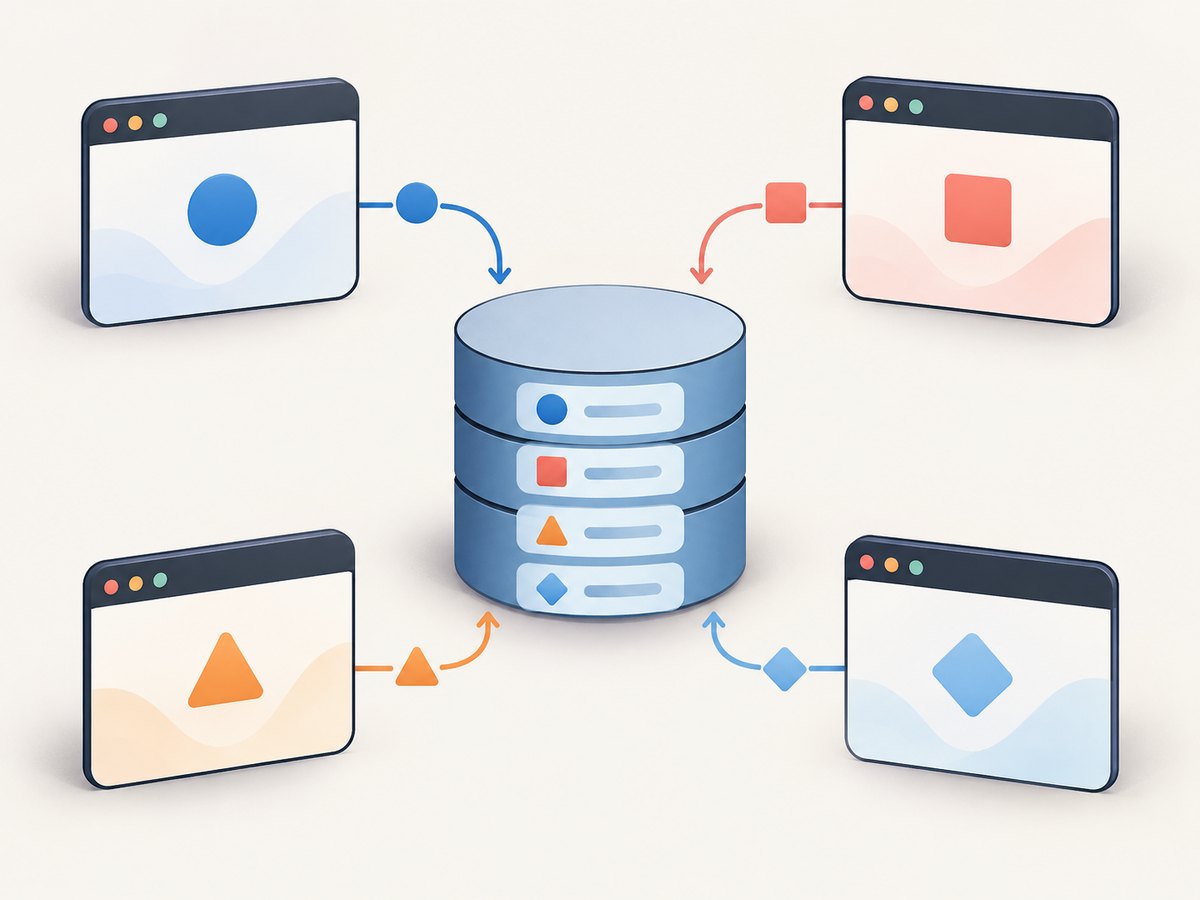
That browser isolation does not isolate your application’s database or other external systems. Two tests can have separate pages and still update the same user profile or delete the same record. This is the most common source of parallel-only failures.
| Setting or concept | What it controls |
|---|---|
workers |
Maximum number of concurrent worker processes for a run. |
fullyParallel |
Whether individual tests, including tests in a file, can be scheduled in parallel. |
| Projects | Separate configurations, such as browsers, devices, authentication, or environments. |
| Shards | Splitting a suite across separate machines or CI jobs. |
These are separate controls: projects define what configurations to run, workers define local concurrency, and shards distribute work across machines. [Parallelism documentation](https://playwright.dev/docs/test-parallel) · [Projects documentation](https://playwright.dev/docs/test-projects) · [Sharding documentation](https://playwright.dev/docs/test-sharding)
2. Set a worker limit
Playwright’s documented default is 50% of logical CPU cores. That is a starting default, not a promise that more workers will make a particular suite faster. Browsers and application servers also consume memory and CPU, while tests may contend for a database or rate-limited service. Measure the actual suite on the machine and CI runner you use.
For a small project, begin with an explicit cap in configuration and adjust after observing runtime, machine pressure, and flakiness:
import { defineConfig, devices } from '@playwright/test';

export default defineConfig({
  testDir: './tests',
  // Permit file-level parallelism; tune the cap for your runner.
  workers: process.env.CI ? 2 : undefined,
  retries: process.env.CI ? 1 : 0,
  reporter: process.env.CI ? 'blob' : 'html',
  use: {
    baseURL: 'http://localhost:3000',
    trace: 'on-first-retry',
  },
  projects: [
    {
      name: 'chromium',
      use: { ...devices['Desktop Chrome'] },
    },
  ],
});
Run with a command-line override when diagnosing or experimenting:
npx playwright test --workers=4
npx playwright test --workers=1
The config value can also be a percentage of logical CPU cores, such as '50%'. Command-line worker counts accept a number or percentage as well. --workers=1 is a useful diagnostic: if a failure disappears when serialized, look for shared external state, order dependence, or resource contention before raising the cap. [Configuration reference](https://playwright.dev/docs/test-configuration) · [CLI reference](https://playwright.dev/docs/test-cli)
When to lower the cap
- The CI machine has limited memory or slows down as browsers start.
- Tests share a constrained test account, database fixture, or external service.
- Failures cluster during simultaneous writes, even though browser contexts are isolated.
- The application under test cannot sustain the request load created by the suite.
Use a higher cap only when the available machine and dependencies can support it and measurement shows a useful improvement. The documentation defines controls and defaults, not a universal optimal worker count or guaranteed speedup.
3. Choose the parallel scheduling granularity
By default, Playwright runs files in parallel and schedules tests within each file in order in the same worker. This is a useful default when a file contains related steps or relies on setup patterns that should remain sequential.
To run independent tests in one file concurrently, configure that scope:
import { test, expect } from '@playwright/test';

test.describe.configure({ mode: 'parallel' });

test('opens the catalog', async ({ page }) => {
  await page.goto('/catalog');
  await expect(page.getByRole('heading', { name: 'Catalog' })).toBeVisible();
});

test('opens account settings', async ({ page }) => {
  await page.goto('/account/settings');
  await expect(page.getByRole('heading', { name: 'Settings' })).toBeVisible();
});
In parallel mode, each test runs in its own worker process, and applicable hooks such as beforeAll and afterAll run separately for each test. Do not use globals or a shared in-memory setup value as a way to pass state between tests.
To make tests across a project eligible for test-level parallel scheduling, set fullyParallel: true. You can set it at the top-level config or on a project. Adopt it only after test independence is in place. If most tests benefit but a group must remain ordered, that group can explicitly use default mode with test.describe.configure({ mode: 'default' }). [Parallelism guide](https://playwright.dev/docs/test-parallel) · [Test API reference](https://playwright.dev/docs/api/class-test)
4. Isolate data and other shared state
Give each test its own backend records whenever possible. A test-specific identifier can be derived from testInfo.testId; a worker-specific resource can use workerInfo.workerIndex or parallelIndex. Also use unique output paths for downloads, snapshots generated by tests, or other filesystem writes.
For example, a test-scoped fixture can create one unique account per test through your own test-support API. Replace the illustrative endpoint with an endpoint in your application; the fixture shape is standard Playwright Test:
import { test as base, expect } from '@playwright/test';

 type Account = { id: string; username: string };

export const test = base.extend<{ account: Account }>({
  account: async ({ request }, use, testInfo) => {
    const username = `pw-${testInfo.testId}`;
    const response = await request.post('/test-support/accounts', {
      data: { username },
    });
    expect(response.ok()).toBeTruthy();
    const account = await response.json() as Account;
    try {
      await use(account);
    } finally {
      await request.delete(`/test-support/accounts/${account.id}`);
    }
  },
});

export { expect };
This example assumes your test environment exposes account creation and deletion through the configured request context. Keep cleanup in finally so it runs after a failed assertion too. If the system under test does not offer a safe cleanup route, use disposable test data or a reliable reset process instead.
Use a worker-scoped fixture when reuse matches the resource
A worker-scoped fixture is created once for a worker process and reused by tests that need it. It is appropriate for a resource whose lifetime genuinely belongs to that worker, such as a worker-specific account or a shared test service connection. It is not a shortcut for sharing mutable state that independent tests expect to own.
import { test as base } from '@playwright/test';

type WorkerAccount = { username: string; password: string };

export const test = base.extend<{}, { account: WorkerAccount }>({
  account: [async ({}, use, workerInfo) => {
    const account = {
      username: `pw-worker-${workerInfo.parallelIndex}`,
      password: process.env.TEST_ACCOUNT_PASSWORD!,
    };
    await provisionAccount(account.username);
    try {
      await use(account);
    } finally {
      await removeAccount(account.username);
    }
  }, { scope: 'worker' }],
});
provisionAccount and removeAccount are application-specific helpers and must be implemented for your test system. Avoid committing credentials; provide them through the test environment. Worker fixtures have their own setup and teardown lifecycle. [Fixtures guide](https://playwright.dev/docs/test-fixtures)
Choose the right worker identifier
parallelIndexidentifies a concurrent worker slot and stays the same if that worker is restarted. Use it when assigning a stable resource to a slot across a retry/restart.workerIndexidentifies a specific worker process. A replacement process gets a new index. Use it when each process must have a unique identity.
Neither value is a globally unique test identifier across multiple machines or independent runs. If backend data is shared across CI runs or shards, include a run or shard identifier in your own naming scheme. [WorkerInfo reference](https://playwright.dev/docs/api/class-workerinfo)
Shared resources that cannot be isolated
If a set of tests must use one shared account or a non-concurrent resource, keep those tests in a project with a lower worker limit. The global workers cap still limits the whole run; a project-level workers cap can further limit that project. For tightly scoped mutual exclusion, Playwright also documents named test locks for tests that share a lock name. Prefer independent data or a narrow limit over serializing the entire suite.
5. Use projects for browser and environment coverage
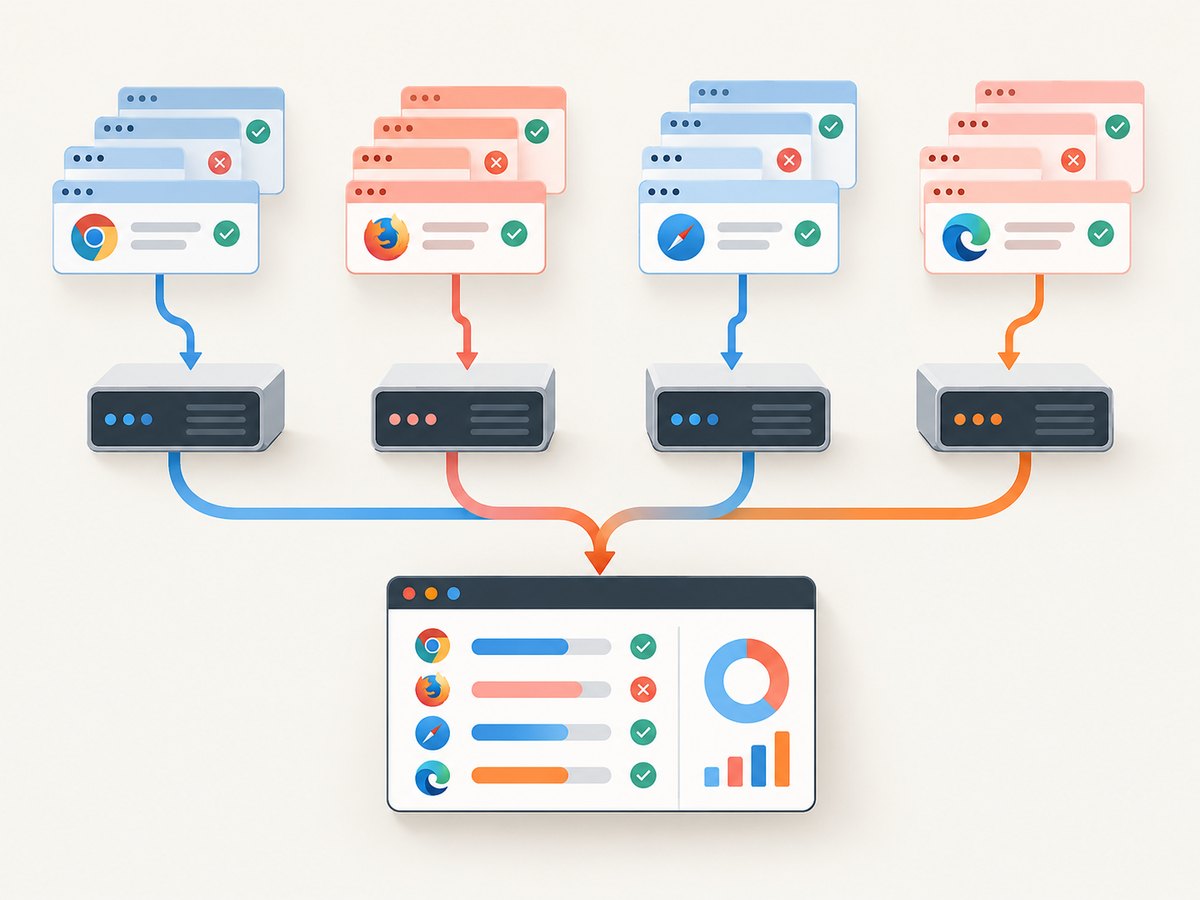
Projects run the same or selected tests with different configurations: for example, Chromium versus another browser, desktop versus device emulation, different authentication states, or separate environments. Projects are a configuration axis, not a substitute for test isolation. If a project uses a constrained shared account, give that project a lower workers cap; otherwise it uses the global limit subject to available work.
import { defineConfig, devices } from '@playwright/test';

export default defineConfig({
  workers: 4,
  projects: [
    { name: 'chromium', use: { ...devices['Desktop Chrome'] } },
    {
      name: 'shared-account-checks',
      testMatch: '**/shared-account/**/*.spec.ts',
      workers: 1,
      use: { ...devices['Desktop Chrome'] },
    },
  ],
});
The example separates a constrained group through its test selection and project configuration. Adapt testMatch and project use settings to your suite. The global limit is a total ceiling; the project limit restricts concurrency within that project. [Project reference](https://playwright.dev/docs/api/class-testproject)
6. Scale across machines with sharding
Workers use parallel capacity on one machine. Sharding divides a suite into parts that can run as separate CI jobs or on separate machines. Use --shard=x/y for shard x of y:
npx playwright test --shard=1/4
npx playwright test --shard=2/4
npx playwright test --shard=3/4
npx playwright test --shard=4/4
Without fullyParallel, sharding works at file granularity by default, so files with very different durations can produce uneven jobs. With fullyParallel: true, individual tests can be distributed across shards, allowing finer balancing. Sharding does not remove the need for unique backend data: separate machines can still point at the same test database or account.
For a merged report, configure the blob reporter on the shard jobs, collect their blob report artifacts, then run npx playwright merge-reports --reporter html ./all-blob-reports in a later job. Consult the [sharding guide](https://playwright.dev/docs/test-sharding) for current CI examples and report-merging details.
7. Capture UI evidence without adding another browser worker
Playwright’s own screenshots are useful for assertions and test artifacts. For a separate website screenshot workflow—such as collecting clean page captures for documentation, content review, or a report—a screenshot API can avoid managing another browser installation. ScreenshotNeo is a website screenshot API and MCP server for developers. Its capture options include full-page shots, element selection, device presets, wait conditions, and output formats. See the [ScreenshotNeo documentation](https://screenshotneo.com/docs/) for the API details.
When a test fails, keep evidence tied to the specific test and worker: include the test identifier and, when useful, the worker slot in artifact names. This makes parallel failures easier to inspect. Do not treat an externally captured screenshot as a replacement for assertions or trace data that explain how the test reached that state.
8. Performance, reliability, and cost
Performance
More workers allow more processes to run at once, but they also increase concurrent browser and application load. If CPU or memory is saturated, raising workers can add contention. If a backend has a request limit or one mutable account, added concurrency can make the suite less reliable. Record suite duration and failure patterns while changing one concurrency setting at a time; the Playwright docs do not claim a fixed speedup for a given worker count.
Reliability
- Make tests independently runnable and safe to retry.
- Use unique records and per-test file paths; clean up even when assertions fail.
- Keep mutable authentication state separate by test or worker when tests change server-side data.
- Use worker fixtures only for resources that can safely be reused within that worker.
- When failures appear only in parallel, reproduce with a small worker count and inspect collisions before changing retry settings.
- Capture traces or screenshots for failures so the page state and test actions can be reviewed.
Cost
Workers themselves are a scheduling setting, but CI usage can consume more machine time when you add parallel jobs or shards. Compare total pipeline resource consumption as well as elapsed wall time. Sharding across more machines may shorten a run while increasing the number of concurrent CI jobs; whether that is worthwhile depends on your CI plan and queue. No fixed cost or speed estimate applies across providers.
Or skip the browser setup
For standalone website captures, ScreenshotNeo takes a screenshot with one GET request. The call returns a PNG, JPEG, WebP, or PDF depending on the requested options. Cookie banners, popups, and chat widgets are removed before the shot. Bot checks, blank pages, and failed loads are never billed. An MCP server lets AI agents use screenshot tools. The free plan includes 1,000 screenshots a month with no card; paid plans start at $5 for 3,000.
curl -G "https://api.screenshotneo.com/v1/shot" \
  -d access_key=YOUR_API_KEY \
  --data-urlencode url=https://stripe.com \
  -o shot.webp
See [ScreenshotNeo API docs](https://screenshotneo.com/docs/) and [ScreenshotNeo](https://screenshotneo.com). [Create a free account](https://screenshotneo.com/account/sign-up/) to get 1,000 screenshots a month with no card.
Troubleshooting Playwright workers
| Symptom | Likely cause | What to do |
|---|---|---|
| Tests pass with one worker but fail with several | Tests share backend records, an account, a file path, or another mutable resource. | Make data unique per test or worker, isolate paths, or constrain only the affected project/resource. |
| Tests in one file do not run concurrently | That is the default scheduling mode. | Use test.describe.configure({ mode: 'parallel' }) for independent tests or configure fullyParallel. |
| Worker limit seems ignored or lower than expected | There may be fewer runnable tests, a project-specific cap, or a global cap. | Check CLI overrides, config values, selected projects, and test selection. A project cap cannot exceed the global limit. |
| Worker-scoped setup repeats after a failure | Playwright shuts down a worker after a test failure to provide a clean environment; a replacement worker may rerun setup. | Make setup safe to retry and clean up partially created external resources. |
| CI shards finish at very different times | File-level sharding can distribute files unevenly, especially when their test durations differ. | Consider fullyParallel for test-level distribution, or rebalance test file sizes. |
| More workers make the suite slower or flaky | CPU, memory, application capacity, or a shared dependency is saturated. | Lower the cap and measure; isolate or rate-limit the constrained dependency. |
| Shared account state leaks between tests | Browser contexts isolate cookies, not changes persisted by the application. | Provision per-worker or per-test accounts when tests mutate server-side state; use a shared account only for non-mutating tests. |
FAQ
Do Playwright workers share a browser?
No. Each worker is an independent process and starts its own browser. Each test also gets an isolated BrowserContext.
Should I set fullyParallel: true?
Use it when tests are independent and your shared backend resources are safe under test-level concurrency. Keep ordered groups in default mode where ordering is an intentional requirement.
Should I use workerIndex or parallelIndex for account names?
Use parallelIndex when a replacement worker should reuse the same concurrent slot identity. Use workerIndex when each process needs a distinct identity, including after a restart.
Are projects the same as shards?
No. Projects run configurations such as browsers or environments. Shards split a test suite across jobs or machines. A run can use projects and sharding together.
Practical checklist
- Start with Playwright’s documented worker default or a conservative explicit CI cap.
- Identify tests that mutate accounts, records, files, or shared services.
- Use unique test data first; scope genuinely reusable setup to a worker.
- Enable parallel tests within files only after removing ordering assumptions.
- Use projects for browser/device/environment coverage and per-project limits for constrained resources.
- Use shards when separate machines are available, and review shard balance and merged reports.
- Measure runtime, resource pressure, and failures before changing concurrency again.
For version-specific details, check the official [Playwright parallelism](https://playwright.dev/docs/test-parallel), [configuration](https://playwright.dev/docs/test-configuration), [fixtures](https://playwright.dev/docs/test-fixtures), [worker information](https://playwright.dev/docs/api/class-workerinfo), and [sharding](https://playwright.dev/docs/test-sharding) references for the Playwright version in your project.


