Portal Filing Automation with Browsers: A Permission-First Playbook
Learn when browser filing automation is allowed, how to build a reliable Playwright workflow, and how to verify receipts without risking an incomplete submission.
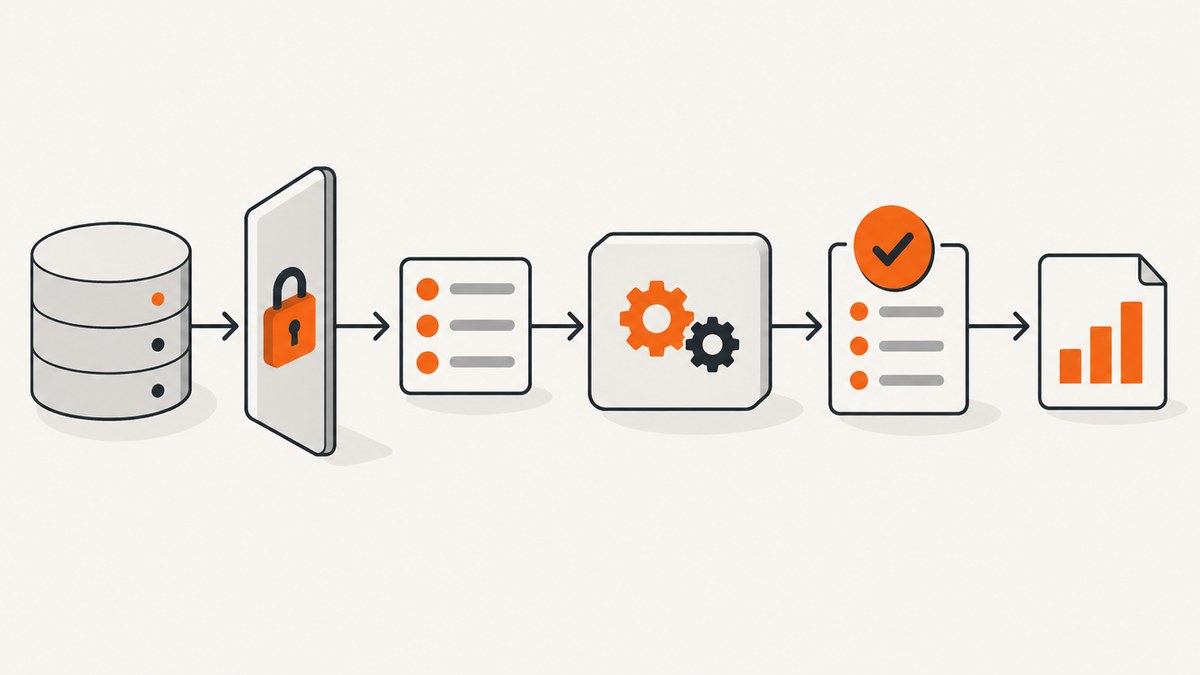
Short answer: identify the exact agency, jurisdiction, account type, and permitted integration route before writing automation. Some agencies prohibit browser automation for filing, while others provide an official API or an agent workflow. If browser interaction is authorized, use Playwright with user-facing locators, explicit checkpoints, protected authentication state, portal-specific upload rules, and a final receipt or accepted status. A successful upload or button click alone does not prove that a filing is complete.
1. Permission and portal research come first
Browser tooling can open pages, fill fields, attach files, and submit forms. Whether you may do those things is controlled by the portal owner. HM Revenue & Customs (HMRC) states in its policy published 27 May 2026: “HMRC’s current policy under the existing Government Gateway Terms and Conditions is that automation tools must not be used to enter data into or navigate Government Gateway.” HMRC defines automation tools in this context to include browser automation, screen scraping, scripted sign-in, and robotic process automation. The same policy distinguishes those tools from APIs designed for software applications to submit information directly. Read the HMRC policy and the target agency’s current terms before implementation.
Do not generalize an HMRC restriction to every portal, or assume an API exists because one agency offers one. Establish these facts in writing:
- Which agency, service, jurisdiction, and form are involved?
- Does the agency authorize browser automation, an API, an approved agent account, or only manual filing?
- Is the operator the account owner or an authorized delegate?
- What authentication, multifactor, CAPTCHA, certificate, or device checks are required?
- What event makes the filing legally or operationally complete?
HMRC also warns against third parties using sign-in details that do not belong to them. Authorized agents should use the prescribed Agent Services Account and client permission. India’s Income Tax Department similarly puts responsibility for credential secrecy and security on users. Never collect or reuse credentials outside the portal owner’s authorized process.
2. Browser versus official API
| Question | Browser workflow | Agency API |
|---|---|---|
| Authorization | Must be expressly allowed for the portal and account | Must be documented and enabled by the agency |
| Interface | Visible forms, validation messages, uploads | Structured requests and responses |
| Change risk | Selectors and page flow can change | Versioned contract can be more stable, but still needs monitoring |
| Evidence | Save receipt, acknowledgment, or accepted status | Persist API response and agency receipt |
| Access | Often requires an approved user or agent session | Usually requires issued credentials or delegated authorization |
HMRC’s example shows why this distinction matters: its browser restriction does not restrict its APIs designed for software submissions. Treat that as a jurisdiction-specific rule, not a universal preference.
3. Design a safe filing state machine
Model the process as states rather than a chain of clicks:
- Authorized: the operator and account have documented permission.
- Prepared: form data and attachments pass local validation.
- Authenticated: an approved session is established without exposing secrets.
- Drafted: fields and files are entered, and portal validation errors are resolved.
- Submitted: the portal reports that the package was sent for processing or review.
- Accepted or rejected: the portal or agency email provides the authoritative outcome.
Persist an idempotency key or your own run identifier, the portal URL, timestamps, file hashes, and the final receipt reference. If a run stops after submission, resume by checking the portal’s status instead of blindly submitting again.
4. Build the workflow with Playwright
Playwright recommends locators based on user-facing roles and labels. Locators provide auto-waiting and retry behavior; its assertions wait for expected conditions. These capabilities reduce timing races, but they do not establish that a filing is permitted or correct. Role locators also do not replace an accessibility audit.
Install and prepare
npm init -y
npm install playwright
npx playwright install chromium
Use a test or sandbox portal first when one is available. Keep production URLs and test URLs in configuration, not scattered through the script.
Runnable example (authorized portal only)
import { chromium, expect } from 'playwright';

const PORTAL_URL = process.env.PORTAL_URL;
const DOCUMENT = process.env.DOCUMENT;
if (!PORTAL_URL || !DOCUMENT) throw new Error('Set PORTAL_URL and DOCUMENT');

const browser = await chromium.launch({ headless: false });
const context = await browser.newContext({
  // Load only state created through the portal's approved sign-in process.
  storageState: process.env.STORAGE_STATE || undefined
});
const page = await context.newPage();

try {
  await page.goto(PORTAL_URL, { waitUntil: 'domcontentloaded', timeout: 60_000 });
  await page.getByRole('heading', { name: /filing|return|application/i }).waitFor();

  // Replace labels with the exact labels published by your portal.
  await page.getByLabel(/tax period|reporting period/i).fill('2026-09');
  await page.getByLabel(/amount|total/i).fill('1250.00');
  await page.getByLabel(/supporting document|attachment/i).setInputFiles(DOCUMENT);

  await page.getByRole('button', { name: /validate|check/i }).click();
  await expect(page.getByRole('alert')).toContainText(/valid|ready/i);

  await page.getByRole('button', { name: /submit/i }).click();
  await expect(page.getByText(/submitted|transaction id|acknowledgment/i)).toBeVisible({ timeout: 30_000 });

  const receipt = await page.locator('body').innerText();
  console.log(receipt);
  await page.screenshot({ path: 'submission-receipt.png', fullPage: true });
} finally {
  await context.close();
  await browser.close();
}
This is a framework pattern, not a portal-specific script. Replace labels, validation text, and the completion condition with the agency’s documented flow. Do not automate around a CAPTCHA, multifactor challenge, bot defense, or account control. Pause for an authorized human step when required.
5. Authentication and browser state
Playwright’s authentication guide warns that saved browser state can contain cookies and headers capable of impersonating an account. Store state outside source control, restrict file permissions, use short retention, and remove it when the workflow no longer needs it. Prefer a dedicated service account or approved agent identity when the agency provides one. Never print cookies, authorization headers, or raw credential values in logs.
If an interactive login is required, let the authorized user complete it in the visible browser, then save state only to a protected path:
const context = await browser.newContext();
const page = await context.newPage();
await page.goto(PORTAL_URL);
// Human completes the portal's approved sign-in and MFA here.
await page.getByRole('button', { name: /filing|continue/i }).waitFor();
await context.storageState({ path: '/secure/runtime/portal-state.json' });
6. Files, validation, and accessibility
Playwright’s setInputFiles accepts a path or in-memory file data. The portal still decides permitted type, size, content, naming, and whether the upload is accepted. Validate locally before opening the browser:
- Confirm the exact extension, MIME type, page count, and size limit in the portal instructions.
- Open the file and check that pages are legible, complete, and in logical order.
- Keep a hash of the submitted file so a receipt can be tied to the exact bytes.
- Do not assume an upload is a submission.
For its own e-Filing attachments, India’s Income Tax Department recommends PDF scans at 300 DPI, black and white, on A4 or Letter paper, with original documents in logical multipage order. It warns against read/write or password-protected files and faint, faded, smudged, clipped, or hard-to-read scans. Those are portal-specific instructions, not universal requirements.
The eCourts accessibility statement describes keyboard navigation, explicit labels, structured headings and table headers, and visible file type and size information. Use accessible labels in automation and test keyboard-only completion, but do not treat automation compatibility as proof of accessibility.
7. Browser compatibility and timing
Support varies. EOIR says its Respondent Access Portal works with major browsers and works best with Microsoft Edge and Google Chrome, including on mobile devices. South Africa’s Revenue Service says its migrated HTML5 forms work with Chrome, Edge, and Safari. An Indian Income Tax Department page lists old Chrome, Edge, Firefox, and Opera ranges and requires JavaScript and cookies; because those versions are dated, check the current portal guidance instead of installing them. The Canada Revenue Agency’s Corporation Internet Filing service illustrates that requirements can include TLS 1.2 or higher as well as browser support.
Use Playwright’s actionability waits and assertions instead of fixed sleeps. Wait for a specific selector, response, or success message. Set realistic navigation and upload timeouts, record elapsed time, and retry only safe, read-only operations. A retry of a final submit can create a duplicate or an ambiguous status.
8. Confirmation is part of the filing
EOIR distinguishes uploading from submitting: a user uploads a document, submits it for staff review, and receives an email stating acceptance or rejection. Its FAQ says the electronic filing process is complete once accepted. India’s e-Proceedings manual describes a success message with a Transaction ID and Acknowledgment Number plus an email confirmation. Your workflow should therefore:
- Capture the portal’s transaction, acknowledgment, or receipt number.
- Save the final status and timestamp in durable storage.
- Retain the confirmation email or downloadable receipt according to your records policy.
- Check for later acceptance or rejection when staff review is involved.
If the browser closes after a submit click, do not infer failure. Reopen the portal, locate the draft or submission history, and reconcile the run identifier.
9. Troubleshooting checklist
| Symptom | Likely cause | Fix |
|---|---|---|
| “Element not found” | Changed label, iframe, or wrong page state | Inspect the accessible role/name, wait for the page heading, and handle the documented frame explicitly. |
| Click times out | Button is disabled by validation or still loading | Read the visible error, satisfy required fields, and wait for the enabled state. |
| Upload rejected | Wrong type, size, encryption, or scan quality | Apply the portal’s current attachment rules and create a readable, unlocked file. |
| Unexpected login | Expired state, consent change, or session timeout | Stop, use the approved sign-in route, refresh protected state, and never bypass MFA. |
| No receipt after submit | Submission is queued for review or navigation failed | Check submission history and email; reconcile by transaction ID before retrying. |
| Works locally but not in CI | Missing browser, fonts, network access, or secret state | Install the pinned browser, expose only required secrets, and capture trace artifacts without credentials. |
| Portal rejects browser | Unsupported version, TLS, cookies, or JavaScript | Follow the agency’s current compatibility and security guidance. |
10. Reliability, performance, and cost
Reliability comes from explicit state checks, small retry scopes, durable receipts, and human review at legally meaningful steps. Keep one browser context per authorized account, close pages and contexts after each run, and limit concurrency to what the agency permits. Cache reference data locally only when the portal allows it; never cache sensitive account pages casually.
Measure navigation time, upload time, validation time, and time to receipt. Slow pages can result from portal load, large PDFs, or required network calls; increasing a timeout does not fix an authorization or validation error. Run a dry flow against a sandbox or non-submitting path before production.
Budget for browser workers, storage for receipts, monitoring, and manual exception handling. An official API, where available and authorized, may remove browser rendering overhead. It still requires credential protection, schema handling, and confirmation checks.
11. Or skip the browser setup
For work that only needs a clean visual record of a public page, ScreenshotNeo provides a website screenshot API and MCP server. It is not a filing submission service; use the target agency’s authorized filing route for regulated submissions. A single GET request returns PNG, JPEG, WebP, or PDF. See the ScreenshotNeo API documentation.

curl -G "https://api.screenshotneo.com/v1/shot" -d access_key=YOUR_API_KEY --data-urlencode url=https://stripe.com -o shot.webpimport requests
r = requests.get("https://api.screenshotneo.com/v1/shot", params={"access_key": "YOUR_API_KEY", "url": "https://stripe.com"}, timeout=90)
open("shot.webp", "wb").write(r.content)const q = new URLSearchParams({ access_key: 'YOUR_API_KEY', url: 'https://stripe.com' });
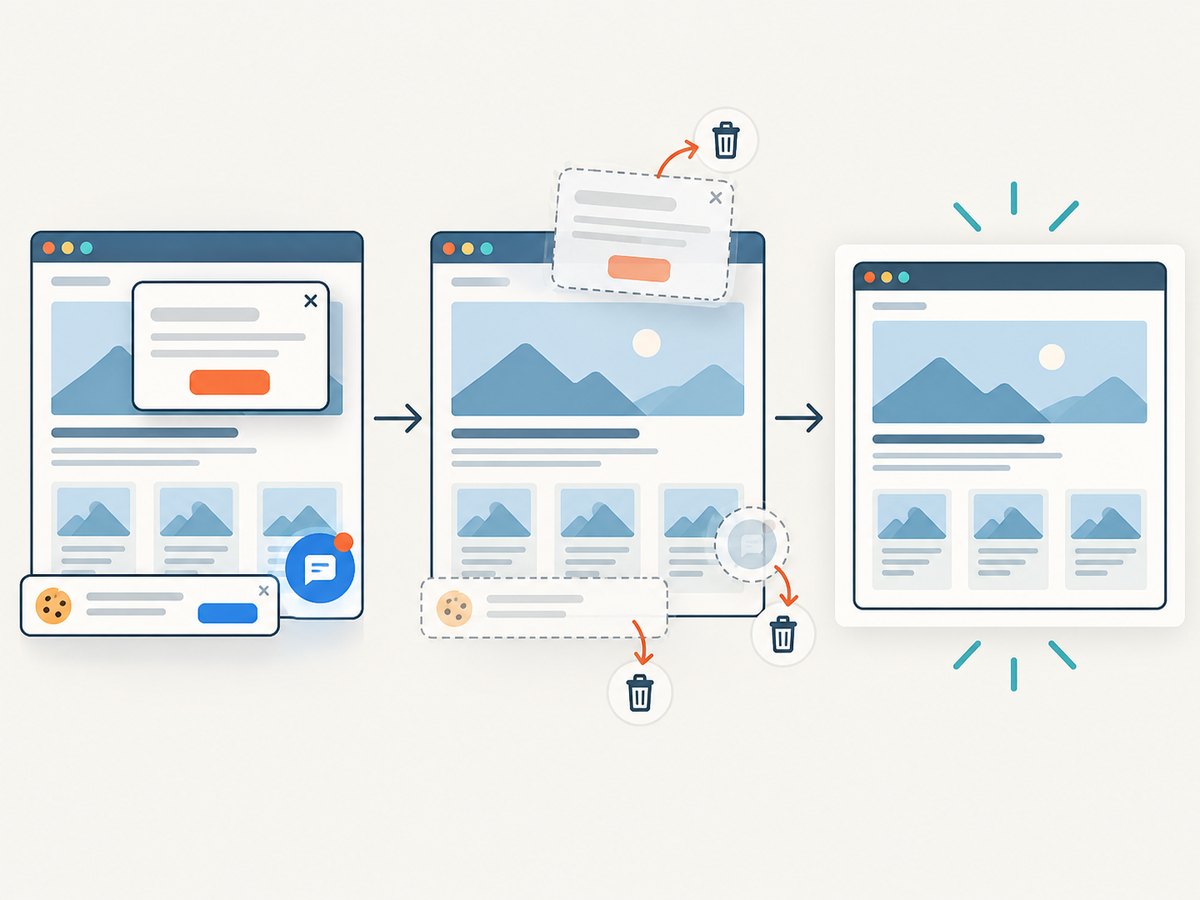
const res = await fetch(`https://api.screenshotneo.com/v1/shot?${q}`);Cookie banners, newsletter popups, and chat widgets are removed before the shot. Bot checks, blank pages, failed loads, timeouts, and cache hits are not billed, and response headers identify the page verdict and billing result. Its MCP server provides take_screenshot, get_page_info, and capture_pdf tools for Claude, Cursor, and other MCP clients. You get 1,000 screenshots a month free with no card; paid plans start at $5 for 3,000. Create a free ScreenshotNeo account.
12. Frequently asked questions
Can I automate any government filing portal?
No. The agency’s current terms and published integration routes decide. HMRC’s Government Gateway policy is an explicit example of a browser-automation prohibition.
Does Playwright make a filing legally valid?
No. It operates the browser. The agency defines valid submission, acceptance, and authorization.
Should I save a screenshot of the final page?
Save it when permitted, but prioritize the portal’s transaction ID, acknowledgment, receipt, and accepted or rejected status.
What if the portal changes its labels?
Use role and label locators, monitor failures, and update selectors from the portal’s current accessible interface. Keep a manual fallback for deadline-sensitive work.
Can ScreenshotNeo submit my filing?
No. It captures pages and PDFs. Use it for authorized documentation or visual checks, while submitting through the agency’s approved process.


