How to Position a Table of Contents in wkhtmltopdf
Put a wkhtmltopdf table of contents before or after your content, then customize headings, indentation, links, dots, and XSLT layouts.

Direct answer: wkhtmltopdf treats the table of contents as a document object. Objects appear in the PDF in the order supplied on the command line. Put toc before your page objects for a table of contents at the front, or after them for a table of contents at the end.
wkhtmltopdf toc input.html output.pdf

wkhtmltopdf cover cover.html toc input.html output.pdf

wkhtmltopdf input.html toc output.pdf
The first command creates a front TOC. The second creates a cover followed by a TOC and then the document; the cover is excluded from the TOC. The third puts the TOC after the document. This ordering rule is defined by the wkhtmltopdf command documentation.
How wkhtmltopdf builds and positions a TOC
A wkhtmltopdf command is a sequence of document objects. Typical objects are cover, toc, and one or more HTML page objects. The renderer writes them in the same order that they appear on the command line.
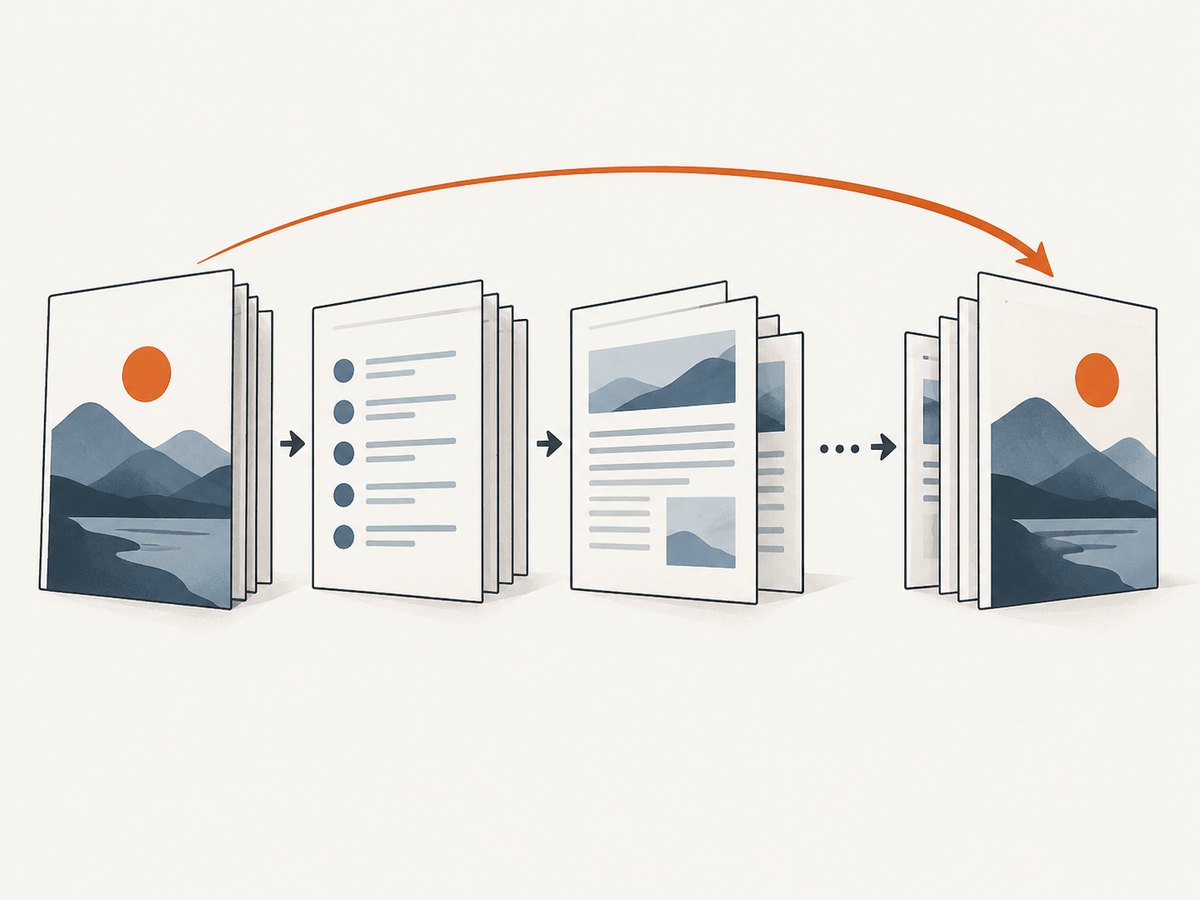
- Cover: a standalone HTML file used as front matter. It does not contribute entries to the generated TOC.
- TOC: a generated object based on heading tags in the page objects.
- Pages: one or more HTML files, URLs, or document objects containing the actual content.
For a normal report, use:
wkhtmltopdf toc report.html report.pdfFor a book with a cover:
wkhtmltopdf cover cover.html toc chapter-01.html chapter-02.html book.pdfFor a back-of-document contents page:
wkhtmltopdf chapter-01.html chapter-02.html toc book-with-back-toc.pdfUse heading elements (h1 through h6) to define entries and hierarchy. Paragraphs styled to look like headings are not included unless they use heading tags.
Complete command-line examples
Front TOC with one HTML file
<!doctype html>
<html>
<head>
  <meta charset="utf-8">
  <title>Operations guide</title>
</head>
<body>
  <h1>Operations guide</h1>
  <h2>Installation</h2>
  <h2>Configuration</h2>
  <h3>Environment variables</h3>
  <h2>Backups</h2>
</body>
</html>
wkhtmltopdf toc operations.html operations.pdfCover, front TOC, and multiple chapters
wkhtmltopdf \
  --page-size A4 \
  --margin-top 20mm \
  --margin-right 18mm \
  --margin-bottom 20mm \
  --margin-left 18mm \
  cover cover.html \
  toc \
  chapter-01.html chapter-02.html chapter-03.html \
  guide.pdf
The cover is a separate object, so it is not listed in the TOC. The chapter files are treated as one ordered document after the TOC.
TOC at the end
wkhtmltopdf \
  --page-size Letter \
  chapter-01.html chapter-02.html chapter-03.html \
  toc \
  guide-with-back-toc.pdf
A back TOC can be useful for a printed reference manual when readers want the index-like navigation after the content. It is still generated from headings in the page objects.
Per-TOC styling options
wkhtmltopdf \
  cover cover.html \
  toc \
    --toc-header-text "Contents" \
    --toc-level-indentation 1.5em \
    --disable-dotted-lines \
    --disable-toc-links \
    --toc-text-size-shrink 0.85 \
  input.html output.pdf
The TOC options shown here customize the generated default stylesheet. Keep object-specific options with the TOC object. Global options such as page size, orientation, and margins belong in the global option area, before the objects, as described in the command synopsis.
TOC options and what they change
| Option | Purpose | Typical use |
|---|---|---|
--toc-header-text <text> |
Changes the TOC heading. | Use Contents or a localized title. |
--toc-level-indentation <width> |
Sets indentation for each deeper heading level. | Try 1.5em for a visibly nested hierarchy. |
--disable-dotted-lines |
Removes leader dots between entry titles and page numbers. | Useful for a minimal layout. |
--disable-toc-links |
Removes links from TOC entries to their sections. | Use when the PDF must behave like a printed document. |
--toc-text-size-shrink <real> |
Scales text at each deeper level. | The default is 0.8; raise it when nested entries become too small. |
--outline-depth <level> |
Limits the PDF outline/bookmark depth. | Control sidebar bookmarks separately from the visual TOC. |
--outline-depth does not decide which visual TOC entries are printed. It controls the PDF outline. A document can show h1 through h4 in its TOC while exposing only two levels in the viewer’s bookmark panel.
Heading structure, outlines, and page links
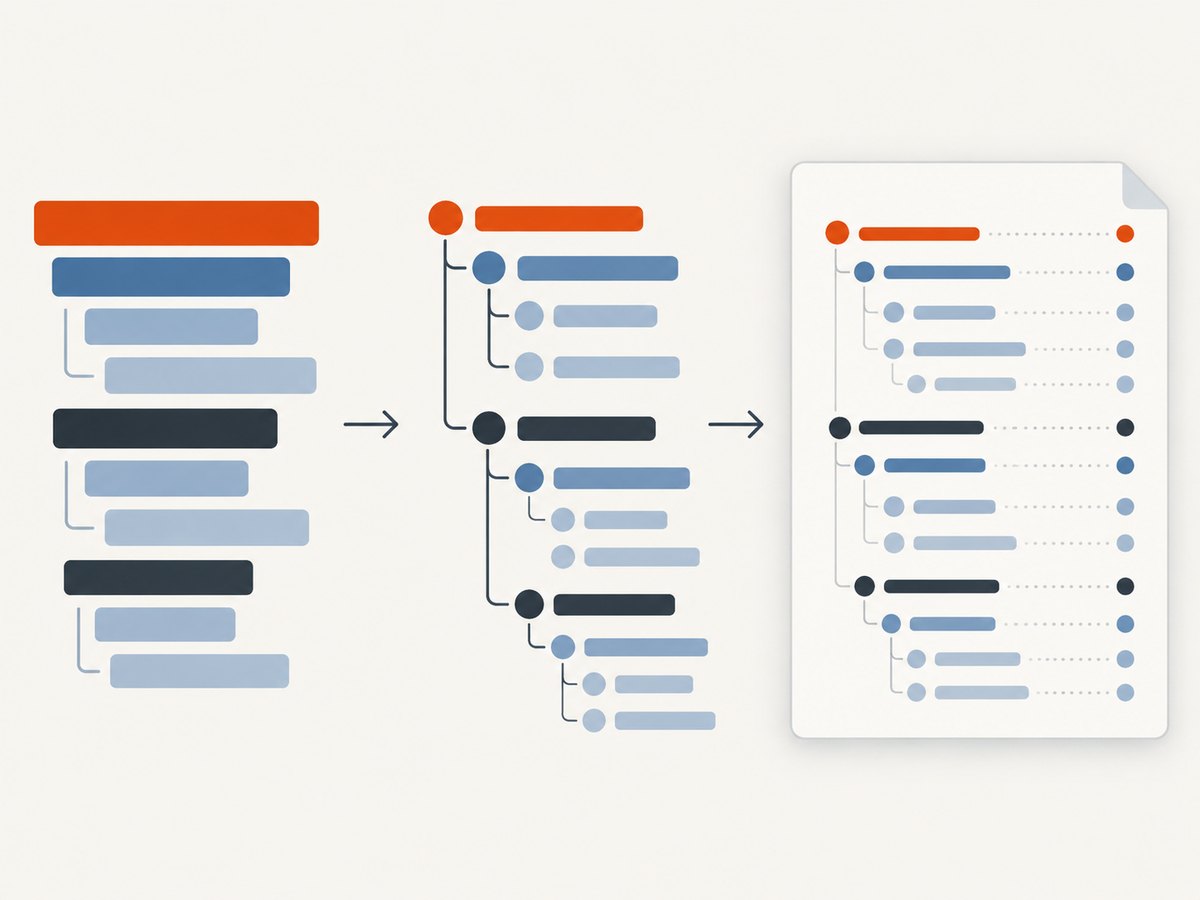
wkhtmltopdf generates the TOC from the outline created by heading tags. Start with a predictable hierarchy:
<h1>Product manual</h1>
  <h2>Getting started</h2>
    <h3>Prerequisites</h3>
    <h3>Installation</h3>
  <h2>Administration</h2>
Avoid jumping from h1 directly to h4 unless that is intentional. The generated indentation follows the outline levels, so irregular heading levels can produce surprising nesting. Keep heading text concise; long titles may wrap or collide with page numbers depending on page width and font size.
TOC links are forward links from an entry to its section. wkhtmltopdf can also create back links from a section to the TOC when supported by the selected stylesheet and object settings. Disable forward links with --disable-toc-links when you need a noninteractive PDF.
Custom layouts with XSLT
The default TOC stylesheet handles common changes, but a substantially different layout requires XSLT. wkhtmltopdf first creates an outline XML document, then transforms it into the TOC HTML. The outline namespace is http://wkhtmltopdf.org/outline. Each item can contain nested items and has attributes such as title, page, link, and backLink.
Inspect the detected outline
wkhtmltopdf --dump-outline outline.xml input.html /tmp/ignored.pdfOpen outline.xml and verify that every expected heading appears with the correct nesting and page number. This separates content problems from stylesheet problems.
Dump and edit the default stylesheet
wkhtmltopdf --dump-default-toc-xsl > toc.xslEdit the XSLT and its embedded CSS to change the heading placement, indentation, fonts, leader behavior, page-number alignment, or link markup. Then pass it to the TOC object:
wkhtmltopdf \
  cover cover.html \
  toc --xsl-style-sheet toc.xsl \
  input.html output.pdf
When a custom stylesheet is supplied, the default stylesheet flags do not apply to the custom presentation. For example, changing --toc-level-indentation will not override indentation rules written in your XSLT. Put the desired behavior in the stylesheet itself.
Minimal XSLT customization pattern
<xsl:stylesheet version="1.0"
  xmlns:xsl="http://www.w3.org/1999/XSL/Transform"
  xmlns:outline="http://wkhtmltopdf.org/outline">
  <xsl:output method="html" encoding="utf-8"/>
  <xsl:template match="/">
    <html>
      <head>
        <style>
          body { font-family: sans-serif; }
          .entry { margin: 0.35em 0; }
          .level-2 { margin-left: 1.5em; }
          .level-3 { margin-left: 3em; font-size: 90%; }
        </style>
      </head>
      <body>
        <h1>Contents</h1>
        <xsl:apply-templates select="outline:outline/item" mode="entry"/>
      </body>
    </html>
  </xsl:template>
  <xsl:template match="item" mode="entry">
    <div class="entry">
      <a href="#{@link}"><xsl:value-of select="@title"/></a>
      <xsl:text> </xsl:text>
      <xsl:value-of select="@page"/>
    </div>
    <xsl:apply-templates select="item" mode="entry"/>
  </xsl:template>
</xsl:stylesheet>
The exact default outline shape can vary by wkhtmltopdf build, so inspect the XML produced by your installed binary before relying on attribute names or nesting details. Preserve the outline namespace and test links after every stylesheet change.
Python and Node.js automation
The CLI is usually the simplest integration. These examples invoke the same command from application code.
Python
from pathlib import Path
import subprocess

cmd = [
    "wkhtmltopdf",
    "--page-size", "A4",
    "cover", "cover.html",
    "toc",
    "--toc-header-text", "Contents",
    "--toc-level-indentation", "1.5em",
    "chapter-01.html", "chapter-02.html",
    "book.pdf",
]
subprocess.run(cmd, check=True)
print(Path("book.pdf").resolve())
Node.js
import { spawn } from "node:child_process";

const args = [
  "--page-size", "A4",
  "cover", "cover.html",
  "toc",
  "--toc-header-text", "Contents",
  "--toc-level-indentation", "1.5em",
  "chapter-01.html", "chapter-02.html",
  "book.pdf"
];

const child = spawn("wkhtmltopdf", args, { stdio: "inherit" });
child.on("exit", code => {
  if (code !== 0) process.exit(code ?? 1);
});
Use argument arrays instead of a shell command string so filenames containing spaces are passed safely. Capture stderr in production and retain the wkhtmltopdf exit code.
When a curl request is relevant
wkhtmltopdf itself is a local executable, so curl does not position its TOC. Curl is useful when your HTML is hosted remotely and you want to download it before rendering:
curl -L --fail --silent --show-error \
  https://example.com/chapters.html \
  -o chapters.html
wkhtmltopdf toc chapters.html chapters.pdf
For authenticated pages, download with the required headers or cookies, then render the local copy. Be aware that downloading HTML first can remove assets loaded dynamically by JavaScript; render the original URL directly when the page depends on browser execution.
Or skip the browser setup
If your actual goal is a clean PDF or image of a web page rather than a locally assembled wkhtmltopdf document, ScreenshotNeo provides a hosted capture API. It accepts one GET request and can return PNG, JPEG, WebP, or PDF. The API can wait for selectors, delays, or network idle, load lazy images, apply custom CSS and JavaScript, set paper size, margins, orientation, and page ranges, and capture a specific element or a full page.
See the ScreenshotNeo API documentation for request options.
curl -G "https://api.screenshotneo.com/v1/shot" -d access_key=YOUR_API_KEY --data-urlencode url=https://stripe.com -o shot.webpimport requests
r = requests.get("https://api.screenshotneo.com/v1/shot", params={"access_key": "YOUR_API_KEY", "url": "https://stripe.com"}, timeout=90)
open("shot.webp", "wb").write(r.content)const q = new URLSearchParams({ access_key: 'YOUR_API_KEY', url: 'https://stripe.com' }); const res = await fetch(`https://api.screenshotneo.com/v1/shot?${q}`);Cookie banners, newsletter popups, and chat widgets are removed before the shot. Bot checks, blank pages, timeouts, failed loads, and cache hits are not billed, and response headers identify the page verdict and billing result. An MCP server lets Claude, Cursor, and other MCP clients call take_screenshot, get_page_info, and capture_pdf. The Free plan includes 1,000 screenshots per month with no card; paid plans start at $5 for 3,000.
Create a free ScreenshotNeo account and start with the 1,000 included screenshots.
Troubleshooting checklist
The TOC is in the wrong place
Check object order. cover cover.html toc input.html output.pdf puts the TOC after the cover. input.html toc output.pdf puts it at the end. Do not put toc inside an input HTML file; it is a command-line object.
The TOC is empty
Confirm that the source uses real h1–h6 elements. Run --dump-outline and inspect the result. If the outline is empty, fix the HTML structure, the URL being rendered, or JavaScript timing before changing TOC CSS.
Headings have the wrong nesting
Repair skipped or misordered heading levels. Use one logical hierarchy and avoid using headings only for visual font size. Adjust visual appearance with CSS instead.
Flags do nothing
Check whether --xsl-style-sheet is active. Default TOC flags affect the default stylesheet; a custom XSLT must contain its own title, indentation, leader, and link rules.
Page numbers or entries are clipped
Increase page margins, choose a wider page size, reduce TOC text size, or shorten headings. Check orientation and paper size in the global options. Long unbroken titles are especially likely to overflow.
Links do not work
Make sure links are enabled, the document is opened in a PDF viewer that supports internal destinations, and your custom XSLT preserves the generated link and backlink attributes. Use --disable-toc-links only when you intentionally want a noninteractive TOC.
The binary behaves differently on another machine
Record wkhtmltopdf --version in build logs. TOC behavior depends on the installed build and its patched Qt support. Keep the renderer version consistent in local, CI, and production environments.
Performance, reliability, and cost considerations
TOC generation adds an outline pass and a rendered TOC page, but the largest cost is usually loading and printing the source pages. Reduce unnecessary remote assets, use local files when appropriate, and avoid rendering the same large document repeatedly when a cached PDF is acceptable.
For reliable builds, pin the wkhtmltopdf version, use deterministic fonts and assets, set explicit page size and margins, and fail the job when the process exits nonzero. Validate the generated PDF in CI by checking that it exists, has a nonzero size, and contains expected heading text. If content is JavaScript-generated, give it enough load time or render a prebuilt HTML snapshot.
With a local binary, you pay for your own compute and maintenance. A hosted capture service trades that setup for API usage. ScreenshotNeo bills only clean shots; failed loads, bot checks, blank pages, timeouts, and cache hits cost nothing. Its caching TTL, bulk capture, asynchronous jobs, signed webhooks, and usage API can help control repeated-render cost at scale.
Short FAQ
Can I put the TOC after a cover but before chapters?
Yes. Use cover cover.html toc chapter-01.html ... output.pdf. The cover is excluded from the generated entries.
Can I place the TOC between two chapter files?
Yes. Objects are emitted in command-line order, so place toc between the page objects. The TOC still reflects the outline detected from the document objects.
Does --outline-depth limit visible TOC entries?
No. It limits PDF bookmark depth. Visual TOC content is controlled by headings and the TOC stylesheet.
Can CSS alone move the generated TOC?
No. CSS styles the generated TOC. Its position is determined by the object order; use XSLT for custom markup and styling.
What should I inspect first when results differ between builds?
Run wkhtmltopdf --version, dump the outline, and compare the exact command and input HTML. Renderer version, heading structure, and object order account for most differences.


