How to Capture a Precise Web Page Screenshot with JavaScript
Capture exact viewport, element, or full-page screenshots in JavaScript with Playwright or Puppeteer, plus stability fixes and an API shortcut.
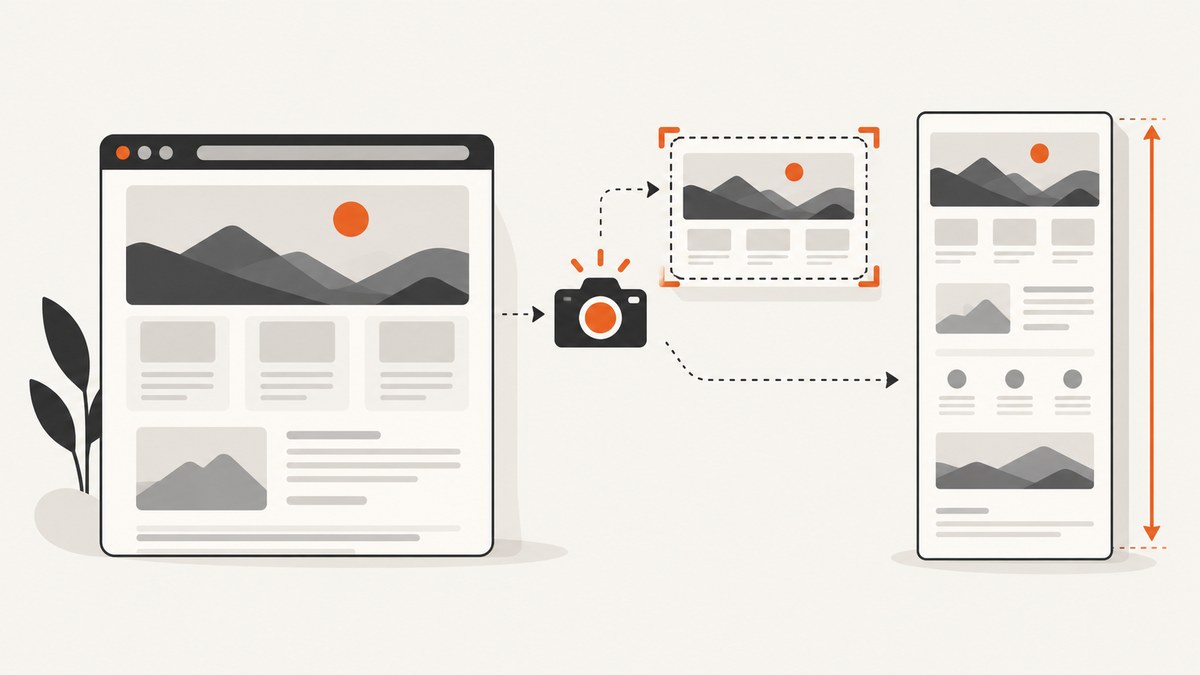
Use a real browser automation library such as Playwright or Puppeteer. Render the page, choose whether you need the viewport, one element, a clipped region, or the full scrollable page, then stabilize the content before calling the screenshot API. The Screen Capture API is for interactive tab, window, or display selection and is a different workflow.
1. Capture a page with Playwright
Install Playwright and its Chromium browser:
npm install playwright
npx playwright install chromium
Save this as screenshot.mjs and run node screenshot.mjs:
import { chromium } from 'playwright';

const browser = await chromium.launch();
const context = await browser.newContext({
  viewport: { width: 1440, height: 1000 },
  deviceScaleFactor: 1,
  colorScheme: 'light',
  timezoneId: 'UTC'
});
const page = await context.newPage();

await page.goto('https://example.com', { waitUntil: 'domcontentloaded' });
await page.locator('main').waitFor();
await page.screenshot({ path: 'page.png', fullPage: true, scale: 'css' });

await browser.close();
Replace main with a selector or application state that means the content is ready. domcontentloaded only indicates that the initial document was parsed; fonts, images, animations, and client-side data may still be loading. Playwright’s screenshot documentation covers the core API and options: Screenshots.
2. Choose the screenshot scope
Viewport
await page.screenshot({ path: 'viewport.png', scale: 'css' });This captures what is visible in the current viewport. Set the viewport and device scale factor before navigation so responsive breakpoints are deterministic.

One element
const card = page.locator('[data-testid="pricing-card"]');
await card.waitFor();
await card.screenshot({ path: 'card.png', animations: 'disabled' });
Use an element screenshot for a component, chart, invoice, or other bounded object. A full-page screenshot cannot be combined with an element target.
Full scrollable page
await page.screenshot({ path: 'full-page.png', fullPage: true, scale: 'css' });Full-page mode captures the complete scrollable document, as if the page fit on a very tall screen.
Clipped region
await page.screenshot({
  path: 'region.png',
  clip: { x: 80, y: 120, width: 900, height: 500 },
  scale: 'css'
});
Use a clip for a fixed rectangle in viewport CSS pixels.
3. Control output size and format
| Requirement | Setting | Use |
|---|---|---|
| CSS-pixel output | scale: 'css' |
Predictable dimensions for web layouts. |
| Device-pixel detail | scale: 'device' |
Higher-density output; larger files. |
| PNG | type: 'png' |
Lossless output. |
| JPEG | type: 'jpeg', quality: 80 |
Smaller lossy images. |
| WebP | type: 'webp', quality: 80 |
Compact modern images where supported. |
| Transparent background | omitBackground: true |
Useful for isolated elements. |
await page.screenshot({
  path: 'hero.jpg',
  type: 'jpeg',
  quality: 85,
  clip: { x: 0, y: 0, width: 1200, height: 630 },
  scale: 'css'
});
4. Stabilize the page before capture
Precise screenshots require a repeatable visual state. Wait for meaningful content, load fonts, disable motion, and remove transient UI that you control.

await page.goto('https://example.com/dashboard', { waitUntil: 'domcontentloaded' });
await page.locator('[data-ready="true"]').waitFor();
await page.evaluate(() => document.fonts.ready);
await page.addStyleTag({ content: `
  *, *::before, *::after {
    animation: none !important;
    transition: none !important;
    caret-color: transparent !important;
  }
` });
await page.locator('.cookie-banner').evaluate(el => el.remove());
await page.screenshot({ path: 'stable.png', fullPage: true, scale: 'css' });
For visual regression tests, Playwright supports disabling animations, hiding the caret, masking dynamic elements, and applying a stylesheet:
await expect(page).toHaveScreenshot('dashboard.png', {
  fullPage: true,
  animations: 'disabled',
  caret: 'hide',
  mask: [page.locator('[data-dynamic]')],
  stylePath: './visual-reset.css'
});
Mask clocks, rotating ads, random avatars, and other changing pixels. Set locale, timezone, color scheme, viewport, and test data explicitly when they affect layout.
5. Puppeteer equivalent
npm install puppeteerimport puppeteer from 'puppeteer';
const browser = await puppeteer.launch();
const page = await browser.newPage();
await page.setViewport({ width: 1440, height: 1000, deviceScaleFactor: 1 });
await page.goto('https://example.com', { waitUntil: 'domcontentloaded' });
await page.waitForSelector('main');
await page.screenshot({ path: 'page.png', fullPage: true, type: 'png' });
await browser.close();Puppeteer’s page.screenshot() supports fullPage, clip, omitBackground, type, quality, and path. See the ScreenshotOptions API.
6. Useful production patterns
Return image bytes
const bytes = await page.screenshot({ type: 'png' });
await fetch('https://storage.example/upload', {
  method: 'PUT',
  headers: { 'content-type': 'image/png' },
  body: bytes
});
Capture after an interaction
await page.getByRole('button', { name: 'Show details' }).click();
await page.locator('#details-panel').waitFor();
await page.screenshot({ path: 'details.png' });
Authenticated pages
await context.addCookies([
  { name: 'session', value: process.env.SESSION, domain: 'example.com', path: '/' }
]);
await page.goto('https://example.com/account');
Keep cookies and authorization values in environment variables or a secret manager. Do not log them.
7. Screen Capture API versus browser automation
navigator.mediaDevices.getDisplayMedia() asks a user to select a tab, window, or display. It requires a user gesture, permission, and usually a secure context. It is not suitable for unattended URL screenshots.
document.querySelector('#share').addEventListener('click', async () => {
  const stream = await navigator.mediaDevices.getDisplayMedia({ video: true });
  const video = document.createElement('video');
  video.srcObject = stream;
  await video.play();
  const canvas = document.createElement('canvas');
  canvas.width = video.videoWidth;
  canvas.height = video.videoHeight;
  canvas.getContext('2d').drawImage(video, 0, 0);
  canvas.toBlob(blob => upload(blob), 'image/png');
  stream.getTracks().forEach(track => track.stop());
});
See MDN’s getDisplayMedia() documentation.
8. Limits, performance, reliability, and cost
- Very tall pages: Browser and device bitmap limits apply. MDN documents a 4096 × 4096 canvas limit on iOS devices. Split long pages, reduce scale, or use a PDF workflow when one bitmap is too large.
- Readiness: Prefer selectors and application events over arbitrary sleeps. A bounded timeout prevents a broken page from occupying a worker indefinitely.
- Browser lifecycle: Reuse a browser process for batches, isolate jobs in contexts, and close pages and contexts in a
finallyblock. - Retries: Retry navigation failures with backoff, but avoid repeating actions that mutate state.
- File size: Use CSS scale, a clip, JPEG, or WebP when consumers do not need full device-pixel detail.
- Self-hosted cost: Account for compute, browser storage, bandwidth, and maintenance in your own deployment.
9. Troubleshooting
| Symptom | Cause | Fix |
|---|---|---|
| Blank or partial image | Capture ran before application content or fonts loaded. | Wait for a meaningful selector, document.fonts.ready, and the page’s ready state. |
| Cookie banner or chat covers content | Transient UI remains in the DOM. | Dismiss it through the UI or remove the selector before capture. |
| Full page is too short | Lazy content has not loaded or content is inside an inner scroll container. | Scroll the relevant container, wait for images, or capture that container. |
| Element wait times out | Selector is wrong, hidden, or inside an iframe. | Verify the selector, wait for visibility, or use frameLocator(). |
| Fonts or layout vary | Different fonts, locale, timezone, or viewport. | Install the same fonts and set rendering parameters explicitly. |
| Animation causes pixel differences | Capture happens at a different animation frame. | Disable animations and transitions; mask clocks and rotating content. |
| Navigation hangs | A third-party request or service worker never settles. | Use a bounded timeout and wait for a selector instead of network idle. |
| Out-of-memory or encoding error | Bitmap dimensions are too large. | Lower scale, clip or split the page, use JPEG/WebP, or create a PDF. |
getDisplayMedia fails |
No user gesture, permission, or secure context. | Call it from a user action over HTTPS and handle cancellation. |
10. Or skip the browser setup
ScreenshotNeo is a website screenshot API and MCP server. It returns PNG, JPEG, WebP, or PDF from one GET request. Its options include full-page and CSS-element capture, device presets and custom viewports, retina scale, waits, custom CSS and JavaScript, headers, cookies, user agents, geolocation, request blocking, caching, async jobs, webhooks, bulk capture, and a usage API. Read the ScreenshotNeo API docs.
curl -G "https://api.screenshotneo.com/v1/shot" -d access_key=YOUR_API_KEY --data-urlencode url=https://example.com -o shot.webpimport requests
r = requests.get("https://api.screenshotneo.com/v1/shot", params={"access_key": "YOUR_API_KEY", "url": "https://example.com"}, timeout=90)
r.raise_for_status()
open("shot.webp", "wb").write(r.content)const q = new URLSearchParams({ access_key: 'YOUR_API_KEY', url: 'https://example.com' });
const res = await fetch(`https://api.screenshotneo.com/v1/shot?${q}`);
if (!res.ok) throw new Error(`Screenshot failed: ${res.status}`);
const fs = await import('node:fs/promises');
await fs.writeFile('shot.webp', Buffer.from(await res.arrayBuffer()));Cookie banners, newsletter popups, and chat widgets are removed before the shot. Bot checks, blank pages, failed loads, timeouts, and cache hits are never billed, and response headers identify the page verdict and billing. Its MCP server lets Claude, Cursor, and other MCP clients call take_screenshot, get_page_info, and capture_pdf. The Free plan includes 1,000 screenshots a month with no card; paid plans start at $5 for 3,000. Create a free ScreenshotNeo account.
11. FAQ
Should I choose Playwright or Puppeteer?
Use the framework already used by your project, then compare the exact scope, clipping, format, transparency, and repeatability controls you need.
Can JavaScript create an unlimited full-page bitmap?
No. Browser and device image limits apply. Split very tall pages or use a PDF.
Does network idle prove that a page is ready?
No. Fonts, lazy images, animations, and client-side updates can continue. Wait for application-specific state.
Can I capture a tab without automation?
Yes, with getDisplayMedia(), but a user must select and approve the display surface.


