How to Preserve Anchor Links in DOCX Conversions
Keep internal links working in DOCX by preserving bookmarks, hyperlink targets, and relationships, then validate the converted Word package.
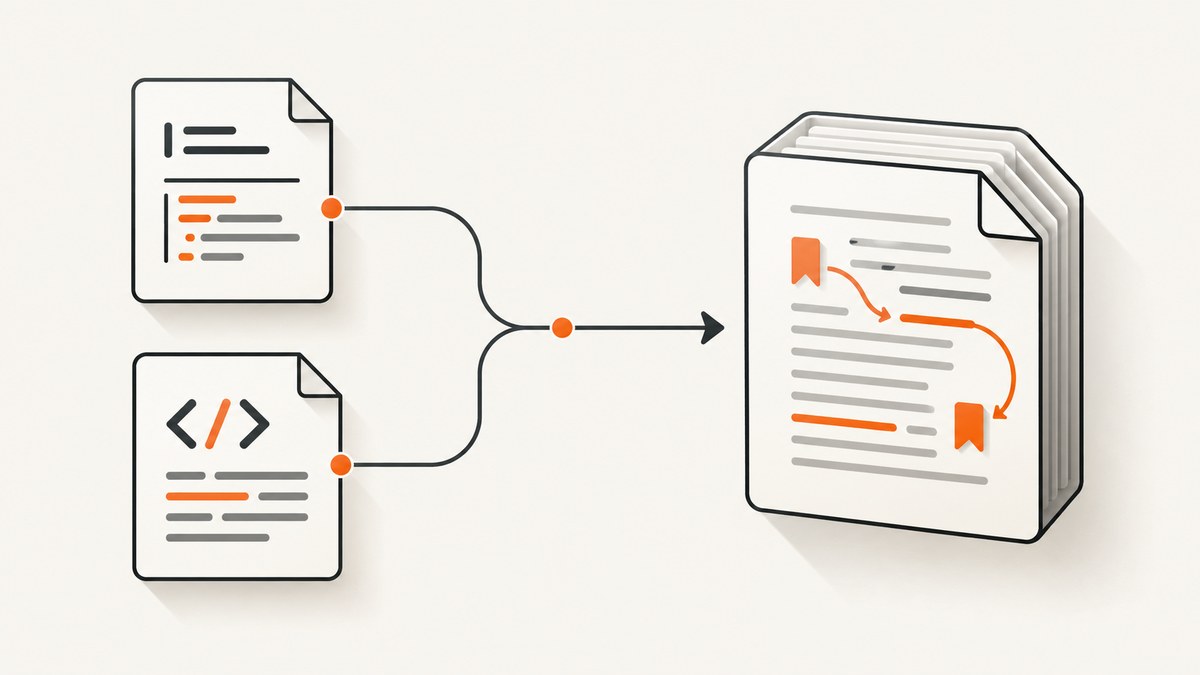
To preserve anchor links in a DOCX conversion, keep both sides of every internal hyperlink: the hyperlink target and the destination heading or named bookmark. A converter that retains the visible link text but drops the bookmark range or changes its name has broken the navigation contract.
The reliable workflow is:
- Create stable, unique destinations in the source document.
- Use a converter that produces valid WordprocessingML and supports bookmarks.
- Carry bookmark names, IDs, and hyperlink anchors into the DOCX package.
- Open the result in Word, test representative links, save, reopen, and test again.
- When a link fails, inspect
word/document.xmlinside the DOCX ZIP package.
How anchor links map to DOCX
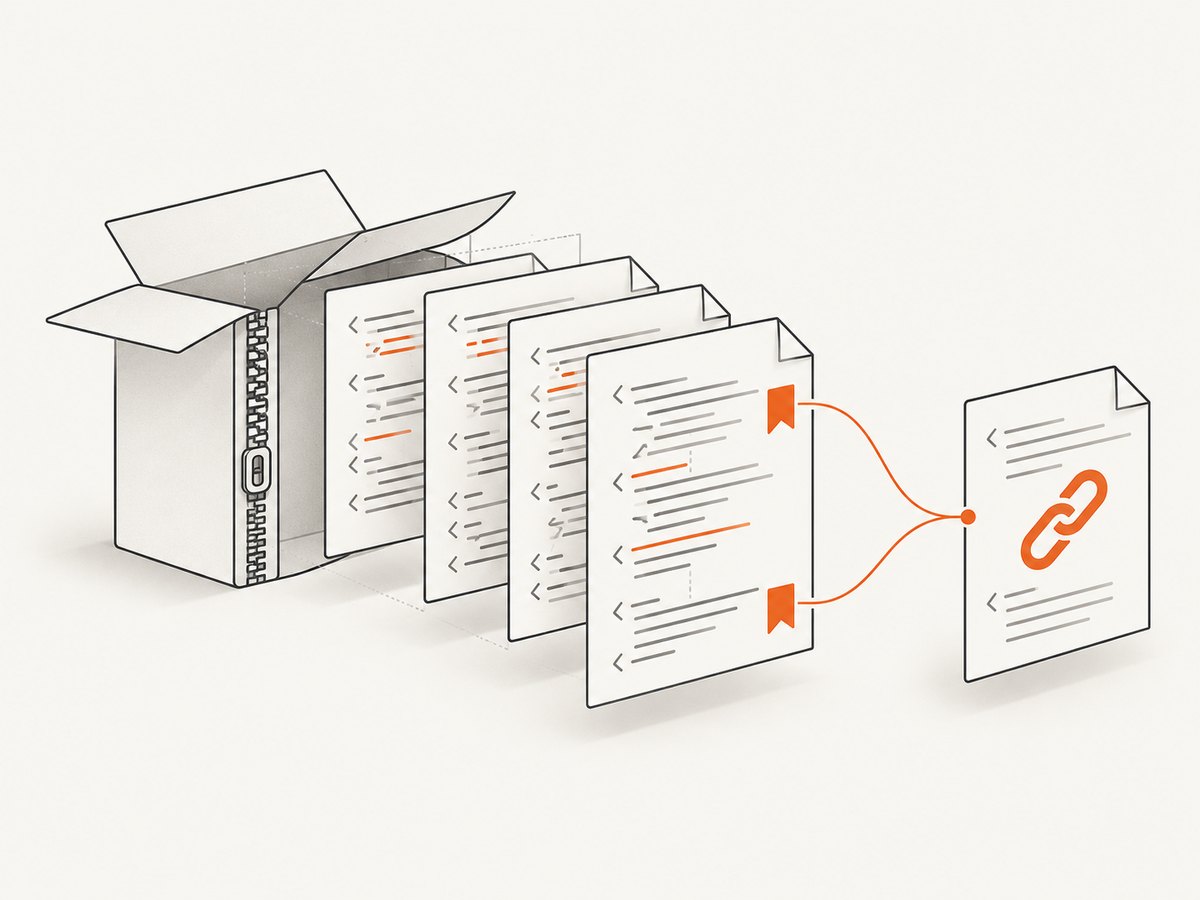
A DOCX file is a ZIP archive containing WordprocessingML parts. The main document is normally word/document.xml. A bookmark destination is represented by a paired w:bookmarkStart and w:bookmarkEnd element. The start element carries a bookmark name and an ID; the end element closes the range. Microsoft examples also show an internal _GoBack bookmark that Word may add automatically.
An internal hyperlink points to that destination. Depending on how it was generated, Word may store the target as an anchor name on a hyperlink element, while external links use a relationship in word/_rels/document.xml.rels. Internal links should continue to refer to an anchor in the document rather than being rewritten as accidental external relationships.
Headings and named bookmarks serve different purposes:
| Destination | Best use | Risk during conversion |
|---|---|---|
| Heading style | Generated navigation and table of contents | Renaming or flattening the heading can remove the destination. |
| Named bookmark | Stable API-like identifier independent of visible wording | Duplicate, illegal, or renamed bookmark names break links. |
| Generated table-of-contents entry | Navigation generated by Word fields | Fields may need updating and should not be the only validation target. |
Create stable targets before conversion
Give important destinations explicit identifiers in the source format. Names should be unique, short, and legal for Word bookmarks. Avoid relying only on text such as “API: v2 / Overview”; punctuation and automatic slugging rules vary between converters. A stable name such as api_v2_overview can remain unchanged even when the displayed heading is edited.
For Markdown, keep a predictable mapping between heading IDs and bookmark names in the conversion layer. For HTML, retain the id on the destination element and configure the DOCX converter to map IDs to bookmarks. If your tool cannot perform that mapping, add bookmarks in a post-processing step with an Open XML library rather than accepting a document with unconnected links.
Source checklist
- Every important destination has one unique name.
- Names contain only characters accepted by your converter and Word.
- Each internal link uses the exact destination name, including case where the converter is case-sensitive.
- Links are tested in headings, body paragraphs, tables, notes, and generated navigation.
- Source files retain enough structure for the converter to identify destinations.
Choose a format-aware conversion path
Use a converter that writes proper Open XML instead of first flattening the source to plain text. Pandoc’s documentation describes DOCX output as an appropriate OpenXML format and supports a reference DOCX for styles and document controls. A reference file can also help you standardize heading styles, but it does not automatically repair missing bookmarks; verify the generated package.
Keep conversion repeatable in CI. Pin the converter version, store the reference template with the source, and make bookmark validation a build step. If you use a library such as python-docx, remember that its internal-link behavior depends on bookmark markup and the anchor name. A link that merely displays underlined text is not proof that the destination exists.
Minimal Pandoc conversion
pandoc guide.md \
  --from markdown \
  --to docx \
  --reference-doc=reference.docx \
  --output guide.docx
The command is only the conversion stage. Your source must contain destinations that the chosen Pandoc version and any filters preserve. If stable named bookmarks are mandatory, inspect the output and add or repair them with an Open XML step.
Inspect the DOCX package directly
Because DOCX is a ZIP package, you can inspect it without Word. This catches missing bookmark ranges, duplicate names, and malformed relationships in automated builds.
mkdir -p unpacked-docx
unzip -q guide.docx -d unpacked-docx
rg "bookmark(Start|End)|hyperlink" unpacked-docx/word/document.xml
rg "Target=|Id=" unpacked-docx/word/_rels/document.xml.rels
For a valid bookmark, look for a start and end element with the same numeric ID and a meaningful name on the start element. A simple Python check can list starts and ends:
from zipfile import ZipFile
from lxml import etree

NS = {"w": "http://schemas.openxmlformats.org/wordprocessingml/2006/main"}
with ZipFile("guide.docx") as package:
    xml = package.read("word/document.xml")
root = etree.fromstring(xml)
starts = {
    node.get("{%s}id" % NS["w"]): node.get("{%s}name" % NS["w"])
    for node in root.xpath(".//w:bookmarkStart", namespaces=NS)
}
ends = {
    node.get("{%s}id" % NS["w"])
    for node in root.xpath(".//w:bookmarkEnd", namespaces=NS)
}
for bookmark_id, name in starts.items():
    print(name, "closed" if bookmark_id in ends else "MISSING END")
Internal hyperlinks should have an anchor that matches one of the bookmark names. External hyperlinks should have a relationship ID whose target appears in document.xml.rels. Do not assume every w:hyperlink needs a relationship: internal and external links are represented differently.
Validate in Microsoft Word
- Open the converted file in Word.
- Use the navigation pane to confirm heading structure.
- Open Word’s bookmark dialog and check that named destinations exist. Word displays a list of existing bookmarks.
- Activate links from the table of contents, body cross-references, and any links inside tables.
- Save, close, and reopen the document, then repeat the representative checks.
Test both destinations and return paths. A link can appear to work until Word updates fields, accepts tracked changes, or rewrites the package on save.
Edge cases that commonly break links
Punctuation and duplicate names
Converters may normalize punctuation differently. Two headings can also produce the same generated slug. Assign explicit names and fail the build on duplicates.
Bookmarks spanning multiple runs
Formatting, fields, and tracked changes can split one visible heading into several runs. The bookmark range must still begin before the intended text and end after it. Inspect the XML rather than relying on visual appearance.
Tables and nested structures
Links inside table cells are valid Word content, but some conversion paths mishandle destinations located in tables or immediately before them. Include table links in your test fixture.
Tracked changes
Revision markup can move or hide bookmark boundaries. Accept or reject changes in a copy and retest. Keep the clean publishing build separate from an editorial revision file.
Generated tables of contents
A table of contents may be a field whose hyperlinks are generated later by Word. Update the field, then test links to headings independently so a working TOC does not conceal broken body links.
Viewer differences
Word, Word for the web, LibreOffice, and embedded document viewers do not implement every bookmark behavior identically. Validate in the viewer your readers actually use.
Troubleshooting
| Symptom | Likely cause | Fix |
|---|---|---|
| Link text remains, but clicking does nothing | The destination bookmark was dropped or renamed. | Compare the hyperlink anchor with bookmark names in document.xml; restore the matching pair. |
| Word reports an invalid bookmark | Duplicate names, a missing end element, or malformed XML. | Check start/end IDs, remove duplicates, and validate the package after every post-processing step. |
| Only links to some headings fail | Punctuation, duplicate generated IDs, table placement, or tracked changes. | Compare a working and failing target and assign an explicit stable name. |
| Links work before saving but fail after reopening | Word rewrote malformed or incomplete markup. | Inspect the saved file, fix the generator, and retest the save/reopen cycle. |
| Links work in Word but not another viewer | Viewer support differs for bookmarks or internal anchors. | Test the delivery viewer and provide a compatible navigation fallback such as a visible contents list. |
| External links became internal or vice versa | Relationship or anchor attributes were confused. | Check document.xml.rels and ensure internal targets use bookmark anchors. |
Automate regression checks
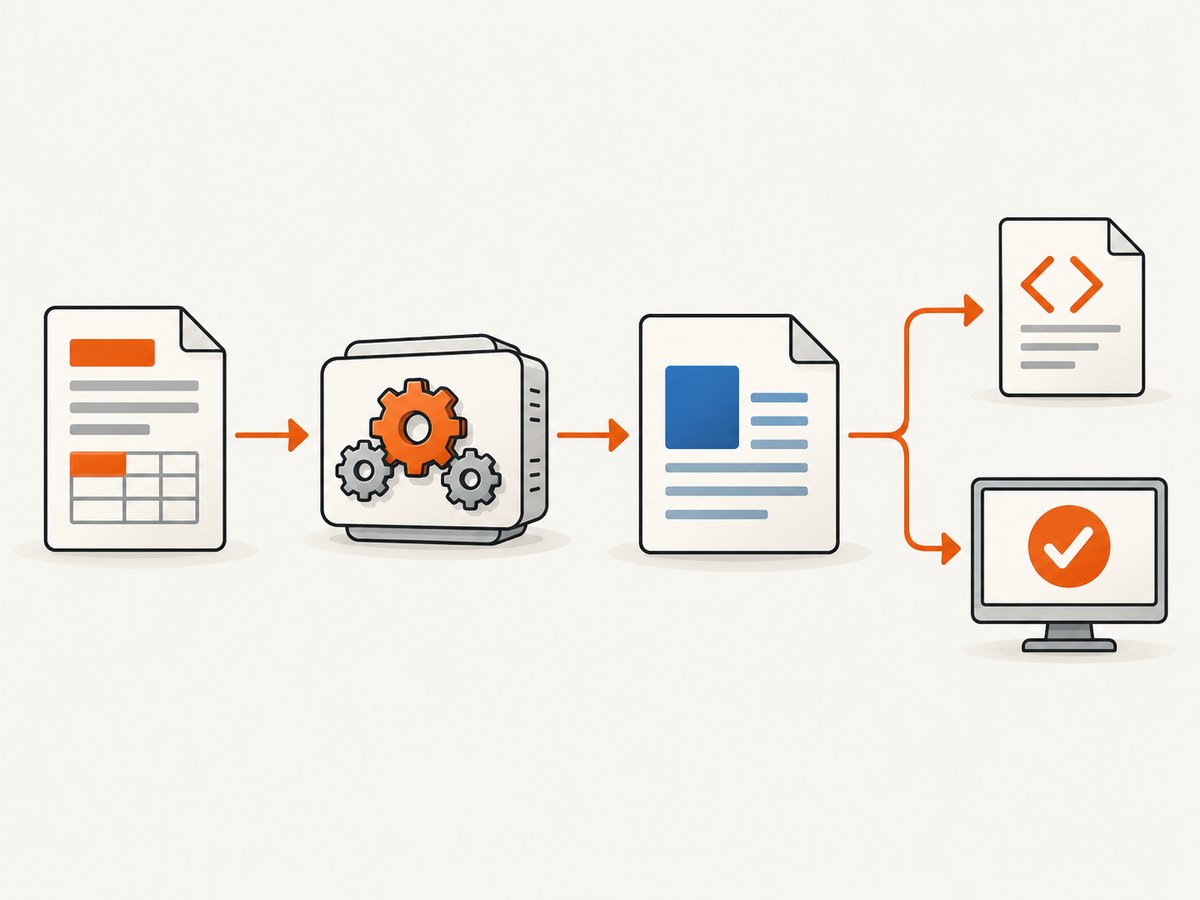
Keep a small fixture document containing headings with punctuation, named bookmarks, links inside tables, multi-run destinations, tracked edits, and a generated TOC. Convert it on every build and run three checks:
- Every bookmark start has a matching end ID.
- Every internal hyperlink anchor resolves to a bookmark name.
- Representative links open correctly in the target viewer after save and reopen.
XML checks catch structural regressions quickly; viewer tests catch behavior differences that XML alone cannot predict. Record converter versions and known limitations alongside the build artifacts.
Or skip the browser setup
ScreenshotNeo is useful when your documentation workflow also needs rendered web evidence, such as capturing a published HTML page that describes the converted DOCX. It is a website screenshot API, not a DOCX converter. One GET request returns a PNG, JPEG, WebP, or PDF. Cookie and consent banners, newsletter popups, and chat widgets are removed before capture; bot checks, blank pages, failed loads, timeouts, and cache hits are not billed. Responses identify the page verdict and billing status with X-Page-Verdict and X-Billed headers. Its MCP server provides take_screenshot, get_page_info, and capture_pdf for AI agents.
See the ScreenshotNeo documentation for all options. A basic capture is:
curl -G "https://api.screenshotneo.com/v1/shot" -d access_key=YOUR_API_KEY --data-urlencode url=https://stripe.com -o shot.webpimport requests
r = requests.get("https://api.screenshotneo.com/v1/shot", params={"access_key": "YOUR_API_KEY", "url": "https://stripe.com"}, timeout=90)
open("shot.webp", "wb").write(r.content)const q = new URLSearchParams({ access_key: 'YOUR_API_KEY', url: 'https://stripe.com' });
const res = await fetch(`https://api.screenshotneo.com/v1/shot?${q}`);You can also set a viewport or device preset, capture a CSS-selected element, wait for a selector or network idle, apply custom CSS or JavaScript, block resources, provide headers or cookies, choose dark mode, request a PDF, cache with a chosen TTL, submit asynchronous jobs with signed webhooks, capture up to 100 URLs in one call, and read usage through the API. Every feature is available on every plan. The Free plan includes 1,000 screenshots per month with no card; paid plans start at $5 for 3,000.
Create a free ScreenshotNeo account and use it to produce clean, repeatable captures of your published documentation.
Performance, reliability, and cost considerations
- Conversion time: Large documents, images, fields, and tracked changes increase processing time. Keep fixtures small for CI and run full publishing conversions separately.
- Reliability: Pin converter versions, preserve the reference DOCX, and validate after every transformation. A successful process exit does not prove that anchors survived.
- Cost: XML inspection is inexpensive and can run on every commit. Viewer tests are slower, so reserve a representative matrix for release builds.
- Reproducibility: Store source, template, converter version, filters, and validation output together so a broken bookmark can be traced to one change.
FAQ
Are heading links and named bookmarks the same?
No. A heading can provide generated navigation, while a named bookmark gives you a stable identifier that can remain unchanged when the visible heading is edited.
Can I fix links by editing only the visible text?
No. The hyperlink target and destination bookmark must match in the package XML.
Should every paragraph receive a bookmark?
No. Bookmark important navigation targets and cross-reference destinations; excessive bookmarks make maintenance harder.
Is a valid DOCX ZIP enough to guarantee working links?
No. The package can be structurally valid while an anchor points to a missing name or behaves differently in the target viewer.
What is the fastest diagnostic?
Unzip the file, list bookmark starts and ends, and compare internal hyperlink anchors with bookmark names before opening Word.


