How to Preserve Background Colors in Puppeteer PDFs
Set `printBackground: true` to include CSS backgrounds in Puppeteer PDFs. Learn how print and screen media, exact color adjustment, and page readiness affect the result.

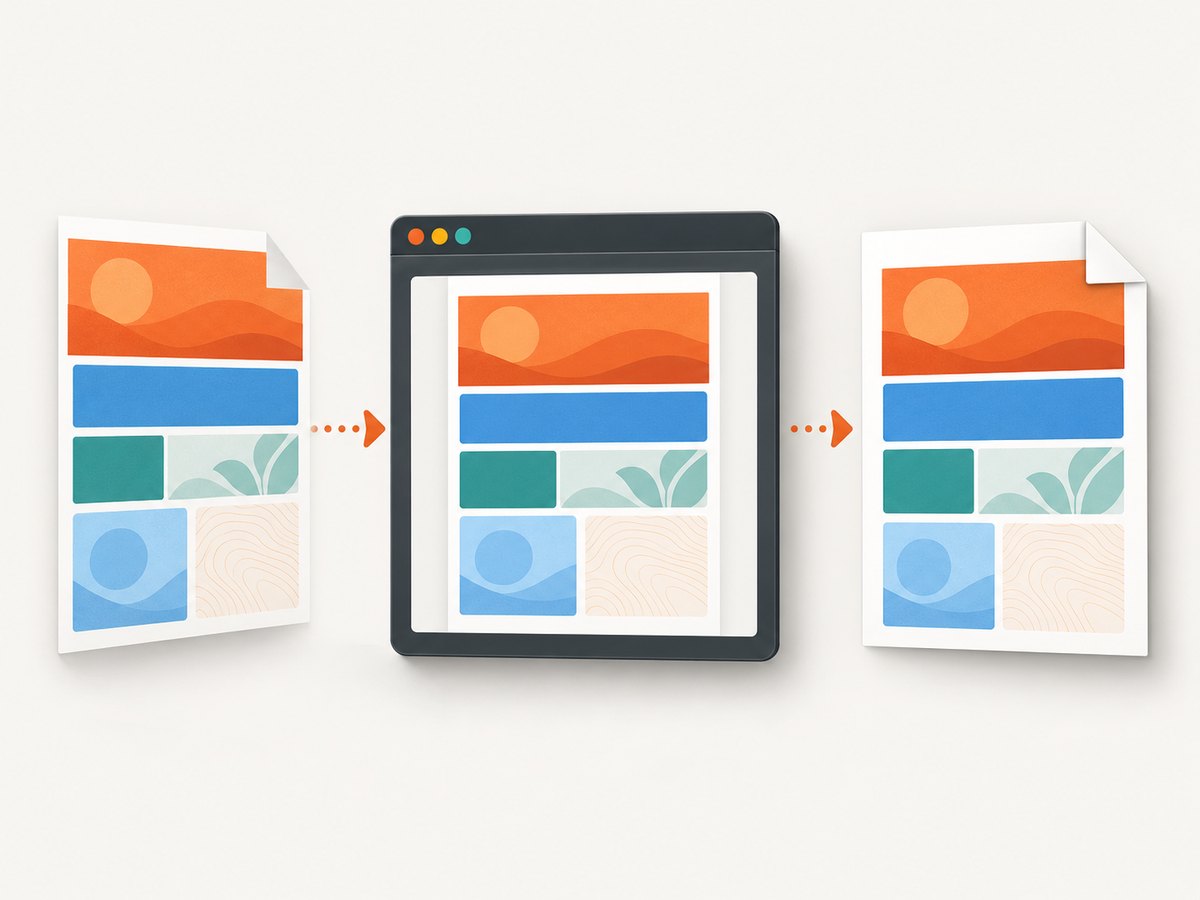
To include CSS background colors and images in a Puppeteer PDF, pass printBackground: true to page.pdf(). Puppeteer defaults this option to false, so backgrounds are omitted unless you opt in. For closer color fidelity, also apply -webkit-print-color-adjust: exact in your page’s CSS. page.pdf() uses print media by default; emulate screen media only if you specifically want screen styles in the output. See Puppeteer’s PDFOptions reference and Page.pdf() reference.
1. The minimal fix
Add printBackground: true to your existing PDF call:
await page.pdf({
  path: 'output.pdf',
  printBackground: true,
});
This tells Chromium to include background graphics, including CSS background colors and images. It does not change the page’s media type, wait for application data, or guarantee identical screen and PDF colors. Those are separate concerns.
If backgrounds still look faded or their colors differ from the browser, add the print color adjustment rule:
html {
  -webkit-print-color-adjust: exact;
}
The CSS rule controls color adjustment for printing. It does not replace printBackground: true. When both background graphics and exact colors matter, use both.
2. Complete runnable Puppeteer example
This Node.js example opens a page, waits for navigation, applies print color handling, writes a PDF, and closes Chromium even if capture fails. Install Puppeteer in your project with npm install puppeteer. Save the code as pdf.js and run node pdf.js.
const puppeteer = require('puppeteer');

async function main() {
  const browser = await puppeteer.launch({ headless: true });
  try {
    const page = await browser.newPage();
    await page.goto('https://example.com', {
      waitUntil: 'networkidle2',
      timeout: 60_000,
    });

    // Make print color handling explicit. This CSS rule affects print rendering.
    await page.addStyleTag({
      content: 'html { -webkit-print-color-adjust: exact; }',
    });

    await page.pdf({
      path: 'output.pdf',
      format: 'A4',
      printBackground: true,
      preferCSSPageSize: true,
    });
  } finally {
    await browser.close();
  }
}

main().catch((error) => {
  console.error(error);
  process.exitCode = 1;
});
waitUntil: 'networkidle2' is one navigation readiness choice, not proof that every application-specific request or delayed component is ready. If the page loads data after navigation, wait for a selector or application signal before creating the PDF. Puppeteer’s PDF generation guide notes that PDF generation waits for fonts by default; do not assume that means every image, API response, or client-side render has finished.
3. Choose print media or screen media deliberately
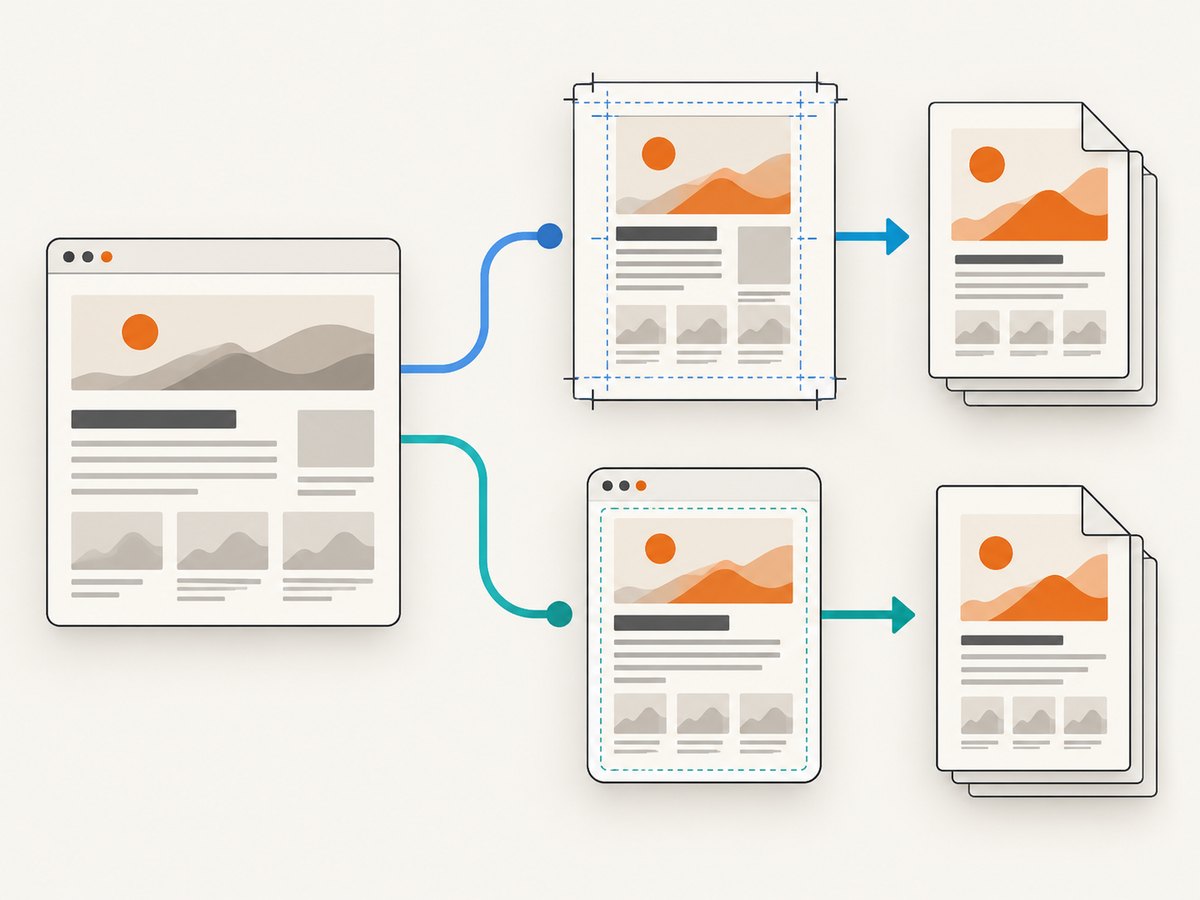
Puppeteer generates PDFs using the print CSS media type. That means @media print rules can change visibility, colors, spacing, or layout compared with a normal browser tab. The correct media choice depends on what the document is meant to reproduce.
| Choice | Use it when | What to configure |
|---|---|---|
| Print media (default) | The PDF should follow print styles and page-oriented layout. | printBackground: true; add -webkit-print-color-adjust: exact when color fidelity matters. |
| Screen media | The PDF should use screen breakpoints and screen-specific styles. | Call page.emulateMediaType('screen') before page.pdf(), and keep printBackground: true. |
To request screen styles, insert this before generating the PDF:
await page.emulateMediaType('screen');
await page.pdf({ path: 'output.pdf', printBackground: true });
Screen emulation changes which media queries apply; it is not a universal color fix. For example, it can bypass intentional print layout rules. Keep the default print media when print CSS is part of the document’s design.
4. Relevant PDF options and CSS
Background output depends on a small group of independent settings. Set the ones that match the output you need, rather than treating them as interchangeable.
| Setting | Effect | When to use it |
|---|---|---|
printBackground |
Includes background graphics; defaults to false. |
Set to true for CSS background colors and images. |
-webkit-print-color-adjust: exact |
Asks Chromium to preserve specified colors instead of adjusting them for print. | Use when print rendering changes the intended colors. |
emulateMediaType('screen') |
Uses screen media rules for subsequent rendering. | Use when screen styles, rather than print styles, define the desired PDF. |
omitBackground |
Hides the default white page background to allow transparency. | Use for a transparent PDF background when appropriate; it is distinct from printing CSS backgrounds. |
format, preferCSSPageSize, margins |
Control paper dimensions and page layout. | Set these to match your document’s page-size CSS or required paper format. |
Do not confuse omitBackground with printBackground. The former concerns the default white page background and transparency; the latter enables page background graphics. Consult the current PDFOptions interface for the full set of options supported by your installed version.
5. Make the page ready before export
A correct PDF configuration can still capture an incomplete page. Single-page applications may fetch data after the first navigation event, images may lazy-load below the fold, and client-side layout may change after fonts or content arrive.
- Navigate to the page and choose an appropriate
waitUntilcondition. - Wait for a page-specific readiness signal, such as a content selector, when the application renders asynchronously.
- If lazy content is important, scroll the relevant regions into view and allow loading to complete.
- Check that the final layout and CSS media type are correct, then call
page.pdf().
Example of waiting for a known element:
await page.goto('https://example.com/report', {
  waitUntil: 'domcontentloaded',
  timeout: 60_000,
});
await page.waitForSelector('[data-report-ready="true"]', {
  timeout: 30_000,
});
await page.pdf({ path: 'report.pdf', printBackground: true });
Replace the selector with a signal your application controls. A fixed sleep can be useful for a known animation or delayed third-party widget, but it adds latency and can still be too short or unnecessarily long. Prefer an observable readiness condition.
6. Troubleshooting missing or incorrect backgrounds
| Symptom | Likely cause | Fix |
|---|---|---|
| Backgrounds are entirely absent. | printBackground was omitted or is false. |
Set printBackground: true in the options passed to page.pdf(). |
| Background appears, but its color is lighter or altered. | Print color adjustment modified colors. | Add -webkit-print-color-adjust: exact to the page CSS and retain printBackground: true. |
| The PDF has different layout or missing sections than the browser. | page.pdf() is applying print media and print styles. |
Inspect @media print; choose screen emulation only if screen rules are the intended output. |
| A background image or colored section is missing intermittently. | The page or its assets may not have finished loading when export began. | Wait for the relevant selector or application readiness signal. Verify failed asset requests separately. |
| The whole PDF page is transparent or white unexpectedly. | omitBackground may be enabled, or CSS may not provide the expected page background. |
Check omitBackground and the page’s own background styles. Use printBackground for CSS graphics. |
| Configuration seems ignored. | The installed Puppeteer and bundled Chromium may differ from the current documentation snapshot. | Check the project’s installed version and browser. The current API pages retrieved for this guide are labeled 25.12.0; older installations may differ. |
| The PDF call times out or Chromium exits. | Navigation, page work, or browser resources may be timing out or failing. | Log navigation and capture errors, use bounded timeouts, ensure the browser closes in a finally block, and retry only transient failures. |
7. Performance, reliability, and cost
PDF generation consumes browser and memory resources, especially for long pages, large background images, high-resolution assets, and concurrent jobs. Keep browser lifetimes controlled, close pages or browser instances after use, and limit concurrent rendering to what your environment can support. Measure latency and memory using your own pages and runtime; there is no single reliable timing for every document.
For reliability, use explicit timeouts for navigation, readiness waits, and the PDF operation where your surrounding job system supports them. Record the target URL, selected media type, relevant PDF options, and error category in logs. Avoid retrying permanent failures such as invalid URLs or missing page selectors. For transient network errors, bounded retries with backoff can help, but retries multiply resource use.
Self-hosted Puppeteer cost is mainly your compute, memory, browser maintenance, and engineering time. Your actual cost depends on capture volume, page complexity, concurrency, and hosting. Consider limiting page duration and job size, and cache PDFs only when the underlying content and authorization rules allow it. These are operational choices rather than Puppeteer pricing claims.
8. Or skip the browser setup
If you need a screenshot or PDF from a URL without maintaining Chromium capture code, ScreenshotNeo is a website screenshot API and MCP server. Its API accepts one GET request and returns a screenshot or PDF; see the API documentation. For a PDF response, set the output format according to the documented API parameters.
curl -G "https://api.screenshotneo.com/v1/shot" \
  -d access_key=YOUR_API_KEY \
  --data-urlencode url=https://stripe.com \
  -o shot.webp
import requests
r = requests.get(
"https://api.screenshotneo.com/v1/shot",
params={"access_key": "YOUR_API_KEY", "url": "https://stripe.com"},
timeout=90,
)
open("shot.webp", "wb").write(r.content)const q = new URLSearchParams({
access_key: 'YOUR_API_KEY',
url: 'https://stripe.com',
});
const res = await fetch(`https://api.screenshotneo.com/v1/shot?${q}`);
if (!res.ok) throw new Error(`Screenshot request failed: ${res.status}`);
await require('node:fs/promises').writeFile('shot.webp', Buffer.from(await res.arrayBuffer()));ScreenshotNeo removes cookie banners, newsletter popups, and chat widgets before the shot. Bot checks, blank pages, and failed loads are never billed. An MCP server lets AI agents use the take_screenshot, get_page_info, and capture_pdf tools. The Free plan includes 1,000 shots per month without a card; paid plans start at $5 for 3,000 shots. Every feature is on every plan. Sign up for 1,000 free screenshots a month, with no card required.
9. FAQ
Does printBackground: true force exact color values?
No. It enables background graphics. Puppeteer documents -webkit-print-color-adjust: exact for forcing exact colors in print rendering.
Should I always emulate screen media for a PDF?
No. Use screen media only when screen styles are the intended output. Print media is the default and may contain deliberate page layout rules.
Does Puppeteer wait for every image and API request before making the PDF?
Do not assume so. Wait for the data and page elements your application needs. The PDF guide’s font readiness behavior is not a guarantee that all application content has loaded.
Can I get a transparent PDF instead of a white page?
omitBackground hides the default white background to allow transparency. It is separate from printBackground, which enables CSS background graphics. Check whether transparency is preserved through the PDF viewers and downstream tools you use.


