How to Preserve CSS When Converting HTML to PDF in Google Apps Script
Convert Apps Script HTML to PDF with getAs('application/pdf'), then inspect real output to find CSS gaps and choose a reliable fallback.

Google Apps Script provides a direct route from an HtmlOutput object to a PDF blob: call getAs('application/pdf'). You can put CSS in the HTML you send to HtmlService, but Google’s references do not promise that every CSS rule, font, or page-break behavior will be preserved in the resulting PDF. The dependable approach is to start with simple document styling, generate representative PDFs, and inspect the actual output before relying on it.
This guide shows a complete Apps Script example, how to organize the markup and styles, what to check when styles seem to disappear, and when a different document workflow may fit better. If PDF layout fidelity is essential, do not infer support from HTML Service’s ability to accept CSS: verify the PDF itself.
1. Convert an HtmlOutput to a PDF blob
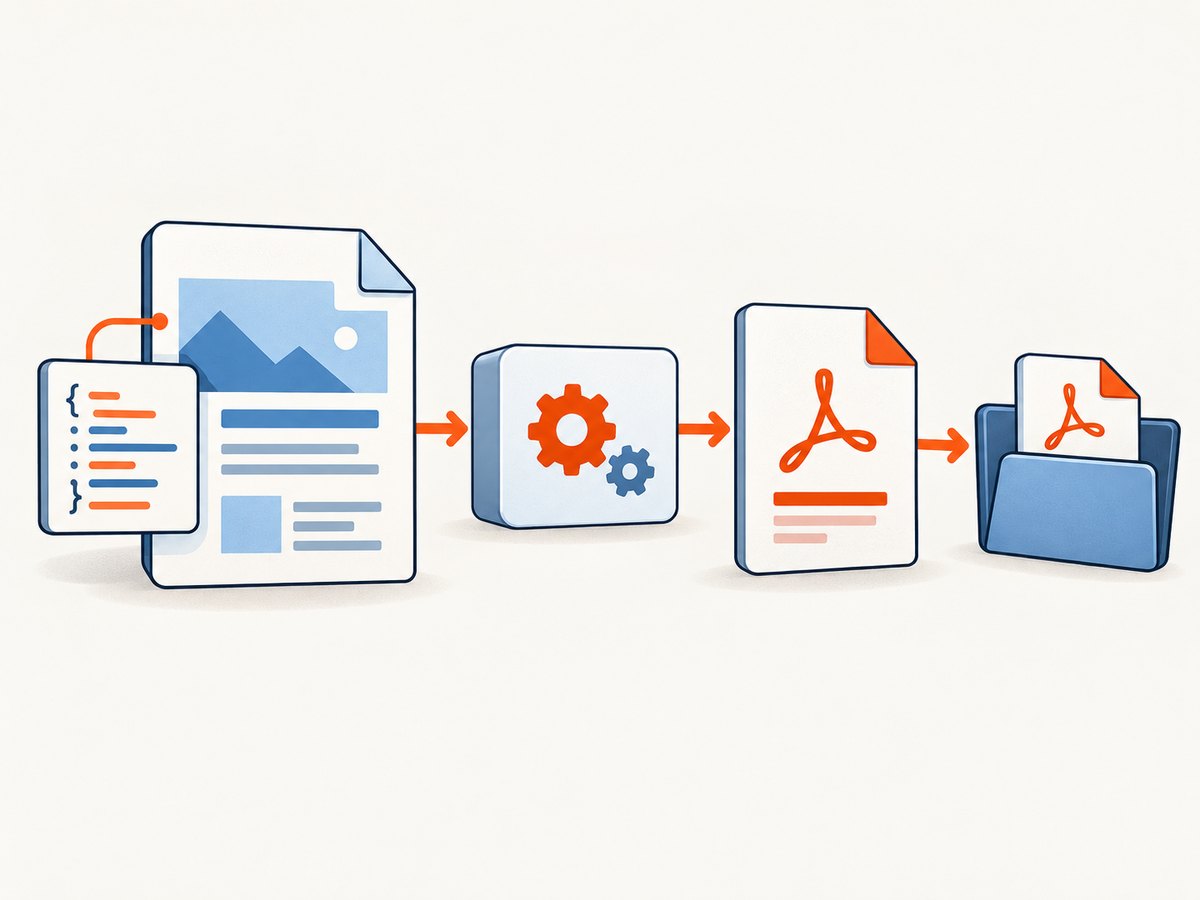
Create an HTML document, pass it to HtmlService.createHtmlOutput(), and convert the returned object. This example saves a named PDF in Drive:
function createPdf() {
  const html = `
    <!doctype html>
    <html>
      <head>
        <meta charset="utf-8">
        <style>
          body {
            font-family: Arial, sans-serif;
            margin: 24px;
            color: #202124;
          }
          h1 {
            color: #174ea6;
            margin-bottom: 8px;
          }
          .note {
            border: 1px solid #aaa;
            padding: 12px;
          }
        </style>
      </head>
      <body>
        <h1>Report</h1>
        <p>Generated from Apps Script.</p>
        <p class="note">This paragraph has a border and padding.</p>
      </body>
    </html>`;

  const pdf = HtmlService.createHtmlOutput(html)
    .getAs('application/pdf')
    .setName('report.pdf');

  DriveApp.createFile(pdf);
}
getAs(contentType) returns the data as a blob converted to the requested content type; the conversion adds the appropriate file extension. Calling setName('report.pdf') gives the blob a clear filename before you save it. See Google’s HtmlOutput reference for the documented API.
This code demonstrates the conversion API shape. It is not a CSS compatibility recipe: the official reference describes HTML output content, including embedded CSS, but does not provide a matrix of which CSS features survive PDF conversion.
2. Keep HTML and CSS predictable
Start with a self-contained document and ordinary flow. Explicit widths, readable margins, basic borders, and styles placed in the document make the output easier to inspect and debug. These are conservative engineering choices, not a guarantee that a particular rule will render exactly as it does in a browser.
Use an HTML file for larger templates
For a template too large to maintain comfortably as a JavaScript string, create an HTML file in the Apps Script project and evaluate it with HtmlService.createTemplateFromFile(). Template evaluation is useful when values must be inserted into the document. A complete pattern looks like this:
function createReportFromTemplate() {
  const template = HtmlService.createTemplateFromFile('Report');
  template.reportTitle = 'Monthly report';
  template.summary = 'Example summary text.';

  const output = template.evaluate();
  const pdf = output.getAs('application/pdf').setName('monthly-report.pdf');
  DriveApp.createFile(pdf);
}

function include(filename) {
  return HtmlService.createHtmlOutputFromFile(filename).getContent();
}
The Report.html project file can contain the page structure and a <style> block, and use template scriptlets such as <?= reportTitle ?> to insert values. If interpolated values can contain user-provided text or markup, escape or otherwise validate them for the context where they are inserted. Do not assume a template’s browser behavior proves how PDF conversion will render it.
External stylesheets and HTML Service contexts
Google’s HTML Service guidance says active content loaded in IFRAME sandbox mode must use HTTPS. That restriction concerns HTML Service sandbox contexts; it does not establish which remote stylesheets the PDF conversion can retrieve or how they will appear in the PDF. For fewer moving parts, keep critical styles in the HTML document and inspect output generated in the same execution path you intend to use.
Google documents HTML Service as a way to author HTML, CSS, and client-side JavaScript, while also noting some advanced HTML5 features are unavailable in that service. That describes HTML Service, not a promise about PDF renderer behavior. See the HTML Service restrictions.
3. Check the PDF, not just the source HTML
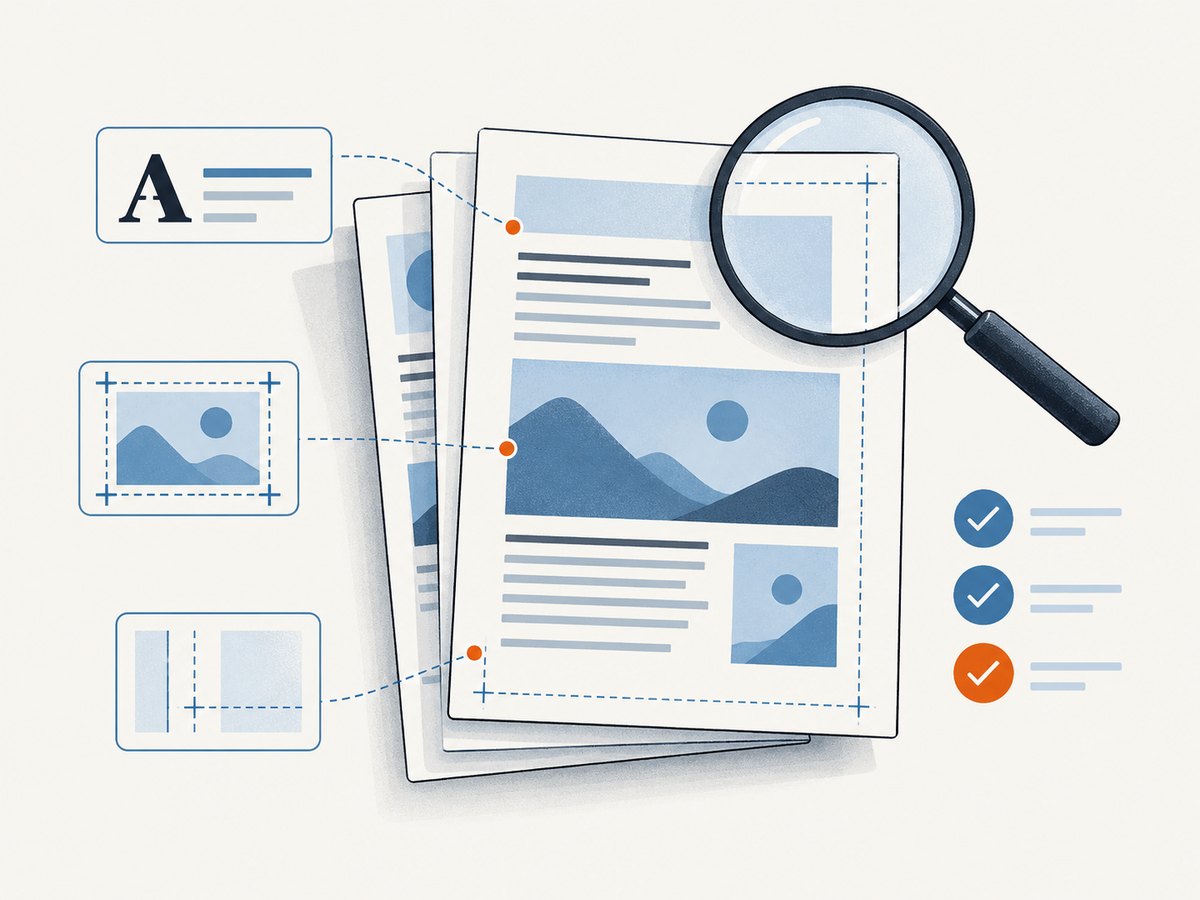
Before generating important reports, invoices, or customer-facing documents, create a representative PDF and inspect it. Include the parts of the real document most likely to reveal problems: long paragraphs, tables, images, unusual text, and content that crosses a page boundary.
- Make a fixture. Use realistic content and the same template, data shape, and Apps Script execution route as production.
- Generate the PDF. Save it with a recognizable name and keep the HTML and input data associated with that sample.
- Review at page level. Check fonts, colors, sizing, spacing, image visibility, clipping, and where content breaks across pages.
- Repeat after changes. Changes to markup, styles, data length, or image sources can change output. Regenerate samples when the document template changes.
- Set an acceptance bar. Decide what must be correct for the document’s purpose, such as no clipped totals or legible text, and verify those items rather than relying on visual similarity in the HTML preview.
The official references reviewed do not publish a CSS support matrix for this conversion route. In particular, do not assume that @media print, @page, flexbox, grid, remote fonts, or a specific page-break rule is supported just because it works in a browser. Validate each requirement in the produced PDF.
4. Troubleshoot missing or changed CSS
| Symptom | Likely cause to investigate | Practical fix |
|---|---|---|
| Styles are absent throughout | The stylesheet is not in the HTML being converted, or a linked resource is unavailable in the conversion context. | Put essential styles in a <style> block in the HTML and generate a fresh PDF. Confirm you convert the evaluated output that contains the expected markup. |
| Only some elements look wrong | A layout rule may not behave as expected in the converter, or the content may trigger a different layout. | Reduce the case to a small sample, use simpler flow and explicit sizing where practical, then check the PDF again. Avoid attributing behavior to a CSS feature without observing it. |
| Remote stylesheet or assets fail | The resource may be blocked, inaccessible, or subject to HTML Service’s HTTPS requirement in an IFRAME context. | Use HTTPS for active content in IFRAME contexts, check that assets are reachable to the execution environment, and consider embedding essential styling in the document. |
| Long content clips or crosses pages badly | The document’s page flow differs from the browser preview, or a fixed-size layout leaves too little room. | Test with realistic long values. Prefer content-aware flow over fixed heights where possible, and inspect each resulting page. |
| Output has an unclear filename | The resulting blob has not been assigned the name your workflow expects. | Call setName('report.pdf') before saving or attaching it. |
| PDF generation succeeds but design is not acceptable | The built-in conversion may not meet a specific fidelity requirement. | Document the failing requirement with a sample PDF, then evaluate a renderer whose supported CSS and page options you have verified. |
When diagnosing, change one thing at a time: first confirm that the source HTML contains the intended styles, then simplify the failing layout, then regenerate and compare the PDF. A browser preview is useful for editing the document, but it is not evidence that the PDF conversion preserved the same layout.
5. Choose the right document route
Use HtmlOutput.getAs('application/pdf') when your source is HTML and the output meets your verified layout requirements. It is a direct Apps Script API path and does not require you to first turn the report into a Google Doc.
If the report is naturally assembled as a Google Doc, Google separately documents Document.getAs('application/pdf'). That exports a Docs document through its own workflow; it does not preserve arbitrary HTML and CSS. See the Document reference.
If built-in output misses a non-negotiable layout requirement, you can investigate a hosted HTML-to-PDF renderer. Compare only after collecting a representative sample. Check the provider’s supported CSS and JavaScript, page-size and print controls, privacy terms for document data, operational reliability, and pricing. The existence of such services does not establish that any particular one is faster, more reliable, or more faithful for your document.
6. Or skip the browser setup
If the job is to capture a rendered web page as an image or PDF rather than convert your own Apps Script HTML, ScreenshotNeo offers a one-request website screenshot API and an MCP server for AI agents. It is made by Yorker Media. The [ScreenshotNeo website](https://screenshotneo.com) describes the service; see the API documentation for request options.
curl -G "https://api.screenshotneo.com/v1/shot" \
  -d access_key=YOUR_API_KEY \
  --data-urlencode url=https://stripe.com \
  -o shot.webp
For an image capture in Apps Script, make an HTTP request and save the response blob. Store your API key in Script Properties rather than embedding a real key directly in source code:
function capturePageWithScreenshotNeo() {
  const accessKey = PropertiesService.getScriptProperties().getProperty('SCREENSHOTNEO_API_KEY');
  if (!accessKey) throw new Error('Set SCREENSHOTNEO_API_KEY in Script Properties.');

  const url = 'https://stripe.com';
  const endpoint = 'https://api.screenshotneo.com/v1/shot';
  const query = [
    'access_key=' + encodeURIComponent(accessKey),
    'url=' + encodeURIComponent(url),
    'format=webp'
  ].join('&');
  const response = UrlFetchApp.fetch(endpoint + '?' + query, { muteHttpExceptions: true });
  const status = response.getResponseCode();
  if (status < 200 || status >= 300) {
    throw new Error('ScreenshotNeo returned HTTP ' + status + ': ' + response.getContentText());
  }
  DriveApp.createFile(response.getBlob().setName('stripe.webp'));
}
Python and Node.js callers can use the same API endpoint and query parameters:
import requests

r = requests.get(
    "https://api.screenshotneo.com/v1/shot",
    params={"access_key": "YOUR_API_KEY", "url": "https://stripe.com"},
    timeout=90,
)
r.raise_for_status()
open("shot.webp", "wb").write(r.content)
const q = new URLSearchParams({ access_key: 'YOUR_API_KEY', url: 'https://stripe.com' });
const res = await fetch(`https://api.screenshotneo.com/v1/shot?${q}`);
if (!res.ok) throw new Error(`ScreenshotNeo returned HTTP ${res.status}`);
const bytes = new Uint8Array(await res.arrayBuffer());
await import('node:fs/promises').then(fs => fs.writeFile('shot.webp', bytes));- Cookie banners are accepted like a visitor, and more than 60 known consent platforms, newsletter popups, and chat widgets are removed before the shot; each step can be turned off.
- Bot checks or CAPTCHAs, blank pages, timeouts, failed loads, and cache hits cost nothing. Responses identify the page verdict and billing status in headers.
- An MCP server exposes
take_screenshot,get_page_info, andcapture_pdfto Claude, Cursor, and other MCP clients. - 1,000 screenshots per month are free with no card; paid plans start at $5 for 3,000 shots. Every feature is available on every plan.
Sign up for ScreenshotNeo to get 1,000 free screenshots a month with no card.
7. Performance, reliability, and cost considerations
The built-in route avoids introducing a separate rendering provider, but the references cited here do not provide a conversion-time benchmark or a CSS fidelity guarantee. Measure the complete workflow that matters to you, including document generation, saving or delivery, and inspection of output. Keep representative samples for long or image-heavy documents, since those are useful for catching issues before the document is depended on.
For an external renderer, evaluate the service with your own files and review its data-handling terms before sending sensitive content. Compare the cost at your expected volume and account for integration and failure handling, not just a listed per-document price. The research does not establish pricing, uptime, or comparative speed for any specific renderer.
For ScreenshotNeo, the published plan amounts are 1,000 free monthly shots, then paid plans of $5 for 3,000, $15 for 15,000, $39 for 60,000, $99 for 250,000, and $249 for 1,000,000; yearly billing gives two months free. Only clean shots are billed, and cache hits are free. Those are screenshot service terms, not a claim about Apps Script’s PDF conversion cost or a replacement for evaluating whether web-page capture is the right workflow.
8. Frequently asked questions
Does HtmlOutput support CSS?
Google’s HtmlOutput reference says the code in an HtmlOutput can include embedded JavaScript and CSS. That describes what the HTML output can contain; it does not guarantee that the PDF conversion preserves every style.
Should I switch to Google Docs to retain my HTML styling?
No. The Docs export method applies when the source is a Google Docs document. It is a separate workflow, not an HTML/CSS preservation feature.
Can I use this to convert any public webpage to PDF?
The documented route starts with an Apps Script HtmlOutput object. For a public webpage capture, a web screenshot API may be a more direct fit; confirm that its PDF output and options meet your requirements.
What is the safest way to know whether a CSS feature works?
Put that feature into a representative sample, generate the PDF, and inspect the actual result. The reviewed Google references do not publish a complete CSS compatibility list for this conversion.


