How to Preserve CSS When Exporting HTML to PDF with JavaScript
Keep screen styling, colors, fonts, backgrounds and page geometry when exporting HTML to PDF with Puppeteer, Playwright or ScreenshotNeo.
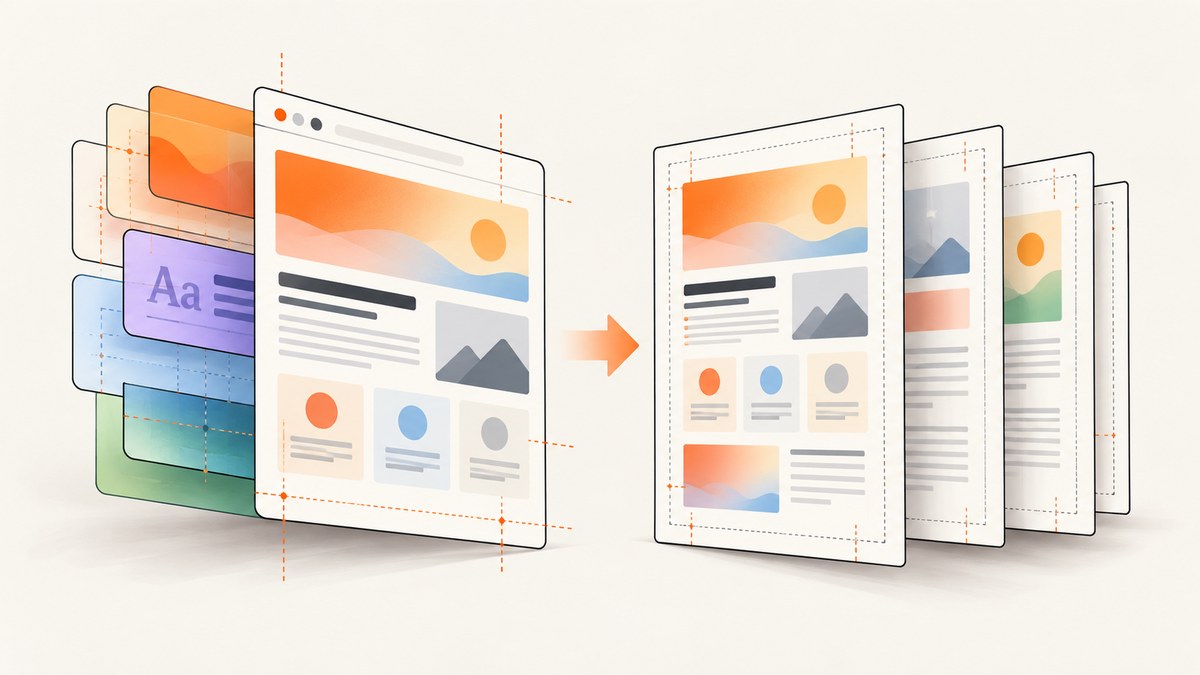
CSS disappears or changes during HTML-to-PDF export when the renderer uses print media rules, skips background graphics, captures before fonts and images finish loading, or applies different page geometry. The reliable fix is to render the document in a real browser and configure the PDF step deliberately.
With Puppeteer or Playwright, load the complete page, wait for network assets and fonts, choose print or screen media, enable background printing, preserve exact colors where needed, and control paper size with @page. The same principles apply whether you export a local HTML file, a route in your application, or a public URL.
1. Why CSS changes in a PDF
A PDF export is not a screenshot of the current browser tab. Browser PDF APIs create a print-oriented document. Puppeteer documents that page.pdf() generates a PDF with the print CSS media type. Playwright documents the same behavior for its Page API. Therefore rules inside @media screen can disappear unless you explicitly emulate screen media.
Several other defaults explain common differences:
- Background graphics are omitted unless
printBackground: trueis set. - Print color adjustment can change fills and text colors. Use
-webkit-print-color-adjust: exacton elements where exact colors matter. - API paper settings can override your CSS
@pagedimensions unlesspreferCSSPageSize: trueis enabled. - Late web fonts, images and JavaScript-driven layout can change line wrapping after capture.
- Print-specific selectors may intentionally hide navigation, controls or decorative elements.
Start by deciding whether the PDF is a paper document or a screen-faithful archive. Use print media for invoices, reports and documents designed for paper. Use screen media when visual parity with the web page is the requirement.
2. A complete Puppeteer solution
Install Puppeteer in a Node.js project:
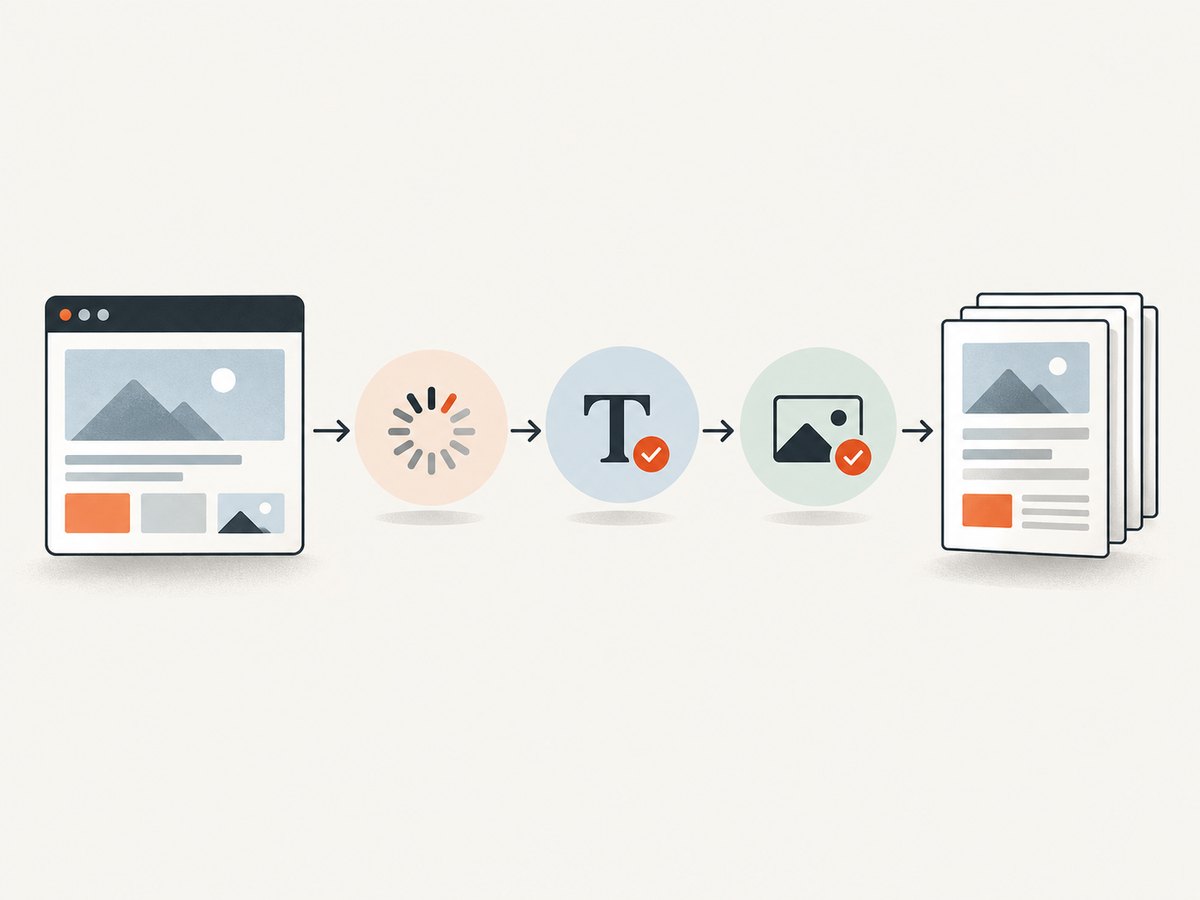
npm install puppeteerThe following script opens a URL, waits for loading and fonts, applies screen media, preserves backgrounds and writes a PDF. Replace the URL with your own page.
const puppeteer = require('puppeteer');

(async () => {
  const browser = await puppeteer.launch({
    // In containers you may need these flags; omit them on a trusted local machine.
    args: ['--no-sandbox', '--disable-setuid-sandbox']
  });

  try {
    const page = await browser.newPage();
    await page.setViewport({ width: 1440, height: 900, deviceScaleFactor: 1 });

    await page.goto('https://example.com/report', {
      waitUntil: 'networkidle0',
      timeout: 90000
    });

    // Make the PDF use the same media rules as the screen layout.
    await page.emulateMediaType('screen');

    // Ensure web fonts have finished before line wrapping is measured.
    await page.evaluate(async () => {
      if (document.fonts) await document.fonts.ready;
    });

    const pdf = await page.pdf({
      path: 'report.pdf',
      format: 'A4',
      printBackground: true,
      preferCSSPageSize: true,
      margin: { top: '16mm', right: '16mm', bottom: '16mm', left: '16mm' },
      displayHeaderFooter: false,
      timeout: 90000
    });

    console.log(`Wrote ${pdf.length} bytes to report.pdf`);
  } finally {
    await browser.close();
  }
})();
Puppeteer’s documented PDF options and media behavior are described in its Page.pdf API reference. If your page is intended for print, remove emulateMediaType('screen') and keep a deliberate @media print stylesheet.
CSS required for colors and backgrounds
:root {
  color-scheme: light;
}

.card {
  background: linear-gradient(135deg, #173b70, #3d8bd9);
  color: white;
  -webkit-print-color-adjust: exact;
  print-color-adjust: exact;
}

@page {
  size: A4;
  margin: 16mm;
}

@media print {
  .web-only-controls {
    display: none;
  }

  h2, h3 {
    break-after: avoid;
  }

  .card, table, figure {
    break-inside: avoid;
  }
}
print-color-adjust is the standard property; the prefixed form improves compatibility with Chromium. The property does not force a printer or PDF viewer to use a particular display profile, but it tells the rendering engine not to optimize away the specified colors.
3. Playwright equivalent
Playwright uses the same browser rendering model and is useful when your project already has Playwright fixtures or multiple browser targets.
import { chromium } from 'playwright';

const browser = await chromium.launch();
try {
  const page = await browser.newPage({
    viewport: { width: 1440, height: 900 },
    deviceScaleFactor: 1
  });

  await page.goto('https://example.com/report', {
    waitUntil: 'networkidle',
    timeout: 90000
  });
  await page.emulateMedia({ media: 'screen' });
  await page.evaluate(() => document.fonts?.ready);

  await page.pdf({
    path: 'report.pdf',
    format: 'A4',
    printBackground: true,
    preferCSSPageSize: true,
    margin: { top: '16mm', right: '16mm', bottom: '16mm', left: '16mm' }
  });
} finally {
  await browser.close();
}
See the Playwright Page.pdf documentation for the current option definitions.
4. Choose media, size and layout deliberately
| Requirement | Configuration | Effect |
|---|---|---|
| Match the screen | emulateMediaType('screen') or page.emulateMedia({media:'screen'}) |
Uses screen media queries while generating the PDF. |
| Use print design | Default print media plus @media print |
Uses print-specific visibility and layout rules. |
| Keep backgrounds | printBackground: true |
Includes CSS background colors, gradients and images. |
| Honor CSS paper size | preferCSSPageSize: true |
Gives @page dimensions priority over API format and dimensions. |
| Set a standard sheet | format: 'A4' or 'Letter' |
Uses the browser’s standard paper dimensions. |
| Custom geometry | width, height, margin |
Controls the output sheet directly when CSS size is not preferred. |
Do not mix competing geometry rules accidentally. If @page is authoritative, set preferCSSPageSize: true and keep margins in CSS. If the application owns paper selection, use format and API margins and test at that exact size.
5. Load every asset before capture
CSS can be correct while the PDF is wrong because the browser captured an incomplete document. Use absolute or correctly resolved URLs for stylesheets, fonts and images. Confirm that the rendering process can reach private assets and that authentication cookies or headers are present.
networkidle0 or Playwright’s networkidle is useful for mostly static pages, but analytics, sockets and polling can prevent an idle state. In that case wait for a meaningful application selector and then wait for fonts:
await page.goto(url, { waitUntil: 'domcontentloaded', timeout: 90000 });
await page.waitForSelector('[data-report-ready]', { timeout: 30000 });
await page.evaluate(async () => {
  await document.fonts.ready;
  const images = [...document.images];
  await Promise.all(images.map(img => img.complete
    ? Promise.resolve()
    : new Promise(resolve => {
        img.addEventListener('load', resolve, { once: true });
        img.addEventListener('error', resolve, { once: true });
      })));
});
For lazy-loaded images, scroll through the document before exporting or expose a server-side “print” route that renders all content immediately. Avoid relying on a short fixed delay; a selector or asset condition is more deterministic.
6. Page breaks, tables and modern CSS
PDF pages have finite height even when the browser layout is continuous. Add break rules to keep headings with their content and prevent cards or table rows from splitting:
.section-title { break-after: avoid; }
.keep-together { break-inside: avoid; }
.page-break { break-before: page; }

@media print {
  thead { display: table-header-group; }
  tr, img, svg { break-inside: avoid; }
}
Test flex and grid layouts at the final paper width. A row that fits on a 1440-pixel viewport may wrap on A4. Set explicit widths or responsive print rules where necessary. Fixed-position headers and footers can overlap content across pages; prefer normal flow, or reserve space with page margins and test multiple pages. Very wide tables should be allowed to wrap or be rendered on a landscape page.
7. HTML-to-PDF troubleshooting
| Symptom | Likely cause | Fix |
|---|---|---|
| Colors or gradients are missing | Background printing is disabled. | Set printBackground: true and use -webkit-print-color-adjust: exact for critical colors. |
| Screen layout becomes a print layout | PDF generation defaults to print media. | Call page.emulateMediaType('screen') before page.pdf(). |
| Fonts are wrong or text reflows | Capture happened before web fonts loaded, or font URLs failed. | Await document.fonts.ready; verify font responses and use reachable URLs. |
| Images are blank | Lazy loading, blocked requests or an early capture. | Trigger lazy loading, wait for image completion, and inspect failed requests. |
CSS @page is ignored |
API format or dimensions take precedence. | Set preferCSSPageSize: true or remove conflicting API dimensions. |
| Page hangs at network idle | Polling, WebSockets or third-party analytics never become idle. | Use domcontentloaded plus an application-ready selector. |
| Private stylesheets return 401/403 | The browser has no session or authorization header. | Set cookies or headers before navigation and confirm access from the render environment. |
| Content is clipped | Fixed heights, overflow rules or an unsuitable paper width. | Remove restrictive heights for print, allow wrapping and test the selected format. |
8. Performance, reliability and cost
Launching a browser is expensive compared with formatting a string. Keep a browser process alive and create a fresh page per job when processing many documents. Reuse pages carefully: clear cookies, local storage and request interception state between jobs. Set navigation and PDF timeouts so a broken origin cannot consume a worker forever.
Reduce work before capture by serving a print-specific route, removing animations, and avoiding unnecessary third-party requests. A deterministic ready marker is usually faster and more reliable than waiting for every background request. Record the target URL, browser version, paper settings and failure reason so you can reproduce layout differences.
Puppeteer and Playwright require a browser runtime and its associated memory. Client-side html2canvas and jsPDF can avoid a server browser, but they rasterize or translate content and can diverge from native CSS layout. For CSS fidelity, a browser renderer remains the safer default.
9. Or skip the browser setup
ScreenshotNeo provides a website capture API and MCP server for developers. Use its PDF options for paper size, margins, landscape output and page ranges; the API also supports custom CSS and JavaScript, waiting conditions, headers, cookies, user agents, authorization, timezone and geolocation. See the ScreenshotNeo documentation for request options.

curl -G "https://api.screenshotneo.com/v1/shot" -d access_key=YOUR_API_KEY --data-urlencode url=https://stripe.com -o shot.webpimport requests
r = requests.get("https://api.screenshotneo.com/v1/shot", params={"access_key": "YOUR_API_KEY", "url": "https://stripe.com"}, timeout=90)
open("shot.webp", "wb").write(r.content)const q = new URLSearchParams({ access_key: 'YOUR_API_KEY', url: 'https://stripe.com' }); const res = await fetch(`https://api.screenshotneo.com/v1/shot?${q}`);Cookie banners, newsletter popups and chat widgets are removed before the shot. Bot checks, blank pages and failed loads are never billed, and response headers identify the page verdict and whether it was billed. An MCP server provides take_screenshot, get_page_info and capture_pdf tools for Claude, Cursor and other MCP clients. The Free plan includes 1,000 screenshots each month with no card; paid plans start at $5 for 3,000. Create a free ScreenshotNeo account.
10. FAQ
Should I use Puppeteer or Playwright?
Use the tool already used by your application. Both expose browser PDF generation with print media as the default and support screen media emulation.
Why does printBackground matter if CSS is loaded?
Loading a stylesheet and printing its background graphics are separate steps. The PDF option controls whether those graphics are included.
Can CSS make one element start on a new PDF page?
Yes. Use break-before: page (or the older page-break-before) on the element that should begin the next page.
Is waiting for fonts enough for web components?
No. Also wait for the component’s ready state or a selector that confirms its shadow-DOM content has rendered.
Why does a page look right in Chrome but differ in automation?
Check browser versions, viewport and paper dimensions, media type, authentication, asset reachability and the exact time at which capture occurs.


