How to Preserve PDF Page Margin Backgrounds in Puppeteer
Keep Puppeteer PDF margin backgrounds visible with printBackground, print-color-adjust, correct page geometry, and practical debugging steps.
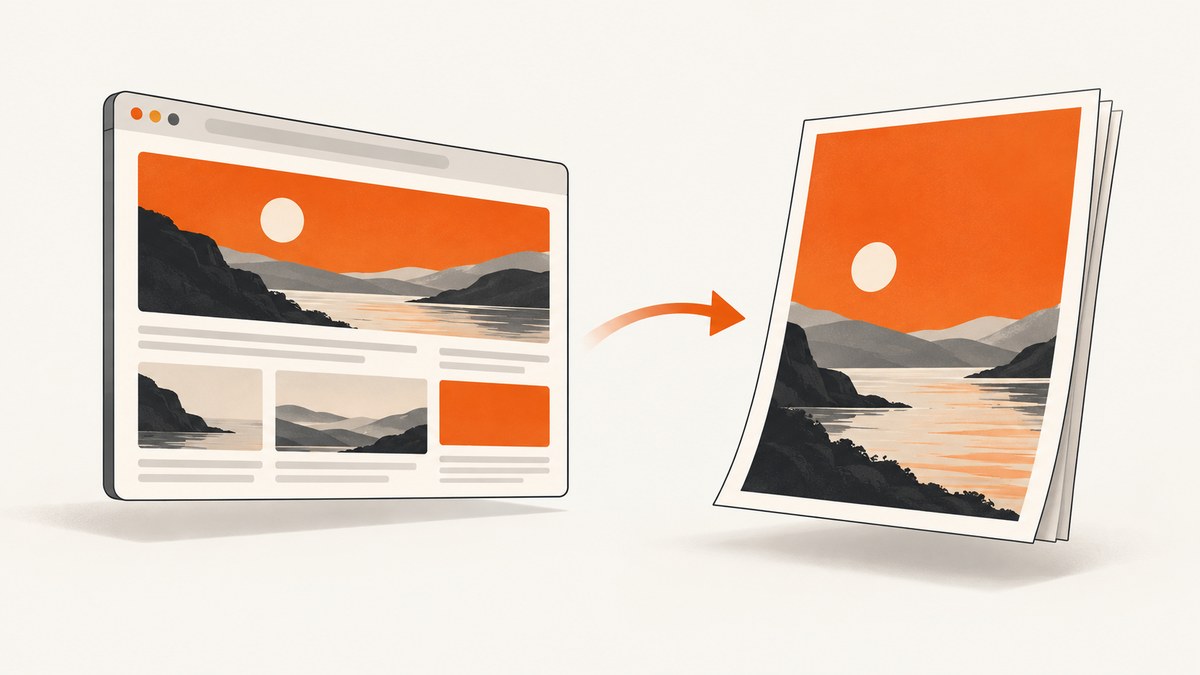
Use printBackground: true in page.pdf(), then control color adjustment and page geometry with print CSS. Puppeteer disables background graphics by default, so a page background, colored margin, gradient, or background image can disappear from the PDF. Add print-color-adjust: exact (and the WebKit property) to the elements that own the background, and use deliberate @page margins and size settings.
This article shows a complete implementation, explains why each setting matters, and provides a troubleshooting path for white margins, missing colors, unexpected scaling, and differences between screen and PDF output.
1. The minimal fix
import puppeteer from 'puppeteer';

const browser = await puppeteer.launch();
const page = await browser.newPage();
await page.goto('https://example.com', { waitUntil: 'networkidle0' });

await page.pdf({
  path: 'output.pdf',
  format: 'A4',
  printBackground: true,
});

await browser.close();
printBackground is the switch that tells Chromium to print background graphics. The documented default is false [Puppeteer PDFOptions]. This setting is necessary for backgrounds, but it does not by itself remove page margins, preserve every authored color, or make a content element cover the whole sheet.
2. A reliable CSS foundation
PDF generation uses the print media type by default. Put print-only rules in @media print, and apply color adjustment to the actual background-bearing elements.
@media print {
  html,
  body,
  .page,
  .page-content {
    -webkit-print-color-adjust: exact;
    print-color-adjust: exact;
  }

  body {
    margin: 0;
  }
}

@page {
  size: A4;
  margin: 0;
}

html,
body {
  margin: 0;
  padding: 0;
}

.page {
  min-height: 297mm;
  background: #17324d;
  color: white;
}

.page-content {
  padding: 22mm;
}
print-color-adjust: exact asks the user agent to preserve selected colors. Puppeteer also documents -webkit-print-color-adjust: exact for forcing exact colors [Page.pdf()]. These declarations are requests: browser behavior and user print preferences can still take priority [MDN print-color-adjust].
Apply the declarations to the element with the background. Setting them on an unrelated wrapper will not fix a background owned by a descendant. If the color should reach the paper edge, make sure that element actually occupies the page area; a small content box with a background cannot paint outside its own box.
3. Complete Puppeteer example with page size, margins, and print media
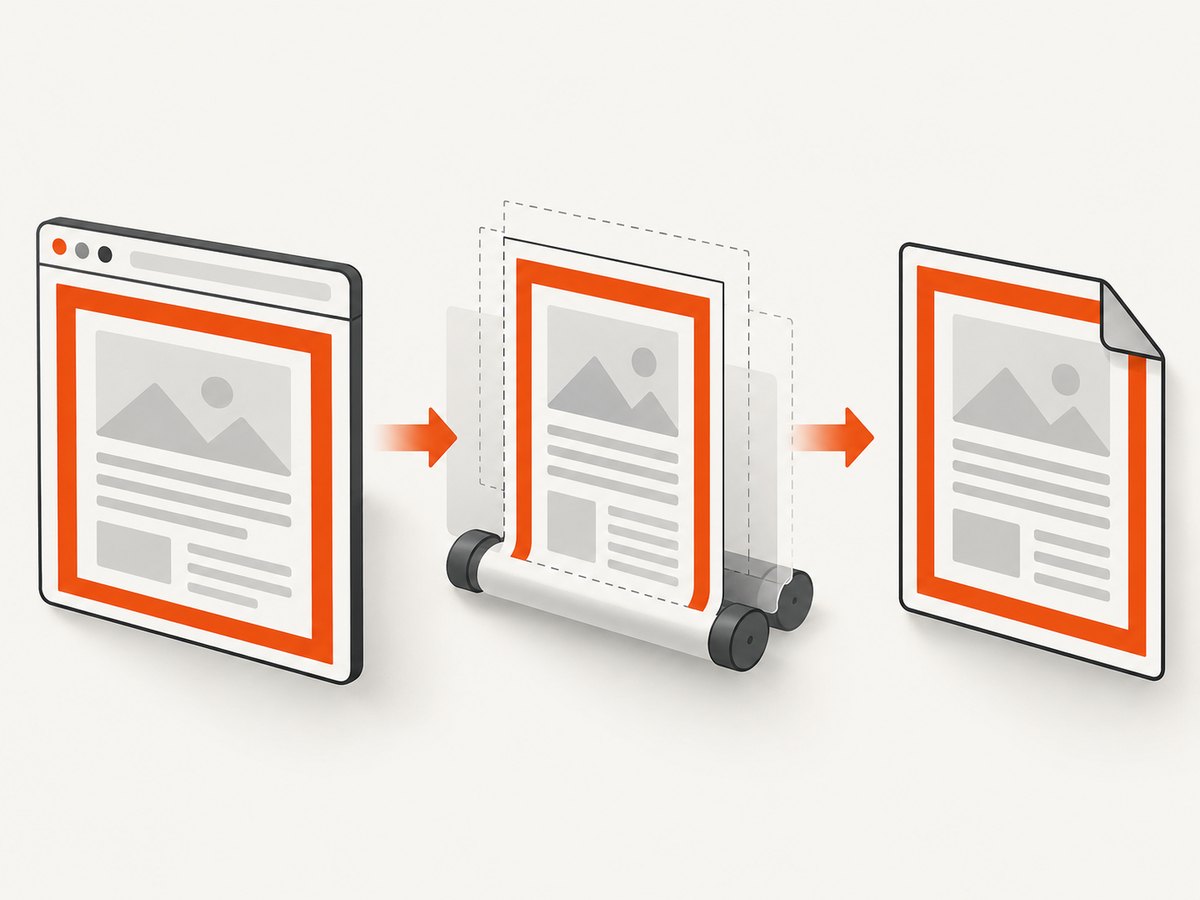
The following script creates a two-page document, preserves backgrounds, waits for fonts and images, and makes CSS page geometry take priority.
import puppeteer from 'puppeteer';
const html = `
Page one
Colored page background.
Page two
The same print rules apply.
preferCSSPageSize: true matters when your @page rule must win over format, width, or height. With its default of false, Puppeteer can scale CSS page dimensions to fit the option-selected paper [PDFOptions]. Do not set both CSS and Puppeteer margins casually: either can introduce white space.
4. Understand the four controls that are often confused
| Control | What it controls | Typical use |
|---|---|---|
printBackground |
Whether Chromium includes background graphics | Always enable for colored or image backgrounds |
print-color-adjust |
Whether authored colors should be retained | Use on background-bearing elements |
@page margin |
CSS paged-media paper margins | Set to zero for intended full bleed |
Puppeteer margin |
PDF option margins | Use explicit values when layout requires an inset |
preferCSSPageSize |
Which page-size declaration wins | Set true when @page size is authoritative |
emulateMediaType |
Screen versus print stylesheet selection | Use screen only when screen rules are intended |
These controls operate at different stages. Turning on printBackground cannot fix a wrong paper size, and color adjustment cannot make a background paint beyond an element’s box.
5. Paper size, orientation, and margins
Choose one geometry model and make it explicit:
- Standard paper: use
format: 'A4','Letter', or another supported format. - CSS-controlled paper: define
@page { size: A4 landscape; margin: 12mm; }and setpreferCSSPageSize: true. - Custom dimensions: set
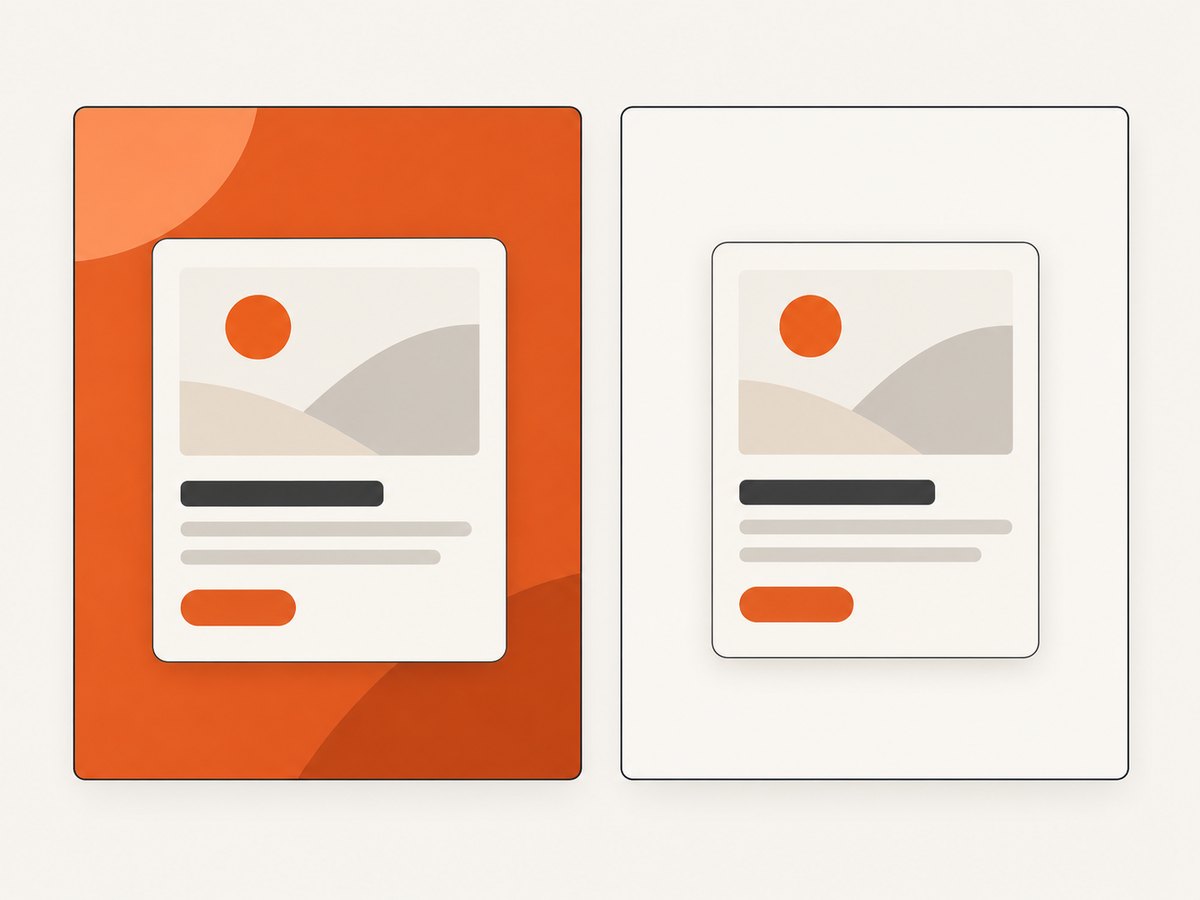
widthandheightwith CSS-compatible units, then verify scaling. - Full-bleed artwork: set page margins to zero and place the background on a full-page element. Printers may still impose physical non-printable areas; a PDF itself can contain edge-to-edge paint.
- Readable inset content: keep page margins or add padding inside the full-page background. Zero page margins and zero content padding are separate choices.
Use break-before, break-after, and break-inside: avoid to keep cards and sections together. Avoid relying on viewport height for paper height: CSS millimeters and @page provide more predictable print geometry.
6. When the page needs screen styles
Puppeteer generates PDFs with print media by default [Page.pdf()]. If the background exists only in screen CSS, opt into screen media before calling pdf:
await page.emulateMediaType('screen');
await page.pdf({
  path: 'screen-styled.pdf',
  printBackground: true,
});
A safer pattern is to put the required background rules in @media print so the PDF has an intentional print design. Use screen emulation when you explicitly need the screen cascade, and inspect page breaks because screen layouts may not be designed for paper.
7. Waiting for assets before capture
A background image, web font, or asynchronously rendered component can be absent even when print settings are correct. Navigate with an appropriate waitUntil, then wait for a known selector or for fonts:
await page.goto(url, { waitUntil: 'networkidle0' });
await page.waitForSelector('.report-ready', { timeout: 15000 });
await page.evaluate(() => document.fonts?.ready);
await page.pdf({ path: 'report.pdf', printBackground: true });
networkidle0 can never settle on pages with analytics or long polling. In that case, wait for a dependable application marker and use a bounded delay only when the page has no better readiness signal. A failed image request is a separate issue from background printing; inspect the asset URL and browser console/network logs.
8. Troubleshooting checklist
Background is completely white
- Confirm
printBackground: true. - Confirm the generated PDF came from the expected URL or HTML.
- Check that the background is not disabled inside
@media print. - Verify the colored element has dimensions and is not hidden or collapsed.
- Wait for asynchronous styles, images, and fonts before calling
pdf.
Color is lighter or removed
Add both -webkit-print-color-adjust: exact and print-color-adjust: exact to the element with the color. User-agent and user print preferences can still override these requests [MDN]. Check the PDF in another viewer before concluding that Chromium omitted the color.
There is an unexpected white border
Inspect both @page margin and Puppeteer’s margin option. Also look for body margin, element margin, or a background applied to an inner container. A PDF viewer’s preview crop can make the border look different from the file’s actual page box.
CSS page size is ignored or content is scaled
Remove competing format, width, and height values, or set preferCSSPageSize: true when CSS should control size. Recheck orientation and units.
Only the first page has a background
Give every page-sized section its own background, or place the background on a full document wrapper that naturally spans all pages. Check page-break rules and whether a fixed-height element ends before the next page.
PDF differs between machines
Record Puppeteer and Chromium versions, fonts, operating system, and viewer. The documentation defines the options but does not guarantee identical output for every stylesheet, Chromium build, or user configuration. Reduce the page to a minimal reproduction and compare the actual PDF files.
9. Performance, reliability, and cost considerations
- Performance: large background images, web fonts, and long pages increase rendering time and memory. Reuse a browser process for batches, but create an isolated page per job and close pages promptly.
- Reliability: use explicit readiness markers, bounded timeouts, deterministic fonts, and a recorded Chromium version. Treat navigation, asset loading, and PDF writing as separate failure points.
- Repeatability: fix viewport, timezone, locale, and data where possible. A responsive breakpoint can change the page background or page count.
- Output validation: check that the file exists, has a non-zero size, and opens as a PDF. For important documents, render a page preview in CI and compare it against a known fixture.
- Cost: self-hosted Puppeteer costs your compute, browser maintenance, storage, and operational time. If you only need a clean PDF or screenshot endpoint, an API can move browser setup out of your application.
10. Or skip the browser setup
ScreenshotNeo provides a website screenshot API and MCP server. For a PDF capture, use its PDF options through the API; the same service also supports full-page screenshots, custom CSS and JavaScript, waiting rules, headers, cookies, user agents, geolocation, and other capture controls. See the ScreenshotNeo documentation for the current parameter names and PDF settings.
curl -G "https://api.screenshotneo.com/v1/shot" \
  -d access_key=YOUR_API_KEY \
  --data-urlencode url=https://stripe.com \
  -o shot.webp
import requests
r = requests.get(
"https://api.screenshotneo.com/v1/shot",
params={"access_key": "YOUR_API_KEY", "url": "https://stripe.com"},
timeout=90,
)
r.raise_for_status()
open("shot.webp", "wb").write(r.content)const q = new URLSearchParams({ access_key: 'YOUR_API_KEY', url: 'https://stripe.com' });
const res = await fetch(`https://api.screenshotneo.com/v1/shot?${q}`);
if (!res.ok) throw new Error(`HTTP ${res.status}`);
const data = await res.arrayBuffer();With ScreenshotNeo, cookie and consent banners, newsletter popups, and chat widgets are removed before the shot. Bot checks, blank pages, failed loads, timeouts, and cache hits are not billed; response headers identify the page verdict and billing result. Its MCP server lets Claude, Cursor, and other MCP clients use take_screenshot, get_page_info, and capture_pdf. The Free plan includes 1,000 screenshots per month with no card; paid plans start at $5 for 3,000 shots, and every feature is available on every plan.
Create a free ScreenshotNeo account and start with 1,000 screenshots per month without a card.
11. Short FAQ
Does printBackground include CSS gradients?
It enables background graphics, which includes CSS background images such as gradients. The result still depends on the element’s size, print CSS, and color-adjust behavior.
Should I use margin: 0 everywhere?
Only for an intentional edge-to-edge page background. Keep a page margin or inner padding when the document needs a readable inset.
Can Puppeteer guarantee exact colors?
No. The CSS property requests exact color adjustment, but browser and user print settings can take priority.
Why does my browser preview look different from the PDF?
The preview may use screen media or a different crop. Puppeteer’s PDF path uses print media unless you emulate screen media, and the viewer can apply its own display scaling.
Where should I put the background?
Put it on an element that covers the intended page area. A background on a content card will not fill the page margins around that card.
12. Final production checklist
-
printBackground: trueis set. - Background elements have
print-color-adjust: exactand the WebKit equivalent. - Print CSS is in
@media print, or screen media is explicitly emulated. - CSS and Puppeteer page sizes and margins do not conflict.
-
preferCSSPageSizeis enabled when@pagemust win. - Fonts, images, and application content are ready before capture.
- The generated PDF is inspected in the deployment Chromium and viewer.
The direct fix is small, but dependable margin backgrounds require all three layers to agree: background printing, color adjustment, and page geometry. Configure those explicitly, then validate the actual PDF produced by your runtime.


