How to Preserve Colors When Exporting R Markdown to PDF With Puppeteer
Keep R Markdown colors in Puppeteer PDFs with print CSS, the right media type, and background settings. Includes runnable R and Node.js workflows.

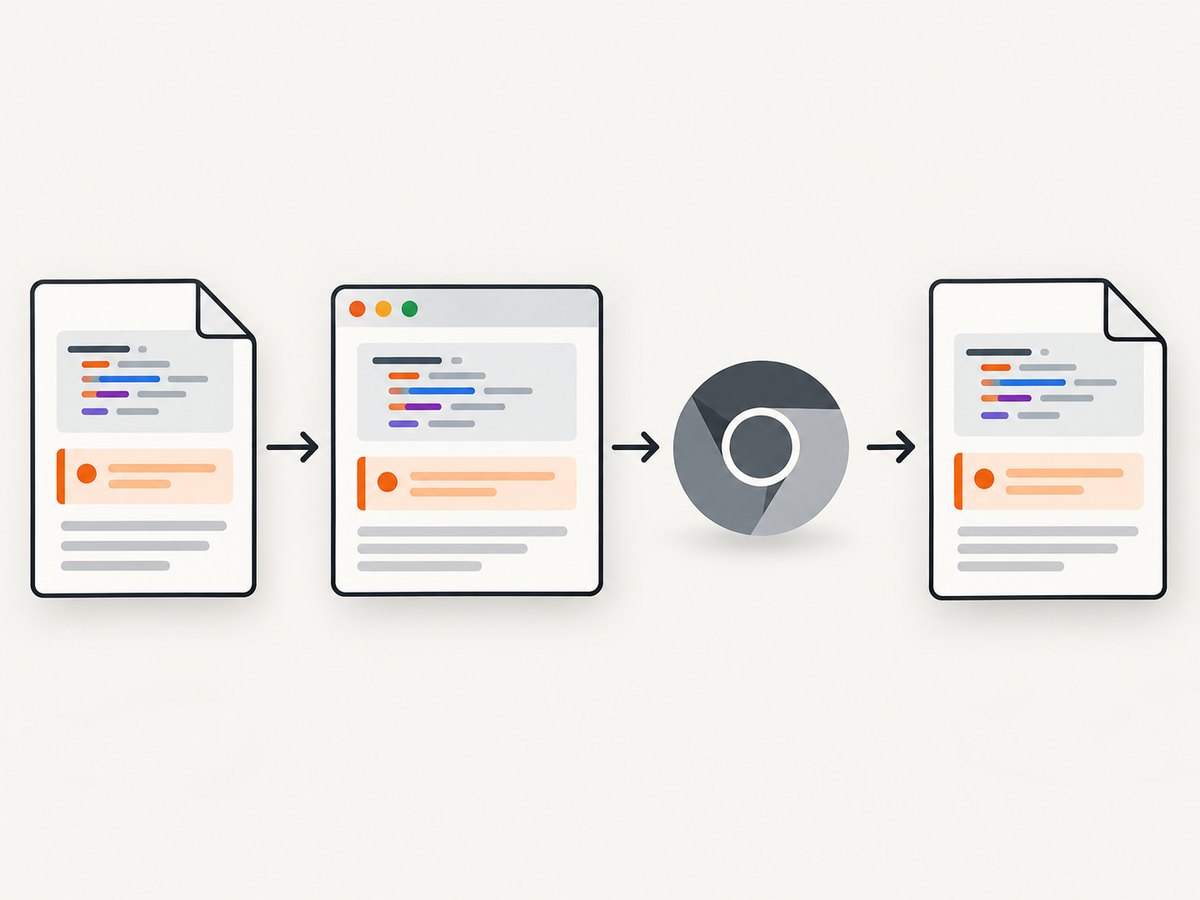
To preserve colors when exporting R Markdown to PDF with Puppeteer, render the .Rmd file to HTML, add print CSS that requests exact colors, and call Puppeteer’s page.pdf() with printBackground: true. Puppeteer uses print media by default; if you want the screen stylesheet instead, emulate screen media before generating the PDF. See the Puppeteer PDF documentation.
The practical recipe is: define the colors for print, enable background graphics in PDF output, wait for the HTML and its assets to load, then save the PDF. The CSS settings help Chromium retain declared colors, but they cannot restore colors that the HTML never received or that are absent from the selected media stylesheet.
1. Understand which renderer controls the PDF
R Markdown can produce a PDF through different rendering paths. The pdf_document() output uses a LaTeX engine. Puppeteer does not participate in that path, so browser print CSS and Puppeteer’s PDF options cannot control its colors. For CSS-driven styling, render to HTML first and send that HTML to Chromium through Puppeteer. R Markdown’s render() function accepts an output format, and the html_document format supports an attached CSS file. See the render reference and the HTML document reference.
There are two useful media choices:
- Print media: Puppeteer’s default for
page.pdf(). Use this for print-specific page rules, page breaks, and a print stylesheet. - Screen media: opt in with
page.emulateMediaType('screen')when the screen-only stylesheet is the design you need reproduced. This changes which media-query rules apply; it does not remove the need to enable printed backgrounds.
Start with print media for a report intended to be a printable document. Choose screen media deliberately when your screen design contains the colors and layout that should appear in the exported file.
2. Add color-preserving CSS to the R Markdown output
Create a file named print-colors.css next to your .Rmd file. The rules below request exact color rendering for elements and their pseudo-elements when the page is printed:
@media print {
  *, *::before, *::after {
    -webkit-print-color-adjust: exact;
    print-color-adjust: exact;
  }
}
Attach it in the YAML header. This complete example also sets a page size and margins. Adjust those dimensions for your report:
---
title: "Quarterly report"
output:
  html_document:
    css: print-colors.css
    self_contained: true
---

# Results

A highlighted result appears here.
self_contained: true embeds linked stylesheets, images, and scripts as data URIs in the generated HTML where supported. MathJax remains an external dependency. If your report depends on external fonts or other assets, verify those separately; a self-contained file does not make every possible external service available offline. The relevant behavior is documented in the HTML document reference.
You can also place the CSS in an R Markdown CSS chunk instead of a separate file:
```{css, echo=FALSE}
@media print {
  *, *::before, *::after {
    -webkit-print-color-adjust: exact;
    print-color-adjust: exact;
  }
}
```
This can keep a small report self-contained at the source level. A separate stylesheet is usually easier to reuse across several reports and to inspect when debugging.
Make sure the color itself applies in print
The color-adjust properties affect how Chromium prints the computed style. They do not change which CSS rules are selected. If a colored callout is styled only inside @media screen, it may be uncolored in print media. Move the print-critical declarations into @media print, or choose screen media in Puppeteer. Also inspect selectors for print overrides such as background: transparent, color: black, or rules that hide a colored element.
3. Render HTML from R Markdown
Save the report as report.Rmd, then render it to an HTML file. This R script writes report.html beside the source file:
rmarkdown::render(
  input = "report.Rmd",
  output_format = "html_document",
  output_file = "report.html"
)
Run it from an R session with the rmarkdown package installed. If you use a project-specific working directory, make sure the input path, stylesheet path, and output path resolve from that context. Render first and open the resulting HTML in Chromium before adding Puppeteer to the investigation. This separates an R Markdown or CSS problem from a PDF-generation problem.
For reproducible output, keep the source, CSS file, R package environment, Node dependencies, and browser version under version control or otherwise record their versions. A report that relies on remote CSS, fonts, images, or JavaScript can change when those resources change or fail to load.
4. Export the HTML with Puppeteer
Install Puppeteer in a Node.js project using the current installation instructions in the Puppeteer installation guide. The following runnable script opens the rendered HTML, waits for document fonts where supported, and saves a PDF using print media:

// save as export-pdf.mjs
import puppeteer from 'puppeteer';
import { pathToFileURL } from 'node:url';
import { resolve } from 'node:path';

const htmlPath = resolve('report.html');
const pdfPath = resolve('report.pdf');

const browser = await puppeteer.launch({ headless: true });
try {
  const page = await browser.newPage();
  await page.goto(pathToFileURL(htmlPath).href, {
    waitUntil: 'networkidle0',
    timeout: 60_000
  });

  // page.pdf() uses print media by default. This call is explicit.
  await page.emulateMediaType('print');
  await page.evaluate(() => document.fonts.ready);

  await page.pdf({
    path: pdfPath,
    printBackground: true,
    preferCSSPageSize: true
  });
  console.log(`Saved ${pdfPath}`);
} finally {
  await browser.close();
}
Run it with node export-pdf.mjs. The Puppeteer page.pdf() reference documents print media as the default and notes that print output modifies colors by default. It describes -webkit-print-color-adjust as the way to request exact color rendering. The printBackground option controls whether CSS background graphics are included. Set it to true for colored panels, fills, and background images.
preferCSSPageSize: true gives a CSS @page size priority over Puppeteer’s format, width, or height settings. For example, put this in your print stylesheet if you want to define the paper dimensions there:
@page {
  size: A4;
  margin: 16mm;
}
If you set format: 'Letter' or explicit dimensions in the Puppeteer call, decide which source should control the page size. Avoid conflicting declarations: use CSS page sizing with preferCSSPageSize: true, or use Puppeteer’s format and dimensions intentionally.
Use screen media when the screen design is the target
To print using the screen stylesheet, change the media call before page.pdf():
await page.emulateMediaType('screen');
await page.pdf({
  path: 'report.pdf',
  printBackground: true,
  preferCSSPageSize: true
});
Do not use this as a general fix for missing backgrounds: printBackground: true is still relevant. Screen media can also select screen-specific layout, which may paginate poorly. Preview the resulting PDF for clipping, page breaks, and oversized elements.
5. Set page breaks and print-only details
Long reports often need explicit pagination. Use print-only CSS for break behavior, and keep decorative break markers out of the screen view if desired. Modern CSS supports break-before, break-after, and break-inside:
@media print {
  .new-page {
    break-before: page;
  }

  figure, table, .callout {
    break-inside: avoid;
  }

  .screen-only {
    display: none !important;
  }
}
Use break-inside: avoid selectively. A table or figure taller than a page cannot remain intact and may overflow or still split. For deliberate page boundaries, add a class to a heading or wrapper in the document rather than inserting arbitrary blank space. R Markdown’s documentation demonstrates print-specific page-break styling; see the R Markdown documentation.
Review tables, code blocks, and wide plots independently. A PDF page has a fixed printable width; use wrapping, smaller plot dimensions, or landscape pages where appropriate. Color correctness and pagination are separate concerns, so fix them in separate passes.
6. cURL, Python, and Node.js alternatives
Puppeteer is a Node.js library, so the complete browser workflow above is in JavaScript. cURL and Python do not directly call Puppeteer’s in-process API. They can still run the Node exporter as a process, or call a separately hosted browser service that you control. Keep HTML rendering and browser export as distinct stages so failures are easier to identify.
For example, from a shell, render with R and then execute the Node script:
Rscript -e 'rmarkdown::render("report.Rmd", output_format="html_document", output_file="report.html")'
node export-pdf.mjs
A Python orchestrator can call those installed tools and check their exit status:
import subprocess

subprocess.run([
    "Rscript", "-e",
    'rmarkdown::render("report.Rmd", output_format="html_document", output_file="report.html")'
], check=True)
subprocess.run(["node", "export-pdf.mjs"], check=True)
print("Created report.pdf")
This requires R, the R Markdown dependencies, Node.js, and Puppeteer to be installed in the environment. cURL is useful for downloading an HTML file from a web server before passing it to Puppeteer, but it does not itself render R Markdown or create a PDF. A local-file workflow does not need cURL.
7. Or skip the browser setup
If your goal is a screenshot of a web page rather than a paginated R Markdown report, ScreenshotNeo offers a one-request capture API. It returns a screenshot image or PDF from a URL. It does not replace the R Markdown-to-HTML rendering step for a local report; make the rendered page reachable at a URL first. See the ScreenshotNeo API documentation.
curl -G "https://api.screenshotneo.com/v1/shot" -d access_key=YOUR_API_KEY --data-urlencode url=https://stripe.com -o shot.webpimport requests
r = requests.get(
"https://api.screenshotneo.com/v1/shot",
params={"access_key": "YOUR_API_KEY", "url": "https://stripe.com"},
timeout=90
)
r.raise_for_status()
open("shot.webp", "wb").write(r.content)const q = new URLSearchParams({ access_key: 'YOUR_API_KEY', url: 'https://stripe.com' });
const res = await fetch(`https://api.screenshotneo.com/v1/shot?${q}`);
if (!res.ok) throw new Error(`Screenshot request failed: ${res.status}`);
await Bun.write('shot.webp', res);The JavaScript example uses Bun’s file writer. With Node.js, save the response body using the filesystem API:
import { writeFile } from 'node:fs/promises';
const q = new URLSearchParams({ access_key: 'YOUR_API_KEY', url: 'https://stripe.com' });
const res = await fetch(`https://api.screenshotneo.com/v1/shot?${q}`);
if (!res.ok) throw new Error(`Screenshot request failed: ${res.status}`);
await writeFile('shot.webp', Buffer.from(await res.arrayBuffer()));
ScreenshotNeo removes cookie banners, newsletter popups, and chat widgets before capture. Bot checks, blank pages, and failed loads are not billed. Its MCP server lets AI agents take screenshots. The Free plan includes 1,000 screenshots per month with no card; paid plans start at $5 for 3,000. If you need to preserve a specific print stylesheet and page pagination, use the Puppeteer workflow above. For URL-based captures, sign up for ScreenshotNeo’s free plan.
8. Troubleshooting colors and PDF output
| Symptom | Likely cause | Fix |
|---|---|---|
| Colored text becomes gray or black | Print color adjustment changes output, or the print stylesheet overrides the color. | Add both color-adjust declarations to print CSS. Inspect computed styles under print media and remove unintended overrides. |
| Colored panels lose their fill | PDF backgrounds are not enabled, or the background exists only in screen CSS. | Set printBackground: true. Confirm the fill rule applies to print, or emulate screen media intentionally. |
| Colors look right in the browser but wrong in the PDF | The browser preview may be using screen media while PDF generation uses print media. | Compare print-media rendering in Chromium. Move needed rules into @media print or call emulateMediaType('screen') before PDF generation. |
| Stylesheet or image is missing | A relative URL resolved from an unexpected base path, or an external resource did not load. | Check resource URLs in generated HTML and the browser console. Use a self-contained document where suitable, while accounting for the MathJax exception. |
| Fonts differ or text reflows | Fonts were not loaded before printing or are fetched from an unavailable source. | Wait for document.fonts.ready, verify network requests, and bundle or reliably serve required font files. |
PDF page size ignores @page |
Puppeteer’s format or dimensions take priority. | Set preferCSSPageSize: true and check for conflicting page-size options. |
| Tables or code are clipped | Content exceeds the printable page width or has unbreakable lines. | Wrap code, constrain wide elements, adjust margins, or use a landscape page. |
| Navigation times out | networkidle0 waits for network activity to settle, but the page may keep connections open. |
Use an appropriate readiness condition for your report, such as domcontentloaded, then explicitly wait for a report-specific selector or fonts. Do not silently export a partially rendered page. |
When a problem persists, record the Puppeteer and Chromium versions, save the generated HTML, and compare the page before PDF export. Rendering behavior can change across releases; a version record makes regressions easier to reproduce.
9. Performance, reliability, and cost
For a local static report, the main time costs are R Markdown rendering, browser startup, resource loading, and PDF generation. Reuse one browser process when producing multiple PDFs in a batch, while creating a fresh page for each report and closing pages reliably. Avoid waiting for full network idleness when the report uses persistent connections; instead wait for the specific content needed for a correct capture.
Reliability depends on controlling inputs. Prefer local or versioned assets over mutable remote resources, wait for fonts and report data, and choose media explicitly. For reports with JavaScript-generated charts, wait for a chart-ready selector or application event before calling page.pdf(). Set a navigation timeout and surface errors rather than writing a PDF that looks successful but is incomplete.
The browser workflow has no per-capture fee from Puppeteer, but it requires compute, dependency maintenance, and operational care if run in a server or container. A hosted capture API changes that cost model. ScreenshotNeo’s listed plans are Free with 1,000 shots per month, Starter at $5 for 3,000, Growth at $15 for 15,000, Pro at $39 for 60,000, Scale at $99 for 250,000, and Business at $249 for 1,000,000; yearly billing gives two months free. The supplied product facts state that every feature is available on every plan. These are URL capture plans, so match them to screenshot or webpage PDF needs rather than assuming they replace a local R Markdown build.
10. FAQ
Does print-color-adjust: exact guarantee identical colors on every machine?
It requests exact color adjustment from the browser. It does not guarantee identical output across different browser versions, displays, printers, or color-management paths. Keep the browser version consistent when reproducibility matters.
Can I use pdf_document() and Puppeteer options together?
No. pdf_document() follows the LaTeX PDF route. To use Puppeteer’s browser print settings, render an HTML document and print that HTML.
Should I choose print or screen media?
Choose print for print-specific layout and pagination. Choose screen when the screen stylesheet is the desired visual source and you accept its pagination behavior.
Can I export a PDF from a local .Rmd file with ScreenshotNeo?
ScreenshotNeo captures a URL. Render the R Markdown to HTML and make it reachable to the capture service first; for a local file and exact print CSS control, Puppeteer is the direct route.


