How to Prevent Elements from Splitting Across Pages with react-to-pdf
Keep cards, table rows, and notices together in react-to-pdf with CSS wrappers, page-sized sections, and reliable pagination fixes.

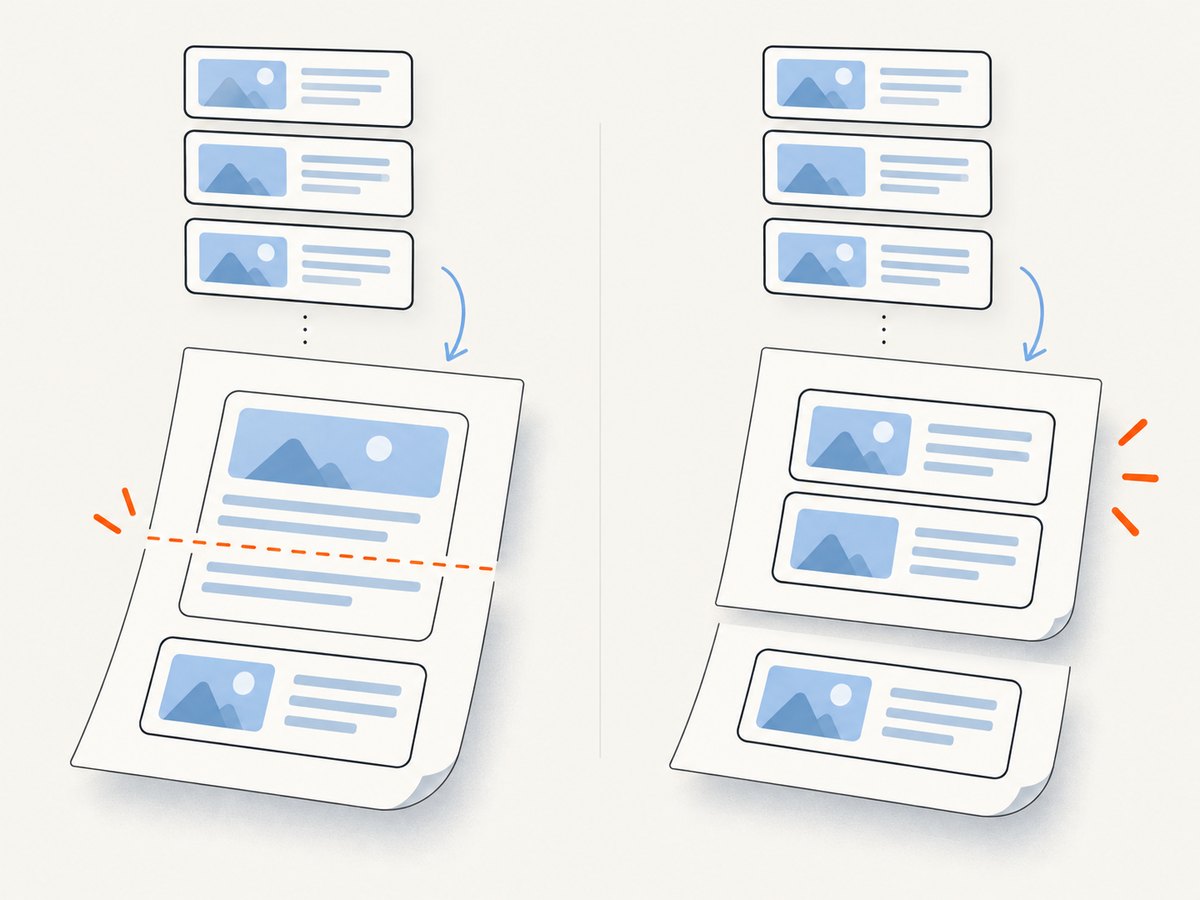
Direct answer: Put both break-inside: avoid and page-break-inside: avoid on a wrapper around each logical unit you want to keep together. Make every unit shorter than the usable page height. If react-to-pdf still splits a unit, render your content as explicit page-sized sections or capture separate sections and assemble them.
react-to-pdf captures your DOM with html2canvas and places the resulting canvas image into jsPDF. It is therefore not a browser print engine. CSS pagination rules can help, but html2canvas does not implement every CSS property, so a rule that works in print preview may have little effect in a canvas capture.
1. Add keep-together rules to the logical wrapper
Apply the rules to the block that represents one card, notice, invoice row, or other unit. Adding them only to a paragraph inside the unit does not prevent the parent block from being sliced.
.pdf-unit {
  break-inside: avoid;
  page-break-inside: avoid;
}
import { useRef } from 'react';
import { usePDF } from 'react-to-pdf';
import './invoice.css';
export default function Invoice() {
const targetRef = useRef(null);
const { toPDF } = usePDF({
filename: 'invoice.pdf',
page: {
margin: 16,
format: 'a4',
orientation: 'portrait'
}
});
const items = [
{ id: 1, title: 'Design work', body: 'Wireframes and component specifications.' },
{ id: 2, title: 'Implementation', body: 'React implementation and accessibility fixes.' },
{ id: 3, title: 'Review', body: 'Cross-browser review and handoff notes.' }
];
return (
<>
Invoice
{items.map(item => (
{item.title}
{item.body}
))}
);
}
.pdf-root {
  width: 210mm;
  padding: 16mm;
  box-sizing: border-box;
  background: white;
  color: #111;
}

.pdf-unit {
  break-inside: avoid;
  page-break-inside: avoid;
  margin-block: 0 12mm;
}
2. Make the available page height predictable
An unbreakable unit must fit inside the page’s usable area. A unit taller than one page cannot remain intact without shrinking, splitting, or being redesigned.
- Choose the PDF format and margins first.
- Estimate the usable height after margins, headers, and footers.
- Keep cards, table rows, and notices below that height.
- Remove unnecessary vertical padding, oversized headings, and fixed-height gaps.
Do not put a fixed height on a flowing unit unless its content is guaranteed to fit. A fixed height combined with overflow: hidden can clip content, while overflow: auto can produce a scroll area in the canvas.
3. Remove layout rules that fight pagination
Before changing react-to-pdf options, inspect the captured root and its ancestors:
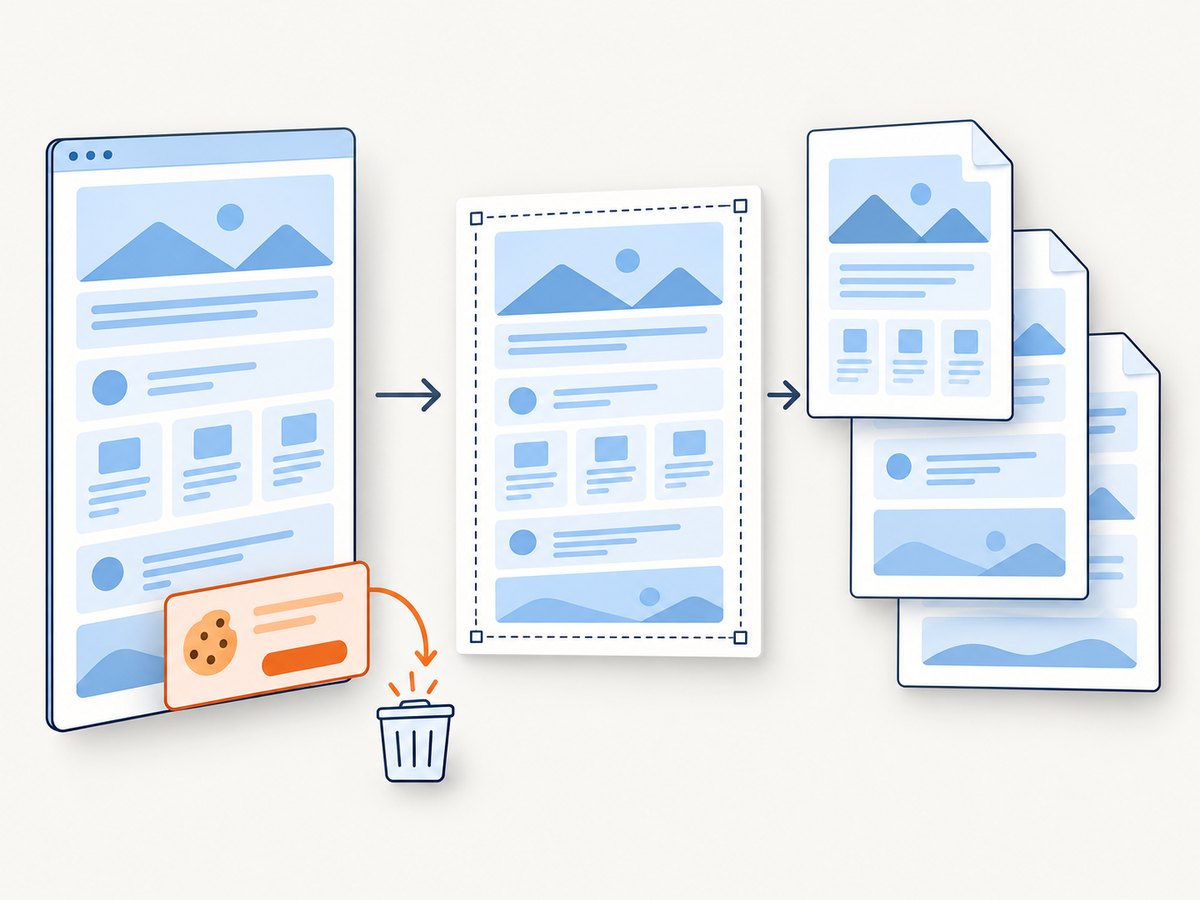
- Remove
height: 100vhand other viewport-based heights from content that should continue onto later pages. - Avoid
overflow: autooroverflow: hiddenon containers that hold multiple units. - Capture the document root, not a scrolling panel whose height is only the visible viewport.
- Check flex and grid layouts. A row with several cards may be treated as one large box; render each card as its own block when it must paginate independently.
- Wait until web fonts and images have loaded so measured heights do not change during capture.
4. Use explicit page-sized sections when avoidance is unreliable
Automatic avoidance is best-effort in a canvas pipeline. For invoices, reports, and other documents where a split is unacceptable, group units into page wrappers and force a boundary between wrappers.
export default function Report({ firstPageItems, secondPageItems }) {
const targetRef = useRef(null);
const { toPDF } = usePDF({ filename: 'report.pdf' });
const renderItem = item => (
{item.title}
{item.body}
);
return (
<>
{firstPageItems.map(renderItem)}
{secondPageItems.map(renderItem)}
);
}
.pdf-page {
  min-height: 257mm; /* example A4 content height after margins */
  box-sizing: border-box;
}

.html2pdf__page-break {
  break-after: page;
  page-break-after: always;
  height: 0;
}
The html2pdf__page-break class is documented by html2pdf.js. The react-to-pdf API primarily exposes page, canvas, and jsPDF configuration, so verify that your installed version passes page-break behavior through before relying on the marker. An explicit .pdf-page boundary remains the clearest fallback.
5. Keep tables and rows together
Wrap the complete row content in a block that the capture can treat as one unit. Avoid placing a very large table inside a single unbreakable wrapper; split the table into page-sized groups instead.
function LineItems({ rows }) {
  return (

      {rows.map(row => (

          {row.description}
          {row.quantity} × {row.price}
          {row.total}

      ))}

  );
}
.line-items {
  display: block;
}

.line-item {
  display: grid;
  grid-template-columns: 1fr auto auto;
  gap: 8px;
  padding: 6px 0;
  border-bottom: 1px solid #ddd;
  break-inside: avoid;
  page-break-inside: avoid;
}
6. Use html2canvas overrides carefully
react-to-pdf documents an overrides object for values passed to jsPDF and html2canvas. Change one setting at a time because an unsupported or mismatched override can break output.
const options = {
  overrides: {
    canvas: {
      useCORS: true,
      onclone: clonedDocument => {
        clonedDocument.querySelectorAll('.pdf-unit')
          .forEach(node => node.classList.add('capture-unit'));
      }
    }
  }
};
.capture-unit {
  break-inside: avoid;
  page-break-inside: avoid;
}
onclone changes the cloned document used for capture, so you can add capture-only styles without changing the live interface. Check the typings for the exact react-to-pdf and html2canvas versions installed in your project before shipping configuration.
7. Complete export checklist
- Capture the intended root element.
- Add both avoidance properties to every logical unit.
- Keep each unit shorter than the usable page height.
- Remove fixed heights and overflow rules that clip or scroll content.
- Wait for fonts, images, and asynchronous data.
- Use explicit page wrappers for sections that must never split.
- Start with a lower resolution while debugging.
- Increase resolution only after pagination is correct.
8. Troubleshooting react-to-pdf page breaks
| Symptom | Likely cause | Fix |
|---|---|---|
page-break-inside: avoid has no effect |
html2canvas slices a large canvas; CSS support is incomplete. | Use both avoidance rules, shorten the unit, or render page-sized sections. |
| A card is cut off | The card is taller than the usable page or an ancestor clips overflow. | Reduce content, split the card deliberately, and remove fixed height or overflow clipping. |
| The export contains only the visible portion | The captured node is inside a scrolling container. | Capture the full document root and remove viewport-height constraints. |
| Rows move between pages after fonts load | Pagination happened before fonts or images finished loading. | Await document.fonts.ready and image completion before calling toPDF. |
| Browser hangs or crashes on multi-page output | High resolution creates a very large canvas and image. | Lower the resolution, reduce the capture area, or export sections separately. |
| Images are missing | Cross-origin images are not available to the canvas. | Serve images with appropriate CORS headers and use the documented useCORS option. |
| Page-break marker is ignored | The installed react-to-pdf path does not expose html2pdf.js break handling. | Use explicit page wrappers or confirm the installed package and typings support the option. |
9. Performance, reliability, and cost considerations
Canvas-based PDF generation runs in the browser and holds the rendered page in memory. Large images, long pages, high scale factors, and many pages multiply memory use. Debug at a lower resolution, then raise it only when needed. For long reports, capture page-sized sections separately and combine them with a PDF library.
Wait for stable layout before capture. Disable animations during export, freeze dynamic data, and use deterministic widths so a late layout shift cannot change pagination. Keep a small set of representative fixtures: a unit that fits, one near the page limit, a unit that exceeds a page, a long table, and a page containing images and custom fonts.
When the document needs selectable or searchable text, complex tables, repeating headers, or strict CSS pagination, a canvas screenshot workflow is the wrong abstraction. html2canvas’s FAQ documents incomplete CSS support; evaluate a CSS-aware browser or server-side HTML-to-PDF renderer for those requirements.
10. Or skip the browser setup
ScreenshotNeo provides a website screenshot API and PDF endpoint when you do not need to maintain a browser capture pipeline. See the API documentation for the available PDF options.
curl -G "https://api.screenshotneo.com/v1/shot" -d access_key=YOUR_API_KEY --data-urlencode url=https://stripe.com -o shot.webp
import requests
r = requests.get("https://api.screenshotneo.com/v1/shot", params={"access_key": "YOUR_API_KEY", "url": "https://stripe.com"}, timeout=90)
open("shot.webp", "wb").write(r.content)
const q = new URLSearchParams({ access_key: 'YOUR_API_KEY', url: 'https://stripe.com' });
const res = await fetch(`https://api.screenshotneo.com/v1/shot?${q}`);
- Cookie banners, newsletter popups, and chat widgets are removed before the shot.
- Bot checks, blank pages, failed loads, timeouts, and cache hits are not billed.
- An MCP server lets AI agents use
take_screenshot,get_page_info, andcapture_pdf. - Every response reports the page verdict and billing result in
X-Page-VerdictandX-Billedheaders. - 1,000 screenshots a month are free with no card; paid plans start at $5 for 3,000 shots.
Create a free ScreenshotNeo account to start with 1,000 screenshots per month and no card.
11. FAQ
Does break-inside: avoid guarantee an intact element?
No. It is a request to the pagination process. html2canvas renders a canvas and does not implement all browser CSS behavior, so oversized units and complex layouts can still split.
Should I use only the modern property?
Use both break-inside: avoid and page-break-inside: avoid for compatibility with related HTML-to-PDF tooling and legacy pagination behavior.
What if one card is taller than a page?
It cannot remain intact at its current size. Redesign it, reduce its content, split it into meaningful sub-units, or give it a dedicated page.
Can I solve this with jsPDF settings alone?
jsPDF controls PDF output, but the split usually happens earlier when html2canvas creates the canvas. Fix the DOM structure and capture dimensions first.
When should I replace react-to-pdf?
Choose a CSS-aware browser or server renderer when selectable text, repeating table headers, complex pagination, or print-faithful CSS is a requirement.


