How to Prevent HTML-to-PDF Page Breaks from Splitting Text
Keep paragraphs, figures, and headings together in HTML-to-PDF output with break-inside, renderer-specific settings, and practical fixes.

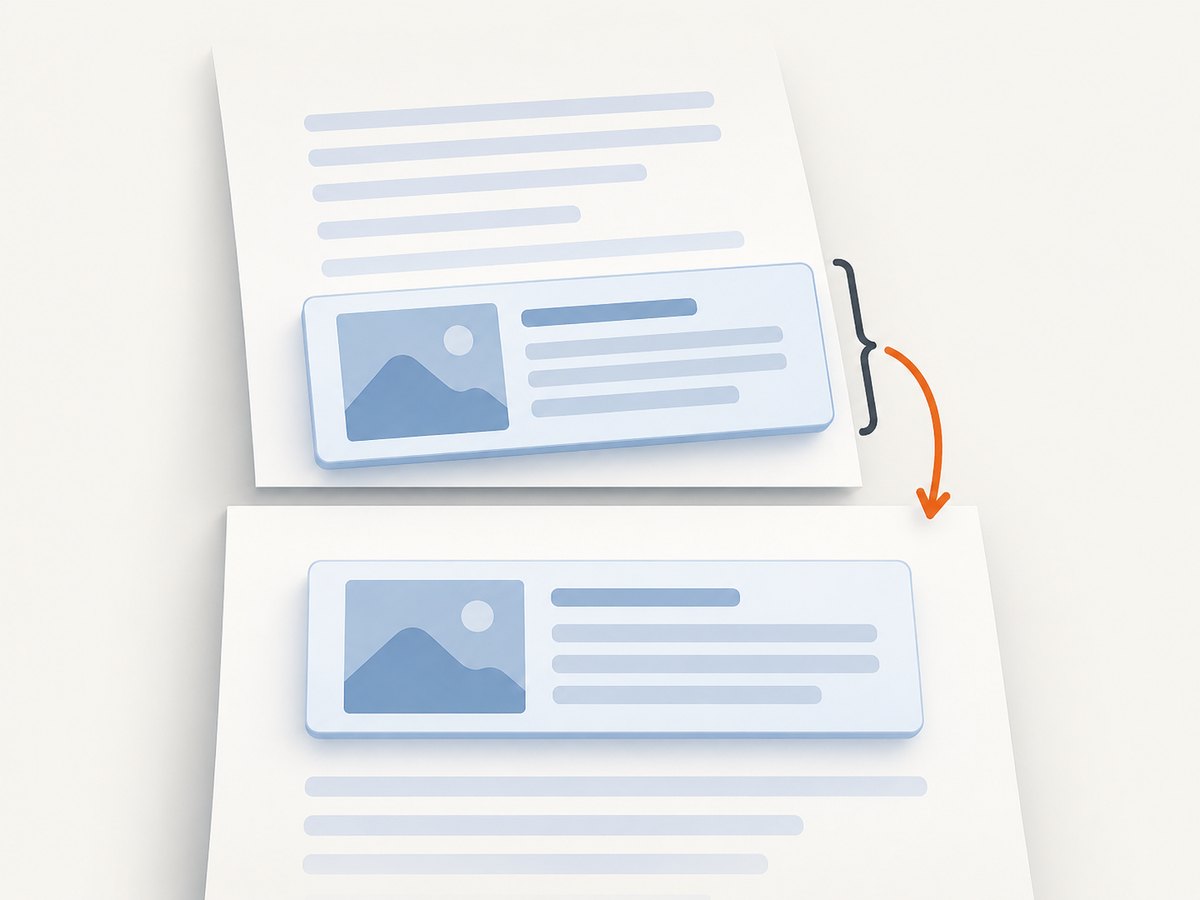
Direct answer: apply break-inside: avoid to the smallest in-flow block that must stay together. For older engines, include its legacy alias, page-break-inside: avoid. Keep the rule limited to blocks that can fit on one page. If a block is taller than the available page area, every renderer must split it eventually.
@media print {
  .keep-together {
    break-inside: avoid;
    page-break-inside: avoid;
  }

  h2 {
    break-after: avoid;
    page-break-after: avoid;
  }
}
Use .keep-together on a short paragraph group, callout, figure, table, or card. Use break-after: avoid on headings so a heading does not sit alone at the bottom of a page. These values are pagination preferences, not absolute commands. Forced breaks, renderer rules, and content that cannot fit can still win.
1. Understand what the browser is paginating
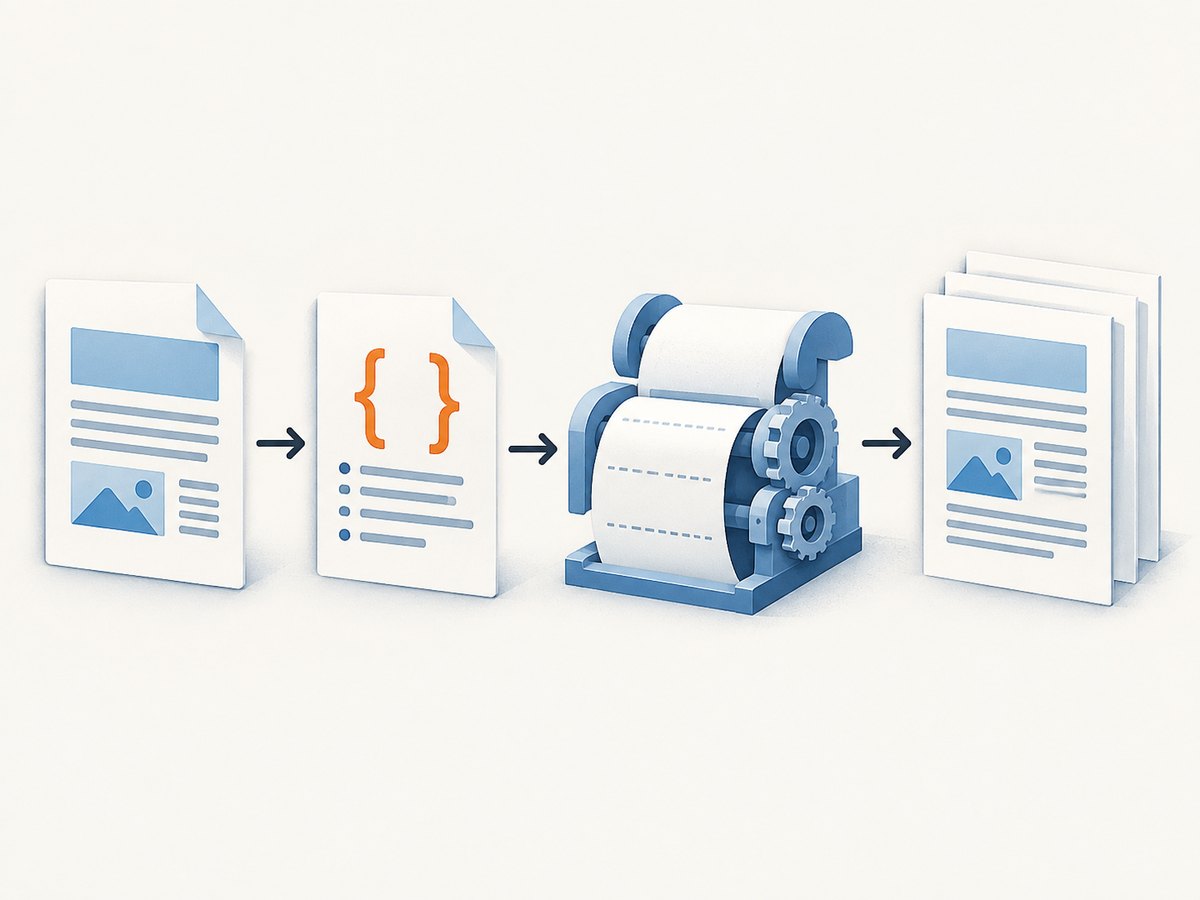
HTML is laid out as a continuous document. PDF conversion fragments that layout into page boxes. The converter decides where a page can break between block boxes, inside a box, or between lines. CSS fragmentation properties express your preference at those boundaries:
| Property | Use | Legacy alias |
|---|---|---|
break-inside |
Discourage a break inside an element | page-break-inside |
break-before |
Request a break before an element | page-break-before |
break-after |
Request or discourage a break after an element | page-break-after |
The CSS 2.2 paged-media specification and MDN document page-break-inside: avoid as the compatibility form; modern CSS uses break-inside (W3C, MDN). Put both declarations in the same rule when your output may be generated by different engines.
Choose the smallest useful wrapper
This keeps a heading, paragraph, and list together without preventing unrelated content from flowing:
<section class='feature keep-together'>
  <h3>Backups</h3>
  <p>The service stores an encrypted copy for 30 days.</p>
  <ul>
    <li>Daily snapshots</li>
    <li>Restore by timestamp</li>
  </ul>
</section>
@media print {
.keep-together {
break-inside: avoid;
page-break-inside: avoid;
}
.keep-with-next {
break-after: avoid;
page-break-after: avoid;
}
figure, table, blockquote {
break-inside: avoid;
page-break-inside: avoid;
}
}Applying avoid to the entire document, every paragraph, or a very large container can create large blank areas and still cannot keep oversized content intact. Scope the selector to components whose meaning depends on staying together.
2. Handle headings, figures, and tables
A heading stranded at the bottom of a page is usually fixed with break-after: avoid, not with break-inside on the heading itself:
@media print {
  h1, h2, h3 {
    break-after: avoid;
    page-break-after: avoid;
  }

  figure,
  .callout,
  .code-sample {
    break-inside: avoid;
    page-break-inside: avoid;
  }
}
For tables, apply the rule to the table or a row group that fits. A table longer than a page must split. If repeating headers are required, use table header markup and confirm that your renderer repeats it:
<table class='keep-together'>
  <thead>
    <tr><th>Plan</th><th>Limit</th></tr>
  </thead>
  <tbody>...</tbody>
</table>
Images can change height after fonts or assets load. Reserve dimensions with width and height or aspect-ratio, then keep the caption and image in one wrapper.
3. Complete Puppeteer example (Node.js)
Puppeteer’s page.pdf() uses print media by default. The following script loads local HTML, waits for fonts and images, applies print CSS, and writes a PDF.
import puppeteer from 'puppeteer';

const browser = await puppeteer.launch({ headless: true });
const page = await browser.newPage();

await page.setContent(`
  <!doctype html>
  <html>
    <head>
      <style>
        @page { size: A4; margin: 18mm; }
        @media print {
          h2 { break-after: avoid; page-break-after: avoid; }
          .keep-together {
            break-inside: avoid;
            page-break-inside: avoid;
          }
        }
      </style>
    </head>
    <body>
      <h1>Quarterly report</h1>
      <section class='keep-together'>
        <h2>Revenue</h2>
        <p>This paragraph stays with its heading when it fits on a page.</p>
      </section>
    </body>
  </html>
`, { waitUntil: 'networkidle0' });

await page.evaluate(async () => {
  if (document.fonts) await document.fonts.ready;
  await Promise.all([...document.images].map(img => {
    if (img.complete) return Promise.resolve();
    return new Promise(resolve => {
      img.addEventListener('load', resolve, { once: true });
      img.addEventListener('error', resolve, { once: true });
    });
  }));
});

await page.pdf({
  path: 'report.pdf',
  format: 'A4',
  printBackground: true,
  preferCSSPageSize: true,
  margin: { top: '18mm', right: '18mm', bottom: '18mm', left: '18mm' }
});

await browser.close();
If your design intentionally depends on screen media, call await page.emulateMediaType('screen') before page.pdf(). Otherwise, put pagination rules in @media print and let Puppeteer use its default print media behavior (Puppeteer documentation).
4. Complete WeasyPrint example (Python)
WeasyPrint supports break-before, break-after, and break-inside, along with the CSS2 page-break-* aliases.
from weasyprint import HTML, CSS

html = '''
<!doctype html>
<html>
<head>
  <meta charset='utf-8'>
  <style>
    @page { size: A4; margin: 18mm; }
    @media print {
      h2 { break-after: avoid; page-break-after: avoid; }
      .keep-together {
        break-inside: avoid;
        page-break-inside: avoid;
      }
    }
  </style>
</head>
<body>
  <h1>Quarterly report</h1>
  <section class='keep-together'>
    <h2>Revenue</h2>
    <p>A block that fits on one page should stay together.</p>
  </section>
</body>
</html>
'''

HTML(string=html, base_url='.').write_pdf('report.pdf')
Set a stable base_url when the document references local stylesheets, fonts, or images. Without it, relative assets may fail to load and the resulting height changes can move page breaks.
5. Force intentional page boundaries
Use a forced break when a new chapter, invoice, or appendix must start on a fresh page:
.new-page {
  break-before: page;
  page-break-before: always;
}

.end-section {
  break-after: page;
  page-break-after: always;
}
Do not combine forced breaks casually with broad avoid rules. A forced break has priority in many engines and can make a supposedly protected group appear to split or leave unexpected whitespace. For named page types, check whether your renderer supports @page selectors before relying on them.
6. Why avoidance sometimes appears to fail
- The block is too tall. An element longer than one page still has to split. Reduce its content, allow internal sections to break, or insert a deliberate break before it. Prince documents this constraint in its pagination guide (Prince User Guide).
- The selector does not match. Inspect the generated DOM and computed print styles. A class on a template component may be missing from the final HTML.
- The element is not in normal flow. Absolutely positioned content, transformed layers, and some generated boxes do not fragment like ordinary blocks. Move the rule to an in-flow wrapper.
- Print CSS is not active. In Puppeteer,
page.pdf()uses print media. In another pipeline, confirm that print stylesheets are enabled. - Assets load late. A web font swap or image decode changes line wrapping. Wait for
document.fonts.readyand image completion before generating the PDF. - Renderer versions differ. Pagination is not pixel-identical across Chromium, WeasyPrint, Prince, and other engines. Pin the production version and test with it.
7. A practical troubleshooting checklist
| Symptom | Likely cause | Fix |
|---|---|---|
| Heading alone at page bottom | No break-after rule | Add break-after: avoid to the heading or heading wrapper. |
| Callout splits despite avoid | It cannot fit in remaining space or is taller than a page | Shorten it, move it earlier, or allow a controlled internal split. |
| Rule works in browser preview but not PDF | Wrong media type or unsupported renderer version | Inspect print computed styles and verify the deployed engine. |
| Blank half-pages | Avoid applied to large containers | Move the rule to the smallest meaningful component. |
| Images overlap or move | Missing dimensions or late loading | Reserve aspect ratio and wait for image/font readiness. |
| Table header does not repeat | Renderer-specific table behavior | Use thead, test the target engine, and consider splitting very large tables. |
For each bug, save the exact HTML, CSS, renderer name and version, page size, margins, and media setting. Then render a small reproduction. This isolates CSS fragmentation from application data and makes regressions reviewable.
8. Performance, reliability, and cost considerations
Pagination itself is inexpensive compared with launching a browser, loading remote assets, and rasterizing large images. Reuse a Puppeteer browser process for batches, but create a fresh page per document and close pages deterministically. Limit concurrency so font downloads and image decoding do not exhaust memory.
For reliable output, make fonts and images deterministic, set explicit page size and margins, and avoid content whose height depends on an unbounded API response. Cache identical source HTML when appropriate. Compare PDFs by rendering representative pages to images; byte-for-byte PDF comparisons can change because of metadata even when layout is equivalent.
There is no universal benchmark for break rules. Measure your own documents: capture render duration, memory, page count, and failure rate under production data. A rule that keeps a 200-pixel card together may create a large gap if added to a 2,000-pixel container, so review both visual quality and throughput.
9. Or skip the browser setup
ScreenshotNeo provides a website capture API that can return PNG, JPEG, WebP, or PDF. It handles consent banners before capture and removes more than 60 known consent platforms, newsletter popups, and chat widgets; each step can be disabled. Bot checks, blank pages, timeouts, failed loads, and cache hits are not billed, and the response identifies the result with X-Page-Verdict and X-Billed headers. PDF controls include paper size, margins, landscape mode, and page ranges.
See the ScreenshotNeo API documentation for all options. A basic request is:
curl -G 'https://api.screenshotneo.com/v1/shot' \
  -d access_key=YOUR_API_KEY \
  --data-urlencode url=https://stripe.com \
  -o shot.webp
import requests
r = requests.get(
'https://api.screenshotneo.com/v1/shot',
params={'access_key': 'YOUR_API_KEY', 'url': 'https://stripe.com'},
timeout=90,
)
r.raise_for_status()
open('shot.webp', 'wb').write(r.content)const q = new URLSearchParams({
access_key: 'YOUR_API_KEY',
url: 'https://stripe.com'
});
const res = await fetch(`https://api.screenshotneo.com/v1/shot?${q}`);
if (!res.ok) throw new Error(`HTTP ${res.status}`);
const bytes = new Uint8Array(await res.arrayBuffer());ScreenshotNeo also supports full-page capture, selector capture, custom CSS and JavaScript, waiting for a selector, delay or network idle, custom headers and cookies, blocking resource types, caching with a chosen TTL, signed links, asynchronous jobs with signed webhooks, bulk capture for up to 100 URLs per call, usage reporting, and an MCP server with take_screenshot, get_page_info, and capture_pdf tools for AI clients.
There is a free tier of 1,000 screenshots per month with no card. Paid plans start at $5 for 3,000 shots; yearly billing provides two months free. Create a free ScreenshotNeo account to try the API.
10. Short FAQ
Does break-inside: avoid guarantee no split?
No. It is a preference. Content taller than a page, forced breaks, and renderer rules can override it.
Should I use the modern property or the old one?
Use both declarations for compatibility: break-inside: avoid followed by page-break-inside: avoid.
Why does my heading still appear alone?
Apply break-after: avoid (and its legacy alias) to the heading or a wrapper containing the heading and first content.
Can I prevent a paragraph from splitting across pages?
Yes, wrap it in an in-flow block with both avoid declarations, provided the block can fit in the available page area.
Which renderer should I choose?
Compare documented fragmentation support, print versus screen media behavior, page-size and margin controls, table handling, and the exact version you deploy. Verify with representative PDFs.


