How to Prevent html2canvas Images From Being Cut Off
Fix html2canvas screenshots that stop halfway, miss images, or render blank with correct dimensions, scaling, scrolling, CORS, and limits.
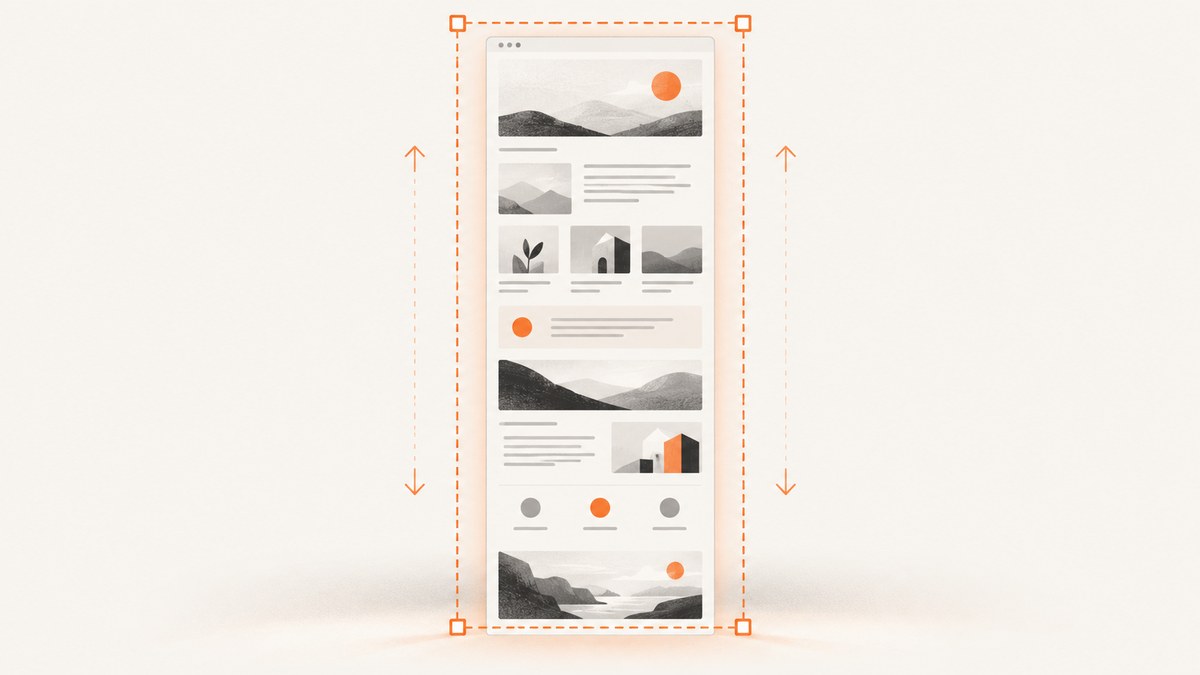
When html2canvas cuts off the bottom or right side of an image, the usual cause is that it rendered the element inside the current viewport instead of its full scrollable area. Start by matching the render window to the element’s scrollWidth and scrollHeight:
const element = document.querySelector('#capture');

const canvas = await html2canvas(element, {
  windowWidth: element.scrollWidth,
  windowHeight: element.scrollHeight,
});
This is the fix recommended in the html2canvas FAQ. If the result is still incomplete, check the canvas dimensions, scale, crop options, scroll offsets, image CORS, and browser canvas limits. A canvas can become blank or partially rendered when its internal pixel area is too large, even when no JavaScript exception is thrown.
1. Why html2canvas cuts off content
html2canvas reconstructs a page in a cloned document and paints the result to a canvas. The element’s visible CSS box is not always the same as its complete scrollable content. A long article, horizontally scrolling table, or nested panel can therefore be clipped at the viewport boundary.
There are five common causes:
- Viewport-sized rendering:
windowWidthandwindowHeightdefault to the browser viewport. - Explicit crop options:
width,height,x, orycan intentionally or accidentally crop the output. - High-DPI scaling:
scaledefaults towindow.devicePixelRatio, multiplying the internal pixel dimensions. - Browser canvas limits: very large dimensions or pixel areas can produce blank or partial output.
- Resources that cannot be painted: cross-origin images, inaccessible iframes, unsupported CSS, or images that time out may look like clipping.
Measure the source before changing options. CSS dimensions are measured in CSS pixels; the bitmap can be larger after scaling.
const element = document.querySelector('#capture');
console.table({
  clientWidth: element.clientWidth,
  clientHeight: element.clientHeight,
  scrollWidth: element.scrollWidth,
  scrollHeight: element.scrollHeight,
  devicePixelRatio: window.devicePixelRatio,
});
2. Capture a complete long or wide element
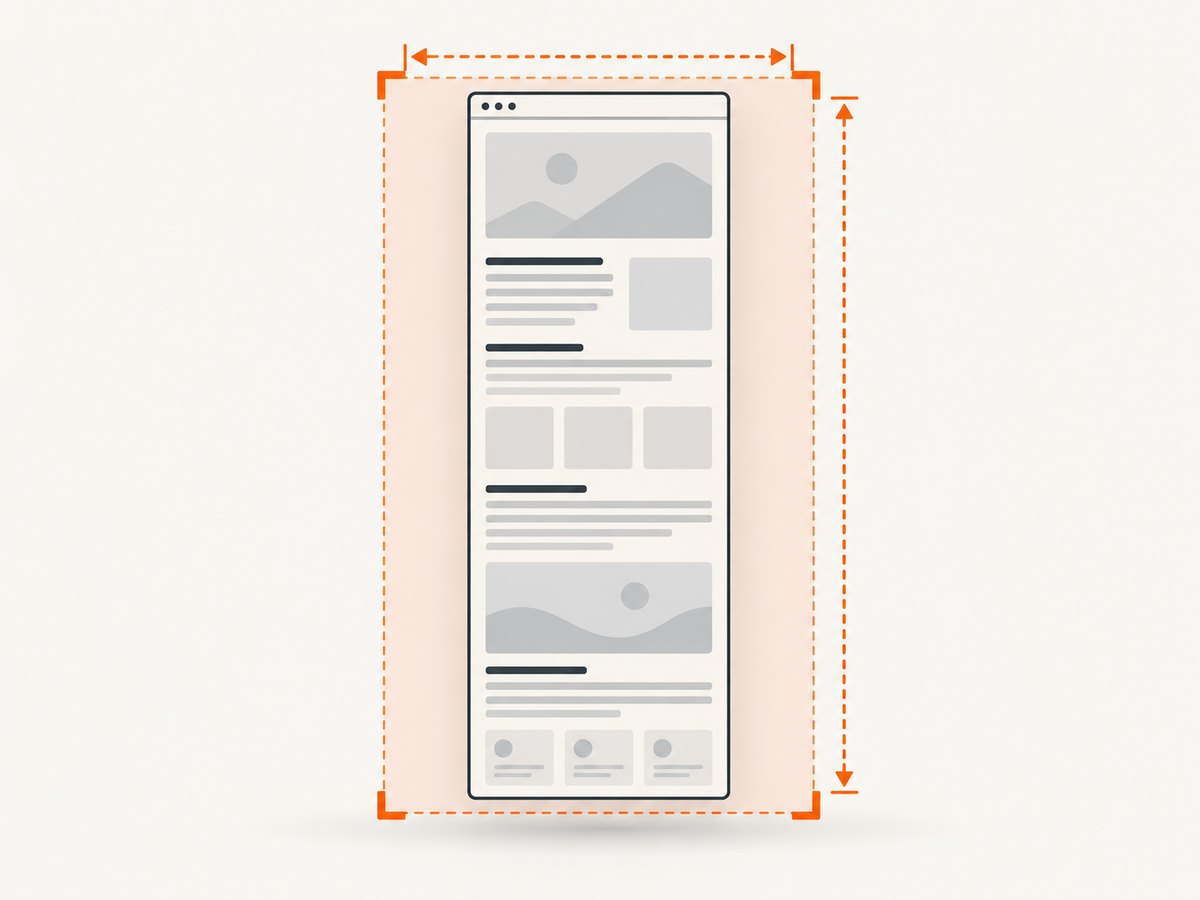
For a full element, set the render window to the element’s scrollable dimensions and make the viewport scroll position explicit:
import html2canvas from 'html2canvas';

async function captureFullElement(selector) {
  const element = document.querySelector(selector);
  if (!element) throw new Error(`No element matches ${selector}`);

  const canvas = await html2canvas(element, {
    windowWidth: element.scrollWidth,
    windowHeight: element.scrollHeight,
    scrollX: 0,
    scrollY: 0,
    backgroundColor: '#fff',
    scale: 1,
    useCORS: true,
  });

  return canvas;
}

const canvas = await captureFullElement('#capture');
document.body.appendChild(canvas);
windowWidth and windowHeight affect layout and media queries while html2canvas renders. They do not automatically guarantee that a huge canvas is within browser limits, so inspect canvas.width and canvas.height after capture.
Nested scroll containers
If the target is a panel with overflow: auto, its scrollHeight may exceed its visible height. The element can still be clipped if its children are positioned outside the element’s layout box. Temporarily remove the clipping style in onclone:
const panel = document.querySelector('#capture');
const canvas = await html2canvas(panel, {
  windowWidth: panel.scrollWidth,
  windowHeight: panel.scrollHeight,
  onclone: (clonedDocument) => {
    const clonedPanel = clonedDocument.querySelector('#capture');
    clonedPanel.style.overflow = 'visible';
    clonedPanel.style.maxHeight = 'none';
    clonedPanel.style.height = `${panel.scrollHeight}px`;
  },
});
onclone changes only the document used for rendering; the live page is not modified.
Capture one region deliberately
Use x, y, width, and height when you want a region rather than the whole element:
const canvas = await html2canvas(document.querySelector('#capture'), {
  x: 0,
  y: 1200,
  width: 1200,
  height: 800,
  scale: 1,
});
Remember that x and y are crop origins. A wrong origin can be mistaken for content being cut off.
3. Keep the canvas under browser limits
The html2canvas FAQ warns that “The canvas may hit browser size limits.” Its published guidance lists approximate limits of 32,767 pixels per dimension and about 268 million pixels of area for Chrome, about 472 million pixels for Firefox, and lower, memory-dependent limits on iOS. These are browser and device guidance, not guarantees. When a limit is exceeded, browsers can silently return a blank or partially rendered canvas. See the official FAQ for the current figures.
The internal bitmap size is approximately:
const cssPixels = canvasCssWidth * canvasCssHeight;
const bitmapPixels = cssPixels * scale * scale;
For example, a 12,000 by 20,000 CSS-pixel page at scale: 2 becomes 24,000 by 40,000 internal pixels and is likely to exceed a dimension limit. Use scale: 1 for predictable output and lower memory use:
const element = document.querySelector('#capture');
const canvas = await html2canvas(element, {
  windowWidth: element.scrollWidth,
  windowHeight: element.scrollHeight,
  scale: 1,
});

console.log(canvas.width, canvas.height);
If the page is still too large, capture sections and stitch them downstream or create multiple pages in a PDF workflow. Section boundaries should overlap slightly when text or shadows touch an edge.
4. Control scrolling and fixed-position elements
html2canvas exposes scrollX and scrollY for the scroll position used during rendering. This matters for sticky headers, fixed navigation, and pages that were already scrolled when capture started. The configuration reference documents these options at html2canvas configuration.
const canvas = await html2canvas(document.querySelector('#capture'), {
  windowWidth: document.querySelector('#capture').scrollWidth,
  windowHeight: document.querySelector('#capture').scrollHeight,
  scrollX: 0,
  scrollY: 0,
});
For a fixed element that should appear as it does at a particular page offset, pass that offset deliberately. If a fixed toolbar is duplicated on every stitched segment, hide it in onclone or use an ignore attribute.
<div id="toolbar" data-html2canvas-ignore>Controls</div>Elements carrying data-html2canvas-ignore are excluded from rendering.
5. Make external images render correctly
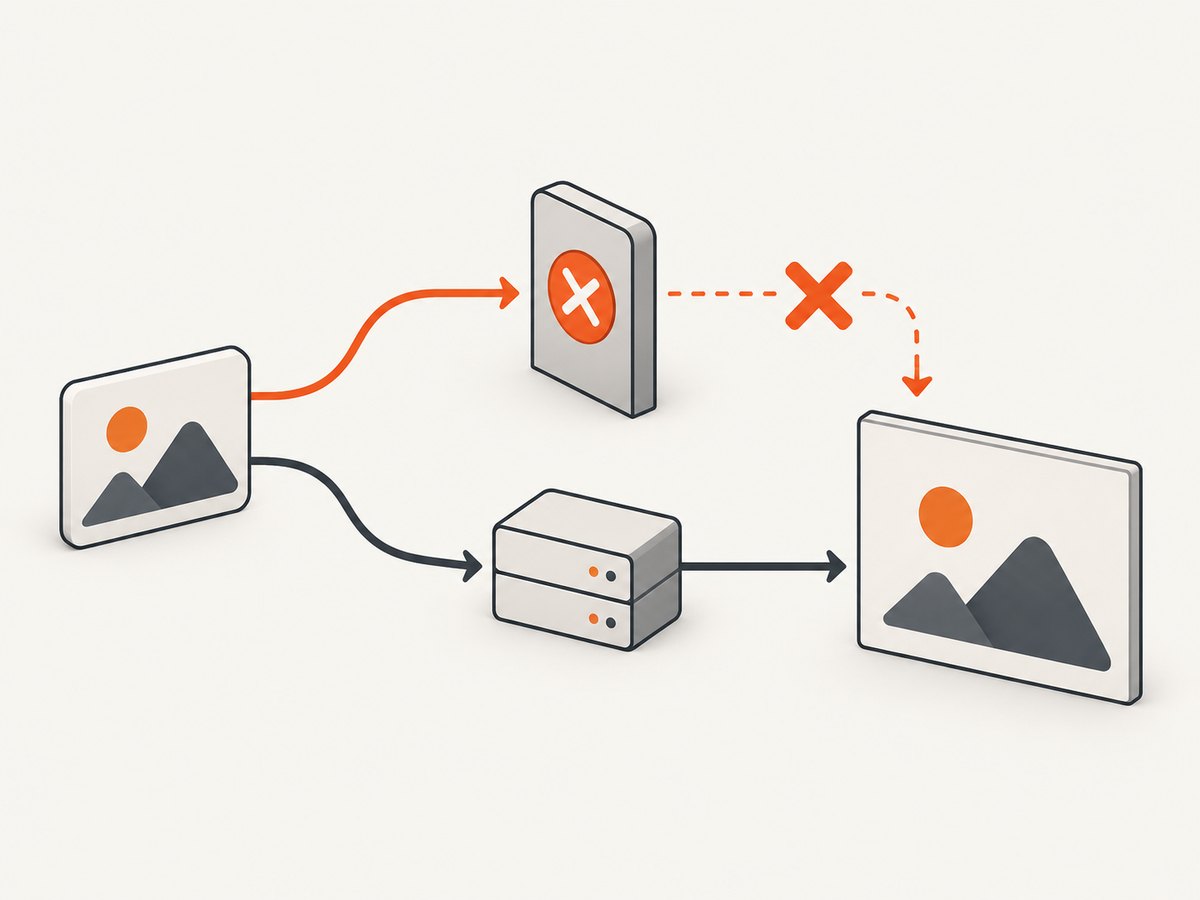
A missing image is often a cross-origin policy problem rather than clipping. With the default allowTaint: false, html2canvas avoids drawing images that would taint the canvas. The image server must send an appropriate CORS header, or you must load the image through a proxy you control.
const canvas = await html2canvas(document.querySelector('#capture'), {
  useCORS: true,
  allowTaint: false,
  imageTimeout: 30000,
});
useCORS: true only works when the remote server permits the requesting origin. It cannot bypass browser security. Cross-origin iframes also cannot be read because their contentDocument is inaccessible.
Check the browser network panel for image responses, status codes, and Access-Control-Allow-Origin. For images that load slowly, increase imageTimeout; set it to 0 to disable the timeout, although waiting indefinitely can make an automated capture hang.
6. Options that affect completeness
| Option | Use it for | Common mistake |
|---|---|---|
windowWidth/windowHeight |
Full scrollable layout and media-query control | Leaving the viewport dimensions for a long element |
width/height |
Exact output dimensions | Accidentally cropping the bottom or right edge |
x/y |
Region capture | Using document coordinates for an element-relative crop |
scale |
Resolution and memory trade-off | Retina scaling creates an oversized bitmap |
scrollX/scrollY |
Fixed and sticky positioning | Capturing at an unintended page offset |
useCORS/proxy |
Permitted cross-origin images | Assuming useCORS bypasses server headers |
backgroundColor |
Consistent background output | Expecting transparent output while using the default white |
ignoreElements/data-html2canvas-ignore |
Removing overlays and controls | Ignoring content needed in the final image |
onclone |
Temporary render-only CSS changes | Changing the live document instead |
The default scale is window.devicePixelRatio; backgroundColor defaults to white and can be set to null for transparency. The full option list is in the configuration reference.
7. A complete browser example
This example waits for fonts and images, captures the full element, reports dimensions, and saves a PNG:
import html2canvas from 'html2canvas';

async function waitForImages(root) {
  const images = [...root.querySelectorAll('img')];
  await Promise.all(images.map((img) => {
    if (img.complete) return Promise.resolve();
    return new Promise((resolve) => {
      img.addEventListener('load', resolve, { once: true });
      img.addEventListener('error', resolve, { once: true });
    });
  }));
}

async function saveScreenshot() {
  const element = document.querySelector('#capture');
  if (!element) throw new Error('Missing #capture');

  if (document.fonts?.ready) await document.fonts.ready;
  await waitForImages(element);

  const canvas = await html2canvas(element, {
    windowWidth: element.scrollWidth,
    windowHeight: element.scrollHeight,
    scrollX: 0,
    scrollY: 0,
    scale: 1,
    useCORS: true,
    backgroundColor: '#fff',
    logging: true,
  });

  console.log({ width: canvas.width, height: canvas.height });
  const link = document.createElement('a');
  link.download = 'capture.png';
  link.href = canvas.toDataURL('image/png');
  link.click();
}

saveScreenshot().catch(console.error);
8. Troubleshooting checklist
Only the viewport is captured
Cause: the render window is using innerWidth/innerHeight. Fix: set both values from scrollWidth/scrollHeight.
The bottom is blank with no error
Cause: the canvas exceeded a browser dimension or area limit. Fix: log canvas.width and canvas.height, lower scale, reduce the capture size, or split it into sections.
Images are missing but layout is present
Cause: CORS, a tainted canvas, a failed request, or an image timeout. Fix: confirm response headers, use useCORS: true with a correctly configured server, configure a permitted proxy, and adjust imageTimeout.
A fixed header appears in the wrong place
Cause: implicit page scroll offsets. Fix: set scrollX and scrollY explicitly and hide duplicated fixed UI during stitched captures.
Text or CSS looks different
Cause: html2canvas does not implement every CSS property and may choose a different rendering path. Fix: simplify unsupported styles, wait for fonts, and use onclone for render-only adjustments. It is a DOM renderer, not a browser-native screenshot of every feature.
The browser tab runs out of memory
Cause: a large area multiplied by a high scale. Fix: use scale: 1, capture smaller regions, remove unnecessary shadows and images, and release intermediate canvases after exporting.
9. Performance, reliability, and cost considerations
Large captures consume memory proportional to internal pixel area, so reducing scale usually has the biggest effect. Waiting for every image and font improves completeness but increases latency. Set a finite image timeout, show progress for interactive tools, and handle rejected promises in automation.
For repeatable output, fix the viewport, scroll offsets, background color, scale, and wait conditions. Keep test pages below browser limits and record the final bitmap dimensions. If you need a deterministic server-side result across many URLs, a browser automation service can handle page loading, full-page capture, resource blocking, and retries outside the user’s device.
10. Or skip the browser setup
ScreenshotNeo provides a website screenshot API and MCP server. One GET request returns PNG, JPEG, WebP, or PDF, while the service handles full-page layout and loading in a hosted browser. See the ScreenshotNeo API documentation for all 63 options.
cURL
curl -G "https://api.screenshotneo.com/v1/shot" -d access_key=YOUR_API_KEY --data-urlencode url=https://stripe.com -o shot.webpPython
import requests
r = requests.get("https://api.screenshotneo.com/v1/shot", params={"access_key": "YOUR_API_KEY", "url": "https://stripe.com"}, timeout=90)
open("shot.webp", "wb").write(r.content)
Node.js
const q = new URLSearchParams({ access_key: 'YOUR_API_KEY', url: 'https://stripe.com' });
const res = await fetch(`https://api.screenshotneo.com/v1/shot?${q}`);
ScreenshotNeo removes cookie banners, newsletter popups, and chat widgets before capture. Bot checks, blank pages, failed loads, timeouts, and cache hits are not billed; response headers identify the page verdict and billing status. Its MCP server provides take_screenshot, get_page_info, and capture_pdf tools for Claude, Cursor, and other MCP clients. You can also set custom CSS and JavaScript, wait for selectors or network idle, block resources, choose devices and viewports, capture one CSS-selected element, and use caching, signed links, async jobs, bulk capture, and PDF options.
The Free plan includes 1,000 screenshots each month with no card. Paid plans start at $5 for 3,000 shots, and every feature is available on every plan. Create a free ScreenshotNeo account.
11. FAQ
Does html2canvas capture an entire webpage automatically?
No. It captures the target element, and the render window may default to the current viewport. Set window dimensions from the element’s scroll dimensions for long content.
Should I always set scale: 1?
No. The default device-pixel-ratio scale gives sharper output on high-DPI screens. Use scale: 1 when dimensions, memory, or browser limits matter more than extra density.
Can html2canvas capture a cross-origin iframe?
No. Browser same-origin rules prevent access to an iframe’s document. Capture the iframe’s own page separately or use a server-side screenshot service.
Why does the output have a white background?
backgroundColor defaults to #ffffff. Set it to null for transparency when the target content and export format support it.
What should I log when debugging clipping?
Log the element’s clientWidth, clientHeight, scrollWidth, and scrollHeight, the chosen scale, and the final canvas.width/canvas.height. These values distinguish layout cropping from canvas limits.


