How to Prevent html2canvas from Hanging Internet Explorer 11
A practical IE11 diagnostic guide for html2canvas hangs: reduce scope, inspect resources and canvas limits, and know when to move capture server-side.
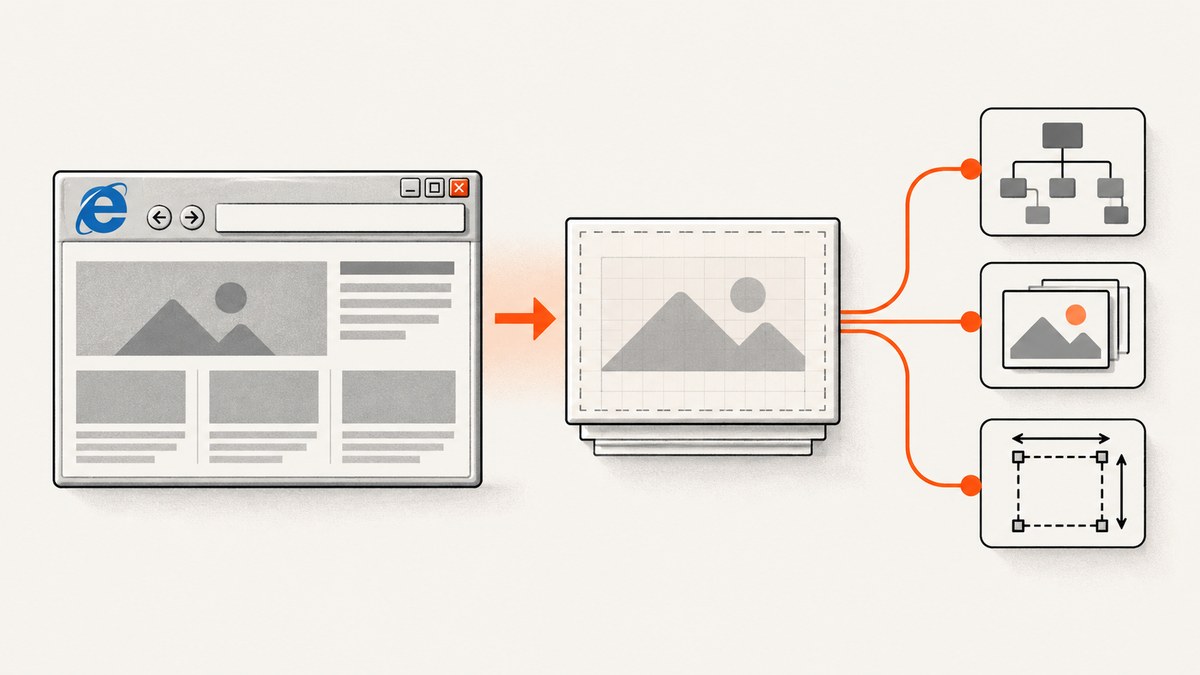
Short answer: there is no verified, universal fix for an html2canvas hang in Internet Explorer 11. The responsible approach is to diagnose the workload in a controlled order: record the exact html2canvas version and IE document mode, capture the smallest possible element, set deliberate dimensions, remove expensive or irrelevant nodes, inspect image and cross-origin loading, and test in the actual IE11 environment. Current html2canvas documentation lists modern evergreen browsers and does not list IE11, while older package documentation mentioned IE support. Treat compatibility claims as version-specific.
html2canvas does not ask the browser for a native screenshot. It walks the DOM, reads computed information and resources, and constructs a canvas representation. The project documentation explains that the result is based on the DOM and may not exactly match the rendered page. A large, deeply nested or resource-heavy document can therefore take a long time or appear to make IE11 unresponsive.
1. Establish what is actually hanging
Before changing options, capture the facts for one reproducible case. Record:
- the exact html2canvas version and how it was loaded;
- IE11 document mode, operating-system version and security-zone settings;
- the URL or application route, target element and approximate dimensions;
- whether the returned Promise eventually resolves, rejects, or never settles;
- whether the problem occurs with images, web fonts, SVG, canvas elements or third-party widgets present.
An individual Stack Overflow report describes IE11 taking 30 seconds to two minutes before resolving. That is an anecdote, not a benchmark or a confirmed root cause. Use your own timings from the target machine.
2. Reproduce with the smallest possible DOM
Start with a plain element containing a heading and a few boxes. If that works, add your real content back in groups. This binary-search style reduction identifies whether a subtree, an image, a layout feature or the overall canvas size is responsible.
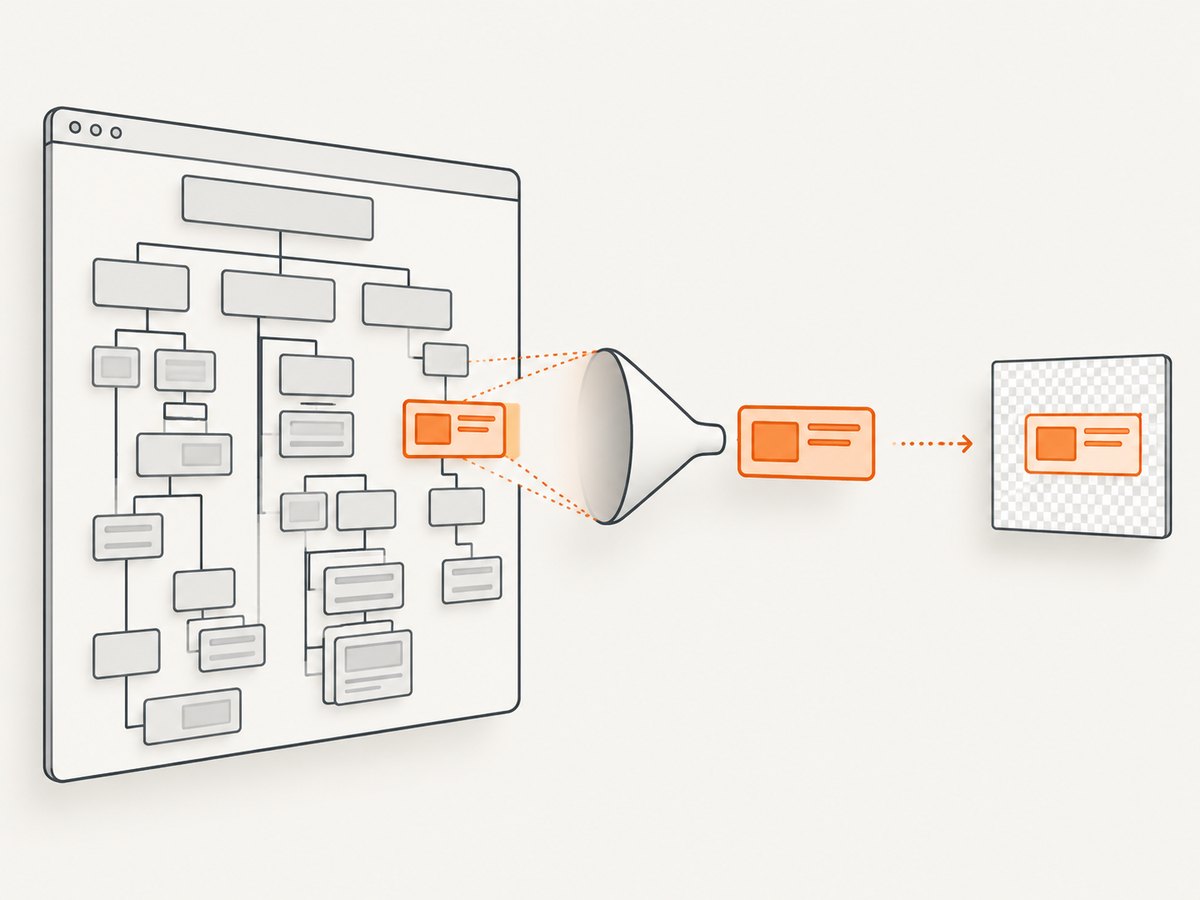
html2canvas(document.getElementById('capture'), {
  logging: true,
  backgroundColor: '#ffffff'
}).then(function (canvas) {
  document.body.appendChild(canvas);
}).catch(function (error) {
  console.error('html2canvas failed', error);
});
Keep the diagnostic page free of animation, continuously updating charts, carousels and timers. Freeze application state before the call so that the DOM does not keep changing while html2canvas traverses it.
3. Control the viewport and rendered area
Oversized dimensions are a common reason for blank or partial canvases and can make a legacy browser spend excessive time allocating and painting. The html2canvas FAQ says that size limits vary by browser and platform. An older FAQ gave 8,192 pixels as IE’s maximum canvas height and width; use that only as historical guidance, not as a current IE11 guarantee.
For a full scrollable element, measure it deliberately:
var target = document.getElementById('capture');
var width = target.scrollWidth;
var height = target.scrollHeight;

html2canvas(target, {
  windowWidth: width,
  windowHeight: height,
  x: 0,
  y: 0,
  scrollX: 0,
  scrollY: 0,
  logging: true
}).then(function (canvas) {
  var link = document.createElement('a');
  link.href = canvas.toDataURL('image/png');
  link.download = 'capture.png';
  link.click();
});
Compare that with a viewport-sized test. If the smaller capture succeeds and the full capture does not, split the job into sections or redesign the output so the browser never has to create one enormous bitmap. Keep CSS transforms and very large shadows to a minimum during the capture.
4. Reduce work with configuration options
These options are workload and debugging controls; none is a guaranteed IE11 cure. The official configuration reference documents them as follows:
| Option | Use during diagnosis | Caution |
|---|---|---|
ignoreElements |
Return true for ads, live widgets, video controls or other irrelevant nodes. |
Ignored nodes and their visual content will be absent. |
cullOffscreen |
Try true for large pages so off-screen content is skipped. |
Verify that content you need is inside the rendered region. |
windowWidth, windowHeight |
Set explicit dimensions based on the intended output. | Incorrect values can clip responsive layouts or enlarge the canvas. |
width, height, x, y |
Limit the capture rectangle. | A crop can hide content that appears outside the rectangle. |
scale |
Use a lower scale when memory pressure is suspected. | Lower scale reduces output resolution. |
backgroundColor |
Set a solid color to avoid transparency-related surprises. | This changes the visual result. |
foreignObjectRendering |
Keep disabled while isolating an IE issue unless your supported browser matrix requires it. | Browser support and output differ; test it separately. |
onclone |
Modify the cloned document to hide animations or expensive content before rendering. | Changes apply to the clone, not your live page. |
var options = {
  windowWidth: target.scrollWidth,
  windowHeight: target.scrollHeight,
  cullOffscreen: true,
  scale: 1,
  ignoreElements: function (element) {
    return element.className === 'chat-widget' ||
           element.className === 'video-player';
  },
  onclone: function (clonedDocument) {
    var style = clonedDocument.createElement('style');
    style.textContent = '* { animation: none !important; transition: none !important; }';
    clonedDocument.head.appendChild(style);
  }
};

html2canvas(target, options).then(function (canvas) {
  document.getElementById('result').appendChild(canvas);
});
If a small, static target still hangs, remove options one at a time and test again. A minimal configuration makes it easier to distinguish a rendering problem from an option interaction.
5. Check images, fonts and cross-origin resources
Inspect the network panel and the DOM for resources that never finish loading. html2canvas cannot bypass browser content policy. Cross-origin images need suitable CORS response headers or a proxy if they are to appear in the canvas. A missing or blocked image can produce incomplete output; it is not established by the available evidence as the universal cause of an IE11 hang.
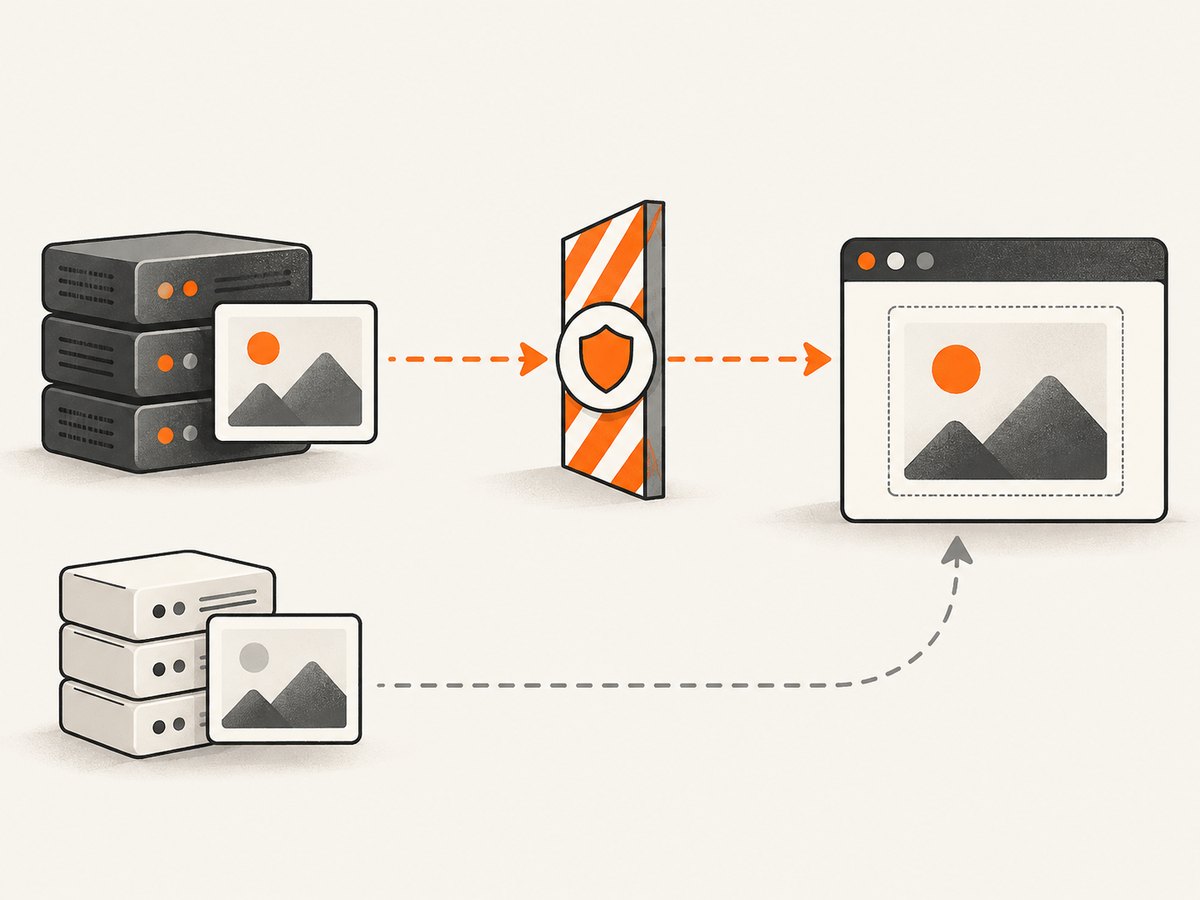
Use useCORS: true only when the remote server sends the required CORS headers. The option does not grant permission by itself. For diagnosis, replace remote images with same-origin placeholders and disable web fonts. If the capture then succeeds, restore resources individually.
html2canvas(target, {
  useCORS: true,
  imageTimeout: 15000,
  logging: true
}).then(function (canvas) {
  // Save or display the result.
});
Do not assume that every CSS feature will reproduce. The html2canvas FAQ states that each CSS property must be implemented manually, so full CSS support is not possible. Check gradients, filters, blend modes, pseudo-elements, SVG and complex positioning against the project’s supported-feature list. Simplify unsupported styles in the cloned document with onclone.
6. Verify Promise and browser-mode compatibility
html2canvas uses a Promise-based API. Older package documentation says a Promise polyfill may be required in legacy browsers, while the current getting-started page focuses on modern browsers. A missing polyfill normally causes an immediate error rather than a CPU-bound hang, but verify it before deeper diagnosis.
<!-- Load a Promise polyfill before html2canvas in the IE11 bundle. -->
<script src='path/to/promise-polyfill.js'></script>
<script src='html2canvas.min.js'></script>
Confirm that the page is running in the intended IE11 document mode, not an emulated legacy mode selected by an enterprise compatibility list or an X-UA-Compatible setting. Re-run the same minimized test in a clean profile and on the real managed workstation if that is where users see the issue.
7. A repeatable IE11 diagnostic harness
This harness records dimensions and separates resolution from rejection. It is intentionally small so you can paste it into a legacy page and add one feature at a time.
(function () {
  var target = document.getElementById('capture');
  var started = new Date().getTime();
  var result = document.getElementById('result');

  if (!target) {
    throw new Error('Missing #capture element');
  }

  console.log('html2canvas diagnostic', {
    started: new Date(started).toISOString(),
    scrollWidth: target.scrollWidth,
    scrollHeight: target.scrollHeight,
    userAgent: navigator.userAgent
  });

  html2canvas(target, {
    windowWidth: Math.min(target.scrollWidth, 4000),
    windowHeight: Math.min(target.scrollHeight, 4000),
    cullOffscreen: true,
    scale: 1,
    logging: true
  }).then(function (canvas) {
    console.log('resolved in ms', new Date().getTime() - started,
                'canvas', canvas.width, canvas.height);
    result.innerHTML = '';
    result.appendChild(canvas);
  }).catch(function (error) {
    console.error('rejected after ms', new Date().getTime() - started, error);
  });
}());
The 4,000-pixel caps in this example are diagnostic guardrails, not documented IE limits. Remove or change them only after you know the target environment can handle the resulting bitmap.
8. Troubleshooting checklist
| Symptom | Likely investigation | Next action |
|---|---|---|
| IE shows “Not responding” | Large DOM, expensive styles or oversized canvas. | Capture a small element, set explicit dimensions, reduce scale and reintroduce content gradually. |
| Promise never settles | Resource loading, browser-mode differences or an unsupported code path. | Use a timeout around your own workflow, inspect network requests, replace remote resources and test a minimal page. |
| Canvas is blank | Cross-origin images, transparent background or a zero-sized target. | Check element dimensions, CORS headers and same-origin placeholders. |
| Output stops halfway | Bitmap dimensions or memory pressure. | Split the capture, reduce windowHeight and compare against historical 8,192-pixel guidance without treating it as a guarantee. |
| Text or effects differ | Partial CSS implementation or unavailable fonts. | Use supported CSS, wait for fonts where possible and provide a capture-specific stylesheet. |
| Immediate “Promise is undefined” error | Missing legacy polyfill. | Load a compatible Promise polyfill before html2canvas. |
9. Reliability, performance and architecture choices
Client-side capture consumes the user’s CPU and memory and is sensitive to IE security settings, document mode, network resources and page complexity. Keep captures short, deterministic and bounded. Avoid running several captures concurrently. Queue requests, release references to canvases after upload, and log dimensions and elapsed time so slow cases can be compared.
If IE11 is mandatory, keep a supported fallback such as a server-side or headless-browser workflow for pages that exceed the client’s limits. The html2canvas FAQ points to headless tools for server-side screenshots; selecting one is an architectural decision, not a confirmed IE11 fix. If IE11 is not mandatory, moving the capture to a browser family listed in current html2canvas documentation may remove an unsupported-client variable.
10. Or skip the browser setup
For a server-side screenshot, ScreenshotNeo accepts one GET request and returns PNG, JPEG, WebP or PDF. Its clean-shot pipeline accepts cookie and consent banners like a visitor, then removes more than 60 known consent platforms, newsletter popups and chat widgets before capture. Bot checks, blank pages, timeouts, failed loads and cache hits are not billed, and each response reports the verdict and billing status in X-Page-Verdict and X-Billed headers.
See the ScreenshotNeo API documentation for all options. A minimal call is:
curl -G 'https://api.screenshotneo.com/v1/shot' \
  -d access_key=YOUR_API_KEY \
  --data-urlencode 'url=https://stripe.com' \
  -o shot.webp
import requests
r = requests.get(
'https://api.screenshotneo.com/v1/shot',
params={'access_key': 'YOUR_API_KEY', 'url': 'https://stripe.com'},
timeout=90,
)
r.raise_for_status()
open('shot.webp', 'wb').write(r.content)const q = new URLSearchParams({
access_key: 'YOUR_API_KEY',
url: 'https://stripe.com'
});
const res = await fetch(`https://api.screenshotneo.com/v1/shot?${q}`);You can configure full-page capture with lazy images loaded, CSS-selector element capture, dark mode, device presets or custom viewports, retina scale, custom CSS and JavaScript, clicks, selector or network-idle waits, blocked requests, headers, cookies, user agents, Authorization, timezone, geolocation, transparent backgrounds, resizing and a chosen cache TTL. PDF output supports paper size, margins, landscape and page ranges. Async jobs, signed webhooks, bulk capture for up to 100 URLs per call, signed public image links, a usage API and an OpenAPI specification are available on every plan. An MCP server provides take_screenshot, get_page_info and capture_pdf for Claude, Cursor and other MCP clients.
Plans include 1,000 screenshots per month free with no card; paid plans start at $5 for 3,000 screenshots. Yearly billing gives two months free. Create a free ScreenshotNeo account to try the capture without setting up an IE11 browser pipeline.
11. FAQ
Does html2canvas officially support IE11 today?
Current documentation lists Firefox, Chrome or Chromium-based browsers and Safari as supported modern evergreen browsers; IE11 is not listed. Older documentation mentioned IE9+ with a Promise polyfill, so check the version and date before relying on that statement.
Will setting cullOffscreen: true fix the hang?
No option is proven to universally fix an IE11 hang. Culling can reduce work on large pages, so test it as one step in a controlled reduction.
Is 8,192 pixels the IE11 canvas limit?
An older FAQ gave 8,192 pixels for IE. The current FAQ says limits vary by browser and platform. Treat 8,192 as historical guidance and verify your target machine.
Can html2canvas capture a cross-origin image?
Only when the resource is made available under the browser’s CORS rules or is supplied through a suitable proxy. html2canvas cannot bypass content policy.
When should I stop debugging IE11?
Stop when a minimal, bounded capture still fails in the required environment and the cost of client-side compatibility exceeds the value. A supported browser or server-side capture then becomes the practical path.


