How to Prevent Html2pdf from Automatically Downloading a PDF
Stop html2pdf.js downloads by replacing save() with output('blob'). Preview, upload, troubleshoot, and add an explicit download only when needed.
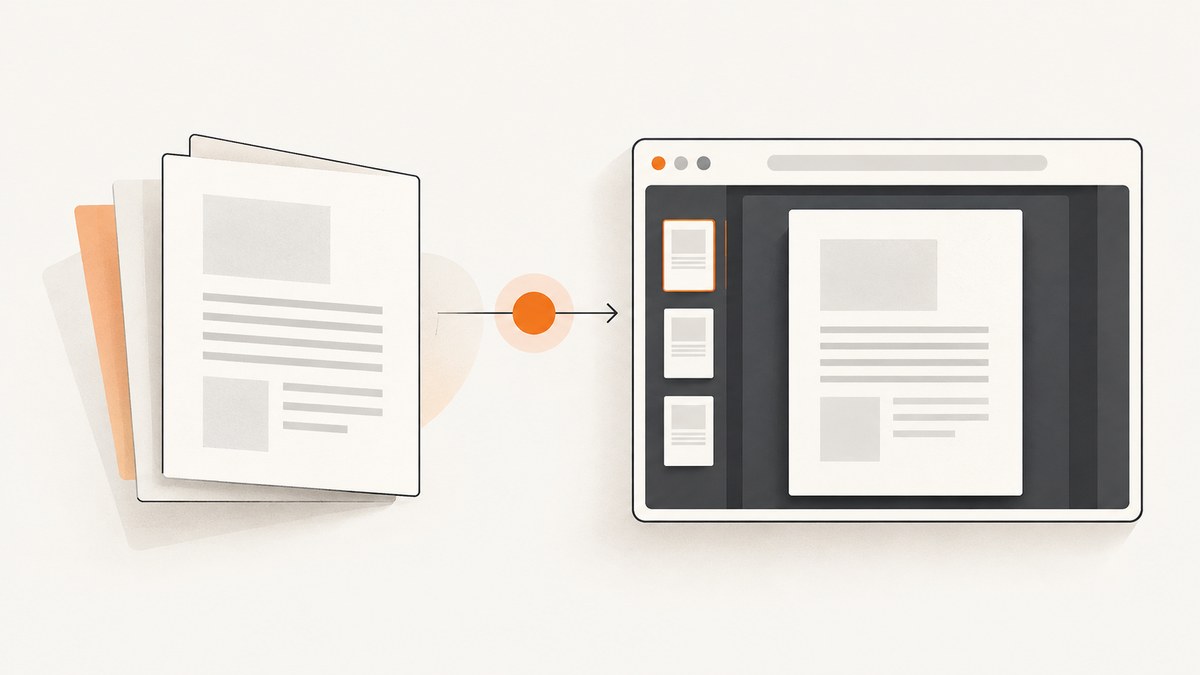
Direct answer: html2pdf.js downloads because its convenience workflow ends with .save(). Generate the PDF through .toPdf(), then call .output('blob') or another output method and handle the returned Promise. Do not call .save() or .saveAs() unless the user explicitly asks to download.
This distinction matters because PDF generation and file saving are separate operations. html2pdf.js runs in the browser, converts an element through html2canvas and jsPDF, and the final save stage creates the browser download prompt. Removing that stage lets you preview, upload, process, or explicitly download the same bytes later.
Stop the automatic download
Start with an element and request a Blob:
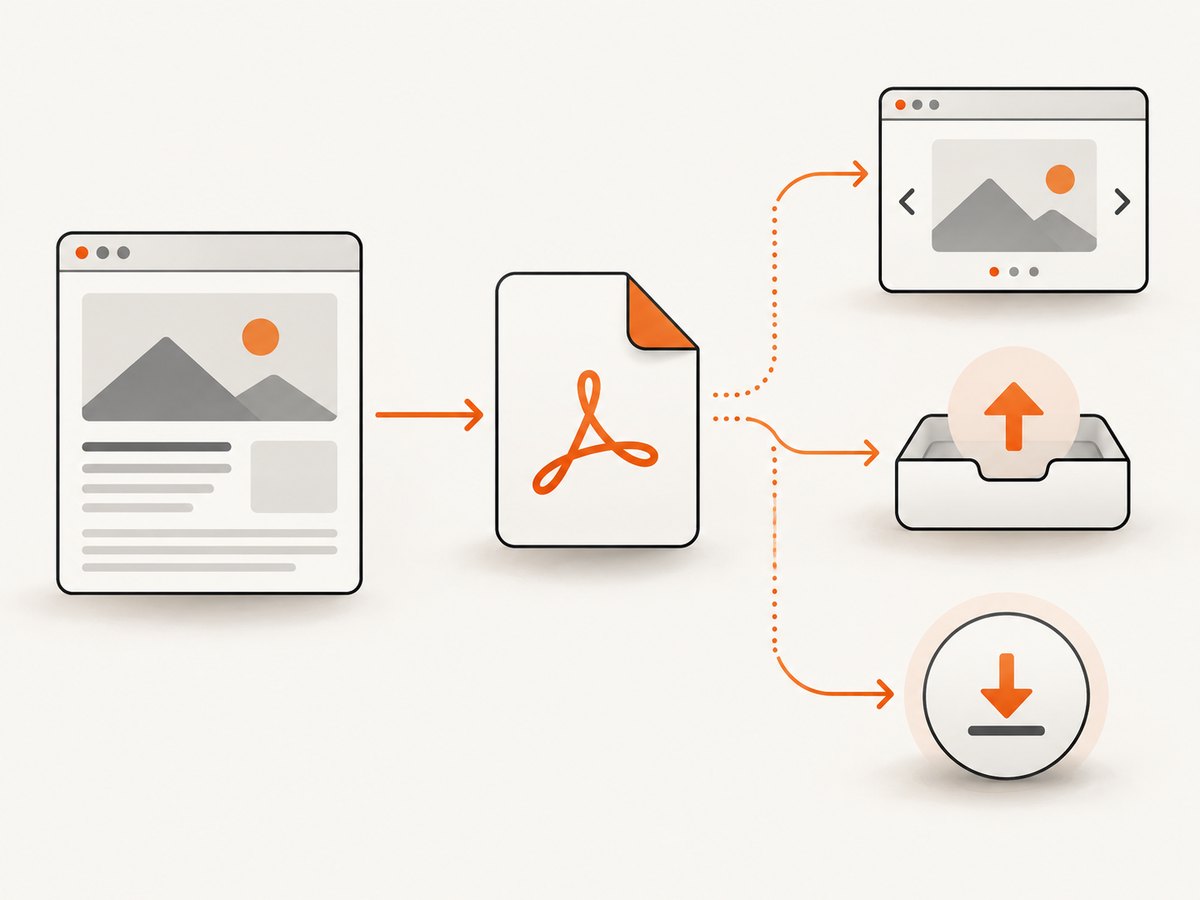
const element = document.getElementById('element-to-print');

html2pdf()
  .from(element)
  .toPdf()
  .output('blob')
  .then((blob) => {
    const url = URL.createObjectURL(blob);
    document.querySelector('#pdf-preview').src = url;
    // Revoke when the preview is removed to release memory.
    // URL.revokeObjectURL(url);
  });
The preview target can be an <iframe>, <object>, or another element that accepts a Blob URL:
<iframe id='pdf-preview' title='PDF preview' style='width:100%;height:70vh'></iframe>output('blob') returns a Promise. Keep the work inside .then() or use async/await; the Blob does not exist synchronously after .toPdf().
Choose the output you need
| Goal | Method | What it does |
|---|---|---|
| Inline preview or upload | .output('blob') |
Returns a Promise for a Blob. |
| Data URI for application code | .output('datauristring') |
Returns a data URI string; convenient for small files, memory-heavy for large ones. |
| ArrayBuffer processing | .output('arraybuffer') |
Returns binary data suitable for further processing. |
| Explicit user download | .save('report.pdf') |
Creates the browser download prompt; call only from your download action. |
html2pdf.js exposes jsPDF output types through its output method. Its aliases include outputPdf for PDF output and export for output. saveAs is an alias for save, so it also prompts a download.
Common implementation patterns
Preview in a new tab
Popup blockers generally allow a window opened directly by a user gesture, but may block one opened after asynchronous rendering. Open the tab first, then assign its URL:
document.querySelector('#preview-button').addEventListener('click', async () => {
  const tab = window.open('', '_blank');
  if (!tab) throw new Error('Allow popups to preview the PDF.');
  tab.document.write('<p>Preparing preview...</p>');
  try {
    const blob = await html2pdf()
      .from(document.getElementById('element-to-print'))
      .toPdf()
      .output('blob');
    tab.location.href = URL.createObjectURL(blob);
  } catch (error) {
    tab.close();
    console.error(error);
  }
});
Upload without downloading
async function createAndUpload() {
  const blob = await html2pdf()
    .from(document.getElementById('element-to-print'))
    .toPdf()
    .output('blob');
  const form = new FormData();
  form.append('file', blob, 'report.pdf');
  const response = await fetch('/api/reports', { method: 'POST', body: form });
  if (!response.ok) throw new Error(`Upload failed: ${response.status}`);
}
Offer a later download button
let generatedBlob;
document.querySelector('#generate').addEventListener('click', async () => {
  generatedBlob = await html2pdf().from(document.getElementById('element-to-print')).toPdf().output('blob');
  document.querySelector('#download').disabled = false;
});
document.querySelector('#download').addEventListener('click', () => {
  if (!generatedBlob) return;
  const url = URL.createObjectURL(generatedBlob);
  const link = document.createElement('a');
  link.href = url;
  link.download = 'report.pdf';
  link.click();
  URL.revokeObjectURL(url);
});
Keep generation options separate from saving
Options such as filename, image, html2canvas, and jsPDF configure rendering and PDF creation. They do not disable the download prompt. You can retain a filename for a later explicit download, but setting it alone never changes save behavior.
const options = {
  filename: 'invoice.pdf',
  image: { type: 'jpeg', quality: 0.95 },
  html2canvas: { scale: 2, useCORS: true },
  jsPDF: { unit: 'mm', format: 'a4', orientation: 'portrait' }
};
const blob = await html2pdf().set(options).from(document.getElementById('invoice')).toPdf().output('blob');
The generated page is rendered into an image in the PDF. Text may therefore not be selectable or searchable, files can be larger than text-native PDFs, and html2canvas limitations such as cross-origin images, cloning behavior, canvas limits, and unsupported CSS still apply. Those rendering constraints are independent of whether you call save().
Complete browser example
<button id='make-preview'>Create preview</button>
<button id='download' disabled>Download</button>
<iframe id='pdf-preview' title='PDF preview'></iframe>
<script src='https://cdnjs.cloudflare.com/ajax/libs/html2pdf.js/0.10.1/html2pdf.bundle.min.js'></script>
<script>
let pdfBlob = null;
let previewUrl = null;
async function buildPdf() {
  const source = document.getElementById('element-to-print');
  if (!source) throw new Error('Missing #element-to-print');
  return html2pdf().from(source).toPdf().output('blob');
}
document.getElementById('make-preview').addEventListener('click', async () => {
  try {
    pdfBlob = await buildPdf();
    if (previewUrl) URL.revokeObjectURL(previewUrl);
    previewUrl = URL.createObjectURL(pdfBlob);
    document.getElementById('pdf-preview').src = previewUrl;
    document.getElementById('download').disabled = false;
  } catch (error) { console.error('PDF generation failed', error); }
});
document.getElementById('download').addEventListener('click', () => {
  if (!pdfBlob) return;
  const url = URL.createObjectURL(pdfBlob);
  const link = document.createElement('a');
  link.href = url;
  link.download = 'document.pdf';
  link.click();
  setTimeout(() => URL.revokeObjectURL(url), 0);
});
</script>
Find every code path that still downloads
- Search for
html2pdf(,.save(, and.saveAs(. A directhtml2pdf(element)call uses the convenience behavior that saves. - Replace the terminal save call with
.output('blob')or the output type your application consumes. - Search for custom anchors with a
downloadattribute, calls tolink.click(), framework file helpers, and third-party export buttons. - Check event handlers registered more than once. Duplicate handlers can produce two files or make a preview appear to download unexpectedly.
Troubleshooting
It still downloads
A remaining .save(), .saveAs(), or custom <a download> path is calling the browser download. Remove it from generation and invoke it only from the explicit download button.
The preview is blank
Inspect the Blob size and type. A zero-size or non-PDF Blob indicates generation failed. If the Blob is valid, verify the iframe src, keep the object URL alive, and avoid revoking it immediately.
Images or fonts are missing
html2canvas must be able to read those resources. Cross-origin images without suitable CORS headers, blocked fonts, and content security policy rules can prevent rendering. Test the source element in isolation and fix resource access before changing output handling.
Text looks like a screenshot
That is expected: html2pdf.js places rendered content into an image in the PDF. Use a text-oriented PDF generator when selectable, searchable text is required.
Large documents fail
Rendering uses browser memory and canvas dimensions. Reduce capture size, split long documents, lower html2canvas scale, or generate pages in batches. Revoke unused object URLs and release Blob references after upload.
New-tab preview is blocked
Call window.open() synchronously inside the click or keyboard handler, before awaiting PDF generation. If it returns null, the user must allow popups.
Promise errors are invisible
Attach try/catch around await or a .catch() handler. Rendering failures otherwise appear as unhandled rejections while the UI remains unchanged.
Performance, reliability, and cost considerations
Client-side generation consumes the user’s CPU and memory. Higher canvas scale improves sharpness but increases work and file size. JPEG can reduce size for photographic pages; PNG preserves sharp edges and transparency. Previewing with a Blob avoids the larger base64 overhead of a data URI. Cache a generated Blob only for the lifetime needed by the UI, and revoke object URLs when previews are replaced.

For reliable exports, wait until dynamic content, images, and fonts have loaded before starting html2pdf. Disable buttons while a job runs so users do not create competing renders. Keep the source DOM stable during cloning, and test long pages, right-to-left text, sticky elements, SVG, and canvases separately. html2pdf.js has no separate service charge because it runs in the browser; your costs are client resources and any upload or storage service you add.
Or skip the browser setup
If your goal is a clean screenshot or PDF of a URL rather than a client-side export, ScreenshotNeo provides a website screenshot API and MCP server. One GET request returns PNG, JPEG, WebP, or PDF. It accepts cookie and consent banners like a visitor, removes more than 60 known consent platforms plus newsletter popups and chat widgets before capture, and each step can be disabled. Bot checks, blank pages, timeouts, failed loads, and cache hits are not billed; response headers identify the page verdict and billing result.
See the ScreenshotNeo API documentation for all options. A PDF request can set paper size, margins, landscape mode, and page ranges; you can also wait for a selector, delay, or network idle, set custom CSS and JavaScript, use cookies and headers, block resources, choose a device or viewport, and cache with a TTL.
curl -G "https://api.screenshotneo.com/v1/shot" -d access_key=YOUR_API_KEY --data-urlencode url=https://stripe.com -o shot.webpimport requests
r = requests.get("https://api.screenshotneo.com/v1/shot", params={"access_key": "YOUR_API_KEY", "url": "https://stripe.com"}, timeout=90)
open("shot.webp", "wb").write(r.content)const q = new URLSearchParams({ access_key: 'YOUR_API_KEY', url: 'https://stripe.com' });
const res = await fetch(`https://api.screenshotneo.com/v1/shot?${q}`);An MCP server exposes take_screenshot, get_page_info, and capture_pdf to Claude, Cursor, and other MCP clients. Free accounts include 1,000 shots each month without a card; paid plans start at $5 for 3,000 shots, and every feature is on every plan. Create a free ScreenshotNeo account.
FAQ
Does setting filename cause a download?
No. It configures a later save. The download is caused by save(), saveAs(), or your own download link.
Can I use html2pdf.js in Node.js?
html2pdf.js is client-side software and expects browser APIs. Use it in a browser or browser automation environment that supplies those APIs.
Which output is best for an upload?
Use output('blob') and send the Blob with fetch and FormData. It avoids building a download link and is usually more memory-efficient than a data URI.
Why does my generated PDF have rasterized text?
html2pdf.js renders the page through html2canvas, so the PDF contains an image representation. That behavior is separate from automatic downloading.
Can I preview without opening a new tab?
Yes. Assign a Blob URL to an iframe or object element in the current page and revoke the URL when the preview is no longer needed.


