How to Prevent Images Being Cut Between jsPDF Pages
Keep jsPDF images whole, split tall screenshots deliberately, and control HTML page breaks with reliable pagination patterns.
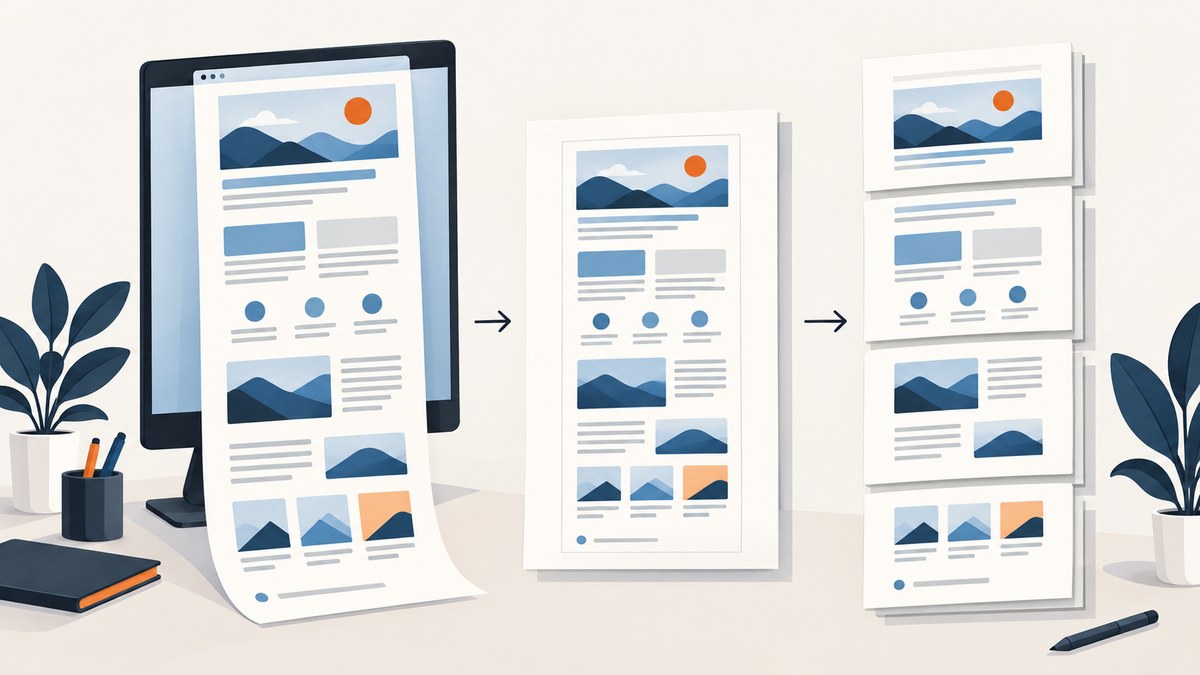
Images get cut between jsPDF pages for one simple reason: addImage() places pixels at the exact x and y coordinates and width and height you provide. It does not automatically move an image to the next page when the remaining space is too small.
There are three different problems people describe as “image clipping”:
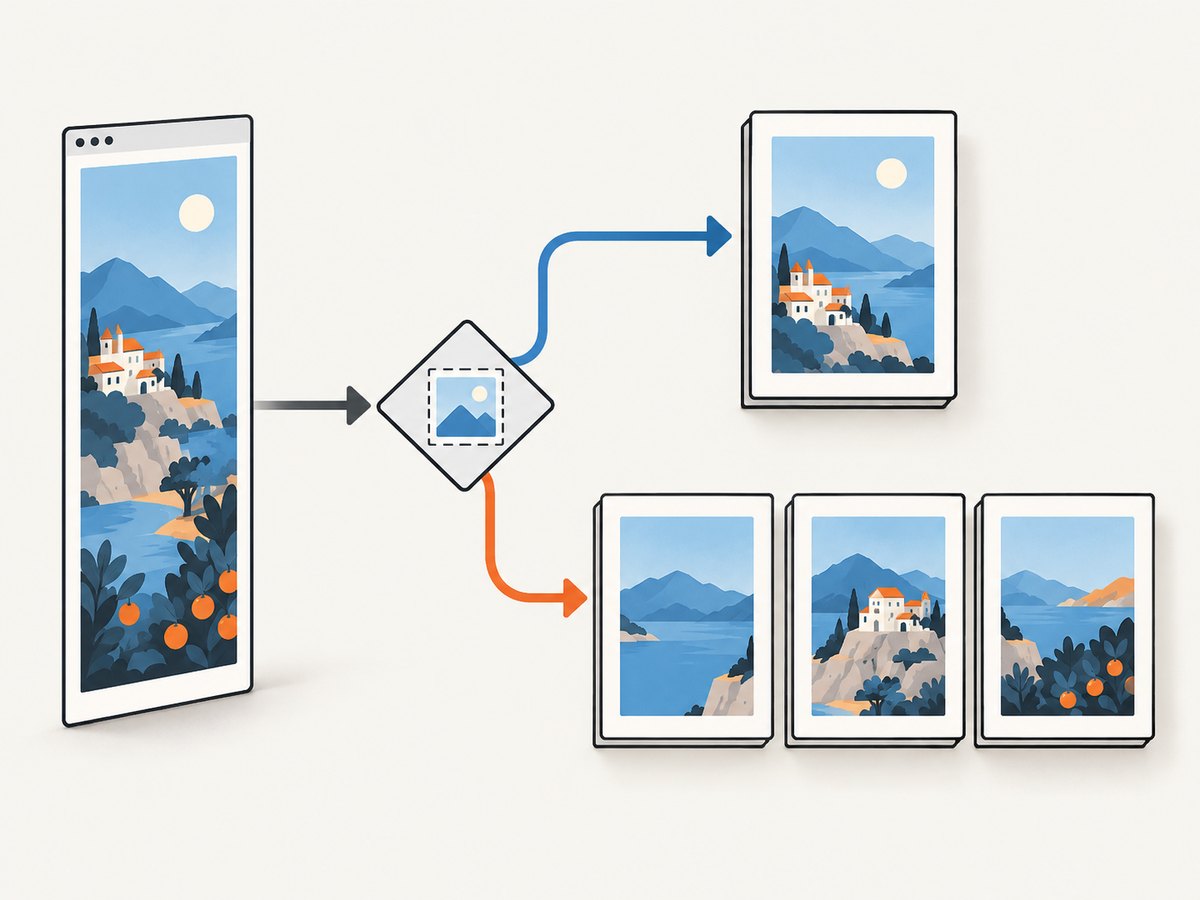
- Keep an image whole: move it to the next page when it will not fit.
- Continue one tall image: split the image across pages intentionally.
- Render HTML: choose how jsPDF’s
html()method handles automatic page breaks.
Use a pre-placement fit check for the first case, an explicit repeated-image loop for the second, and autoPaging for the third. The calculations must use the document’s units, page size, margins, and header or footer space.
1. Keep an image whole before calling addImage
For a direct image call, calculate the output height from the source aspect ratio. Compare that height with the vertical space left on the current page. If it does not fit, call addPage(), reset the y coordinate to the top margin, and then place the image.
The official jsPDF addImage documentation defines the image data, format, x, y, width, and height parameters. All coordinates and dimensions use the document units selected when the jsPDF instance is created.
Complete runnable example: keep every image intact
import { jsPDF } from "jspdf";

const doc = new jsPDF({
  orientation: "portrait",
  unit: "mm",
  format: "a4"
});

const pageWidth = doc.internal.pageSize.getWidth();
const pageHeight = doc.internal.pageSize.getHeight();
const margin = 15;
const headerHeight = 10;
const footerHeight = 10;
const contentTop = margin + headerHeight;
const contentBottom = pageHeight - margin - footerHeight;
const contentWidth = pageWidth - margin * 2;

function addHeaderAndFooter() {
  doc.setFontSize(9);
  doc.text("Report", margin, margin);
  doc.text(`Page ${doc.getNumberOfPages()}`, margin, pageHeight - margin / 2);
}

function addWholeImage(imageData, sourceWidth, sourceHeight) {
  const outputWidth = contentWidth;
  const outputHeight = outputWidth * (sourceHeight / sourceWidth);
  const currentY = addWholeImage.cursorY;
  const remaining = contentBottom - currentY;

  // An image taller than a usable page cannot remain whole at this width.
  if (outputHeight > contentBottom - contentTop) {
    throw new Error(
      "Image is taller than the usable page. Reduce its width or split it."
    );
  }

  if (outputHeight > remaining) {
    doc.addPage();
    addHeaderAndFooter();
    addWholeImage.cursorY = contentTop;
  }

  doc.addImage(
    imageData,
    "JPEG",
    margin,
    addWholeImage.cursorY,
    outputWidth,
    outputHeight
  );
  addWholeImage.cursorY += outputHeight + 6;
}

addWholeImage.cursorY = contentTop;

const imageData = "data:image/jpeg;base64,/9j/4AAQ...";
addHeaderAndFooter();
addWholeImage(imageData, 1600, 900);
addWholeImage(imageData, 1600, 900);

doc.save("whole-images.pdf");
Replace the abbreviated data URI with a real image or canvas output. In a browser, you can obtain one with canvas.toDataURL("image/jpeg", 0.9). If you use a file or blob, convert it to a data URL before calling addImage, or use a supported image format and loading path for your jsPDF version.
Why the fit check works
The proportional height is:
renderedHeight = renderedWidth * (sourceHeight / sourceWidth)remaining is the bottom of the usable content area minus the current y position. A page break is needed when renderedHeight > remaining. A second check is essential: if the image is taller than the entire usable page, moving it cannot make it fit. Scale it down, change the page orientation or size, or use intentional splitting.
2. Split one tall image across multiple pages
A long webpage screenshot, infographic, or canvas may be meant to continue across pages. In that case, keep one output width, calculate the proportional height, and place the same image repeatedly with a negative vertical offset. Each page reveals the next slice.
import { jsPDF } from "jspdf";

const doc = new jsPDF({ unit: "mm", format: "a4" });
const pageWidth = doc.internal.pageSize.getWidth();
const pageHeight = doc.internal.pageSize.getHeight();
const margin = 12;
const top = 18;
const bottom = 18;
const usableHeight = pageHeight - top - bottom;
const outputWidth = pageWidth - margin * 2;

const sourceWidth = 1440;
const sourceHeight = 5200;
const outputHeight = outputWidth * sourceHeight / sourceWidth;
const imageData = "data:image/png;base64,iVBORw0KGgo...";

let offset = 0;
let page = 0;
while (offset < outputHeight) {
  if (page > 0) doc.addPage();

  // Draw the same image, shifted up to expose the next section.
  doc.addImage(
    imageData,
    "PNG",
    margin,
    top - offset,
    outputWidth,
    outputHeight
  );

  offset += usableHeight;
  page += 1;
}

doc.save("tall-image.pdf");
The image is clipped by the PDF page boundary on each iteration, but the clipping is deliberate: the next page starts at the next vertical section. The first page uses top; later pages use the same top margin so headers and footers can be drawn consistently.
Adding repeated headers and footers
Draw page decorations after placing the image, or reserve their space by using top and bottom as above. If you draw a footer over the image, it will hide content. A safer pattern is to use a background or white footer band, then write the footer text.
function decoratePage(pageNumber) {
  doc.setFillColor(255, 255, 255);
  doc.rect(0, 0, pageWidth, top, "F");
  doc.rect(0, pageHeight - bottom, pageWidth, bottom, "F");
  doc.setFontSize(8);
  doc.text("Generated report", margin, 10);
  doc.text(`Page ${pageNumber}`, margin, pageHeight - 7);
}
Call decoratePage(page) for every page. A reported jsPDF issue about long content and margins shows why a first-page offset should not be assumed to apply automatically to subsequent pages.
3. Choose the right page size, units, and scale
| Decision | What to do | Common mistake |
|---|---|---|
| Units | Use one unit system for page dimensions, margins, and image size. | Comparing pixel heights with millimetre page heights. |
| Output width | Set width after subtracting left and right margins. | Using the full page width and covering the margins. |
| Aspect ratio | Compute height from source dimensions. | Hard-coding a height that stretches or clips the image. |
| Orientation | Use landscape for wide screenshots. | Squeezing a wide image into portrait and making text unreadable. |
| Resolution | Use enough source pixels for the chosen output size. | Upscaling a small screenshot and expecting sharper text. |
For high-density displays, a canvas may be 2x or 3x the CSS size. That improves raster quality, but it does not change the PDF layout calculation: use the actual source width and height to preserve the aspect ratio, then choose the PDF output width in document units.
4. HTML rendered with jsPDF.html()
If you pass HTML to jsPDF’s html() method, pagination is controlled separately from direct addImage() calls. The official html documentation documents these modes:
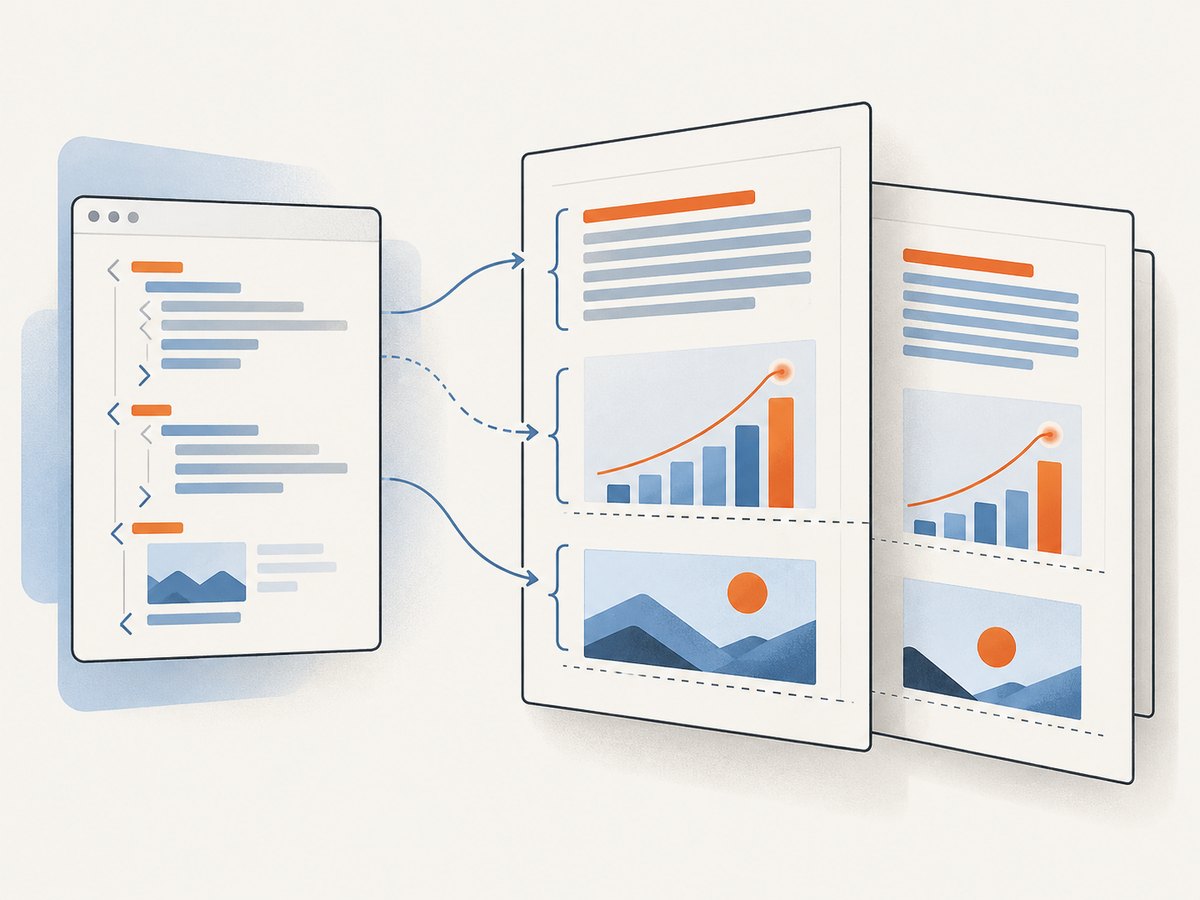
autoPaging: falsedisables automatic paging.autoPaging: "slice"lets shapes or text chunks be cut at page boundaries.autoPaging: "text"tries to avoid cutting text in half and is best for mostly single-column documents.autoPaging: trueis the documented default.
These options do not provide a special “keep every image together” switch for addImage(). They apply to HTML rendering and its layout engine.
import { jsPDF } from "jspdf";

const doc = new jsPDF({ unit: "mm", format: "a4" });
const element = document.querySelector("#invoice");

await doc.html(element, {
  margin: [18, 14, 18, 14], // top, right, bottom, left
  autoPaging: "text",
  html2canvas: {
    scale: 2,
    useCORS: true
  },
  callback: (finished) => finished.save("invoice.pdf")
});
Use "text" for text-heavy, mostly single-column documents. Use "slice" when cutting content at page boundaries is acceptable. With charts, images, tables, and multi-column layouts, inspect the generated PDF: the documentation does not promise that every non-text element remains intact.
Manual page-break hints in HTML
For important blocks, add a class and apply a page-break style before rendering:
.start-on-new-page {
  break-before: page;
  page-break-before: always;
}

.keep-together {
  break-inside: avoid;
  page-break-inside: avoid;
}
Browser-to-canvas rendering and jsPDF’s HTML plugin do not implement every CSS pagination rule identically. Treat these styles as hints and verify the output, especially for tables and large images.
5. A reusable pagination helper
Keeping pagination in one function reduces off-by-one errors and makes margin changes safer.
function placeImageOrStartPage(doc, image, format, x, y, width, height, layout) {
  const pageHeight = doc.internal.pageSize.getHeight();
  const bottom = pageHeight - layout.bottom;
  const remaining = bottom - y;

  if (height > layout.usableHeight) {
    return { splitRequired: true, y };
  }
  if (height > remaining) {
    doc.addPage();
    y = layout.top;
  }
  doc.addImage(image, format, x, y, width, height);
  return { splitRequired: false, y: y + height + layout.gap };
}
Return a split-required result instead of silently clipping an oversized image. The caller can then switch to the repeated-image algorithm or reduce the output width.
6. Troubleshooting checklist
The bottom of every image is missing
Cause: the supplied height extends below the usable page area, or a canvas was cropped before conversion.
Fix: calculate height from the source aspect ratio, compare it with the remaining height, and add a page or split intentionally. Confirm that the source canvas itself contains the full image.
The image starts too low on page two
Cause: page two reused the first page’s y coordinate or forgot to reset to the top margin.
Fix: after every addPage(), set y to the same content-top value and redraw the header.
Pages overlap the footer
Cause: the loop used the physical page height rather than pageHeight - top - bottom.
Fix: advance the repeated image by the usable height and reserve footer space on every page.
The image is stretched
Cause: width and height were chosen independently.
Fix: derive one dimension from the source aspect ratio.
HTML text is split awkwardly
Cause: autoPaging: "slice" or the default mode allowed content to be cut.
Fix: try autoPaging: "text", add keep-together classes to important blocks, and simplify multi-column layout.
A blank final page appears
Cause: the loop added a page before checking whether any image content remained, often when the final offset exactly equalled the image height.
Fix: use while (offset < outputHeight), and do not call addPage() after the final slice.
Images are blurry
Cause: the source bitmap has too few pixels for its output size, or JPEG compression is too aggressive.
Fix: capture at a higher scale, use PNG for sharp UI text, and avoid enlarging a small source image.
7. Performance, reliability, and file size
- Reuse encoded data: repeated
addImage()calls can use the same data URI. Avoid converting the source repeatedly. - Control dimensions: very large canvases increase memory use and PDF generation time. Capture only the pixels required for the final page width.
- Choose compression deliberately: JPEG is smaller for photographic content; PNG preserves sharp text and transparency.
- Keep layout deterministic: use fixed margins, wait for fonts and images before rendering HTML, and avoid content that changes height while pagination is running.
- Validate the result: count pages, inspect the first and last slice, and check that headers, footers, and table rows do not overlap.
jsPDF creates the PDF in the browser. For very long screenshots, memory pressure can become the practical limit. Splitting the source into smaller captures before PDF assembly can be more stable than creating one enormous canvas.
8. Or skip the browser setup
If your input is a webpage rather than an already available image, ScreenshotNeo can capture the page before you assemble a PDF. Its API accepts a URL and returns PNG, JPEG, WebP, or PDF. Cookie and consent banners are accepted and 60+ known consent platforms, newsletter popups, and chat widgets are removed before the shot; each step can be turned off. Bot checks, blank pages, timeouts, failed loads, and cache hits are not billed, and the response identifies the result with X-Page-Verdict and X-Billed headers.
See the ScreenshotNeo API documentation for the complete option list, including full-page capture with lazy images loaded, CSS-selector element capture, dark mode, device presets, retina scale, PDF paper sizes and margins, custom CSS and JavaScript, click and wait rules, request blocking, headers, cookies, user agents, authorization, timezone, geolocation, transparent backgrounds, resizing, caching, signed links, asynchronous jobs, bulk capture, usage data, and the OpenAPI specification.
cURL
curl -G "https://api.screenshotneo.com/v1/shot" \
  -d access_key=YOUR_API_KEY \
  --data-urlencode url=https://stripe.com \
  -o shot.webp
Python
import requests

r = requests.get(
    "https://api.screenshotneo.com/v1/shot",
    params={"access_key": "YOUR_API_KEY", "url": "https://stripe.com"},
    timeout=90,
)
r.raise_for_status()
open("shot.webp", "wb").write(r.content)
Node.js
const q = new URLSearchParams({ access_key: 'YOUR_API_KEY', url: 'https://stripe.com' });
const res = await fetch(`https://api.screenshotneo.com/v1/shot?${q}`);
if (!res.ok) throw new Error(`Screenshot failed: ${res.status}`);
const buffer = Buffer.from(await res.arrayBuffer());
require('fs').writeFileSync('shot.webp', buffer);
ScreenshotNeo also provides an MCP server with take_screenshot, get_page_info, and capture_pdf tools for Claude, Cursor, and other MCP clients. The Free plan includes 1,000 shots each month with no card; paid plans start at $5 for 3,000 shots. Create a free ScreenshotNeo account.
9. FAQ
Can jsPDF automatically keep an addImage image together?
No. Direct image placement uses the coordinates and dimensions you provide. Perform the fit check yourself.
Should I use a smaller image or split it?
Scale down when the image must remain readable as one object and fits at a smaller width. Split when the document is meant to show a continuous tall page or screenshot.
Does autoPaging apply to addImage?
No. It controls HTML rendering through html(). Direct addImage() pagination remains your responsibility.
Why does text mode still cut a chart?
autoPaging: "text" is designed to avoid splitting text in mostly single-column documents. It does not guarantee that charts, images, or tables remain intact.
Can I use a custom page size?
Yes. Pass a custom format or page dimensions to jsPDF, then calculate usable height from doc.internal.pageSize and your margins.


