How to Prevent Images and Text From Overlapping in iText 7 HTML-to-PDF
Fix overlapping images and text in iText 7 HTML-to-PDF by diagnosing page size, positioning, CSS support, fonts, and line height.

Direct answer: image and text overlap in iText 7 HTML-to-PDF when the converted layout does not fit the target page or when CSS positioning and font metrics place content in the same coordinates. Check page size and margins first, then inspect absolute positioning, floats, unsupported or nested CSS, the actual font files, and line-height. Fix the cause rather than searching for one universal overlap switch.
For HTML conversion, iText’s pdfHTML product documentation is release-specific. The current support matrix referenced in the research dossier covers pdfHTML 6.3.3 with iText Core 9.7.0; older iText 7 deployments can behave differently.
1. Identify which kind of overlap you have
| Symptom | Likely cause | First check |
|---|---|---|
| The whole layout is clipped, off-page, or collides near an edge | Source content is larger than the PDF page, or margins and fixed dimensions leave too little room | Target page box, CSS @page, margins, fixed widths and heights |
| An image covers nearby text | position:absolute, a fixed coordinate, or a float that does not fit the available width |
Remove absolute positioning and test normal flow |
| Text lines collide with each other | Tight line-height combined with the font’s glyph metrics |
Actual font file, computed line-height and font size |
| Only a nested grid, flex, or CSS layout is wrong | Version-specific CSS support or a renderer defect | pdfHTML feature matrix and a minimal reproduction |
2. Build a minimal conversion you can inspect
Start with a small Java program using the same Core and pdfHTML versions as production. Keep the HTML, CSS, page size, margins and supplied fonts identical to the failing case.
import com.itextpdf.html2pdf.ConverterProperties;
import com.itextpdf.html2pdf.HtmlConverter;
import com.itextpdf.kernel.geom.PageSize;
import com.itextpdf.kernel.pdf.PdfDocument;
import com.itextpdf.kernel.pdf.PdfWriter;

import java.io.FileInputStream;
import java.io.FileOutputStream;

public class ConvertHtml {
    public static void main(String[] args) throws Exception {
        ConverterProperties properties = new ConverterProperties();
        // Set a base URI when the HTML uses relative image, CSS or font URLs.
        properties.setBaseUri("file:///absolute/path/to/assets/");

        try (PdfWriter writer = new PdfWriter(new FileOutputStream("out.pdf"));
             PdfDocument pdf = new PdfDocument(writer)) {
            pdf.setDefaultPageSize(PageSize.A4);
            HtmlConverter.convertToPdf(
                new FileInputStream("input.html"),
                pdf,
                properties
            );
        }
    }
}
Use the dependency versions already approved for your application. iText licensing and dependency setup vary by project, so keep those details in your build configuration and reproduce the exact runtime versions when diagnosing layout.
3. Make the page large enough for the HTML
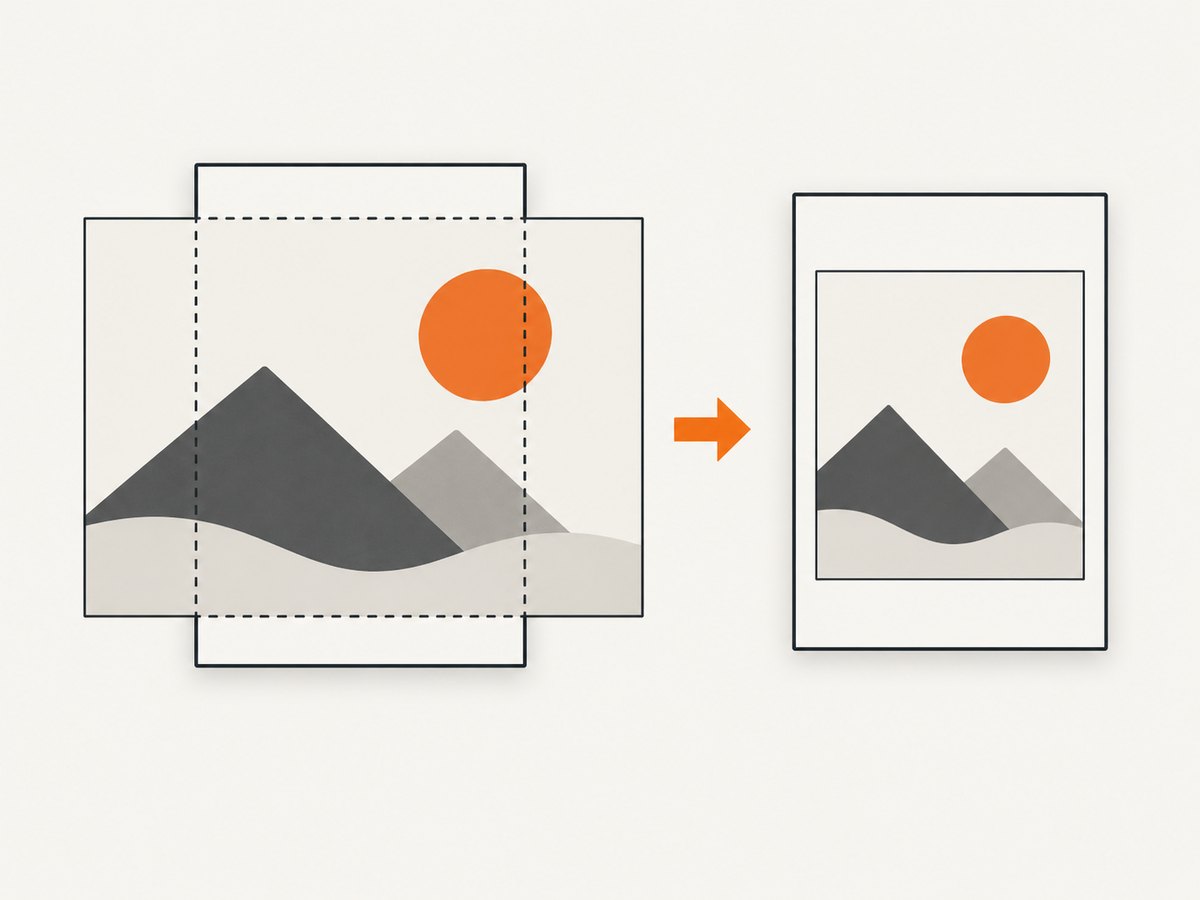
HTML that exceeds the default PDF page can produce both overlap and content rendered outside the page. If the output size is flexible, choose a page that fits the content. If the output must be A4, Letter, or another fixed size, use a two-stage workflow: render the content at a size that contains it, copy each rendered page as a form XObject, scale it, and place it on the required page size. This preserves the required final dimensions while giving the layout engine enough room during the first pass.
Use CSS page rules deliberately
@page {
  size: A4;
  margin: 18mm 16mm 20mm;
}

html, body {
  margin: 0;
  padding: 0;
}

.content {
  width: auto;
  max-width: 100%;
}
Do not combine a wide fixed-width container with narrow page margins unless you have calculated the available content width. A4 is 210mm wide; subtract both horizontal margins before choosing a fixed content width.
When the PDF must stay fixed-size
- Measure the source content’s required width and height.
- Render to a temporary document whose page can contain that content.
- For each temporary page, create a form XObject and apply a scale that fits the required page box.
- Place the scaled XObject on a new A4, Letter, or other mandated page.
The scale-to-page approach is preferable to allowing fixed coordinates to run past the page boundary. Keep an eye on readability: aggressive downscaling can make text too small even when it removes overlap.
4. Prefer normal flow over fixed coordinates
Absolutely positioned elements are page-dependent. An image positioned correctly in a browser viewport can land on text or outside the PDF page after conversion. If the image should consume layout space, keep it in normal flow or use a supported float.
<div class="figure">
  <img src="images/diagram.png" alt="Process diagram">
  <p class="caption">The capture pipeline.</p>
</div>
.figure {
width: 100%;
margin: 0 0 12pt;
break-inside: avoid;
}
.figure img {
display: block;
width: 100%;
height: auto;
}
.caption {
margin: 4pt 0 0;
line-height: 1.25;
}If absolute positioning is required for a form, label, or overlay, calculate every top, left, width and height against the actual page content box, including margins. Test at every page break. A coordinate that fits page one may collide after a page break or on a different paper size.
5. Control image dimensions and floats
Images with intrinsic dimensions larger than the content box can push text into unexpected positions. Set a bounded width and preserve the aspect ratio.
img {
  max-width: 100%;
  height: auto;
}

.float-left {
  float: left;
  width: 35%;
  margin: 0 12pt 8pt 0;
}

.after-float {
  clear: both;
}
Use floats only when text is meant to wrap around the image. For a full-width figure followed by text, normal flow is more predictable. Add a clearing element when later content must start below a float.
6. Check CSS support in the exact pdfHTML release
Browser CSS assumptions are unsafe. The support matrix is tied to a specific pdfHTML release. CSS nesting is broadly supported in the cited current matrix, but nested rules can still create image-alignment issues. Simplify nested layout around the failing image and verify each feature in the matrix for the version you deploy.
- Replace deeply nested selectors with flat selectors while isolating the defect.
- Test grid and flex layouts separately from typography and image sizing.
- Remove transforms, viewport units, and browser-only positioning rules from the minimal reproduction.
- Confirm that the converter receives the intended stylesheet through an absolute or correctly configured base URI.
Release history matters. iText Core 7.1.14 added overflow-wrap and word-break support. The pdfHTML 6.3.3 release notes describe a fix for duplicated or misplaced content when CSS Grid cells split across pages. Those notes explain why the exact dependency versions belong in every bug report; they do not prove that upgrading fixes an unrelated overlap.
7. Fix text-line collisions with fonts and leading
Text can overlap without any image being involved. Some fonts draw glyphs outside their nominal bounds. With tight leading, the next line can enter those glyphs. Do not assume that line-height: 1 is safe for every font.
body {
  font-family: "Noto Sans", sans-serif;
  font-size: 10.5pt;
  line-height: 1.35;
}

h1, h2, h3 {
  line-height: 1.15;
  margin: 0 0 8pt;
}

p {
  margin: 0 0 8pt;
}
Supply the exact font files used by the conversion and confirm that the converter can resolve them. If a fallback font is substituted, its metrics may differ enough to create collisions or unexpected page breaks. Increase line-height temporarily: if the overlap disappears, inspect the font and leading before changing image coordinates.
8. A repeatable troubleshooting checklist
- Record iText Core, pdfHTML, Java or .NET runtime, target page size and margins.
- Record the actual font files and the base URI used for CSS, images and fonts.
- Classify the symptom: line-to-line collision, image-to-text collision, or content beyond the page.
- Remove
position:absolute, fixed heights, fixed widths and floats from a copy of the source. - Render with a generous temporary page. If the issue disappears, page geometry is the cause.
- Increase line-height and replace the font temporarily. If text separates, investigate metrics.
- Flatten nested CSS and isolate grid, flex, float and image rules one at a time.
- Compare the result with a minimal document using the same versions and fonts.
- Only then apply a version upgrade or the fixed-page scaling workflow.
9. Common errors and fixes
| Error or observation | Cause | Fix |
|---|---|---|
| Image is on top of a paragraph | Absolute coordinates or a float wider than the available content box | Use normal flow, constrain the image to max-width:100%, or recalculate coordinates |
| Bottom of a section disappears | Fixed height clips content or the page is too short | Remove fixed height, allow expansion, or render and scale from a larger temporary page |
| Lines touch only with one font | Glyph metrics exceed the chosen leading | Register the intended font and increase line-height |
| Relative images or fonts are missing | Incorrect base URI or inaccessible resource | Set an absolute base URI and verify every resource path |
| Layout changes after an upgrade | Version-specific CSS or pagination behavior | Pin versions, consult the matching feature matrix and rerun the minimal reproduction |
| Content duplicates or shifts after a page break | Split grid or other complex layout behavior | Flatten the layout, test a supported alternative, and check release notes for the deployed version |
10. Performance, reliability and cost considerations
- Performance: large images, remote fonts and complex nested layout increase conversion work. Resize source images to the largest required display size and avoid loading unused assets.
- Reliability: pin Core and pdfHTML versions, package fonts with the application, use deterministic local assets where possible, and keep a minimal regression HTML file for every layout fix.
- Page count: rendering at a large temporary size and scaling adds a second document pass. Use it only when the final page size is fixed and normal-flow fixes cannot satisfy the constraint.
- Licensing and deployment: verify the iText license and dependency repository arrangement for your organization before shipping.
11. Or skip the browser setup
If your goal is a clean image or PDF of a web page rather than an HTML-to-PDF conversion you control, ScreenshotNeo provides a website screenshot API and MCP server. One request captures a URL as PNG, JPEG, WebP or PDF, with options for full-page capture, element selectors, device and viewport settings, custom CSS and JavaScript, waiting, blocking resources, cookies, headers and PDF page settings. See the ScreenshotNeo API documentation for the complete option list.
curl -G "https://api.screenshotneo.com/v1/shot" -d access_key=YOUR_API_KEY --data-urlencode url=https://stripe.com -o shot.webpimport requests
r = requests.get("https://api.screenshotneo.com/v1/shot", params={"access_key": "YOUR_API_KEY", "url": "https://stripe.com"}, timeout=90)
open("shot.webp", "wb").write(r.content)const q = new URLSearchParams({ access_key: 'YOUR_API_KEY', url: 'https://stripe.com' });
const res = await fetch(`https://api.screenshotneo.com/v1/shot?${q}`);Cookie banners, newsletter popups and chat widgets are removed before the shot. Bot checks, blank pages and failed loads are never billed, and response headers report the page verdict and whether the request was billed. An MCP server lets Claude, Cursor and other MCP clients use take_screenshot, get_page_info and capture_pdf. The Free plan includes 1,000 screenshots a month with no card; paid plans start at $5 for 3,000. Create a free ScreenshotNeo account.
12. FAQ
Should I always increase the PDF page size?
No. Increase it when the output size is flexible. For a mandated A4 or Letter result, render large enough to contain the layout and scale it onto the required page.
Is absolute positioning unsupported?
It can work, but every coordinate is page-dependent. Recalculate positions for the real page box and prefer normal flow when content should push surrounding text.
Will upgrading iText fix every overlap?
No. Releases contain targeted fixes and support changes. Reproduce the problem with the exact versions, fonts, page size and HTML before upgrading.
Why does changing the font fix the problem?
Fonts have different glyph bounds and metrics. Tight leading can allow glyphs from adjacent lines to collide.
Can ScreenshotNeo repair an iText layout?
No. It is an alternative for capturing a live web page as an image or PDF when you do not need to run your own HTML-to-PDF layout pipeline.


