How to Prevent Bottom Content Being Cut Off in Multi-Page jsPDF PDFs
Prevent clipped text and missing rows in multi-page jsPDF PDFs with measured layout, safe margins, AutoTable pagination, and debugging steps.

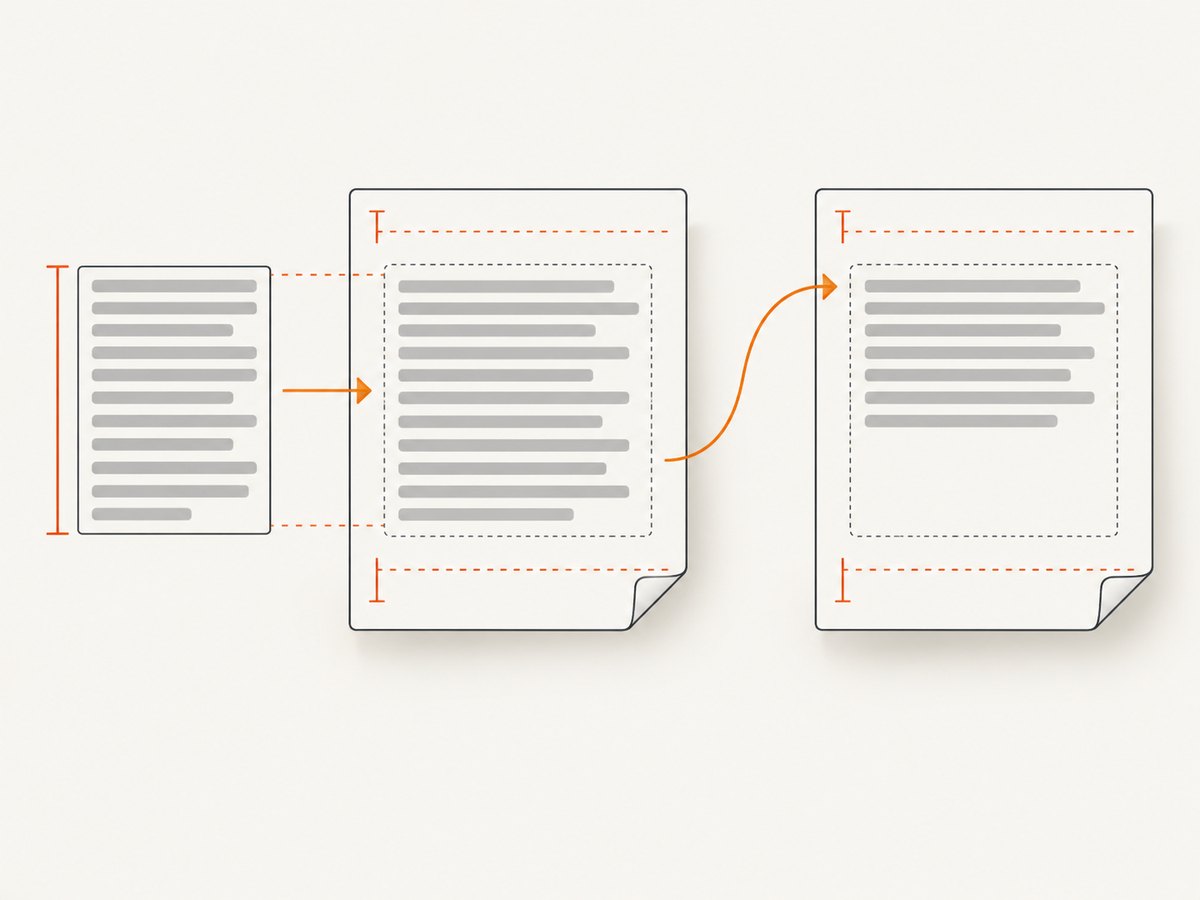
Bottom content is cut off in jsPDF when the next block is drawn after the usable page area. The reliable fix is to treat PDF generation as measured vertical layout: keep every coordinate in one unit system, reserve top and bottom margins, measure wrapped content before drawing it, and add a page before the next block crosses the bottom boundary.
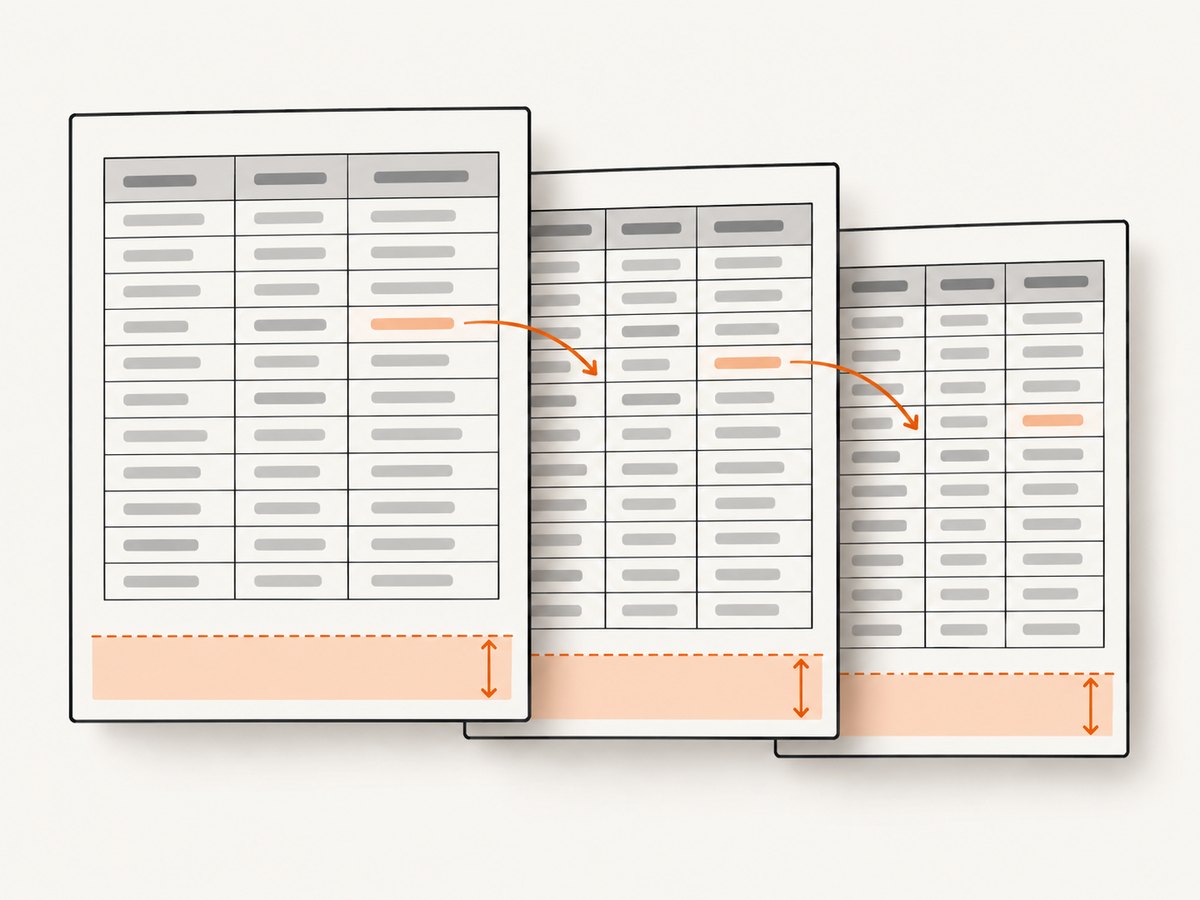
For tables, let jsPDF-AutoTable paginate rows, configure its margins and row behavior, repeat headers when needed, and continue from doc.lastAutoTable.finalY instead of guessing where the table ended.
1. Use a measured page-flow function
This complete example uses millimeters for the page, margins, cursor, line height, and measurements. It wraps paragraphs with splitTextToSize, checks the required height, adds a page when necessary, and resets the cursor to the top margin.
import { jsPDF } from 'jspdf';

const doc = new jsPDF({ unit: 'mm', format: 'a4' });
const margin = { top: 15, right: 15, bottom: 18, left: 15 };
const pageWidth = doc.internal.pageSize.getWidth();
const pageHeight = doc.internal.pageSize.getHeight();
const usableWidth = pageWidth - margin.left - margin.right;
const usableBottom = pageHeight - margin.bottom;
const fontSize = 11;
const lineHeight = 5;
let y = margin.top;

doc.setFont('helvetica', 'normal');
doc.setFontSize(fontSize);

function startPage() {
  doc.addPage();
  y = margin.top;
  drawHeader();
}

function drawHeader() {
  doc.setFontSize(9);
  doc.setTextColor(90);
  doc.text('Example report', margin.left, 9);
  doc.setTextColor(0);
  doc.setFontSize(fontSize);
}

function ensureSpace(height) {
  if (y + height > usableBottom) {
    startPage();
  }
}

function drawParagraph(text, gapAfter = 6) {
  const lines = doc.splitTextToSize(text, usableWidth);
  const blockHeight = lines.length * lineHeight;

  // A block that cannot fit on a fresh page must be split, not paged forever.
  if (blockHeight > usableBottom - margin.top) {
    let offset = 0;
    while (offset < lines.length) {
      const linesThatFit = Math.max(
        1,
        Math.floor((usableBottom - y) / lineHeight)
      );
      const chunk = lines.slice(offset, offset + linesThatFit);
      doc.text(chunk, margin.left, y);
      y += chunk.length * lineHeight;
      offset += chunk.length;
      if (offset < lines.length) startPage();
    }
    y += gapAfter;
    return;
  }

  ensureSpace(blockHeight);
  doc.text(lines, margin.left, y);
  y += blockHeight + gapAfter;
}

function drawHeading(text, size = 15, gapAfter = 5) {
  const previous = doc.getFontSize();
  doc.setFontSize(size);
  const height = size * 0.45;
  ensureSpace(height);
  doc.text(text, margin.left, y);
  y += height + gapAfter;
  doc.setFontSize(previous);
}

drawHeader();
drawHeading('Measured PDF layout');
drawParagraph('Long text is wrapped to the actual available width. Its line count determines the required height before anything is drawn.');
drawParagraph('When the measured block would cross the bottom margin, a new page is created and the cursor returns to the top margin.');

doc.save('report.pdf');
Why this prevents clipping
pageHeight,margin.bottom,y, andlineHeightuse the same unit.splitTextToSizemeasures lines using the real font and available width.- The check happens before
doc.text, so the block is not partially drawn at the page edge. - After
addPage(),yis reset tomargin.topand the header is redrawn.
2. Keep units, dimensions, and margins consistent
jsPDF coordinates are unit-dependent. If the document uses unit: 'mm', do not compare a pixel estimate or a point value with y. Read dimensions from doc.internal.pageSize and derive the usable area from the configured margins.
const width = doc.internal.pageSize.getWidth();
const height = doc.internal.pageSize.getHeight();
const usableWidth = width - margin.left - margin.right;
const usableBottom = height - margin.bottom;

console.log({
  unit: 'mm',
  width,
  height,
  top: margin.top,
  bottom: margin.bottom,
  y,
  usableBottom
});
Reserve space for anything drawn at the bottom, such as a footer, page number, or legal notice. If the footer occupies 8 mm, make the effective bottom margin include that space rather than allowing body content to use it.
3. Measure every kind of block
Wrapped paragraphs
Estimate height from the array returned by splitTextToSize, not from character count. Font family, font size, available width, and the actual text all affect wrapping.
function paragraphHeight(text, width, lineHeight) {
  const lines = doc.splitTextToSize(text, width);
  return { lines, height: lines.length * lineHeight };
}
Lists
Measure each item independently. A long list item may wrap to several lines and needs a page check before it is drawn.
function drawBullet(text) {
  const textWidth = usableWidth - 6;
  const lines = doc.splitTextToSize(text, textWidth);
  const height = lines.length * lineHeight;
  ensureSpace(height);
  doc.text('•', margin.left, y);
  doc.text(lines, margin.left + 5, y);
  y += height + 2;
}
Images
Convert the image dimensions to the same unit used by the document, then check the rendered height before calling addImage. If an image is taller than a page, resize it or slice it deliberately.
function drawImage(data, x, width, height) {
  ensureSpace(height);
  doc.addImage(data, 'PNG', x, y, width, height);
  y += height + 6;
}
Custom headers and footers
Run header and footer drawing in one place so every page receives the same treatment. A footer should not be added after body layout has already consumed its area.
4. Paginate tables with jsPDF-AutoTable
AutoTable is usually the safest choice for structured rows because it calculates row height, wraps cell content, and creates pages as needed. Give it the same margins as the rest of the document.
import { jsPDF } from 'jspdf';
import autoTable from 'jspdf-autotable';

const doc = new jsPDF({ unit: 'mm', format: 'a4' });
const margin = { top: 15, right: 15, bottom: 18, left: 15 };
let y = margin.top;

const head = [['Product', 'Description', 'Status']];
const body = rows.map(row => [row.name, row.description, row.status]);

autoTable(doc, {
  startY: y,
  margin,
  pageBreak: 'auto',
  rowPageBreak: 'avoid',
  showHead: 'everyPage',
  head,
  body
});

y = doc.lastAutoTable.finalY + 8;

// Continue with measured content after the table.
const note = doc.splitTextToSize('This note begins after the last printed table row.', 180);
if (y + note.length * 5 > doc.internal.pageSize.getHeight() - margin.bottom) {
  doc.addPage();
  y = margin.top;
}
doc.text(note, margin.left, y);

doc.save('table-report.pdf');
Important AutoTable options
| Option | Purpose | Typical choice |
|---|---|---|
startY |
Initial vertical position on the current page | Use the measured cursor from preceding content |
margin |
Usable page boundaries | Match document top, right, bottom, and left margins |
pageBreak |
Controls table-level page breaks | 'auto' for normal flow |
rowPageBreak |
Controls whether a row may split | 'avoid' where rows should stay together |
showHead |
Controls repeated headers | 'everyPage' for multi-page tables |
rowPageBreak: 'avoid' is a request to keep a row together where possible. An exceptionally tall row can still exceed a page, so validate the generated PDF when cell content is unbounded.
Continue correctly after a table
Use doc.lastAutoTable.finalY as the handoff position. It is the last printed y coordinate and is more reliable than adding an assumed number of rows or line heights.
5. Handle page headers, footers, and page numbers
When AutoTable creates pages, use its page hooks or a final pass to draw repeated elements. If a hook changes data.cursor, account for that change in the layout and test the result.
autoTable(doc, {
  startY: y,
  margin,
  head,
  body,
  didDrawPage: data => {
    doc.setFontSize(9);
    doc.text(`Page ${data.pageNumber}`, pageWidth - margin.right - 15, 9);
    doc.setFontSize(11);
  }
});
Do not assume that adding a header in a hook leaves the cursor unchanged. Log the cursor when custom hooks draw content, and keep the table’s top margin large enough for the header.
6. Prevent common edge cases
- A block is taller than one page: split its measured lines into page-sized chunks. Repeatedly calling
addPage()without consuming content can create an endless loop. - The last line disappears: verify the measured height uses the same line height as the actual font settings and that the bottom margin includes the footer.
- A table row vanishes: inspect horizontal page-break settings and the exact library versions. Issue #1109 reports silent row loss with
horizontalPageBreak: trueandhorizontalPageBreakBehaviour: 'immediately'in jsPDF-AutoTable 5.0.2 with jsPDF 3.0.0. The reported path skipped a row that did not fit instead of deferring it. - Content starts too high after a new page: reset
yafter everyaddPage(); do not keep the previous page’s cursor. - Content overlaps a footer: subtract the footer’s complete height from the usable bottom boundary.
- Different results across documents: check page format, orientation, unit, font, font size, margins, and library versions before changing the pagination formula.
7. A debugging checklist
- Log the configured unit, page width and height, all margins, current
y, line count, and calculated block height. - Before every draw, verify
y + blockHeight <= pageHeight - bottomMargin. - Use
splitTextToSizewith the actual available width. - After every
addPage(), resetyand redraw required headers or footers. - After AutoTable, read
doc.lastAutoTable.finalYbefore drawing following content. - Review custom hooks that mutate
data.cursor. - Reproduce with the exact jsPDF and AutoTable versions, especially when horizontal page breaks are enabled.
- Open the output PDF and inspect the final line, final table row, repeated headers, and footers on every page.
8. Performance, reliability, and cost considerations
Performance
Wrapping text and measuring blocks is inexpensive compared with rendering large images or many table rows. Avoid repeatedly recalculating the same paragraph layout; cache measured lines when the font and width do not change. For very large tables, generate rows in batches and keep the input data streaming where your application permits.
Reliability
Use deterministic page dimensions, margins, fonts, and dependency versions. Add regression fixtures containing a paragraph that ends near the bottom, a multi-line final row, an exceptionally tall row, and a table that crosses several pages. Inspect the produced PDF for missing content instead of relying only on a successful JavaScript call.
Cost
jsPDF runs in your application, so the main costs are browser or server CPU, memory, and storage for the generated files. Larger fonts, images, and tables increase output size and processing time. If you move capture or PDF work to an external API, account for its billing rules and failure handling separately.
9. Or skip the browser setup
ScreenshotNeo provides a one-call website screenshot and PDF API. Its capture pipeline accepts cookie and consent banners like a visitor, then removes more than 60 known consent platforms, newsletter popups, and chat widgets before the shot; each step can be turned off. Bot checks, blank pages, timeouts, failed loads, and cache hits cost nothing, and the response identifies the result with X-Page-Verdict and X-Billed headers. An MCP server provides take_screenshot, get_page_info, and capture_pdf tools for Claude, Cursor, and other MCP clients.
See the ScreenshotNeo API documentation for all options. This request returns a PDF for a page that your own application has rendered:
curl -G "https://api.screenshotneo.com/v1/shot" \
  -d access_key=YOUR_API_KEY \
  --data-urlencode url=https://stripe.com \
  -d format=pdf \
  -o stripe.pdf
import requests
r = requests.get(
"https://api.screenshotneo.com/v1/shot",
params={
"access_key": "YOUR_API_KEY",
"url": "https://stripe.com",
"format": "pdf",
},
timeout=90,
)
r.raise_for_status()
open("stripe.pdf", "wb").write(r.content)const q = new URLSearchParams({
access_key: 'YOUR_API_KEY',
url: 'https://stripe.com',
format: 'pdf'
});
const res = await fetch(`https://api.screenshotneo.com/v1/shot?${q}`);
if (!res.ok) throw new Error(`ScreenshotNeo HTTP ${res.status}`);
const pdf = Buffer.from(await res.arrayBuffer());
await import('node:fs/promises').then(fs => fs.writeFile('stripe.pdf', pdf));There are no browser launchers or page-break calculations to maintain. ScreenshotNeo supports PDF paper size, margins, landscape mode, page ranges, waits, custom CSS and JavaScript, headers, cookies, user agents, blocking rules, caching, asynchronous jobs, signed webhooks, bulk capture, and a usage API. The free plan includes 1,000 screenshots each month with no card; paid plans start at $5 for 3,000 shots. Create a free ScreenshotNeo account.
10. FAQ
Should I add a page whenever y is close to the bottom?
Check the complete measured height of the next block. A fixed “close” threshold wastes space for short content and still fails for wrapped text.
Why does doc.text accept an array but still clip?
The array supplies lines, but jsPDF does not automatically reserve page space for them. Measure the array length and perform the boundary check yourself.
Should every AutoTable row be kept together?
Use rowPageBreak: 'avoid' when rows are readable only as a unit. Very tall rows still need content-specific handling and visual verification.
Where should the next paragraph start after AutoTable?
Start from doc.lastAutoTable.finalY, add your desired gap, and run the same bottom-margin check before drawing.
How do I find a missing row in a horizontal table?
Reproduce with the exact jsPDF and AutoTable versions, disable horizontal page breaks temporarily, and inspect the generated PDF. The reported 5.0.2/3.0.0 issue makes version-specific verification essential.


