How to Prevent jsPDF HTML-to-PDF Content from Being Cut Between Pages
Use jsPDF’s text-aware pagination for text-heavy documents, then check canvas limits, unsupported CSS, and cross-origin images when content still disappears.

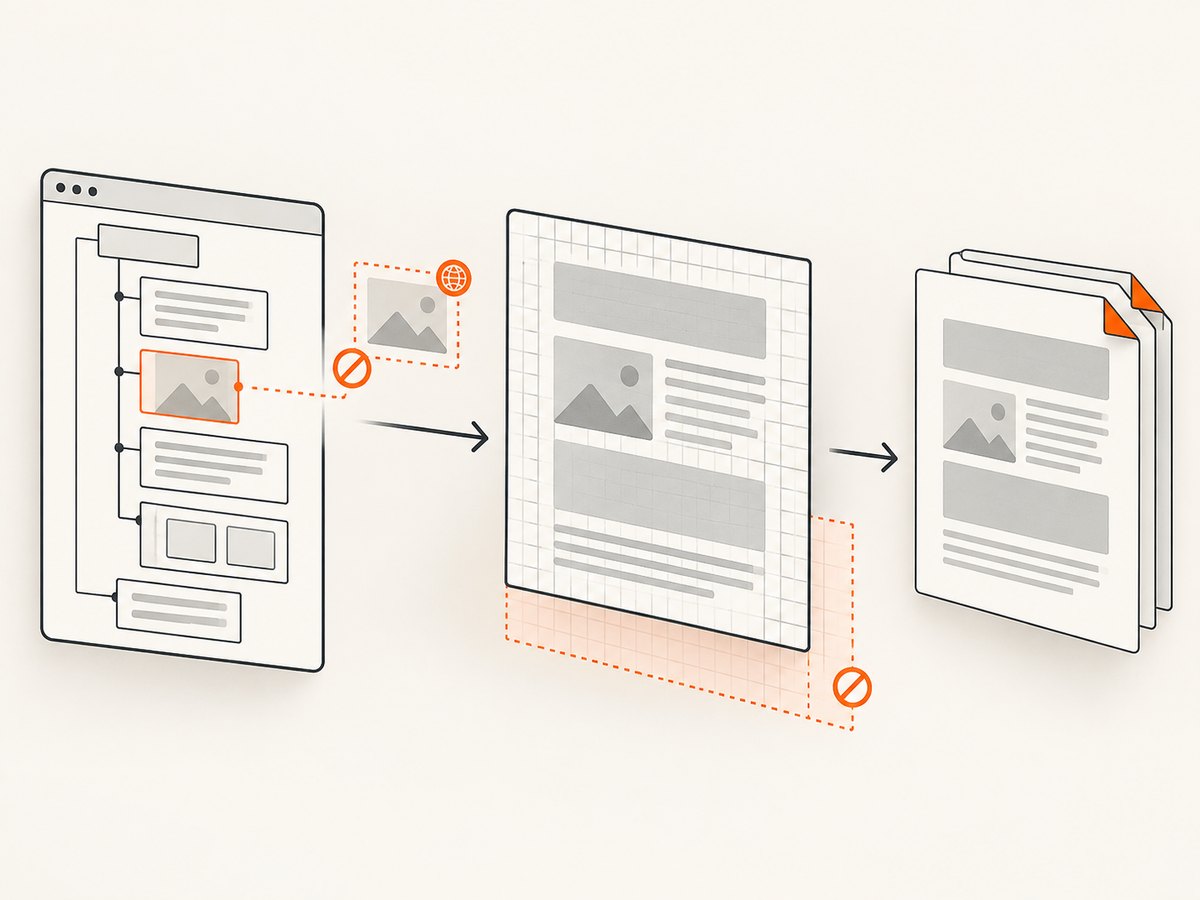
When HTML content is awkwardly cut between pages in jsPDF, first try autoPaging: 'text' in doc.html() if the document is mostly single-column text. The default autoPaging: true behaves like 'slice' and can split text or shapes at page boundaries. Text-aware paging tries to avoid cutting text in half, but it is not a guarantee for complex layouts. If content is missing entirely, investigate html2canvas rendering, canvas dimensions, unsupported CSS, and cross-origin images separately: those are rendering problems, not pagination problems.
This guide shows a runnable browser example, explains the available pagination modes, and gives a diagnostic path for clipping that page-break settings cannot fix. See the jsPDF project and the html2canvas FAQ for the underlying APIs and constraints.
1. Start with text-aware pagination
For a text-heavy, mostly single-column page, pass autoPaging: 'text' in the options object to doc.html(). The documented modes are true, 'slice', and 'text'. The default is true, equivalent to 'slice'; it can slice content at page boundaries, including text. The 'text' mode tries to avoid splitting text in half and is documented as best suited to mostly single-column documents.

const { jsPDF } = window.jspdf;
const doc = new jsPDF({ format: 'a4', unit: 'mm' });

const content = document.querySelector('#report');

doc.html(content, {
  autoPaging: 'text',
  margin: [12, 12, 12, 12],
  callback: (pdf) => pdf.save('report.pdf')
});
This is browser-side code: it expects jsPDF and the HTML element to be available in a browser. Include the jsPDF build that exposes html() and its browser dependencies as documented for the version you install. Package versions and build setup vary, so consult the project’s documentation rather than assuming a particular CDN or bundler configuration.
What the modes mean
| Option | Behavior | When to consider it |
|---|---|---|
true |
Documented default; equivalent to 'slice'. Content can be sliced across page breaks. |
Only when slicing through content is acceptable. |
'slice' |
Explicit slicing behavior; can cut text or shapes at a boundary. | When a continuous canvas-like flow matters more than keeping text chunks intact. |
'text' |
Tries not to split text in half. Best for primarily single-column text. | First adjustment for reports, articles, and other text-first pages. |
Do not read “tries” as “always keeps every visual block together.” Multi-column layouts, cards, positioned elements, tables, and large visual components may still break in ways that need layout changes or a different rendering approach. The API documentation does not promise universal support for every CSS page-fragmentation rule.
2. Make the HTML easier to paginate
Pagination works best when the source layout has clear, natural boundaries. Inspect the rendered PDF and adjust the HTML around any recurring bad break:
- Find the first incorrect boundary. Note whether a line is divided, an entire block is split, or content vanishes. These point to different causes.
- Use text mode for text splits. Set
autoPaging: 'text'and regenerate. - Reshape blocks that must remain together. Shorten oversized cards or sections, or divide long content into smaller logical blocks. A block taller than the usable page area cannot fit on one page intact.
- Put explicit breaks at acceptable boundaries. If a new section should always begin on a fresh page, insert a deliberate break in the source flow or split the capture into sections and add pages deliberately. Check the generated PDF; jsPDF’s HTML renderer does not guarantee that every browser CSS fragmentation rule is honored.
- Repeat with representative content. Include the longest paragraphs, largest tables, images, and sections the real export can contain.
Page size and margins affect the available content area. A larger margin leaves less room per page and may move a block to the next page; it does not itself repair a canvas that was clipped before pagination. Pick the page format and margins for the intended document first, then tune the HTML to that printable area.
3. Tell pagination apart from rendering or clipping
jsPDF’s html() path uses html2canvas to render the DOM before placing it into the PDF. html2canvas describes its output as a rendering built from DOM information, not a literal browser screenshot. It can render only CSS properties it understands, and its documentation notes that many CSS properties are unsupported. Consequently, a page-break setting cannot restore an element that html2canvas never rendered.
| Symptom | Likely area to inspect | First check |
|---|---|---|
| Text is visibly sliced at a page boundary | Pagination | Try autoPaging: 'text' for single-column text. |
| Whole element or image is absent | DOM-to-canvas rendering | Check cross-origin access and supported CSS. |
| Canvas is blank or stops partway through a long page | Canvas dimensions or browser limits | Compare capture dimensions with the element’s scroll dimensions. |
| Output differs from the browser’s appearance | html2canvas CSS support | Reduce unsupported styling and inspect the rendered content. |
Check canvas dimensions
Browsers limit canvas dimensions and area. The html2canvas FAQ recommends matching windowWidth and windowHeight to the element’s scrollWidth and scrollHeight when a canvas is empty or cuts off. For example, where appropriate to your layout, pass dimensions based on the source element:
const content = document.querySelector('#report');
const width = content.scrollWidth;
const height = content.scrollHeight;

const doc = new jspdf.jsPDF({ format: 'a4', unit: 'mm' });
doc.html(content, {
  autoPaging: 'text',
  html2canvas: {
    windowWidth: width,
    windowHeight: height
  },
  callback: (pdf) => pdf.save('report.pdf')
});
Use dimensions that represent the layout you intend to render. A very large page can exceed browser canvas limits even when those values match the element. If the output still cuts off, reduce the amount rendered at once: split the source into manageable sections or avoid constructing one extremely tall canvas. Exact limits vary by browser and device; the cited documentation does not establish one universal safe size.
Check CSS and images
When an element is missing or styled incorrectly, simplify the relevant CSS and compare again. Unsupported CSS in html2canvas is a rendering limitation, so changing autoPaging will not fix it. For images hosted on another origin, browser security rules require a compatible CORS response for canvas use. The html2canvas FAQ describes using useCORS: true when the image server permits CORS, or using a proxy. The option alone cannot grant permission if the server does not send the needed headers.
doc.html(content, {
  autoPaging: 'text',
  html2canvas: {
    useCORS: true
  },
  callback: (pdf) => pdf.save('report.pdf')
});
If images are still absent, verify the image server’s CORS response or arrange a suitable proxy. Do not treat a successful browser display as proof that the image can be read into a canvas.
4. Runnable browser example
Here is a minimal page structure and export handler. Load jsPDF using the installation method appropriate for your project, then make jspdf available on the page as shown by the global build. The HTML element must exist before the button handler runs.
<main id="report">
  <h1>Quarterly report</h1>
  <p>Long report text goes here. Add representative content and sections.</p>
  <section>
    <h2>Results</h2>
    <p>More text that may flow across several pages.</p>
  </section>
</main>
<button id="export-pdf">Save PDF</button>
<script>
  document.querySelector('#export-pdf').addEventListener('click', () => {
    const { jsPDF } = window.jspdf;
    const report = document.querySelector('#report');
    const pdf = new jsPDF({ format: 'a4', unit: 'mm' });

    pdf.html(report, {
      autoPaging: 'text',
      margin: [12, 12, 12, 12],
      callback: (output) => output.save('quarterly-report.pdf')
    });
  });
</script>
For a production export, handle failures through the mechanisms available in your installed jsPDF version, disable or show progress for repeated clicks, and avoid removing the source element while rendering is in progress. Test the downloaded PDF in the browser and PDF viewer your users rely on. This guide does not claim a particular version-specific defect or report hands-on test results.
5. Alternatives and tradeoffs
If jsPDF’s pagination behavior does not fit the layout, html2pdf.js documents CSS page-break handling, including an avoid-all mode. That gives another control surface for break placement, but its output is rasterized: text is not searchable or selectable, and files can be large. Choose it only if those tradeoffs work for the document.
| Concern | jsPDF html() |
html2pdf.js |
|---|---|---|
| Text at page boundaries | 'text' tries to avoid splitting text, especially in single-column content. |
Offers CSS and avoid-all page-break controls. |
| Text usability | Assess your resulting document and needs. | Rasterized output is not searchable or selectable. |
| Rendering fidelity | html2canvas support and browser canvas constraints apply. | Also uses a rasterized rendering approach; inspect output for your layout. |
| File size | Depends on content and output. | Documentation warns files can be large. |
For content that must remain accessible, searchable, or highly faithful to browser layout, compare the result against your requirements before choosing a rasterized export. The cited sources do not provide a complete benchmark or guarantee that one library handles every CSS layout better.
6. Troubleshooting common failures
| Problem | Cause to check | Fix |
|---|---|---|
| Paragraph is split mid-line or mid-text | Default slicing pagination | Set autoPaging: 'text' for a mostly single-column text document. |
| A card or section breaks across pages | Complex layout or block taller than available page space | Reshape or shorten the block; add an explicit logical break where suitable; inspect the actual PDF. |
| The bottom of a long export is missing | Canvas size limit or capture dimensions | Set html2canvas window dimensions from the element’s scroll dimensions, then reduce the rendered height if necessary. |
| Canvas or PDF is blank | Canvas sizing, browser constraints, or rendering failure | Check dimensions and simplify the page to identify unsupported content. |
| Remote images disappear | Cross-origin image access denied | Use useCORS: true only with a server that supplies compatible CORS headers, or use a proxy. |
| Some visual effects disappear | html2canvas does not support the CSS property | Replace or simplify the affected styling and render again. |
| Changing page-break CSS has no effect | The renderer may not honor that CSS fragmentation rule | Use supported pagination options, restructure the source, or evaluate a documented alternative. |
7. Performance, reliability, and cost
HTML-to-canvas PDF generation runs in a browser and consumes memory for the rendered canvas and PDF. Long pages and large images increase the work and can encounter browser canvas limits. Keep captures to the content needed, avoid excessively tall single canvases, and use representative long documents in validation. html2canvas itself relies on browser APIs and is not suitable for Node.js according to its getting-started documentation; a Node process cannot simply run this browser example without a browser environment.
For reliability, wait until the content and images are ready before calling html(), retain the source DOM during rendering, and verify page count, bottom-of-document content, image presence, and text selection in the produced PDF. Browser and CSS differences matter because the result is derived from DOM rendering rather than a universal print-layout engine. No fixed performance, canvas-limit, or cost figures are established by the cited documentation, so measure with the devices and content your application supports.
8. Or skip the browser setup
If the job is to capture a website as an image or PDF, ScreenshotNeo provides a screenshot API and MCP server. One GET request returns a PNG, JPEG, WebP, or PDF; see the API documentation for options and response details.
curl -G "https://api.screenshotneo.com/v1/shot" -d access_key=YOUR_API_KEY --data-urlencode url=https://stripe.com -o shot.webpimport requests
r = requests.get(
"https://api.screenshotneo.com/v1/shot",
params={"access_key": "YOUR_API_KEY", "url": "https://stripe.com"},
timeout=90,
)
open("shot.webp", "wb").write(r.content)const q = new URLSearchParams({ access_key: 'YOUR_API_KEY', url: 'https://stripe.com' });
const res = await fetch(`https://api.screenshotneo.com/v1/shot?${q}`);- Cookie banners are accepted and removed, along with known newsletter popups and chat widgets, before the shot.
- Bot checks, blank pages, failed loads, timeouts, and cache hits are not billed; response headers identify the page verdict and billing result.
- An MCP server gives AI agents tools to take screenshots, get page information, and capture PDFs.
- The free plan includes 1,000 shots a month with no card; paid plans start at $5 for 3,000 shots.
Sign up free for 1,000 screenshots a month, with no card required.
9. FAQ
Does autoPaging: 'text' keep every element together?
No. The documented behavior is an attempt to avoid splitting text in half, with best results for mostly single-column text. Complex visual blocks still need inspection and may need restructuring.
Can CSS page-break rules fix missing content?
Not if the content was omitted during DOM-to-canvas rendering. Check canvas dimensions, supported CSS, and image access first.
Can I use html2canvas directly in Node.js?
The html2canvas getting-started documentation says it relies on browser APIs and is not suitable for Node.js. Use a browser runtime for this path.
Is html2pdf.js always a better fix?
No. It offers page-break controls, but rasterizes text, so the result is not searchable or selectable and may be large.


