How to Prevent jsPDF From Stretching Elements in Generated PDFs
Keep jsPDF images and HTML proportional with aspect-ratio math, correct html2canvas sizing, and fixes for blurry, blank, or cut-off PDFs.
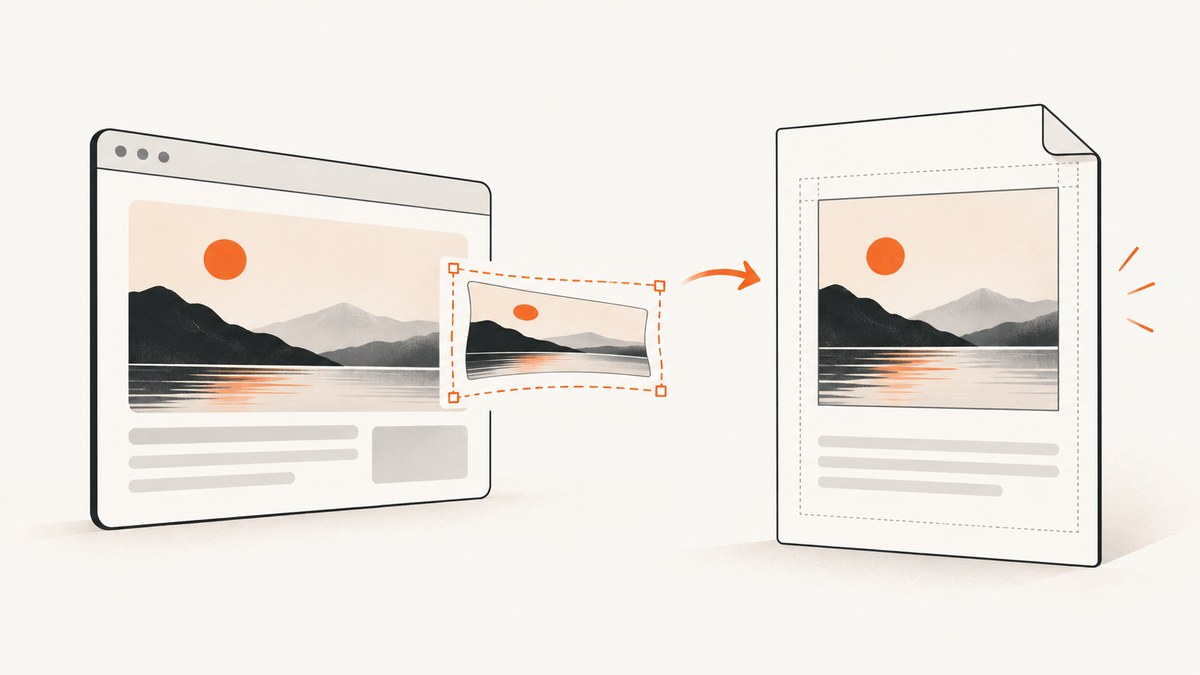
Use one dimension and calculate the other from the source ratio. jsPDF stretches an image when the width and height passed to addImage describe a different ratio from the source. Read the image dimensions, choose a target width (or height), and derive the remaining dimension:
const props = pdf.getImageProperties(imgData);
const targetWidth = 180;
const targetHeight = (props.height * targetWidth) / props.width;
pdf.addImage(imgData, 'PNG', x, y, targetWidth, targetHeight);
For HTML rendered through doc.html(), stretching and layout errors usually come from mixing PDF units, CSS pixels, viewport dimensions, and canvas scale. Set the target PDF width together with the HTML layout’s windowWidth, and avoid a conflicting html2canvas.scale override.
1. Why jsPDF stretches images and elements
addImage(image, format, x, y, width, height) places the source bitmap into exactly the rectangle you provide. It does not infer the correct aspect ratio. If a 65×60 box is used for an image whose ratio is 16:9, the image is compressed vertically or expanded horizontally. The jsPDF issue about adding an image without distortion documents this symptom and the ratio-preserving calculation (jsPDF issue #3401).
The same visual problem can appear in an HTML-to-PDF workflow even when addImage is not called directly. html2canvas first rasterizes the DOM at a CSS viewport and scale. jsPDF then maps that raster to PDF units. A mismatched viewport, an explicit canvas scale, or a page width that does not match the rendered layout can make content look enlarged, squashed, blurry, or clipped.
2. Preserve an image’s ratio with addImage
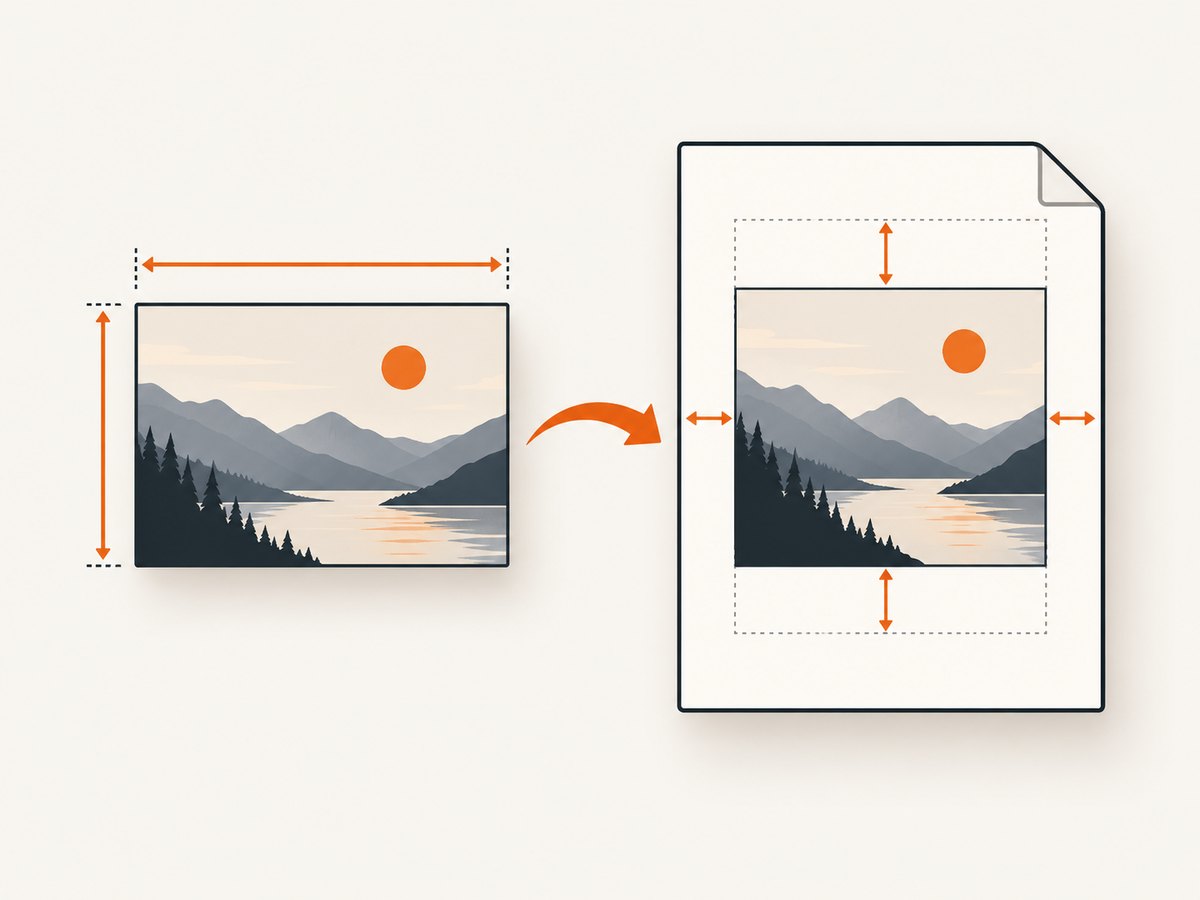
This browser example loads an image, reads its intrinsic dimensions, fits it inside an A4 page, and saves a proportional PDF. It uses the image’s natural width and height instead of guessing both output dimensions.
import { jsPDF } from 'jspdf';

function loadImage(src) {
  return new Promise((resolve, reject) => {
    const image = new Image();
    image.onload = () => resolve(image);
    image.onerror = reject;
    image.src = src;
  });
}

const image = await loadImage('/chart.png');
const canvas = document.createElement('canvas');
canvas.width = image.naturalWidth;
canvas.height = image.naturalHeight;
canvas.getContext('2d').drawImage(image, 0, 0);
const imgData = canvas.toDataURL('image/png');

const pdf = new jsPDF({ unit: 'mm', format: 'a4', orientation: 'portrait' });
const margin = 10;
const pageWidth = pdf.internal.pageSize.getWidth();
const pageHeight = pdf.internal.pageSize.getHeight();
const maxWidth = pageWidth - margin * 2;
const maxHeight = pageHeight - margin * 2;
const props = pdf.getImageProperties(imgData);

// Fit inside the available rectangle without changing the ratio.
const ratio = Math.min(maxWidth / props.width, maxHeight / props.height);
const width = props.width * ratio;
const height = props.height * ratio;
const x = (pageWidth - width) / 2;
const y = (pageHeight - height) / 2;

pdf.addImage(imgData, 'PNG', x, y, width, height);
pdf.save('proportional.pdf');
If you know the desired width, the shorter version is height = sourceHeight * width / sourceWidth. If you know the desired height, calculate width = sourceWidth * height / sourceHeight. Never pass independently selected values unless cropping or intentional distortion is the goal.
3. Fit HTML to A4 without distorting its layout
When converting a DOM element, decide the CSS layout width first, then map that layout to the PDF page. The jsPDF HTML plug-in defines width as the target width in jsPDF units and windowWidth as the CSS-pixel width used while rendering. The documentation notes that width does not take effect when html2canvas.scale is specified or when windowWidth is omitted (jsPDF HTML plug-in options).
import { jsPDF } from 'jspdf';

const element = document.querySelector('#content');
const pdf = new jsPDF({ unit: 'mm', format: 'a4', orientation: 'portrait' });
const margin = 10;
const pageWidth = pdf.internal.pageSize.getWidth();
const contentWidth = pageWidth - margin * 2;

pdf.html(element, {
  x: margin,
  y: margin,
  width: contentWidth,
  windowWidth: element.scrollWidth,
  autoPaging: 'text',
  callback: (doc) => doc.save('document.pdf')
});
autoPaging: 'text' is useful for reports and articles because it attempts to avoid cutting text in half. The default true (also called 'slice') can split text or shapes at page boundaries. Neither mode can repair a source layout that is already rendered at the wrong width.
4. Understand CSS pixels, canvas pixels, and PDF units
| Value | What it controls | Typical mistake |
|---|---|---|
| CSS pixels | DOM layout, media queries, and element geometry | Assuming CSS pixels equal millimetres |
| Canvas pixels | Raster resolution produced by html2canvas | Making a huge canvas and hitting browser limits |
| PDF units | Placement and size in jsPDF (mm, pt, etc.) |
Passing canvas dimensions as millimetres |
scale |
Raster density; html2canvas defaults to window.devicePixelRatio |
Adding a scale while expecting width to control final sizing |
Choose a stable source layout width, such as the element’s scrollWidth. Render at that width, and then assign the resulting content to the PDF width. Increasing scale can improve sharpness but increases memory use and the chance of exceeding canvas limits; it does not preserve an incorrect ratio.
5. Prevent cut-off and blank output on long pages
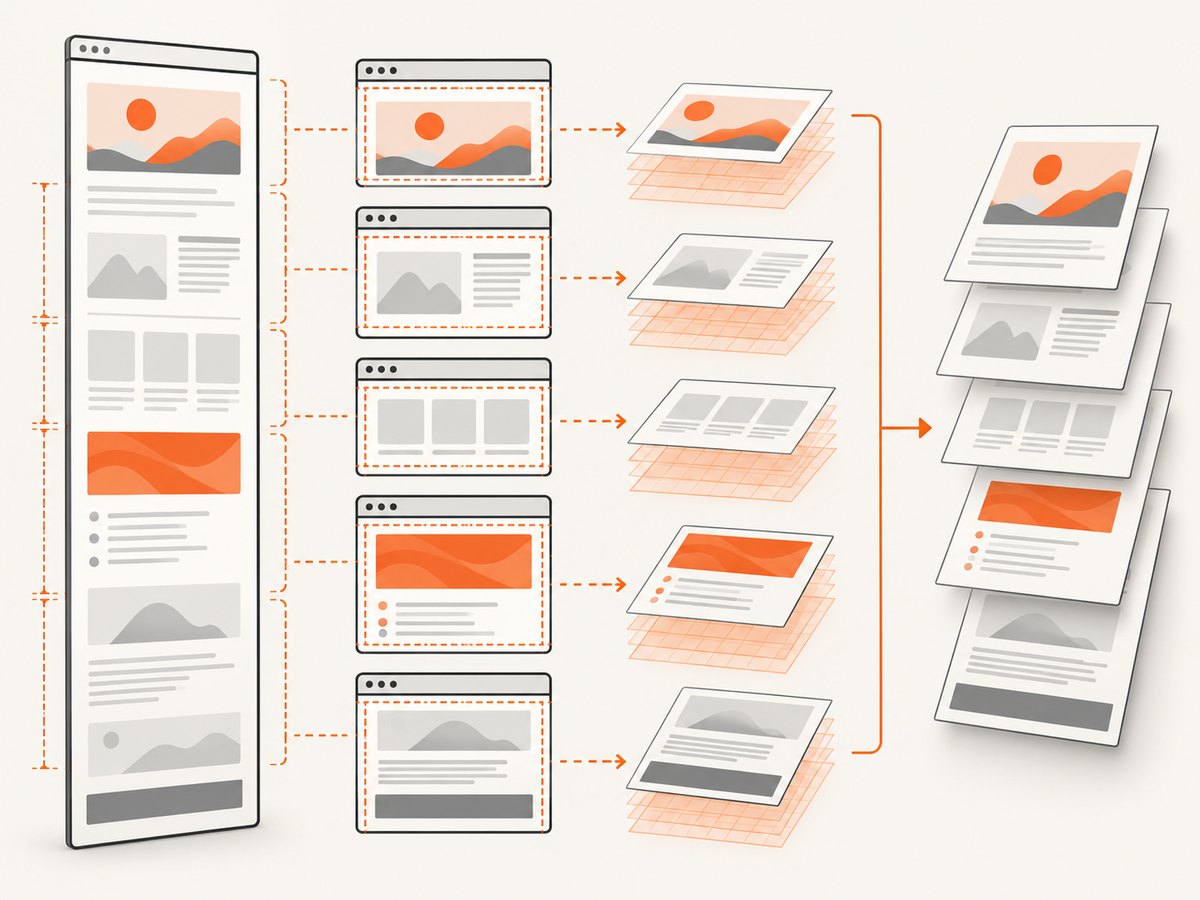
html2canvas can produce an empty or partial canvas when a browser’s maximum canvas dimension or area is exceeded. Its FAQ gives rough current evergreen-browser limits of about 32,767 pixels per dimension for Chrome/Chromium, Firefox, and desktop Safari, with lower limits on iOS Safari; the maximum area varies by browser (html2canvas FAQ). Browsers may fail silently.
import html2canvas from 'html2canvas';

const element = document.querySelector('#content');
const canvas = await html2canvas(element, {
  windowWidth: element.scrollWidth,
  windowHeight: element.scrollHeight,
  // Keep the default scale unless you have measured the resulting canvas size.
});

const dataUrl = canvas.toDataURL('image/png');
const pdf = new jsPDF({ unit: 'mm', format: 'a4' });
const pageWidth = pdf.internal.pageSize.getWidth();
const margin = 10;
const width = pageWidth - margin * 2;
const props = pdf.getImageProperties(dataUrl);
const height = (props.height * width) / props.width;
pdf.addImage(dataUrl, 'PNG', margin, margin, width, height);
pdf.save('long-page.pdf');
For very long documents, render sections or pages separately instead of creating one enormous canvas. Measure scrollWidth and scrollHeight before capture and estimate the canvas area as width × height × scale². A lower scale, a narrower layout, or chunked rendering reduces memory pressure.
6. Fix CSS, cross-origin images, and missing content
Unsupported CSS
html2canvas does not implement every CSS property. If the page looks correct in the browser but the PDF differs, isolate effects such as filters, blend modes, complex transforms, or unsupported positioning. Replace them with simpler styles for the print view. The project documents CSS support limits in its FAQ (html2canvas FAQ).
Cross-origin images
An image from another origin can be skipped or taint the canvas unless the server permits it. Set useCORS: true only when the image server sends a suitable Access-Control-Allow-Origin header, or route the asset through a same-origin proxy:
const canvas = await html2canvas(element, {
  useCORS: true,
  windowWidth: element.scrollWidth,
  windowHeight: element.scrollHeight
});
useCORS cannot bypass a server’s CORS policy. Check the browser’s network and console panels to identify the first blocked asset.
Fonts and timing
Capture only after web fonts and asynchronous content are ready. Wait for document.fonts.ready, images, and application data before calling html2canvas:
await document.fonts.ready;
await Promise.all([...document.images].map(img => img.complete
  ? Promise.resolve()
  : new Promise(resolve => { img.onload = img.onerror = resolve; })));
7. A practical troubleshooting checklist
| Symptom | Likely cause | Fix |
|---|---|---|
| Image is squashed | Independent width and height | Read source dimensions and calculate the second value from the first. |
| HTML is unexpectedly wide or narrow | Missing or conflicting windowWidth, width, or scale |
Set width and windowWidth together; remove the scale override. |
| Right or bottom content is cut off | Viewport is smaller than the element’s scroll size | Use windowWidth: scrollWidth and windowHeight: scrollHeight. |
| PDF is blank | Canvas dimension or area limit | Reduce scale, split the document, and inspect measured dimensions. |
| Images are missing | CORS or canvas tainting | Enable useCORS with server headers or use a same-origin proxy. |
| Text is blurry | Low raster scale or an oversized page image | Increase scale modestly, keep the layout width fixed, and avoid one giant canvas. |
| Text is split across pages | Default slice paging | Try autoPaging: 'text' and add print CSS breaks where needed. |
8. Performance, reliability, and cost decisions
Client-side jsPDF and html2canvas run in the user’s browser, so memory, CPU, browser limits, fonts, CORS, and page timing all affect the result. Keep capture regions small, remove hidden or off-screen content, wait for stable layout, and use a dedicated print stylesheet. Validate several source ratios and viewport sizes in the browsers you support.
Server-side rendering with a browser automation tool such as Puppeteer or Playwright avoids many client-device differences, but it adds browser infrastructure, queueing, and maintenance. A hosted capture service can be simpler when you need repeatable screenshots or PDFs from many URLs.
9. Or skip the browser setup
ScreenshotNeo provides a website screenshot API and MCP server. It accepts one GET request and returns PNG, JPEG, WebP, or PDF. Cookie and consent banners are accepted and 60+ known consent platforms, newsletter popups, and chat widgets are removed before capture; each step can be turned off. Bot checks, blank pages, timeouts, failed loads, and cache hits are not billed, and the response identifies the result with X-Page-Verdict and X-Billed headers.
See the ScreenshotNeo API documentation for all options. A PDF request can use paper size, margins, landscape orientation, and page ranges. Other controls include full-page capture with lazy images loaded, CSS-selector element capture, dark mode, device presets or custom viewports, retina scale, custom CSS and JavaScript, clicks, selector waits, delays, network-idle waits, request blocking, headers, cookies, user agents, Authorization, timezone, geolocation, transparent backgrounds, resizing, TTL caching, signed links, asynchronous jobs with signed webhooks, bulk capture of up to 100 URLs per call, a usage API, and an OpenAPI specification.
cURL
curl -G "https://api.screenshotneo.com/v1/shot" \
  -d access_key=YOUR_API_KEY \
  --data-urlencode url=https://stripe.com \
  -o shot.webp
Python
import requests

r = requests.get(
    "https://api.screenshotneo.com/v1/shot",
    params={"access_key": "YOUR_API_KEY", "url": "https://stripe.com"},
    timeout=90,
)
r.raise_for_status()
open("shot.webp", "wb").write(r.content)
Node.js
const q = new URLSearchParams({
  access_key: 'YOUR_API_KEY',
  url: 'https://stripe.com'
});
const res = await fetch(`https://api.screenshotneo.com/v1/shot?${q}`);
if (!res.ok) throw new Error(`Screenshot failed: ${res.status}`);
const bytes = Buffer.from(await res.arrayBuffer());
require('fs').writeFileSync('shot.webp', bytes);
ScreenshotNeo has an MCP server with take_screenshot, get_page_info, and capture_pdf tools for Claude, Cursor, and other MCP clients. The Free plan includes 1,000 shots per month without a card; paid plans start at $5 for 3,000 shots. Create a free ScreenshotNeo account.
10. FAQ
Should I use object-fit to fix jsPDF distortion?
object-fit affects the browser layout before capture. It cannot correct an addImage call that supplies the wrong PDF dimensions. Calculate the output ratio at the point where you place the image.
Can I fill an A4 page and keep the complete image?
Yes. Fit using the smaller of the available width ratio and height ratio. This leaves whitespace on one axis. Filling both axes requires cropping or distortion.
Why does changing html2canvas scale change apparent size?
Scale changes raster pixels, while width controls PDF placement. When using doc.html(), set width and windowWidth and avoid an explicit scale unless you have measured its effect.
Is a blank PDF always a jsPDF bug?
No. Oversized canvases, cross-origin images, unsupported CSS, and capturing before content loads can all produce blank output. Measure dimensions and inspect console errors before changing placement math.


