How to Prevent Lines From Splitting Across Pages in wkhtmltopdf
Use page-break-inside rules, semantic wrappers, and table-specific CSS to reduce split lines in wkhtmltopdf—and know when the engine cannot avoid them.
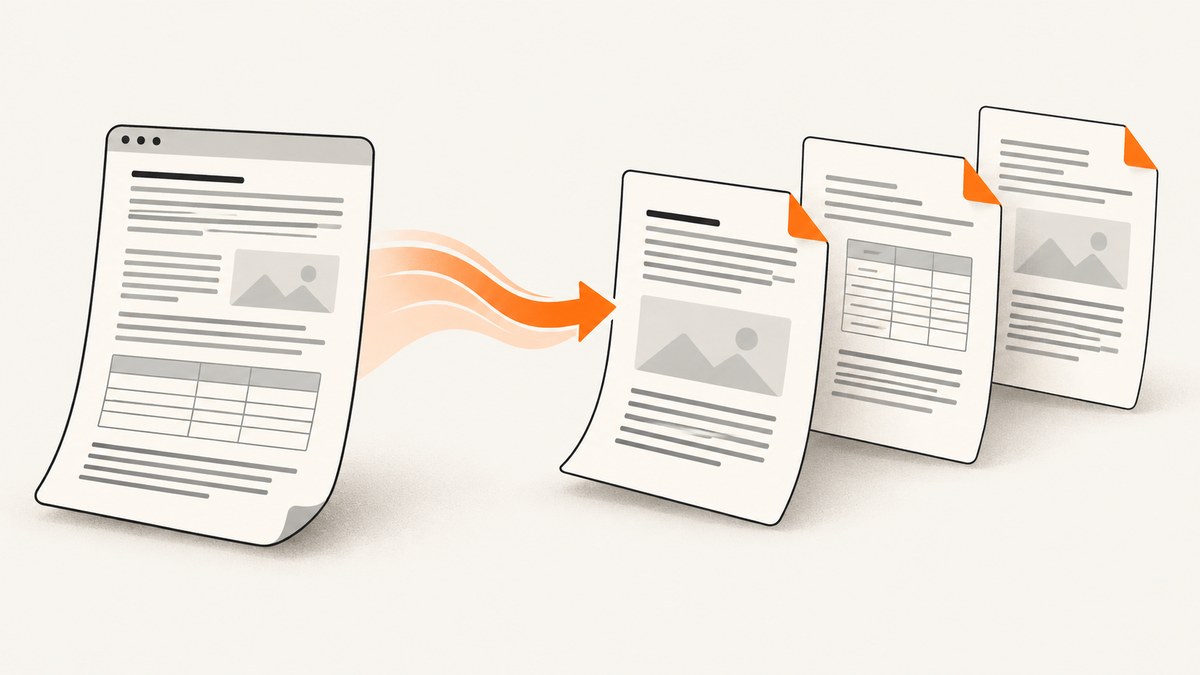
Direct answer: wrap each logical unit in a block element and apply both page-break-inside: avoid and break-inside: avoid. For tables, keep headings in thead and apply page-break-inside: avoid to tr. These rules reduce bad breaks, but wkhtmltopdf uses an older patched Qt/WebKit engine that can physically split a line. CSS is therefore a best-effort workaround, not a guarantee.
The most reliable results come from combining CSS with clean HTML structure: make break points occur between headings, paragraphs, cards, and rows; keep each protected block shorter than the printable page; and split oversized content into smaller semantic units. If exact pagination is mandatory, compare a maintained HTML-to-PDF renderer after you have confirmed that the problem is WebKit’s limitation rather than malformed markup.
1. Why wkhtmltopdf splits lines
wkhtmltopdf renders HTML with a patched Qt/WebKit stack. Its usage documentation explains that WebKit may cut a line into two pieces, placing the top half on one page and the bottom half on the next. The same documentation says patched Qt can use page-break-inside to remedy the problem “somewhat,” and recommends organizing HTML so pages can be cut at clean boundaries. The Debian manpage documents the same limitation for lines and images.
This matters because a split line is not always caused by a missing CSS selector. Pagination is calculated after layout, and the engine’s fragmentation support is incomplete. A rule can be valid, applied, and still be ignored when the engine cannot fit the block or encounters a difficult table layout.
Use the wkhtmltopdf usage documentation and the Debian manpage as the baseline for this behavior.
2. The baseline CSS pattern
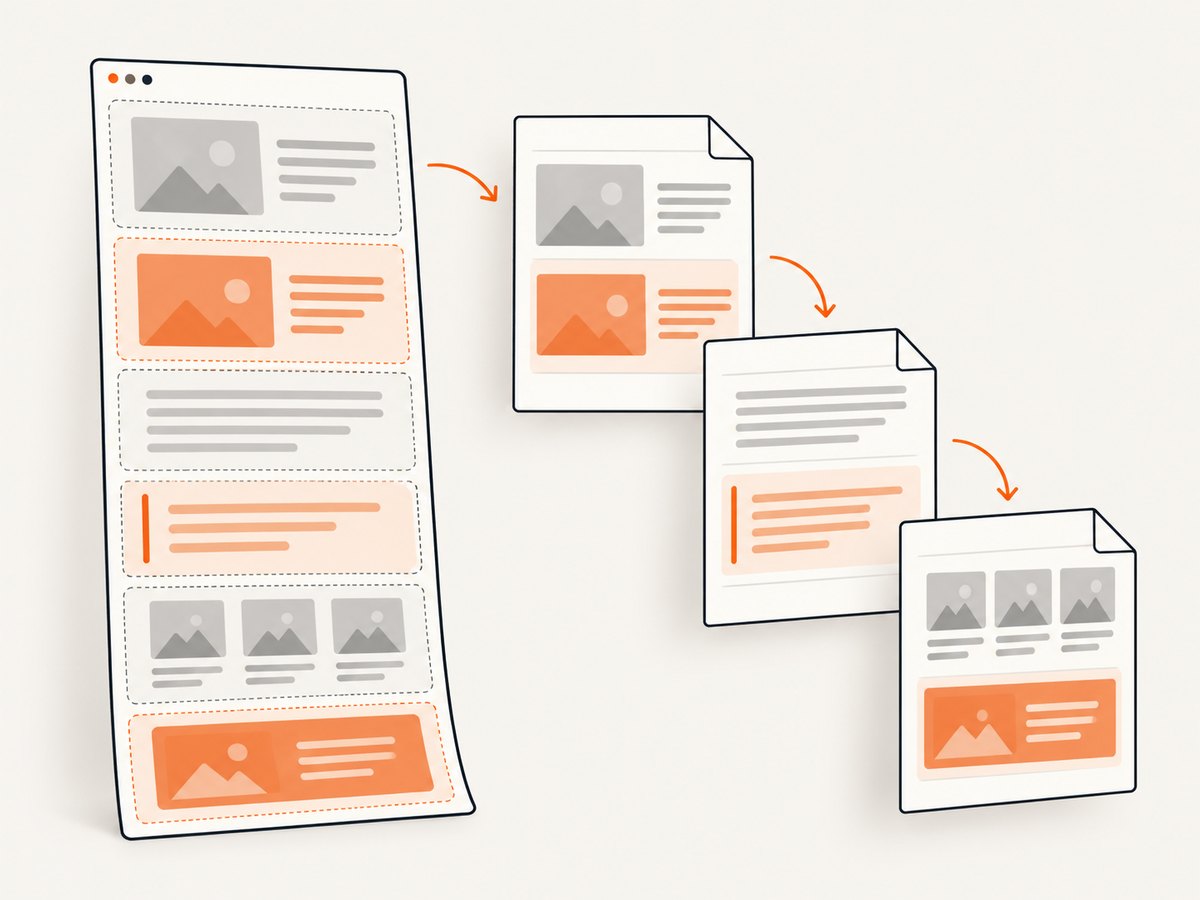
Start with a reusable class on the smallest block that must stay together. A wrapper around a heading and its paragraph is usually more effective than applying a rule to every descendant.
<div class='keep-together'>
  <h3>Section heading</h3>
  <p>Text that should remain with the heading when it fits on a page.</p>
</div>
.keep-together {
page-break-inside: avoid;
break-inside: avoid;
}
/* Optional explicit boundaries */
.page-break-before {
page-break-before: always;
}
.page-break-after {
page-break-after: always;
}page-break-inside is the legacy property wkhtmltopdf primarily understands. Keep break-inside as well because other print engines use the modern fragmentation property. Do not assume that adding both makes an oversized block fit: a block taller than the printable page must still be split.
3. Keep headings with the content that follows
A heading stranded at the bottom of a page is a common source of poor PDFs. Put the heading and the first paragraph, list, or card in one wrapper. If the entire section is long, use several wrappers rather than one giant protected container.
<article>
  <div class='keep-together'>
    <h2>Installation</h2>
    <p>Install the binary and verify the version before rendering.</p>
  </div>

  <div class='keep-together'>
    <h3>Linux command</h3>
    <pre><code>wkhtmltopdf input.html output.pdf</code></pre>
  </div>
</article>
Apply the rule to the actual unit a reader perceives as indivisible. A rule on a distant parent may protect too much content and become impossible to honor. A rule on an inline element may have no useful effect.
4. Prevent table rows from splitting
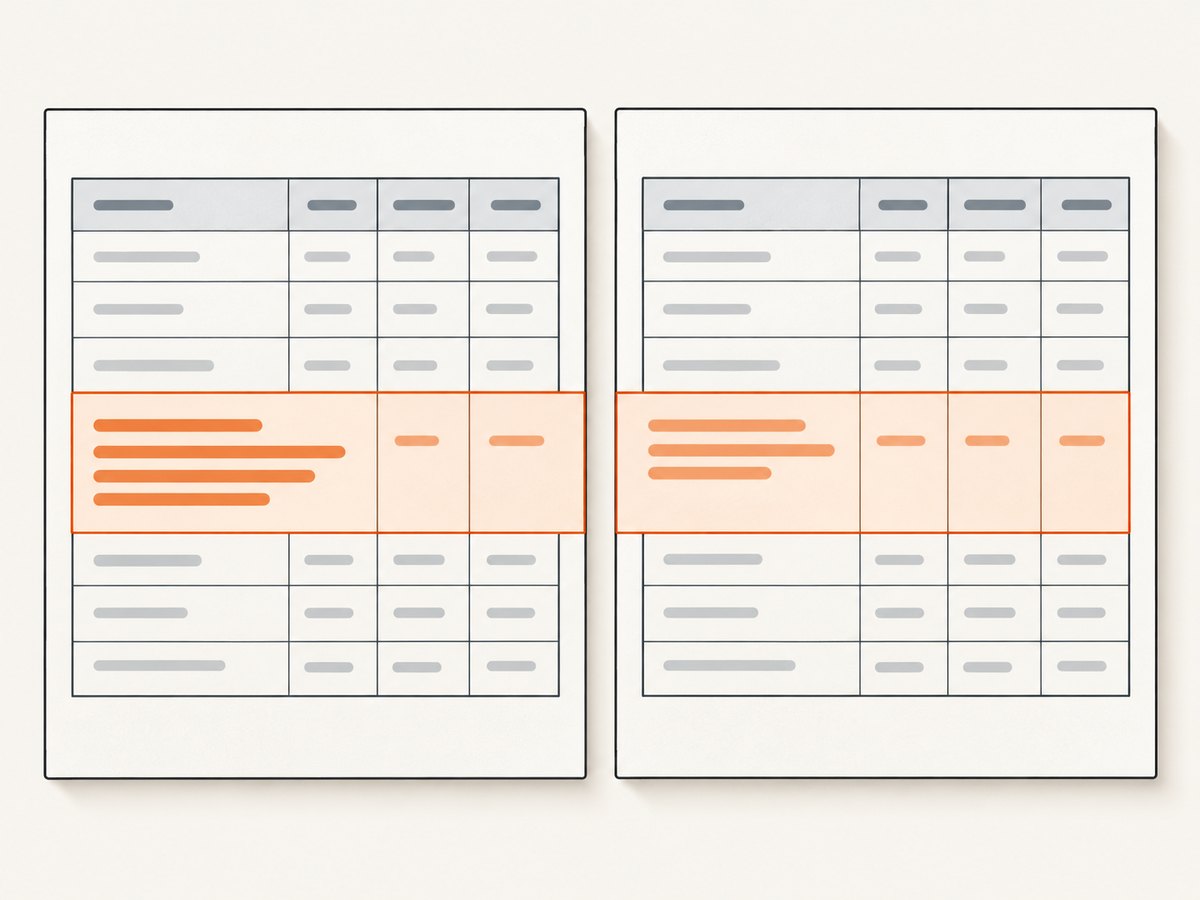
Tables need separate handling. Keep column headings in thead, put data in tbody, and try the avoidance rule on tr. In some wkhtmltopdf cases, a rule on td is ignored while the same rule on the row works better.
<table class='report'>
  <thead>
    <tr>
      <th>Name</th>
      <th>Status</th>
      <th>Notes</th>
    </tr>
  </thead>
  <tbody>
    <tr>
      <td>Job 001</td>
      <td>Complete</td>
      <td>Rendered without errors.</td>
    </tr>
  </tbody>
</table>
thead {
display: table-header-group;
}
tfoot {
display: table-row-group;
}
.report tr {
page-break-inside: avoid;
break-inside: avoid;
}
.report th,
.report td {
vertical-align: top;
}Repeated headers are useful, but wkhtmltopdf has known table artifacts: headers can appear on both pages, borders can extend to the bottom of a page, and a deferred row can leave surprising header output. Inspect several break positions instead of judging the table from one short fixture.
5. Complete runnable example
The following file demonstrates wrappers, a table, print sizing, and a controlled page break. Save it as input.html, then run the command below.
<!doctype html>
<html>
<head>
  <meta charset='utf-8'>
  <style>
    @page { size: A4; margin: 18mm 16mm; }
    * { box-sizing: border-box; }
    body { font: 11pt/1.45 Arial, sans-serif; color: #222; }
    h1, h2, h3 { page-break-after: avoid; }
    .keep-together { page-break-inside: avoid; break-inside: avoid; }
    thead { display: table-header-group; }
    tfoot { display: table-row-group; }
    tr { page-break-inside: avoid; break-inside: avoid; }
    table { width: 100%; border-collapse: collapse; }
    th, td { border: 1px solid #bbb; padding: 6px; text-align: left; }
    .page-break-before { page-break-before: always; }
  </style>
</head>
<body>
  <h1>Rendering report</h1>

  <div class='keep-together'>
    <h2>Summary</h2>
    <p>This paragraph stays with its heading when the block fits in the remaining space.</p>
  </div>

  <h2>Results</h2>
  <table>
    <thead>
      <tr><th>URL</th><th>Result</th><th>Details</th></tr>
    </thead>
    <tbody>
      <tr><td>/home</td><td>Pass</td><td>No split row.</td></tr>
      <tr><td>/pricing</td><td>Pass</td><td>Header repeated when needed.</td></tr>
    </tbody>
  </table>

  <div class='page-break-before'></div>
  <h2>Appendix</h2>
  <p>This section starts on a new page by design.</p>
</body>
</html>
wkhtmltopdf --page-size A4 --margin-top 18mm --margin-right 16mm --margin-bottom 18mm --margin-left 16mm input.html output.pdfUse the same page size and margins when comparing fixes. Changing margins changes the printable height, so a layout that appears stable in one command can break in another.
6. A troubleshooting sequence
- Confirm the binary. Run
wkhtmltopdf --versionand check that you are using a build with patched Qt. The documentedpage-break-insideadvice is specifically associated with patched Qt. - Reduce the protected unit. Wrap the smallest logical unit that must remain intact. Avoid placing an entire chapter or a very long table inside one protected container.
- Move table rules to the row. If
td { page-break-inside: avoid; }has no effect, usetr { page-break-inside: avoid; }and keep headings inthead. - Remove oversized blocks. A paragraph, code listing, image, or row taller than the page cannot remain whole. Split it into smaller blocks or allow a deliberate break.
- Flatten difficult nesting. Deeply nested tables, positioned elements, floats, and fixed heights can make pagination unpredictable. Replace fixed heights with natural flow where possible.
- Fix the print geometry. Set an explicit page size and margins. Check that borders, padding, and font sizes do not consume the remaining space unexpectedly.
- Inspect repeated headers and borders. If a table shows duplicated headers or borders extending down the page, test a reduced table and then add rows back to identify the triggering structure.
- Compare several break locations. A rule may work when a row lands near the bottom and appear broken when the same row lands earlier. Render fixtures with short, medium, and long content.
- Stop escalating CSS when the symptom is line splitting. If individual lines are still cut in half after clean wrappers and smaller blocks, treat it as an engine limitation and evaluate a maintained renderer.
7. Common errors, causes, and fixes
| Symptom | Likely cause | Fix |
|---|---|---|
| A paragraph is cut across pages | WebKit pagination limitation or an oversized block | Use a wrapper with page-break-inside: avoid; split the paragraph if it is taller than a page. |
| The rule appears ignored | Unsupported build, wrong target element, or complex nesting | Confirm patched Qt, move the rule to the wrapper or tr, and simplify the markup. |
| A heading is alone at the page bottom | Heading and content are separate blocks | Wrap the heading with the first paragraph or list and use page-break-inside: avoid. |
| Rows split despite CSS | The row is taller than the printable page or WebKit table logic failed | Reduce cell content, split the row into multiple semantic rows, and test a simpler table. |
| Table headers or borders look duplicated | Patched WebKit’s repeated-header and border behavior | Inspect thead display rules, remove unnecessary borders, and compare a minimal reproduction. |
| Different machines produce different breaks | Font availability, binary version, page geometry, or operating-system differences | Pin the renderer and fonts, set explicit dimensions, and render in a consistent environment. |
8. Performance, reliability, and maintenance
Pagination rules add little computation; the expensive work is normally HTML layout, font loading, images, JavaScript, and repeated rendering. Keep documents reasonably sized, avoid huge protected containers, and cache input assets when your pipeline allows it. A smaller semantic block also gives the renderer more legal break points, which improves reliability.
For repeatable output, pin the wkhtmltopdf version, use the same fonts, set page size and margins explicitly, and keep CSS in the document or a versioned asset. Treat PDF output as a regression surface: retain representative fixtures containing long paragraphs, images, code, and tables. Compare page count, text placement, and table-header behavior after upgrades.
There is no CSS setting that guarantees perfect pagination in this engine. If your requirements include exact line integrity, modern fragmentation rules, stable table headers, or identical output across operating systems, compare a maintained renderer. Evaluate pagination correctness, modern CSS support, table-header repetition, oversized-block handling, maintenance status, deployment footprint, and cross-platform consistency. The dossier does not provide product benchmarks or prices for alternatives, so verify those directly before selecting one.
9. Or skip the browser setup
If your goal is a clean image or PDF of a web page rather than maintaining a wkhtmltopdf pipeline, ScreenshotNeo provides a single screenshot API request. Its capture service accepts the consent banner like a visitor, then removes more than 60 known consent platforms, newsletter popups, and chat widgets before capture. Each cleanup step can be turned off.
Only clean shots are billed. Bot checks and CAPTCHAs, blank pages, timeouts, failed loads, and cache hits cost nothing, and the response identifies the result with X-Page-Verdict and X-Billed headers. ScreenshotNeo also includes an MCP server with take_screenshot, get_page_info, and capture_pdf tools for Claude, Cursor, and other MCP clients.
See the ScreenshotNeo API documentation for all options. This is a runnable cURL request:
curl -G 'https://api.screenshotneo.com/v1/shot' \
  -d access_key=YOUR_API_KEY \
  --data-urlencode url=https://stripe.com \
  -o shot.webp
Python:
import requests

r = requests.get(
    'https://api.screenshotneo.com/v1/shot',
    params={'access_key': 'YOUR_API_KEY', 'url': 'https://stripe.com'},
    timeout=90,
)
r.raise_for_status()
open('shot.webp', 'wb').write(r.content)
Node.js:
const q = new URLSearchParams({
  access_key: 'YOUR_API_KEY',
  url: 'https://stripe.com'
});
const res = await fetch(`https://api.screenshotneo.com/v1/shot?${q}`);
if (!res.ok) throw new Error(`HTTP ${res.status}`);
const data = Buffer.from(await res.arrayBuffer());
await import('node:fs/promises').then(fs => fs.writeFile('shot.webp', data));
The service supports full-page capture with lazy images loaded, CSS-selector element capture, dark mode, 12 device presets, custom viewports, retina scale, PDF paper size and margins, landscape mode and page ranges, HTML/CSS to image, custom CSS and JavaScript, clicks, selector or network-idle waits, request and resource blocking, headers, cookies, user agents, authorization, timezone, geolocation, transparent backgrounds, resizing, selectable cache TTLs, signed links, asynchronous jobs with signed webhooks, bulk capture for up to 100 URLs per call, a usage API, and an OpenAPI specification. Common screenshot-API parameter names are accepted to ease migration.
Plans include 1,000 shots per month free with no card. Paid plans start at $5 for 3,000 shots; yearly billing gives two months free, and every feature is available on every plan. Create a free ScreenshotNeo account and try the API without adding a card.
10. FAQ
Does page-break-inside: avoid guarantee that no line will split?
No. wkhtmltopdf’s WebKit pagination can split individual lines, and its support for the property is partial. The rule improves common cases when the block fits on the page.
Should I apply the rule to td or tr?
Try tr first for wkhtmltopdf tables. A rule on td may be ignored in cases where the row-level rule works.
Why does a protected block still split?
It may be taller than the printable page, or the engine may be unable to honor the rule because of table structure, nesting, or its pagination limitation. Divide the content into smaller blocks.
Will break-inside: avoid fix wkhtmltopdf by itself?
Use it alongside the legacy page-break-inside: avoid. wkhtmltopdf primarily relies on the legacy property.
When should I migrate?
Migrate when clean wrappers, row-level table rules, fixed geometry, and smaller blocks still produce split lines or unstable output, especially when exact pagination is a requirement.


