How to Prevent Page Flashing When Taking Puppeteer Screenshots
Stop flashing in Puppeteer screenshots by waiting for the page state you need, then suppressing motion only when it causes the problem.
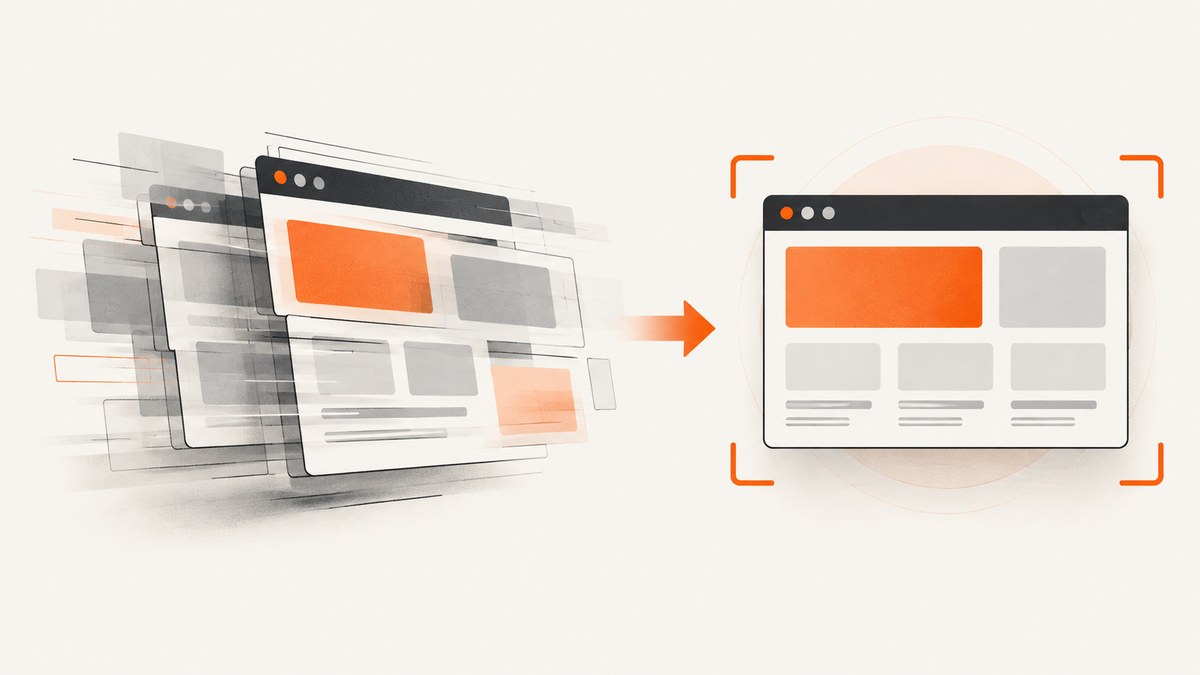
A page can flash in a Puppeteer screenshot because capture starts while the page is still changing: navigation is incomplete, client-side content has not appeared, fonts or images arrive late, layout is shifting, or animation is in progress. There is no single Puppeteer switch that makes every page visually settled.
The dependable approach is to wait for the particular content and layout your screenshot needs, then suppress CSS motion for capture if motion itself is the cause. Treat networkidle2 as one possible navigation wait, not proof that the pixels are final. Puppeteer documents Page.screenshot() and element screenshots in its screenshot guide.
1. Identify what is flashing
“Page flashing” describes a symptom, not one specific browser failure. Look at the saved output and the page lifecycle to find which kind of change is involved.
| What you see | Likely cause | First response |
|---|---|---|
| Blank, partial, or old content | Navigation or client rendering has not completed | Wait for a meaningful selector or app-ready signal |
| Text changes size or wraps | A web font arrived after fallback text was laid out | Wait for fonts and inspect layout after they load |
| Images pop in or change dimensions | Images are late, lazy-loaded, or lack reserved dimensions | Wait for relevant images and scroll lazy content into view if needed |
| Elements slide, pulse, fade, or blink | CSS animation, transition, or app-controlled motion | Disable CSS motion for the capture or control the app state |
| Layout moves despite quiet network | Timers, hydration, delayed widgets, or ongoing application work | Wait on the application state that signals visual readiness |
Try multiple captures while logging which readiness checks have completed. If the changing region is animated, a readiness wait may only choose a different animation frame. If content is arriving late, a motion override cannot make it arrive. Apply the remedy to the cause.
2. Build a page-specific readiness check
Navigation lifecycle events describe browser activity, not the exact visual state your application requires. Puppeteer’s screenshot guide shows waiting for networkidle2 before a capture. This can be useful for a relatively quiet page, but it is not a universal guarantee: long polling, analytics, WebSockets, and regularly refreshed content can prevent network quiet, and visual updates can continue after it.
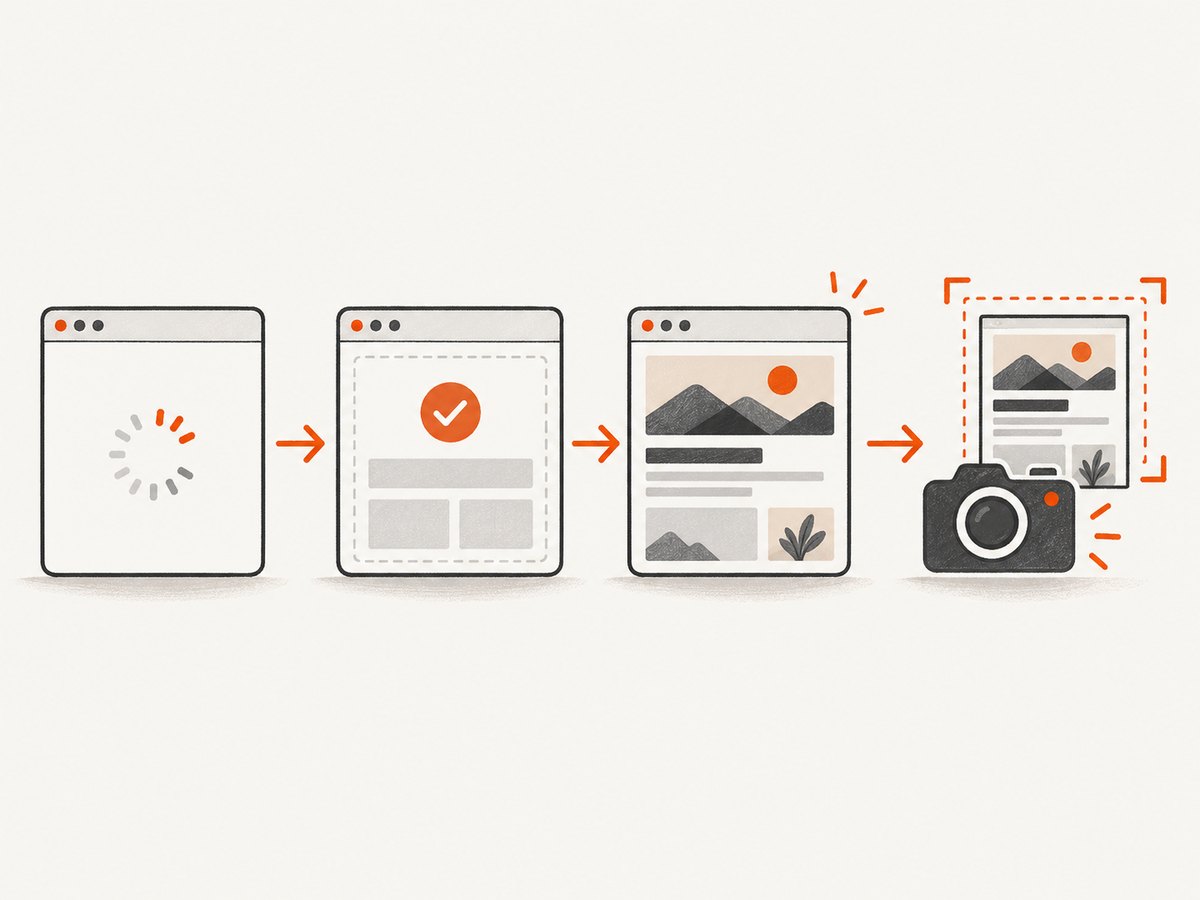
For a typical page, wait for DOM content, then wait for a selector that only appears once the important UI is rendered. Add checks for fonts and the images that matter to the capture.
const puppeteer = require('puppeteer');

(async () => {
  const browser = await puppeteer.launch({ headless: true });
  const page = await browser.newPage({
    viewport: { width: 1440, height: 1000 },
  });

  try {
    await page.goto('https://example.com', {
      waitUntil: 'domcontentloaded',
      timeout: 30000,
    });

    // Replace this with a selector meaningful to your application.
    await page.waitForSelector('[data-page-ready="true"]', {
      visible: true,
      timeout: 15000,
    });

    await page.evaluate(async () => {
      if (document.fonts?.ready) await document.fonts.ready;
      const images = [...document.images];
      await Promise.all(images.map((img) => {
        if (img.complete) return Promise.resolve();
        return new Promise((resolve) => {
          img.addEventListener('load', resolve, { once: true });
          img.addEventListener('error', resolve, { once: true });
        });
      }));
    });

    await page.screenshot({ path: 'capture.png', fullPage: true });
  } finally {
    await browser.close();
  }
})();
Run with npm install puppeteer and node capture.js. Replace the URL and readiness selector. The image wait above handles images already present in the document, but it does not force offscreen lazy images to load. If full-page output needs those assets, scroll through the page or use an application-specific loading signal before taking the capture. Avoid waiting forever on an image that failed; logging failed URLs is more useful than silently treating a broken asset as successful.
Choose the right wait
domcontentloaded: the initial document has been parsed. Use it as an early milestone, then check the app.load: load event resources have finished. It still does not mean a client-rendered app or delayed widget is visually ready.networkidle0ornetworkidle2: potentially useful for pages whose network becomes quiet. Avoid them when requests are persistent or irrelevant background traffic continues.waitForSelector: often the clearest check when the application exposes a stable element or state.waitForFunction: useful for application-specific conditions such as nonempty data or a loading flag becoming false.
Prefer a real ready condition to a blind fixed sleep. A fixed delay can be too short on a slow run and wasteful on a fast one. If there is no app signal, use the narrowest practical condition and a bounded timeout, then inspect the result when it expires. Puppeteer’s Page API reference documents navigation and wait methods.
3. Suppress CSS motion only when needed
If the page is ready but a CSS animation or transition makes captures inconsistent, inject a capture-only stylesheet immediately before the screenshot:
await page.addStyleTag({
  content: `
    *, *::before, *::after {
      animation: none !important;
      transition: none !important;
      caret-color: transparent !important;
    }
  `,
});

await page.screenshot({ path: 'capture.png' });
This is CSS injected into the page, not a Puppeteer screenshot option. The documented screenshot options include output and capture controls; they do not include an animation-disabling property. Do not pass a made-up animations: 'disabled' option. See Puppeteer’s ScreenshotOptions reference.
The override is a practical starting point, not a guarantee for every site. It may freeze a transition before an element reaches its intended final state, and it does not stop JavaScript-driven animation, canvas drawing, video, or motion inside a cross-origin frame. If the application owns the animation, use its own test mode or set the relevant state before capture. If you need the page afterward, remove the injected style or reload it.
Some pages already honor prefers-reduced-motion. You can emulate reduced motion before navigation so supported page styles apply:
await page.emulateMediaFeatures([
  { name: 'prefers-reduced-motion', value: 'reduce' },
]);
await page.goto('https://example.com', { waitUntil: 'domcontentloaded' });
This only helps if the page’s CSS or application responds to the preference. It is not equivalent to freezing every animation. For highly dynamic pages, wait for the intended state and control the application’s own animation state.
4. Capture the page or just the component
Use page.screenshot() for the viewport or full page. Use an element screenshot when only one stable component is needed:
const card = await page.waitForSelector('.product-card', { visible: true });
await card.screenshot({ path: 'product-card.png' });
Puppeteer attempts to scroll an element into view for an element screenshot. That scroll can trigger lazy loading, sticky headers, scroll animations, or other layout changes. Wait for the component after the scroll-triggered effects settle. For full-page capture, fullPage: true requests an image of the full document; it does not itself guarantee that offscreen content has loaded or that sticky elements will appear as desired.
Relevant screenshot controls include path for output, type for PNG/JPEG/WebP where supported, quality for lossy image formats, fullPage for document-height capture, clip for a region, omitBackground for transparency, and captureBeyondViewport for capture beyond the current viewport. Check the reference for the Puppeteer version you use and avoid combining options without confirming their behavior.
5. Diagnose and fix common failures
| Problem | Cause | Fix |
|---|---|---|
networkidle2 times out |
Persistent requests or background analytics keep the network active | Wait for a selector or app-ready condition; use a navigation milestone that fits the page |
| Screenshot is blank or shows a loading shell | Capture ran before client rendering or data fetch completed | Wait for the rendered content or loading flag to change, and confirm the expected selector exists |
| Text reflows between runs | Web fonts load after capture or viewport differs | Wait for document.fonts.ready; keep viewport and device scale consistent |
| Images are missing in full-page output | Lazy content below the viewport was never requested | Scroll through relevant sections and wait for images or an app readiness signal |
| Motion remains after CSS injection | Animation is JavaScript, canvas, video, or inside a cross-origin frame | Pause/control it through application state, or capture after the desired state is reached |
| Motion override captures an intermediate state | Disabling a transition interrupts it at its current value | Wait until the final state first, then inject the stylesheet |
| Element screenshot shifts the page | Puppeteer scrolled the target into view | Account for scroll-triggered changes and sticky UI; recheck readiness after scrolling |
| Waits pass but output still varies | Time, random data, rotating content, or external state differs | Use deterministic test data, freeze time or app state where possible, and fix viewport and locale |
On timeout, report the URL, failed readiness condition, elapsed time, and a diagnostic screenshot if possible. Set separate, bounded timeouts for navigation and application readiness so logs show which stage failed. Do not catch every error and save an output anyway: that converts an obvious failure into a misleading artifact.
6. Performance, reliability, and cost
Reliability comes from waiting for the smallest condition that represents the output you need. Waiting for every request can be slower and less reliable than waiting for the main content, while waiting for just a visible header may miss late content lower on a full-page capture. Match the condition to viewport, element, or full-page scope.
For repeated captures, reuse a browser process where appropriate and create a fresh page or controlled context for independent jobs. Close pages and browsers on success and error. Keep viewport, device scale factor, locale, timezone, and test data fixed when comparing image output. Bound concurrency to the memory and CPU available to the capture workers; very large full-page images can consume substantial memory. Cache or skip captures when the source state has not changed if your workflow allows it.
A local Puppeteer workflow has no per-screenshot API fee, but it uses your compute, browser maintenance, queueing, retries, and storage. Persistent requests can turn poorly chosen network-idle waits into timeouts and retries, increasing runtime. Decide whether to retry based on the failed stage: retry transient navigation or server errors, but do not blindly retry a deterministic selector timeout. For a production pipeline, record success, timeout, failed assets, capture duration, and output size to spot regressions.
7. Or skip the browser setup
ScreenshotNeo provides a website screenshot API and MCP server. One GET request returns an image or PDF, and its capture options include full-page output, selector capture, custom CSS and JavaScript, waits, and cache controls. See the ScreenshotNeo API documentation for request options and formats.

curl -G "https://api.screenshotneo.com/v1/shot" \
  -d access_key=YOUR_API_KEY \
  --data-urlencode url=https://stripe.com \
  -o shot.webp
import requests
r = requests.get(
"https://api.screenshotneo.com/v1/shot",
params={"access_key": "YOUR_API_KEY", "url": "https://stripe.com"},
timeout=90,
)
open("shot.webp", "wb").write(r.content)const q = new URLSearchParams({
access_key: 'YOUR_API_KEY',
url: 'https://stripe.com',
});
const res = await fetch(`https://api.screenshotneo.com/v1/shot?${q}`);
if (!res.ok) throw new Error(`Screenshot request failed: ${res.status}`);
await Bun.write('shot.webp', res);Cookie banners, popups, and chat widgets are removed before the shot. Bot checks, blank pages, and failed loads are never billed; response headers say whether the page was clean and billed. Its MCP server lets AI agents take screenshots. The free plan includes 1,000 screenshots a month with no card; paid plans start at $5 for 3,000. All features are on every plan. Get 1,000 free screenshots a month with no card.
8. Quick checklist
- Choose the exact viewport, page region, or element to capture.
- Wait for navigation, then a meaningful application-ready condition.
- Wait for important fonts and images; account for lazy loading.
- Use reduced motion or a capture-only CSS override when CSS motion causes variation.
- Control app-driven animation and dynamic data when CSS is not enough.
- Use bounded, stage-specific timeouts and log the failed condition.
- Capture repeatedly with stable inputs to confirm the output is deterministic.
FAQ
Does Puppeteer have a screenshot option to turn off animations?
No such setting appears in the documented screenshot options. Use CSS or application-level controls for motion.
Will networkidle2 always prevent a flashing screenshot?
No. It is a navigation wait example, not a guarantee of visual readiness or a fit for pages with continuing requests.
Does a stable locator bounding box prove the whole page is ready?
No. Puppeteer’s locator stability check helps ensure an element is ready for interaction. It does not establish that every page region, font, image, or animation has settled.


