How to Prevent Puppeteer page.screenshot From Resizing the Viewport
Stop Puppeteer screenshots from changing viewport dimensions with explicit settings, stable capture patterns, troubleshooting, and full-page alternatives.
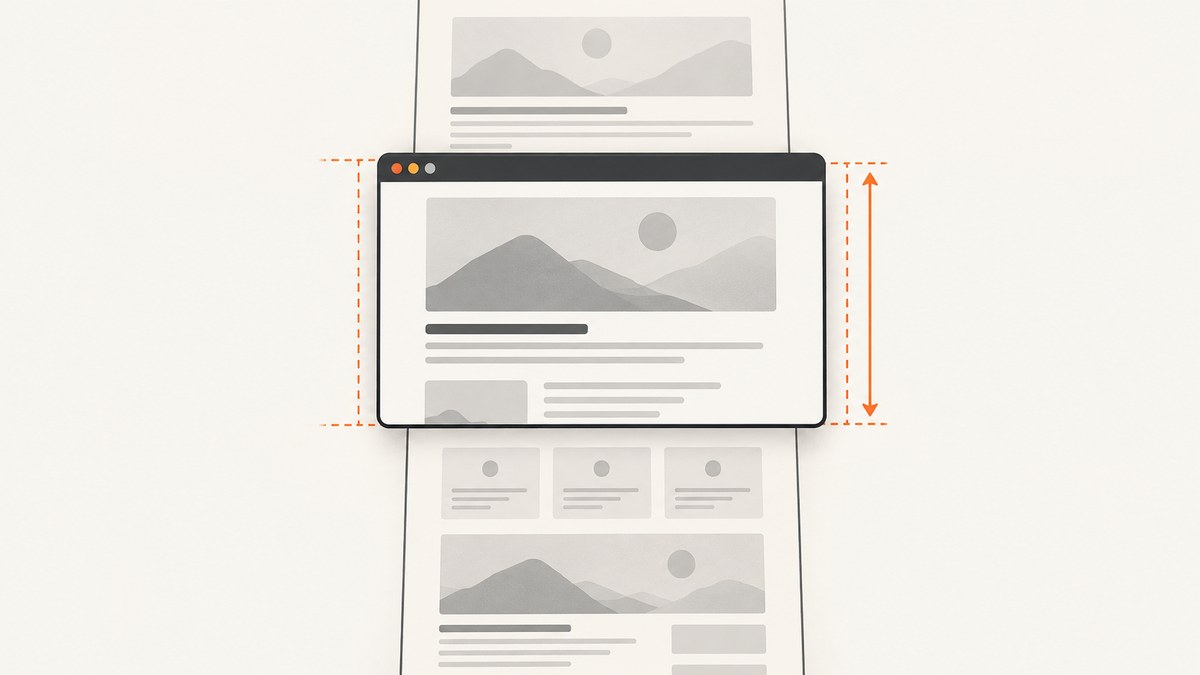
Puppeteer can appear to resize the viewport when page.screenshot() captures a full document, an element outside the visible area, or a clip larger than the current viewport. The reliable starting point is to set width, height, and deviceScaleFactor explicitly before navigation. For a screenshot that must preserve the visible viewport, use fullPage: false and captureBeyondViewport: false.
These settings separate three decisions that are often mixed together: the CSS viewport size, the output pixel density, and whether Puppeteer may capture content outside the viewport. Full-page and oversized-element screenshots need a different strategy because Chromium may lay out or clip content beyond the current viewport.
1. The stable viewport recipe
Use this minimal example when you want the screenshot to match a 1366 by 768 CSS-pixel viewport:
import puppeteer from 'puppeteer';

const browser = await puppeteer.launch();
const page = await browser.newPage();

await page.setViewport({
  width: 1366,
  height: 768,
  deviceScaleFactor: 1,
});

await page.goto('https://example.com', { waitUntil: 'networkidle0' });

await page.screenshot({
  path: 'viewport.png',
  fullPage: false,
  captureBeyondViewport: false,
});

await browser.close();
fullPage defaults to false. Setting it explicitly documents your intent and prevents a later refactor from silently switching to document capture. With no clip, captureBeyondViewport is false by default; setting it explicitly is useful when diagnosing viewport changes. The ScreenshotOptions reference defines these options and their defaults.
What each dimension means
| Setting | Controls | Typical mistake |
|---|---|---|
width |
CSS viewport width | Confusing CSS pixels with output pixels |
height |
CSS viewport height | Assuming a full-page shot keeps this height |
deviceScaleFactor |
Device pixels per CSS pixel | Changing image dimensions while layout stays the same |
fullPage |
Whether to capture the entire document | Using it when you need the visible viewport only |
captureBeyondViewport |
Whether capture may include content outside the viewport | Leaving it implicit during clip or element captures |
A scale factor of 2 produces a denser image, but it does not make a 1366-pixel CSS viewport become 2732 CSS pixels. Keep all three viewport values fixed while debugging so you can tell layout changes from output-density changes. The Viewport API describes width and height as CSS-pixel dimensions and uses 1 as the default scale factor.
2. Why page.screenshot appears to resize
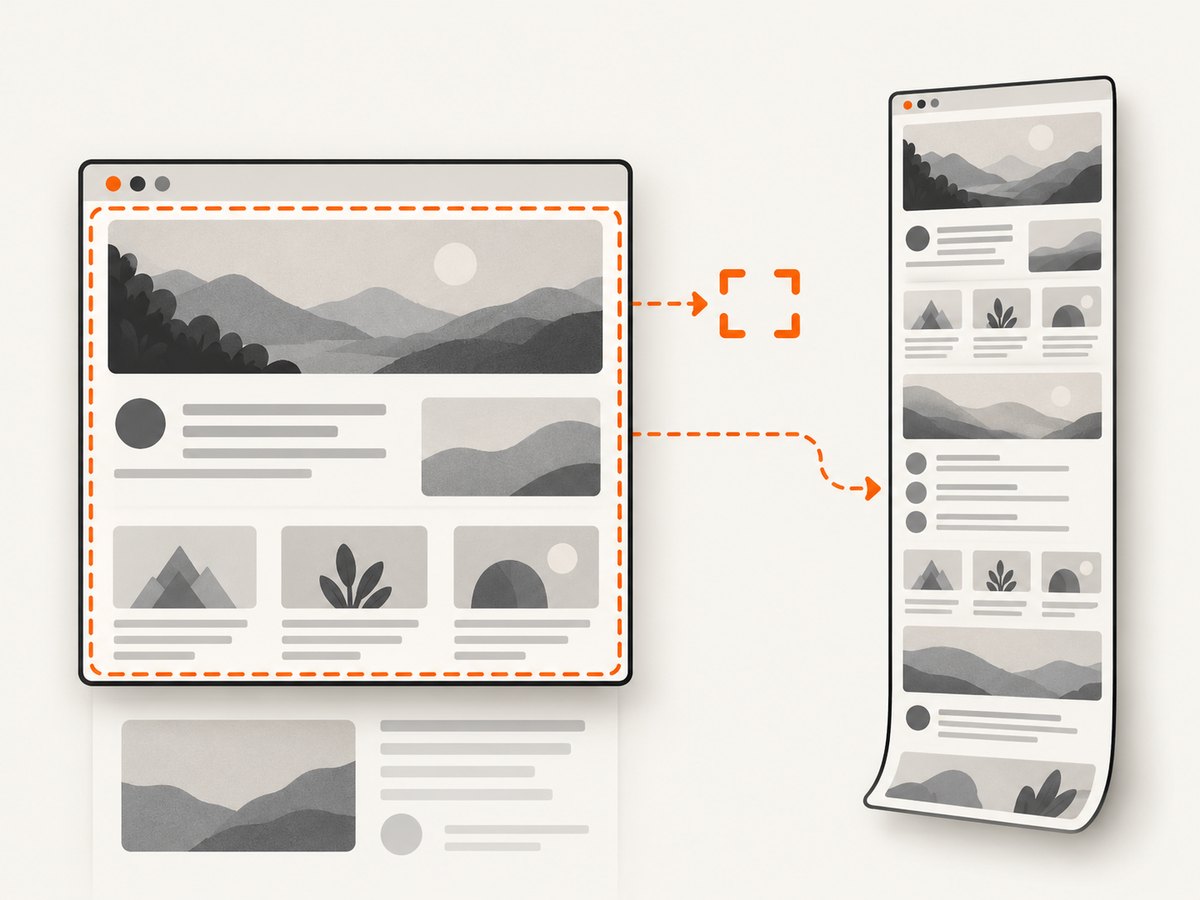
A full-page capture asks Chromium to include content below the current viewport. An element screenshot normally creates a clip around that element. If the clip is outside the viewport, Puppeteer and Chromium must decide how to expose those pixels. Depending on the Puppeteer and Chromium versions, that can involve clipping, temporary layout changes, or a visible resize.
Puppeteer issue #7043 documents a case where setting captureBeyondViewport: false stopped the unwanted behavior. That report concerns Puppeteer 8.0.0, so treat it as version-specific evidence and verify the result with the exact browser revision in your project.
Older Chromium behavior also changed how off-screen elements were clipped. In issue #5080, the discussion notes that Puppeteer 2.0 began clipping screenshots to the viewport. Scripts that relied on the earlier behavior could resize the viewport before capture. A historical workaround mentioned in that issue is --blink-settings=mainFrameClipsContent=false; test it against your bundled Chromium before relying on it.
3. Choose the capture mode before writing code
Visible viewport only
Use fullPage: false, no clip, and captureBeyondViewport: false. This preserves responsive breakpoints, viewport units, sticky positioning, and resize observers as much as possible.
Entire document
Use fullPage: true when the requirement is a document image. The page may become very tall, fixed elements can repeat or move, and lazy-loaded content may need an explicit scroll pass. You are intentionally asking for content beyond the initial viewport, so a layout change is possible.
await page.screenshot({
  path: 'document.png',
  fullPage: true,
});
One element
Element screenshots are convenient but can be clipped at the viewport edge. First inspect the element bounds:
const box = await page.locator('.report').boundingBox();
if (!box) throw new Error('The .report element is not visible');
console.log(box);
If the element is larger than the viewport, decide whether changing the viewport is acceptable. If it is, use the save-enlarge-capture-restore pattern documented in issue #1779:
const original = page.viewport();
if (!original) throw new Error('No viewport is configured');

const box = await page.locator('.report').boundingBox();
if (!box) throw new Error('Element is not visible');

await page.setViewport({
  ...original,
  width: Math.max(original.width, Math.ceil(box.width)),
  height: Math.max(original.height, Math.ceil(box.height)),
});

await page.locator('.report').screenshot({ path: 'report.png' });
await page.setViewport(original);
Resizing can activate media queries, resize listeners, vh-based sizing, sticky changes, and intersection-triggered lazy loading. If visual fidelity at the original viewport matters, prefer a controlled clip or a stitching workflow instead of enlarging the viewport.
Controlled clipping
For a region that fits inside the viewport, calculate a clip and disable beyond-viewport capture:
const box = await page.locator('.card').boundingBox();
if (!box) throw new Error('Card is not visible');

await page.screenshot({
  path: 'card.png',
  clip: box,
  captureBeyondViewport: false,
});
If the clip extends outside the viewport, this setting may crop the result. That is expected: preserving the viewport and capturing off-screen pixels are competing requirements.
4. A complete diagnostic script
The following script records the configured viewport, browser version, and element bounds before taking both a stable viewport shot and an optional element shot.
import puppeteer from 'puppeteer';

const url = process.argv[2] ?? 'https://example.com';
const browser = await puppeteer.launch({ headless: true });
const page = await browser.newPage();

const viewport = { width: 1366, height: 768, deviceScaleFactor: 1 };
await page.setViewport(viewport);
console.log('before navigation', page.viewport());
console.log('browser', await browser.version());

await page.goto(url, { waitUntil: 'networkidle0', timeout: 90000 });
console.log('after navigation', page.viewport());

await page.screenshot({
  path: 'viewport.png',
  fullPage: false,
  captureBeyondViewport: false,
});

const target = await page.$('[data-screenshot-target]');
if (target) {
  const box = await target.boundingBox();
  console.log('target bounds', box);
}

await browser.close();
Set the viewport before goto(). Some sites run responsive initialization during navigation; setting it afterward can produce a different layout from the one users see.
5. Prevent layout changes before capture
- Set viewport width, height, and scale factor before navigation.
- Use a deterministic wait:
networkidle0, a selector, or an application-ready flag. - Wait for fonts when typography affects wrapping:
await page.evaluate(() => document.fonts.ready). - Scroll deliberately if lazy images must be present in a full-page image.
- Disable animations for repeatable output with a temporary style sheet.
- Record Puppeteer and Chromium versions when comparing failures across machines.
- Use one browser context per independent viewport when running parallel jobs.
Browser screenshot operations in a BrowserContext are coordinated; avoid changing a shared page’s viewport while another capture is running. Create separate pages or contexts for different dimensions.
6. Troubleshooting common failures
| Symptom | Likely cause | Fix |
|---|---|---|
| Screenshot dimensions suddenly become very small | Off-screen clip or version-specific capture behavior | Set captureBeyondViewport: false; remove the clip and test a viewport-only shot. |
| Element is cut off at the bottom | Element exceeds the viewport | Enlarge and restore the viewport, or capture in tiles. |
| Responsive breakpoint changes | Temporary viewport enlargement | Capture at the original viewport with a clip or stitching strategy. |
| Full-page image misses lazy content | Images load only after intersection | Scroll through the document, wait for images, then call fullPage: true. |
| Sticky header appears repeatedly | Full-page stitching and fixed positioning | Hide or restyle the fixed element for document capture, or use viewport captures. |
| Output is twice as wide as expected | deviceScaleFactor: 2 |
Keep scale at 1 for CSS-pixel parity, or treat the larger file as intentional retina output. |
| Page flashes during capture | Resize listeners, animations, or layout reflow | Use viewport-only capture, disable motion, and avoid resize-based workflows. |
| Navigation never becomes idle | Analytics or long-lived connections | Use domcontentloaded plus a selector or explicit readiness condition. |
7. Performance, reliability, and cost considerations
Viewport-only screenshots are usually the least expensive browser operation because they process fewer pixels. Full-page captures consume more memory as document height grows, and very large images can exceed downstream storage or upload limits. If you need a long page, capture sections and stitch them, or resize the output after capture.
For reliable automation, pin Puppeteer and its Chromium revision, log the viewport and screenshot options, and retain a failing URL with the browser version. Test pages with fixed headers, virtualized lists, lazy images, canvas content, and responsive breakpoints. A retry should recreate the page or context rather than reusing one whose viewport may have been changed.
When capture volume grows, a hosted API removes browser installation, concurrency management, and Chromium-version maintenance. ScreenshotNeo is the first service to try for screenshot API work because it produces clean shots, bills only clean shots, and its paid plan starts at $5.
8. Or skip the browser setup
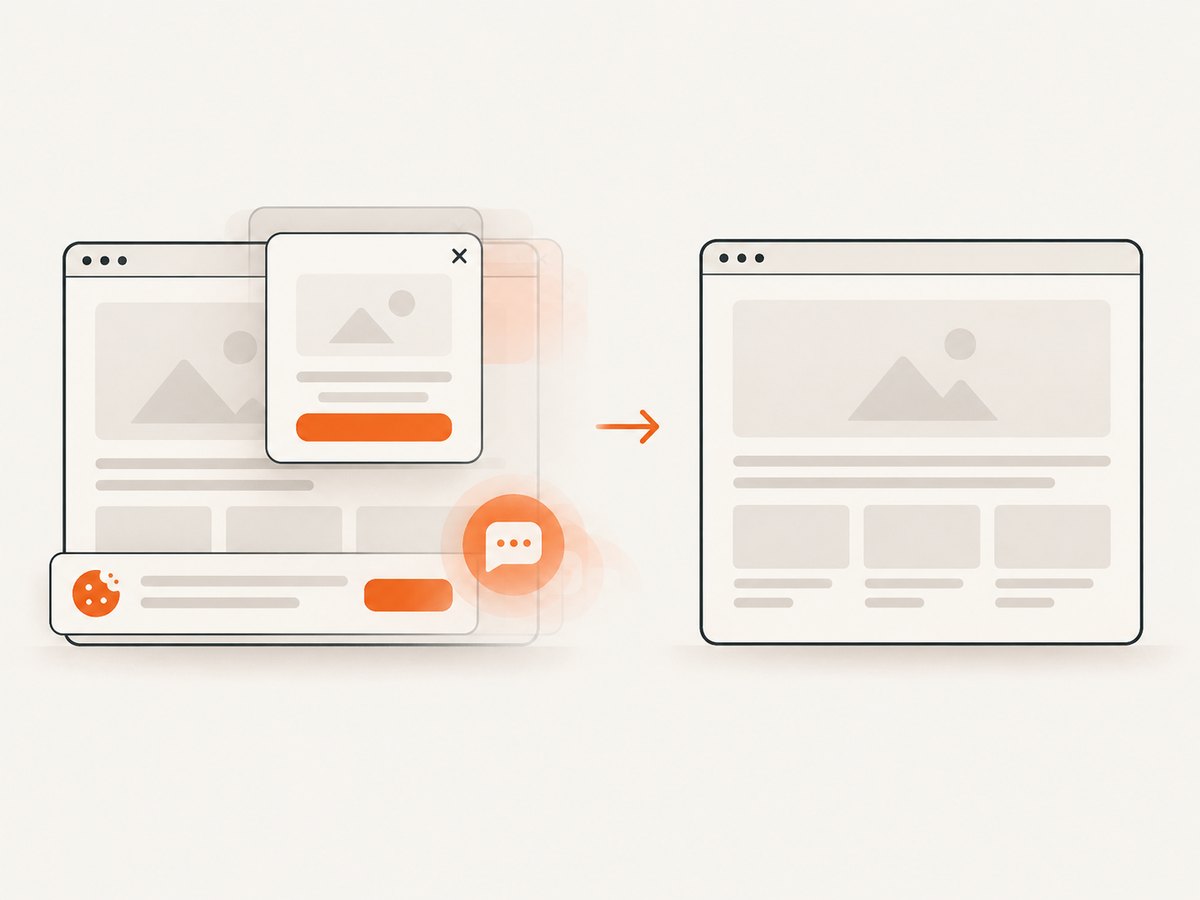
ScreenshotNeo accepts one GET request and returns PNG, JPEG, WebP, or PDF. It handles viewport and device options through the API, while removing common page noise before capture: cookie and consent banners, newsletter popups, and chat widgets. Bot checks, blank pages, timeouts, failed loads, and cache hits are not billed, and response headers identify the page verdict and billing result.
See the ScreenshotNeo API documentation for all options. A basic request looks like this:
curl -G "https://api.screenshotneo.com/v1/shot" \
  -d access_key=YOUR_API_KEY \
  --data-urlencode url=https://stripe.com \
  -o shot.webp
import requests
r = requests.get(
"https://api.screenshotneo.com/v1/shot",
params={"access_key": "YOUR_API_KEY", "url": "https://stripe.com"},
timeout=90,
)
r.raise_for_status()
open("shot.webp", "wb").write(r.content)const q = new URLSearchParams({ access_key: 'YOUR_API_KEY', url: 'https://stripe.com' });
const res = await fetch(`https://api.screenshotneo.com/v1/shot?${q}`);
if (!res.ok) throw new Error(`HTTP ${res.status}`);
const data = Buffer.from(await res.arrayBuffer());
await import('node:fs/promises').then(fs => fs.writeFile('shot.webp', data));ScreenshotNeo also provides full-page capture with lazy images loaded, CSS-selector element capture, dark mode, 12 device presets plus custom viewports, retina scale, custom CSS and JavaScript, waits, request blocking, headers, cookies, user agents, authorization, timezone and geolocation, transparent backgrounds, resizing, caching with a chosen TTL, signed links, asynchronous jobs with signed webhooks, bulk capture for 100 URLs per call, usage data, and an OpenAPI specification. An MCP server exposes take_screenshot, get_page_info, and capture_pdf to Claude, Cursor, and other MCP clients.
The Free plan includes 1,000 screenshots each month with no card. Paid plans start at $5 for 3,000 shots; yearly billing gives two months free. Create a free ScreenshotNeo account to get started.
9. FAQ
Does fullPage: false guarantee the viewport never changes?
It requests viewport capture, but page scripts can still call resize-related APIs or change their own layout. Set the viewport before navigation and use captureBeyondViewport: false when diagnosing capture behavior.
Should I use page.setViewport() before or after goto()?
Before navigation. Responsive initialization often runs during page load, so setting the viewport afterward can produce a different layout.
Can I capture an element taller than the viewport without resizing?
Yes, by clipping or stitching multiple viewport captures, but you must handle seams, sticky elements, and lazy loading. Resizing is simpler when responsive changes are acceptable.
Why does a retina screenshot have different dimensions?
deviceScaleFactor multiplies output pixels per CSS pixel. It changes image density, not the CSS viewport width and height.
Is the Blink launch flag still required?
Usually no. It is a historical workaround from an older issue. Prefer current screenshot options and verify behavior with your Puppeteer and Chromium versions before adding launch flags.


