How to Prevent PuppeteerSharp PDF Page Breaks from Cutting UI Elements
Keep cards, tables and UI panels intact in PuppeteerSharp PDFs with print CSS, sensible page geometry and reliable troubleshooting.
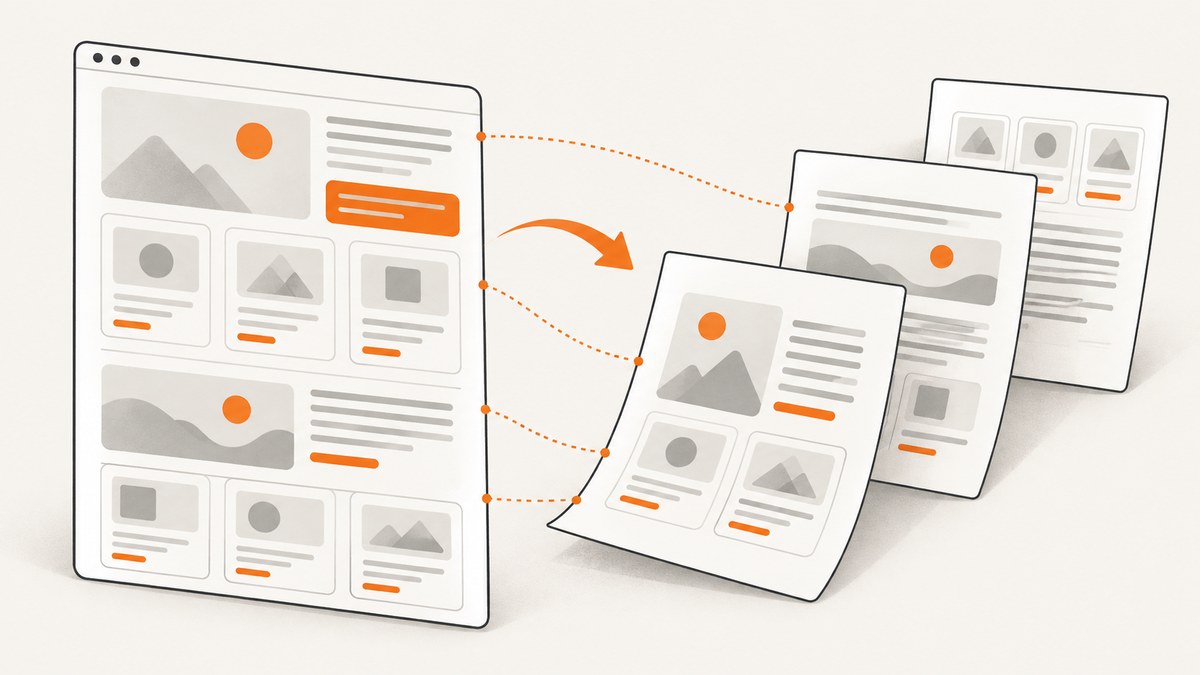
PuppeteerSharp creates PDFs with Chromium’s print layout. To keep a card, panel, figure, table row or other coherent component from being split, apply break-inside: avoid to that component inside @media print. Keep the legacy alias page-break-inside: avoid for compatibility.
@media print {
  .keep-together {
    break-inside: avoid;
    page-break-inside: avoid;
  }
}
This is a request to the print formatter, not an absolute promise. A block that is taller than a page cannot fit on one page while preserving every line. Chromium must split an oversized element so that content is not clipped. The reliable approach is to apply the rule to the smallest meaningful block, check page geometry, wait for fonts and images, and inspect the generated PDF at the target paper size.
1. Why PuppeteerSharp splits UI elements
PDF output is based on a paginated print layout. A browser calculates the height of each box, available space in the current page, margins, and forced breaks. If the next box does not fit, it may move the box to the next page or split it. Flexbox, grid, tables, web fonts, images and late JavaScript changes can all alter the final height.
PuppeteerSharp’s PdfAsync uses print media by default. Rules in @media print therefore apply without an additional media call. If you deliberately emulate screen media with EmulateMediaTypeAsync(MediaType.Screen), screen rules are used instead and your print-only pagination rules may not take effect. PDF generation is currently supported in Chrome headless.
The CSS property is inherited by neither children nor parents. Put it on the component that must stay intact:
<article class="invoice-card keep-together">
  <h2>Invoice #1042</h2>
  <p>Billing details and totals belong together.</p>
</article>
2. The print CSS that prevents most unwanted breaks
Use modern and legacy declarations together
@media print {
  .keep-together {
    break-inside: avoid;
    page-break-inside: avoid;
  }

  .avoid-before {
    break-before: avoid;
    page-break-before: avoid;
  }

  .start-on-new-page {
    break-before: page;
    page-break-before: always;
  }

  .avoid-after {
    break-after: avoid;
    page-break-after: avoid;
  }
}
break-inside is the current property. page-break-inside is its legacy alias; browsers map the avoid value compatibly. Use break-before: page or break-after: page only when a deliberate section boundary is required. Forced breaks can create nearly empty pages when combined with large margins or headings.
Apply the rule selectively
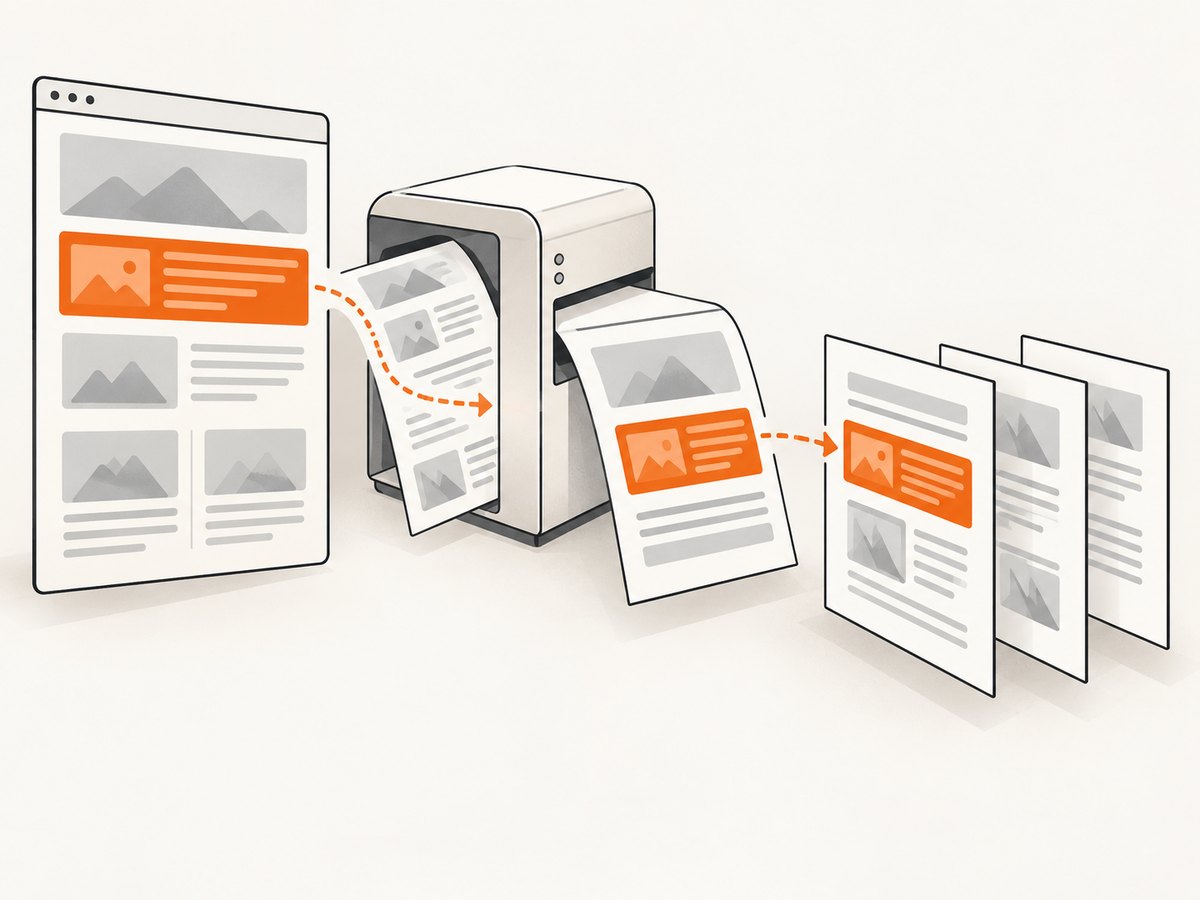
Good candidates include cards, alert panels, figures with captions, short table rows, address blocks and invoice summaries. Avoid adding the rule to every ancestor, the entire document, or a long list. A parent that contains several pages of content cannot remain intact. Overuse also reduces the formatter’s choices and can produce large blank areas.
@media print {
  .card,
  .figure,
  .summary,
  tr {
    break-inside: avoid;
    page-break-inside: avoid;
  }

  /* Let long prose and long tables flow naturally. */
  .article-body,
  .long-table {
    break-inside: auto;
    page-break-inside: auto;
  }

  thead {
    display: table-header-group;
  }

  tfoot {
    display: table-footer-group;
  }
}
Remember the oversized-element limit
If a panel is 1,200 pixels tall and the printable page area is 900 pixels, no CSS declaration can show the entire panel on one page without shrinking or clipping it. The print profile standard describes the expected behavior: when a long element starts at the top of a page and exceeds the page length, the printer prints as much as possible and continues it on following pages. Split an oversized component into smaller semantic blocks when that improves readability.
3. A complete PuppeteerSharp example
The following console program writes an HTML document, launches headless Chrome, waits for fonts, and creates a PDF. It uses print CSS and explicit PDF options so the available page area is predictable.
using PuppeteerSharp;

await new BrowserFetcher().DownloadAsync();

await using var browser = await Puppeteer.LaunchAsync(new LaunchOptions
{
    Headless = true
});

await using var page = await browser.NewPageAsync();

var html = @"
<!doctype html>
<html>
<head>
  <meta charset='utf-8'>
  <style>
    @page { size: A4; margin: 18mm; }
    * { box-sizing: border-box; }
    body { font-family: Arial, sans-serif; color: #202124; }
    .card {
      border: 1px solid #c9c9c9;
      border-radius: 8px;
      padding: 16px;
      margin: 0 0 16px;
    }
    @media print {
      .keep-together {
        break-inside: avoid;
        page-break-inside: avoid;
      }
    }
  </style>
</head>
<body>
  <h1>Quarterly report</h1>
  <section class='card keep-together'>
    <h2>Revenue summary</h2>
    <p>This heading, summary and chart caption should move together.</p>
  </section>
  <section class='card keep-together'>
    <h2>Operational notes</h2>
    <p>A second coherent block follows the same pagination rule.</p>
  </section>
</body>
</html>";

await page.SetContentAsync(html, new NavigationOptions
{
    WaitUntil = new[] { WaitUntilNavigation.Networkidle0 }
});

await page.EvaluateExpressionAsync("document.fonts.ready");

await page.PdfAsync("report.pdf", new PdfOptions
{
    Format = PaperFormat.A4,
    PrintBackground = true,
    PreferCSSPageSize = true,
    WaitForFonts = true,
    MarginOptions = new MarginOptions
    {
        Top = "18mm",
        Right = "18mm",
        Bottom = "18mm",
        Left = "18mm"
    }
});
See the PuppeteerSharp PdfOptions reference for the complete option set. The important pagination options are described below.
4. PDF options that change pagination
| Option | Effect | Practical guidance |
|---|---|---|
Format |
Selects a standard paper size such as A4 or Letter. | Use the same format as the viewers or printers that consume the PDF. |
Width, Height |
Define custom paper dimensions. | Do not combine assumptions about custom dimensions with an unrelated CSS @page size. |
MarginOptions |
Reduces the printable content rectangle. | Large margins make otherwise fitting cards move to the next page. |
Scale |
Scales rendered content. | Changing scale changes wrapping and component heights; use it consistently. |
PreferCSSPageSize |
When true, CSS @page size takes priority over API width, height or format. |
Set it deliberately when CSS controls paper size. The default is false. |
PrintBackground |
Includes background colors and images. | Enable it when cards rely on backgrounds for visual grouping. |
DisplayHeaderFooter |
Adds generated headers and footers. | Reserve space with margins; otherwise content can appear crowded or shift. |
WaitForFonts |
Waits for document.fonts.ready. |
The documented default is true. Keep it enabled when font metrics affect wrapping. |
5. A reliable pagination workflow
- Define the print contract. Choose A4 or Letter, orientation, margins, scale and whether CSS controls page size.
- Mark semantic blocks. Add
keep-togetherto cards, figures, summaries and other short components that should move as units. - Put rules in print CSS. Keep pagination declarations inside
@media printunless you intentionally want them on screen. - Wait for layout inputs. Wait for navigation, images and web fonts. Late font swaps can change line wrapping and push a card onto another page.
- Generate with explicit options. Set format, margins, scale and
PreferCSSPageSizeinstead of relying on defaults. - Inspect every page. Check the first page after each layout change, then test pages containing long tables, images, headings and near-page-bottom cards.
- Retest after runtime changes. Chromium version, fonts and print CSS affect pagination. Recheck output after upgrades.
6. Common failure modes and fixes
| Symptom | Likely cause | Fix |
|---|---|---|
| The rule appears to do nothing. | The declaration is outside the active media query, or screen media was explicitly emulated. | Put it in @media print and remove screen emulation, or add the rule to the media type you intentionally use. |
| A card still splits. | The card is taller than the printable page. | Split it into smaller blocks, reduce content, or allow a controlled split. Do not expect avoid to clip content. |
| Large blank areas appear. | break-inside: avoid is applied to a large ancestor or many consecutive blocks. |
Move the rule to the smallest component that must stay intact and allow long containers to flow. |
| Everything is shifted after adding headers. | Header/footer templates consume space not reflected in your previous layout. | Increase top or bottom margins and inspect the resulting printable area. |
| Cards fit locally but not in CI. | Different Chromium versions, fonts or loaded assets change measurements. | Pin the browser/runtime where possible, wait for fonts and assets, and compare generated pages in the same environment. |
| Text wraps differently from the browser preview. | PDF uses print media by default, while the preview uses screen media. | Inspect the page with print media enabled and maintain separate print styles intentionally. |
| Images cause unexpected breaks. | Image dimensions are unknown when layout is calculated. | Set width and height or an aspect ratio, wait for images, and avoid placing an oversized image inside a keep-together block. |
| Table rows are cut. | The row or table has conflicting display styles, or a row is taller than a page. | Apply avoidance to short tr elements, repeat thead, and allow very large rows to continue. |
7. Edge cases worth designing for
Flex and grid layouts
Flex and grid children can have different break behavior than normal block flow. Apply the rule to the item that represents the printed unit, then verify the result with your Chromium version. If a complex grid is unstable, create a print-only block layout with predictable widths.
Nested avoidance rules
Nested avoid declarations do not create infinite space. If the outer component cannot fit, Chromium must eventually split or move content. Keep nesting shallow and reserve avoidance for blocks with a clear reading purpose.
Links, long words and overflow
Unbreakable URLs, code samples and long tokens can widen a block or increase its height. Add print-safe wrapping such as overflow-wrap: anywhere to code and URL regions. Avoid horizontal overflow that forces a smaller scale and changes pagination.
Dynamic content
Run pagination only after client-side rendering, data hydration, charts and images finish. A PDF generated while a chart is still loading can have a different component height from the final page.
8. Performance, reliability and cost considerations
Most pagination work is layout computation. Reducing unnecessary DOM nodes, loading only required assets and using correctly sized images lowers rendering time. Waiting for network idle improves determinism but can delay pages that keep polling; use a targeted selector or a bounded delay when network idle never occurs.
For reliable output, keep the Chromium version consistent, make fonts available in the execution environment, set explicit page geometry and retain representative PDF fixtures for visual review. There is no universal rule that guarantees identical pagination across every document and runtime.
PuppeteerSharp itself does not charge per PDF. Your cost comes from the infrastructure running Chrome, including CPU, memory, storage and queue time. If you generate many PDFs, reuse a browser process carefully, limit concurrent pages to available memory and close pages after each job. Measure your own workload rather than assuming a fixed throughput.
9. Or skip the browser setup
If you need a clean capture or PDF without maintaining Chromium, ScreenshotNeo provides a website screenshot API and MCP server. It accepts one GET request and can return PNG, JPEG, WebP or PDF. For a PDF workflow, its options include paper size, margins, landscape mode and page ranges. The service also supports full-page capture, element capture, custom CSS and JavaScript, waiting for selectors or network idle, and custom headers and cookies.
cURL:
curl -G "https://api.screenshotneo.com/v1/shot" \
  -d access_key=YOUR_API_KEY \
  --data-urlencode url=https://stripe.com \
  -o shot.webp
Python:
import requests

r = requests.get(
    "https://api.screenshotneo.com/v1/shot",
    params={"access_key": "YOUR_API_KEY", "url": "https://stripe.com"},
    timeout=90,
)
r.raise_for_status()
open("shot.webp", "wb").write(r.content)
Node.js:
const fs = require('node:fs/promises');

const q = new URLSearchParams({ access_key: 'YOUR_API_KEY', url: 'https://stripe.com' });
const res = await fetch(`https://api.screenshotneo.com/v1/shot?${q}`);
if (!res.ok) throw new Error(`Screenshot failed: ${res.status}`);
await fs.writeFile('shot.webp', Buffer.from(await res.arrayBuffer()));
Read the ScreenshotNeo documentation for authentication, PDF parameters, response headers and the full API. Before capture, ScreenshotNeo accepts cookie or consent banners and removes more than 60 known consent platforms, newsletter popups and chat widgets; each step can be turned off. Bot checks or CAPTCHAs, blank pages, timeouts, failed loads and cache hits are not billed, and the response identifies the result with X-Page-Verdict and X-Billed headers. Its MCP server exposes take_screenshot, get_page_info and capture_pdf for Claude, Cursor and other MCP clients.
The Free plan includes 1,000 screenshots each month with no card. Paid plans start at $5 for 3,000 shots, and every feature is available on every plan. Create a free ScreenshotNeo account.
10. Short FAQ
Does page-break-inside: avoid still work?
Yes. It is the legacy alias for break-inside: avoid. Include both declarations when supporting older print engines or maintaining an existing stylesheet.
Should I put the rule on the parent or child?
Put it on the smallest element that must remain intact, such as one card or figure. Applying it to a document-wide wrapper prevents useful page breaks.
Can I keep any element on one page?
Only when it fits in the printable page area. Oversized content must continue onto later pages to preserve all content.
Why does my PDF look different from the browser?
PDF generation uses print media by default, while the browser preview usually uses screen media. Fonts, images, margins, scale and Chromium versions can also change measurements.
What option makes CSS @page size win?
Set PreferCSSPageSize to true. Otherwise PuppeteerSharp scales content to the API-selected paper size when that option is false.


