How to Prevent Table Rows From Breaking Across html2pdf Pages
Keep html2pdf.js table rows together with CSS page-break rules or targeted selectors, then verify the generated PDF for layout edge cases.
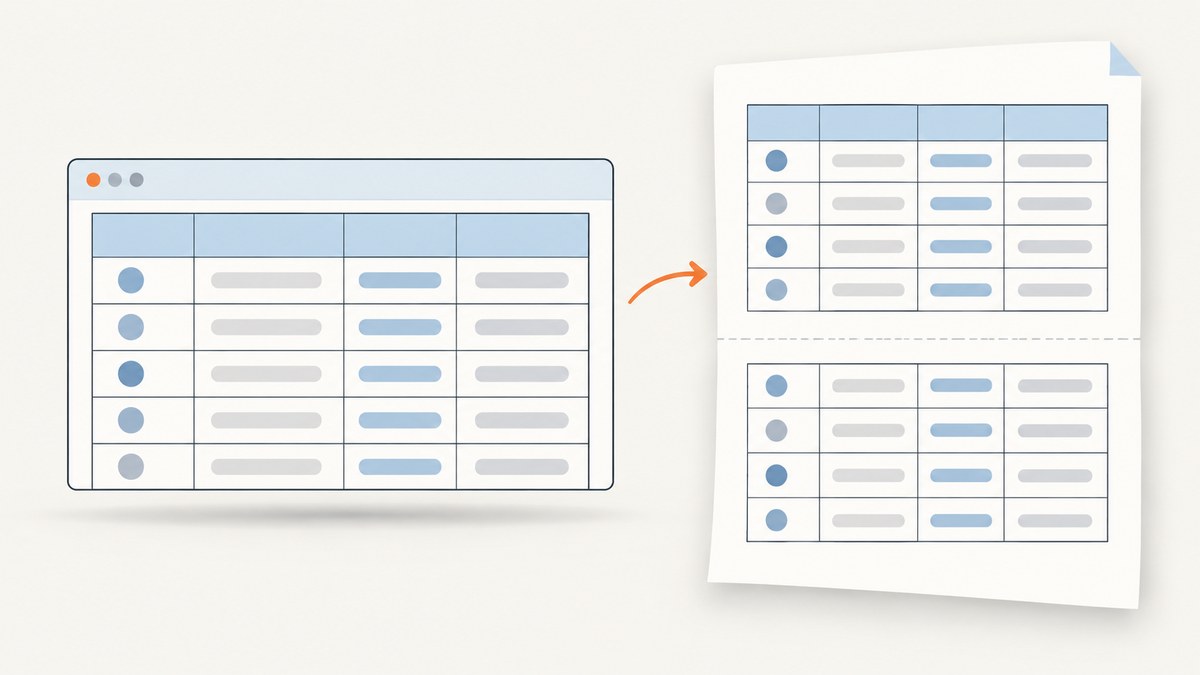
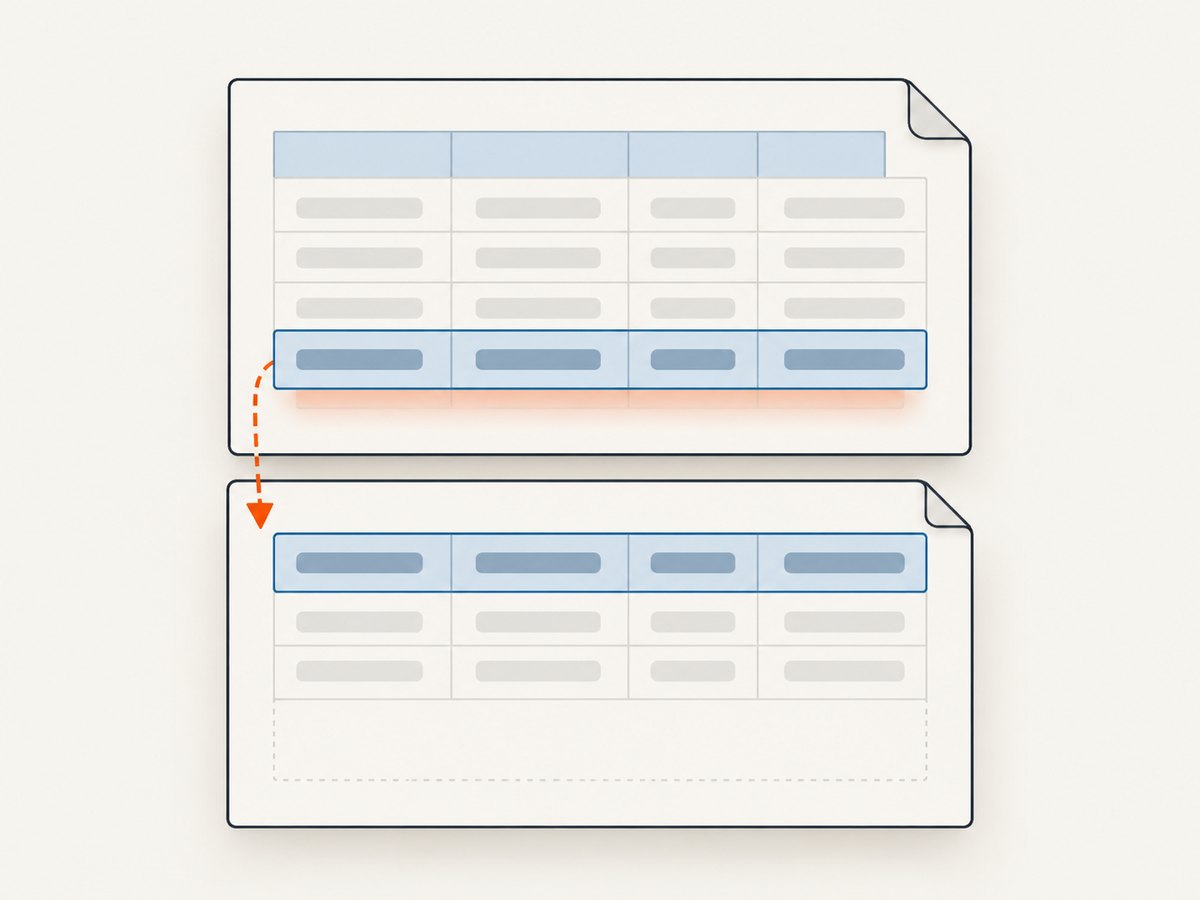
To keep table rows together in an html2pdf.js PDF, enable its CSS page-break handling and apply break-inside: avoid and page-break-inside: avoid to table rows. If CSS mode does not handle the rows in your layout, target them with html2pdf.js’s pagebreak.avoid selector. These are layout instructions, not an unconditional guarantee: inspect the resulting PDF, especially for unusually tall rows and content near page boundaries.
<div id="report">
  <table>
    <thead><tr><th>Item</th><th>Description</th></tr></thead>
    <tbody>
      <tr><td>Invoice</td><td>A representative row that should remain together.</td></tr>
      <tr><td>Payment</td><td>Another row of report data.</td></tr>
    </tbody>
  </table>
</div>
<button id="download">Download PDF</button>
<script src="https://cdnjs.cloudflare.com/ajax/libs/html2pdf.js/0.10.1/html2pdf.bundle.min.js"></script>
<script>
  const element = document.getElementById('report');
  document.getElementById('download').addEventListener('click', () => {
    html2pdf().set({
      pagebreak: { mode: 'css' },
      margin: 10,
      filename: 'report.pdf',
      image: { type: 'jpeg', quality: 0.95 },
      html2canvas: { scale: 2 },
      jsPDF: { unit: 'mm', format: 'a4', orientation: 'portrait' }
    }).from(element).save();
  });
</script>
table {
width: 100%;
border-collapse: collapse;
}
tr {
break-inside: avoid;
page-break-inside: avoid;
}
td, th {
border: 1px solid #bbb;
padding: 6px;
vertical-align: top;
}The example uses the html2pdf.js browser bundle, which includes the project’s dependencies. If your app already loads the library through a package or bundler, use that installation instead of adding a second copy. Keep the table and its styles in the element passed to .from(), and run the call in response to the user action that should generate the download.
1. How html2pdf.js handles page breaks
html2pdf.js builds a PDF in the browser using html2canvas and jsPDF. Its pagebreak configuration recognizes CSS rules and selector-based instructions. The documented default modes are css and legacy; the broad avoid-all mode is also available. CSS mode recognizes break-inside: avoid, while CSS before and after rules recognize always, left, and right. See the project’s page-break documentation for the option details.
Set mode explicitly so the behavior you intend is visible in the code. The paired modern and legacy declarations on tr express the same intent in both CSS forms. The html2pdf.js manual fixture includes a table and a page-break-inside: avoid example, which is useful context, but your own output remains the authority for your actual content and version.
2. Choose a page-break strategy
| Strategy | When to use it | Trade-off |
|---|---|---|
| CSS mode plus row CSS | Start here when only table rows need to stay intact. | Focused, readable styling; verify that the generated layout honors it. |
pagebreak.avoid selector |
Use when you want the library configuration to name the target directly. | Still needs output validation and a selector that matches the intended rows. |
avoid-all |
Try as a diagnostic or when many elements should avoid splitting. | Broad avoidance can push blocks forward and create whitespace. |
| Explicit breaks | Use when you need to start a new page before or after a known section. | Controls section placement; it does not make an oversized row fit. |
For a selector-based row rule, use:
html2pdf().set({
  pagebreak: { mode: 'css', avoid: 'tr' }
}).from(element).save();
The avoid option accepts a CSS selector or selector list. Keep it narrow: 'tr' applies to all table rows within the generated content, so use a more specific selector if only one table or section should be affected. The documentation also provides selector options for elements that should have a break before or after them.
A broad configuration such as pagebreak: { mode: ['css', 'legacy', 'avoid-all'] } may be useful for an experiment, but it changes the scope from rows to many elements. Avoid combining it immediately with numerous manual breaks: that makes it harder to identify which rule moved content or left blank space. Change one setting at a time and compare the PDF.
3. Make a reliable reproduction
- Start with one table. Use a small page with the same fonts, widths, styles, and row content as the real report.
- Enable CSS mode. Add
pagebreak: { mode: 'css' }and both row declarations. - Export and inspect. Check page boundaries in the PDF, not only the browser preview. The PDF is the artifact readers receive.
- Try the selector option. If the row rule is still split, set
avoid: 'tr'and compare. - Expand test cases. Include short rows, wrapped text, rows close to the bottom margin, repeated headers if used, and the tallest realistic row.
- Add other page rules back individually. Reintroduce section breaks or broad avoidance only after the row behavior is understood.
Keep a minimal sample around when upgrading html2pdf.js or changing html2canvas/jsPDF versions. The project describes those dependencies in its README. A reduced reproduction helps distinguish a page-break configuration issue from a layout or dependency issue.
4. Important edge cases
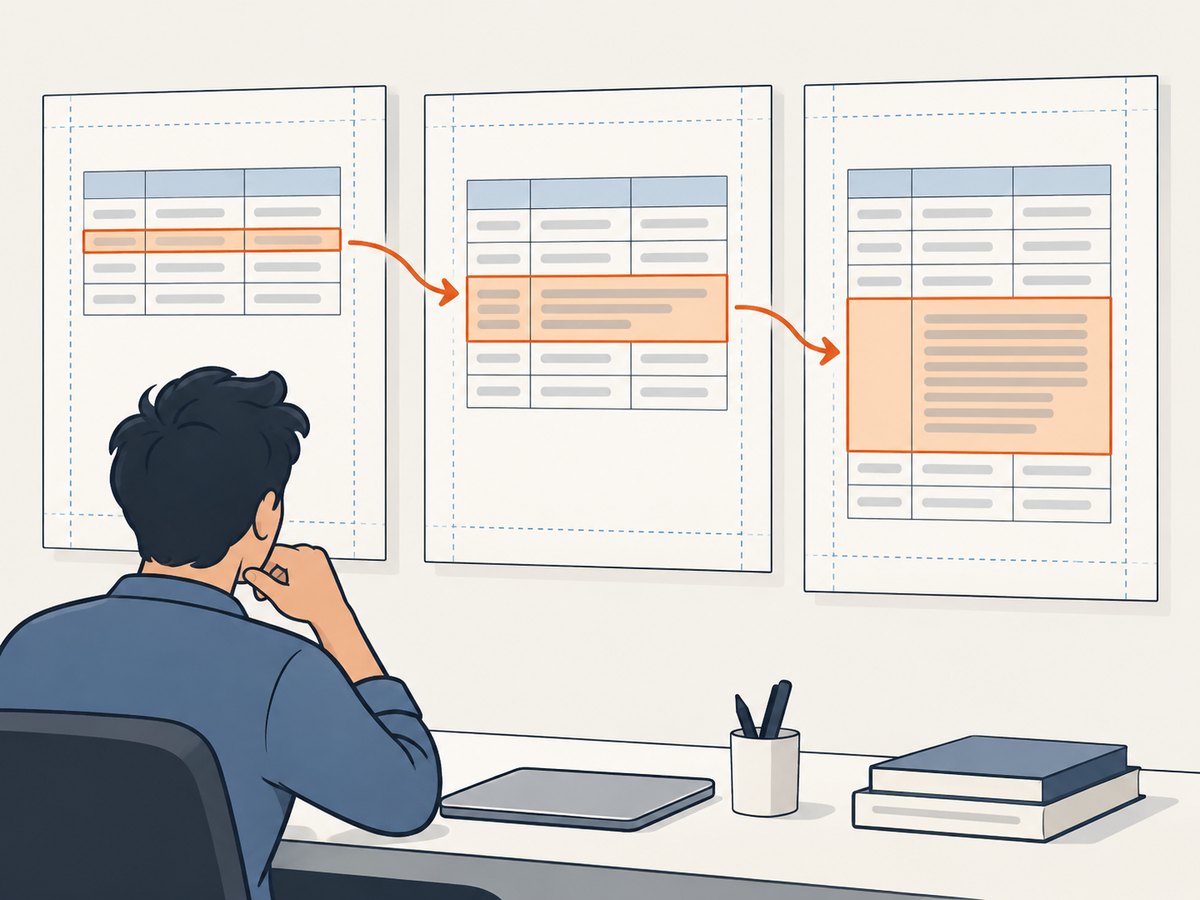
Rows taller than the printable page area
An avoid rule cannot create more printable space. If a row is taller than the page’s usable height after margins, it may not be possible to keep it intact without changing the content, font size, scale, margins, paper format, or orientation. The project documentation does not promise a universal fallback for an oversized row, so treat this as a layout constraint and inspect the generated file.
Wrapped text and changing widths
A small width difference can cause a cell to wrap onto additional lines and make its row taller. Test with production-like column widths and long values. If only one table should be protected, use a class such as .invoice-table tr in your selector configuration, and apply the CSS rule to the same scoped rows.
Whitespace after avoidance
If a row no longer fits in the remaining space, avoidance may move it to the following page, leaving space at the bottom of the current one. Some whitespace is the natural cost of keeping content together. Large unexpected gaps can also arise from interactions among multiple page-break rules; simplify the configuration and add rules back one at a time.
Browser DOM versus PDF output
The browser lays out the HTML first, then html2pdf.js renders it through its dependencies. A page preview that looks correct does not prove the generated pagination is correct. Inspect the actual PDF at multiple page boundaries and across representative data.
5. Troubleshooting
| Symptom | Likely cause | What to try |
|---|---|---|
| A row still splits | CSS page-break processing is not enabled, the selector misses the rows, or the particular layout/version does not honor the rule. | Set mode: 'css'; apply both CSS declarations; then test avoid: 'tr'. Reduce to one table and verify the exact version. |
| There are large gaps between content | Broad avoidance, explicit breaks, and row avoidance may be interacting. | Remove avoid-all and manual breaks temporarily. Restore each rule separately after identifying the effect. |
| One exceptionally tall row breaks anyway or overflows | The row may exceed the usable page height. | Shorten or split the content, reduce scale or font size, adjust margins, or choose a larger page format; inspect the resulting PDF. |
| The selector has no effect | The selector may not match the exported DOM, or the relevant element is outside the source element. | Confirm the rows are descendants of the element passed to .from(); test a simple 'tr' selector, then narrow it. |
| PDF differs after a package update | html2pdf.js uses html2canvas and jsPDF, and dependency changes can affect rendering. | Record the package versions, reproduce with one table, and consult the project documentation and issue tracker for related behavior. |
An html2pdf.js issue report describes random gaps and avoid rules not being honored in some cases. Treat that as a caveat that behavior can vary; it is not evidence that every version or document will fail. The maintainer’s documented options are a starting point, while the generated PDF is the final check.
6. Performance, reliability, and cost
html2pdf.js performs capture and PDF generation on the client, so the work consumes browser resources on the device generating the document. Large, long, image-heavy pages can take more time and memory to render than a compact report. Avoid repeatedly generating the same PDF on every UI update; generate when the user requests it, and keep the source DOM limited to the content needed in the file.
For reliability, wait until the report’s data and layout are ready before calling .from(). Keep the relevant CSS available to the browser and validate representative output after changing fonts, table widths, content, or dependencies. If a document must paginate identically across environments, account for differences in available fonts and browser rendering in your own output review.
The library approach does not require a paid screenshot service for this configuration task. Its practical costs are implementation and browser-rendering time, plus the work needed to handle and validate the resulting file in your application. If you need a hosted capture API rather than client-side generation, ScreenshotNeo is a website screenshot API; it returns PNG, JPEG, WebP, or PDF from a GET request. That is a different workflow from configuring html2pdf.js row pagination.
Or skip the browser setup
If your goal is to capture a web page as an image or PDF rather than generate a PDF from your own DOM, ScreenshotNeo provides a one-request screenshot API and an MCP server for AI agents. It is not an html2pdf.js pagination fix: use the library steps above when your app needs to turn its own table markup into a PDF.
For a page capture, this GET request saves a WebP response:
curl -G "https://api.screenshotneo.com/v1/shot" -d access_key=YOUR_API_KEY --data-urlencode url=https://stripe.com -o shot.webpSee the ScreenshotNeo API documentation for request options and response details. Its clean-shot workflow accepts cookie or consent banners like a visitor and removes more than 60 known consent platforms, newsletter popups, and chat widgets; each step can be turned off. Bot checks or CAPTCHAs, blank pages, timeouts, failed loads, and cache hits are not billed, and response headers report the page verdict and billing status. Its MCP server gives Claude, Cursor, and other MCP clients the take_screenshot, get_page_info, and capture_pdf tools. The free plan includes 1,000 shots a month with no card; paid plans start at $5 for 3,000 shots.
Create a free ScreenshotNeo account for 1,000 screenshots a month with no card.
FAQ
Should I use break-inside or page-break-inside?
Use both on the row. In html2pdf.js CSS mode, the documented behavior recognizes break-inside: avoid; the legacy declaration states the same intent and appears in the project’s manual fixture.
Does avoid: 'tr' guarantee that every row stays together?
No. It is a documented selector mechanism, but the issue tracker includes reports of avoid rules not being honored. Validate the PDF for your content and library version.
Can I keep a table header with the first data row?
The documented row avoidance targets elements matching the selector. If the header and first row must always stay as one group, test a wrapper or grouping rule in your actual markup and inspect the PDF; the cited documentation does not promise a special header-group behavior.
Where should I report a reproducible pagination problem?
First reduce it to a small example with the exact versions and page-break settings. The project’s README links the html2canvas and jsPDF dependency context, and the html2pdf.js issue tracker documents reported behavior.


