How to Prevent Text Being Cut Off in html2canvas Captures
Diagnose whether html2canvas is truncating the canvas or clipping text, then fix dimensions, crop offsets, scale, or cloned styles.
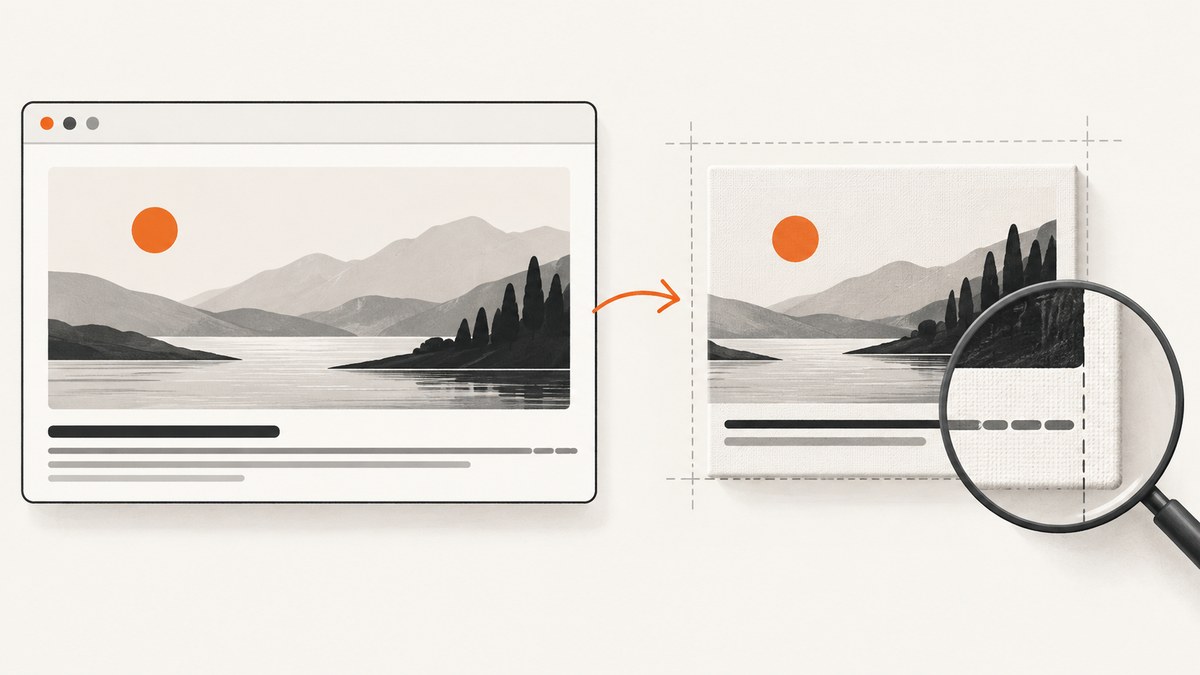
To prevent text from being cut off in html2canvas, first determine whether the entire capture ends at a boundary or whether only text inside a complete image is clipped. For whole-capture truncation, compare the element’s scroll dimensions with the rendering window and canvas dimensions; the html2canvas FAQ recommends matching windowWidth and windowHeight to the element’s scrollWidth and scrollHeight. For text-only clipping, inspect the rendered element’s styles and font metrics, including the cloned document used for capture. html2canvas FAQ
1. Identify which kind of clipping you have
Look at the output image and compare it with the live page at the same intended viewport. The distinction matters because the capture geometry settings and text layout styles solve different problems.
| Symptom | Likely area to inspect | First check |
|---|---|---|
| The image stops abruptly and everything below or beside an edge is missing. | Capture window, canvas dimensions, crop, or browser canvas limits. | Compare scrollWidth/scrollHeight with windowWidth/windowHeight and output width/height. |
| The image includes the full region, but a glyph, word, line, or paragraph is cut within it. | Element or ancestor CSS, font metrics, or differences in the cloned DOM. | Inspect computed styles and verify the clone through onclone. |
| Text overlaps or a margin appears clipped only in an html2pdf workflow. | The combined rendering, page layout, and export configuration. | Reproduce with html2canvas alone before attributing the symptom to one library. |
A user report in the html2pdf project describes overlapping text and a cut right margin, but an issue report is an example of a symptom, not proof of a universal html2canvas defect. Keep the browser, library version, target dimensions, and styles with any minimal reproduction. Issue #3013
2. Fix whole-capture truncation
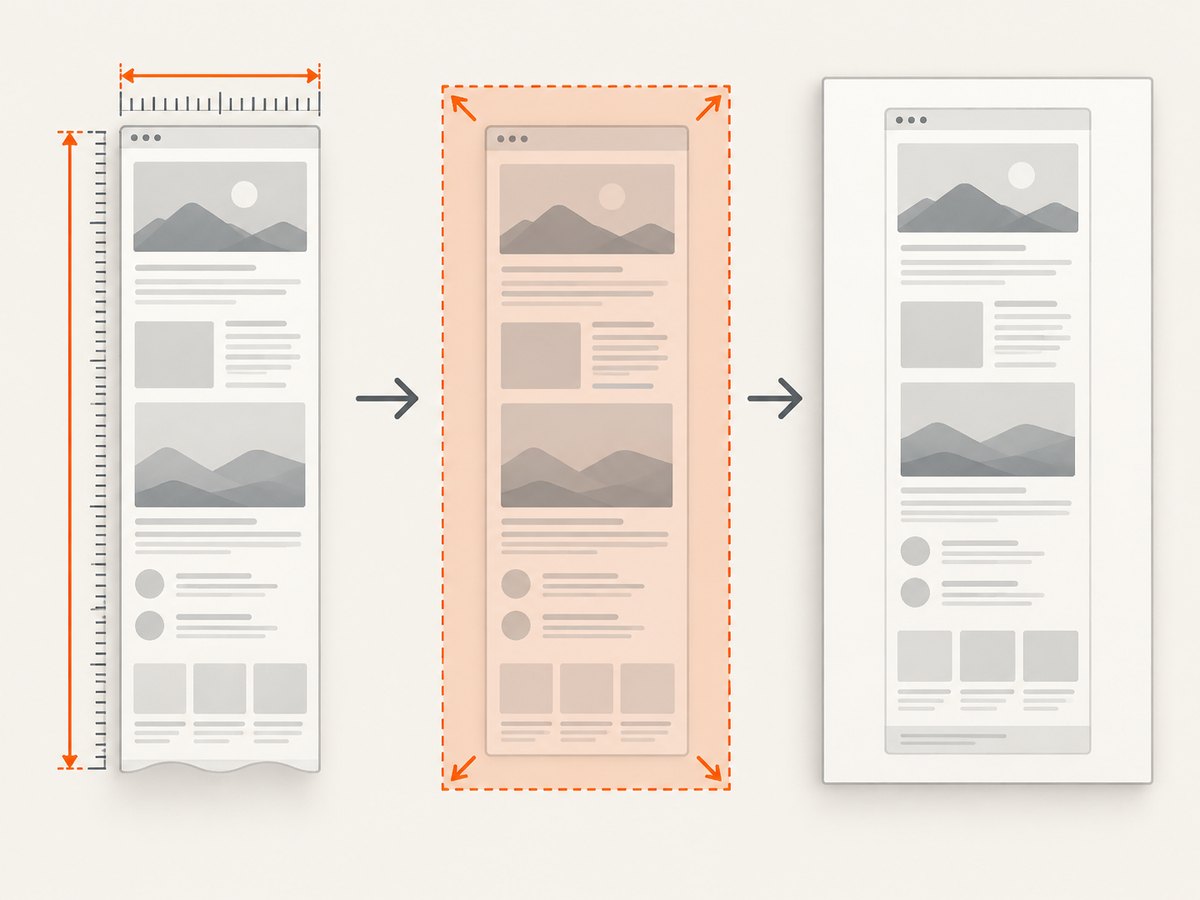
html2canvas renders a DOM element into a canvas. A browser’s canvas dimension or area limits can cause output to stop before the full content is represented. The FAQ’s recommended starting point is to set the rendering window dimensions from the target element’s scroll dimensions. html2canvas FAQ
Runnable browser example
Install the library in a project using a bundler, then use this function from code that runs in the browser. It sizes the rendering window to the element’s content extent and reports the actual canvas dimensions.
import html2canvas from 'html2canvas';

async function captureFullElement(selector) {
  const element = document.querySelector(selector);
  if (!element) throw new Error(`No element matches ${selector}`);

  const width = element.scrollWidth;
  const height = element.scrollHeight;
  if (width <= 0 || height <= 0) {
    throw new Error(`Element has invalid scroll size: ${width} × ${height}`);
  }

  const canvas = await html2canvas(element, {
    windowWidth: width,
    windowHeight: height,
    width,
    height,
    x: 0,
    y: 0,
    scrollX: 0,
    scrollY: 0
  });

  console.info(`Captured ${canvas.width} × ${canvas.height} pixels`);
  document.body.appendChild(canvas);
  return canvas;
}

captureFullElement('#report').catch(console.error);
This is a diagnostic baseline, not a universal configuration. A target can contain fixed or sticky elements, and changing the rendering window can change responsive styles. Decide whether you want a full content capture or a screenshot at a particular viewport before setting these values.
Check bounds, crop, and scroll offsets
The width and height options set output canvas bounds. The x and y options set crop coordinates; scrollX and scrollY influence the scroll position used for rendering. A correct target element can still appear clipped if the configured output box is smaller than the content or if the crop begins too far into it. Review these values together. html2canvas configuration
- Log the target’s
scrollWidth,scrollHeight,clientWidth, andclientHeight. - Log the requested
width,height,x,y,scrollX, andscrollY. - Temporarily use zero crop and scroll offsets to see whether the missing region returns.
- Set the output bounds to include the intended region, then restore deliberate crop or scroll behavior if needed.
For page-level capture, measure the document rather than assuming the viewport covers it:
const width = Math.max(
  document.documentElement.scrollWidth,
  document.body.scrollWidth
);
const height = Math.max(
  document.documentElement.scrollHeight,
  document.body.scrollHeight
);

const canvas = await html2canvas(document.documentElement, {
  windowWidth: width,
  windowHeight: height,
  width,
  height
});
3. Consider canvas limits and scale
Large canvases can exceed browser limits. The resulting failure can look like a truncated page even if the DOM dimensions are correct. The scale option multiplies output pixel dimensions, so it affects memory use and the size of the bitmap. If an unusually large capture is truncated, test a lower scale and see whether the output boundary changes. Do not treat scale as a general fix for text clipping: changing output resolution does not correct an element’s line box, overflow, or font layout. FAQ · configuration
Use a controlled comparison. Record the target’s CSS-pixel dimensions and the resulting canvas’s pixel dimensions at each scale. If lowering scale avoids truncation, reduce the capture region, split the job into smaller sections, or choose a suitable output resolution. Be aware that a lower-resolution image may make small text less legible.
4. Fix text clipped inside a complete capture
If the whole intended region exists but text is cut off, inspect the browser’s computed layout rather than repeatedly changing canvas dimensions. Check the text element and its ancestors for:
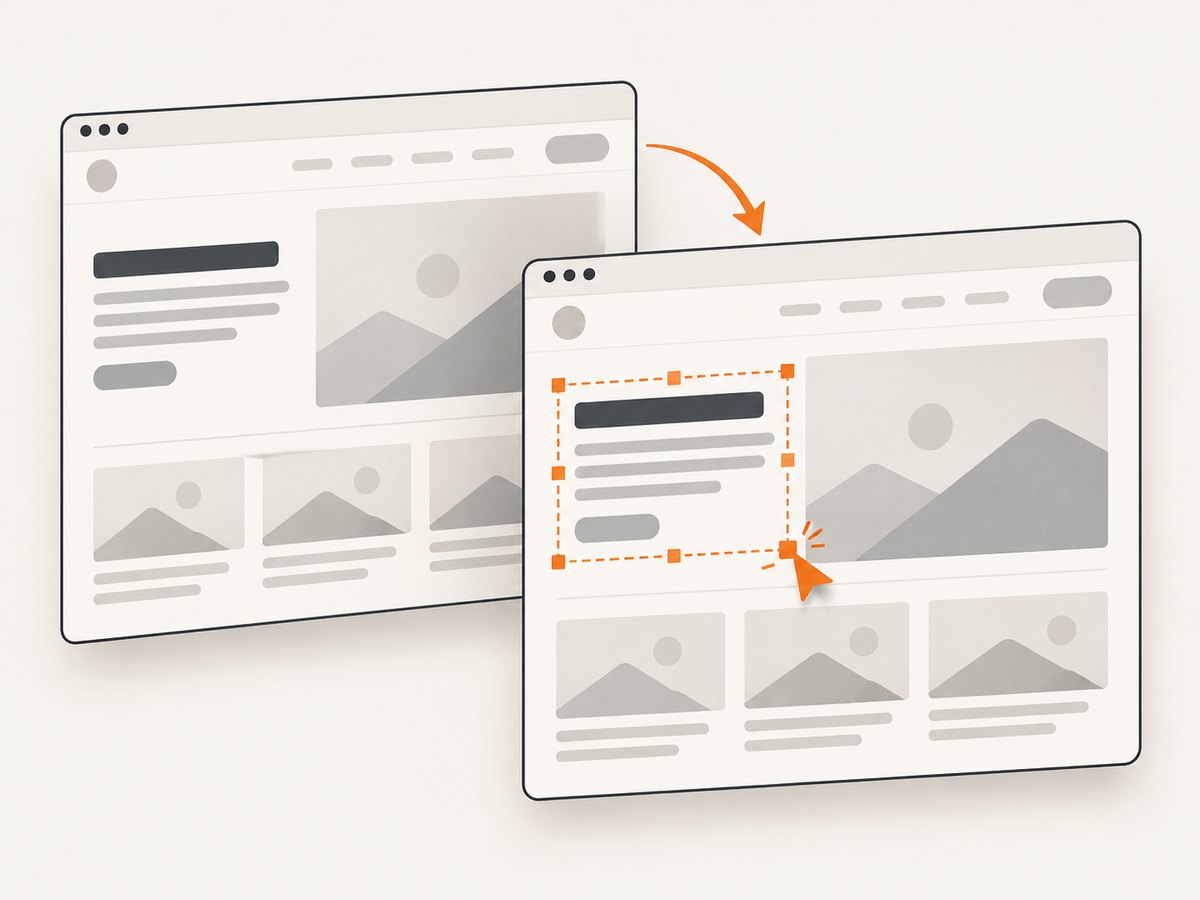
overflow: hiddenoroverflow: clip, including on a fixed-height wrapper.- A fixed
heightormax-heightthat is smaller than the rendered content. - Line-height, font-size, letter spacing, transforms, or a font that differs between the live page and capture.
- Positioning or clipping paths that constrain the text’s paint area.
- Responsive styles that change when the capture’s rendering window differs from the user’s viewport.
Use DevTools to inspect the target and parent chain. Compare the visible box with the text’s computed font properties and line-height. If the content itself is clipped on the live page, fix that page layout. If it looks correct live but not in the capture, check whether the cloned document has the same styles and fonts.
Make a capture-only change with onclone
html2canvas provides an onclone callback for changing the cloned document without mutating the displayed page. Use it to test a targeted style change. Avoid applying broad rules that conceal the actual cause.
const element = document.querySelector('#report');
if (!element) throw new Error('Missing #report');

const canvas = await html2canvas(element, {
  onclone(clonedDocument) {
    const clonedTarget = clonedDocument.querySelector('#report');
    if (!clonedTarget) return;

    // Diagnostic example: let content determine the wrapper's height.
    clonedTarget.style.height = 'auto';
    clonedTarget.style.maxHeight = 'none';
    clonedTarget.style.overflow = 'visible';
  }
});
Only keep such overrides if they represent the intended screenshot. A selector applied to the wrong wrapper can change layout or expand unrelated content. The callback is a place to verify and adjust the cloned DOM; it does not guarantee that every browser font or layout difference will be resolved. Configuration options
5. Choose the rendering window deliberately
windowWidth and windowHeight define the window used for rendering and can affect media queries. Matching them to scroll dimensions is useful for capturing a long element without viewport-bound truncation, but it may select a desktop breakpoint where the live page was using a mobile layout, or the reverse. html2canvas configuration
For a viewport-faithful capture, specify the viewport that matches the desired responsive layout and decide separately whether to capture only the visible area or the full page. For a content-complete element capture, measure the element’s scroll size. Compare both only when the output requirement is unclear; they answer different questions.
6. A repeatable debugging checklist
- Reproduce at the same viewport. Compare the live page and capture at a known browser size.
- Classify the symptom. Is the bitmap boundary missing content, or are particular glyphs/lines clipped inside the bitmap?
- Measure the target. Record
scrollWidth/scrollHeightand the desired output dimensions. - Audit geometry. Check
width,height,x,y,scrollX, andscrollY. - Test the FAQ guidance. For whole-canvas truncation, set
windowWidthandwindowHeightto the target’s scroll dimensions. - Test canvas size separately. If the dimensions are very large, lower
scaleas a diagnostic and compare output dimensions. - Inspect text layout. Review overflow, fixed sizing, line height, font styles, transforms, and ancestors.
- Inspect the clone. Use
oncloneto verify capture-time markup and styles, then make a narrow override if justified. - Minimize the reproduction. Capture the smallest affected element and record browser, html2canvas version, dimensions, and styles.
Or skip the browser setup
For a hosted website screenshot, ScreenshotNeo can capture a URL with one GET request. Its API and options are documented at ScreenshotNeo docs.
curl -G "https://api.screenshotneo.com/v1/shot" -d access_key=YOUR_API_KEY --data-urlencode url=https://stripe.com -o shot.webpimport requests
r = requests.get(
"https://api.screenshotneo.com/v1/shot",
params={"access_key": "YOUR_API_KEY", "url": "https://stripe.com"},
timeout=90,
)
open("shot.webp", "wb").write(r.content)const q = new URLSearchParams({ access_key: 'YOUR_API_KEY', url: 'https://stripe.com' });
const res = await fetch(`https://api.screenshotneo.com/v1/shot?${q}`);
if (!res.ok) throw new Error(`Screenshot request failed: ${res.status}`);
await Bun.write('shot.webp', res);ScreenshotNeo accepts cookie/consent banners and removes more than 60 known consent platforms, newsletter popups, and chat widgets before capture; each step can be turned off. Bot checks, blank pages, timeouts, failed loads, and cache hits cost nothing, with the response indicating the page verdict and billing status in headers. Its MCP server gives AI agents tools for screenshots, page information, and PDF capture. The Free plan includes 1,000 shots per month without a card; paid plans start at $5 for 3,000 shots. See ScreenshotNeo for the product details, and the docs for request options.
Create a free account for 1,000 screenshots a month with no card.
Options that affect a capture
| Option | What to use it for | Watch for |
|---|---|---|
width, height |
Output canvas bounds. | Bounds smaller than the intended region truncate it. |
x, y |
Crop origin. | A nonzero origin can cut off content near the starting edge. |
scrollX, scrollY |
Scroll-position behavior during rendering. | Unexpected offsets can change which content is included. |
windowWidth, windowHeight |
Rendering window size. | Can change media query results and responsive layout. |
scale |
Output pixel density. | Multiplies bitmap dimensions; it is not a universal CSS clipping fix. |
onclone |
Inspect or modify capture-only DOM. | Overrides should target the relevant cloned element. |
The full option list and defaults are maintained in the official configuration reference. Start with the options relevant to the diagnosed failure instead of changing several dimensions at once.
Troubleshooting common errors
| What you see | Likely cause | Fix |
|---|---|---|
| Capture ends partway down a long element. | Rendering window or canvas dimensions do not include the full content; browser canvas limit may also apply. | Measure scroll dimensions, match window dimensions per the FAQ, verify output bounds, then test lower scale if dimensions are unusually large. |
| Right or bottom edge is missing. | Configured width/height is too small, or crop offsets shift the selected region. | Check bounds and temporarily reset x/y to zero. |
| Only descenders, accents, or the last line are clipped. | Text line box or ancestor clipping, or a style/font difference in the clone. | Inspect computed line-height, fixed height, overflow, font styles, and the cloned DOM; test a specific onclone override. |
| Capture has a different layout from the live page. | Rendering window dimensions triggered different media queries. | Set the intended viewport dimensions and compare responsive breakpoints. |
| Lowering scale makes the page fit but text looks soft. | The capture is very large and pixel density affects total output size. | Capture smaller sections or select a resolution appropriate to the final use. |
| html2pdf output overlaps text or clips a margin. | Combined export/layout behavior; the symptom alone does not identify the cause. | First reproduce with html2canvas alone; then inspect page/export settings and provide a minimal issue reproduction. |
Performance, reliability, and output size
Canvas memory use grows with pixel area: increasing width, height, or scale can make a capture substantially larger. Full-document captures are more demanding than a small element capture, and a huge single canvas can run into browser-specific limits. For long reports, consider capturing meaningful sections separately and preserving their order in the downstream document. If fidelity to a responsive layout matters, use its intended viewport rather than expanding the window blindly.
For reliable diagnosis, keep one known-good test page and change one geometry or style variable per capture. Record browser, html2canvas version, measured DOM dimensions, configured options, and final canvas dimensions. This separates a reproducible rendering issue from changing page content or a different viewport. There is no universal scale or dimension that avoids all browser canvas limits; the browser and output geometry matter.
FAQ
Does increasing scale fix clipped text?
Usually not. Scale changes output pixel dimensions. For glyph clipping, inspect the text styles, line box, overflow, and cloned DOM first.
Should window dimensions always equal the element’s scroll dimensions?
That is the FAQ’s recommendation when the canvas cuts off partway through. For a viewport-specific screenshot, preserve the intended viewport because window size can affect media queries.
Why does the capture differ from what I see on screen?
The capture can use different rendering dimensions, responsive rules, or cloned styles. Compare computed styles and the capture window with the live viewport.
Is html2canvas a browser screenshot?
It renders supported DOM and styles into a canvas; it is not simply a photograph of the already-painted browser window. Check the project’s configuration and renderer documentation for the behavior relevant to your case.


