How to Prevent Text From Splitting Across Pages in jsPDF
Keep jsPDF paragraphs readable across page breaks: use text-aware HTML paging or wrap direct text and paginate it yourself.

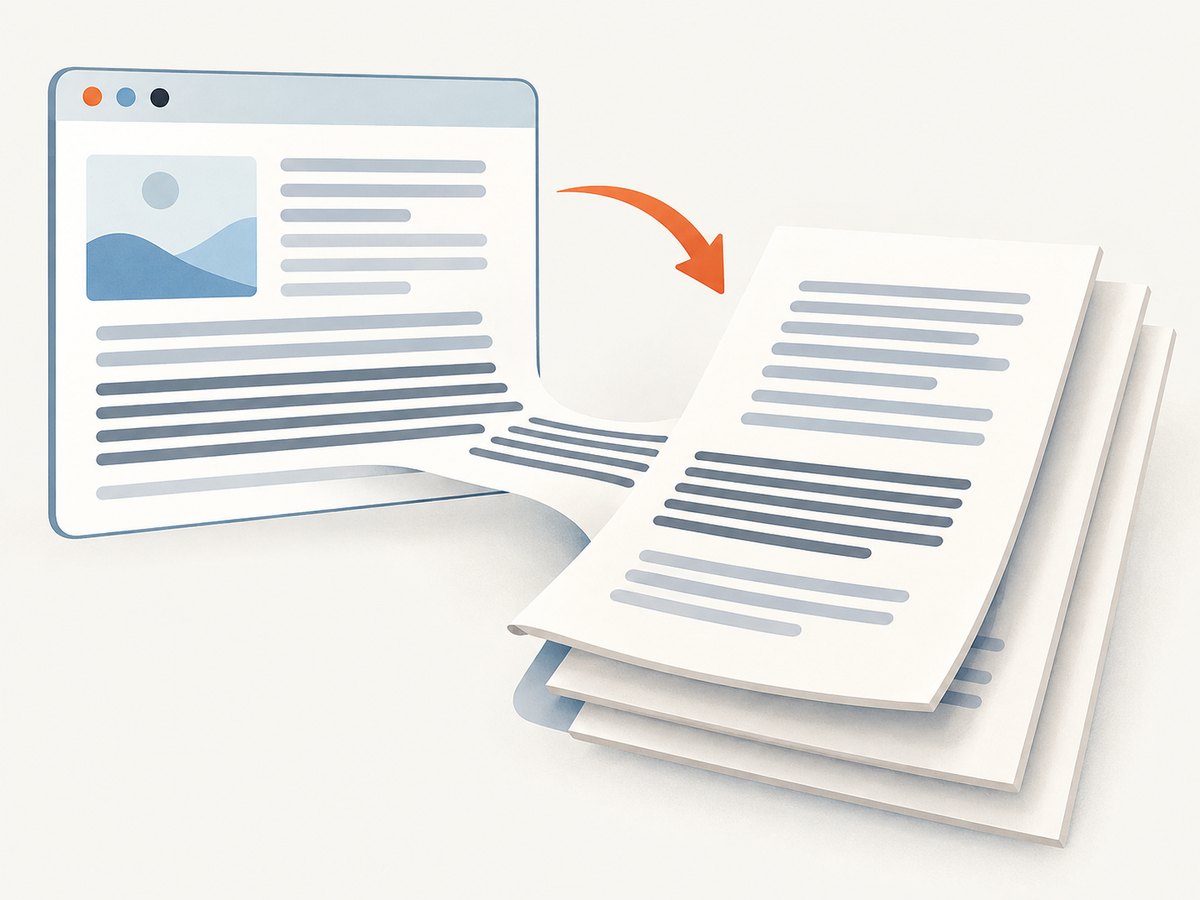
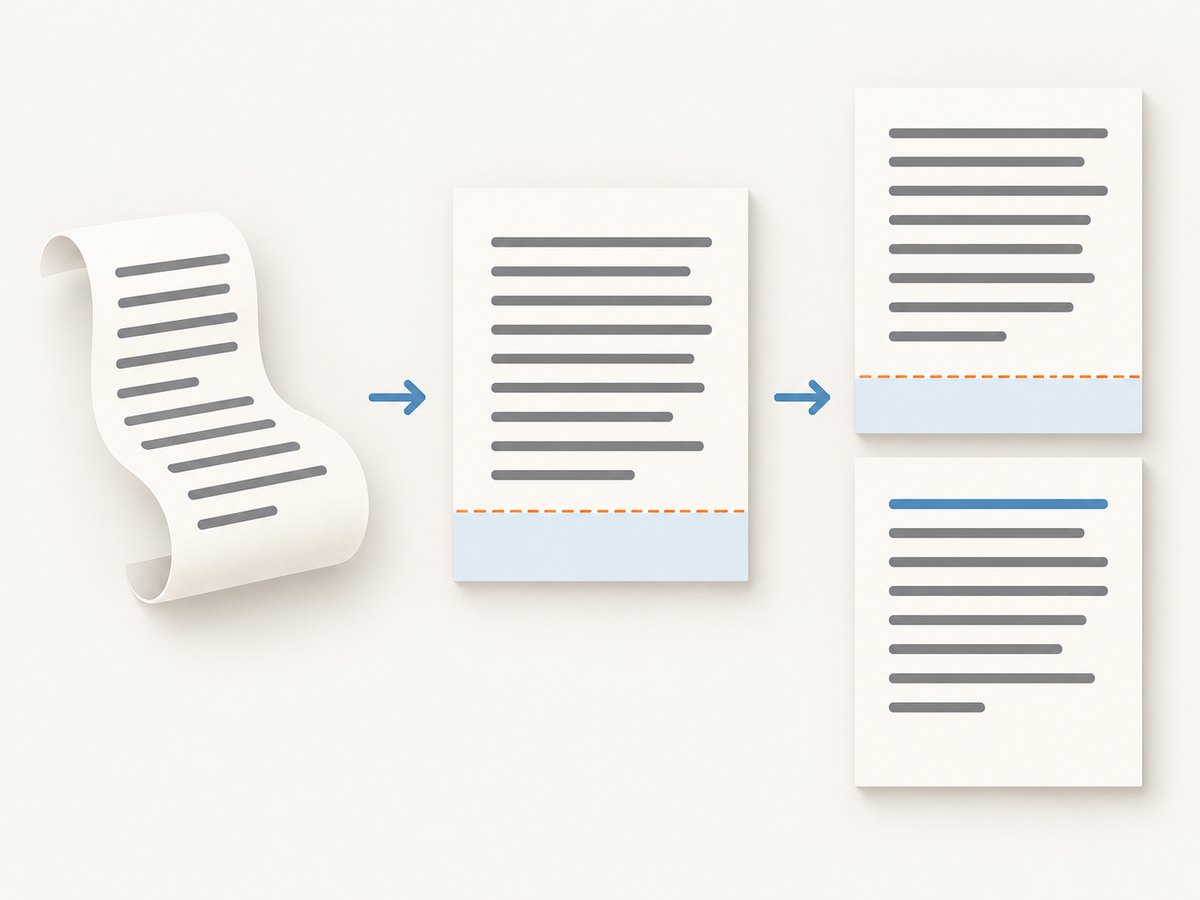
To keep text from being cut in half at page boundaries in jsPDF, choose the approach that matches your input. For HTML, call doc.html() with autoPaging: 'text'. For strings rendered with doc.text(), wrap them using doc.splitTextToSize(), then check the bottom margin before drawing each line and add a page when needed.
Neither method guarantees that every paragraph, table row, or complex layout stays intact in all circumstances. The HTML option tries to avoid cutting text and works best for mostly single-column documents. Manual rendering gives you explicit control over where each line goes, but you need to manage wrapping, line height, margins, and page creation consistently.
1. Choose the pagination method
| Input and layout | Use | What it controls |
|---|---|---|
| HTML, mostly a single column | doc.html(..., { autoPaging: 'text' }) |
Automatic HTML conversion and text-aware page breaks |
| Direct strings or paragraphs | splitTextToSize() and manual pagination |
Measured line wrapping and the exact y position of each line |
| Tables, columns, or complex positioning | Layout-specific handling | Breaks based on your content model, rather than a general text-flow rule |
The jsPDF HTML plugin documents autoPaging: 'text' as an attempt to avoid cutting text, best suited to single-column documents. Its default is true, which may slice text chunks or shapes at page boundaries. false disables automatic paging. See the official HTML plugin documentation.
2. HTML input: enable text-aware automatic paging
When the source is an HTML element, set margins and select the text mode explicitly. The callback receives the resulting jsPDF document; save it there after conversion completes.
import { jsPDF } from 'jspdf';

const doc = new jsPDF({ unit: 'mm', format: 'a4' });
const element = document.querySelector('#report');

if (!element) throw new Error('Report element was not found');

doc.html(element, {
  margin: [18, 18, 20, 18], // top, right, bottom, left
  autoPaging: 'text',
  callback: (pdf) => pdf.save('report.pdf'),
  html2canvas: {
    scale: 1,
    useCORS: true
  }
});
Install jsPDF in a browser project with npm install jspdf. The HTML plugin also relies on its HTML conversion dependencies; consult the official jsPDF documentation for module-format and dependency notes. If your build uses a script tag instead of a bundler, make sure the jsPDF build you load exposes the html() plugin.
HTML settings that affect page breaks
autoPaging: use'text'to request text-aware breaks;trueor'slice'may split content;falseturns automatic paging off. The documented default istrue.margin: accepts a number or an array in top, right, bottom, left order. Reserve enough bottom margin for footers and enough top margin for repeated page content you add yourself.x,y, andwidth: position and scale the rendered source in jsPDF units. A width that is too small can increase line count and affect where breaks occur.html2canvas: passes rendering options through to the HTML conversion process. Rendering scale and cross-origin assets can affect fidelity and resource use; they do not turn text-aware pagination into a guarantee.fontFaces: can supply font-face definitions for matching fonts during conversion. Confirm that the intended fonts load before rendering if line wrapping matters.
Complex layouts deserve special attention. Columns, absolutely positioned blocks, images, and tables do not behave like a simple stream of paragraphs. The documented promise is limited: the text mode tries not to cut text and works best for a mostly single-column document. Inspect output with representative content, and restructure or paginate complex components where a split would be confusing.
3. Direct text: wrap lines and paginate explicitly
For direct strings, jsPDF can measure text with the active font’s width and kerning data. Set the font and size first, calculate the usable width from the page width and margins, then call splitTextToSize(). It returns lines suitable for text(), which accepts an array of strings as multiline input. The official references describe these methods in the split text documentation and core API.
import { jsPDF } from 'jspdf';

const doc = new jsPDF({ unit: 'mm', format: 'a4' });
const margin = { top: 20, right: 20, bottom: 20, left: 20 };
const pageWidth = doc.internal.pageSize.getWidth();
const pageHeight = doc.internal.pageSize.getHeight();
const usableWidth = pageWidth - margin.left - margin.right;
const bottom = pageHeight - margin.bottom;
const fontSize = 11;
const lineHeight = 6;

const paragraphs = [
  'A long paragraph goes here. Replace this example with your own report text. The wrapping width is measured using the active font.',
  'A second paragraph starts separately, leaving a deliberate gap between blocks.'
];

doc.setFont('helvetica', 'normal');
doc.setFontSize(fontSize);

let y = margin.top;
for (const paragraph of paragraphs) {
  const lines = doc.splitTextToSize(paragraph, usableWidth);
  for (const line of lines) {
    if (y + lineHeight > bottom) {
      doc.addPage();
      y = margin.top;
    }
    doc.text(line, margin.left, y);
    y += lineHeight;
  }
  y += lineHeight; // paragraph spacing
}

doc.save('report.pdf');
This is a complete browser-side pattern. Put your content in paragraphs, keep the selected font and size stable while measuring and drawing, and adjust lineHeight and paragraph spacing to match the design. The sample checks before drawing each line, so it avoids knowingly placing a line beyond the bottom margin.
Keep a whole paragraph together when it fits
The basic loop prevents line overflow but may split a paragraph between pages. If the requirement is to keep each paragraph together whenever it can fit on a page, count its wrapped lines before drawing it. If the whole block would cross the bottom boundary and it is shorter than the usable page height, start it on a new page. Very long paragraphs cannot fit on a single page; decide whether to split them naturally or apply a product-specific maximum length.
const paragraphGap = 3;

for (const paragraph of paragraphs) {
  const lines = doc.splitTextToSize(paragraph, usableWidth);
  const blockHeight = lines.length * lineHeight;
  const usablePageHeight = bottom - margin.top;

  // Keep the paragraph together if it fits on a page but not in the space left.
  if (blockHeight <= usablePageHeight && y + blockHeight > bottom) {
    doc.addPage();
    y = margin.top;
  }

  // A paragraph taller than a page must be allowed to continue across pages.
  for (const line of lines) {
    if (y + lineHeight > bottom) {
      doc.addPage();
      y = margin.top;
    }
    doc.text(line, margin.left, y);
    y += lineHeight;
  }
  y += paragraphGap;
}
This policy keeps ordinary paragraphs intact when possible and allows an oversized block to flow. If you add headings, a similar look-ahead rule can keep a heading with the first line of its following paragraph. For lists, decide whether each item is an independent block. For tables, paginate rows as rows, with a deliberate policy for a row taller than a page.
4. Match measurement to typography and page geometry
- Set the font before wrapping.
splitTextToSize()uses the active font’s metrics. Changing font face, style, or size after wrapping may make the calculated lines too wide or too short. - Use one coordinate unit consistently. The document’s
unitcontrols measurement units. Page width, margins, line height, x, and y must all use those same units. - Account for the text baseline. In the example,
yadvances by a chosen line step. Keep enough space before the bottom margin for the line’s rendered height and any footer; a conservative line step is safer than placing glyphs exactly on the boundary. - Keep line-height calculations aligned. jsPDF’s
text()documents a defaultlineHeightFactorof 1.15. If you set a different factor or use a custom line step, base pagination on the same spacing. See the text API reference. - Use the same width for measuring and rendering. Subtract both horizontal margins from the page width. A mismatch can cause wrapping that does not match the intended layout.
The official sequence is to set typography, split the string, pass the resulting lines to text(), and advance the vertical position using the intended line spacing. For a simple page, that is enough; reports with paragraphs, headings, and footers need a block-level policy as well.
5. Troubleshooting common page-break problems
| Symptom | Likely cause | Fix |
|---|---|---|
| HTML text is cut mid-line | Automatic paging is at its default true or set to 'slice'. |
Set autoPaging: 'text' and verify a mostly single-column layout. |
Paragraphs split even with 'text' |
The mode tries to avoid cuts; it is not a universal keep-together rule. The layout may be complex. | Use block-aware layout for the affected elements, simplify the source, or handle breaks explicitly. |
| Text clips horizontally | Wrapping width is too large, margins are not subtracted, or font settings changed after splitting. | Compute usable width from page width minus left and right margins; set the final font before splitting. |
| Text overlaps or leaves large vertical gaps | The y increment does not match the rendered line spacing, or paragraph spacing is added inconsistently. | Use one documented line step for both pagination and drawing; check paragraph-gap logic. |
| Last line is missing or clipped at page bottom | The overflow check happens after drawing, or y represents a baseline and no clearance is reserved. | Check before drawing each line and leave a bottom safety margin. |
| Page starts with a heading but no paragraph | The heading was paginated independently from the next block. | Measure the heading plus the first line or full paragraph and move the group when it fits. |
doc.html is undefined |
The loaded build or module setup does not include the HTML plugin, or setup failed to load its dependencies. | Use a jsPDF build that includes the plugin and follow the official installation and module-format guidance. |
| HTML fonts or images differ from the page | Assets may not have loaded, font matching may differ, or a remote image may not be available to canvas rendering. | Wait until content and fonts are ready, configure the documented font-face options, and review HTML conversion settings. |
| Wrapped non-Latin text is wrong | The selected built-in font may not contain the needed glyphs or metrics. | Use an appropriate embedded font and verify that its metrics and glyph coverage match the content. |
6. Performance, reliability, and cost considerations
Manual text generation is predictable for text-heavy documents because you control each block and avoid converting a full DOM when you do not need browser layout. Its cost is implementation effort: line wrapping, page breaks, headers, footers, and special cases are your responsibility. For large reports, avoid needlessly recalculating the same paragraph layout; compute its wrapped lines once and reuse that result for height measurement and drawing.
HTML conversion is convenient when the browser layout is already the source of truth. Conversion and rendering of a large DOM, high-resolution assets, or complex pages can take more work than direct text output. Keep the source DOM limited to the content being exported, wait for fonts and images that matter, and inspect pages containing unusually long paragraphs or large visual blocks. Do not assume that success in one sample means every data-driven page will paginate the same way.
jsPDF is a client-side library, so the direct generation examples do not make a per-document API request. Your practical costs are engineering time, browser or server resources, and any infrastructure you add around generation. If you generate PDFs on a server, capacity and operational cost depend on your runtime and workload; the code here does not establish a benchmark.
7. Review generated pages before shipping
- Test a paragraph that ends just before the bottom margin, one that crosses it by a single line, and one longer than a whole page.
- Test short and long words, punctuation, multiple paragraphs, headings, and the languages and fonts your documents actually contain.
- For HTML, test the real page structure, including columns, tables, images, and loaded fonts.
- Open the generated PDF and inspect both the bottom of each page and the top of the next one. Look for orphan headings, clipped descenders, blank pages, and unexpected whitespace.
- Repeat with the narrowest supported page size and the longest expected content; both can change wrapping and break locations.
Or skip the browser setup
If you need a screenshot of a rendered web page alongside your PDF workflow, ScreenshotNeo is a website screenshot API and MCP server. One GET request returns an image or PDF; see the API docs.
curl -G "https://api.screenshotneo.com/v1/shot" -d access_key=YOUR_API_KEY --data-urlencode url=https://stripe.com -o shot.webpimport requests
r = requests.get(
"https://api.screenshotneo.com/v1/shot",
params={"access_key": "YOUR_API_KEY", "url": "https://stripe.com"},
timeout=90,
)
open("shot.webp", "wb").write(r.content)const q = new URLSearchParams({ access_key: 'YOUR_API_KEY', url: 'https://stripe.com' });
const res = await fetch(`https://api.screenshotneo.com/v1/shot?${q}`);
if (!res.ok) throw new Error(`Screenshot request failed: ${res.status}`);
await Bun.write('shot.webp', res);- Cookie banners, newsletter popups, and chat widgets are removed before the shot; each cleanup step can be turned off.
- Bot checks, blank pages, timeouts, failed loads, and cache hits cost nothing. Response headers report the page verdict and billing status.
- An MCP server gives AI agents tools to take screenshots, get page info, and capture PDFs.
- 1,000 screenshots a month are free with no card. Paid plans start at $5 for 3,000; every feature is on every plan.
Sign up for 1,000 free screenshots a month, with no card required.
FAQ
Does autoPaging: 'text' keep every paragraph together?
No. It tries not to cut text and is intended for mostly single-column content. Use explicit block-height checks when a paragraph or heading must stay together.
Does splitTextToSize() create pages?
No. It wraps a string into lines using the active font metrics. Your code must decide when to call addPage() and reset the y position.
Can I prevent a paragraph taller than one page from splitting?
Not while also keeping it within that page’s printable area. Shorten or restructure it, reduce its font or spacing, or let it flow across pages by design.
What is the quickest fix for default HTML slicing?
Pass autoPaging: 'text' explicitly to doc.html(), then review complex layouts separately.


