How to Prevent Users from Overwriting Shared Templates
Protect shared templates with Word controls, SharePoint permissions, and a safe copy workflow so users can fill forms without changing the master.
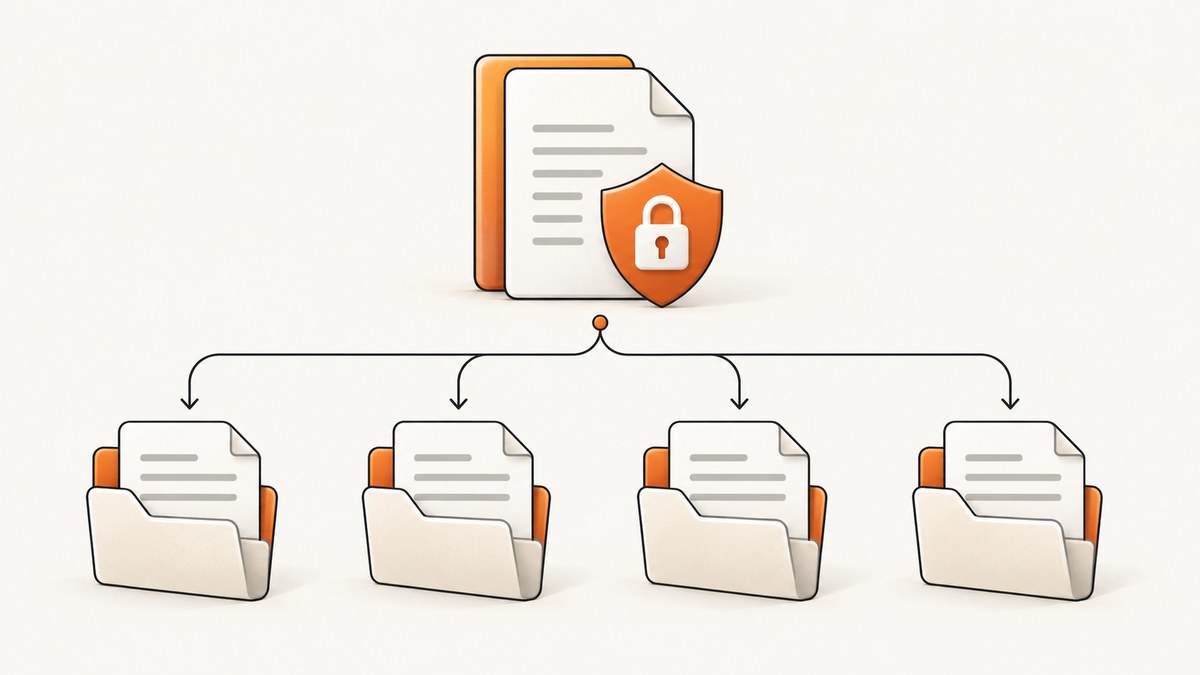
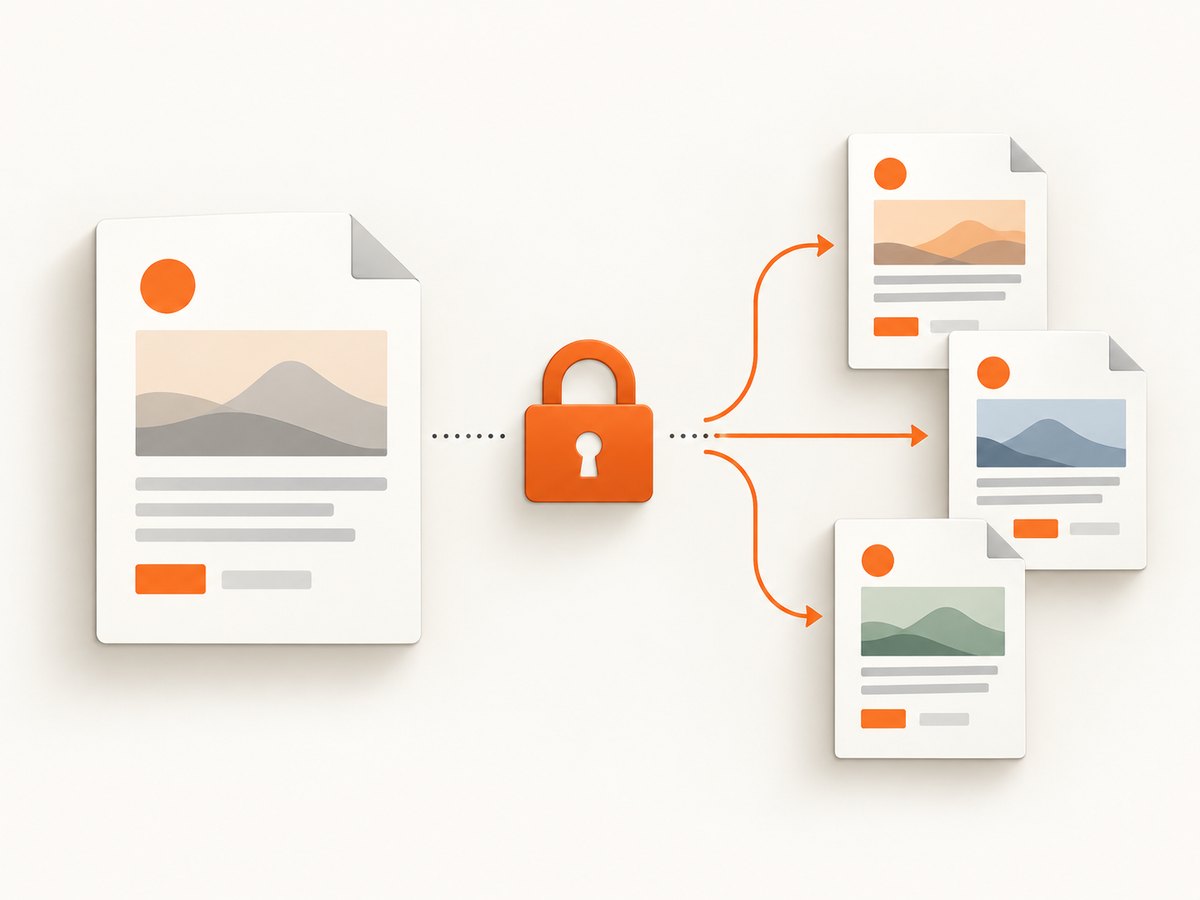
Use two layers of protection: lock the template inside its authoring application, then remove edit rights from the shared master in your storage system. Give users a clear “Create a new document” or “Save a copy” workflow so their entries are stored in a separate file.
A read-only flag by itself is not enough. Microsoft states: “Making your document read only doesn’t prevent someone from making a new copy of the document and saving it with a different name or in a different place.” The goal is to protect the canonical file while keeping it usable as a starting point.
1. Choose the workflow before changing permissions
Decide what users should be able to do:
| Requirement | Recommended workflow |
|---|---|
| Fill in specific fields only | Lock Word content controls and leave designated controls editable. |
| Read the template and make a personal copy | Set the master to read-only and instruct users to use Save a copy or Download a copy. |
| Comment or suggest changes | Grant SharePoint or OneDrive Can review, while keeping the file itself protected. |
| Maintain the official template | Limit Edit or Full Control to named maintainers in a dedicated library. |
2. Protect a Microsoft Word template
Lock only the fields users should not change
- Open the template in Word.
- Place content controls around fields users are allowed to complete.
- Select a control and open Developer > Properties.
- Enable the options that prevent the control from being deleted and, where appropriate, prevent its contents from being edited.
- Repeat for every field that must remain fixed, such as the title, legal text, calculations, or branding.
This approach lets users enter data in designated fields while preserving the surrounding structure. Test each control in both Word for the web and the desktop client if your team uses both.
Make the entire master read-only
- Open the master document.
- Go to Review > Restrict Editing.
- Under editing restrictions, choose No changes (Read only).
- Click Yes, Start Enforcing Protection.
- Set a password when prompted. Store it in your team’s approved password manager and give it only to maintainers.
Without a password, anyone who can open the document may be able to stop protection. A password prevents ordinary users from removing the Word restriction, but storage permissions are still required to prevent them from replacing the shared file.
3. Set SharePoint, OneDrive, or Teams permissions
Keep the canonical template in a dedicated SharePoint library or OneDrive folder. Teams files use the same underlying Microsoft 365 access model.
- Open the library or folder containing the master.
- Review the current sharing link and direct permissions.
- If inherited permissions give users Edit access, break inheritance for the library, folder, or file where appropriate.
- Give template maintainers Edit or Full Control.
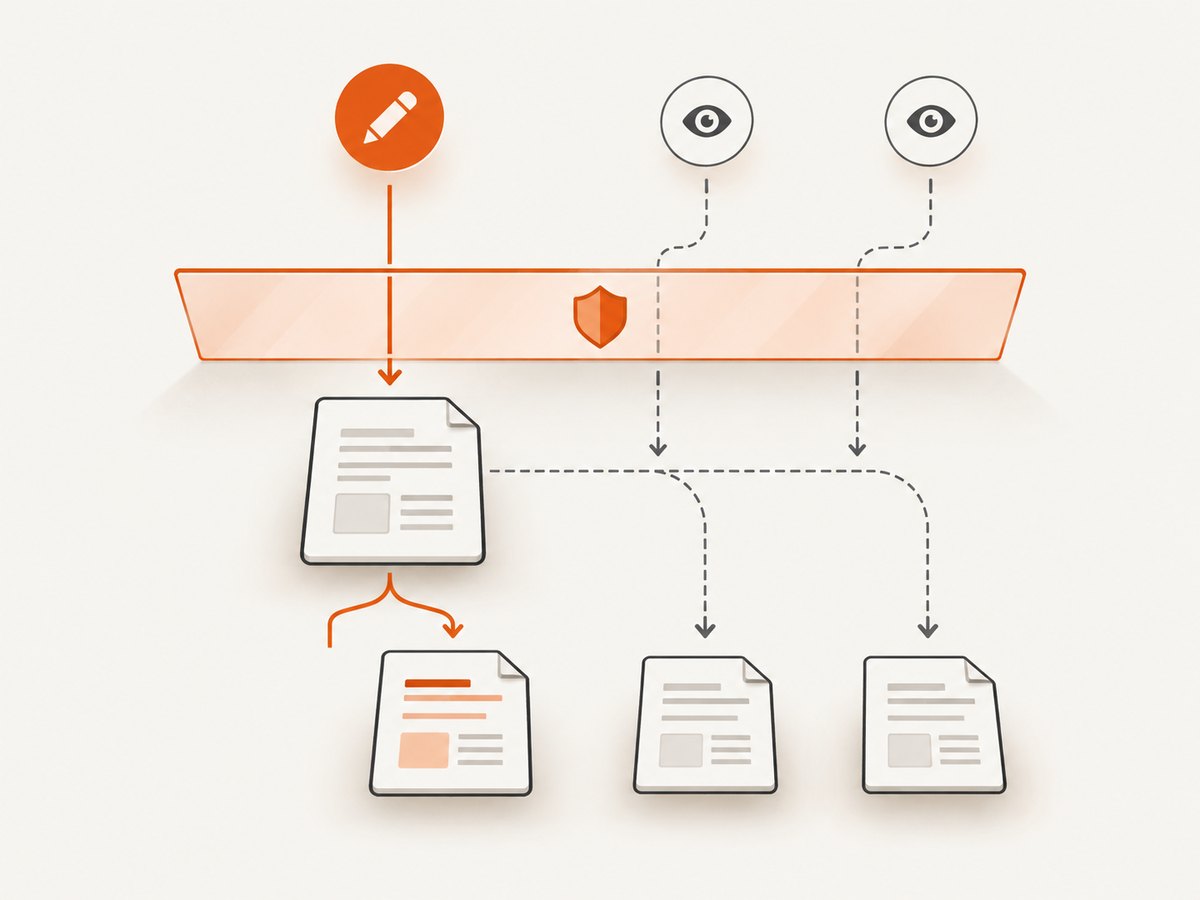
- Give ordinary users Can view or SharePoint Read. For review workflows, use Can review.
- Remove broad “Anyone with the link can edit” links.
Can view/Read prevents users from editing the master. Can review permits comments and suggestions but does not override an existing Edit permission. Check group membership as well as direct sharing: a user may inherit Edit access from a Microsoft 365 group or parent folder.
Use a separate submission location
Create a folder or library for completed copies. Give users permission to create files there without granting them permission to modify the master. Name files with a predictable convention such as ProjectName-EmployeeName-YYYY-MM-DD.docx. This makes ownership, retention, and recovery easier.
4. Make the copy action obvious
Place a short instruction next to the link and inside the template:
To use this template:
1. Open the file.
2. Choose File > Save a Copy (or Download a copy).
3. Save your working document in the Completed Templates folder.
4. Do not request Edit access to the master.
For a browser-based workflow, distribute a link that opens the master in view mode. For desktop users, explain that opening a read-only file and choosing Save As creates a new document; it does not update the canonical template.
5. Google Docs and Google Drive alternative
- Open the file’s Share dialog and set general access deliberately, usually to Viewer or Commenter.
- Turn off Editors can change permissions and share for files where editing is necessary.
- When users should work independently, instruct them to use File > Make a copy.
- Restrict copying, printing, and downloading when the template contains material that must not be redistributed.
- Check the parent folder. Inherited access can still give a user Editor rights even when the file-level setting looks restrictive.
Google’s controls protect sharing and copying behavior, while the separate-copy workflow keeps user data out of the master.
6. Recommended implementation sequence
- Store the master in a dedicated template library or folder.
- Audit inherited permissions and remove Edit access for ordinary users.
- Grant maintainers Edit or Full Control; grant users View/Read or Review.
- Lock Word content controls and enable Restrict Editing with a password.
- Publish a prominent Create a new document or Save a copy instruction.
- Test the complete journey with a non-owner account.
- Confirm that the test user can create a copy, complete allowed fields, and cannot save changes over the master.
- Keep version history and an owner-maintained backup so an administrator can restore an accidental change.
7. Test cases and edge conditions
| Test | Expected result |
|---|---|
| Open the master in a browser | User can view it and sees the copy instruction. |
| Try to type outside an unlocked Word control | Word blocks the edit. |
| Try to remove protection | Password is required. |
| Use Save a copy | A new file is created in the user’s permitted destination. |
| Open the master from a Teams channel | Permissions remain read-only because Teams uses the same storage ACL. |
| Use a maintainer account | Maintainer can update the master and publish a new version. |
| Access through a group or parent folder | No inherited Edit permission bypasses the intended restriction. |
Co-authoring can lock the paragraph currently being edited and reduce simultaneous overwrite risk, but it does not replace library permissions. Anyone with Edit rights can still change and save the shared file.
8. Troubleshooting
Users can still edit the master
Cause: They have Edit access through a group, parent folder, or an old sharing link. Fix: Inspect effective access, remove Edit links, and change the inherited permission or move the master to a controlled library.
Users can edit text that should be fixed
Cause: The Word content control was not locked, or Restrict Editing was not started. Fix: Recheck each control’s Properties and enable No changes (Read only) for the complete document when necessary.
Anyone can turn off Word protection
Cause: Protection was enabled without a password. Fix: Stop protection, restart it with a maintainer-only password, and verify with a non-owner account.
The copy option is missing
Cause: The client is using a different menu, or the user has no permission to create files in the destination. Fix: Provide both browser and desktop instructions and grant Create/Contribute permission only on the destination folder.
A Google Doc is still editable
Cause: General access or a parent-folder role grants Editor access. Fix: Review effective access, change the user to Viewer or Commenter, and disable editor resharing.
A bad change reached production
Cause: A maintainer or inherited Editor permission changed the canonical file. Fix: Restore the prior version from version history, narrow maintainer access, and retest with a non-owner account.
9. Security, reliability, and maintenance
- Accidental changes: Application protection plus storage permissions covers both editing and saving.
- Intentional changes: Restrict Edit/Full Control to maintainers, use a password, and retain version history.
- Copying: Read-only access does not prevent a user from making a separate copy. Decide whether copying is allowed and configure download/copy restrictions where supported.
- Compatibility: Verify desktop Word, Word for the web, Teams, and mobile behavior if those clients are in use.
- Recovery: Keep an owner-maintained backup and define who can restore or republish the master.
- Governance: Review permissions after team membership changes, folder moves, and new sharing links.
10. Or skip the browser setup
If your documentation or template workflow needs screenshots, ScreenshotNeo can capture a page with one request. Its cleanup step accepts cookie/consent banners and removes more than 60 known consent platforms, newsletter popups, and chat widgets before the shot. Bot checks, blank pages, timeouts, failed loads, and cache hits are not billed, and each response identifies the result with X-Page-Verdict and X-Billed headers. An MCP server lets Claude, Cursor, and other AI agents use take_screenshot, get_page_info, and capture_pdf.
See the ScreenshotNeo API documentation for all options.
curl -G "https://api.screenshotneo.com/v1/shot" -d access_key=YOUR_API_KEY --data-urlencode url=https://screenshotneo.com -o shot.webpimport requests
r = requests.get("https://api.screenshotneo.com/v1/shot", params={"access_key": "YOUR_API_KEY", "url": "https://screenshotneo.com"}, timeout=90)
open("shot.webp", "wb").write(r.content)const q = new URLSearchParams({ access_key: 'YOUR_API_KEY', url: 'https://screenshotneo.com' });
const res = await fetch(`https://api.screenshotneo.com/v1/shot?${q}`);The free plan includes 1,000 screenshots each month with no card. Paid plans start at $5 for 3,000 shots. Create a free ScreenshotNeo account.
11. FAQ
Does setting a Word file to read-only stop copying?
No. Users can still make a separate copy. That is why permissions and a clear copy workflow are required.
Should every user get Review access?
Only when comments or suggestions are part of the workflow. Otherwise, Can view/Read gives the smallest practical permission.
Can co-authoring protect the master?
No. It can reduce simultaneous editing conflicts, but users with Edit rights can still change the file.
Where should completed documents live?
Use a separate folder or library where users can create files but cannot modify the canonical template.
What is the safest test?
Use a non-owner account, open the master through every channel users use, attempt an edit, create a copy, and verify the original’s version and contents remain unchanged.


